How to set up and use your personal voice profile
Last updated: October 26, 2026
IMPORTANT
Voice management in AI Studio is being deprecated. All org and team voices should be migrated to Enterprise Brain to remain available post deprecation. Personal voice profiles should be converted into skills for individual or shared use. See the following resources:
📄 How to set up Enterprise Brain
📄 Migrating org and team voices to Enterprise Brain
📄 Migrate your personal voice to a skill
A personal voice profile lets you tune WRITER's output to match your individual writing style. Personal voices are private to the creator — they do not appear in your team's shared voice library and cannot be selected, edited, or applied by anyone else in your organization.
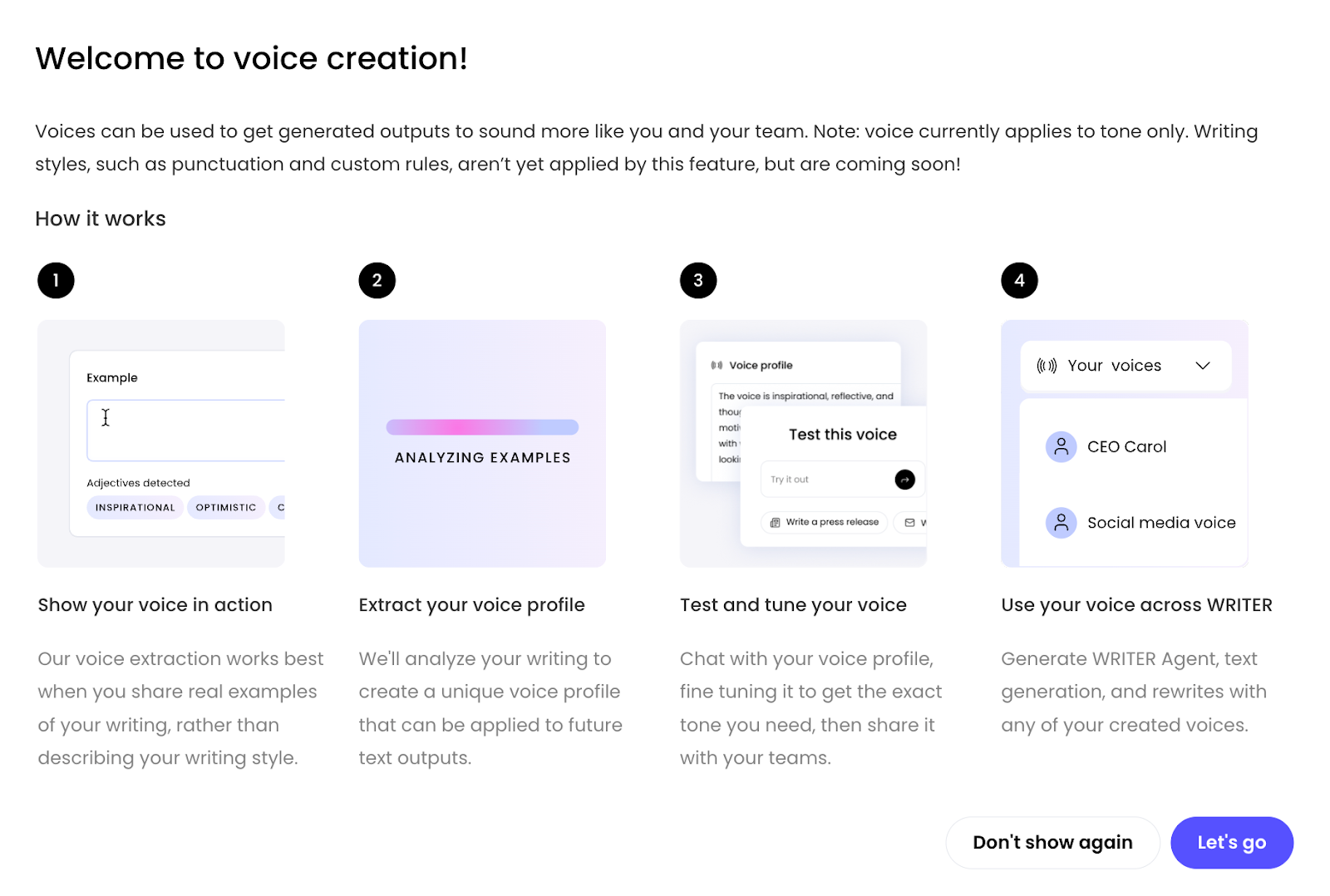
The voice creation experience is unified across all voice types. Personal, team, and org voices are created using the same calibration workflow. The only distinction is visibility and access:
Personal voices are visible only to the creator.
Team voices are shared with members of a specific Team.
Org voices are available across the organization.
How to create a personal voice
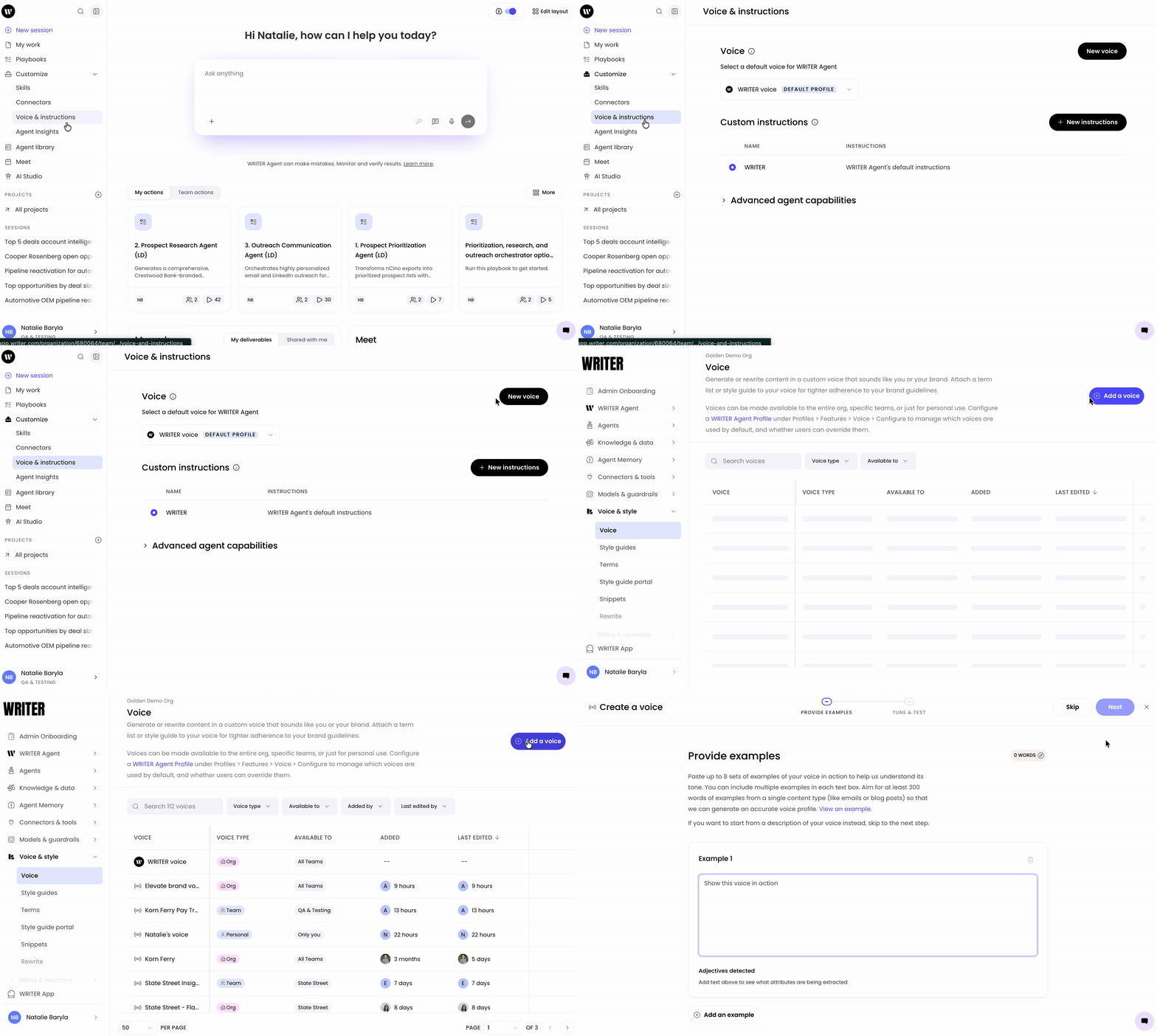
Navigate to Customize > Voice & instructions > New voice and you'll be taken to AI Studio where WRITER configuration takes place.
There are two ways to create a voice in WRITER:
Start with examples (recommended): Provide examples of your best, most representative content. WRITER will analyze the copy to identify distinguishing traits, vocabulary, and style.
Start with a voice description: Select Skip in the upper right corner of the voice creation flow to bypass the examples, paste in an on-brand description and edit it directly.
Create a voice from examples (recommended)
Voice profiles created from examples consistently generate better, more brand-aligned outputs than manually written descriptions. Examples allow WRITER to reverse-engineer your actual writing style, tone, and vocabulary.
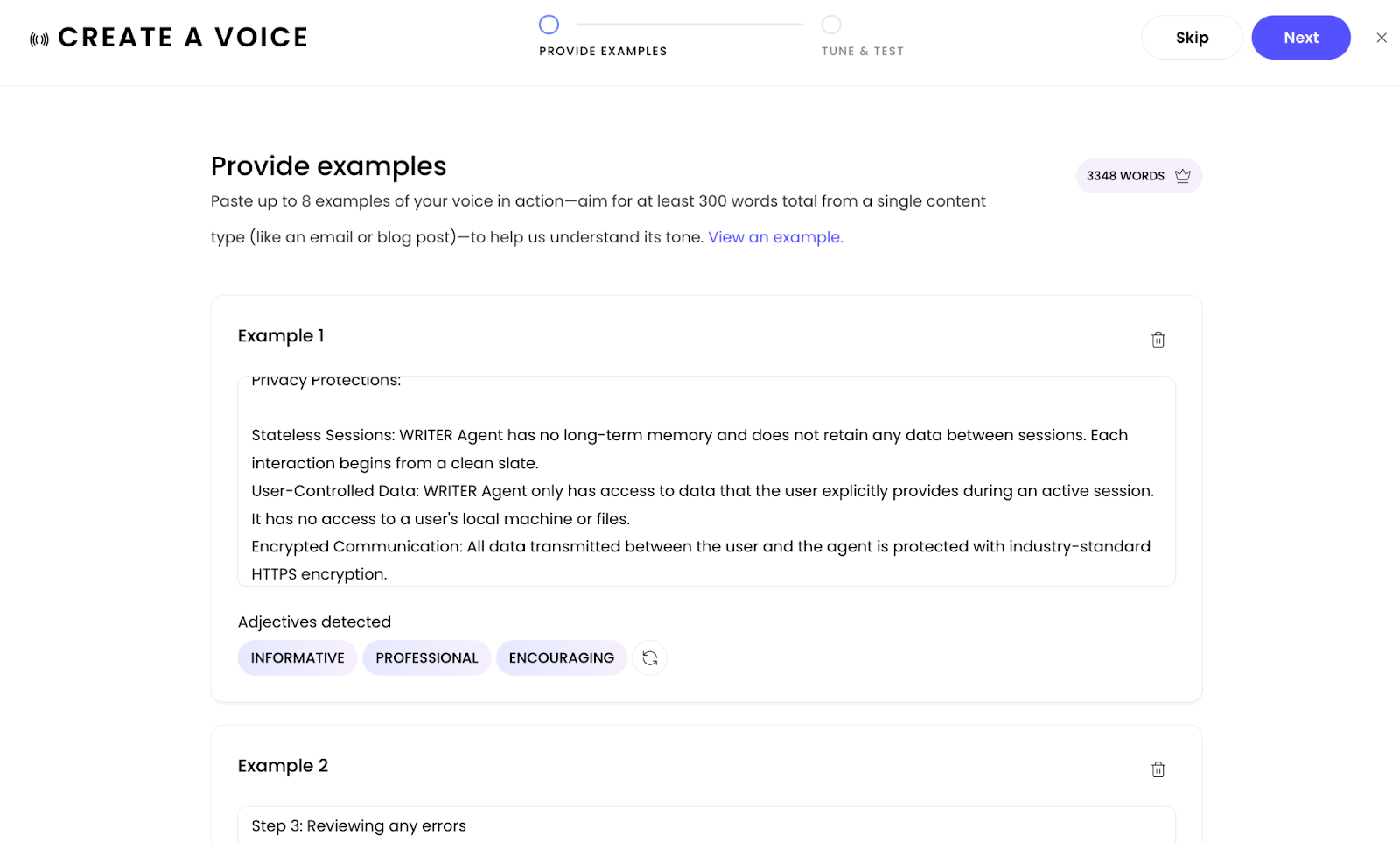
Paste examples of your on-brand content into the text boxes. You can use up to 8 text boxes to organize different examples.
You’ll see adjectives automatically generated and displayed below the example. These can be regenerated after changing the example text and selecting the refresh icon next to the adjectives.
Provide at least 300 words total (500+ words recommended). There is no upper limit—provide as many examples as you need within each example box.
💡 Tip: For best performance, provide examples from a single content type (like all email examples or all blog posts) rather than mixing different formats. This helps WRITER understand the specific voice for that use case.
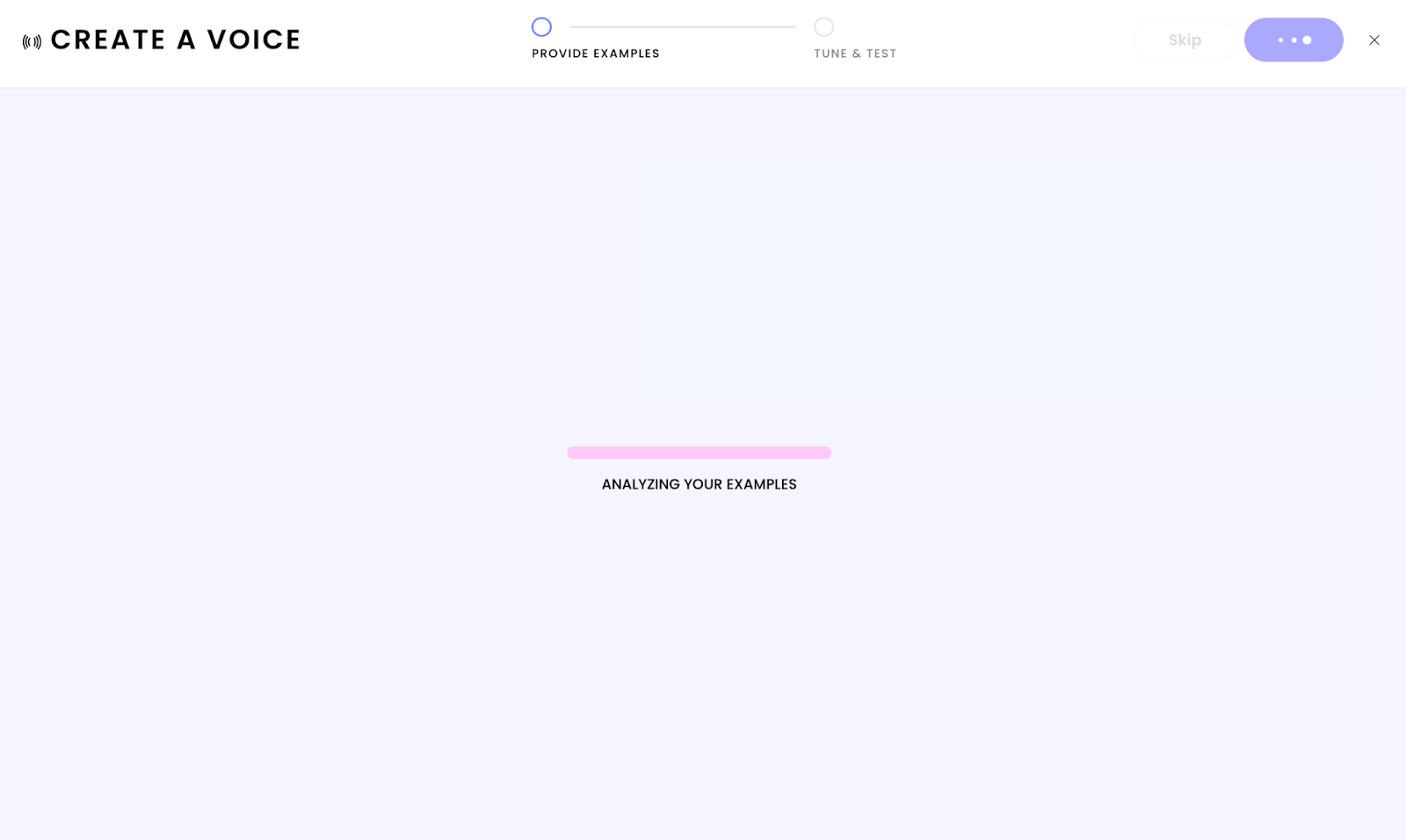
WRITER analyzes your examples and extracts a voice profile with a short overview and detailed characteristics.
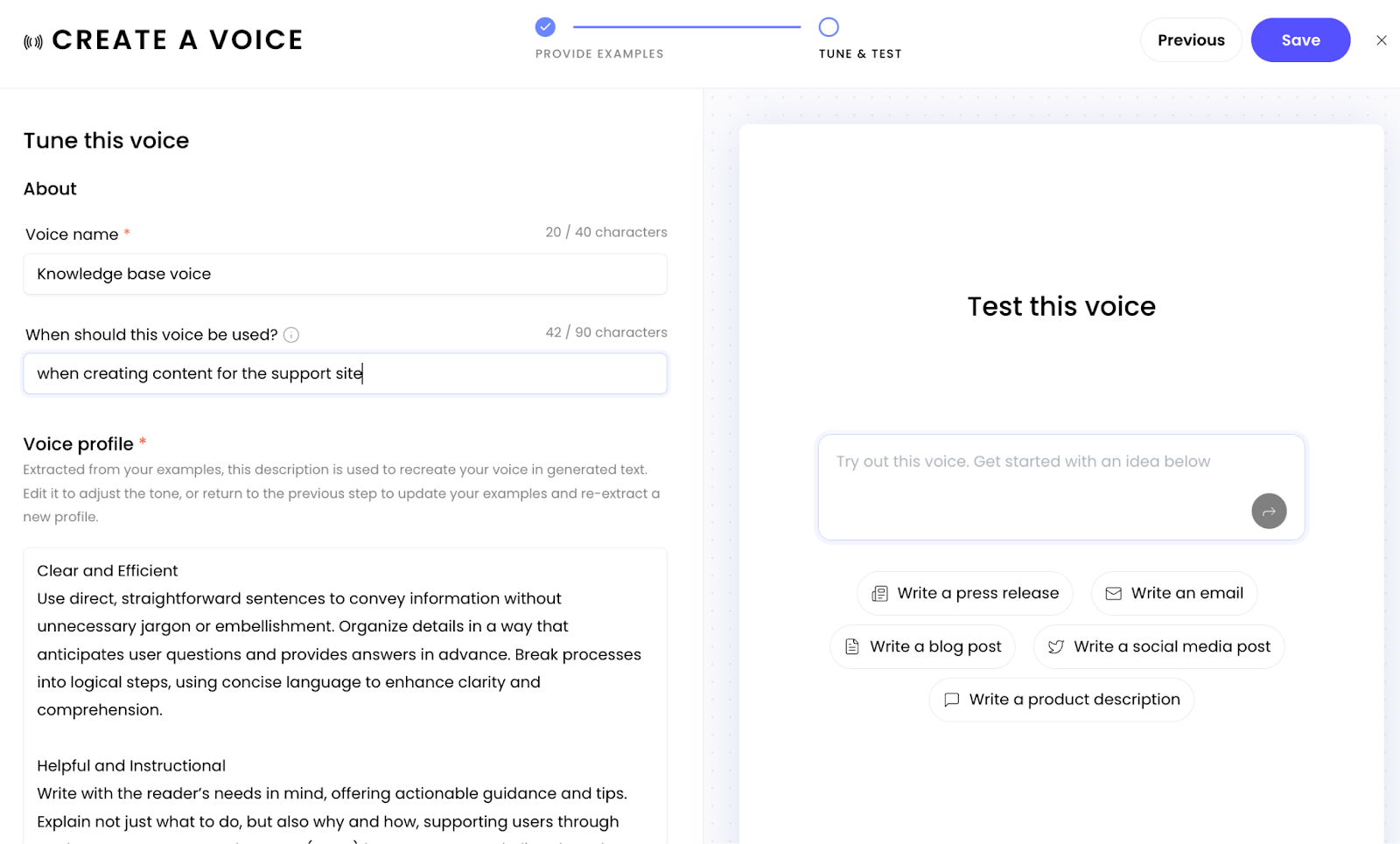
Enter a Voice name and provide a description so your team knows when to use it.
Review the extracted voice profile. If it sounds right, proceed to the next step. If not, you can update your examples and re-extract.
In the Voice profile section you’ll see a description of the attributes pulled from the examples. Review this and make adjustments as needed.
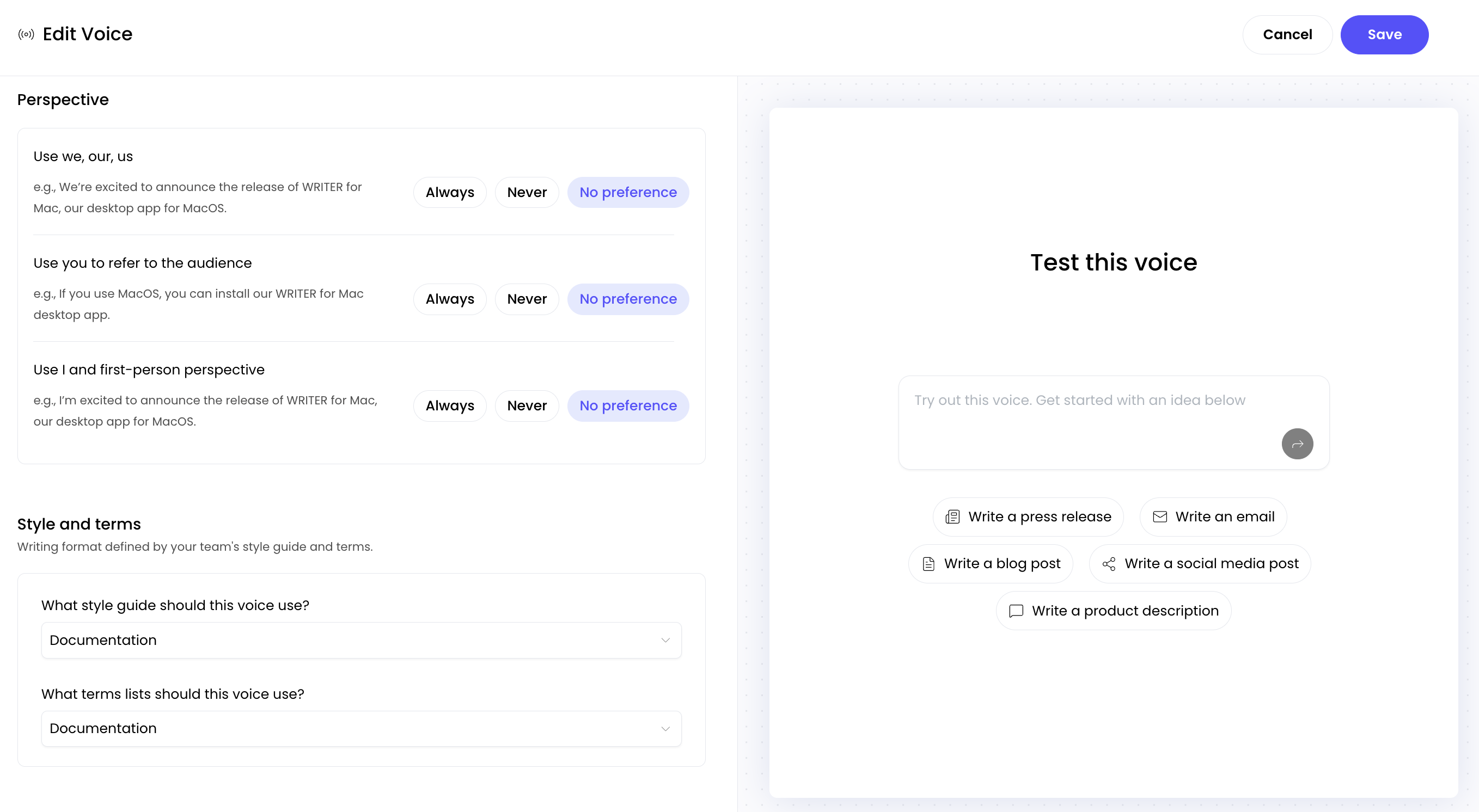
Next, below the Voice profile section you’ll find the perspective settings to further customize the voice.
In the Style and terms section you can select the style guide and terms you've configured in your team settings that you'd like to have applied to this voice. Adding a style guide here will apply your company specific suggestions to WRITER Agent outputs. Learn more about style guide suggestions here. WRITER Agent can also access your termbank to avoid using words you've set up when configuring terms. Learn more about terms here.
⚠Important: In order for your style guide and terms to apply to outputs generated in WRITER Agent you must first connect them to the voice profile.
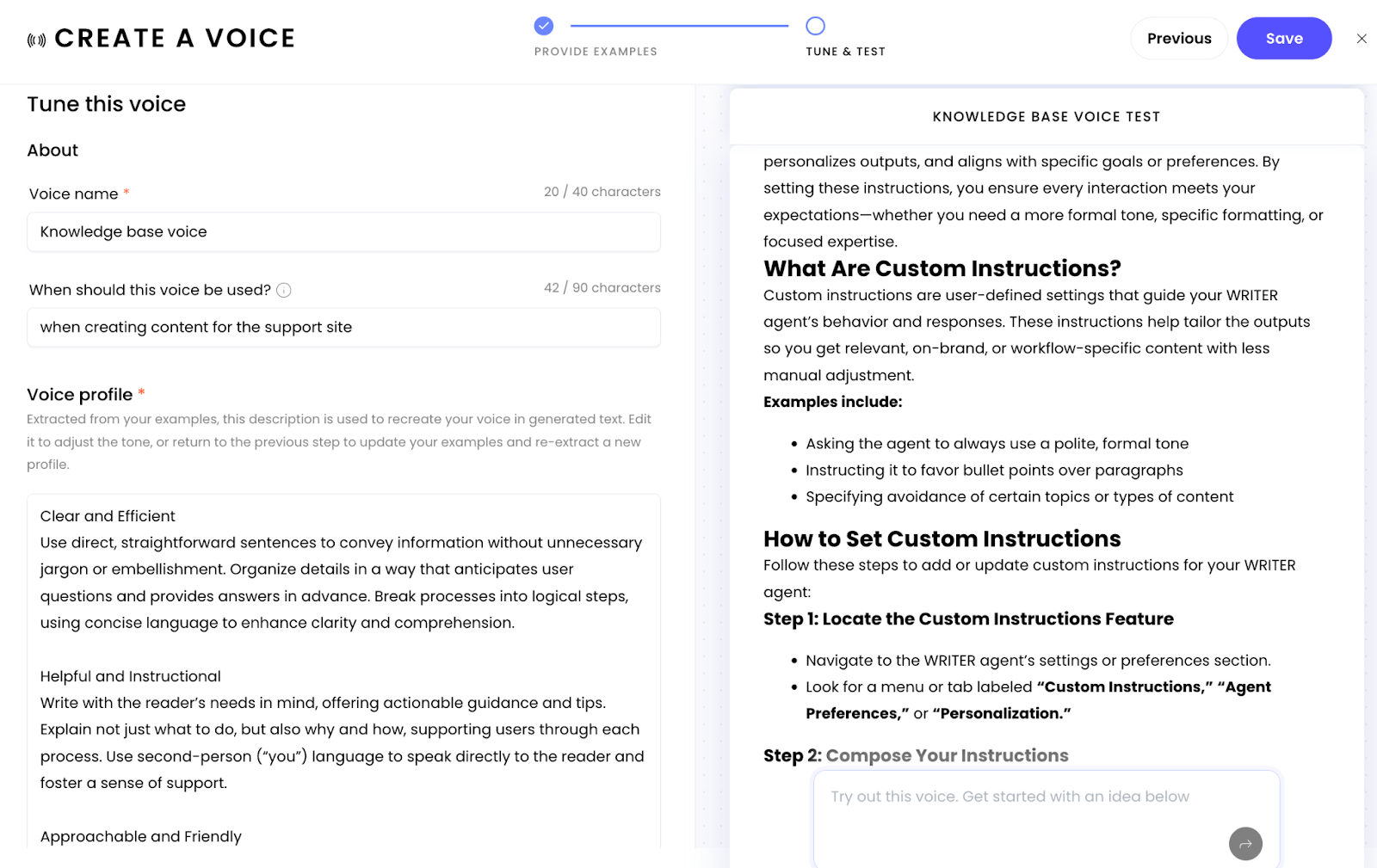
Test the voice using the window on the right to ensure the content is sounding on-brand. If not, adjust the voice profile or go back through the previous steps and add more examples.
Select Create voice or Save.
Create a voice from a description
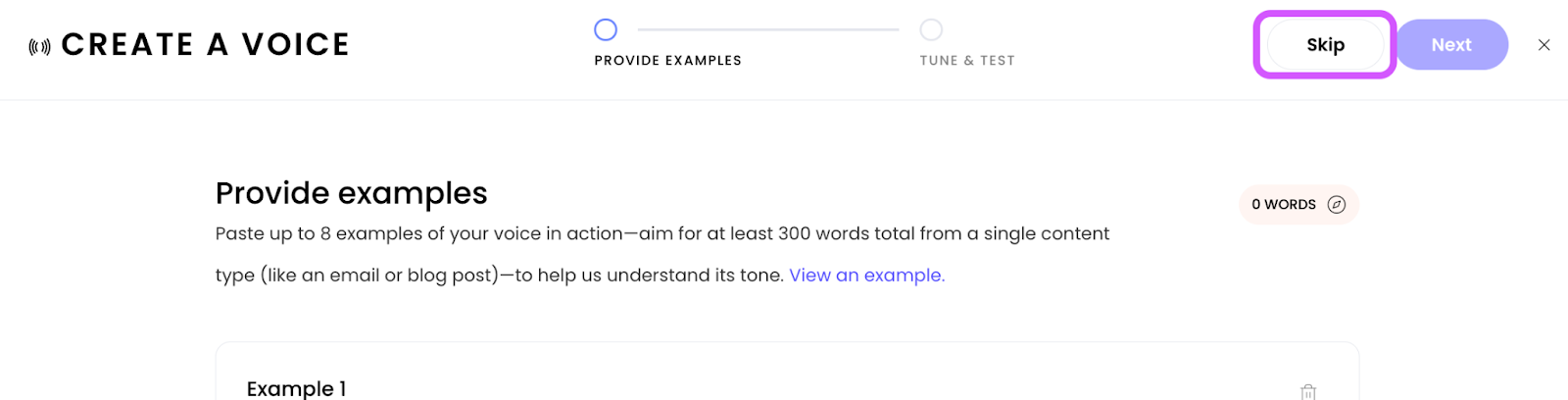
If you prefer to start with a voice description instead of examples:
Select Skip and edit directly to bypass the examples step.
Paste or write your voice profile description in the text field and follow the same directions as above to test and save your voice profile.
⚠ Note: While you can skip the examples step, our internal testing shows that voice profiles created from examples consistently generate better, more brand-aligned outputs than manually written descriptions. For best results, we recommend creating voices from examples.
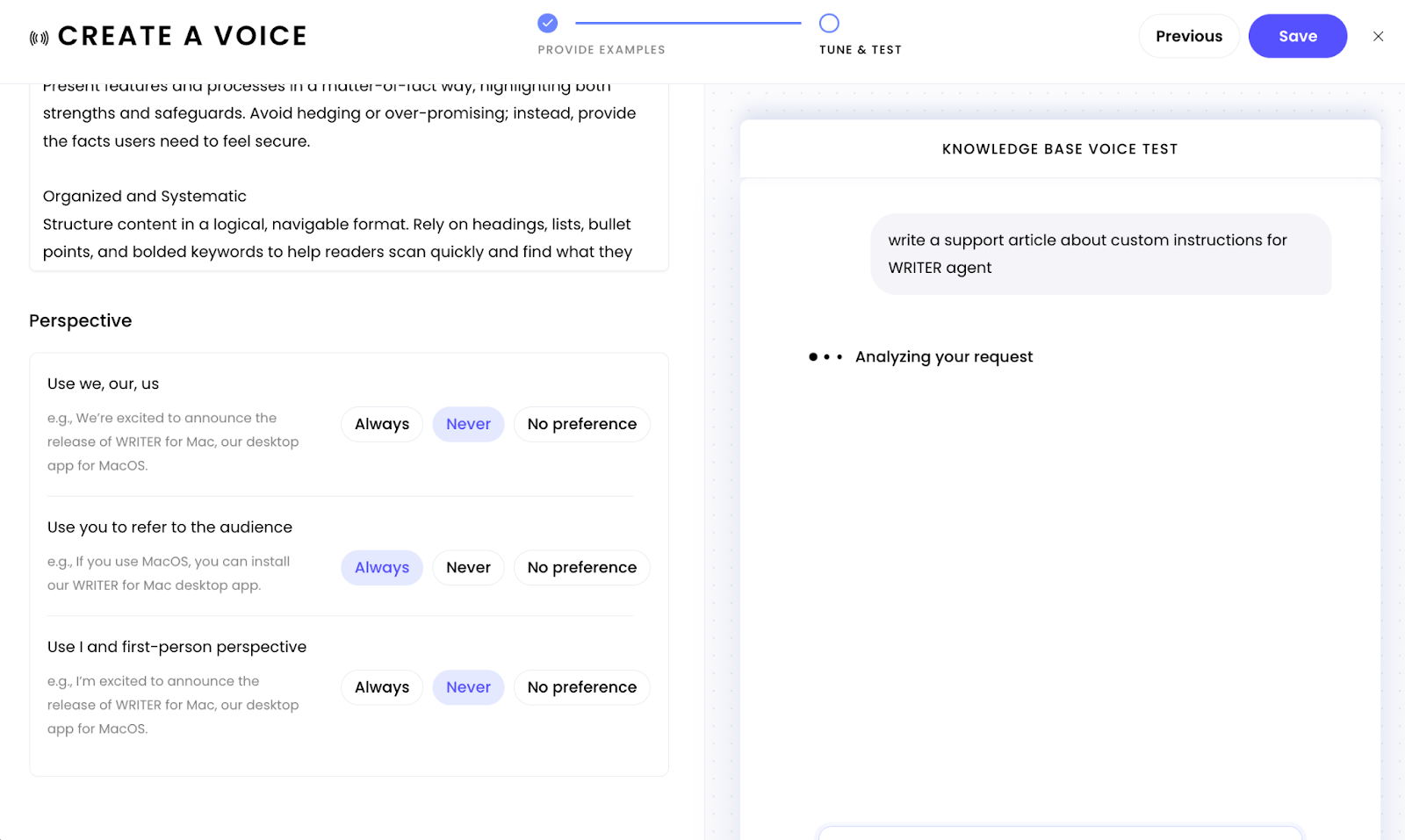
Once your voice has been created scroll down past the profile to adjust the perspective that should be used for the content generated using this voice profile.
To make this voice the default for your team or org you will need to update the agent profile. Learn about WRITER Agent profiles here.
How to test and refine a voice profile
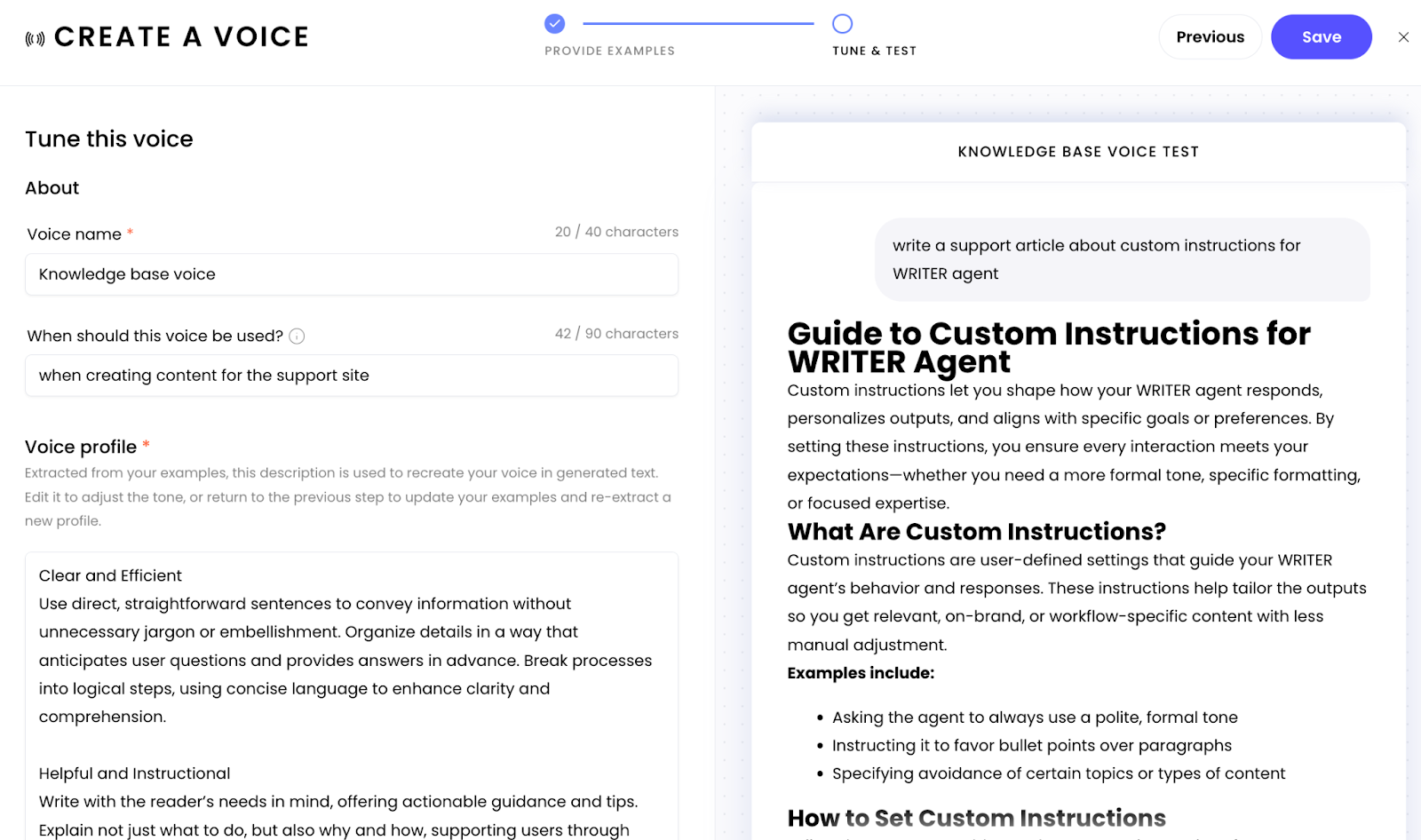
When creating a voice, you can test how it performs and refine it until it's right:
In the last step of the voice profile creation flow you can enter sample prompts to test the outputs. We recommend using prompts that align with the content the voice profile is tuned for.
Review how the voice performs. Does it match your expectations?
If you need to make adjustments:
Return to the previous step to update your examples or voice description
Test again to see the updated results.
Iterate as needed until you're satisfied with the voice performance.
💡 Tip: Test your voice on different content formats that match your intended use case. If you're creating a voice for blog posts, test it on blog-style content. If it's for emails, test it with email content. This ensures the voice performs well for your specific needs.
How to edit an existing voice profile
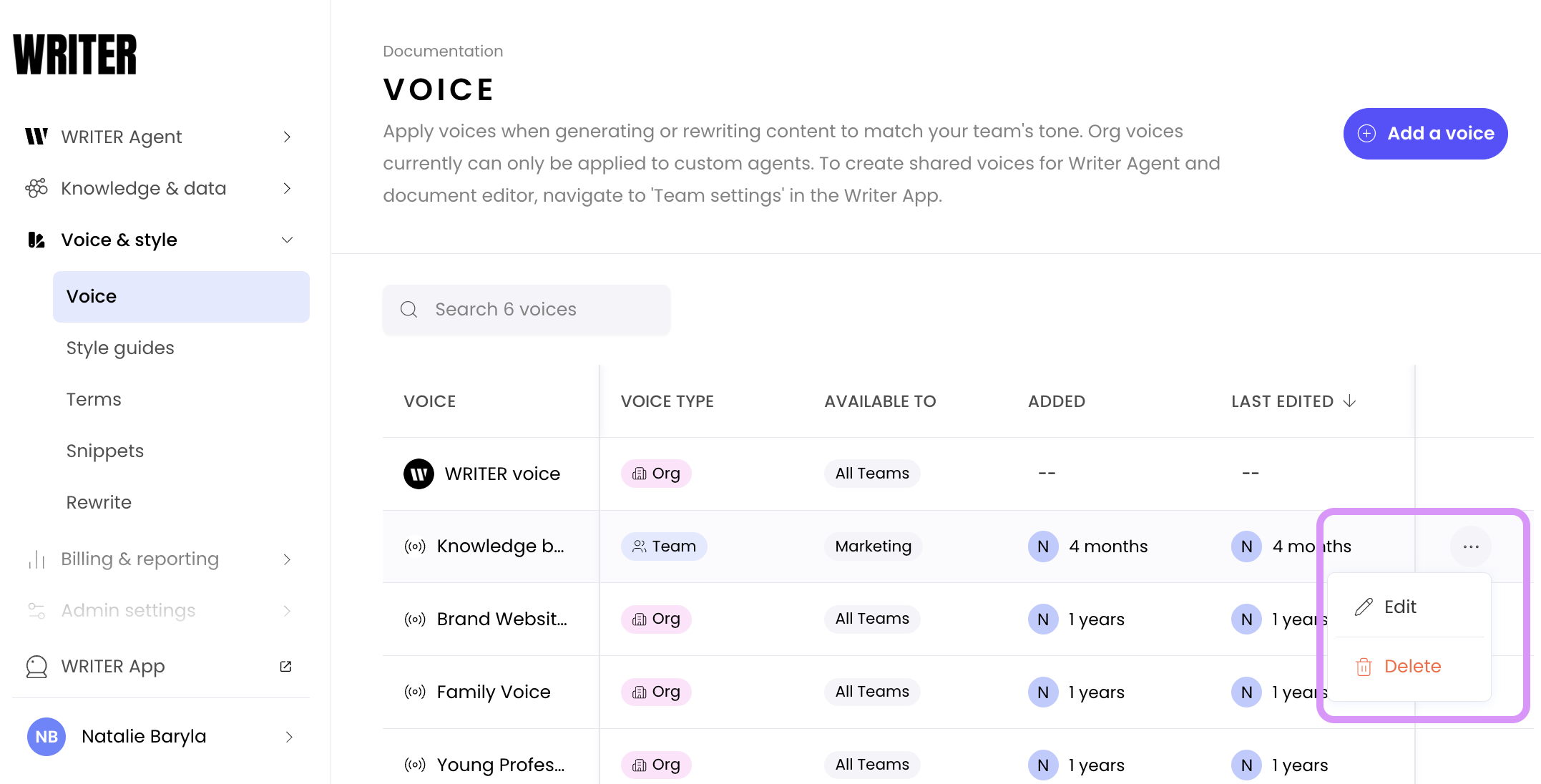
Voice allows you to edit and refine voice profiles as your brand evolves:
Navigate to AI Studio> Voice & style > Voice. Then locate the voice profile you want to edit, select the ••• menu next to the voice, and select Edit.
If you customize your style guide and terms before configuring a voice you will need to head back here, edit the voice, and connect them. Once connected the style and terms will automatically apply to WRITER Agent generations when that voice is used.
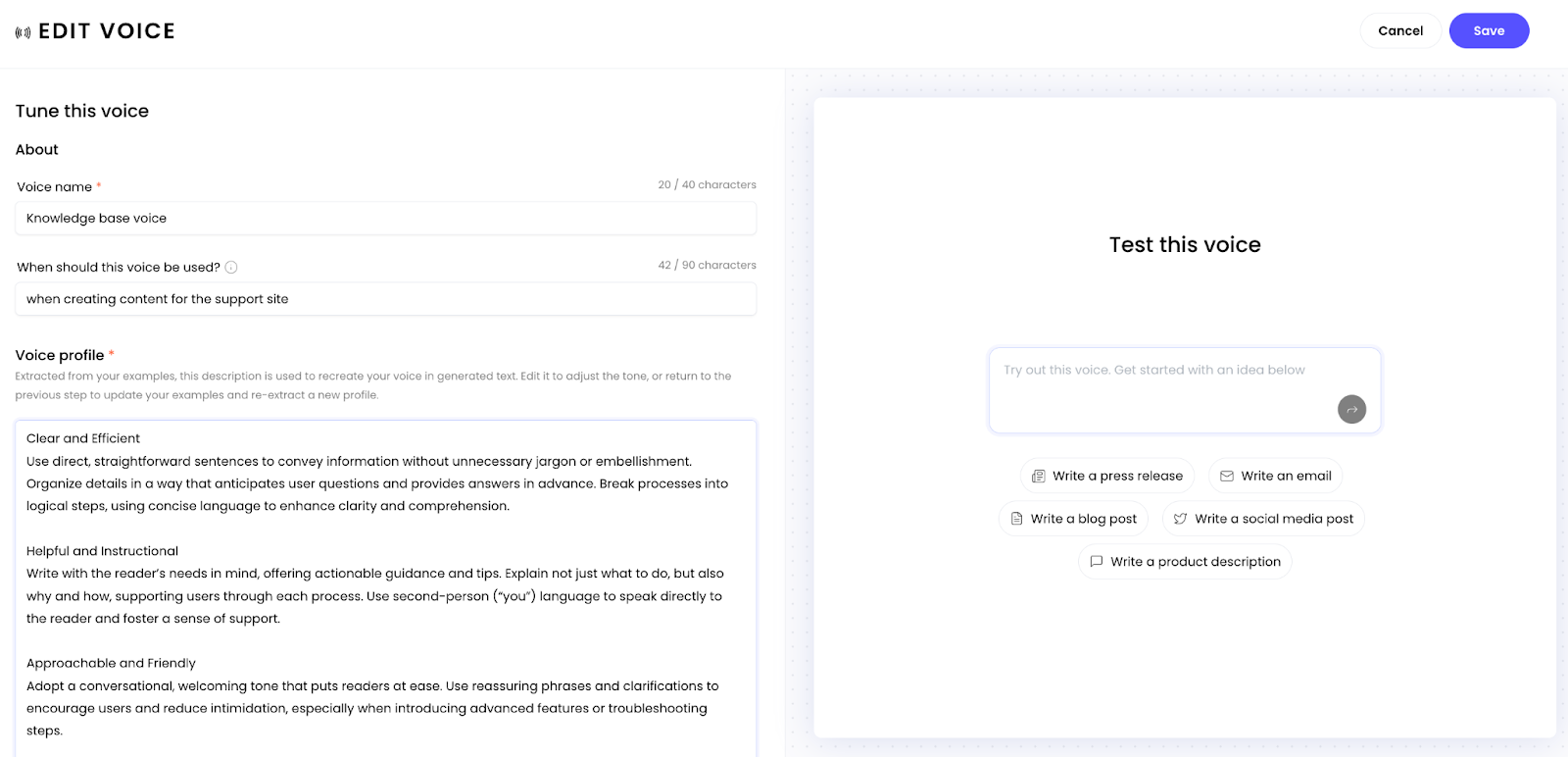
From here you can update your voice profile, test it to ensure it performs as expected. Select Save when you're satisfied with the changes.
How to apply voices to WRITER Agent
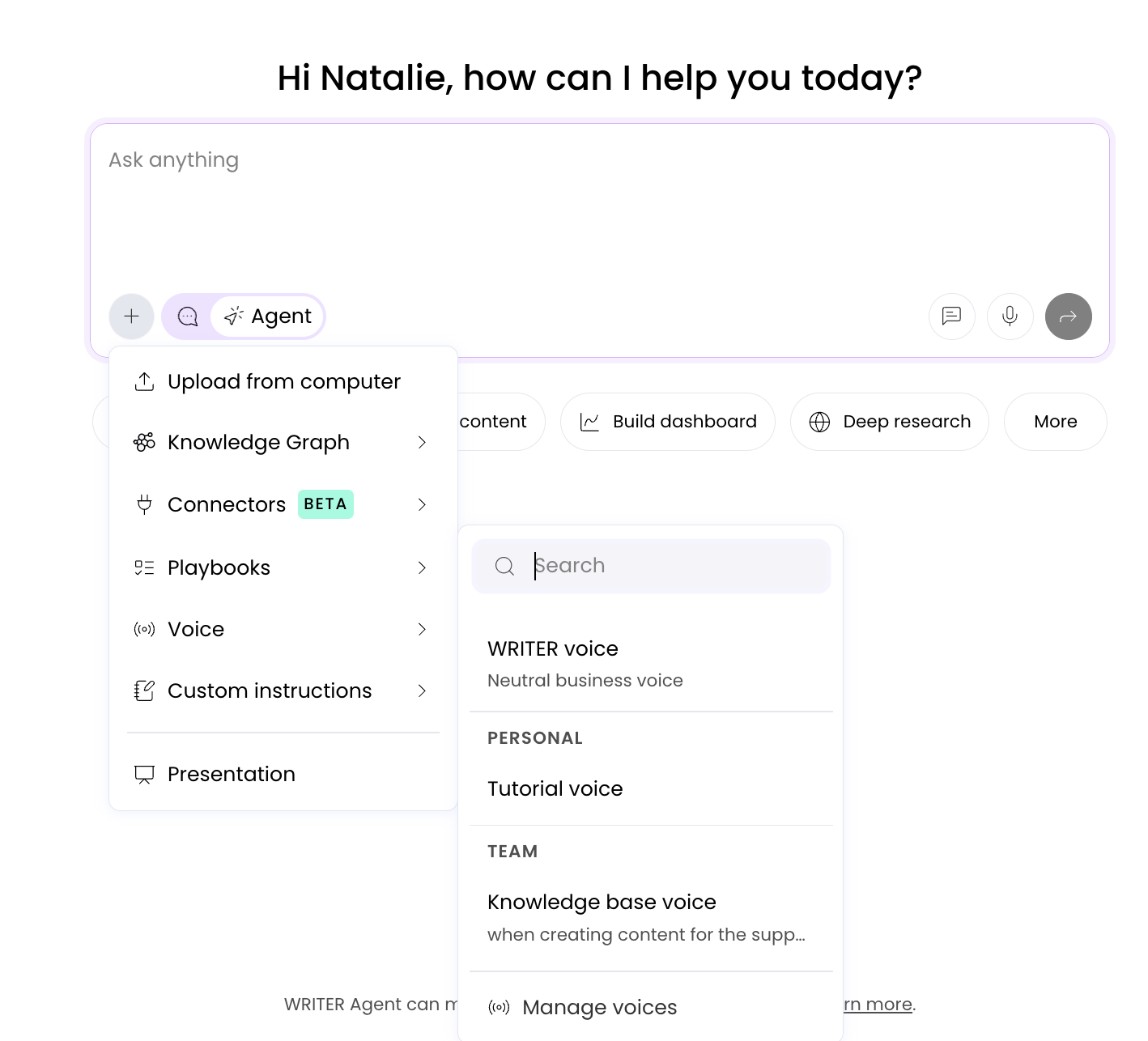
To have a specific voice applied to your WRITER Agent session, select it from the + menu. To learn more about using WRITER Agent click here. Be sure to only apply voices where it makes sense to do so. (e.g. when you're tool-calling – meaning you're performing an internal action like searching the web for facts or analyzing data – that's a background operation where a voice isn't needed.)
Personal voices versus team and org voices
The table below summarizes the differences between the three voice types.
Voice type | Visibility | Available in | Can be set as a default |
|---|---|---|---|
Personal voice | Creator only | WRITER Agent | No |
Team voice | Members of a specific Team | WRITER Agent, document editor, custom agents | Yes, via the Team's agent profile |
Org voice | All members across the organization | WRITER Agent, document editor, custom agents | Yes, via the Org's agent profile |
Important: Only Team admins and Org admins can set a Team or Org voice as the default. Personal Voices cannot be configured as defaults for anyone other than the creator.
FAQs
Who can create a personal voice profile?
Any team member with access to AI Studio can create a personal voice. Team members have AI Studio access for voice management purposes.
Can other people in my organization see my personal voice?
No. Personal Voices are private to the creator. They do not appear in the shared team or org voice library, and no one else can view, edit, or select them.
How much copy do I need to submit to create a personal voice?
You must submit a minimum of 300 words and a maximum of 1000 words. The copy should represent your writing style and can come from multiple sources.
Can I create more than one personal voice?
Yes. You can create multiple personal voices for different use cases and audiences. Each one remains private to you.
Can I edit my personal voice after I create it?
Yes. From the Voice page in AI Studio, select your voice profile to adjust its profile, update the copy used for analysis, or modify the guidance in the When to use the voice field.
What is the difference between having copy analyzed and manually selecting traits?
When you have copy analyzed, WRITER reads your writing samples and builds a voice profile automatically. When you manually select traits, you define your voice by choosing specific style characteristics without submitting copy.