Migrating org and team voices, terms, and style guides to Enterprise Brain
Last updated: November 5, 2026
Voice profiles, style guides, and terms in Control Center (fka AI Studio) are being deprecated. Org admins must migrate org and team voices, along with their connected style guides and terms, to Enterprise Brain to preserve them. Enterprise Brain makes all three part of the shared context layer that WRITER Agent references automatically, alongside brand guidelines, compliance logic, and approved assets.
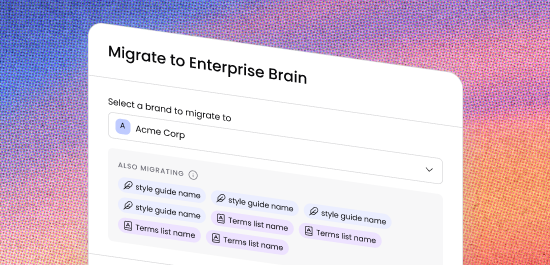
Warning: Migrate all org and team voices, style guides, and terms before the deprecation takes effect. Once voice, style guide, and terms management in Control Center is deprecated, you will not be able to access, edit, or migrate existing configurations from Control Center.
Before you begin
Before you start the migration, confirm the following:
You have the correct role. Only org admins can migrate voices, style guides, and terms to Enterprise Brain. If you need team admins to migrate their own team's configurations, assign them the Enterprise Brain admin role first. Learn more in Understanding roles and permissions in WRITER.
Enterprise Brain is deployed. Enterprise Brain deploys automatically for your organization and can be found in the main menu. If you don't see it in the main navigation menu, contact your WRITER account team.
Review your connected style guides and terms. When you migrate a voice, its connected style guide and terms migrate with it automatically. If a voice doesn't have a connected style guide or terms, you can still migrate the voice on its own.
There are no limits on the number of voices, style guides, or terms. You can migrate as many as you need.
Note: You can also migrate terms or style guides independently from the Terms or Style guide page in Control Center without migrating the associated voice. We strongly suggest migrating voices first so that the connected style guide and terms are migrated together in a single step.
How Enterprise Brain uses voice profiles, style guides, and terms
Enterprise Brain is a shared context system that collects everything your organization knows about its brand, customers, and go-to-market motion and makes it available to agents across the organization. Voice profiles, style guides, and terms are all part of the brand-and-guidelines layer within Enterprise Brain.
When you migrate an org or team voice to Enterprise Brain, the voice profile, along with associated terms and style guide, appears as a .md file in the language section of your brand & guideline file. When a brand is selected, WRITER Agent references all of this context automatically, applying the correct voice, style rules, and terminology without relying on each user to select them manually.
Tip: After migration, the voice, style guide, and terms remain visible in Control Center but are no longer editable there. The source of truth moves to Enterprise Brain. All future edits must be made in Enterprise Brain. Reviewing and testing your configuration before migration avoids needing to learn the Enterprise Brain editing interface just to make quick fixes.
How to prepare org and team voices for migration
Review each voice profile and its connected style guide and terms before migration so Enterprise Brain captures the most current configuration.
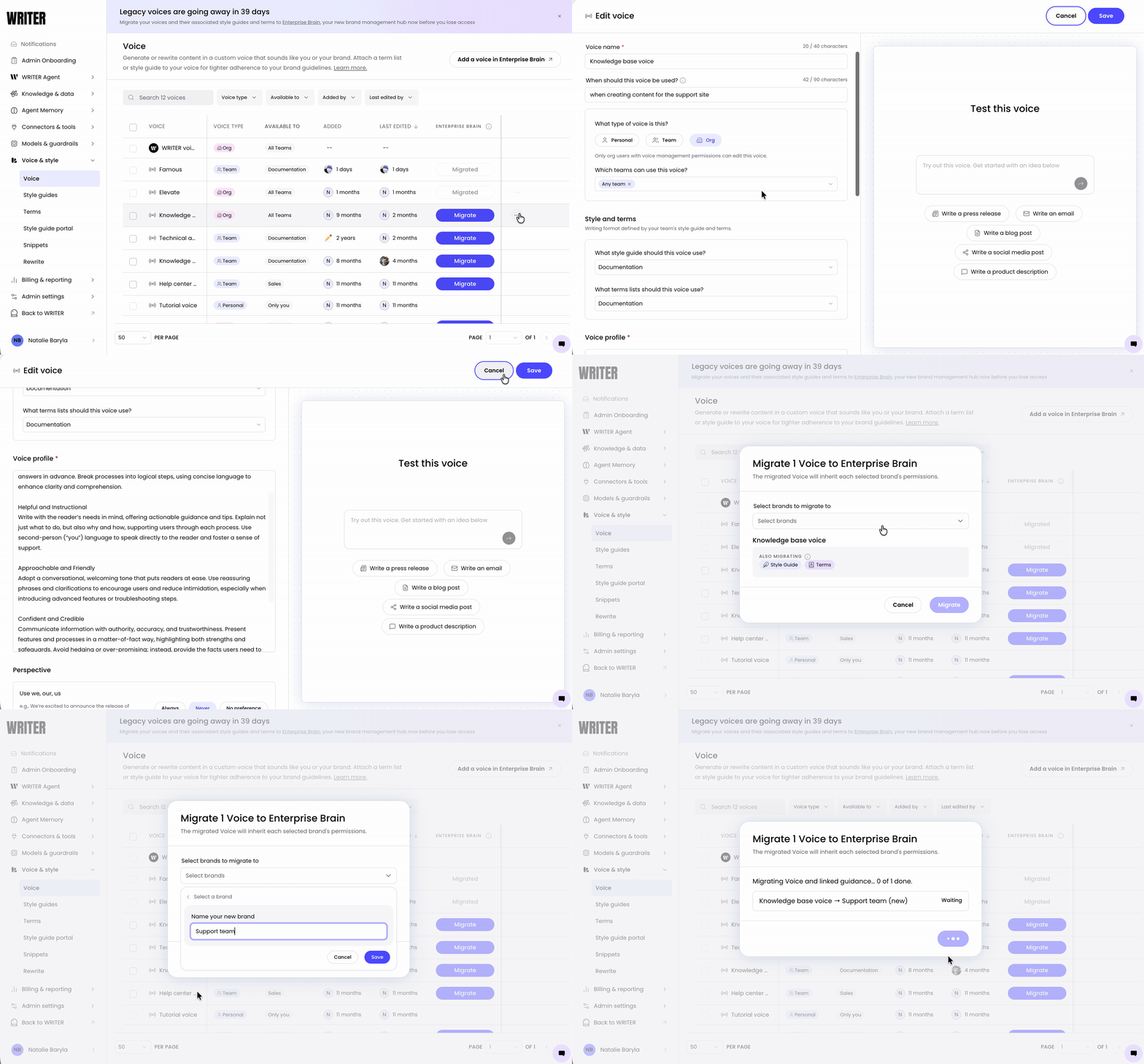
Navigate to Control Center > Suggestions > Voice.
Locate the org or team voice you want to migrate.
Select the ••• menu next to the voice, then select Edit.
Review the Voice profile section, including the overview and extracted characteristics.
Review the Style and terms section to confirm the correct style guide and terms are connected.
If the voice, style guide, and terms still look relevant, exit the edit screen. Proceed to the migration steps below.
How to migrate voices to Enterprise Brain
Navigate to Control Center > Suggestions > Voice.
Locate the org voice you want to migrate.
Select the Migrate button next to the voice.
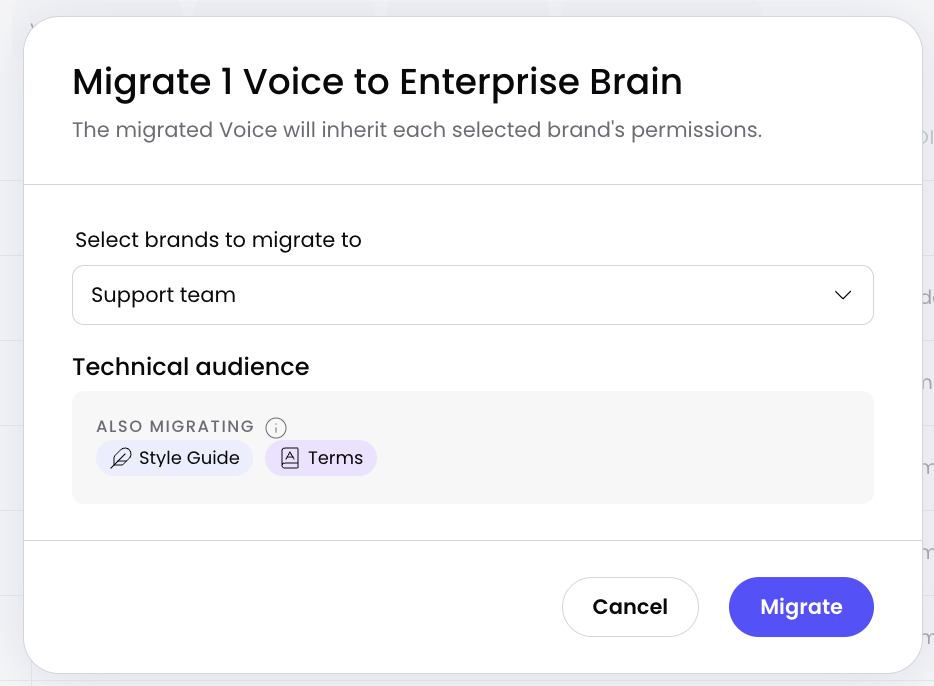
Confirm the migration when prompted. WRITER moves the voice profile to Enterprise Brain.
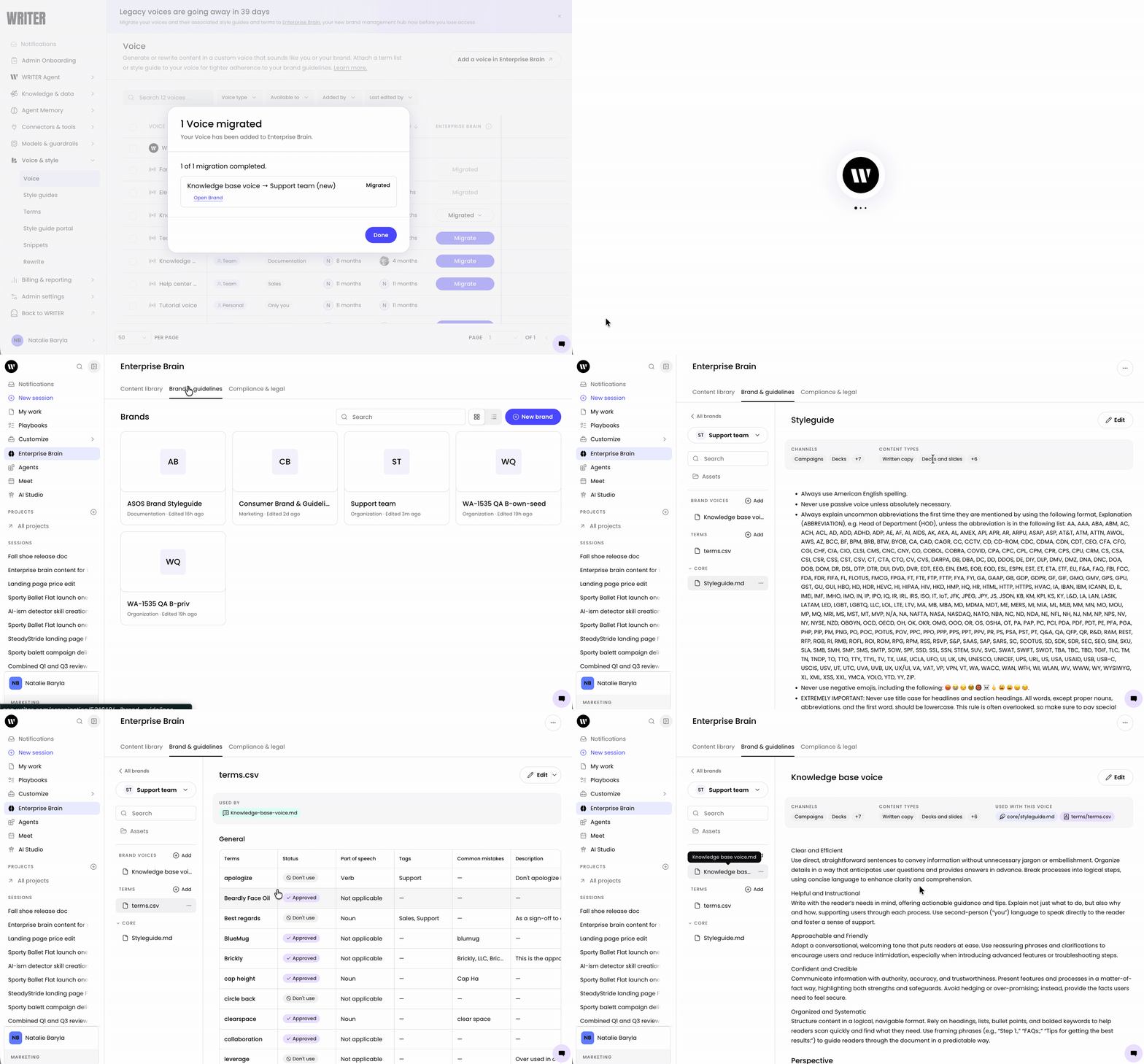
Navigate to Enterprise Brain from the main navigation menu.
Open your brand & guideline file and locate the language section.
Confirm the migrated voice, terms, and style guide file in the language section.
Note: You can also create a new voice directly in Enterprise Brain. In the language section of your brand & guideline file, select the + button to create a new voice.
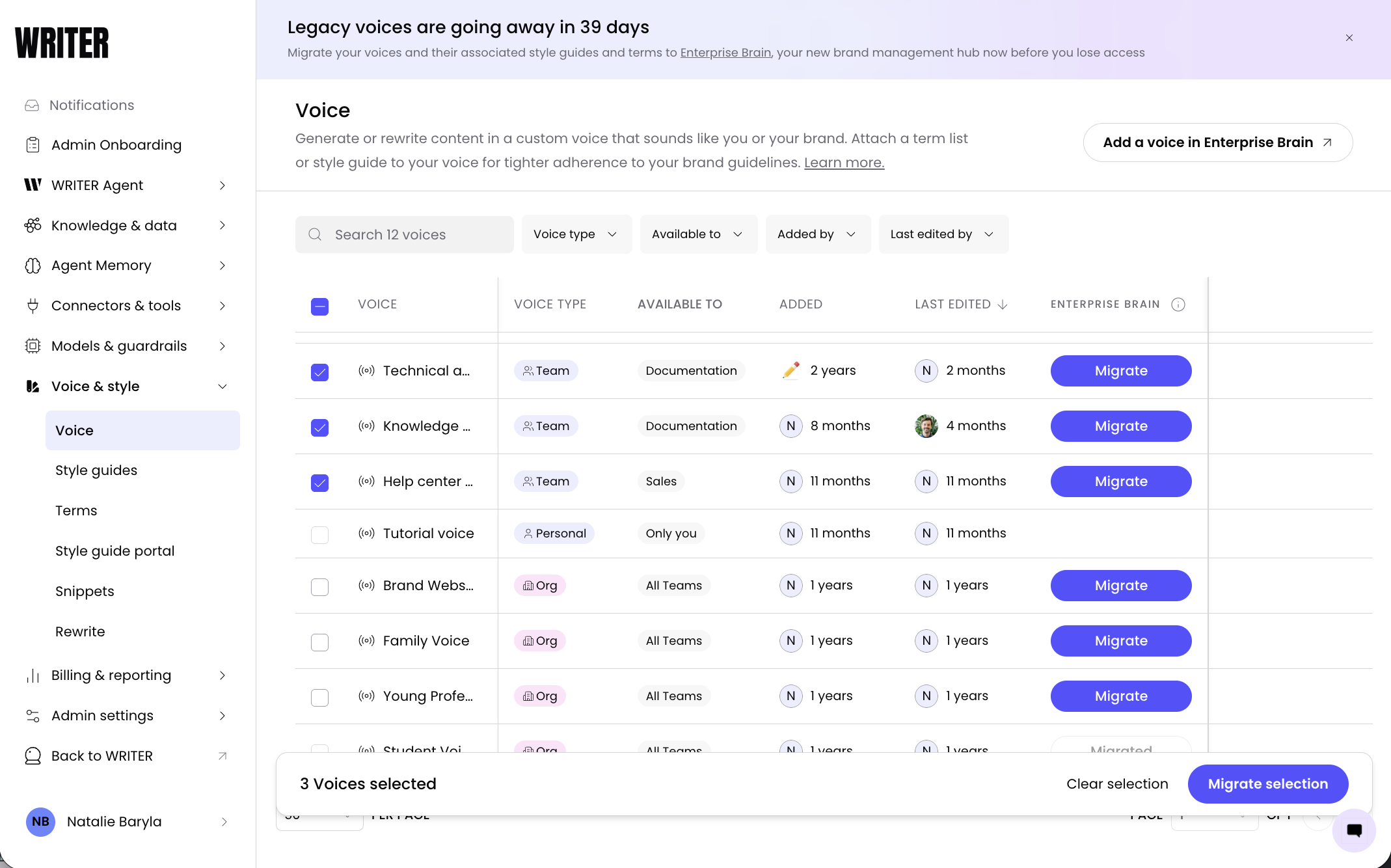
Additionally, you can select multiple voices at once if they are going to be included within the same brand. Select the boxes to the left of the voices you'd like to migrate and then select Migrate from the bulk actions menu.
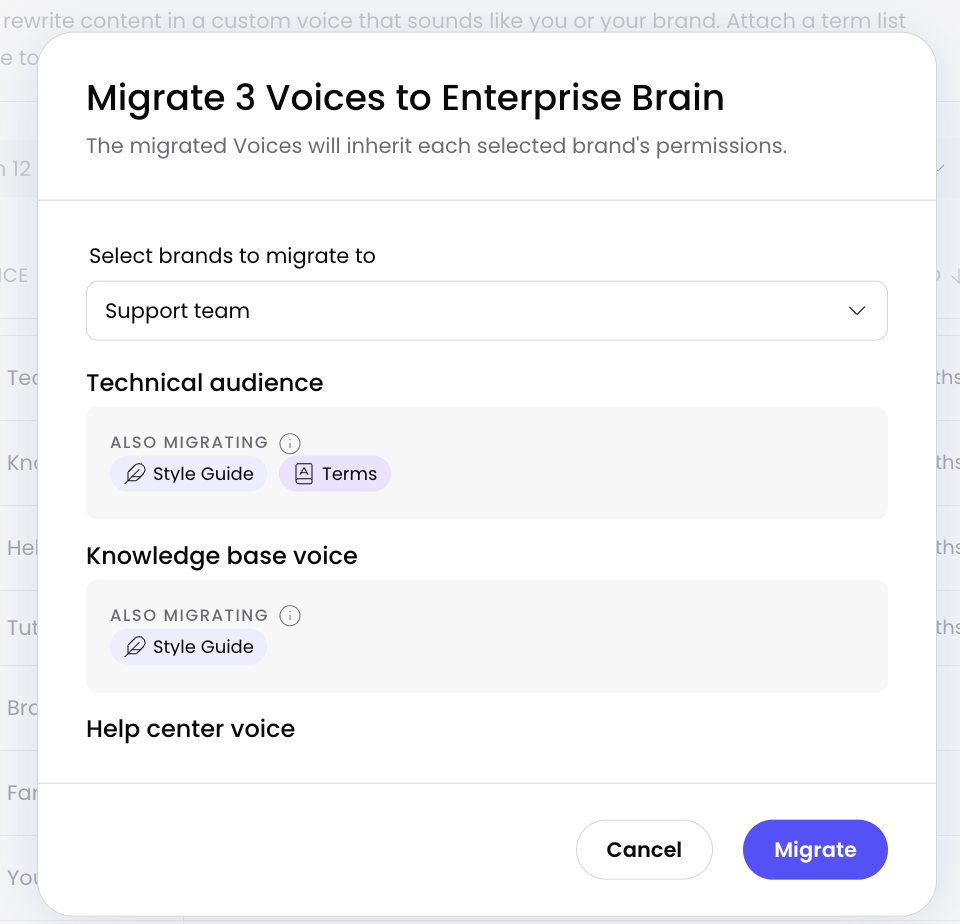
Select the team the voices should be migrated to and select Migrate. The selected voices , terms, and style guides will now be included in that brand.
Migrating style guides and terms independently
Most customers use style guides and terms connected to voices, so migrating the voice brings everything over in one step. If you have a style guide or terms that are not connected to a voice, you can migrate them independently. Style guides and terms that have been migrated will be marked as such, making it easy to see which assets remain that require migration.
Migrating a style guide independently
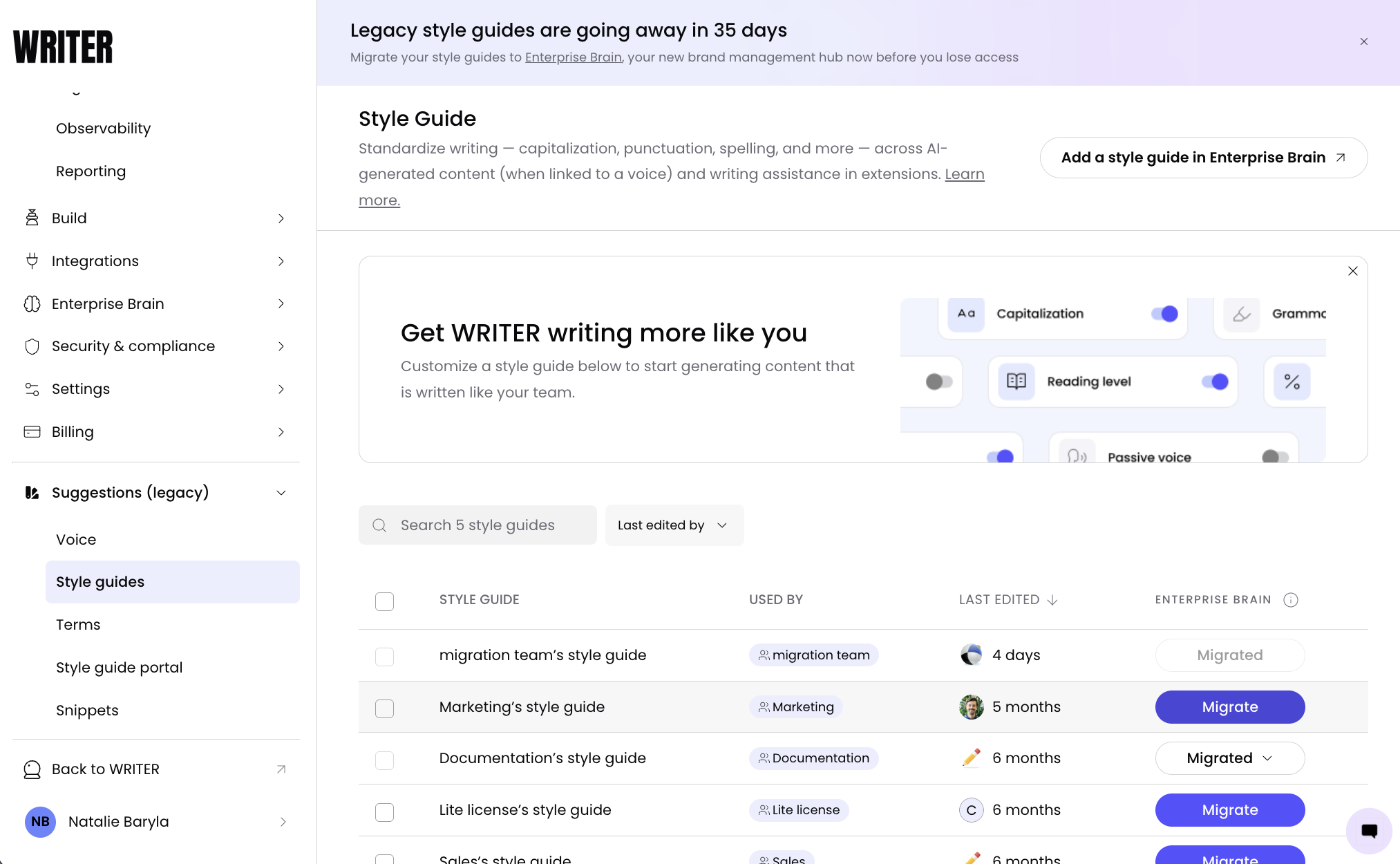
Navigate to Control Center > Suggestions > Style guide.
Locate the style guide you want to migrate.
Select the Migrate button next to the style guide.
Confirm the migration when prompted. WRITER moves the style guide to Enterprise Brain.
Navigate to Enterprise Brain from the main navigation menu.
Open your brand & guideline file and locate the language section.
Confirm the migrated style guide file appears in the language section.
Migrating terms independently
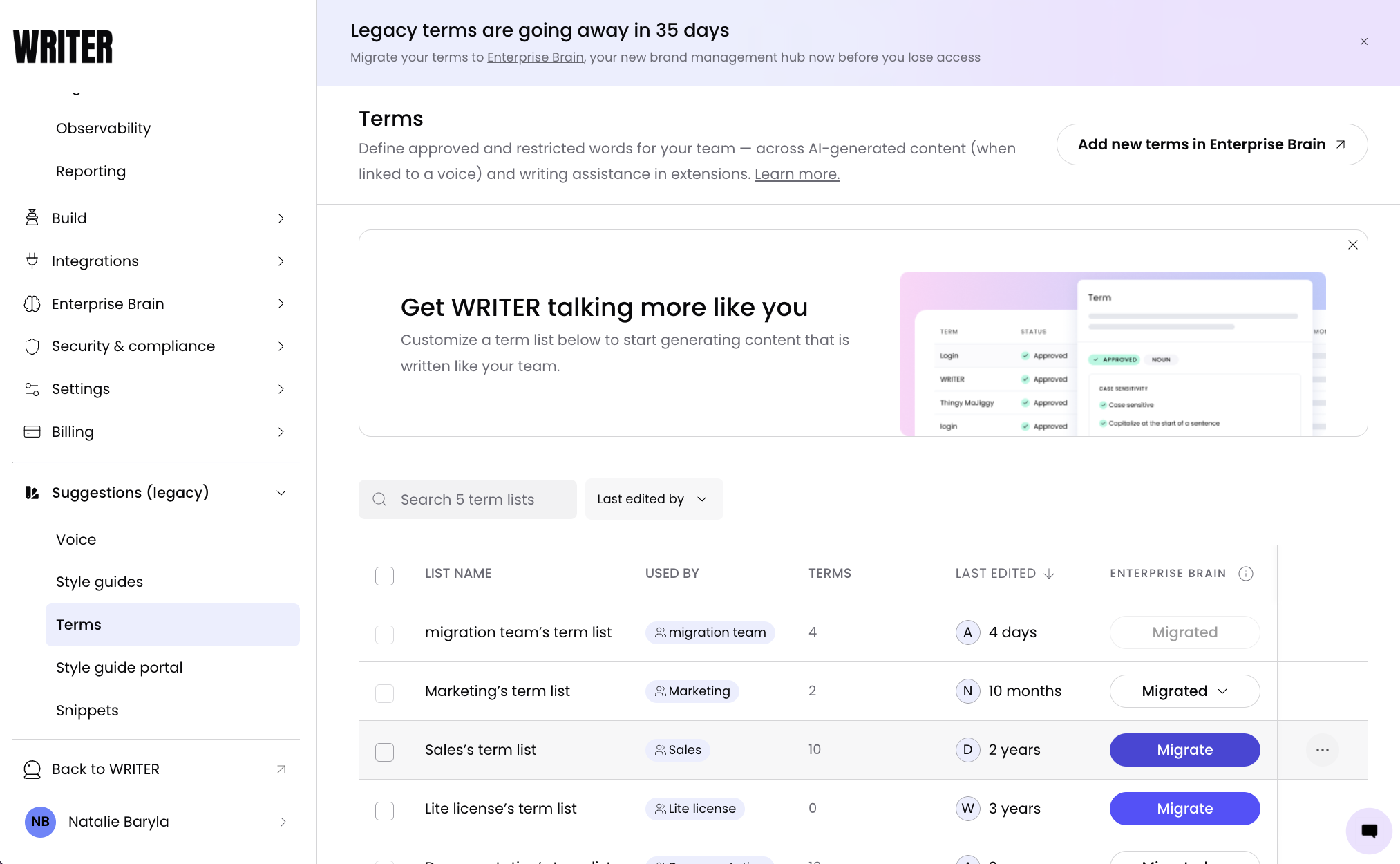
Navigate to Control Center > Suggestions > Terms.
Locate the terms set you want to migrate.
Select the Migrate button next to the terms.
Confirm the migration when prompted. WRITER moves the terms to Enterprise Brain.
Navigate to Enterprise Brain from the main navigation menu.
Open your brand & guideline file and locate the language section.
Confirm the migrated terms file appears in the language section.
Tip: If your style guide and terms are connected to a voice, migrate the voice instead. This brings the voice, style guide, and terms over in a single step and avoids needing to migrate each one separately.
Adding team admins to a brand rule
If migrating team voices on behalf of your team admins, add the team admin into a content library and/or brand & guidelines so they can manage the migrated voice.
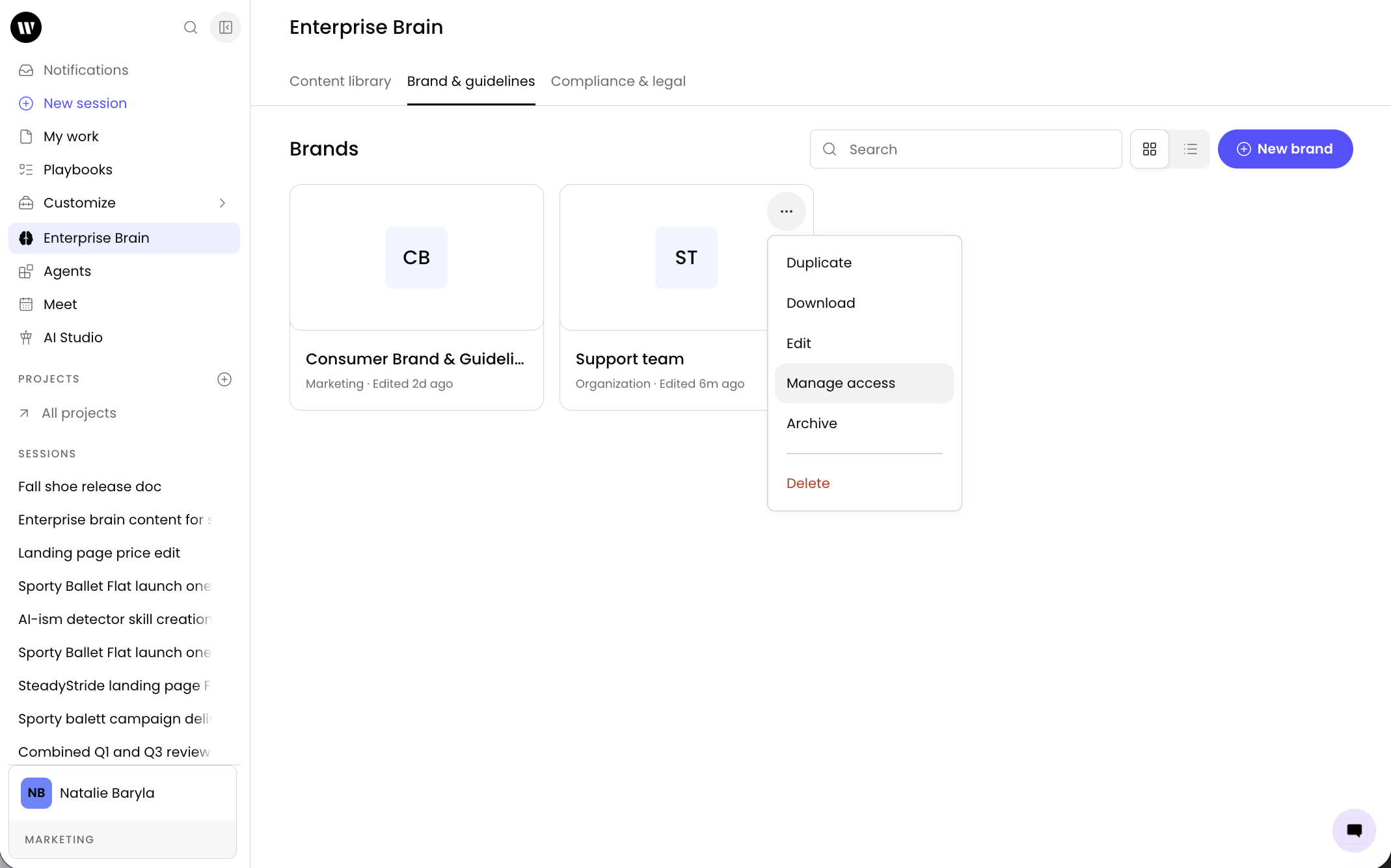
Navigate to Enterprise Brain from the main navigation menu.
Open your brand & guideline file.
Select the ••• menu on the brand and select the option to manage access.
Add the team admin to the brand as an owner or collaborator.
Select Save.
Best practices
Use one voice per content type. Create separate voices for distinct content types — blog posts, emails, social — rather than one voice for everything. This produces more consistent, brand-aligned outputs for each format.
Test before and after migration. Generate test outputs using the voice before migration and again after migration to confirm the voice performs identically in both configurations.
Edit migrated voices in Enterprise Brain only. Do not update migrated voices in Control Center. Control Center voice management will be deprecated.
Migrate voices with connected style guides and terms together. Most customers use style guides and terms connected to voices. Migrating the voice brings all three over in a single step. Only migrate style guides or terms independently if they are not connected to a voice. See If your style guide or terms aren't connected to a voice for how to check.
Check for standalone style guides and terms before migrating. Before starting migration, review each voice profile's style guide and terms section in Control Center to identify any style guides or terms that aren't connected to any voice. These need to be migrated independently and won't come over when you migrate a voice.
Migrate incrementally for large organizations. If your organization has many teams, start by migrating one team's voice as a pilot. Verify outputs for one to two days, then migrate remaining teams in batches.
Communicate the change to your teams. Notify team members that voice, style guide, and terms settings are moving to Enterprise Brain. From the user's perspective, these apply automatically — they don't need to select them manually.
Troubleshooting
The Migrate button is not visible
Enterprise Brain may not be deployed yet for your organization. Enterprise Brain deploys automatically, but if you don't see the Migrate button, contact your WRITER account team to confirm availability. Also confirm that you have the org admin role, or the Enterprise Brain admin role assigned by an org admin, only these roles see the Migrate button.
The Migrate button is grayed out
This typically means you lack the required permissions. Only org admins and users with the Enterprise Brain admin role can migrate voices, style guides, and terms. If you are a team admin, ask an org admin to assign you the Enterprise Brain admin role.
The migrated voice, style guide, or terms are not appearing in Enterprise Brain
After migration, navigate to Enterprise Brain from the main navigation menu and open your brand & guideline file. Check the language section for the voice.md, style guide, and terms files. If they're not there, refresh the page. If the files still don't appear, confirm you're looking in the correct brand, if your organization has multiple brands, the configuration may have migrated to a different one. Contact our support team if you still see issues.
My style guide or terms weren't included when I migrated a voice
This happens when the style guide or terms are not connected to the voice you migrated. Only style guides and terms connected to a voice migrate with it automatically. Check whether the style guide or terms appear in the voice's Style and terms section in Control Center. If they don't, migrate them independently.
Team members can't see the migrated voice
The brand may not be scoped to the team. Open the brand & guideline file in Enterprise Brain, select the ••• menu on the brand, and confirm the team has access.
A team admin can't edit the migrated voice, style guide, or terms
The team admin may not have the Enterprise Brain admin role. Only org admins can assign this role. If not assigned an Enterprise Brain admin role, the team admin needs to be added to the brand's access list as an Owner or Collaborator.
The voice, style guide, or terms in Control Center are not reflecting updates made in Enterprise Brain
After migration, the source of truth moves to Enterprise Brain. Edits made in Enterprise Brain don't sync back to Control Center, and Control Center voice, style guide, and terms management will be deprecated. All future edits must be made in Enterprise Brain.
I received an error stating some of my terms cannot be moved.
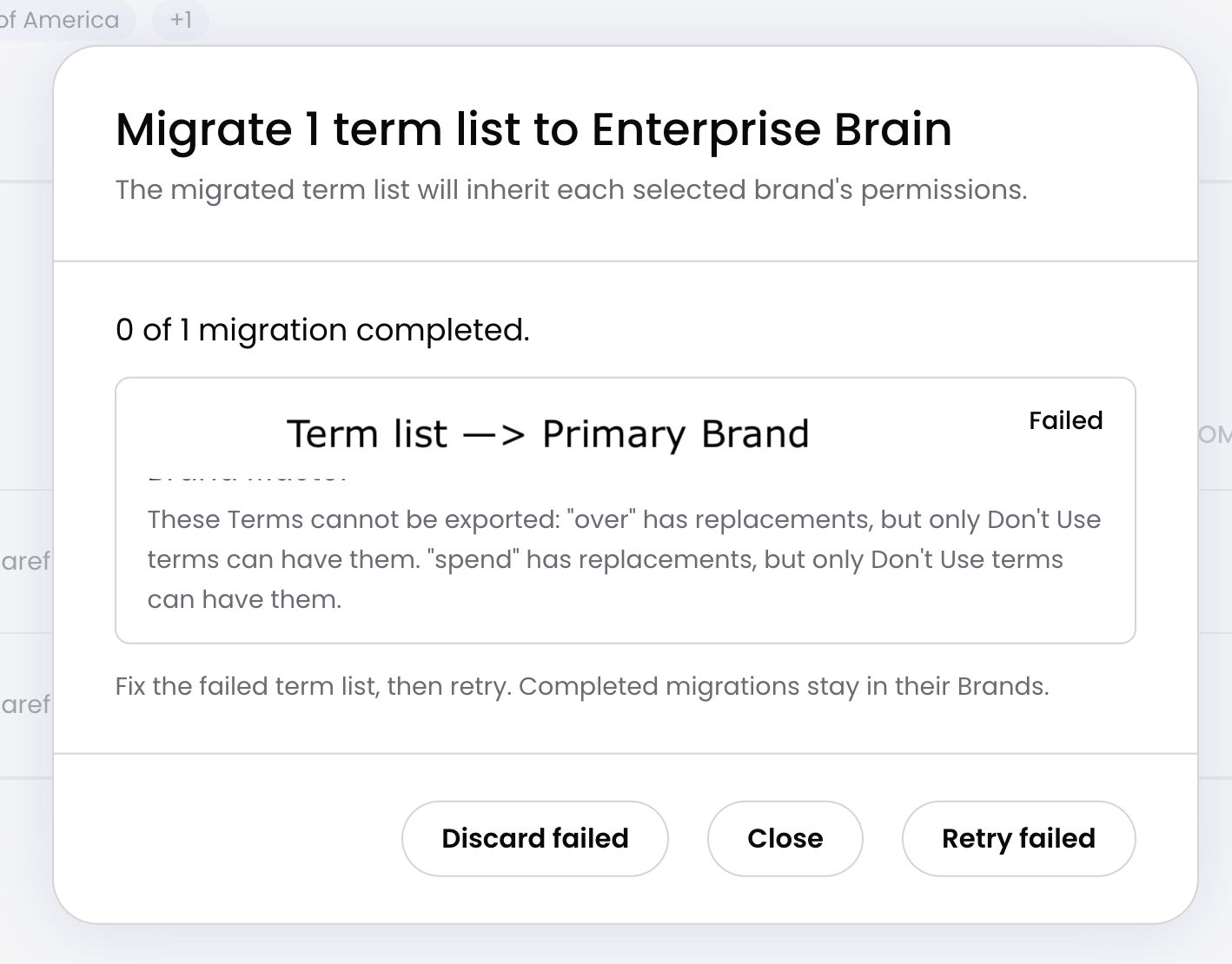
If you received an error like the one above this means some of your term types are not compatible with Enterprise Brain. For example, in the legacy terms system you could have replacements for terms that are in a category such as "avoid." In Enterprise Brain, only terms marked "don't use" can include replacements. To resolve the error, select Close, locate the terms noted in the error, change their type to "don't use," and then try your migration again.
FAQs
Who can migrate voices, style guides, and terms?
Only org admins can migrate voices, style guides, and terms to Enterprise Brain. Team admins cannot migrate on their own. An org admin must first assign the Enterprise Brain admin role to a team admin before that team admin can migrate their own team's configurations. Org admins can migrate both org and team voices, style guides, and terms.
Can I let my team admins migrate their own voices?
Yes. Assign the Enterprise Brain admin role to a team admin, and they can migrate and manage their own team's voices, style guides, and terms. Only org admins can assign this role. Team admins without the Enterprise Brain admin role cannot see or use the Migrate button. Learn more in Understanding roles and permissions in WRITER.
Do I need to migrate style guides and terms separately?
In most cases, no. When you migrate a voice, its connected style guide and terms migrate with it automatically. You only need to migrate style guides or terms independently if they are not connected to a voice. To migrate a style guide on its own, use the Migrate button on the style guide page in Control Center. To migrate terms on their own, use the Migrate button on the Terms page.
What if I have a style guide or terms that aren't connected to any voice?
Style guides and terms that aren't connected to any voice won't be included when you migrate a voice. You need to migrate them independently from the Style guide or Terms page in Control Center. Once migrated, they appear in the language section of your brand & guideline file in Enterprise Brain alongside any voice-migrated configurations. WRITER Agent references them automatically.
Can I migrate all voices at once?
Yes. Select the checkboxes next to multiple voices in Control Center > Voice & style > Voice, then select Migrate from the bulk actions menu. All selected voices, along with their connected terms and style guides, migrate to the same brand.
Can I migrate incrementally, one team at a time?
Yes. You can migrate voices for one team, verify the results, and then migrate remaining teams in batches. This is the recommended approach for organizations with multiple teams.
What happens to existing content generated with the old voice, style guide, or terms?
Existing content is unaffected. Previously generated documents retain their original text. New generations will use the migrated voice, style guide, and terms from Enterprise Brain automatically.
How do I roll back if the migration causes problems?
Migration moves the voice, style guide, and terms from Control Center to Enterprise Brain. If outputs change negatively after migration, edit the voice in Enterprise Brain to adjust its configuration.
Do I need to migrate personal voices too?
Personal voices are not migrated to Enterprise Brain. Instead, convert personal voices into skills for individual or shared use. Learn more in Migrate your personal voice to a skill.
Is there a limit on how many voices, style guides, or terms I can have in Enterprise Brain?
No. Migrate as many as your organization needs.
Can I create a new voice, style guide, or terms directly in Enterprise Brain without migrating?
Yes. In the language section of your brand & guideline file, select the + button to create a new voice. You can also add new style guide and terms files directly in the language section.
To learn more see:
📄 Building Enterprise Brain or 📄 Migrate your personal voice to a skill