How to use WRITER Meet
Last updated: August 10, 2026
Who can use this feature
Org and IT admins can enable or disable WRITER Meet for your org. Once enabled, all WRITER users can use this feature.
Overview
WRITER Meet lets WRITER Agent join your meetings, transcribe in real time, and generate actionable summaries with decisions and next steps. During or after the meeting, teams can ask WRITER questions about what was discussed and share summaries with their team.
Most AI note-takers stop at the recap. WRITER Meet turns transcripts into shared context that agents can learn from and act on. Teams can add transcripts to relevant projects, start new WRITER Agent sessions from them, or trigger playbooks from recurring meetings so conversations move directly into follow-up work.
What WRITER Meet helps you do:
Get the most out of every meeting: Let WRITER Agent join the meeting, transcribe the conversation in real time, and generate meeting summaries. Stay present during the discussion, ask WRITER questions in the meeting chat, and leave with a clear view of what happened and what needs to happen next.
Turn conversations into autonomous action: Make every meeting the starting point for the next workflow. Kick off follow-up work in a new WRITER Agent session or trigger Playbooks from recurring meetings — using transcripts to create follow-ups, update plans, generate campaign inputs, and route next steps.
Connect your calendar
Before WRITER Agent can join your meetings, connect your calendar:
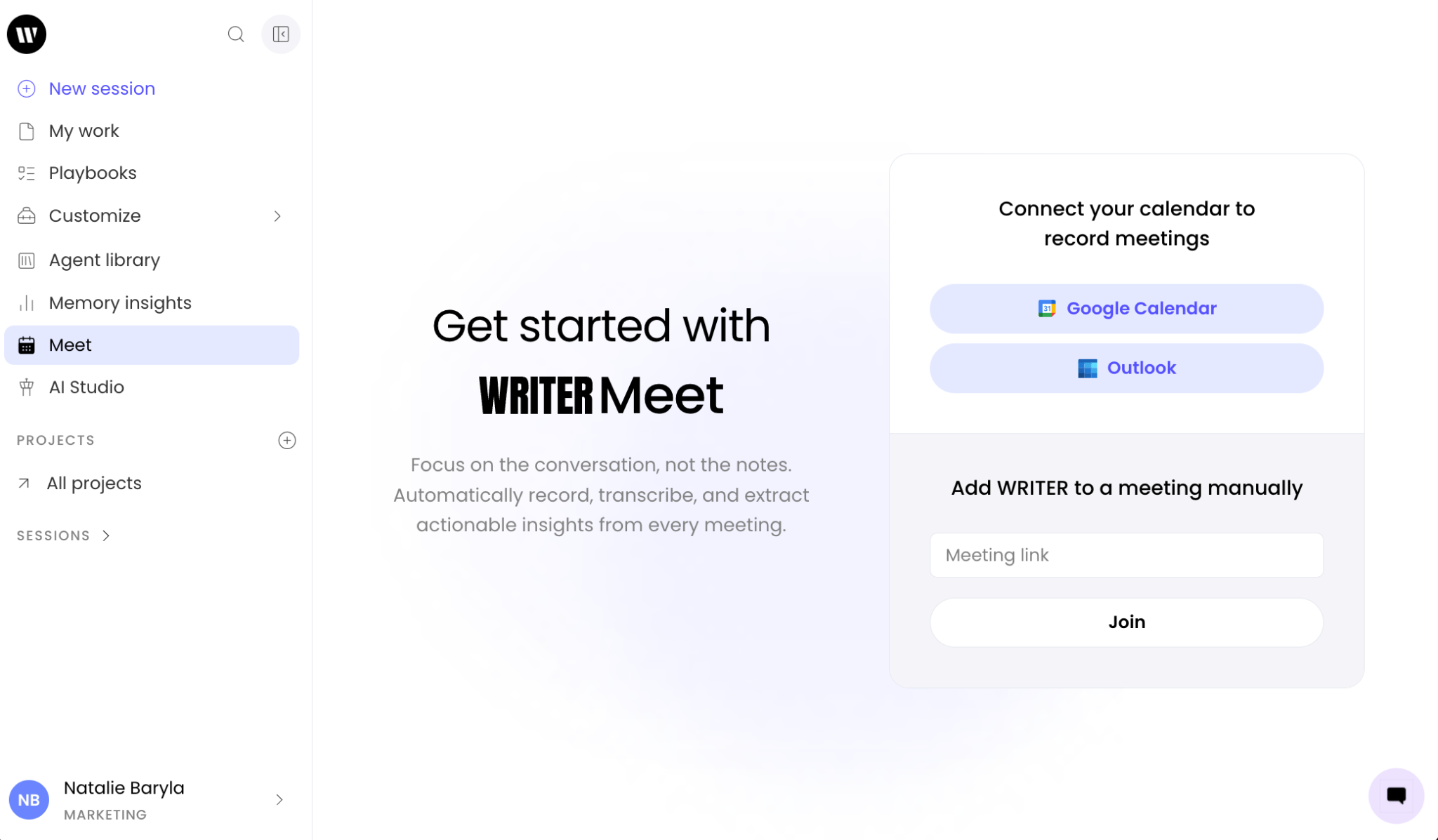
Select Meet from the left menu and connect Google Calendar or Microsoft Outlook and follow the prompt to connect your calendar. You can also add a meeting link here if you wish to have WRITER Agent join a one-off meeting.
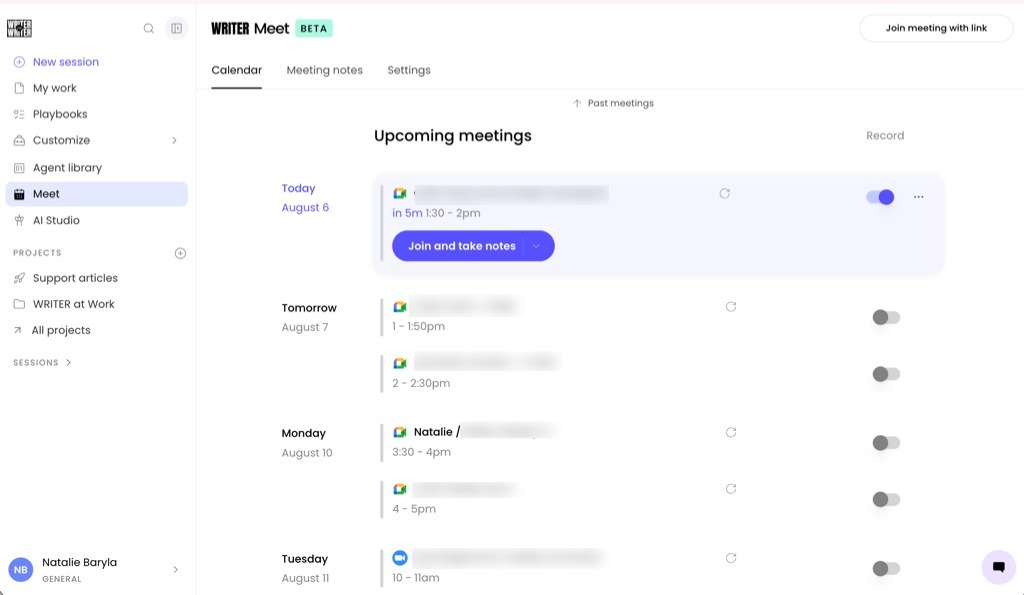
Once connected to your calendar, select which meetings to invite WRITER Agent to by using the toggle switch on the right.
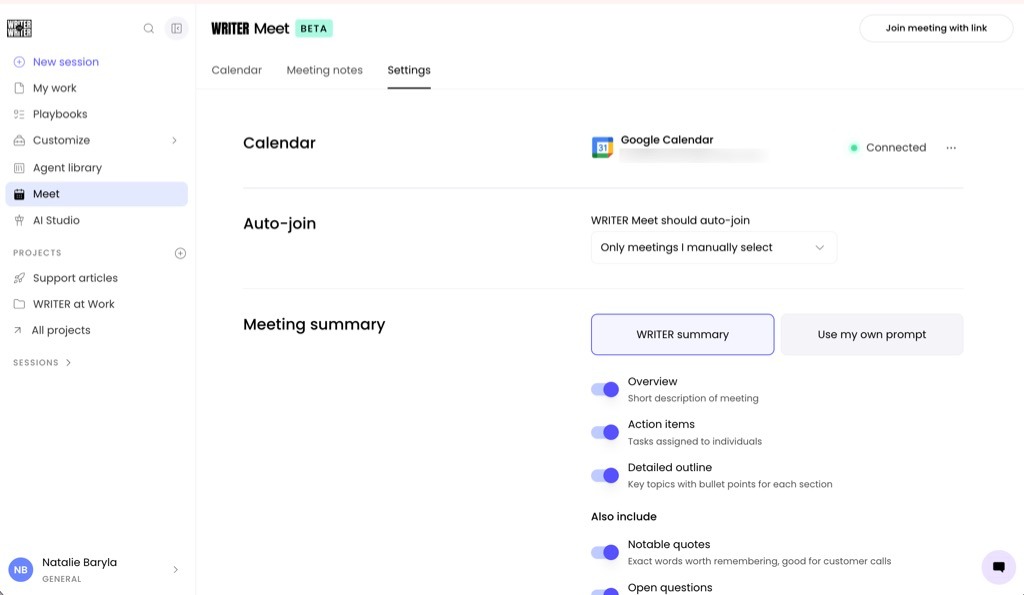
The settings tab will allow you to select if you’d like WRITER Agent to join all meetings, only those with external participants, or specific ones.
💡 Pro-Tip: Start by inviting WRITER Agent to your most action-dense recurring meetings, such as account reviews or campaign syncs, to get the most immediate value.
Trigger playbooks from WRITER Meet
WRITER Meet lets you turn any recurring meeting into an automated workflow trigger. Instead of manually starting follow-up work after each meeting, you can configure a playbook to run automatically when a meeting transcript is generated — so follow-ups, plan updates, and campaign inputs happen without manual effort.
How to set up a Playbook trigger from the calendar page:
Navigate to the Calendar tab in WRITER Meet and find the recurring meeting you want to automate.
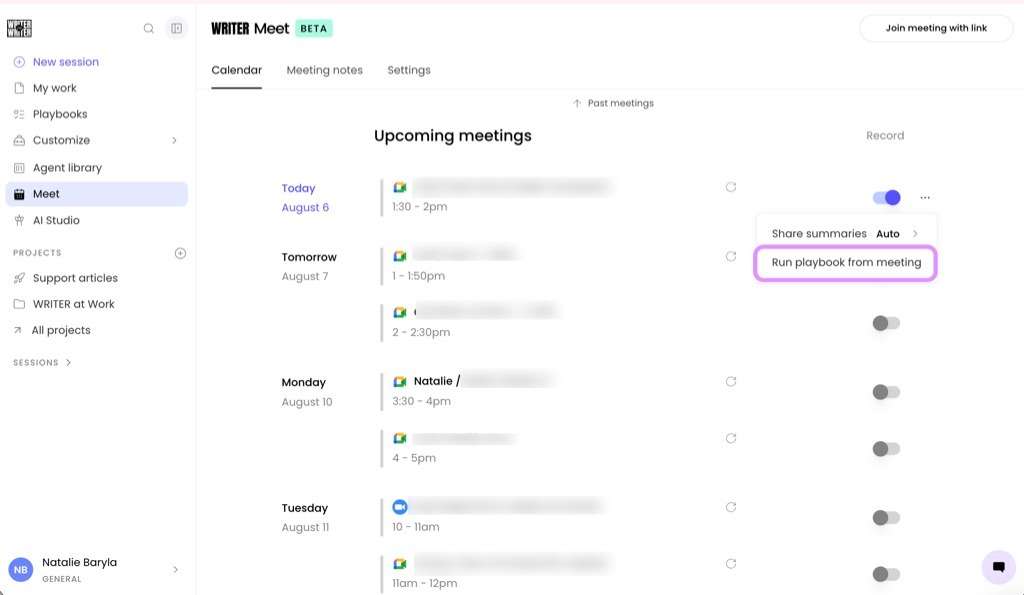
Select the three dot icon and then select Run playbook from meeting. Choose the Playbook you want to trigger from the list and you’ll be taken to the playbook editor with the meeting trigger pre-filled. Review the trigger configuration and adjust any settings as needed. Select Publish to activate the trigger. Learn about playbooks here.
💡 Pro-Tip: Use Playbook triggers for meetings that produce the same type of follow-up work every time — such as weekly campaign syncs, account review calls, or customer check-ins. This eliminates the manual step of starting a session after each meeting.
During your meeting
Once WRITER Agent joins your call, it automatically records and transcribes the conversation in real time.
Look for the meeting notch in the top-center of the WRITER app to see upcoming or live meetings.
View the live transcription as it streams in.
Open the private notes tab to write your own notes alongside the transcript — separate from the shared summary.
Type @WRITER into the meeting chat to ask questions about the ongoing conversation in real time (e.g., "What did Jane say about the timeline at the start of the call?").
After your meeting
When the meeting concludes, WRITER Agent processes the transcript to generate a structured summary.
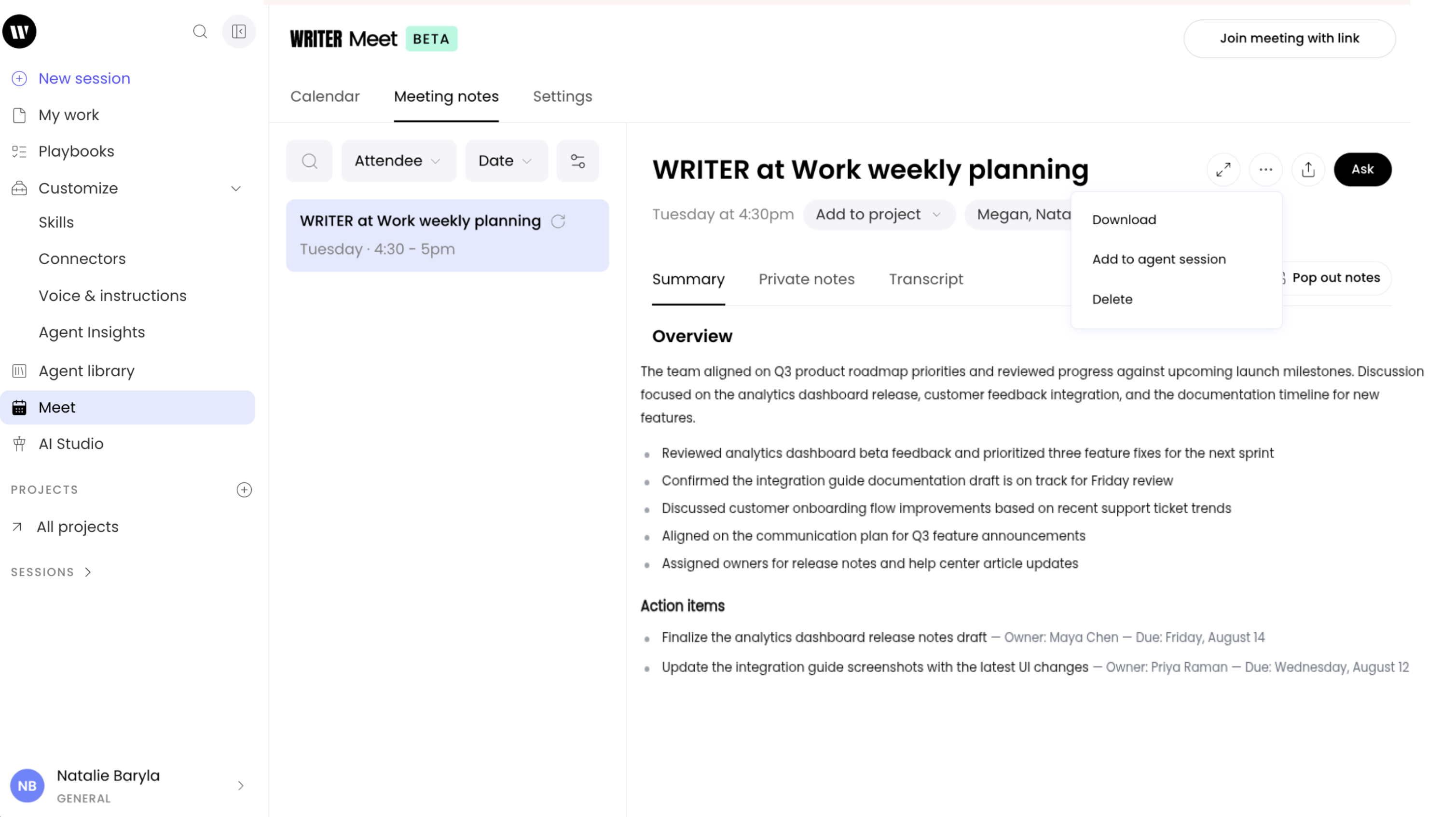
Review the automatically generated meeting summary, which includes attendees, key discussion points, decisions, and action items.
Select Use my own prompt to customize the summary format — choose from Overview, Action items, Detailed outline, Notable quotes, or Open questions.
Use the Ask slideout to query the transcript: find what was said, summarize themes, extract decisions, or identify next steps.
Select Share to send the summary to teammates and collaborators so they stay aligned on decisions and next steps.
Select Start session to kick off a new WRITER Agent session from the transcript — use it to draft follow-ups, plan next steps, synthesize feedback, and more.
Add the meeting to a relevant Project to keep the conversation connected to the work that follows.
Use cases
Customer first calls
Capture what prospects said about their priorities, pain points, buying criteria, objections, and next steps. Sales can turn the transcript into follow-up emails and account plans. Marketing can use the context for account-based marketing assets.
Account planning meetings
Preserve account strategy, stakeholder context, open opportunities, campaign ideas, and ownership. Connect the meeting to the right Project so future account work automatically builds from the latest conversations.
Campaign kickoff meetings
Capture the goals, audience, offer, timeline, channels, owners, and success metrics discussed at kickoff. Use the transcript to draft the brief, generate project tasks, create assets, and follow up on next steps.
FAQs
What types of meetings can WRITER Agent join?
You can configure WRITER Agent to join all meetings, only meetings with external participants, or specific meetings of your choice. [Verify the full scope of supported meeting platforms]
What is the difference between a default and custom summary?
The default summary provides a structured overview with attendees, key points, decisions, and action items. Custom summaries let you use your own prompt to extract specific elements,such as notable quotes, open questions, or a detailed outline by section.
Can I ask questions during the meeting?
Yes. Type @WRITER into the meeting chat to ask questions in real time about what has been discussed so far (e.g., "What did Jane say about the budget?").
What happens if I need to take private notes?
While the meeting is live, open the private notes tab to write your own notes. These are separate from the shared transcript and summary.
How do I share a summary with my team?
After the meeting, select Share to send the summary to specific teammates or collaborators.
Can I use a transcript to kick off follow-up work?
Yes. Select Start session from the meeting transcript to open a new WRITER Agent session. From there, you can draft follow-ups, synthesize feedback, generate assets, and plan next steps.
How do I connect a meeting to a Project?
From the meeting transcript, select Add to Project and choose the relevant Project. Future work in that Project will have access to that meeting context. [Verify exact interface steps for adding a meeting to a Project]
Can WRITER Agent automatically trigger a Playbook from a recurring meeting?
Yes. You can configure WRITER Meet to trigger Playbooks from recurring meeting transcripts. [Verify exact steps to set up Playbook triggers from transcripts]
Where are the recordings stored?
WRITER doesn't store recordings other than temporarily long enough to transcribe the meeting.
Does WRITER train its models on my meeting transcripts?
No. We do not train our AI with customer data. WRITER adheres to global privacy laws and security standards, with measures in place to help you meet your compliance obligations.