Creating and editing videos with WRITER Agent
Last updated: November 16, 2026
Who can use this feature?
All users can create videos with WRITER Agent and edit them with the video editor. The profile's Video generation capability must be enabled by an admin — it is off in new profiles and in every preset profile. The organization also needs a video model enabled and set as the video default in Control Center > Build > Models.
WRITER Agent creates videos from a description, and the video editor lets you refine the result directly in the product. You can generate a video, edit it yourself or with WRITER Agent's help, and save or download the final cut without leaving WRITER. This keeps your entire video workflow — generating, editing, and finalizing — in one place, end to end on the content supply chain.
How to create a video with WRITER Agent
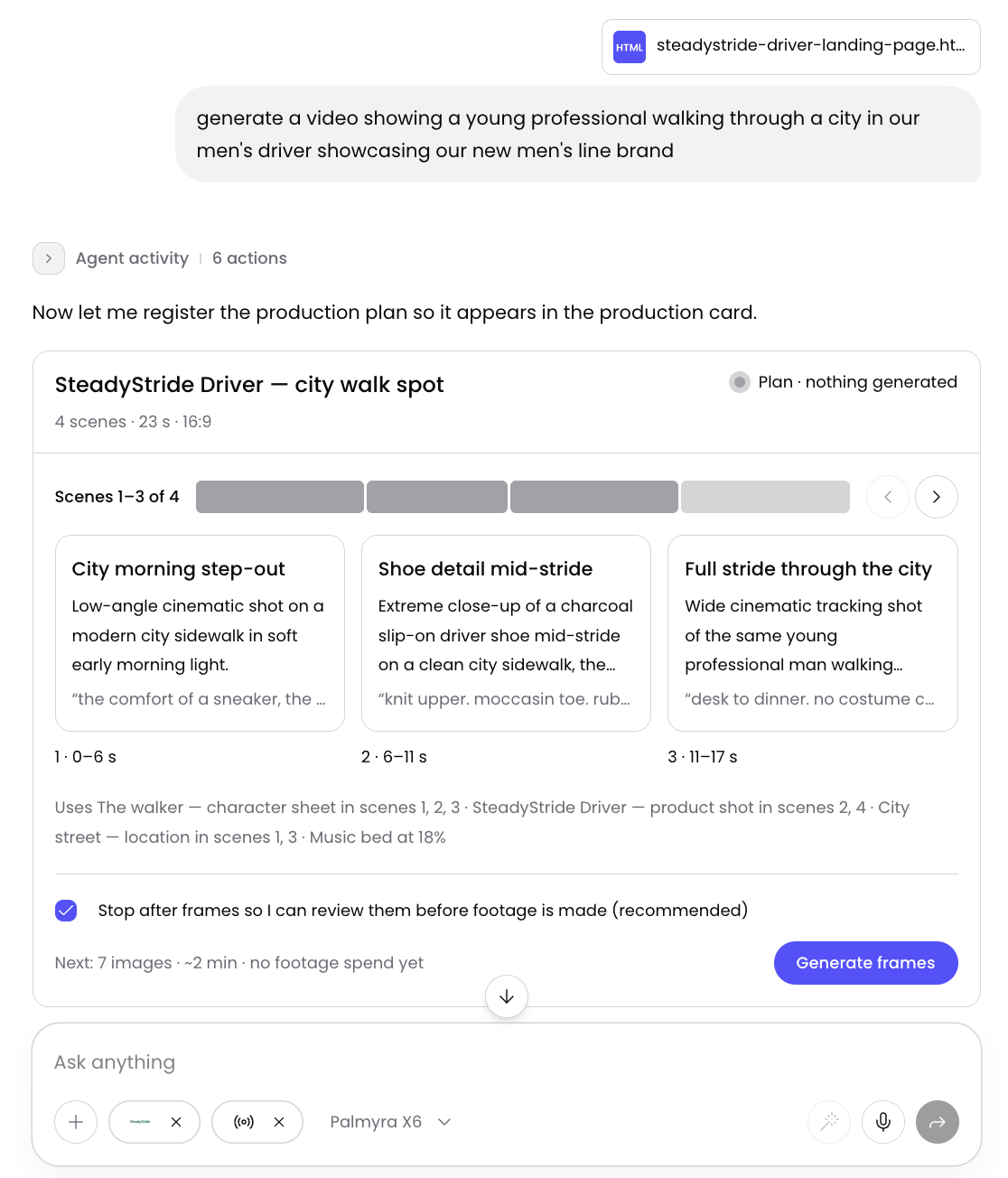
Ask WRITER Agent to create a video. Describe what you want, including the topic, length, tone, and any assets to include. WRITER Agent asks about the format if it needs to, puts the plan in the video production card, and stops there. Select Generate frames.
Note: We strongly encourage you to select the option to review each frame before the video is generated. This will keep the token cost down and allow you to customize each scene of your video before the agent produces it.
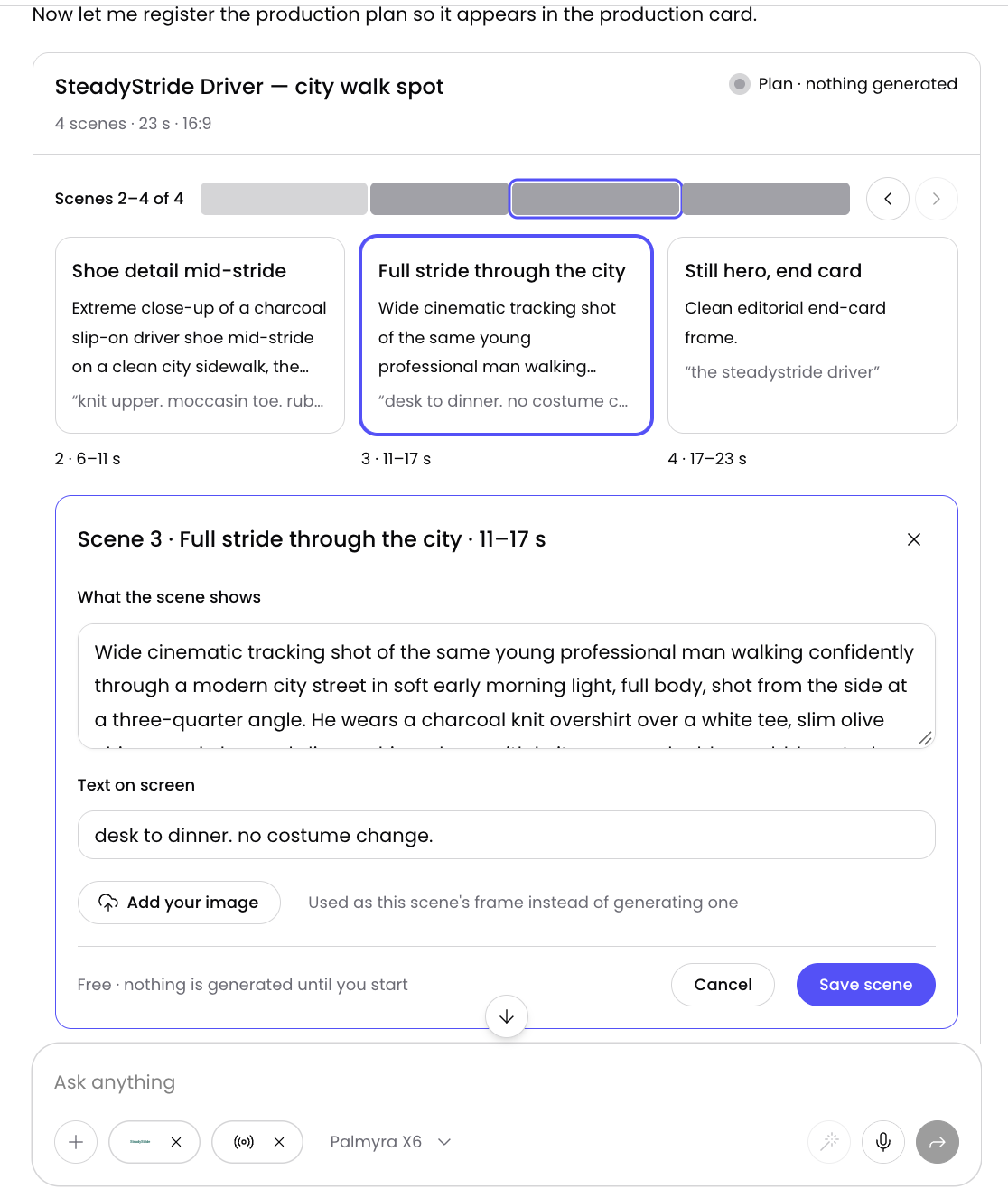
Optionally edit the plan on the card: change scene prompts, scene length, on-screen text, or the spoken line, or add your own photo (PNG, JPEG, or WebP, up to 20 MB). Select Save scene to submit your changes.
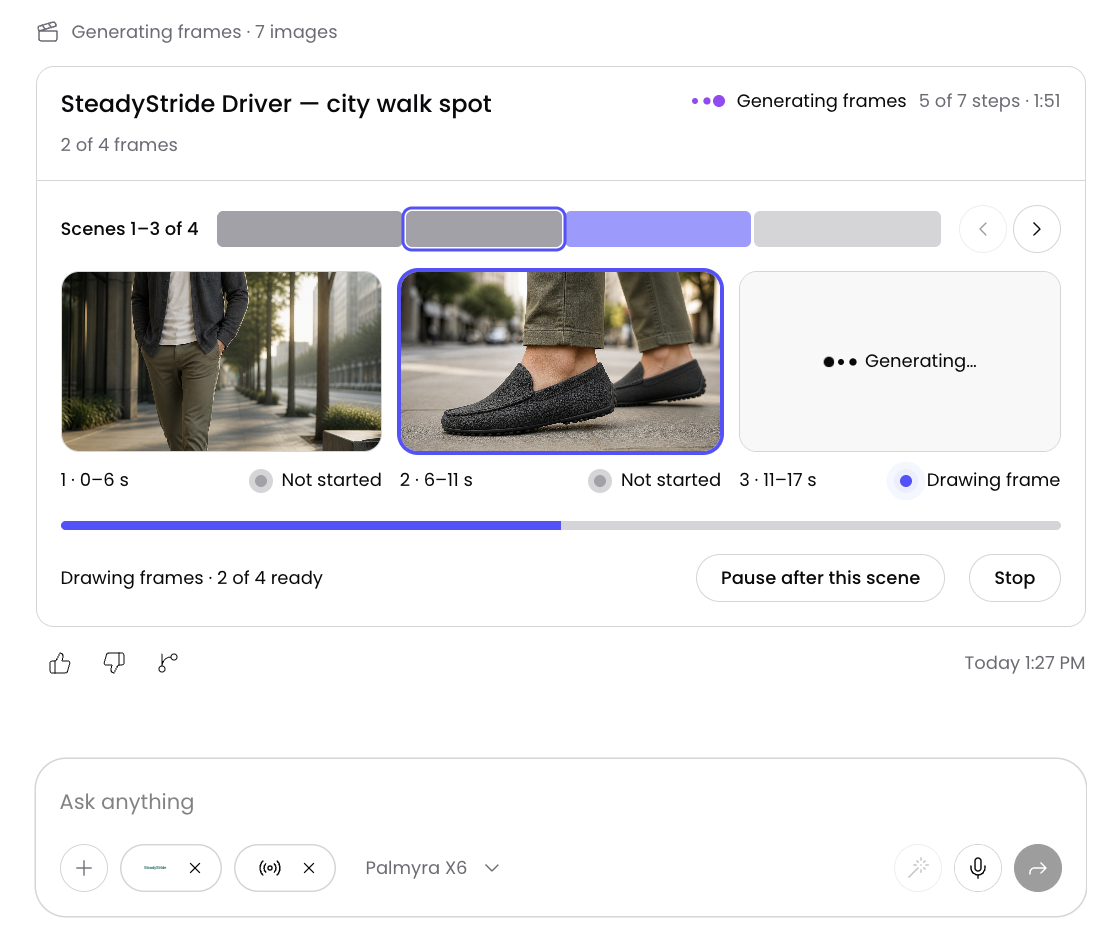
WRITER Agent will begin to generate frames for your video. Review the frames and provide feedback to WRITER Agent until your story board is complete.
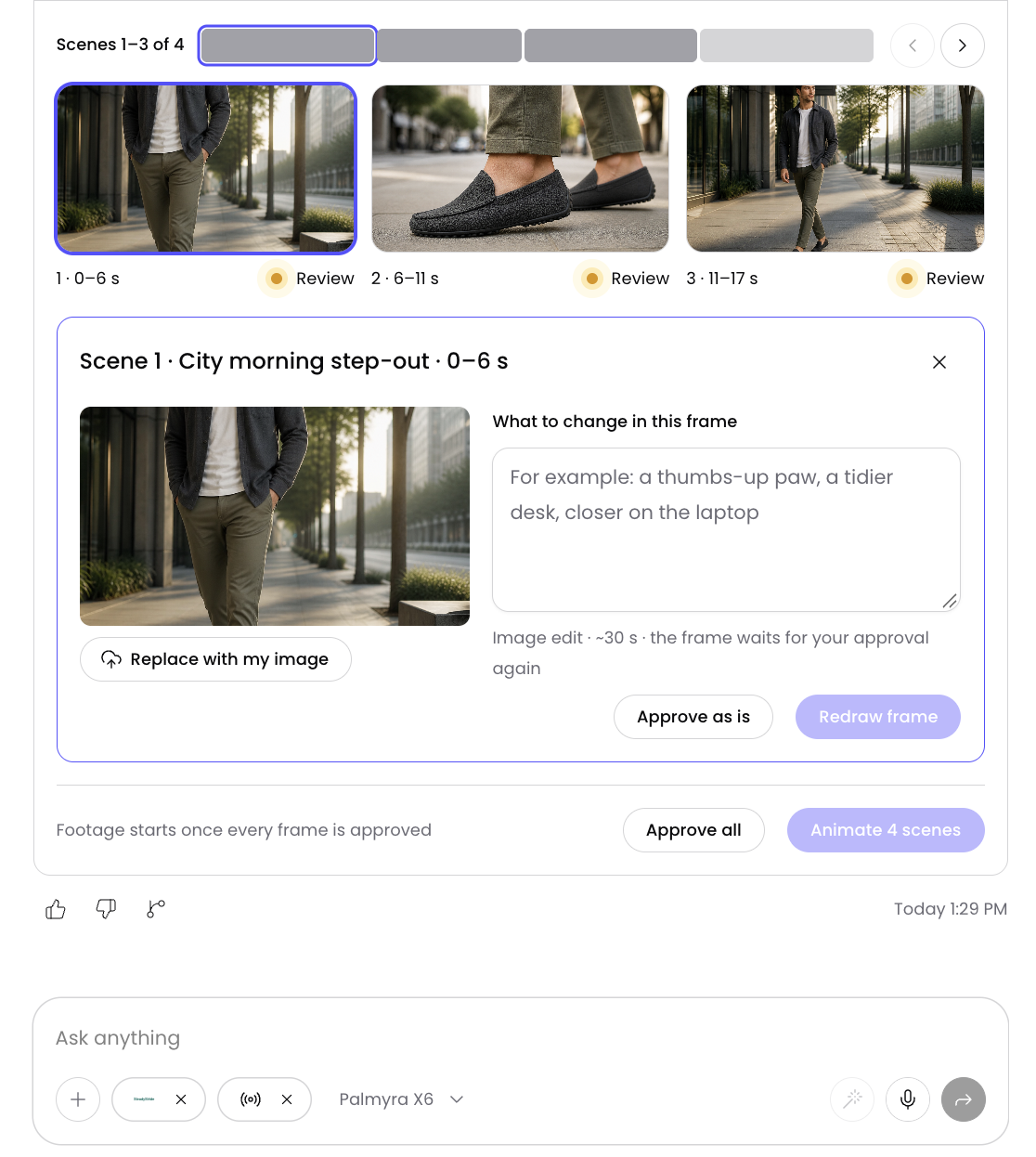
Examine your frames and provide feedback on what to change. If you'd like to make changes type them in the box provided and select Redraw frame. Approve each frame one by one by selecting Approve as is or select Approve all.
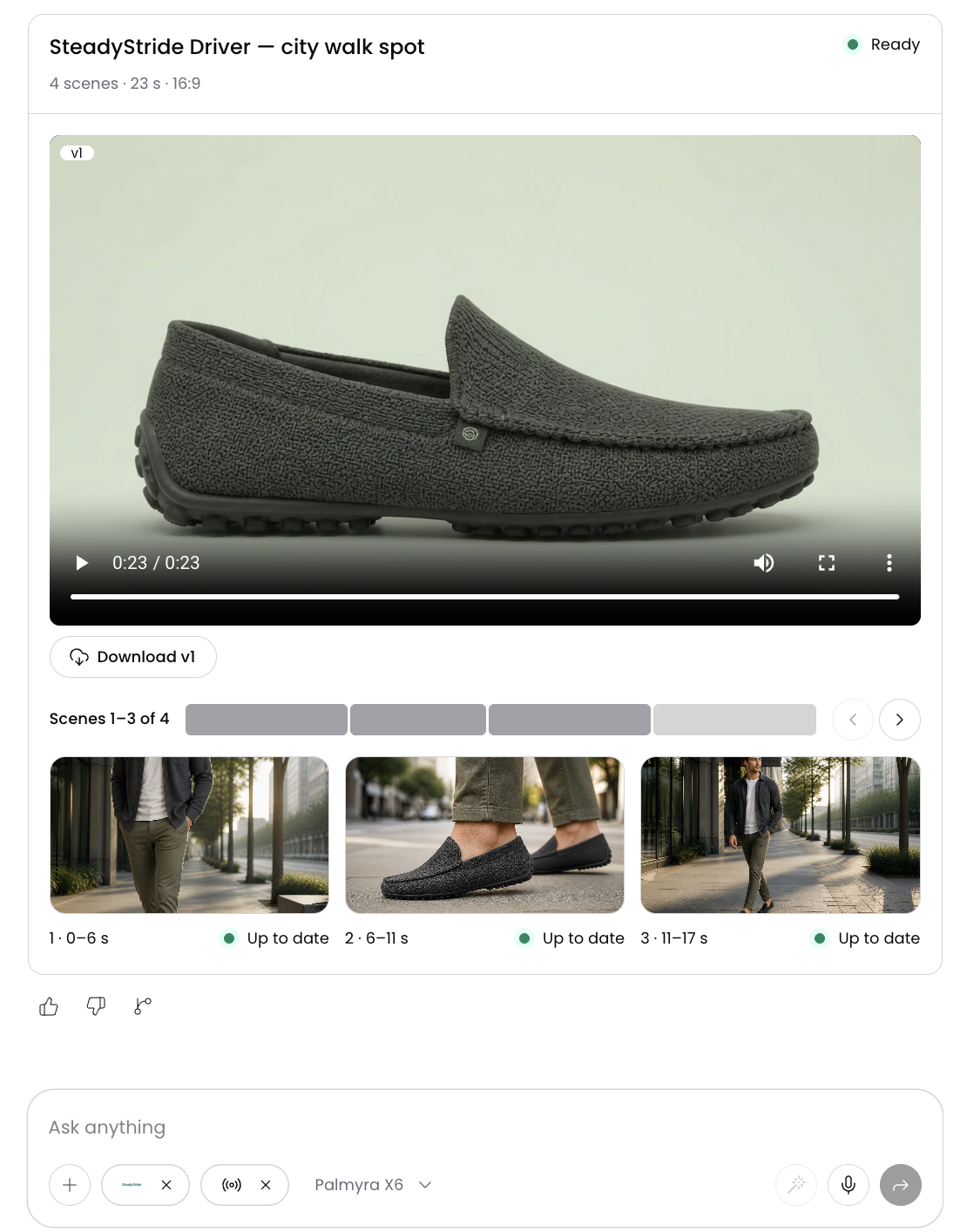
The finished production video plays within the session and can be found in My work.
Editing your video
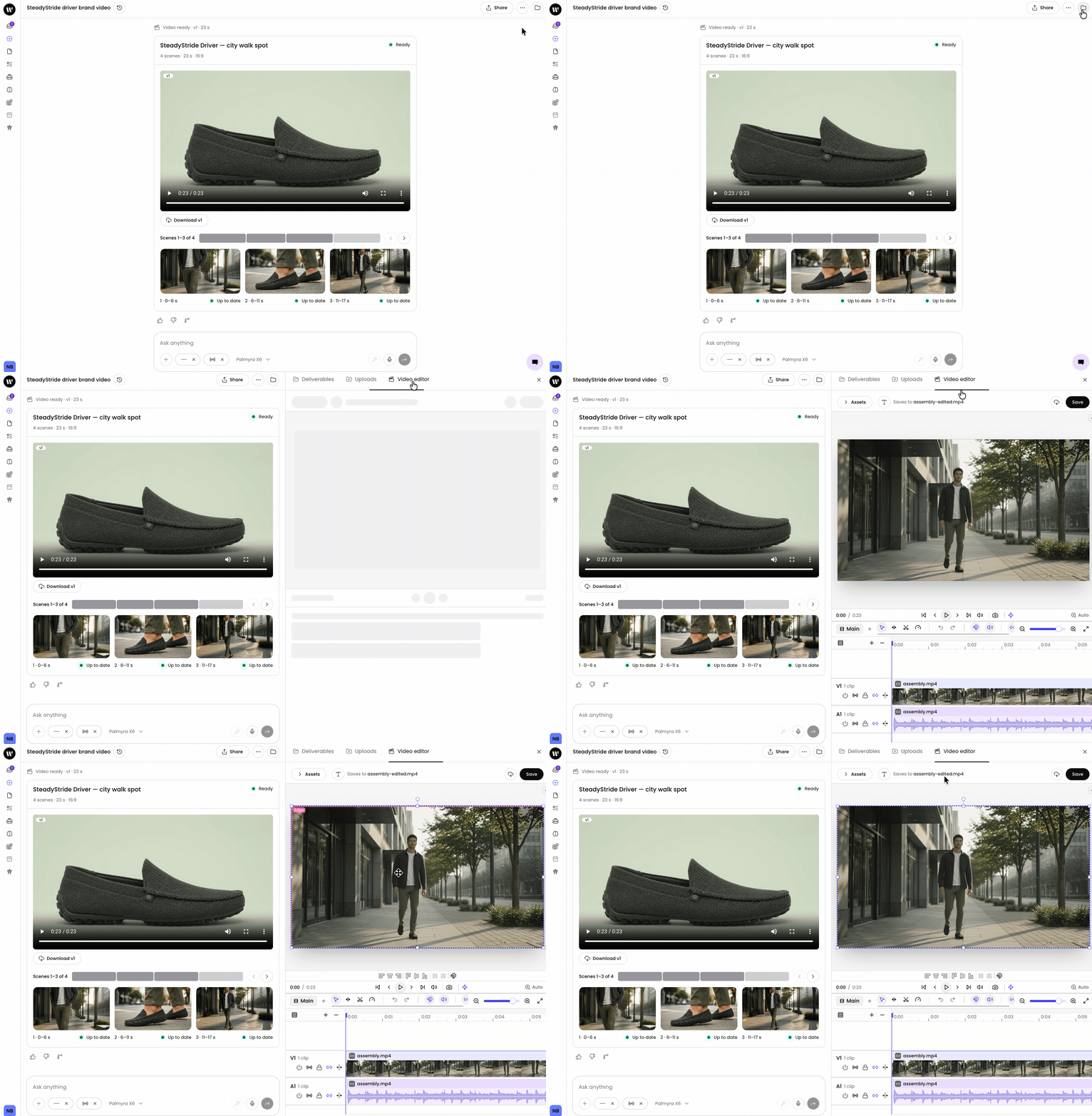
Select the file icon in the top right of your session and then select the Video editor tab.
When you open the video editor, you and WRITER Agent work on the same timeline. You can make edits yourself, and you can also ask WRITER Agent to make edits for you.
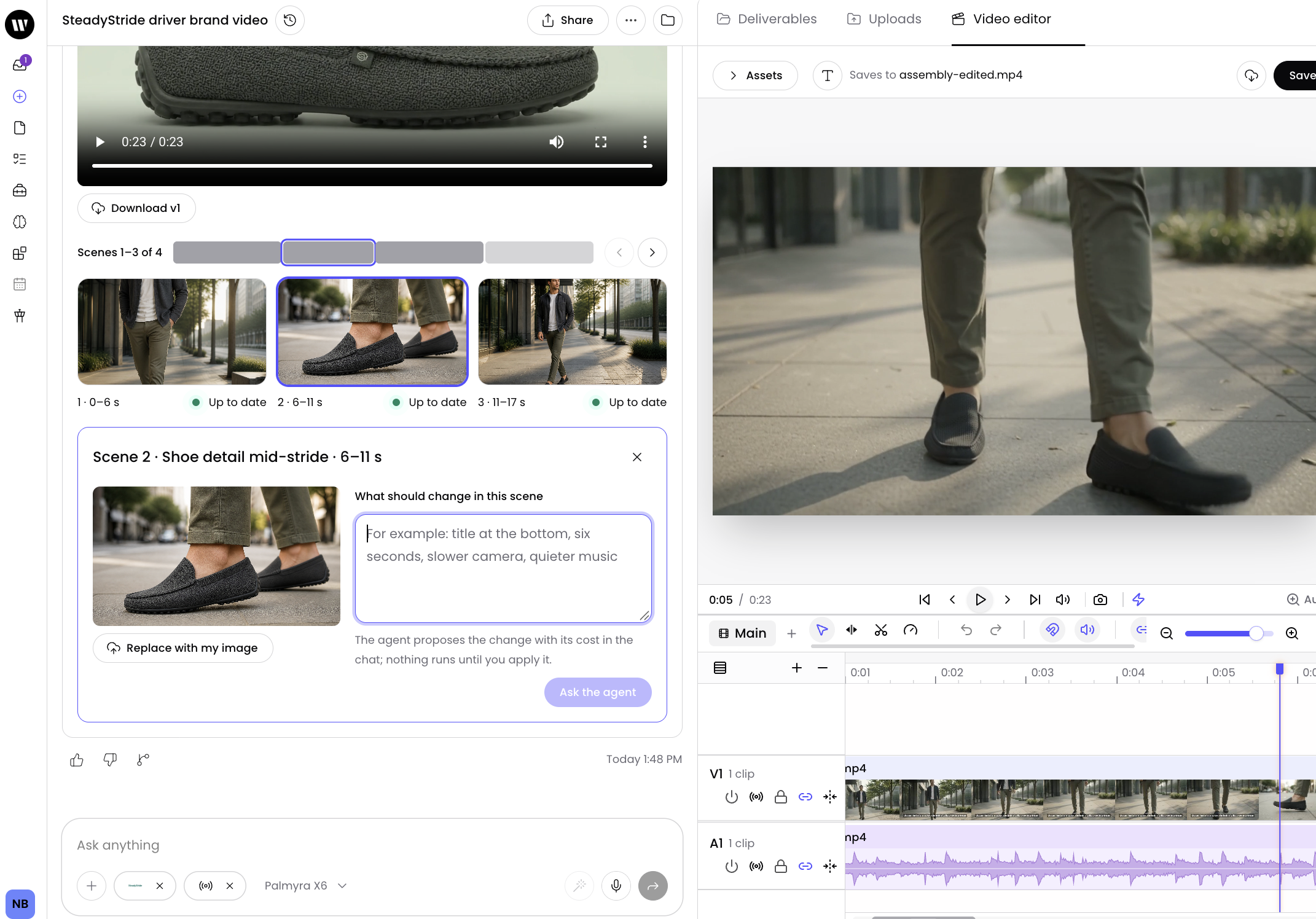
You can import your own files and URLs into the editor and add them to the timeline.
Edits made by WRITER Agent are checked against the editor's schema. WRITER Agent cannot change media sources or add media the editing session does not already have.
If you make an edit while WRITER Agent is making an edit, your edit is kept, and you are offered a choice to resolve the conflict.
When WRITER Agent writes an edit plan alongside its final video, the editor opens with the separate clips, narration, music, and overlays instead of one flat clip.
How to save or download your video
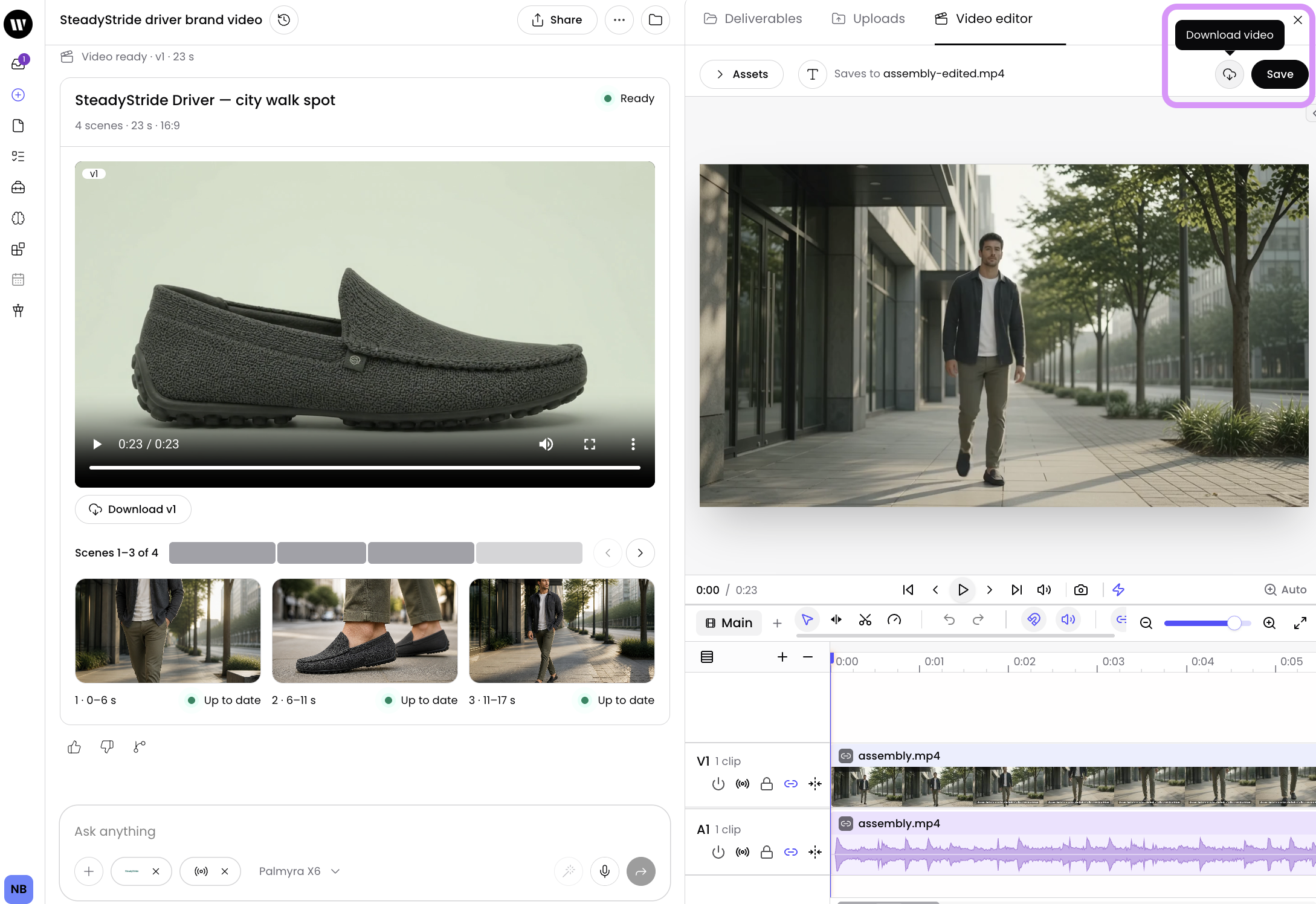
Select Save to add a new version of the video deliverable. Save stays disabled until something changes, and it is rejected if the video changed since you opened it — the editor stays open with your edits in place, so no work is lost.
Select Download to save a separate MP4 file to your computer. Download does not create a new version of the deliverable.
Only the person who created the video can save it. Others can edit but cannot save, and each editing session is private to its owner.
If you leave the editor with unsaved edits, or with imports still uploading, WRITER asks you to confirm before closing.
WRITER Agent never saves on its own. Only you save or download the video.
Editing sessions
Each thread keeps one editing session per owner. The session stores your edits so you can return to them.
An editing session is kept for 7 days from your last change. After it expires, the timeline is restored from a project file kept in the thread's workspace, if there is one. Only without that file does editing start again from the video.
Imported files are uploaded into the thread's workspace so the editor can use them.
Editing with the video production card
For videos WRITER Agent plans and builds step by step, the video production card lets you direct the work at a higher level. From the card you can:
Approve the planned frames before the video is built.
Request changes after the build. WRITER Agent proposes most changes as a change card that you apply.
Change the video, such as regenerating footage, re-cutting a segment, changing the music or the order of scenes, reverting to an earlier version, replacing an image, or rewriting a narration line.
Price an edit before running it. Footage is priced per second. Cost can show as unavailable when the video model has no per-second price.
Retry a failed change, or pause or stop a build. A failed build step is retried with Generate or Animate instead.
Unchanged segments are reused instead of re-rendered, so edits rebuild only the parts you touch.
Troubleshooting
The editor does not load in my browser
Use a current desktop Chrome or Edge browser. The editor shows a message if the browser is missing a required video encoder. Only Chrome and Edge have been tested.
Save was rejected
The video changed since you opened it. The editor stays open with your edits in place — no work is lost. [VERIFY: recovery steps — reopening the editor restores the timeline, but closing it first shows a "Discard unsaved video changes?" prompt. Have product confirm the steps, or suggest Download first as a safe copy.]
FAQs
Can I edit videos that were not generated in WRITER?
The editor opens on a video already in the thread. Once it is open, you can import your own clips, audio, and images into the timeline. The video production card can also cut highlights from a recording you attach.
Do I need to leave WRITER to edit my video?
No. You can generate a video with WRITER Agent and edit it directly in WRITER using the video editor.
Who can save my video?
Only the person who created the video can save it. Others can edit but cannot save, and each editing session is private to its owner.
What file format does the editor produce?
The editor renders H.264/AAC MP4 video in your browser.