Configuring WRITER Agent profiles
Last updated: July 16, 2026
Who can use this feature
IT admins and org admins on Enterprise plans can configure and deploy WRITER Agent profiles.
What are WRITER Agent profiles?
WRITER Agent profiles give you the ability to create customized versions of WRITER Agent tailored to specific teams within your organization. With agent profiles, you can control which capabilities are available, customize the interface, and configure settings to match different team workflows, all from a central management location.
This feature helps you deploy WRITER Agent across your organization while maintaining the right level of access and functionality for each team.
Agent profiles allow for:
Team-specific customization: Deploy different versions of WRITER Agent to different teams based on their needs
Centralized control: Manage all agent configurations from AI Studio
Capability management: Turn specific features on or off for each profile
Interface customization: Change display text, greetings, and disclaimers
Security settings: Control public sharing capabilities per profile
The default WRITER Agent profile
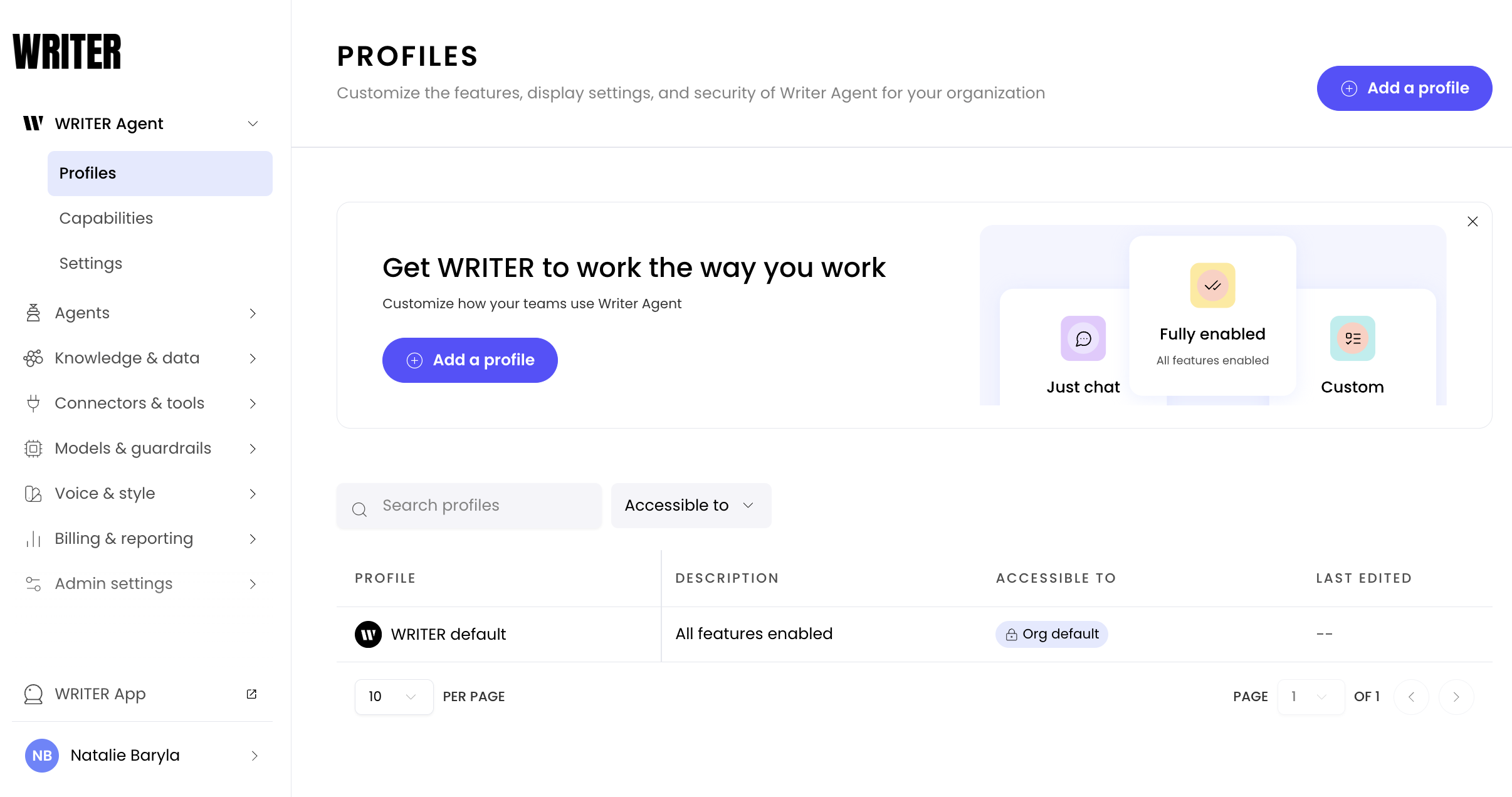
Every organization comes with a default WRITER Agent profile. This profile applies to your entire organization by default.
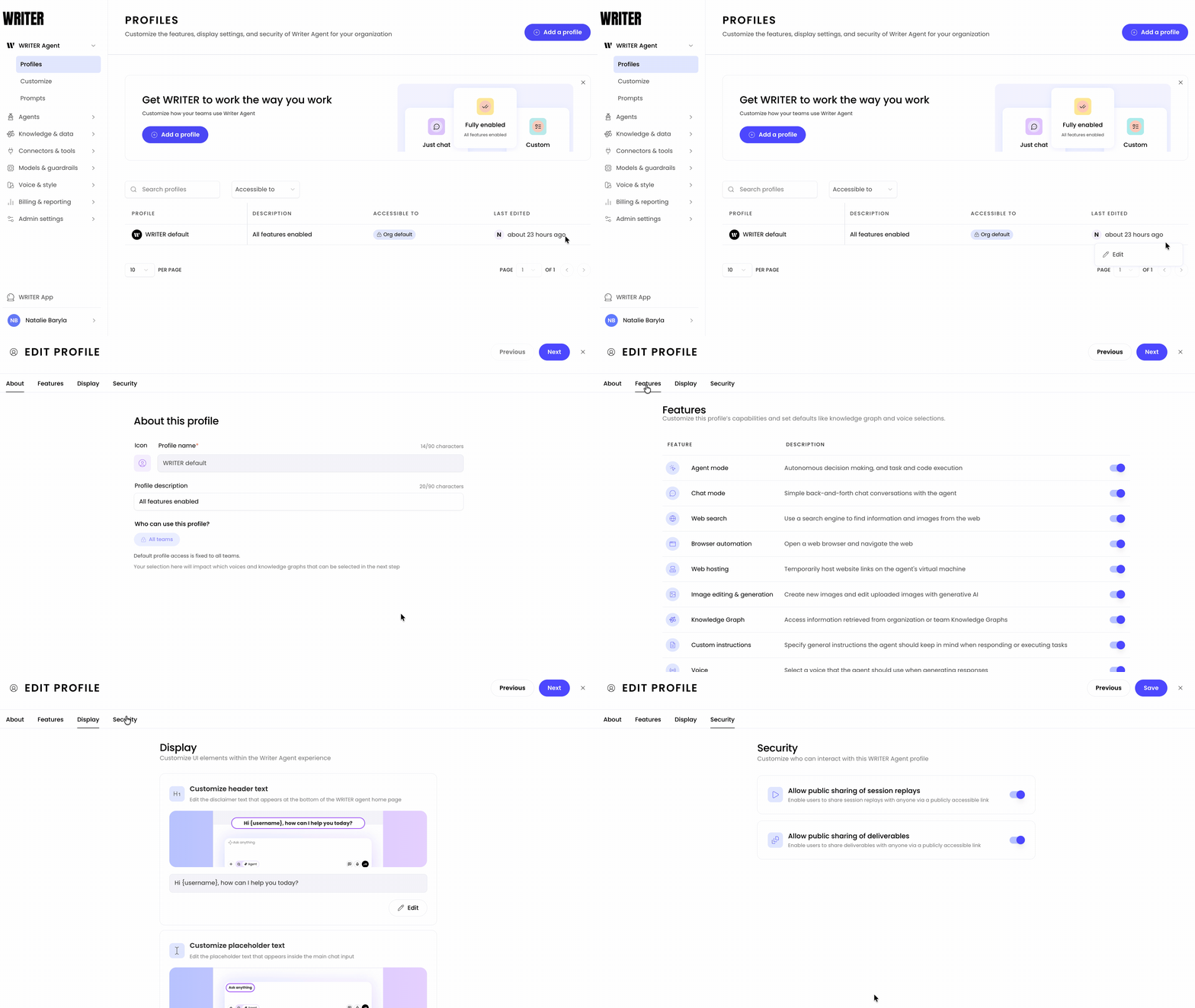
Navigate to AI Studio > WRITER Agent > Profiles and select the three dot icon next to the WRITER default profile. Select Edit from the menu and configure the default profile to adjust WRITER Agent settings for your users.
You can customize the default profile in the same way as team-specific profiles, allowing you to set baseline capabilities, custom instructions, and interface settings for all users.
If a team needs specialized access, you can create a specific profile for them which will override the default settings for those users.
Creating agent profiles
You can create and manage agent profiles through AI Studio. Follow these steps to set up your first profile:
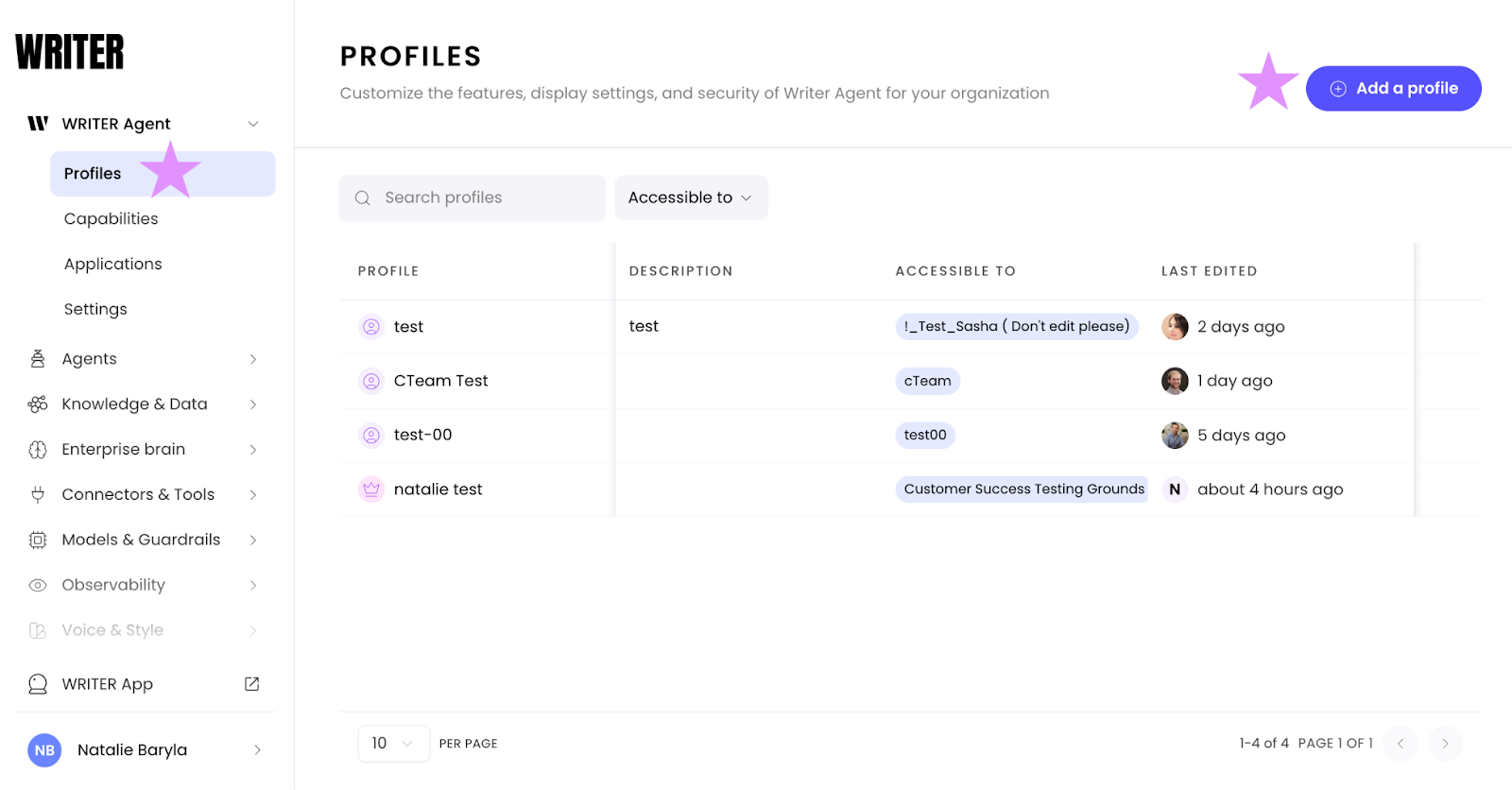
Navigate to AI Studio and select WRITER Agent > Profiles from the left sidebar. Then select the +Add a profile button to start configuring a new profile.
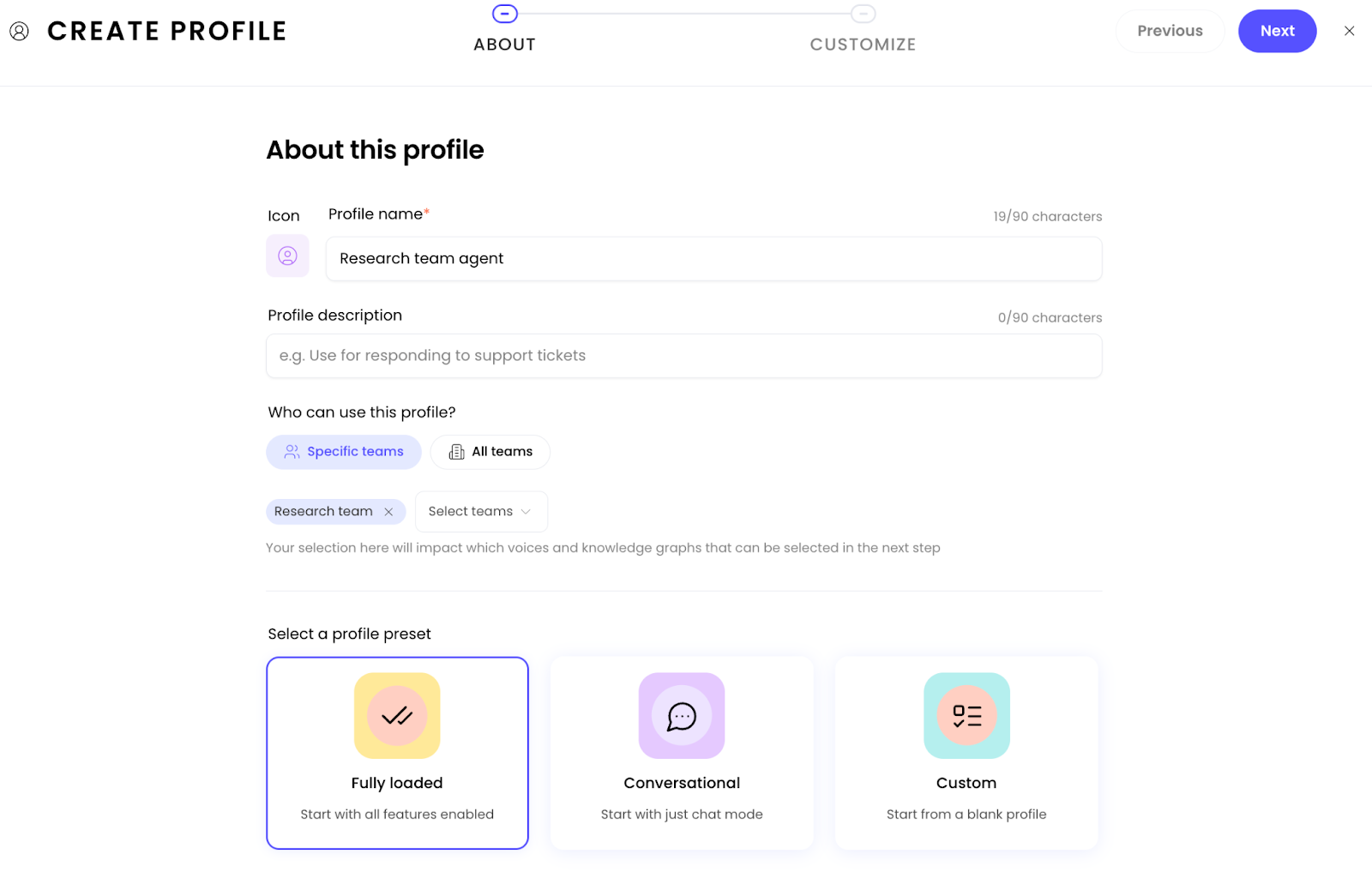
Choose your profile appearance: Select a color and icon for your profile. These help you and other admins quickly identify different Agent configurations
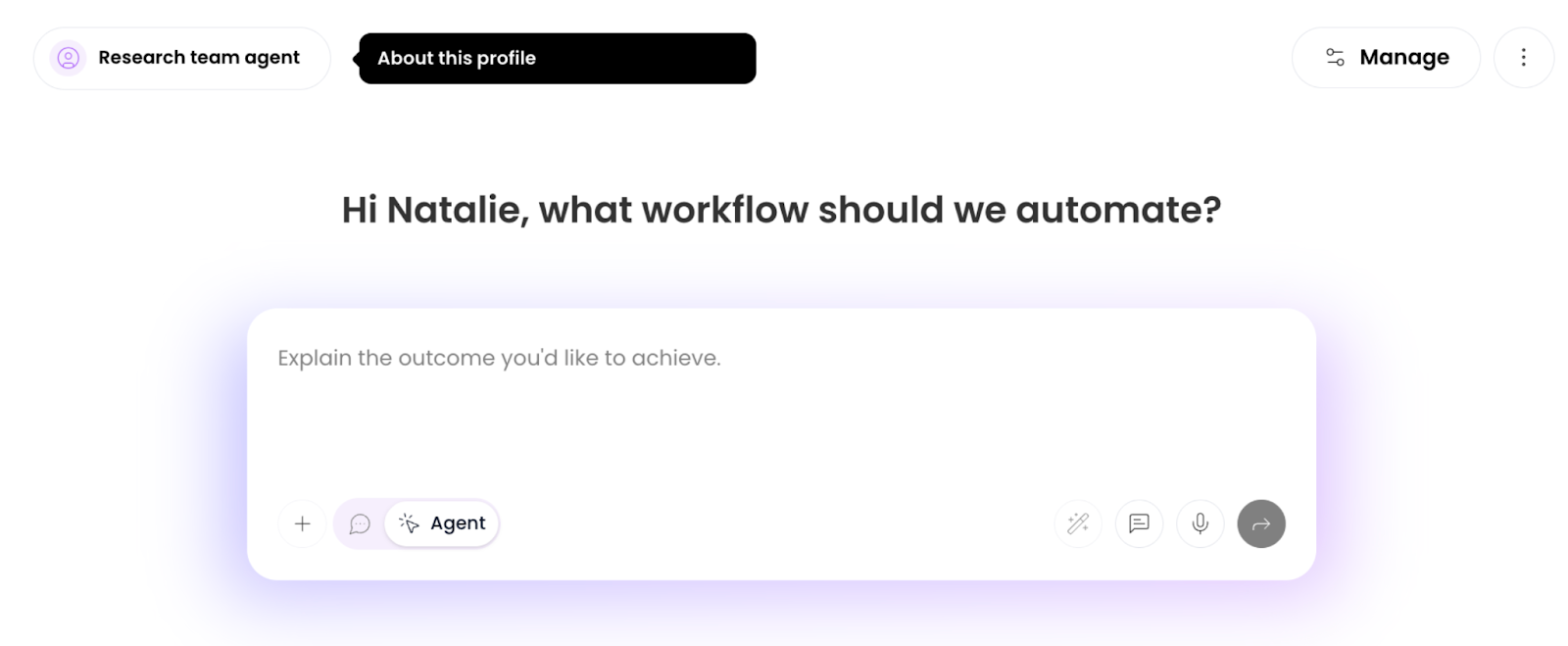
Name your profile: Give it a descriptive name that reflects its purpose (e.g., "Customer Success Agent" or "Research Team Agent")
Select teams: Choose which team(s) will have access to this profile. You can deploy the same profile to multiple teams
Choose a starting template:
Fully loaded: Includes all capabilities enabled, you can then turn off what you don't need
Conversational: Starts with basic chat capabilities only
Custom: Starts with all features disabled, you can then turn on what the team needs
Select Next to move to the configuration screen
You'll see confirmation that your profile has been created and can now configure its specific settings.
💡 Pro-Tip: Start with "Fully loaded" and turn off specific capabilities as needed. This approach helps you see all available options and make informed decisions about what to exclude.
Configuring profile settings
After creating your profile, you'll configure which capabilities are available to users:
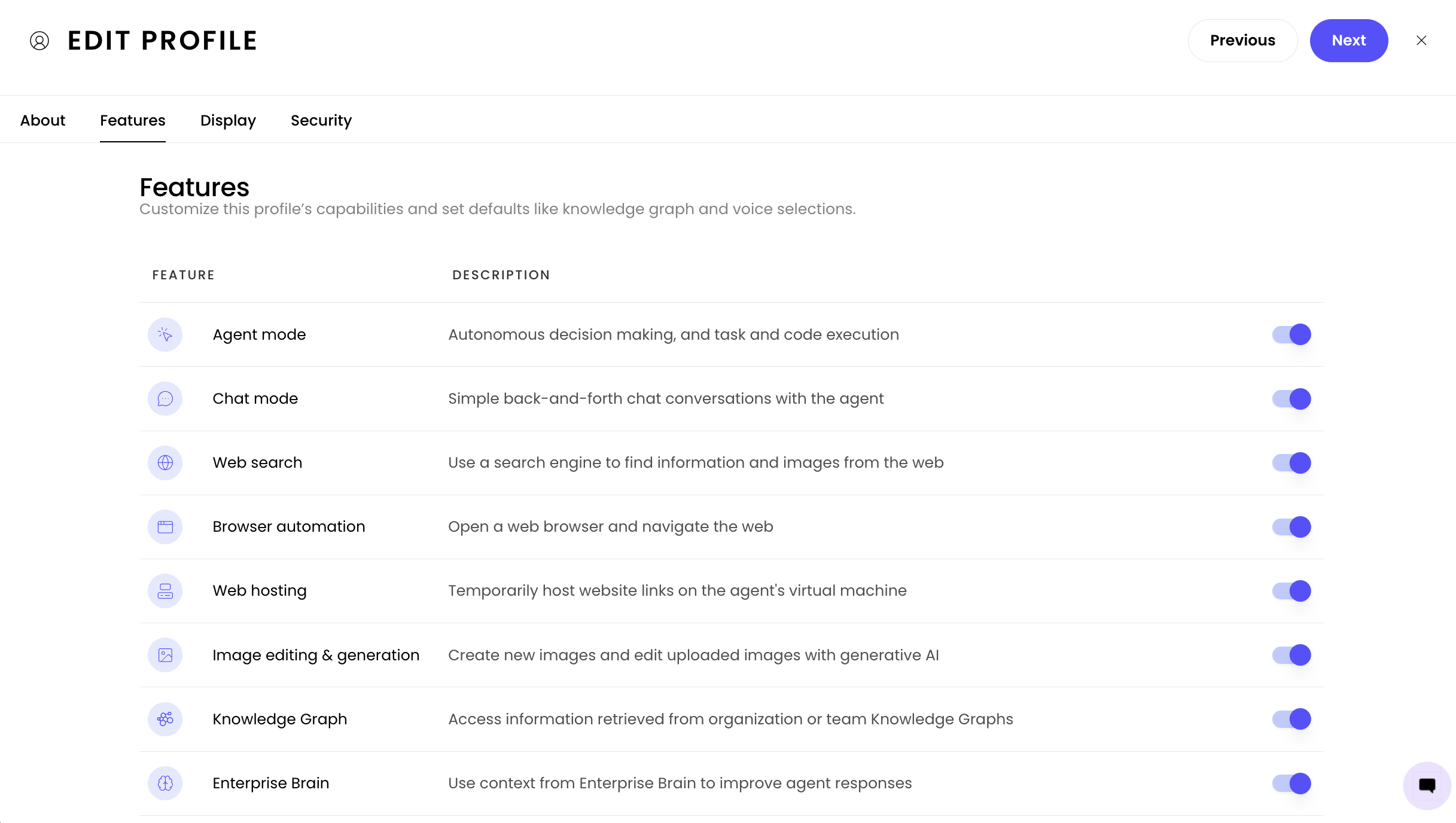
Capability controls
The Features tab shows all available capabilities you can enable or disable for this profile. Each feature includes a toggle switch and a description:
Core capabilities:
Agent mode: Enable autonomous decision making, task execution, and code execution. This is the full agentic experience where WRITER Agent can perform complex workflows.
Chat mode: Allow simple back-and-forth chat conversations with WRITER Agent for quick questions and answers.
Research & web capabilities:
Web search: Let users search the web to find information and images. Great for research and fact-checking tasks.
Browser automation: Allow WRITER Agent to open a web browser and navigate the web for more complex web interactions.
Web hosting: Let users temporarily host website links on WRITER Agent's virtual machine to preview and share work.
Content creation:
Image editing & generation: Enable creating new images and editing uploaded images using generative AI.
Knowledge & customization:
Knowledge Graph: Give users access to information retrieved from your organization or team Knowledge Graphs. This can be configured in detail in a separate section.
Custom instructions: Allow users to specify general instructions WRITER Agent should keep in mind when responding or executing tasks. Can also be pre-configured at the profile level.
Voice: Let users select a voice that WRITER Agent should use when generating responses. Can also be preset at the profile level.
Productivity features:
Prompt library: Give access to view personal or team-managed prompts for faster work.
Use microphone: Enable using a microphone to transcribe speech-to-text when writing prompts.
Improve prompt: Allow users to automatically improve their prompts using generative AI with a single click.
⚠ Note: Features marked with a gear icon ⚙ have additional configuration options. Click the gear to customize settings like which Knowledge Graphs are available or voice and custom instruction defaults.
Setting default voice profiles
Once you've created a voice profile to apply to agent outputs, you can then select that voice within the Features tab of the default or team profile to make that the default by WRITER Agent. Learn how to create voice profiles here.
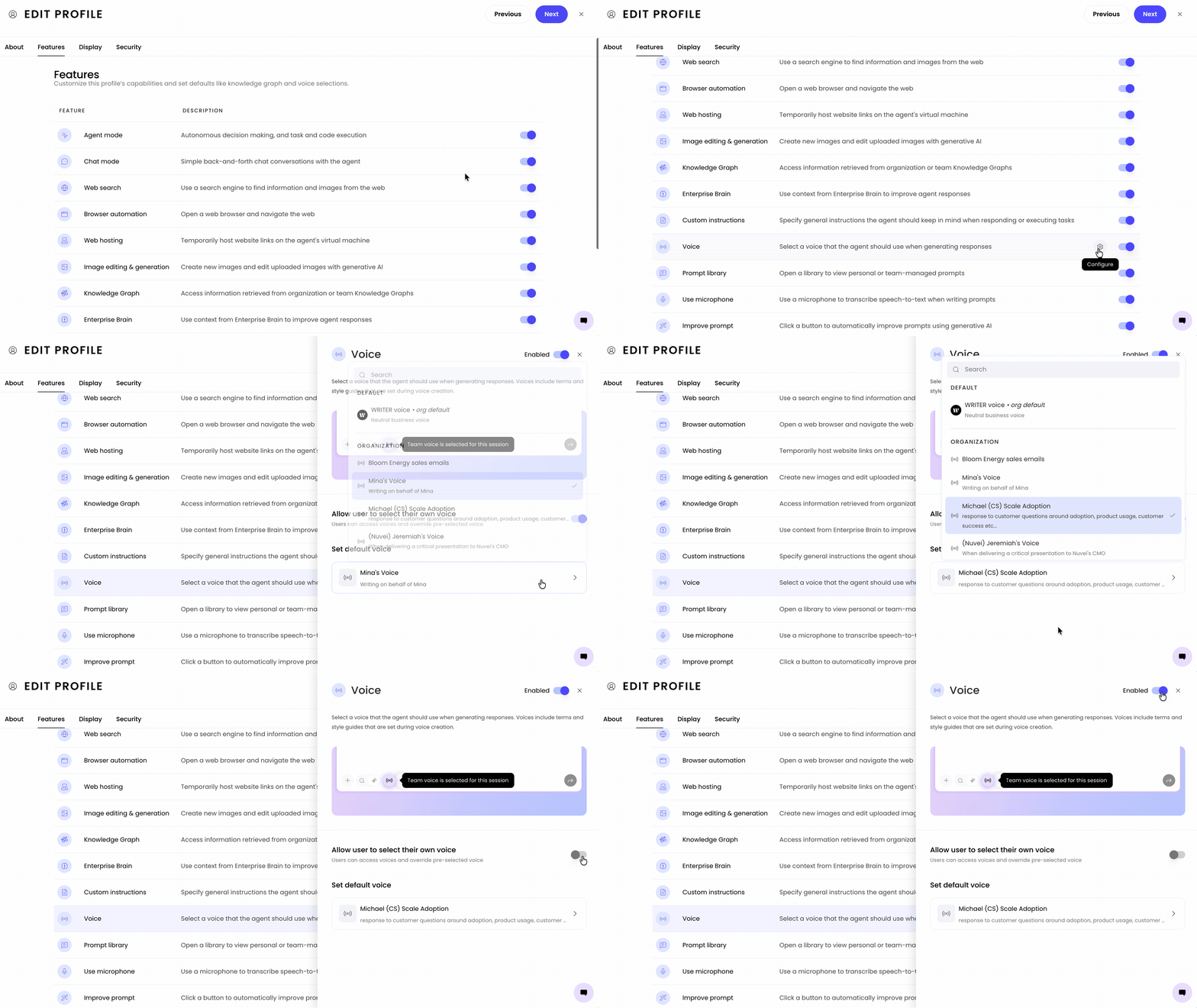
Once you select the gear icon next to Voice you can:
Disable voice profiles or enable them if they've previously been disabled.
Select whether or not users should be allowed to select voices to override the default settings.
Select a default voice to apply to WRITER Agent outputs.
Saving your configuration
Review all capability settings to confirm they match your requirements, then select Next to proceed to customization options
⚠ Note: Changes to capability settings apply immediately to all users assigned to this profile. Consider testing new profiles with a small group before wider deployment.
Customizing the user experience
Agent profiles let you customize the interface text that users see when they interact with WRITER Agent:
Display customization
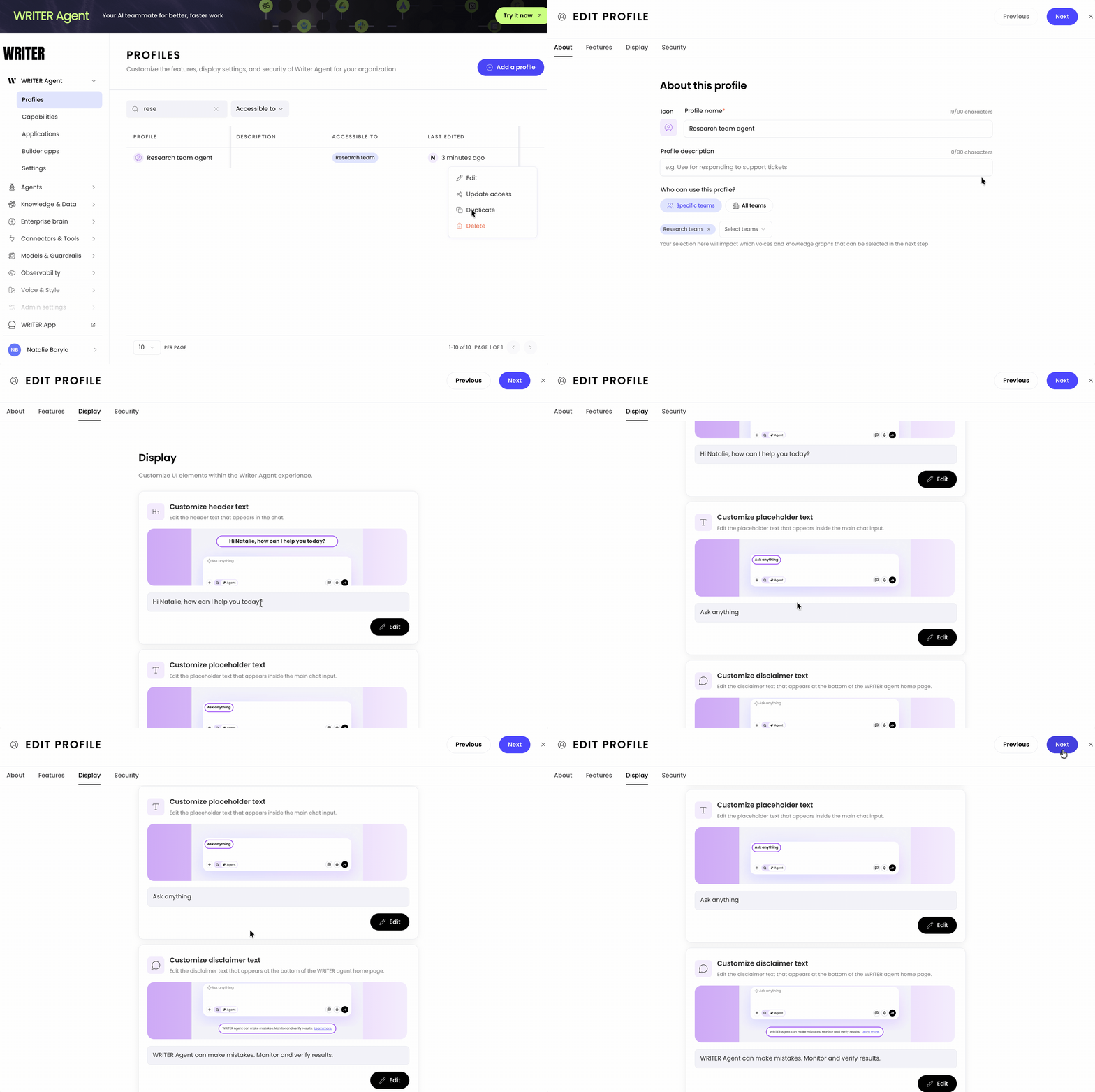
Once you’ve saved the configuration, you’ll be taken to the WRITER Agent profile list. Locate your profile and select the three dot icon to the right. Select Edit and navigate to the Display section of your profile settings to adjust the following settings:
Greeting text: Edit the main greeting message
Default: "How can I help you today?"
Custom example: "What workflow can I help you with?"
Placeholder text: Customize the text that appears in the input field before users type
Use this to guide users toward the types of requests this profile handles best
Disclaimer text: Modify the disclaimer shown to users
Default: "WRITER Agent can make mistakes, monitor and verify results"
Customize to add team-specific guidance or compliance reminders
💡 Pro-Tip: Use greeting and placeholder text to guide users toward the specific capabilities available in each profile. For example: "Ask me to analyze customer feedback" for a customer success profile.
Security settings
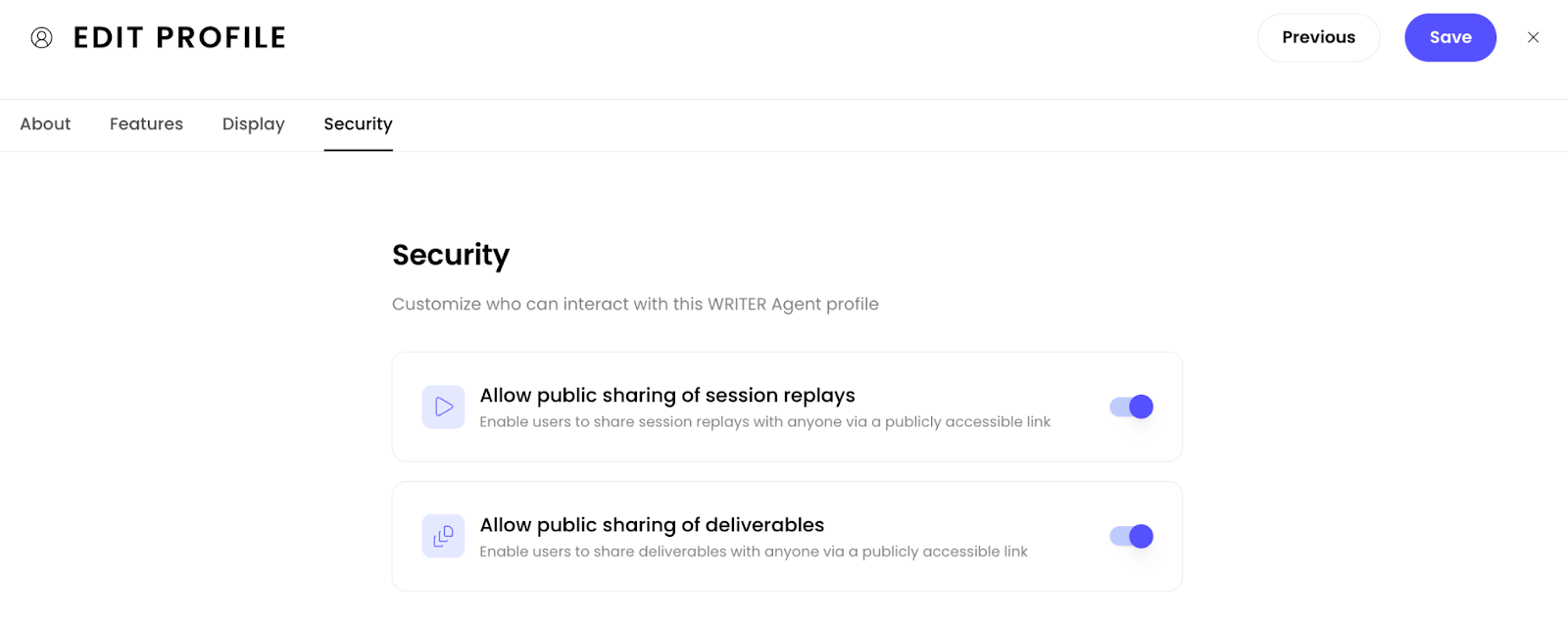
Control how users can share content from this WRITER Agent profile:
Navigate to the Security section
Public sharing: Enable or disable the ability for users to:
Share session replays publicly
Share deliverables publicly
⚠ Note: Disabling public sharing helps you maintain tighter control over sensitive information while still allowing internal team collaboration.
Configuring feature settings
Several features have advanced configuration options accessible via the gear icon ⚙ in the Features list:
Knowledge Graph configuration
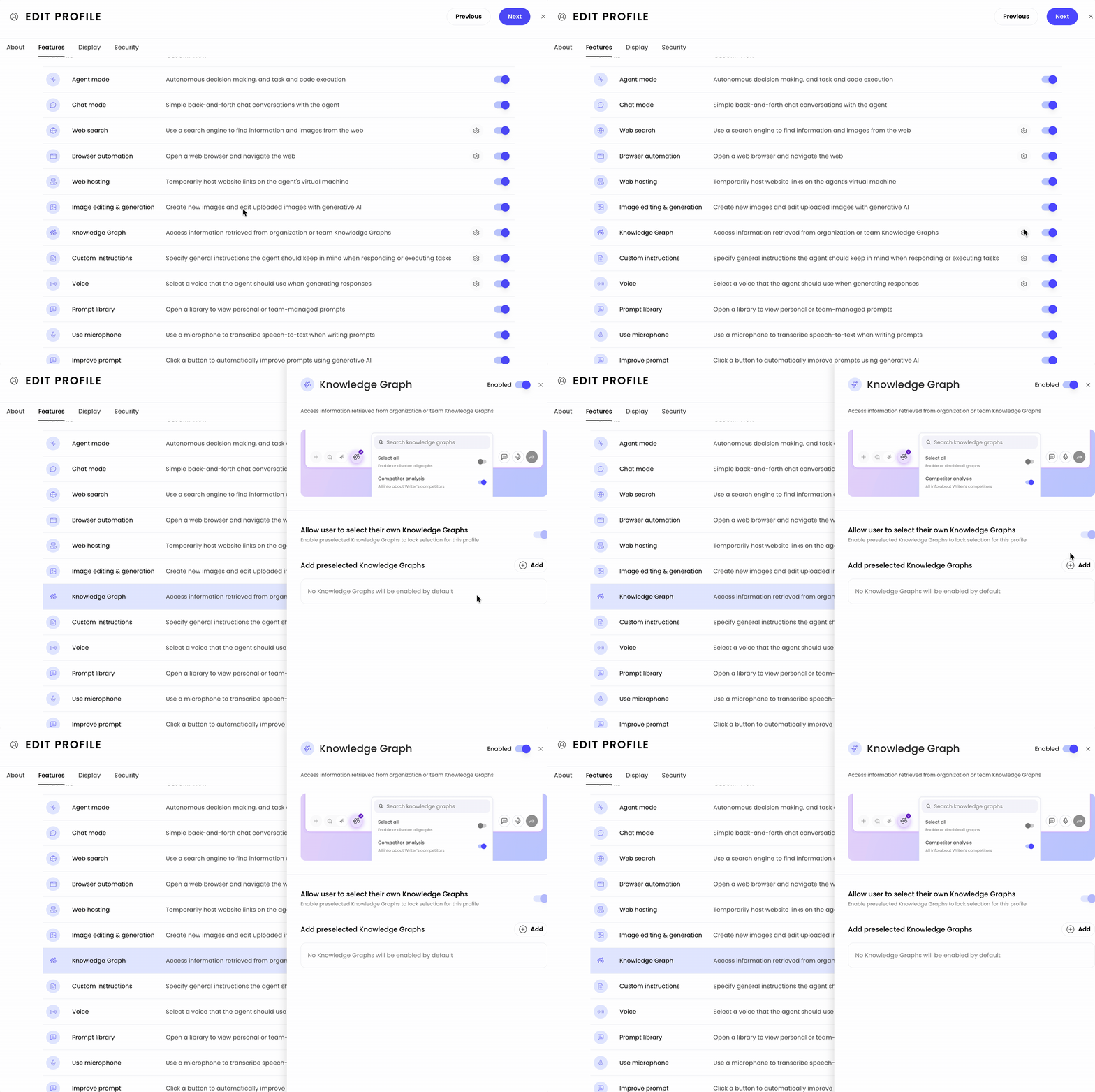
If you've enabled the Knowledge Graph feature, click the gear icon to configure:
Add Knowledge Graphs: Select which graphs should be pre-selected for this profile. The Knowledge Graphs available will only be those that have been deployed to the team(s) for the agent profile.
Choose from the team's available Knowledge Graphs.
Optional: Disable the ability for users to select their own Knowledge Graphs if you want to restrict access to specific sources only
This helps teams automatically access the right information sources without manual configuration each time they start a conversation.
Custom instructions
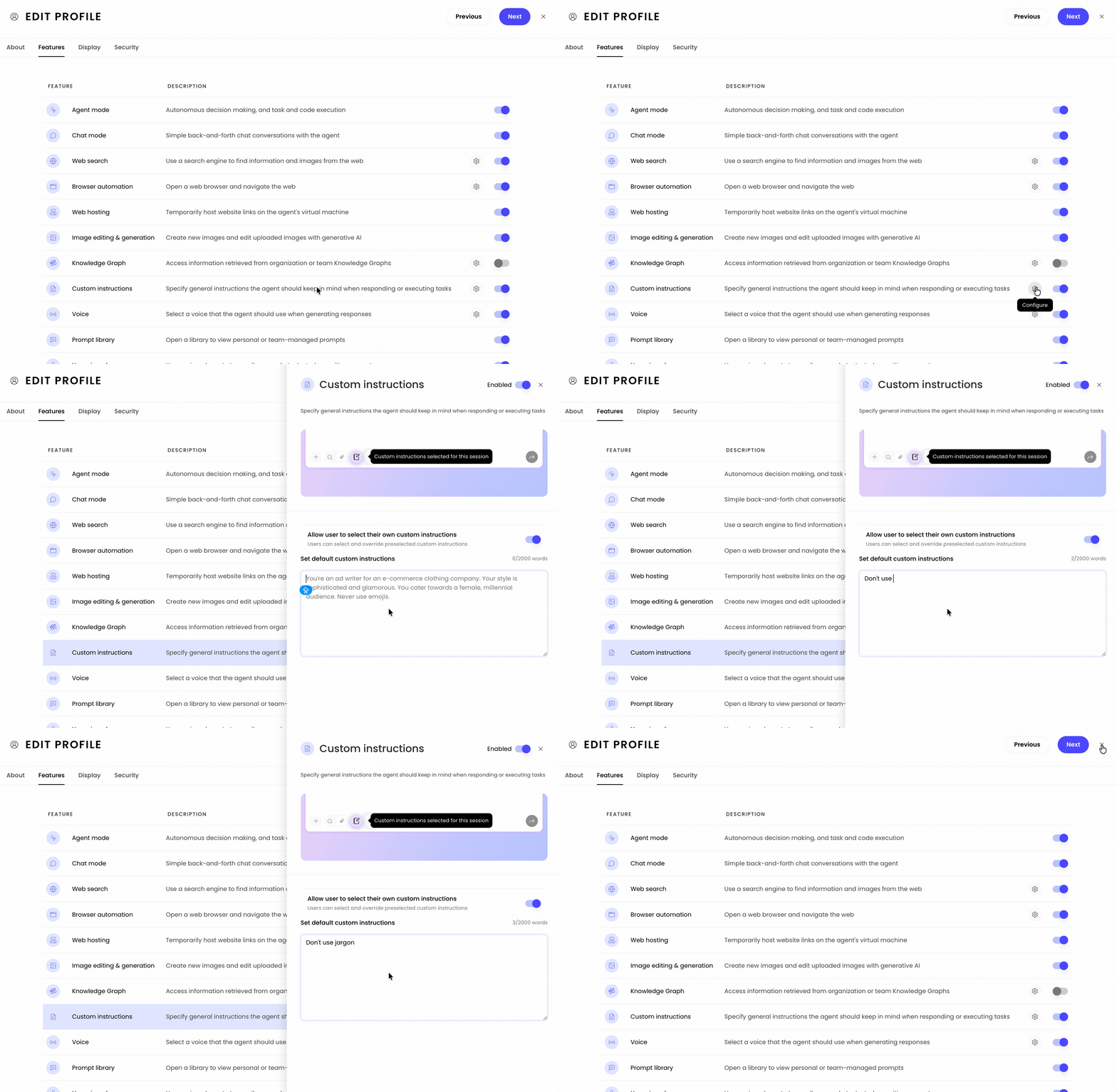
If you've enabled custom instructions, click the gear icon to configure:
Add preset instructions: Enter instructions that will apply to all interactions with this agent profile
Example: "Always respond in a formal tone" or "Focus on technical accuracy"
Example: "Include cost estimates in all proposals"
Optional: Control whether users can modify or add their own instructions on top of the preset
This embeds team-specific guidelines, terminology, or quality standards into every conversation.
Voice settings
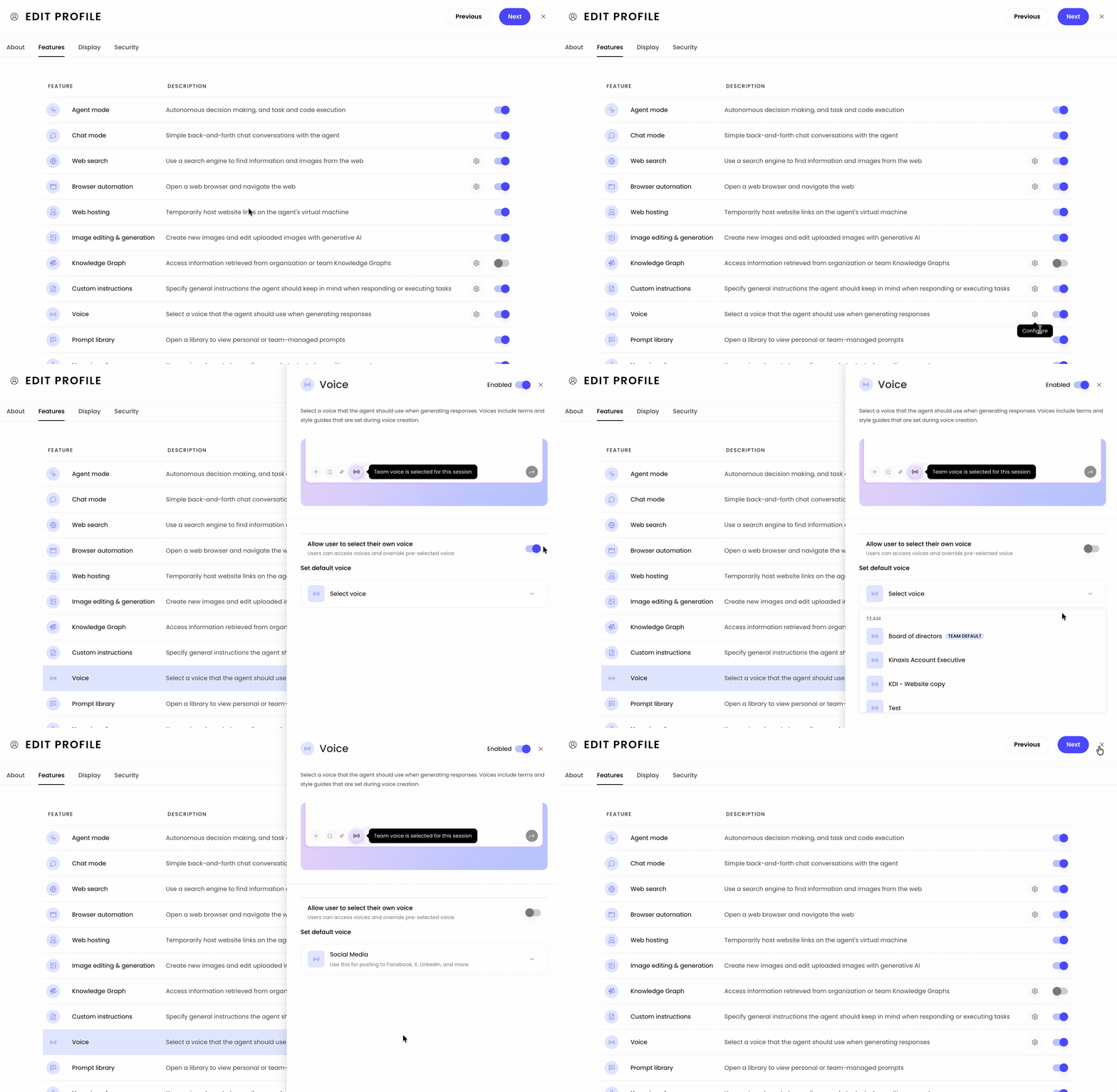
If you'd like outputs to be generated in a specific enabled voice, click the gear icon to configure:
Select a preset voice: Choose a voice profile that aligns with your team's communication style
The selected voice will be used by default for all users of this profile
Optional: Allow or prevent users from changing the voice selection
Web search and browser automation
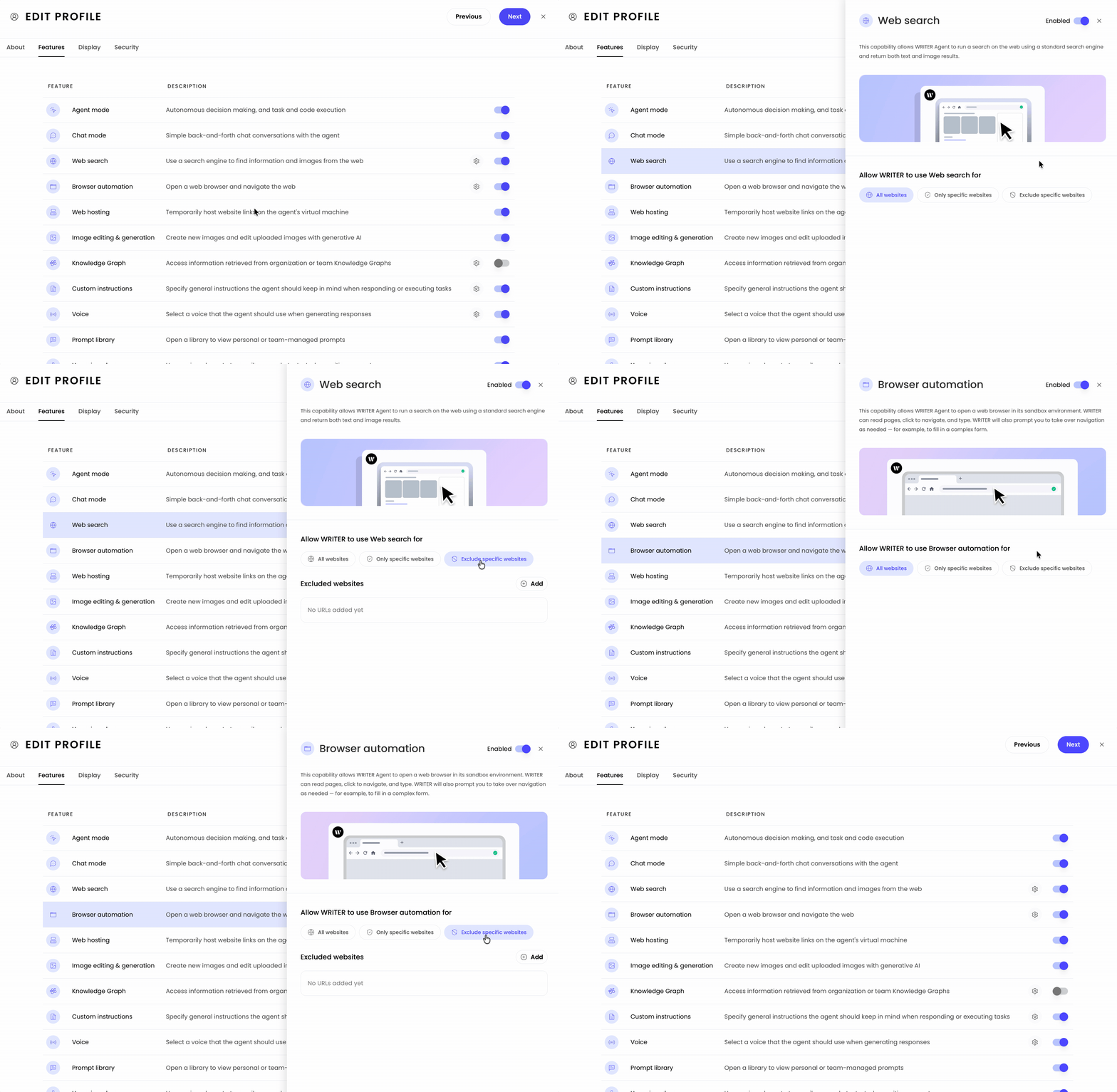
For Web search and Browser automation features, you can configure additional settings like:
Search result limits
Allowed domains
Privacy and security controls
💡 Pro-Tip: Use advanced settings to create guardrails that keep teams focused and compliant while still giving them the flexibility they need to work effectively.
Best practices
Creating effective agent profiles
Good:
Create profiles based on actual team workflows and needs
Use descriptive names that clearly indicate the profile's purpose
Test profiles with a small group before deploying to entire teams
Document which teams use which profiles for easy reference
Not as effective:
Creating too many similar profiles that differ in only minor ways
Using generic names that don't indicate the profile's specific purpose
Deploying untested profiles to large teams
Capability configuration
Good:
Start with "Fully loaded" and disable what you don't need
Consider security and compliance requirements when enabling capabilities
Align capabilities with team roles and responsibilities
Review capability settings quarterly as team needs evolve
Not as effective:
Disabling all capabilities by default without considering team needs
Restricting capabilities without understanding how teams work
Setting and forgetting, profiles need periodic review
Customization checklist
Before deploying a new agent profile, review:
Profile name clearly indicates its purpose
Correct teams are selected for deployment
Capabilities match team workflow requirements
Greeting text provides helpful guidance
Placeholder text suggests appropriate use cases
Security settings align with data sensitivity
Knowledge Graphs (if any) are pre-selected and relevant
Custom instructions (if any) support team objectives
Profile has been tested with representative users
FAQs
What's the difference between agent mode and chat mode?
Agent mode enables autonomous decision making, task execution, and code execution. WRITER Agent can perform complex multi-step workflows, use tools, and execute tasks on your behalf.
Chat mode provides simple back-and-forth conversations for quick questions and answers without the full agentic capabilities. It's ideal for teams who need straightforward assistance without complex task automation.
You can enable either or both modes depending on your team's needs.
What's the difference between agent profiles and the previous no-code chat agents?
Agent profiles offer significantly more power and flexibility than no-code chat agents. With agent profiles, you can control individual capabilities, customize the interface, pre-configure Knowledge Graphs, and set custom instructions, all while maintaining the full power of WRITER Agent. Agent profiles help you deploy customized versions of WRITER Agent across your organization rather than building separate, limited chat bots.
Can I deploy the same profile to multiple teams?
Yes, you can deploy a single agent profile to multiple teams during the creation process. This helps you maintain consistent configurations across teams with similar needs while managing them from a single profile.
Can users switch between different agent profiles?
Currently you can only apply one agent profile per team. Users will see and use the profile that have been deployed to their team. If a user is part of multiple teams, they will see the profile deployed to each team when navigating via the profile menu in the bottom left.
What happens if I change a profile's settings?
Changes to a profile's settings apply immediately to all users who have access to that profile. If you need to make significant changes, consider creating a new test profile first to validate the configuration before modifying a production profile.
Can I delete an agent profile?
Yes, you can delete agent profiles from the Profiles management screen in AI Studio. Deleting a profile will remove it from all teams it was deployed to. Consider the impact on your teams before deleting active profiles.
How do I know which capabilities to enable or disable?
Consider your team's actual workflows, security requirements, and skill levels. Here are some guidelines:
Disable Web search and Browser automation for teams working exclusively with internal data
Disable Image editing & generation for teams focused on text-based work
Disable Web hosting if your security policy restricts hosting content
Pre-configure Knowledge Graphs and custom instructions to embed best practices and compliance requirements
Start by talking to team leads about their actual needs rather than enabling everything by default.
Which features have advanced configuration options?
Features with a gear icon ⚙ next to them have additional configuration options:
Web search: Configure search limits and allowed domains
Browser automation: Set browsing controls and restrictions
Knowledge Graph: Select which graphs are available and control user selection
Custom instructions: Set preset instructions and control if users can modify them
Voice: Choose a default voice and control user voice selection
Click the gear icon next to any of these features to access their advanced settings.
Can I customize the Knowledge Graphs for different profiles?
Yes, each WRITER Agent profile can have its own pre-selected knowledge graphs. Navigate to the Knowledge Graphs section in your profile settings to add specific graphs. You can also disable the ability for users to select their own Knowledge Graphs if you want to maintain strict control over information sources.
What's the best way to test a new profile before deploying it widely?
Create the profile and deploy it to a small test team or a subset of users first. Ask them to test key workflows and provide feedback on the capability configuration and interface customization. Based on their input, adjust the settings before deploying to larger groups.
Can I set different custom instructions for different profiles?
Yes, each WRITER Agent profile can have its own custom instructions. This allows you to tailor WRITER Agent's behavior to specific team needs. For example, your legal team's profile might include instructions about formal language and citation requirements, while your marketing team's profile might emphasize creativity and brand voice.
How do security settings on profiles interact with organization-level security settings?
Profile-level security settings work within the boundaries of your organization's overall security configuration. If your organization has disabled public sharing at the admin level, individual profiles cannot override that setting. Profile settings let you add additional restrictions on top of organization-wide policies.
Where can I see which profiles are currently deployed?
In AI Studio, navigate to WRITER Agent > Profiles to see a list of all profiles in your organization. The list shows each profile's name, teams it's deployed to, and configuration status. You can click on any profile to view or edit its settings.