Built-in Data Loss Prevention (DLP) guardrail
Last updated: October 13, 2026
The built-in Data Loss Prevention (DLP) guardrail helps IT admins prevent sensitive information from reaching a model. It detects personal information, financial data, government IDs, healthcare identifiers, and secrets or credentials, then blocks the request before the model call happens. There is no third-party provider to configure and no additional credentials to manage.
The DLP guardrail runs a pre-call check on the content of a prompt and text in uploaded documents before it is sent to the model. When the guardrail detects sensitive data in the request, it blocks the request so the model never receives that content. This moves data protection into the path of the work itself: employees can work naturally while the platform enforces the boundaries for them.
Important: The current release performs a pre-call check on text entered into the context window and files uploaded to a session. Post-call detection will follow in a subsequent release. Additionally, if the model generates sensitive data in its response, that's not currently caught.
The guardrail is built directly into WRITER. There is no third-party DLP provider to configure and no additional credentials to manage. Security teams get a single, centralized control that can apply across teams and models.
What the guardrail detects
The DLP guardrail scans for the following categories of sensitive data:
Personal information — names, email addresses, phone numbers, street addresses, and other personally identifiable information.
Financial data — credit card numbers, bank account numbers, and related financial identifiers.
Government IDs — national identification numbers, Social Security numbers, passport numbers, and similar government-issued identifiers.
Healthcare identifiers — medical record numbers, health insurance identifiers, and other protected health information identifiers.
Secrets and credentials — API keys, access tokens, passwords, and other credentials that could grant unauthorized access.
Note: The guardrail blocks the request when sensitive data is detected. It does not redact or mask the sensitive content and then continue; the entire request is prevented from reaching the model.
How to enable the DLP guardrail
Users with the IT admin role can enable the DLP guardrail so that it applies across the teams and models in their organization.
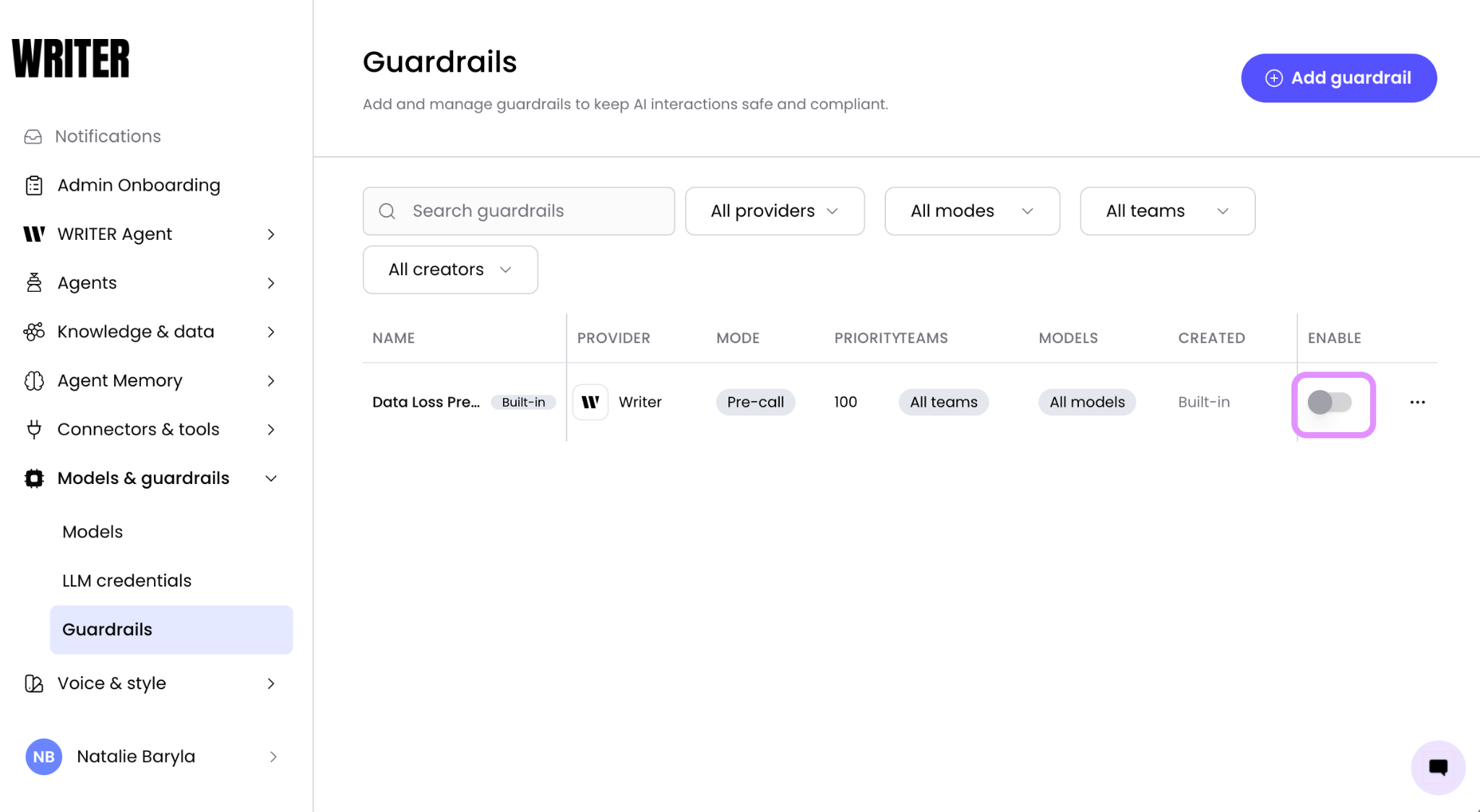
Navigate to AI Studio > Models & guardrails > Guardrails where you’ll find the WRITER provided DLP guardrail. Enable the guardrail to launch the setup modal.
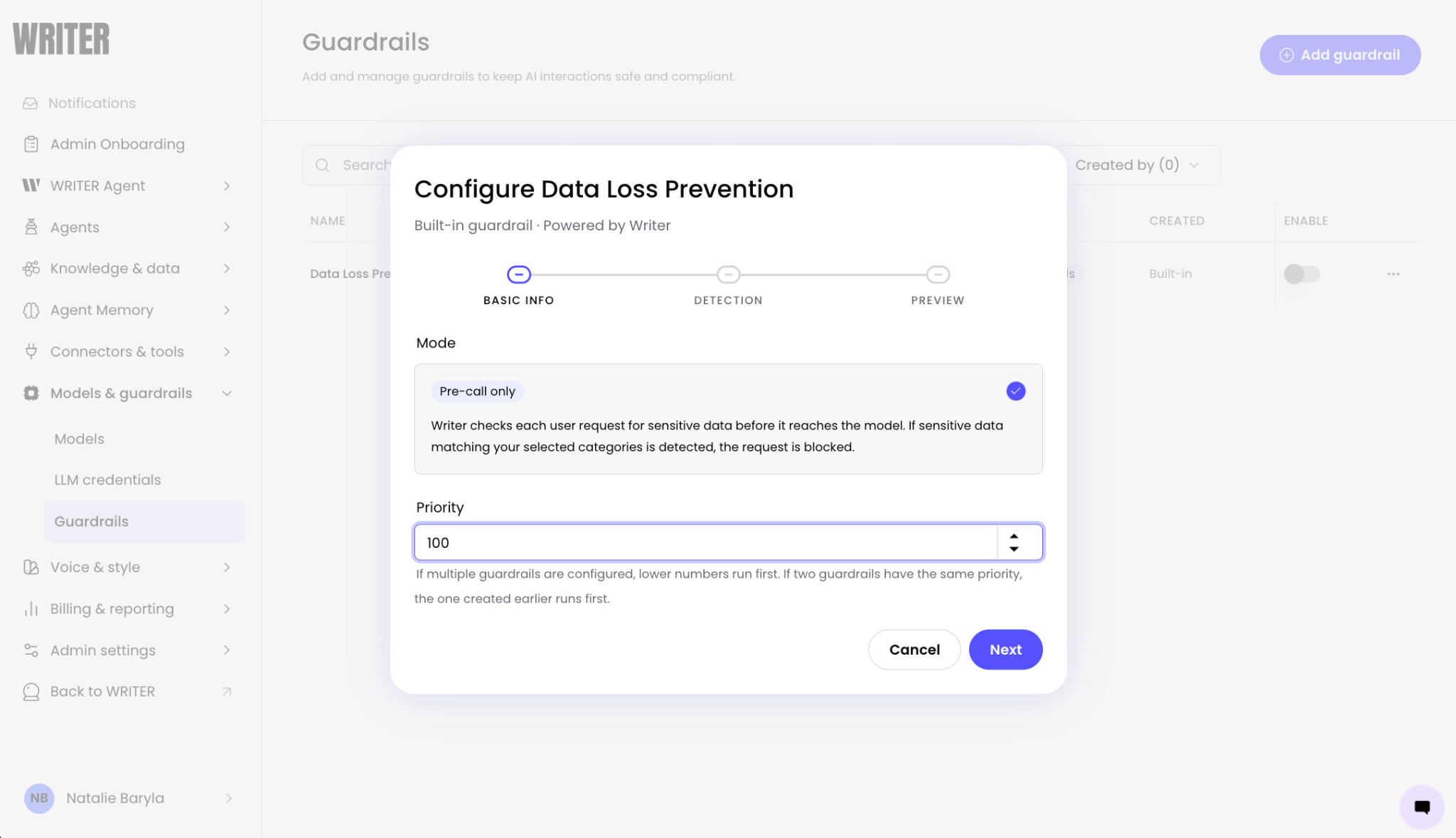
If you have enabled multiple guardrails, such as Bedrock and Azure, the one with the lower priority number here will run first. If multiple have the same priority then the one created earlier will run first.
Note: DLP guardrails short-circuits other guardrails. When DLP blocks, later guardrails in the execution order don't run and the model isn't invoked.
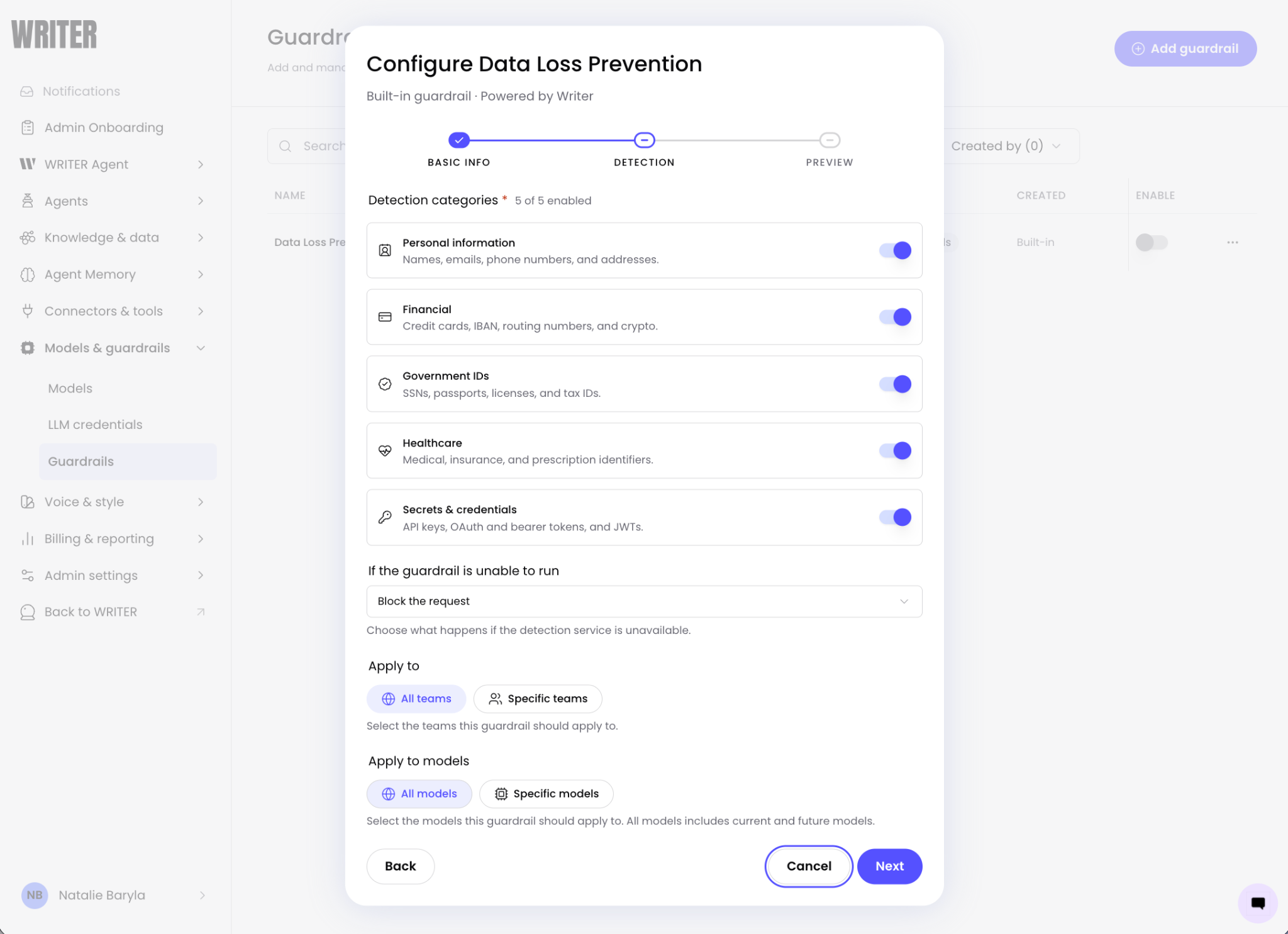
Select the categories of sensitive data to block, or accept the default set: Personal information, Financial data, Government IDs, Healthcare identifiers, and Secrets and credentials.
Note: The DLP guardrail does not currently inspect data retrieved through connectors, tool calls, or Knowledge Graph. Post-call detection, which would cover some of these paths, is planned for a subsequent release."
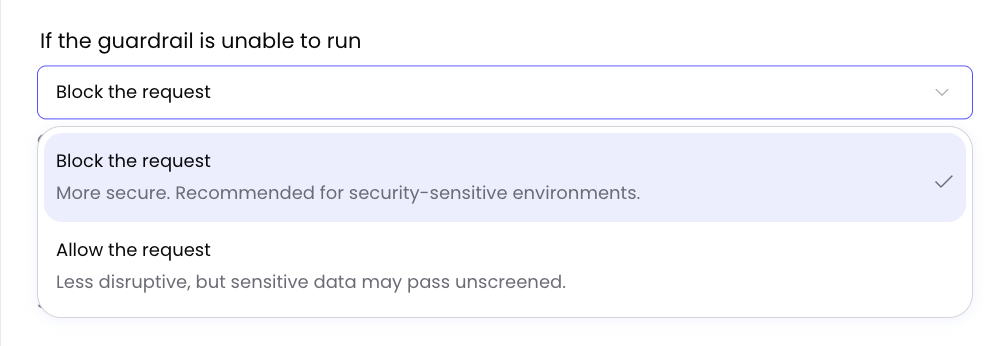
Once you select your categories, decide what should happen if the guardrail is unable to run. DLP can be configured to fail close (block ALL requests in the rare scenario where the DLP service is down and unable to run) or fail open and allow all calls through.
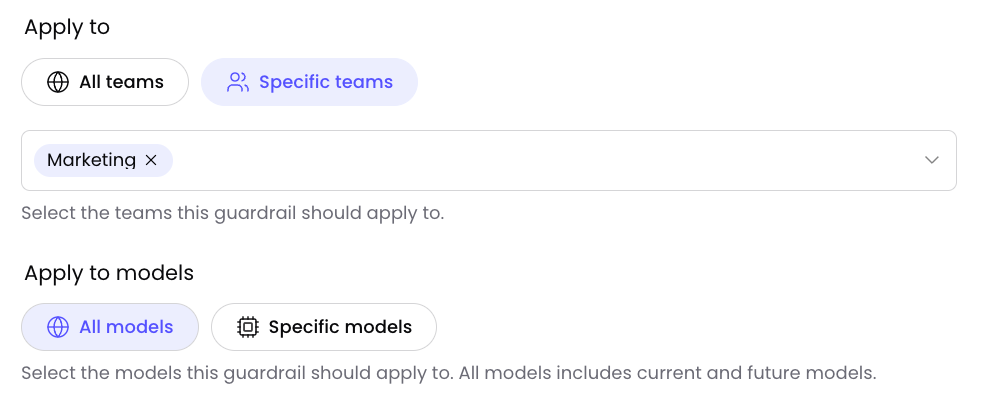
Next, select the teams and models the guardrail should apply to. If you select both specific teams AND specific models, the guardrail applies only to that team using that model — not all teams or all models independently. Finally select Next to test the guardrails.
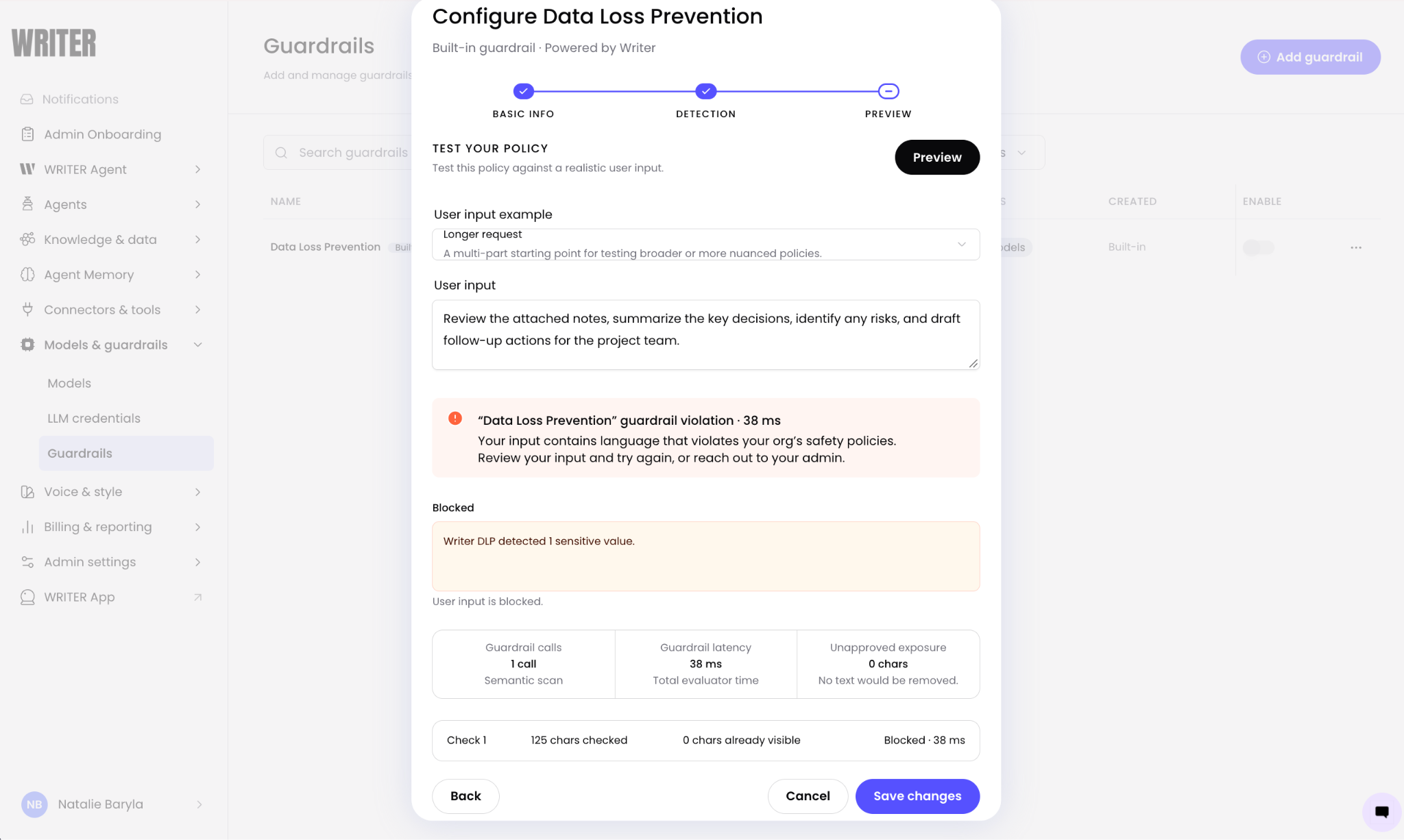
On the next screen test your guardrail to ensure it works properly and finally, select Save to apply the configuration.
You'll see the toggle next to Data Loss Prevention turned on, and the selected categories listed beneath it.
Tip: Start with blocking the content that is most sensitive first instead of everything, test it out in the next screen first, and consider deploying it only to one specific team instead of all teams when first testing out the integration.
You can disable the guardrail at any time by toggling the switch off on the guardrail page.
How users experience a blocked request
When a user submits a prompt that contains sensitive data matching an enabled category, the guardrail blocks the request before the model call. The user receives a message indicating that the request was blocked to protect sensitive information, and no content is sent to the model.
The original session remains intact. The user can revise the prompt to remove the sensitive data and resubmit, or continue working in the same session.
FAQs
Does the DLP guardrail scan files I upload to a session?
A pre-call check for files uploaded to a session is being added. The current release performs a pre-call check on text entered into the context window. Post-call detection will follow in a subsequent release.
Does the guardrail redact sensitive data and then send the rest of the prompt?
No. When the guardrail detects sensitive data, it blocks the entire request. The model does not receive any part of the prompt.
Do I need to configure a third-party DLP provider?
No. The DLP guardrail is built into WRITER. There is no third-party provider to configure and no additional credentials to manage.
Can I enable more than one DLP guardrail per org?
No, only one per WRITER org at this time.
Who can enable the DLP guardrail?
IT admins can enable and configure the DLP guardrail. The configuration applies across the teams and models in the organization.
Are DLP changes logged anywhere for admins to access?
Guardrail decisions (allow/deny, which categories triggered) are logged in the LLM observability event logs and visible in traces.
Can I choose which categories of sensitive data to block?
Yes. When you enable the guardrail, you can select the categories of sensitive data to detect and block. You can enable or disable individual categories at any time.