How to set up Enterprise Brain
Last updated: November 19, 2026
Who can use this feature?
Org admins can assign Enterprise Brain admin roles to control who can create and manage brands and content library assets.
What is Enterprise Brain
Enterprise Brain is the brand knowledge your agents load on every generation — voice, tone, and brand rules applied automatically. Think of it as the institutional memory of your organization, encoded so that every output from WRITER Agent stays on-brand, on-message, and grounded in your company's facts.
Instead of re-briefing the agent every time you start a new session, Enterprise Brain carries your context forward. Your brand guidelines, approved assets, and style guide rules come back on later turns — new session, same person, same standards.
Enterprise Brain is organized into three sections, each covering a different kind of knowledge:
Enterprise Brain is organized into three sections, each covering a different kind of knowledge:
Content library — approved assets like decks, documents, and presentations
Brand & guidelines — voice, tone, messaging, and visual identity rules
Knowledge Graph is a separate feature that appears alongside Enterprise Brain in Control Center navigation but is not one of the three Enterprise Brain sections.
Before getting started
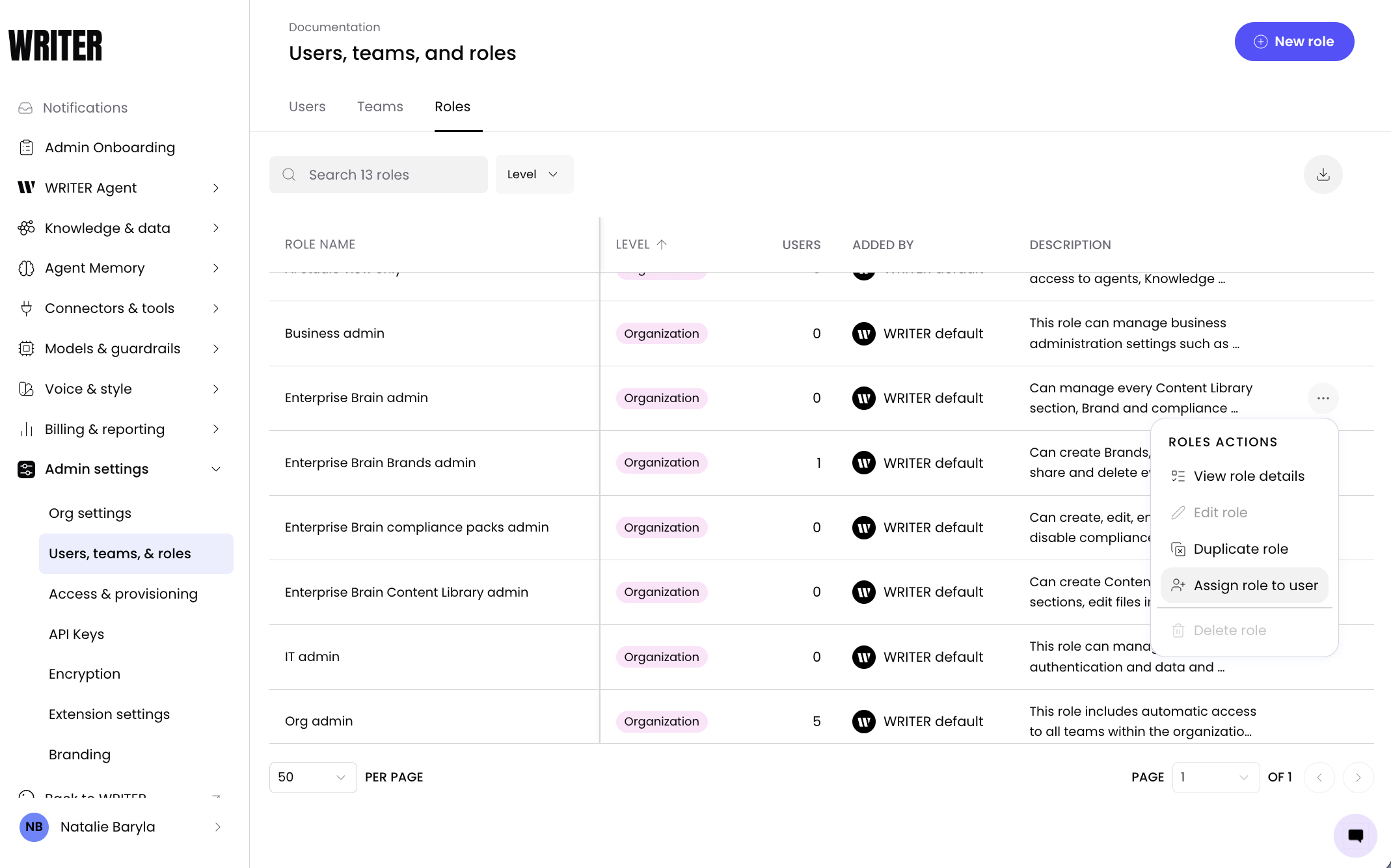
As an Org admin, you're given access to Enterprise Brain by default, but you may not be the person who ends up building and managing the different sections. From Control Center > Users, teams, & roles > Roles you'll find four roles you can assign to org members to give them proper access to manage Enterprise Brain.
The different roles and the access they give users are as follows:
Enterprise Brain admin | Full access to create and edit content libraries and brand & guidelines |
Enterprise Brain Brands admin | Can create Brands, and open, edit, share and delete every Brand |
Enterprise Brain Content Library admin | Can create Content Library sections, edit files in All assets, and open, edit, share and delete every section |
In addition to the admin roles explained above, users can have owner, collaborator, or viewer access. Owner gives the same access as the admin, just limited to that brand and cannot create a new brand unless they are an Enterprise Brain (EB) admin. See detail of other rules below
Action | EB Admin | Brands Admin | Content Library Admin | Collaborator | Viewer |
|---|---|---|---|---|---|
Create new brand | Yes | Yes | No | No | No |
Edit brand guidelines | Yes | Yes | No | Yes | No |
Create Content Library section | Yes | No | Yes | No | No |
Upload assets | Yes | No | Yes | Yes | No |
Mark asset as official | Yes | No | Yes | No | No |
View Enterprise Brain content | Yes | Yes | Yes | Yes | Yes |
Content library
From WRITER Home, select Enterprise Brain in the left navigation sidebar. Choose the section you want to work with. Select a tab to open that section. Each section has its own navigation, search, and controls.
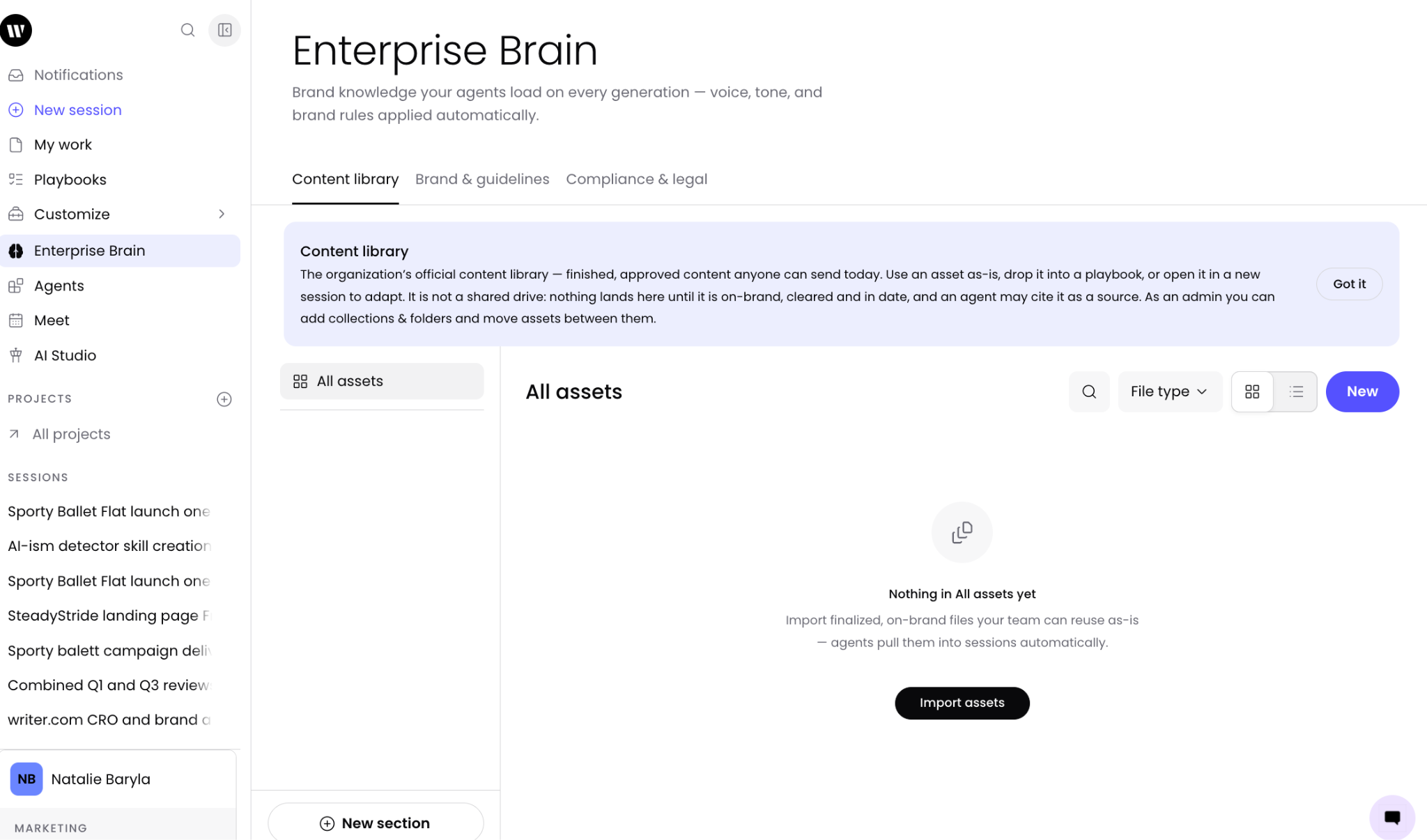
The first tab of Enterprise Brain is the Content library where you can host and update official documents for WRITER Agent to use. Upload your logos and any visual assets your brand uses. As things change, update the files here and they will be updated across the brands that reference the file.
Here you can select New section to create a section to organize your assets. Import assets into folders or directly to this page and drag and drop them into folders.
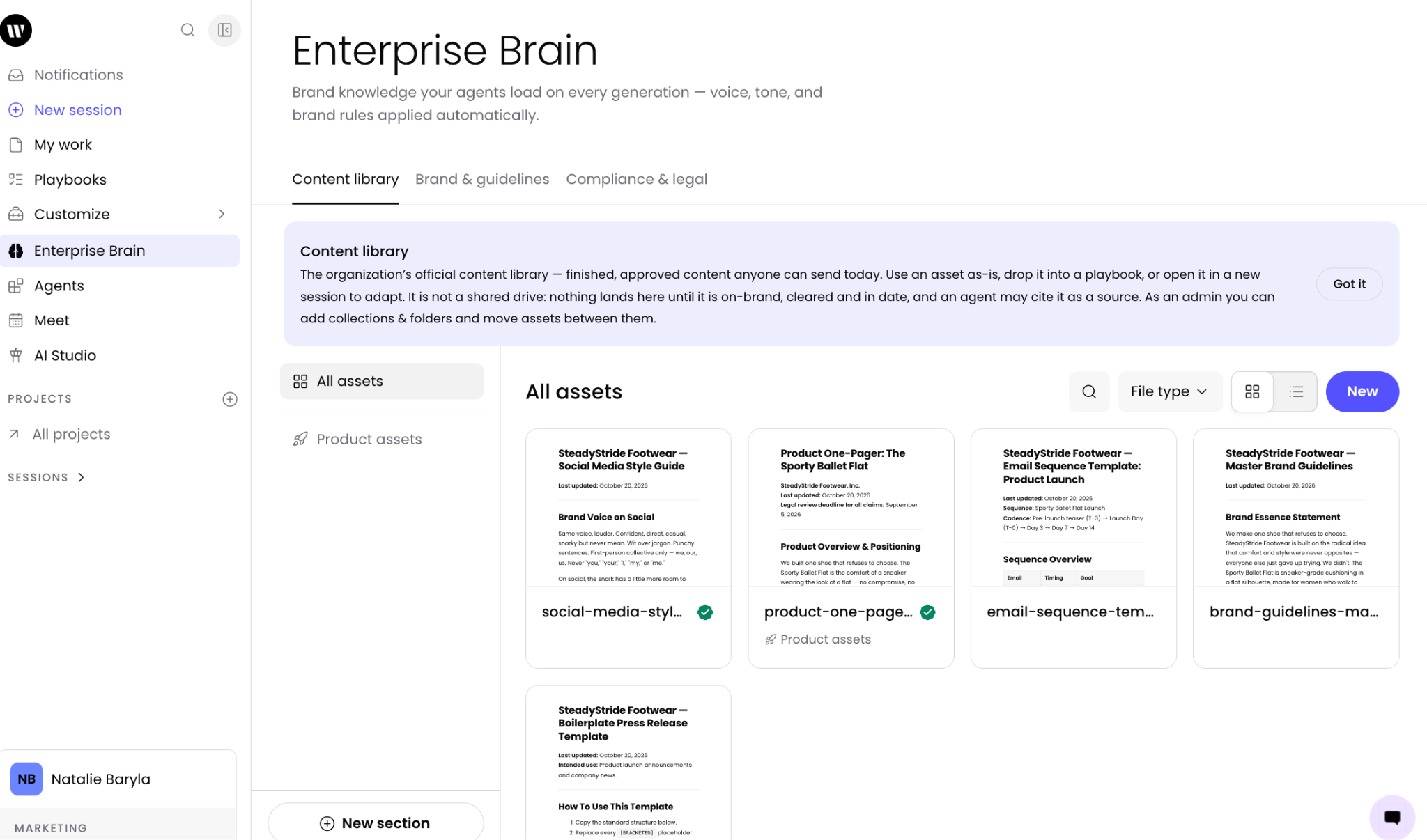
The Content library holds your approved assets — decks, documents, presentations, and other files your team can build on. You organize assets into collections, search and filter by file type, and add new assets as your library grows. Agents can reference these assets when generating work, so outputs build on approved material rather than starting from scratch. Use the New button in the upper right to upload your official documents, or paste a link to a Google Docs, Sheets, Slides, or Drive file.
Tip: Upload finished examples of your best deliverables alongside your source assets. When agents can see what a strong output looks like, they produce better work from the start.
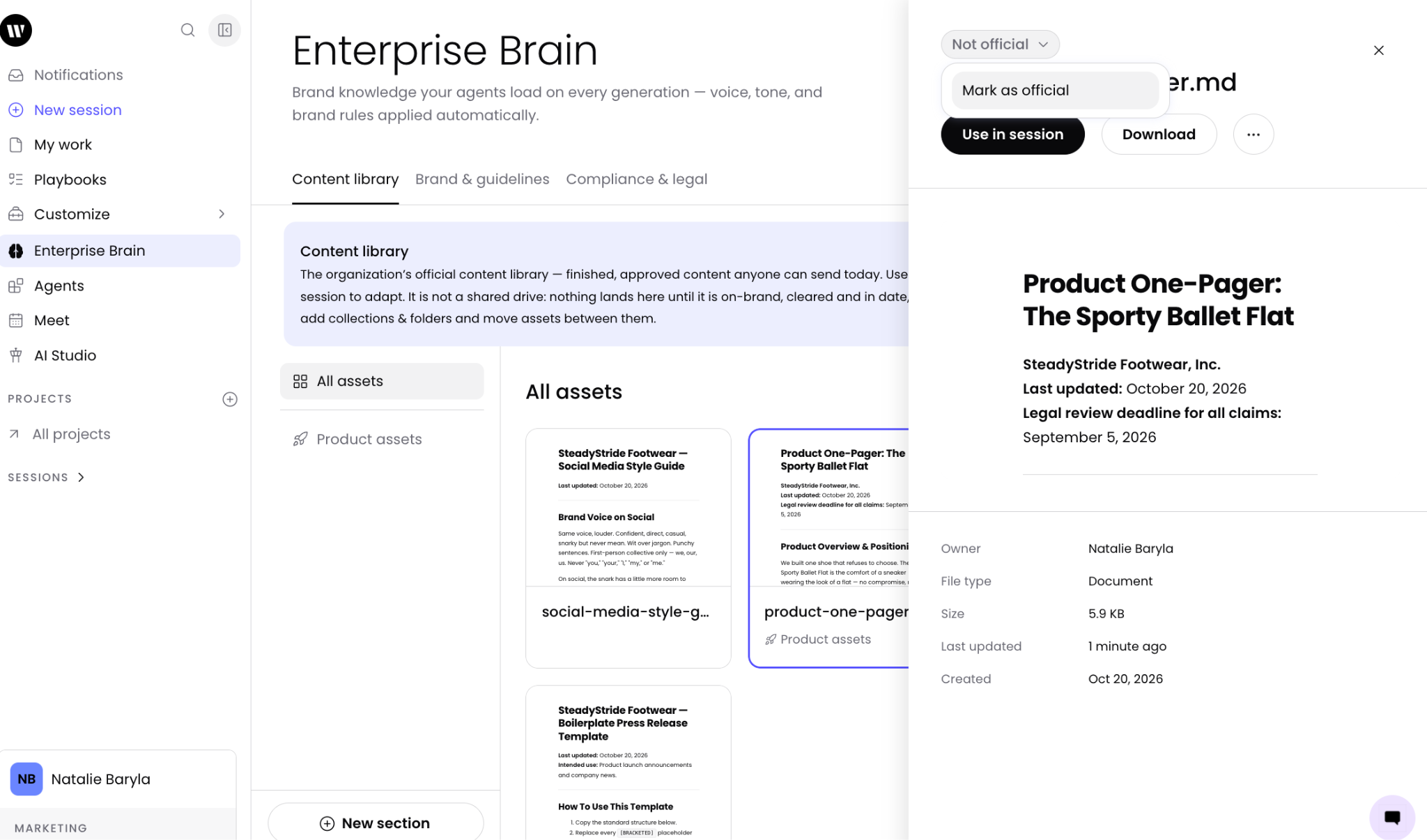
Select a document and then select Not official > Mark as official to denote final and approved documents. Store the assets agents need to produce good work — logos, fonts, color palettes, and boilerplate text. Include finished deliverables that show what good looks like — completed brochures, decks, and videos. Agents reference these canonical examples to match the quality and style of your existing work.
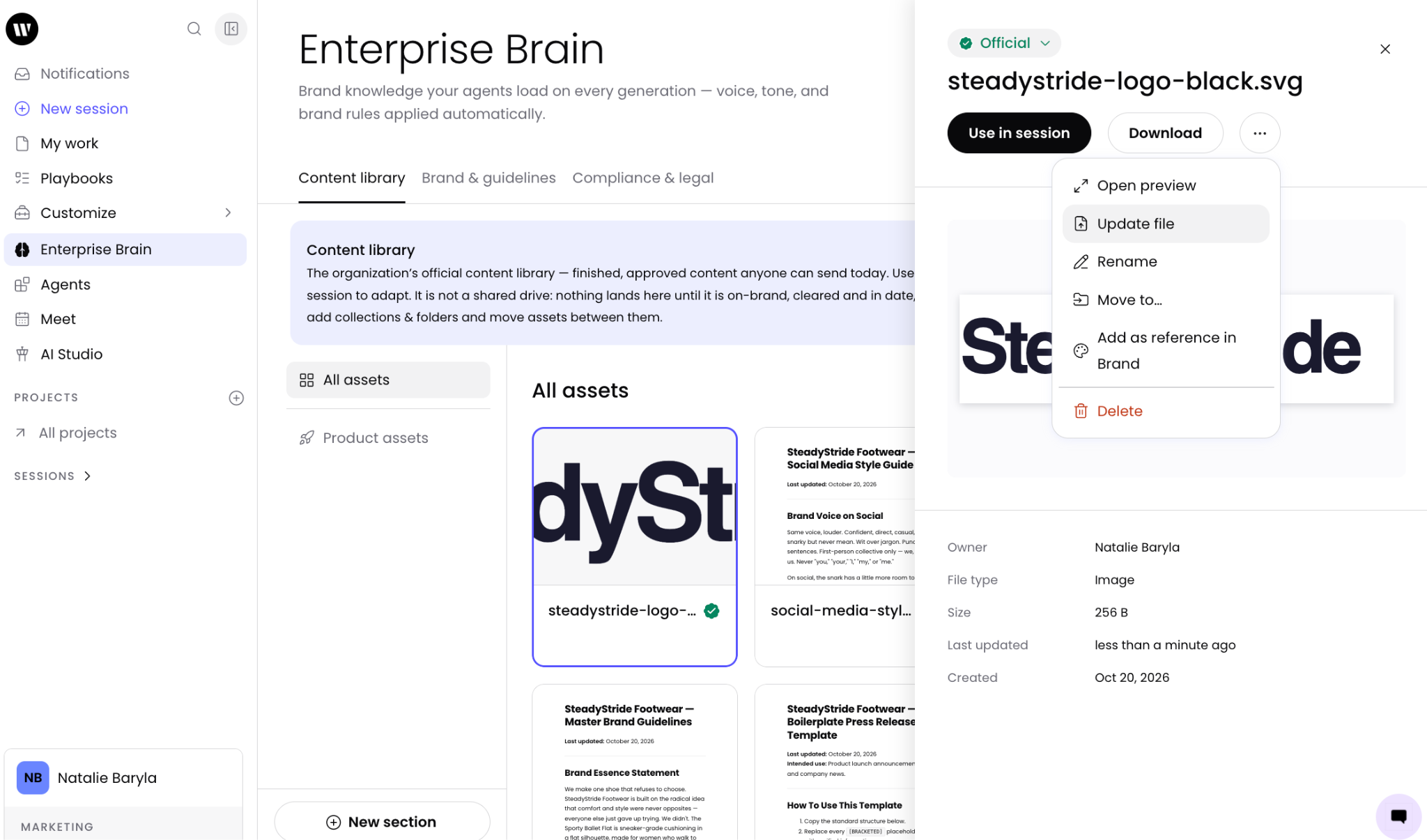
Use the three dot icon to update your files. These updates will be applied across anywhere the content is referenced. For example, if your company logo is updated here and referenced in your brand guidelines it will automatically be updated there as well. While Enterprise Brain allows for basic content management, it is not meant to replace your DAM. Be sure to create sections to organize your content.
Note: Only upload assets that are approved for use across your organization. The Content library is a shared resource — anything you add may be referenced by other team members' agents.
Upload approved assets to the Content library so agents can build on existing material.
Note: Upload shared assets — logos, fonts, and color palettes — to the Content library. Reference them from your Brand & guidelines using reference blocks so updates propagate automatically. Brand-specific assets can also be uploaded directly to a brand's Assets tab, though the Content library is the recommended source of truth for shared files.
Content Library access
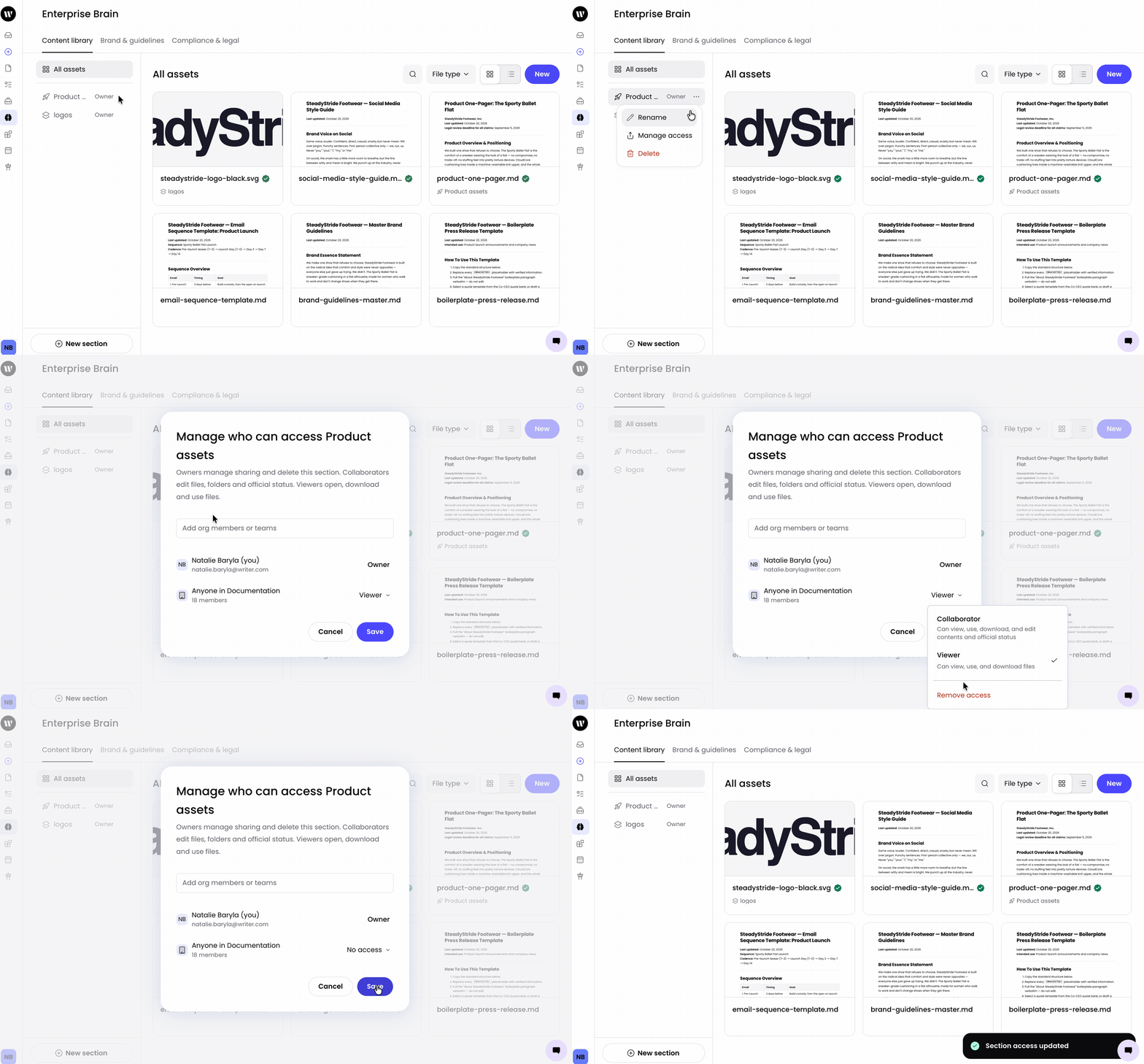
Control who can use, create, or edit content within each section of the Content Library by selecting the three dot icon, then Manage access and choosing the individuals or teams that should be able to access the content within that section.
TIP: While creating and editing your Content Library and/or Brand & guidelines sections consider revoking access. Select the three dot icon > Manage access > remove access and keep the content private to yourself while you build out the Enterprise Brain section. Once it's ready for your users, follow the same steps to extend viewer, collaborator, and owner access.
Adding reference content to a brand
The Content library is the designated home for all official assets. Upload your assets to the Content library and link them to your brands using reference blocks so everything lives in one place. Once you've created a brand, you can do this directly from the content library after uploading assets.
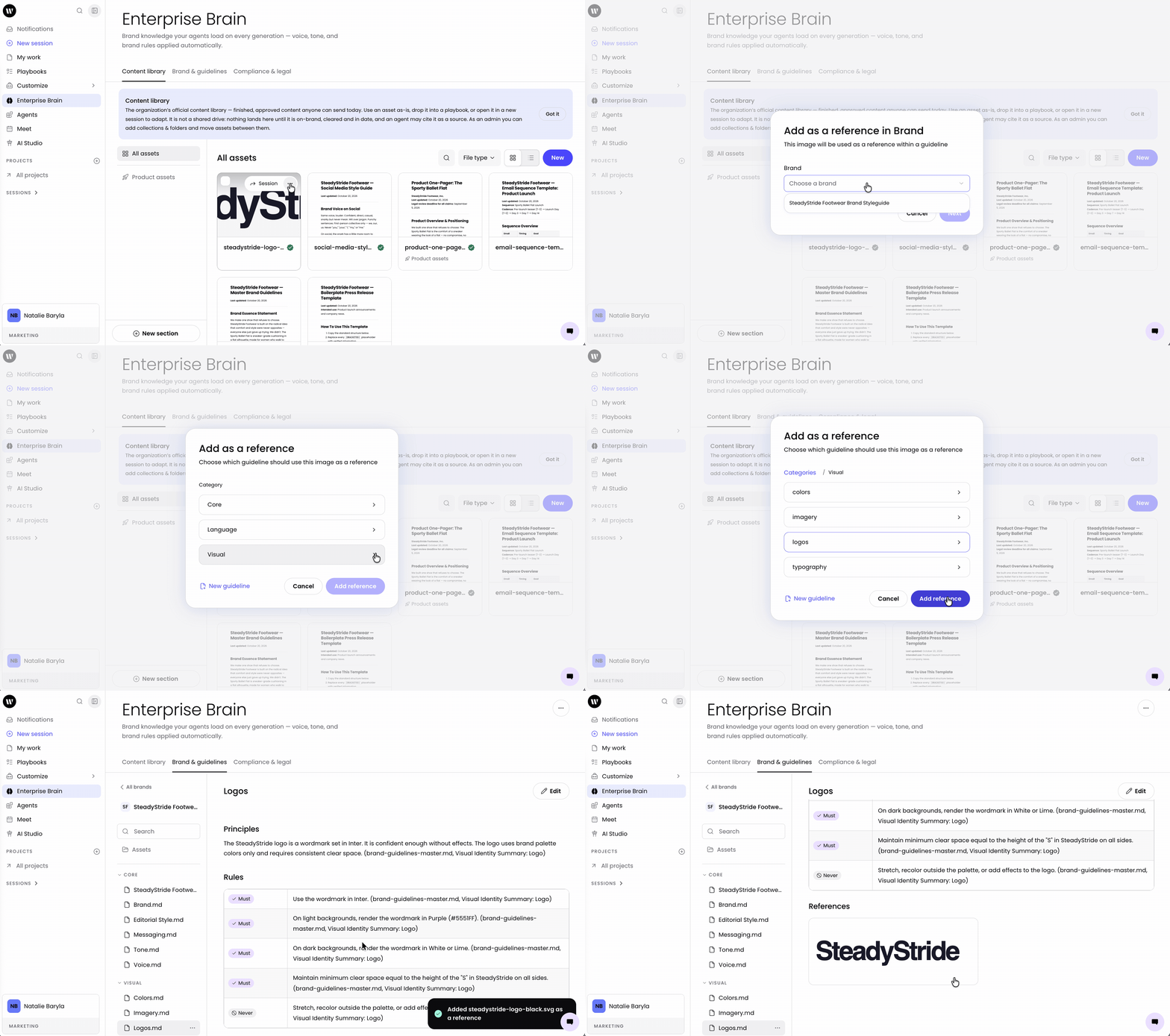
Select the three dot icon and select Add as reference in Brand to associate the content with a brand or guideline. Select the brand and category to add the document as a reference. Once you save the changes you can update the document in the Content library and it will automatically update in your Brand & guidelines.
Note: You can have multiple brands in a single organization and assign a brand to a specific team. This lets different teams within the same organization work with their own brand guidelines — for example, a subsidiary with its own visual identity within a parent company.
Brand & guidelines
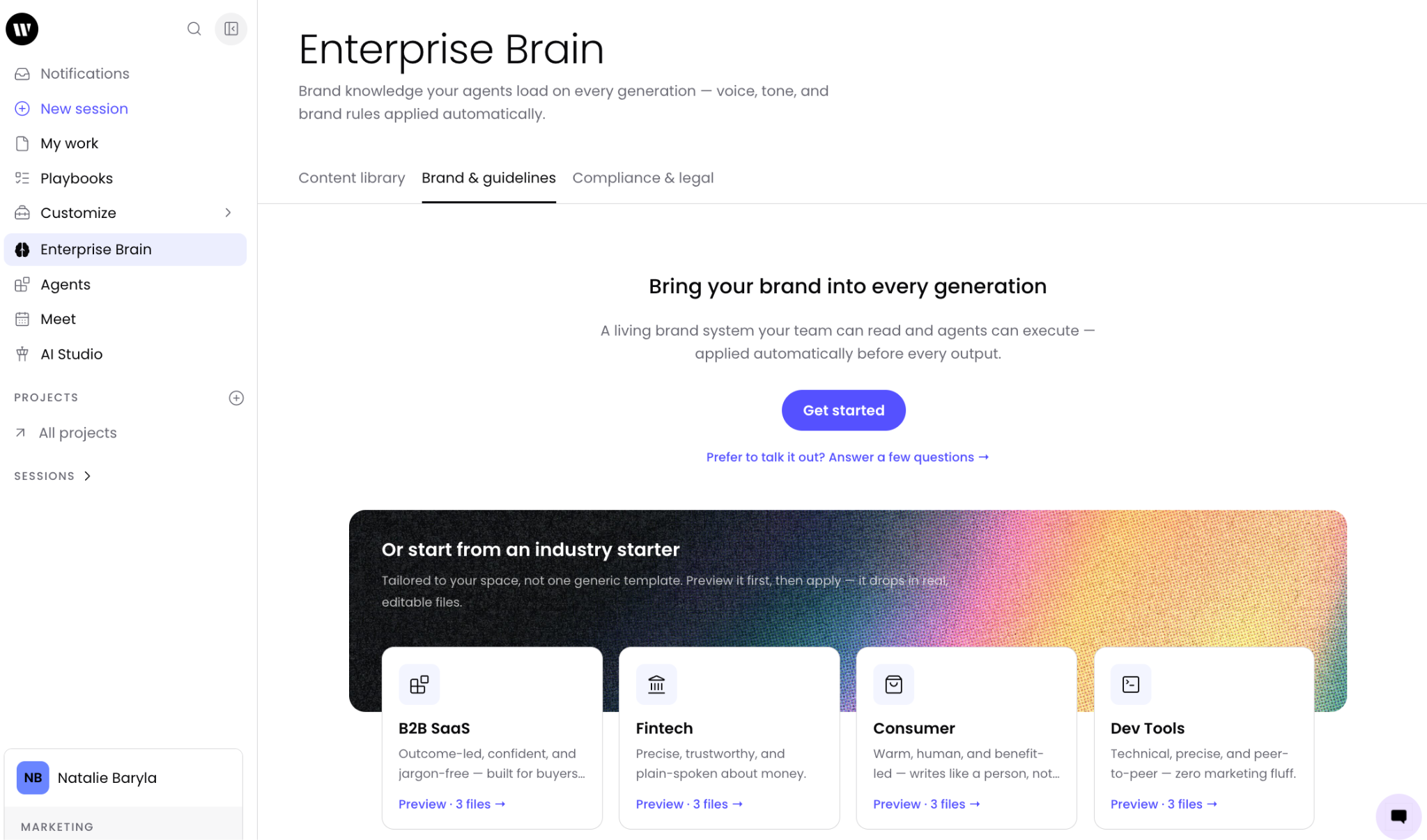
Brand & guidelines is where you define how WRITER should sound and look when it generates content for your organization. It encodes your voice, tone, editorial standards, messaging, and visual identity so every output is on-brand by default.
Enterprise Brain brand guidelines and skills serve different purposes. Brand guidelines hold what everyone on your team or in your organization needs to know — voice, tone, messaging, and visual identity. Skills hold task-specific or individual-level instructions — for example, SEO expertise that not every team member needs. When a skill does not conflict with a brand guideline, agents apply both. When a conflict arises, WRITER Agent presents a conflict resolution prompt so the user can choose which to follow.
Tip: Keep brand guidelines focused on what the whole team or organization needs to know. Move task-specific instructions into skills. Avoid creating two sources of truth for the same guidance — if the same rule lives in both a brand guideline and a skill, agents may not know which takes priority.
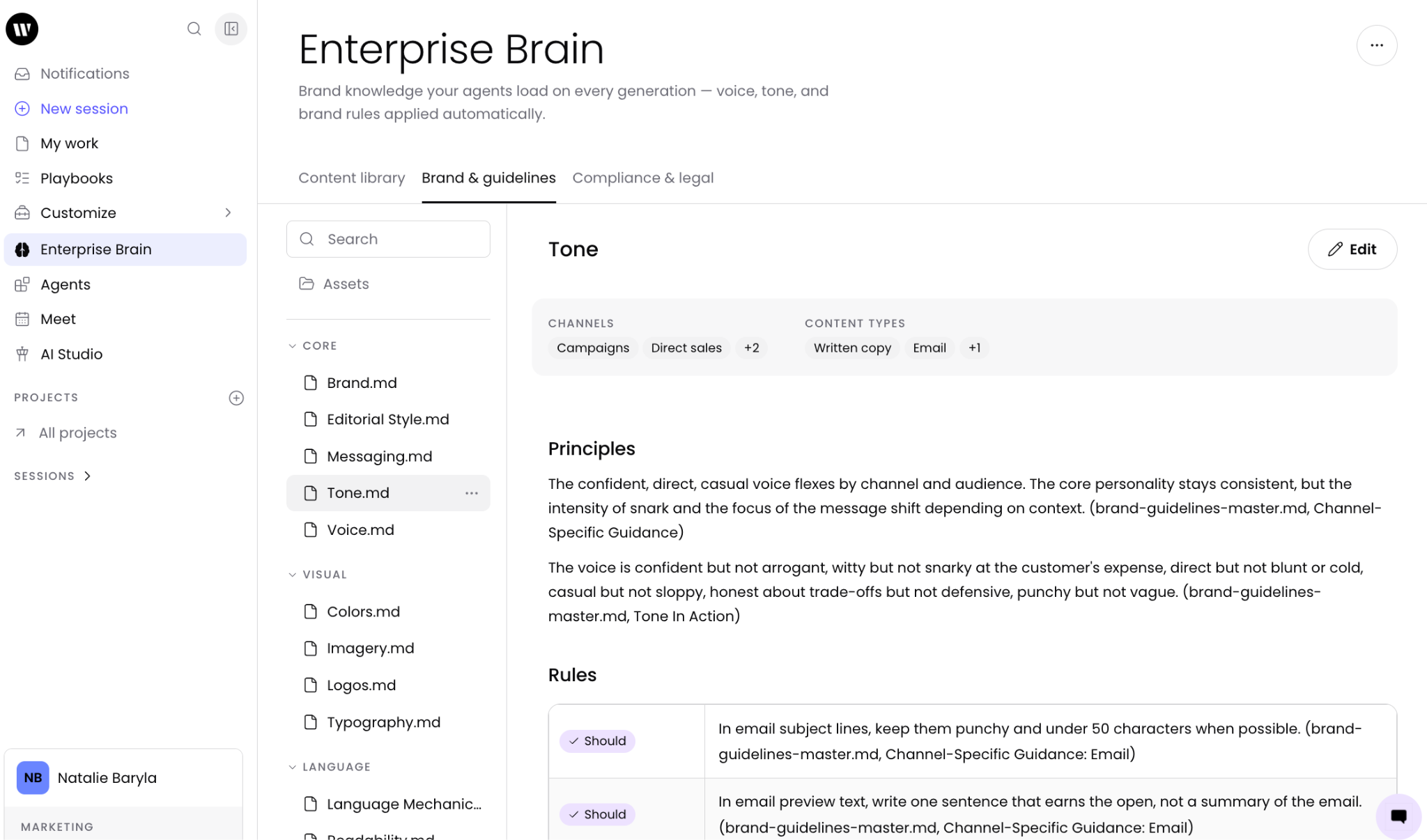
Once your brand has been set you’ll see the three groups appear:
Core: This section contains your brand, editorial, messaging, tone, and voice rules
Visual identity: Your approved colors, logos, and typography rules will live in this section
Language: Enter your terms and writing style along with mechanics and readability
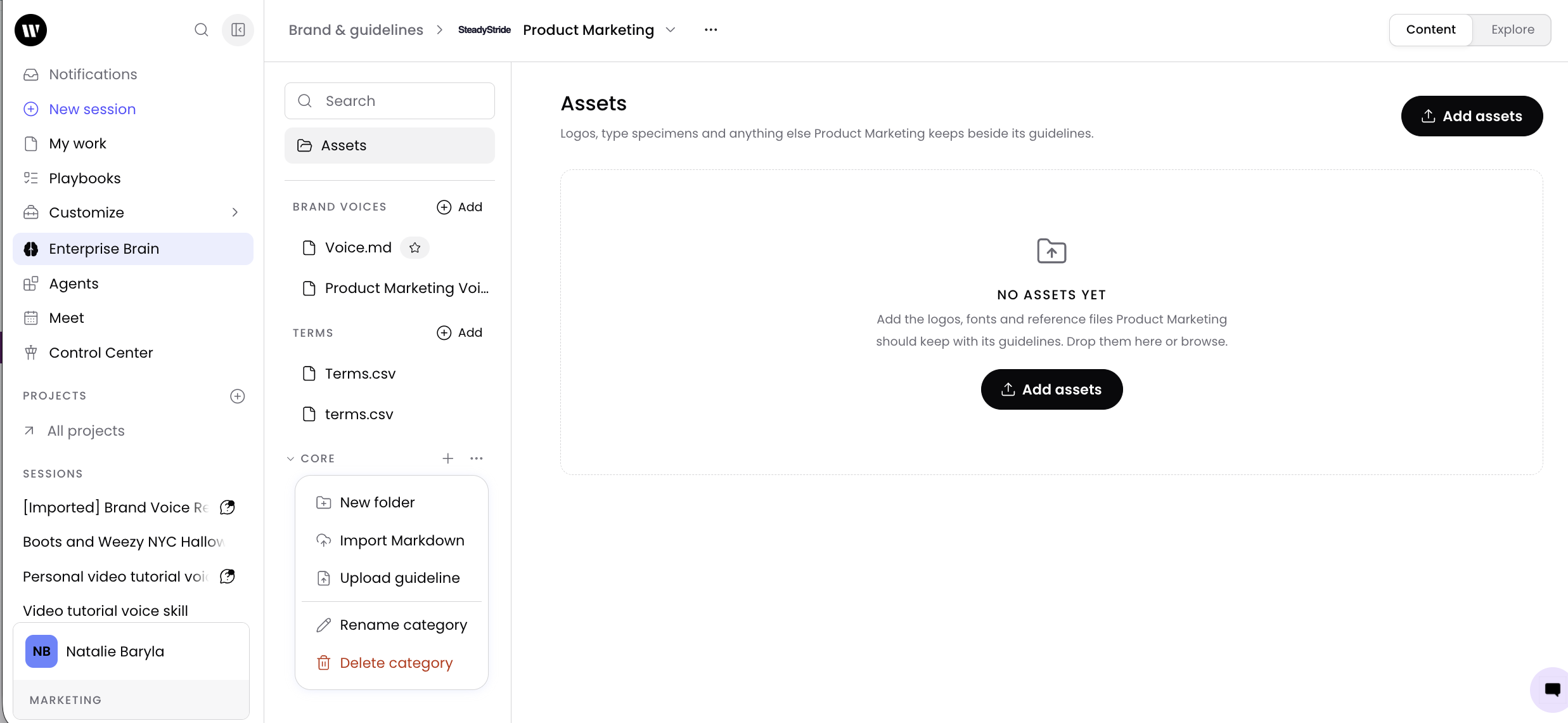
You're able to edit, delete, and fully customize your brand & guidelines categories. Enterprise Brain takes your original inputs (docs or website) and will then auto generate your brand & guidelines into those three categories. To edit any of the sections select the three dot icon to the right of the item and select your action via the menu.
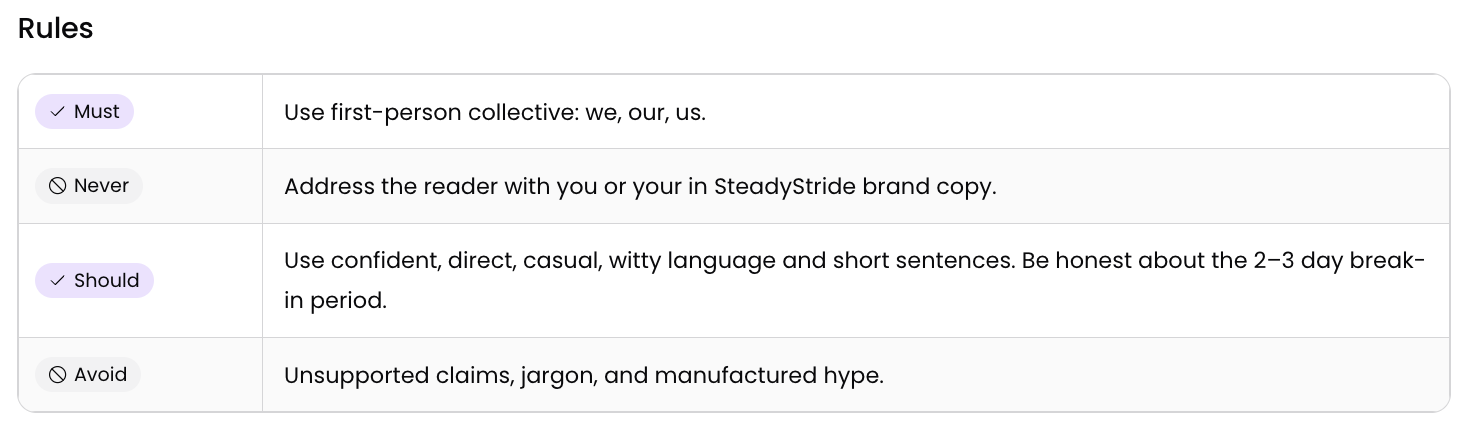
Each guideline contains principles and rules. Rules are tagged by strength so agents know exactly how strongly to apply each one.
Must — Agents always apply this rule. These are non-negotiable standards for your brand.
Should — Agents apply this rule when relevant. These are strong recommendations but allow some flexibility.
Avoid — Agents steer clear of this behavior. These mark things that don't fit your brand.
Never — Agents never do this. These are hard prohibitions.
Tip: Use Must sparingly for the rules that matter most. Too many Must rules can over-constrain agents; reserving the tag for your most important standards keeps them meaningful.
Getting started with your first brand
If you are starting from scratch or do not have documented brand guidelines, the Brand & guidelines empty state offers several onboarding options. These flows are available only before your first brand is created.
Creating a brand from a website
If you are starting from scratch or do not have documented brand guidelines, you can generate an initial brand from your website.
From Enterprise Brain > Brand & guidelines select Get started.
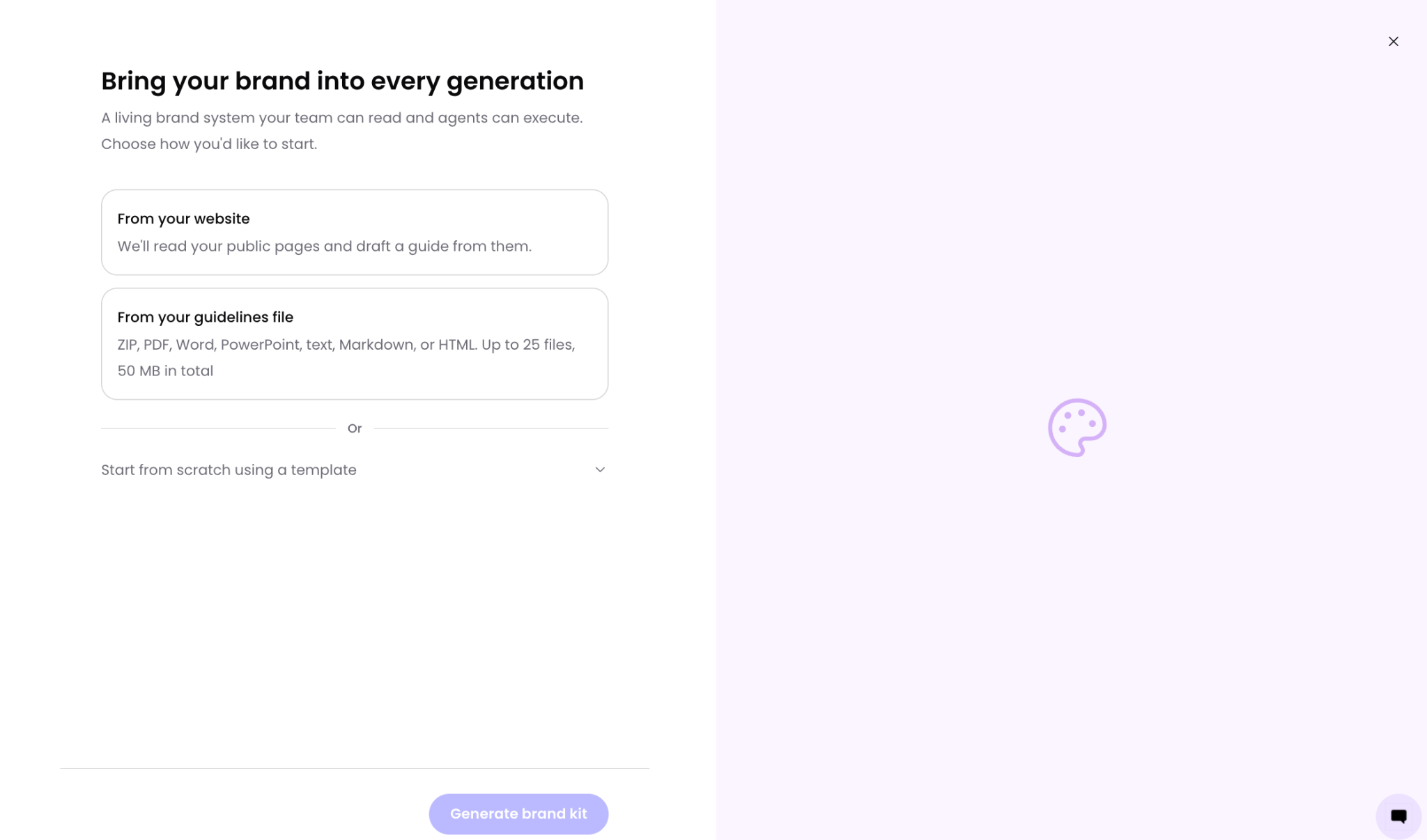
Enter your website URL (for example, yourcompany.com).
Select Generate brand kit
WRITER generates an initial brand with voice, style, and visual identity sections based on your public website content.
Review each section and edit as needed before saving.
Tip: The generated brand is a starting point, not a finished product. Review every section for accuracy and add any guidelines that your website does not capture.
Creating a brand from uploaded documents
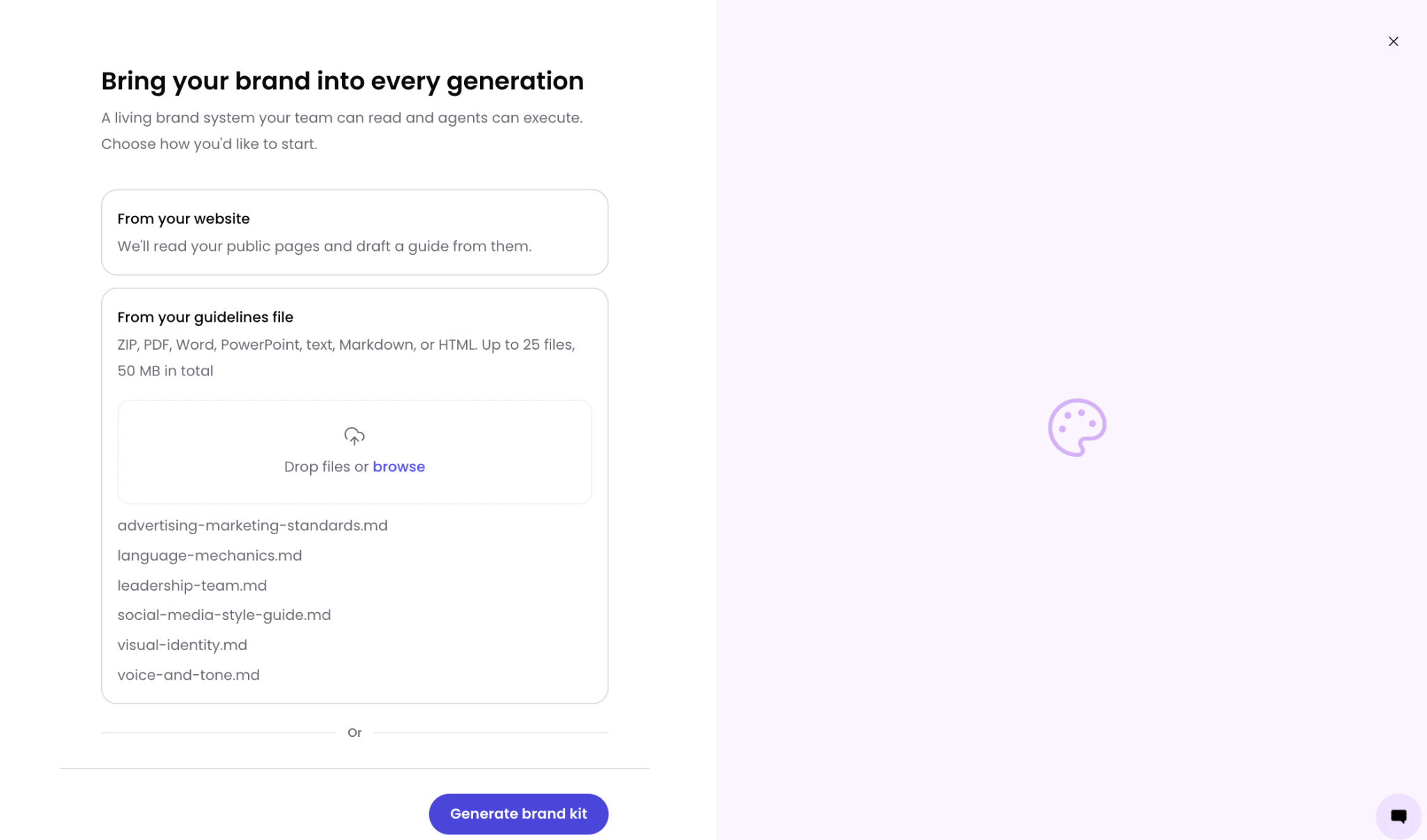
In Brand & guidelines, select Get started
Upload brand guidelines document(s)
Select Generate brand kit
WRITER generates an initial brand with voice, style, and visual identity sections based on your uploaded documents.
Review each section and edit as needed before saving.
Creating a brand from scratch
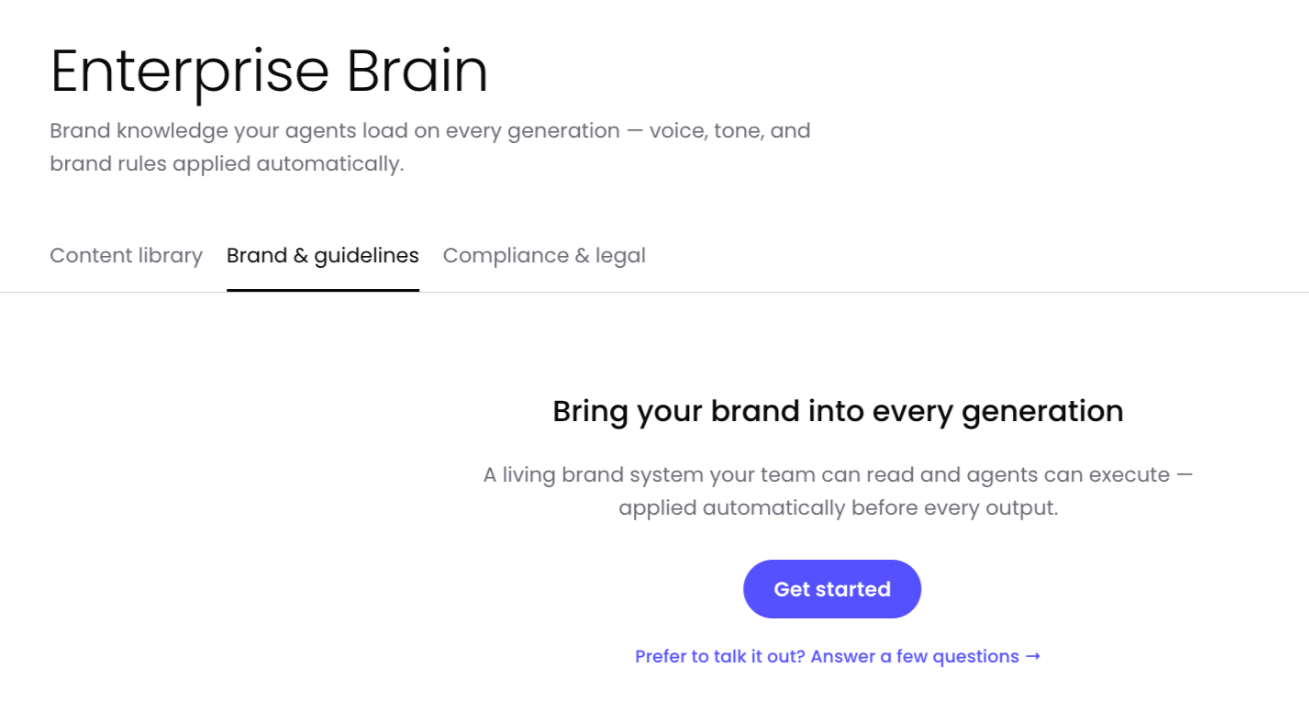
Select Prefer to talk it out? Answer a few questions → to be guided through creating your brand from scratch. This will launch a guided experience where you answer a few questions for WRITER to generate your brand & guidelines. Each question has a 2,000 character limit.
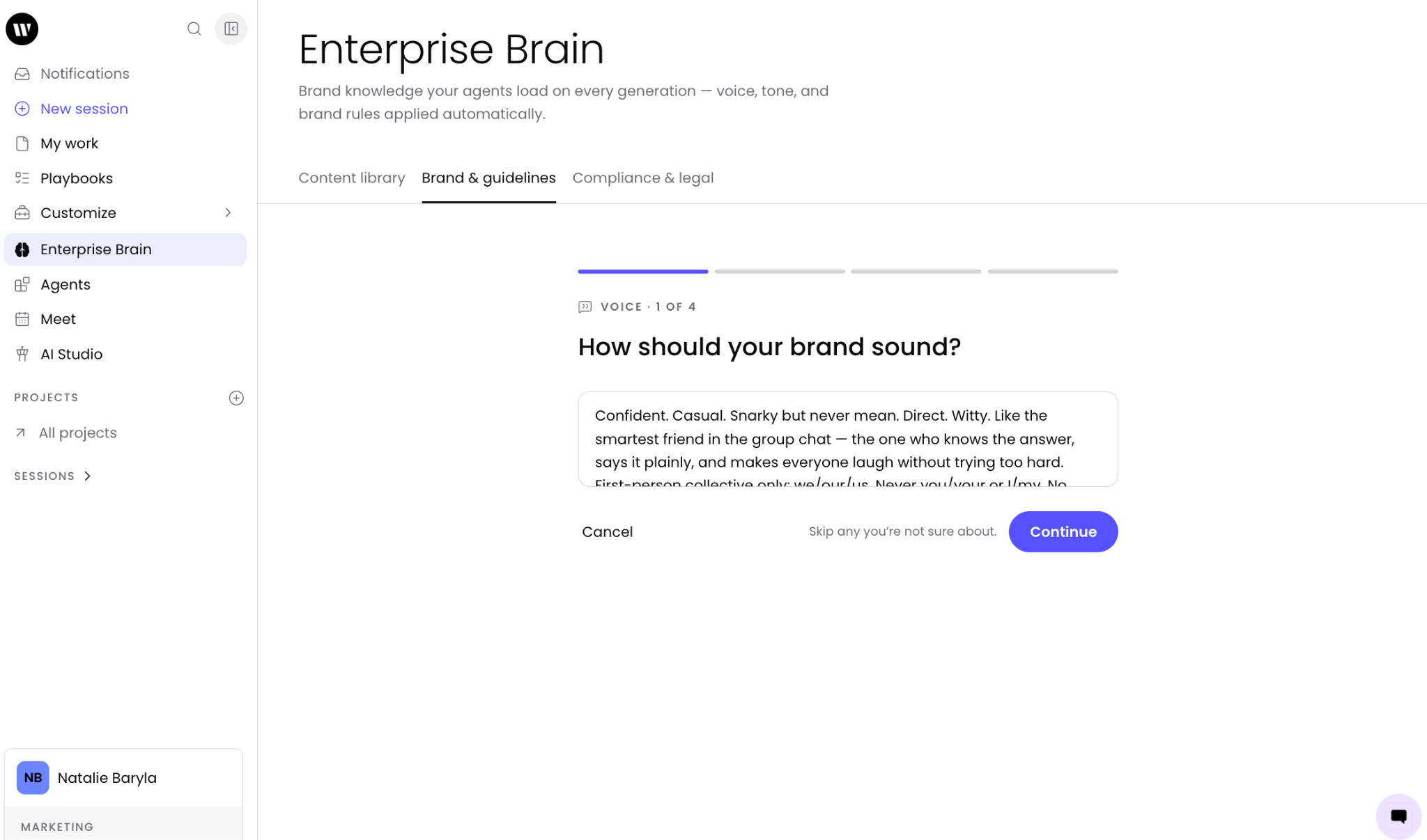
Skip any questions you're not sure of and select Continue to proceed to the next question. Once you’ve completed the last question or chosen to skip it select Draft my guide and WRITER will begin building your brand & guidelines.
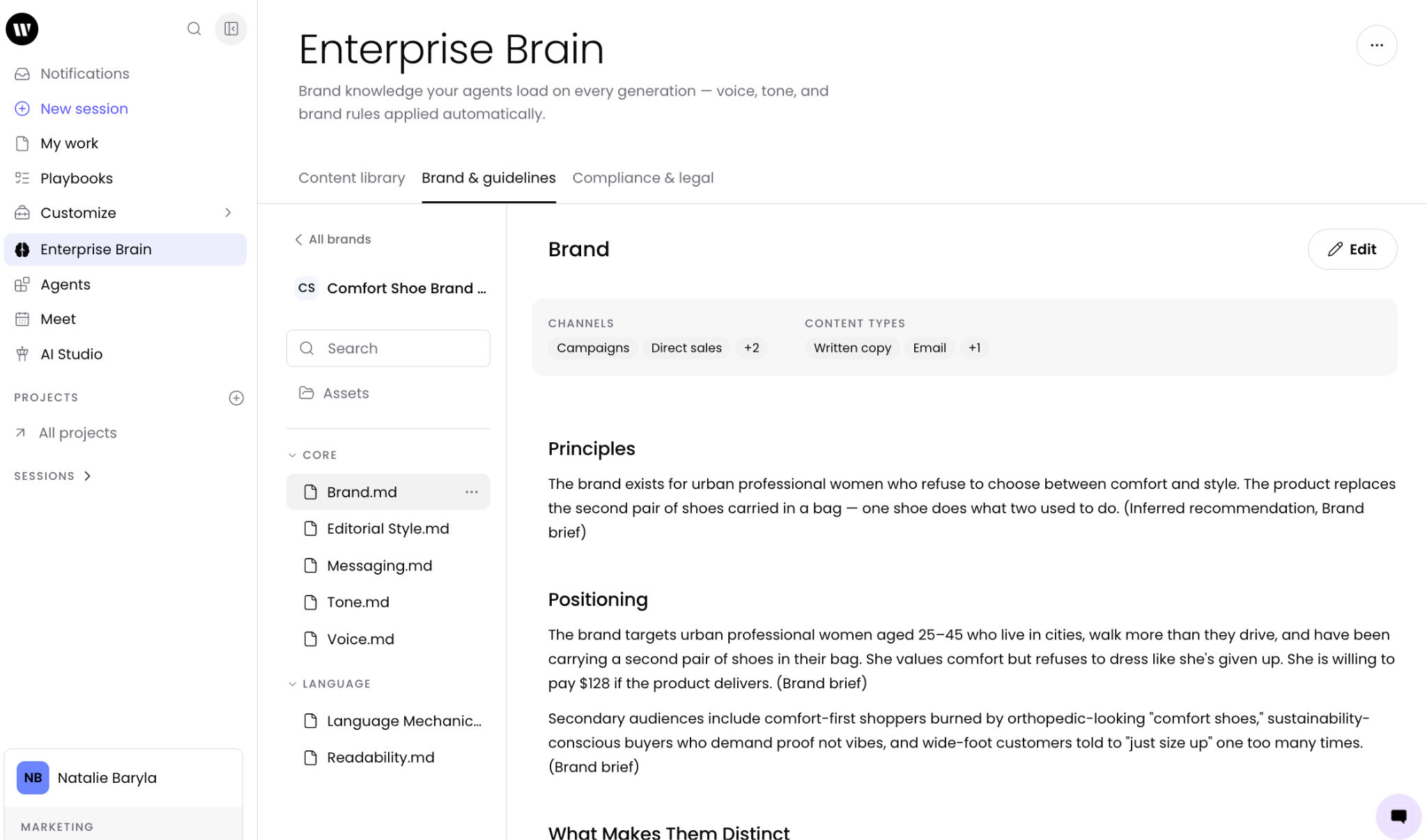
Select Edit in the top right corner of the file to make changes.
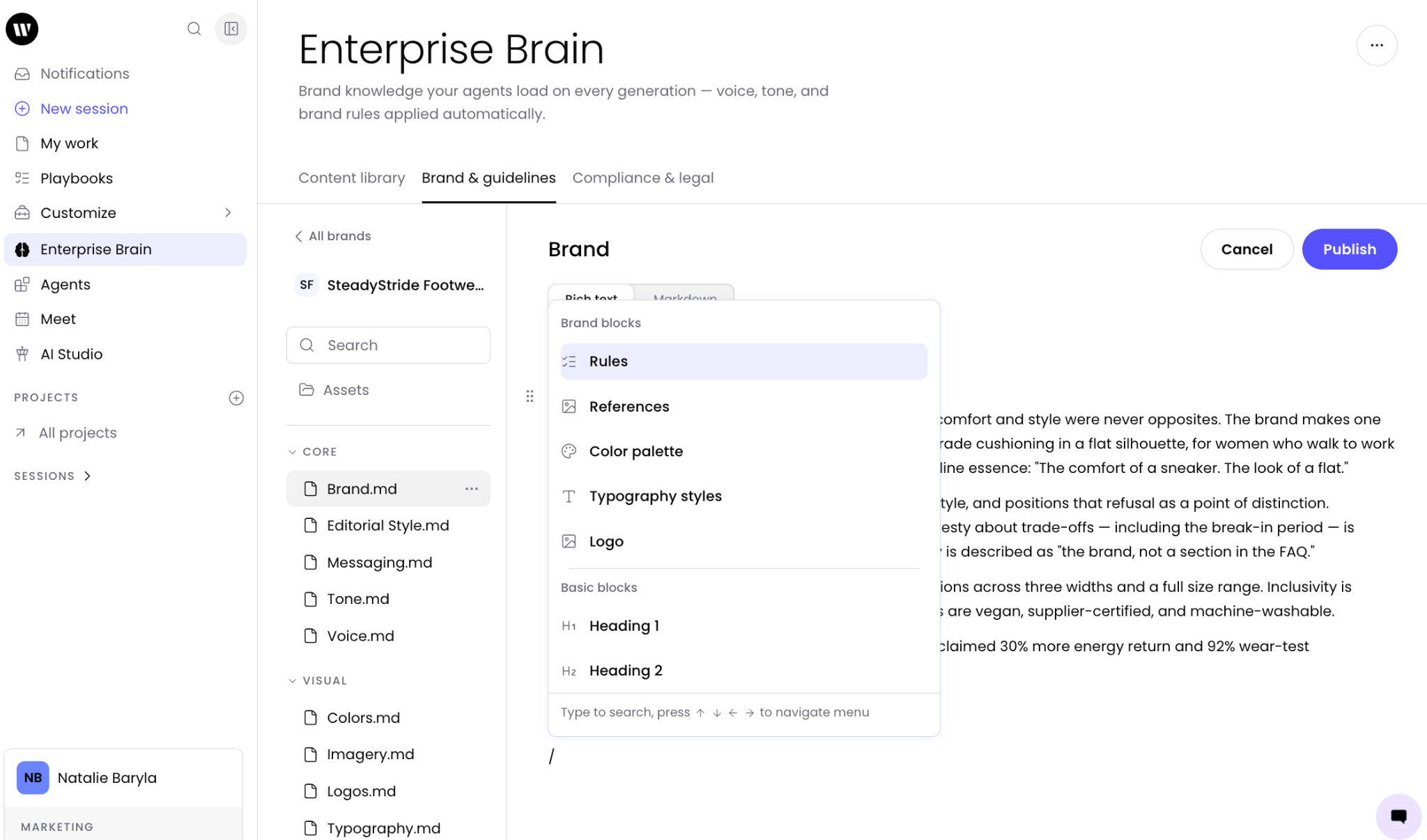
Brand guidelines use a block-based editor. In addition to plain text, you can add structured rule blocks with Must, Should, Avoid, and Never directives. Type / and the menu will appear where you’re able to add specifics for your brand or add formatting to the document.
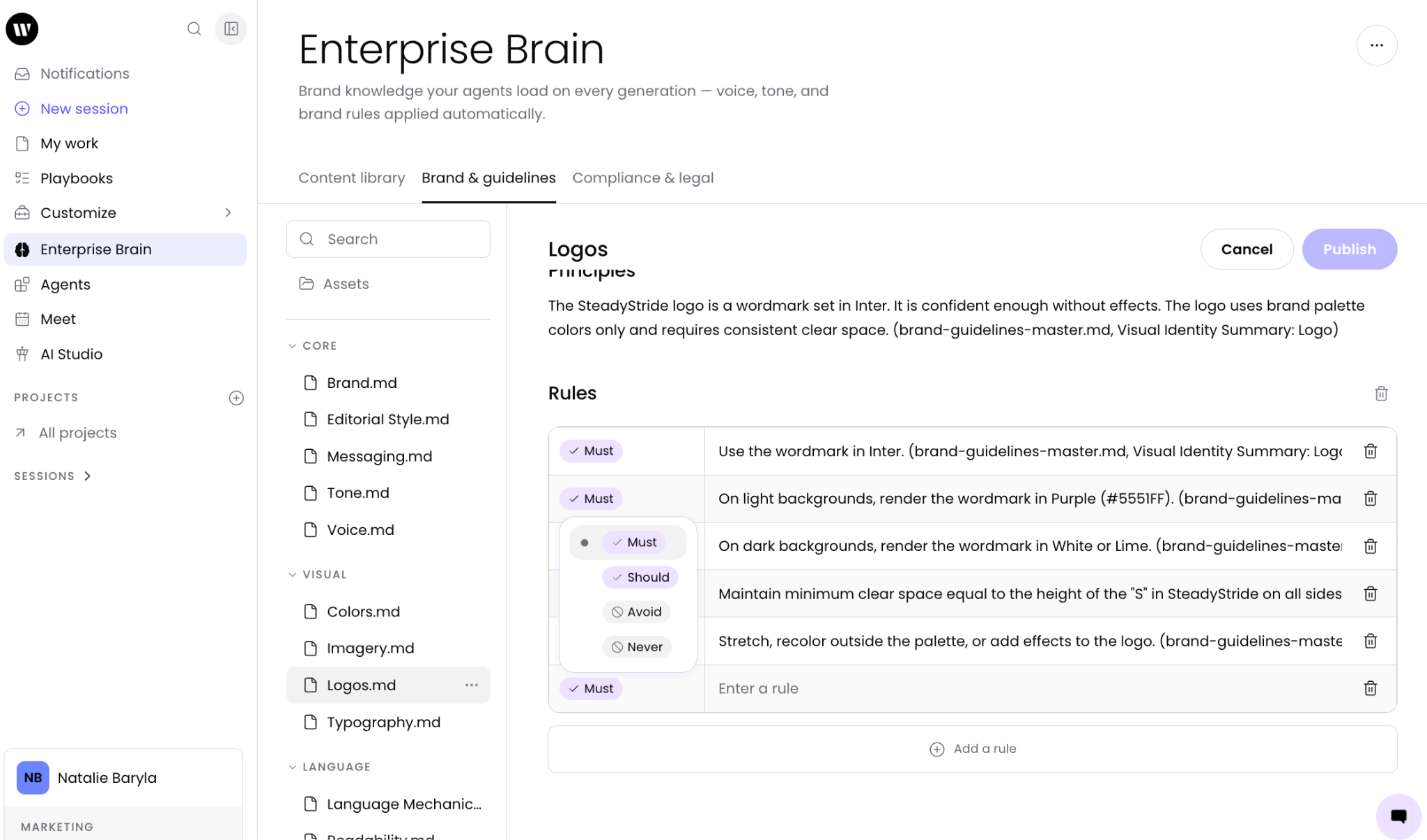
Rule blocks teach WRITER Agent what to enforce. For example, you can add a rule block that says "Must center every message on patients and the rare disease community" or "Never use generic pharmaceutical language that could apply to any biotech company." Once you’re in edit mode you can select Add a rule at the bottom of the rule list and select the rule type for WRITER to enforce. Select the trash can icon to the right of the rule to remove it.
Note: Use this section to create rule categories applicable to your organization's work. For example, you may want to create an Accessibility section within your main brand with rules that WRITER Agent should enforce.
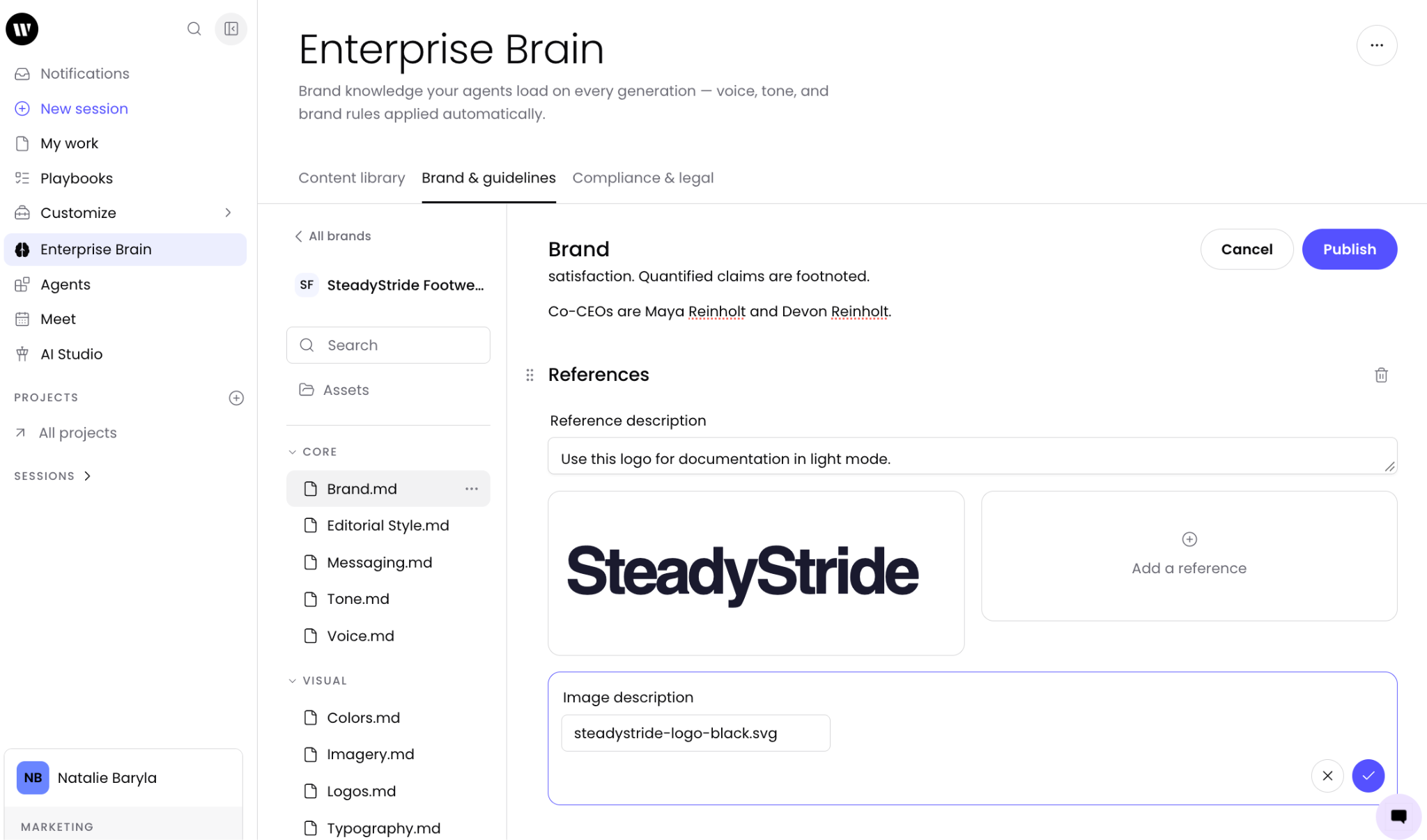
You can add reference blocks in brand guidelines that link to assets in your Content library — for example, a logo file, a color palette, or a typography reference. When you update the asset in your Content library, the change propagates to every brand guideline that references it. Additionally you can select the Assets tab on the left to upload logos and fonts specific to this brand.
Tip: Use reference blocks to link logos, fonts, and other shared assets to your brand guidelines. Update the asset once in the Content library and every brand that references it stays current automatically.
Creating a brand from a template
If you are starting from scratch or do not have documented brand guidelines, you can leverage the prebuilt templates available to you on the Brand & guidelines page.
Select Preview 3 files from within one of the tiles to see what is included in each template.
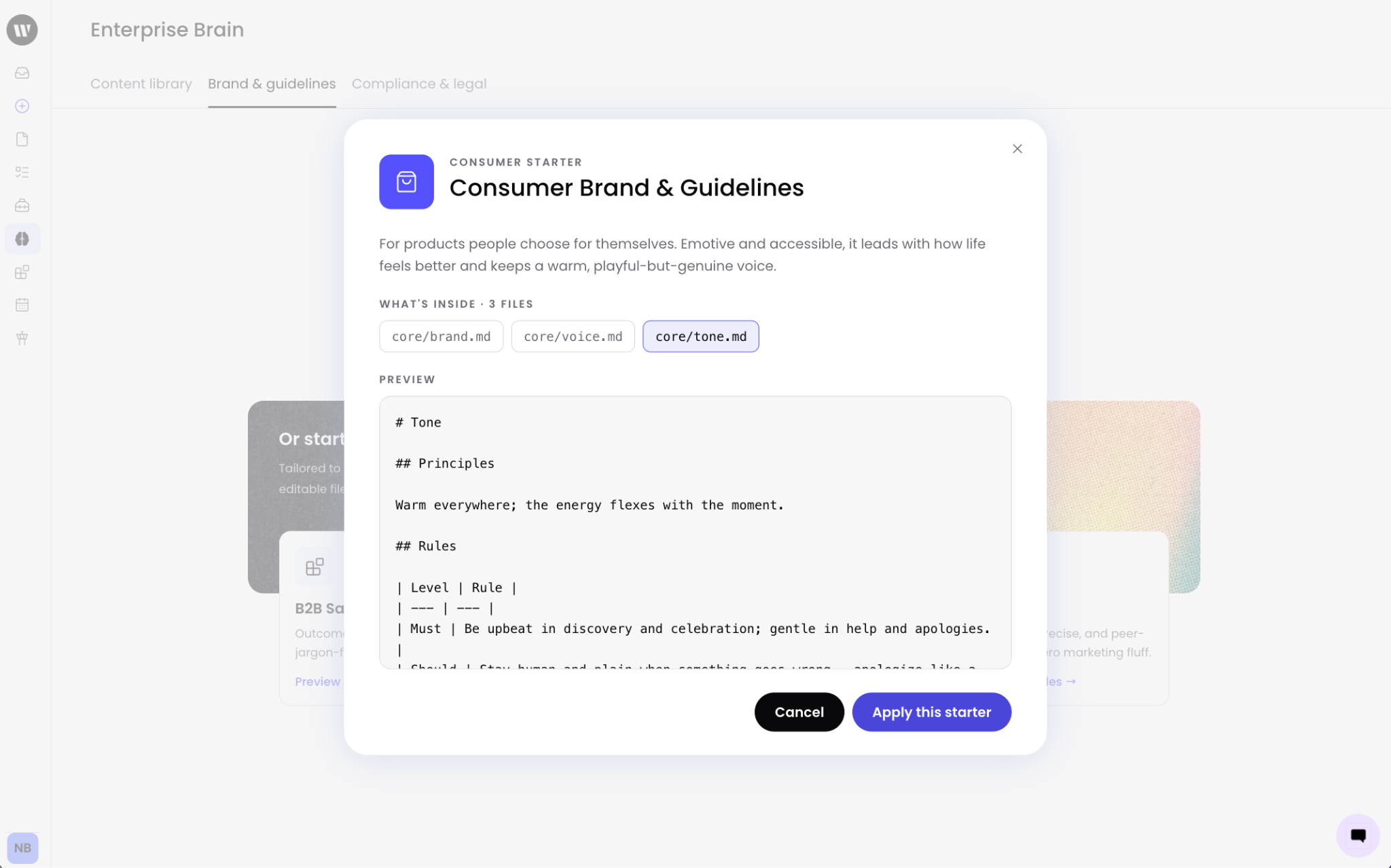
The four templates provide distinct voices and tones you can start with. Take a look and once you’ve found the one you’d like, select Apply this starter.
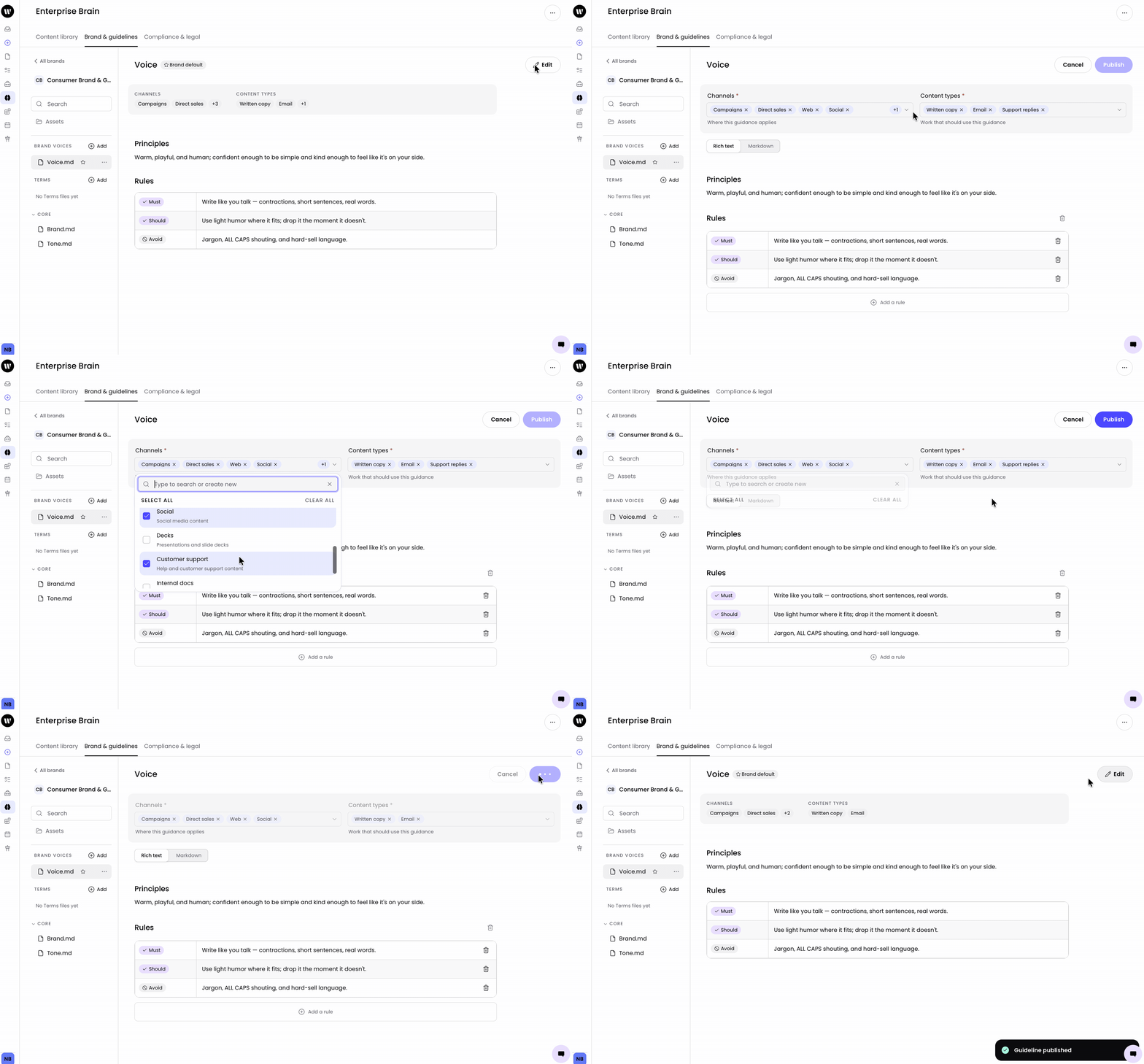
WRITER will then generate a basic Brand template for you to adjust. Select Edit from the top right to make your changes, and select Publish to save them.
Creating multiple brands
Your teams will likely need their own brands in order to capture their writing styles, standards, and other specifics that WRITER Agent will need to help generate outputs. Be sure to assign the relevant team admins the relevant brand management roles so they can migrate their voices and update Enterprise Brain for their teams. Learn how to assign roles here: 📄 Understanding roles and permissions in WRITER
Tip: When managing multiple brands within a single organization, assign each brand to the specific team that uses it. This ensures team members see only the brand relevant to their work and prevents confusion. Use descriptive brand names that clearly identify the team or product — for example, "WRITER Marketing" rather than just "WRITER."
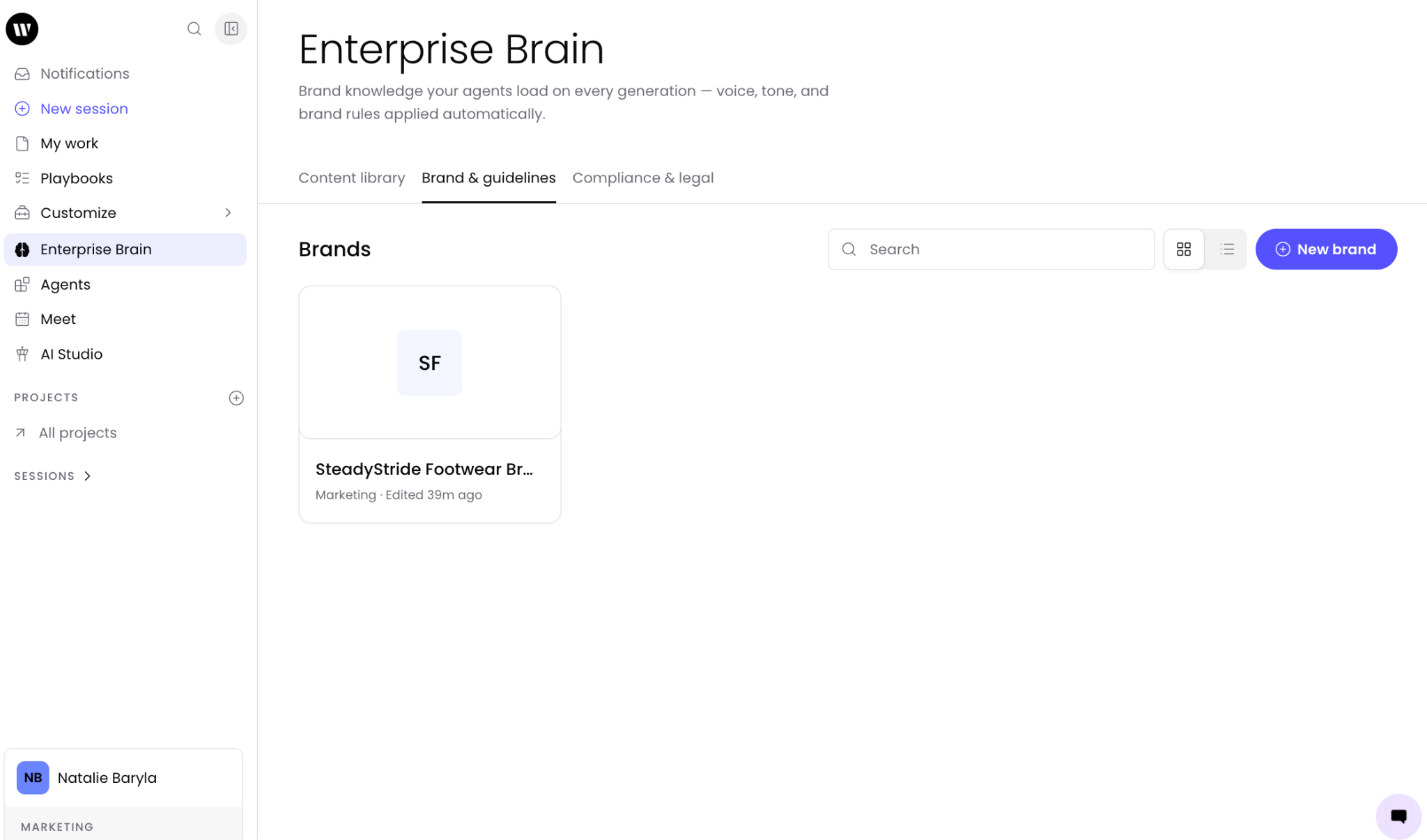
Once you have at least one brand, select New brand from the main Brands page to create additional brands. You can duplicate an existing brand or create a new one from a website URL or uploaded documents.
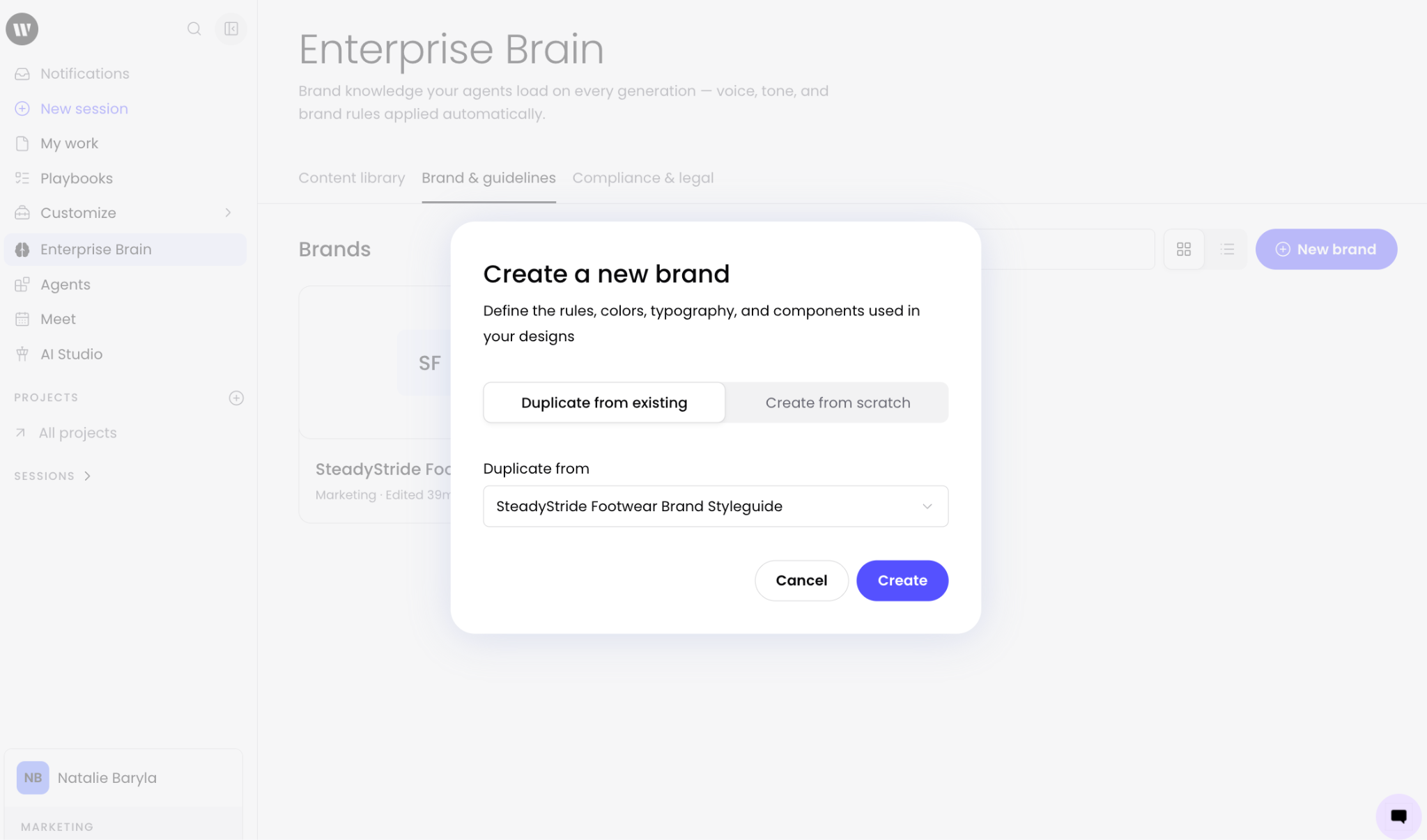
You’ll be given the option to duplicate and edit an existing brand which is helpful for making team specific adjustments.
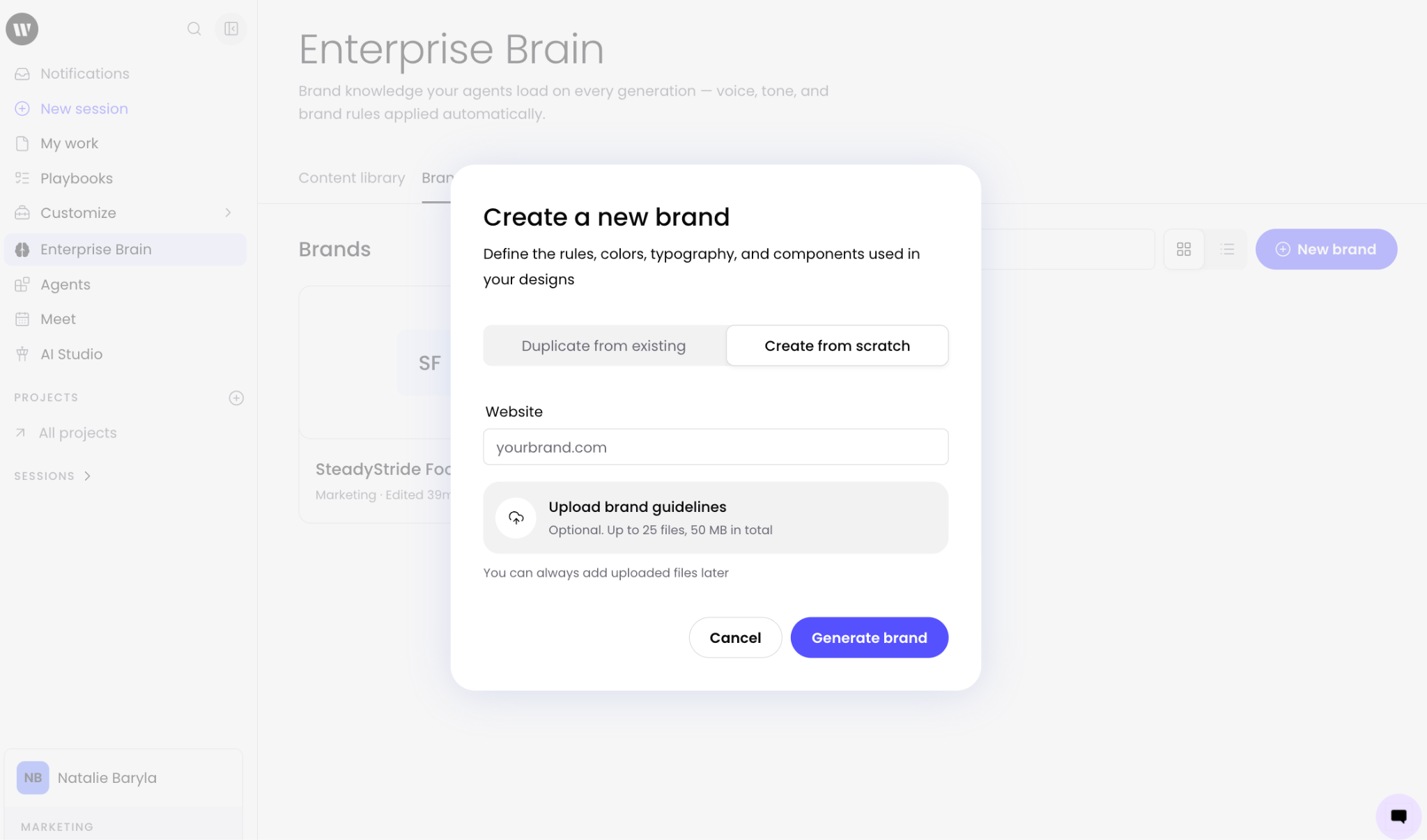
Alternatively, you can create a new brand from scratch by entering your website or uploading your brand guidelines documentation. Once you’ve made your choice and added the relevant information, select Generate brand and then edit to make your adjustments.
Brand & guidelines access
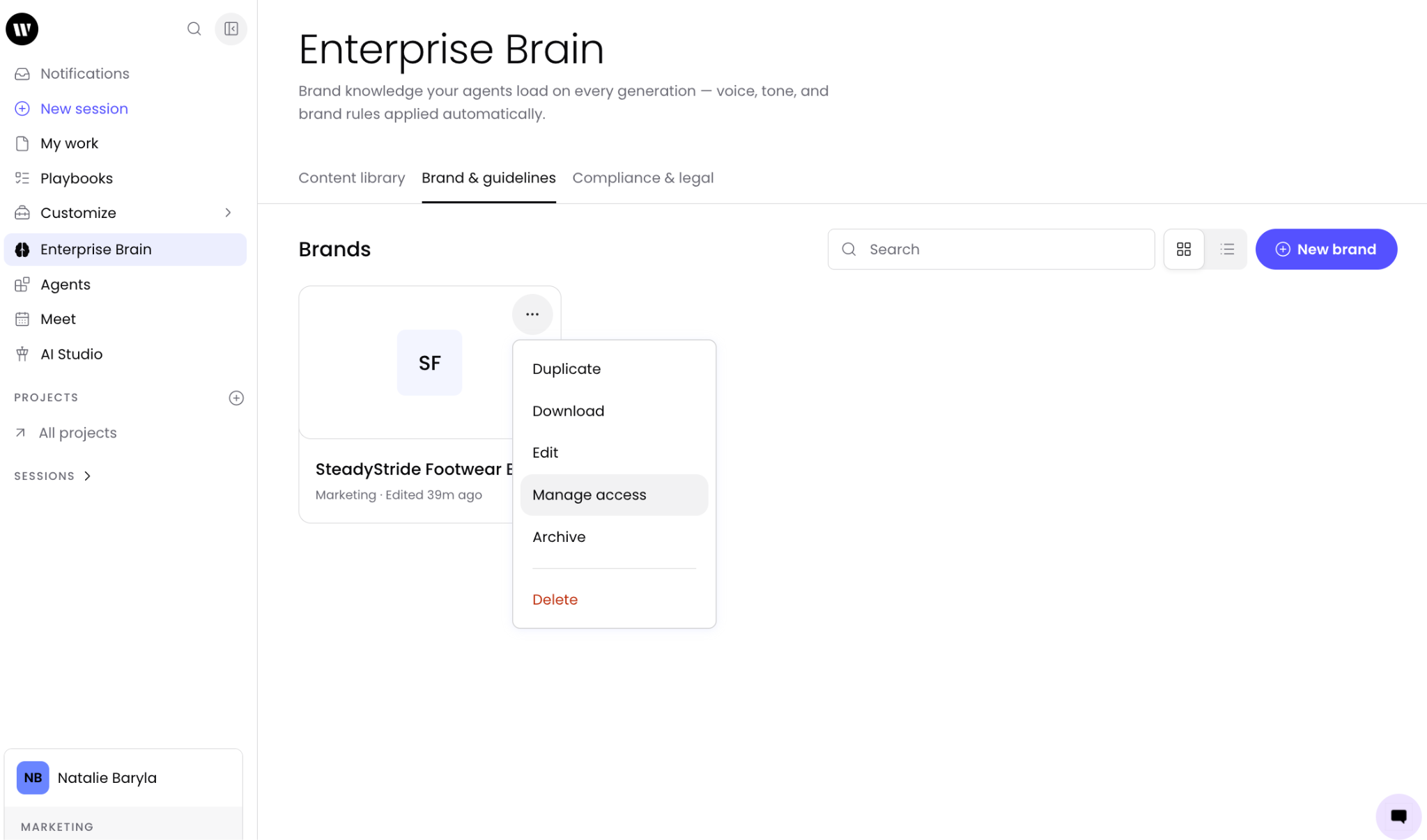
Once you’ve built your brand you can control who has access to view the information and who can edit it as a collaborator. From the three dot icon select Manage access.
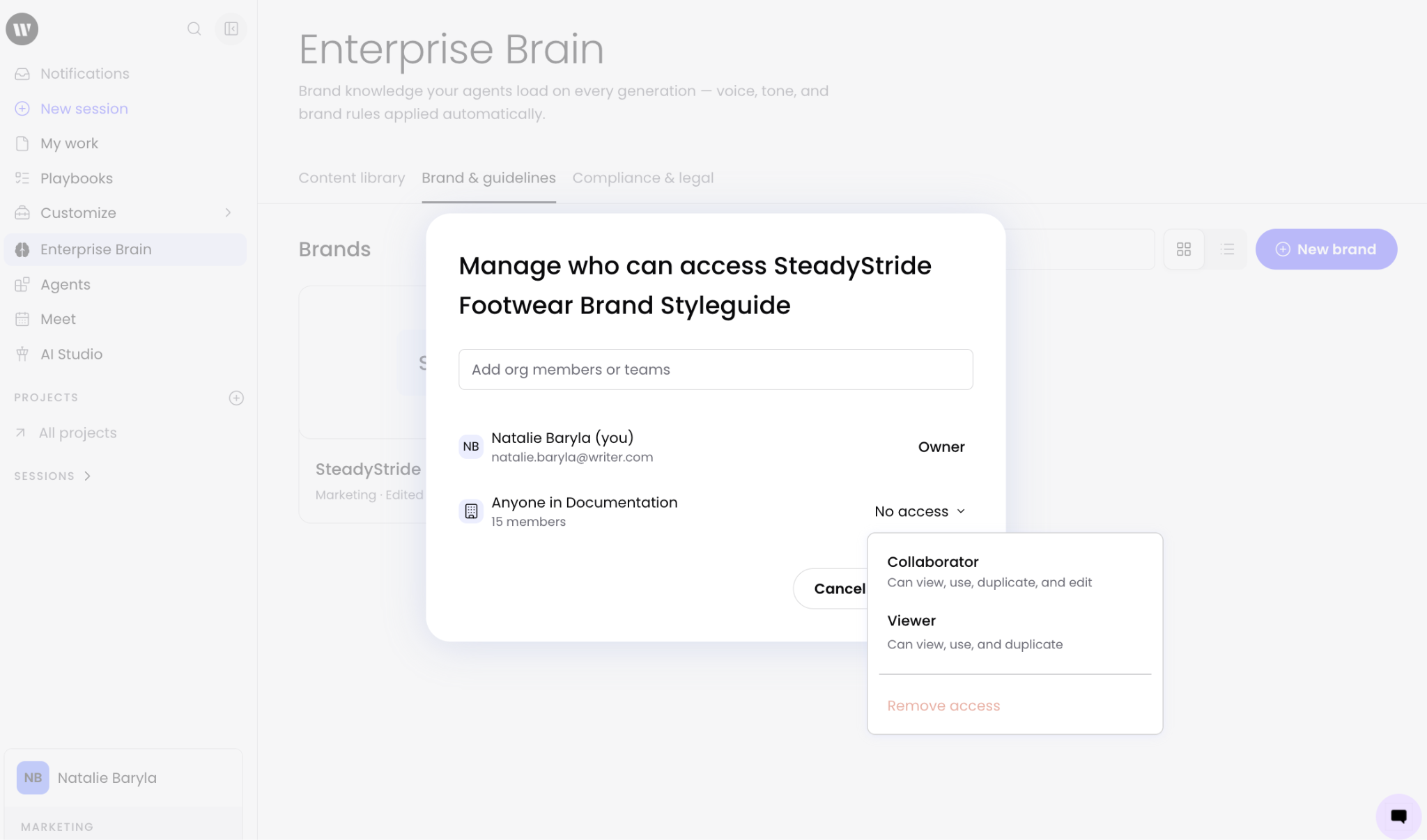
Enter specific individuals or the team you’d like to extend access to and then select the role you’d like them to have in relation to the brand. Once assigned to a brand those team members will have brand guidelines automatically applied to the WRITER Agent outputs.
Using brands
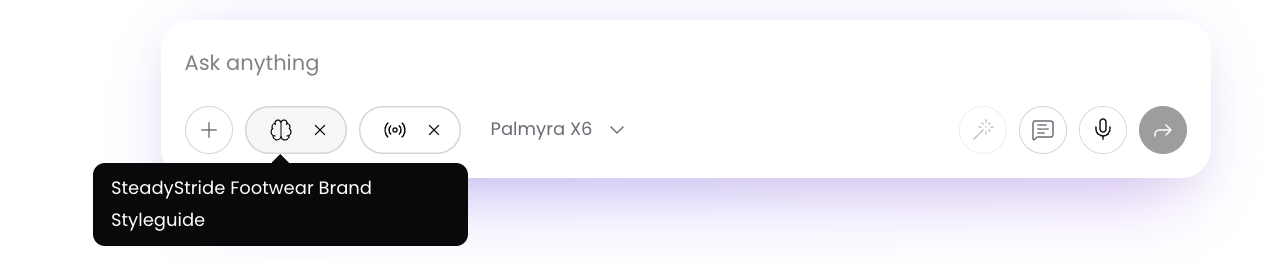
Once you complete your brand set up you can set it as the default for your team via Control Center. The selected brand displays in the input field and content generated with this brand selected will reflect the configured voice, terms, and guidelines within that brand. Learn more here: 📄 How to configure Enterprise Brain and Agent Memory → Configuring the default brand
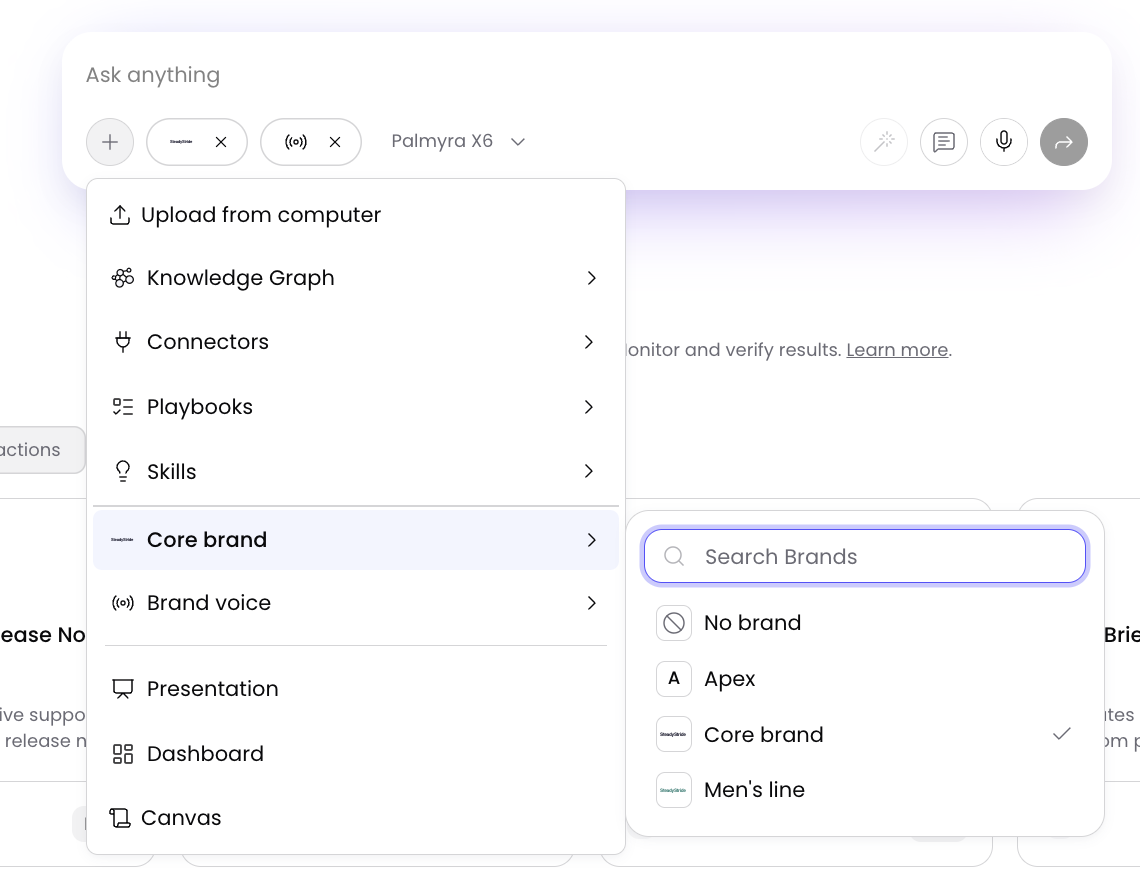
If allowed by admins, users are able to switch to a different brand via the +menu. Learn more here: 📄 Switching brands in WRITER Agent
Tips for getting the most from Enterprise Brain
Start with the highest-impact sections. Brand & guidelines shape every generation, so prioritize those over the Content library when you're getting started.
Keep company facts specific and sourced. Every fact in Enterprise Brain should trace to a source of truth. Vague or unsourced facts undermine the whole point of the section.
Organize your Content library with collections. Group related assets into collections so agents and teammates can find what they need quickly.
Name collections by purpose, not by date. "Product enablement" stays useful over time; "August 2026 assets" becomes confusing in September.
Use "Never state" for sensitive topics. Rather than trying to phrase what agents shouldn't say, list the topics outright in Brand & Guidelines. It's clearer and more reliable.
Tag brand rules accurately. A Must rule should be something agents always apply; a Should rule allows flexibility. Mismatched tags lead to inconsistent outputs.
Review and update regularly. Enterprise Brain is a living knowledge base. Brand rules, company facts, and requirements change — schedule a periodic review to keep everything current.
Good: "WRITER is the enterprise AI platform for agentic work." (Specific, sourced, on-positioning.)
Not as effective: "WRITER is a great AI company that does a lot of things." (Vague, unsourced, off-positioning.)
Move personal voices and custom instructions into skills. Personal voices and custom instructions are better suited as skills than as brand-level settings. If you have a personal voice — for example, the way you write LinkedIn posts — build it into a skill and invoke it when you start your work. Personal voices and custom instructions will eventually be deprecated in favor of skills.
Review checklist:
Brand & guidelines include voice, tone, and messaging rules
Sensitive topics are listed in "Never state"
Content library collections are organized by purpose, not date
Outdated assets are removed from the Content library
At least one admin is responsible for keeping Enterprise Brain current
Use Never rules for sensitive topics. Rather than trying to phrase what agents shouldn't say, list the topics outright in Brand & guidelines.
Troubleshooting
My agent is ignoring a brand rule — what should I check?
Verify the brand is assigned to your team or user account (Manage access).
Confirm the rule tag is set correctly — a Should rule allows flexibility, while a Must rule is always applied.
Check whether a skill is conflicting with the brand rule. If so, the conflict resolution prompt should appear — select the brand rule to enforce it.
FAQs
What is Enterprise Brain?
Enterprise Brain is the brand knowledge your agents load on every generation. It holds your approved assets, brand guidelines, company facts, and rules in one place so every output from WRITER Agent stays on-brand and grounded in your organization's knowledge.
Who can use Enterprise Brain?
Enterprise users only. Enterprise Brain is available to Enterprise organizations. Org admins can assign Enterprise Brain admin roles to control who can create and manage brands, and content library assets. Team members benefit from Enterprise Brain automatically in their sessions.
Important: Enterprise Brain requires an Enterprise plan. Starter and Team plan users do not have access.
Who can edit Enterprise Brain content?
Org admins can assign Enterprise Brain admin roles to specific users. Users with the Enterprise Brain admin role can create and manage brands and content library assets. Team members without the admin role can view Enterprise Brain content but cannot create or edit it unless added as a collaborator or owner.
Is Enterprise Brain the same as Knowledge Graph?
No. Knowledge Graph is WRITER's graph-based RAG solution for grounding AI in your company's content and data sources. Enterprise Brain holds your brand knowledge — voice, tone, brand rules, company facts, and rules — that agents apply on every generation. In the Control Center navigation, Knowledge Graph appears under the Enterprise Brain group, so the two are related but serve different purposes. Knowledge Graph remains available, and a future feature called Collections will provide an enhanced experience for organizing context for agents.
Do I need to fill in every section before Enterprise Brain works?
No. Even a few brand rules and company facts improve your agents' outputs.
Does Enterprise Brain replace Voice, Style Guide, and Terms?
Yes. Enterprise Brain replaces the Voice, Style Guide, and Terms features in Control Center. Migration flows are available in Control Center to import existing voices and style guides into Enterprise Brain brands, including custom rules. After migration is complete, the Voice, Style Guide, and Terms options in Control Center will be turned off. Personal voices are better suited as skills rather than brand-level settings. Learn more in our articles on migrating org and team voices to Enterprise Brain and migrating your personal voice to a skill.
Note: WRITER account teams will facilitate the migration process for customers with legacy Voice, Style Guide, or Terms configurations.
Does Enterprise Brain replace our DAM?
No. Enterprise Brain is not a full replacement for a digital asset management tool. The Content library stores assets your agents need to produce on-brand work — logos, fonts, colors, and boilerplate text — and canonical examples of finished deliverables. A DAM handles ad trafficking, performance marketing treatments, and content distribution workflows that Enterprise Brain is not designed to cover.
How does Enterprise Brain interact with skills?
Enterprise Brain guidelines are always on and load automatically at every session, while skills require the user to know about and invoke them. When a skill and a brand guideline don't conflict, the agent applies both. When they conflict, a conflict resolution experience lets the user choose which to follow.
Tip: Use Enterprise Brain for standards that everyone on the team or org needs to know. Use skills for task-specific or individual-level instructions that not everyone needs.
How does a session or playbook know which brand to use when multiple brands exist?
Brands can be scoped at the team level. When a brand is assigned to a specific team, sessions and playbooks within that team reference that brand automatically.
Can I restrict brand access to specific teams?
Yes. Brands can be scoped at the team level so that only members of the assigned team can access and use a particular brand. This is useful for organizations with multiple brands or sub-brands that need to be kept separate.
Can I ensure strict isolation between brands?
Yes. Brands can be scoped at the team level so that only members of the assigned team can access and use a particular brand. When a brand is assigned to a specific team, sessions and playbooks within that team reference that brand automatically. Team members without access to a brand will not see its guidelines, assets, or context.
Note: Assign each brand to a specific team to ensure brand context stays isolated. Users with access to multiple brands can switch between them using the + menu in the input field.
Is there a limit to the number of brands I can create?
There is no hard limit on the number of brands you can create. For organizations with many brands, use team-level brand assignment to ensure users see only the brands relevant to them. Admins can configure brand visibility to specific teams or users.
Can I create a brand from scratch without a website?
Yes. When creating a new brand, you can enter a website URL and WRITER will generate an initial brand for you to review and edit, or you can upload files directly to build the brand manually. Not every brand has its own website, so the website field is optional.
Can I upload multiple files at once when creating a brand?
Currently, you can upload one file at a time during the brand creation flow. The Content library supports multi-file drag-and-drop uploads. As a workaround, create a brand from a single file or website URL, then add additional files after the brand is created.
What data sources can I connect to the Content library?
You can upload files directly or paste a link to a Google Docs, Sheets, Slides, or Drive file. Google Drive folder links are not supported — only individual file links. You can also drag and drop multiple files from your computer.
Note: OneDrive integration is not currently available. Only Google Docs, Sheets, Slides, and Drive file links are supported for link-based import.
Is my Enterprise Brain data portable? Can I export it?
Yes, content is stored as plain markdown and can be downloaded at any time. Content library assets can be downloaded individually from the three dot icon next to each file. Agent memory can be self-hosted — contact your account team for setup details. A one-click bulk export of the entire Enterprise Brain is not currently available.
Note: Google-linked files (Docs, Sheets, Slides) export a snapshot of the file at the time of download, not a live link to the Google document.
Can I access Enterprise Brain via MCP?
Enterprise Brain support for MCP is in very early access. This allows external agents to read brand guidelines and content library assets from other systems. For example, an agent in Figma or Canva connected via MCP could read brand guidelines from WRITER and apply them to designs. Contact your account team to request access.
Can I audit who changed Enterprise Brain content?
Yes. Enterprise Brain records who created, updated, and downloaded each asset and brand file. Session outputs also show which Enterprise Brain files were referenced during generation, with citation pills at the end of each turn. A dedicated audit report in Control Center enterprise reports is planned to provide an overarching view of Enterprise Brain activity.
How often is Enterprise Brain synced?
Changes are reflected immediately upon save and do not require a manual refresh.
What model does Enterprise Brain use?
Enterprise Brain uses whatever model is loaded for WRITER Agent in your organization. It is not locked to a specific model. If your organization has Palmyra, Claude Opus, GPT, or another model configured, Enterprise Brain uses that model.