Switching brands in WRITER Agent
Last updated: November 16, 2026
Who can use this feature?
All users can select a brand when prompting WRITER Agent, provided at least one brand has been created in Brand & guidelines and Enterprise Brain is turned on for the org.
WRITER Agent applies the guidelines, such as voice and approved terms, of a selected brand to the content it generates. When a workspace contains more than one brand, the default brand is applied automatically if the user's Team has a default brand.
Note: The brand picker works in ordinary chats only. Projects, Operators, and Playbooks keep their own brand settings.
Learn more here:
📄 How to set up Enterprise Brain 📄 How to configure Enterprise Brain and Agent Memory
Understanding default brand settings
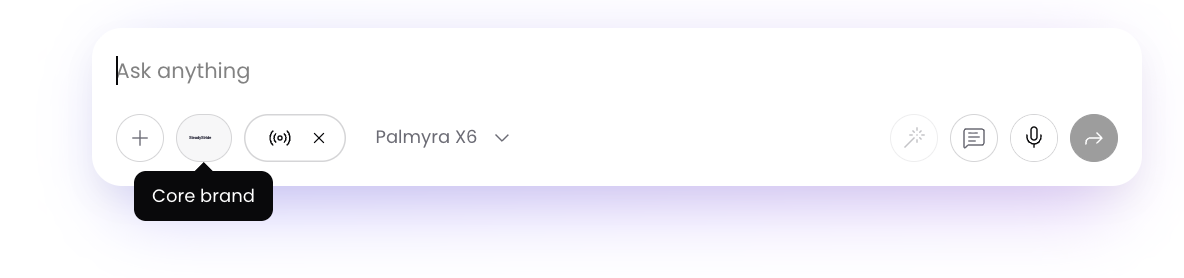
If your admin has set a default brand for your team, that will be noted within the prompt input. Hover over the two icons to view the name of the default brand and voice. Your admin may have set additional brands and voices which you can switch between via the + menu.
How to change your selected voice
A brand can hold different voices, for example you could have a main voice for your brand and a separate voice specifically for internal communications.
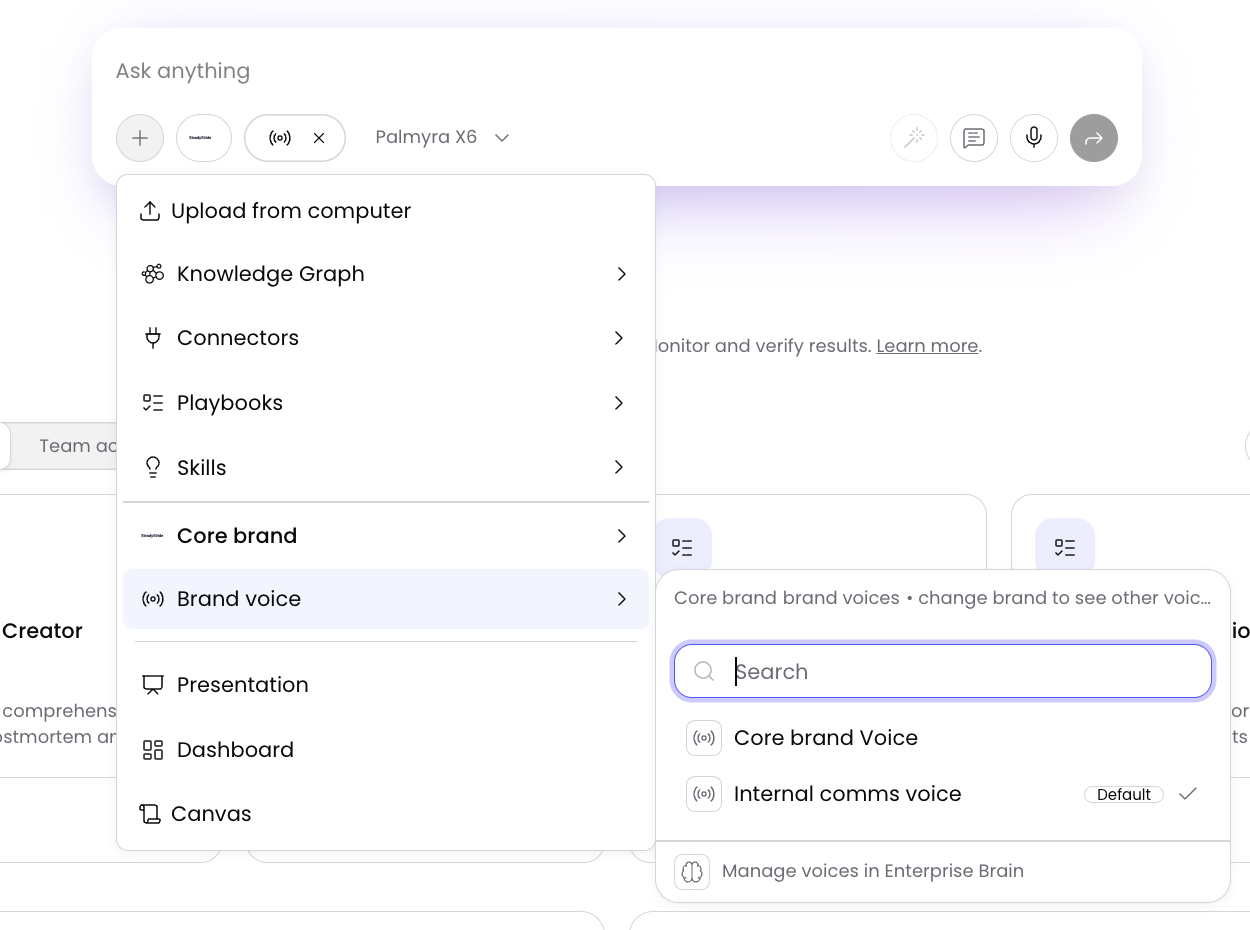
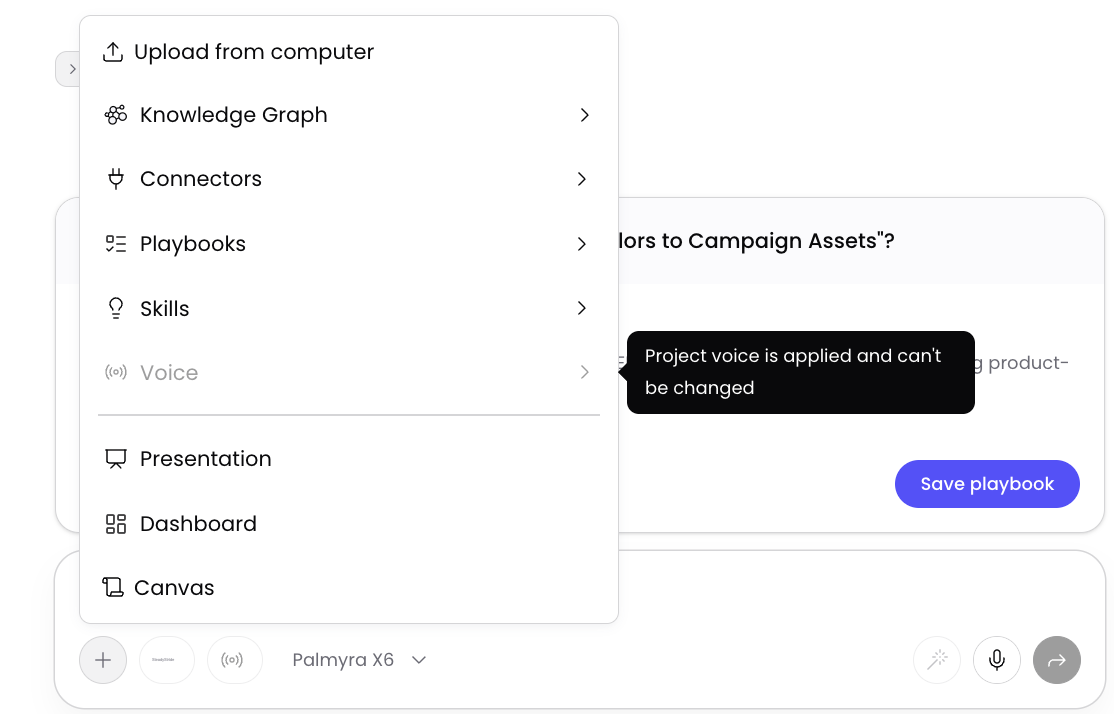
To change the selected voice, select the + menu and from the Brand voice section select the voice you'd like to use for your WRITER Agent session.
How to change the brand from the + menu
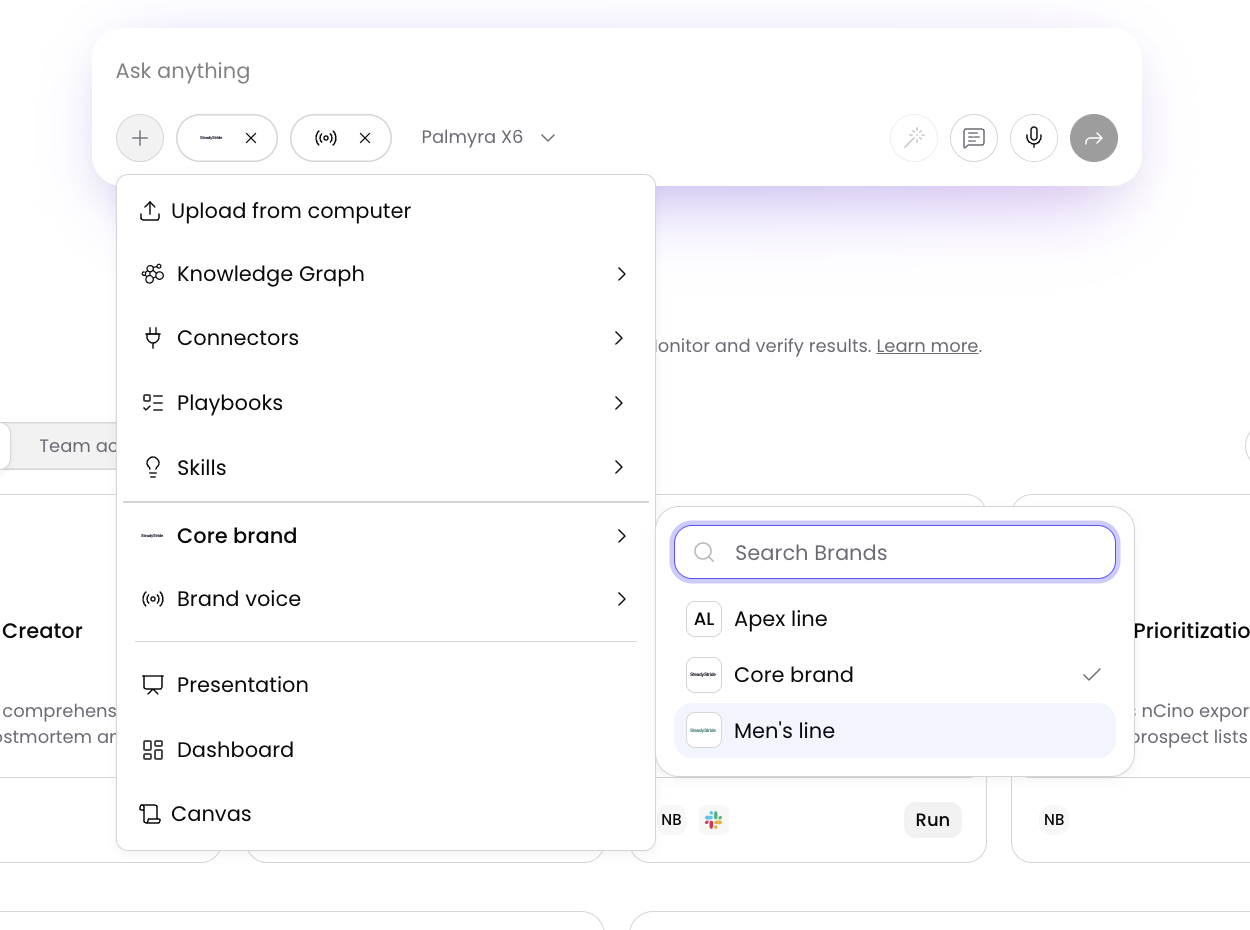
From the + menu, select Brand to open the list of available brand styleguides. Scroll the alphabetical list, or type in the Search Brands field to filter it.Select the brand you want to apply.
The selected brand is saved on the chat and applies to every later response until you change it. WRITER Agent generates output that follows that brand's terminology, tone, and formatting rules, and selecting a brand automatically applies that brand's default voice.
Note: The list shows only brands you can view. Archived brands are hidden. If your workspace has no brands, the list says "No brands found" — users who can manage brands see a New Brand link, and everyone else sees "Contact your admin to set up a new brand".
Selecting brands and voices in playbooks
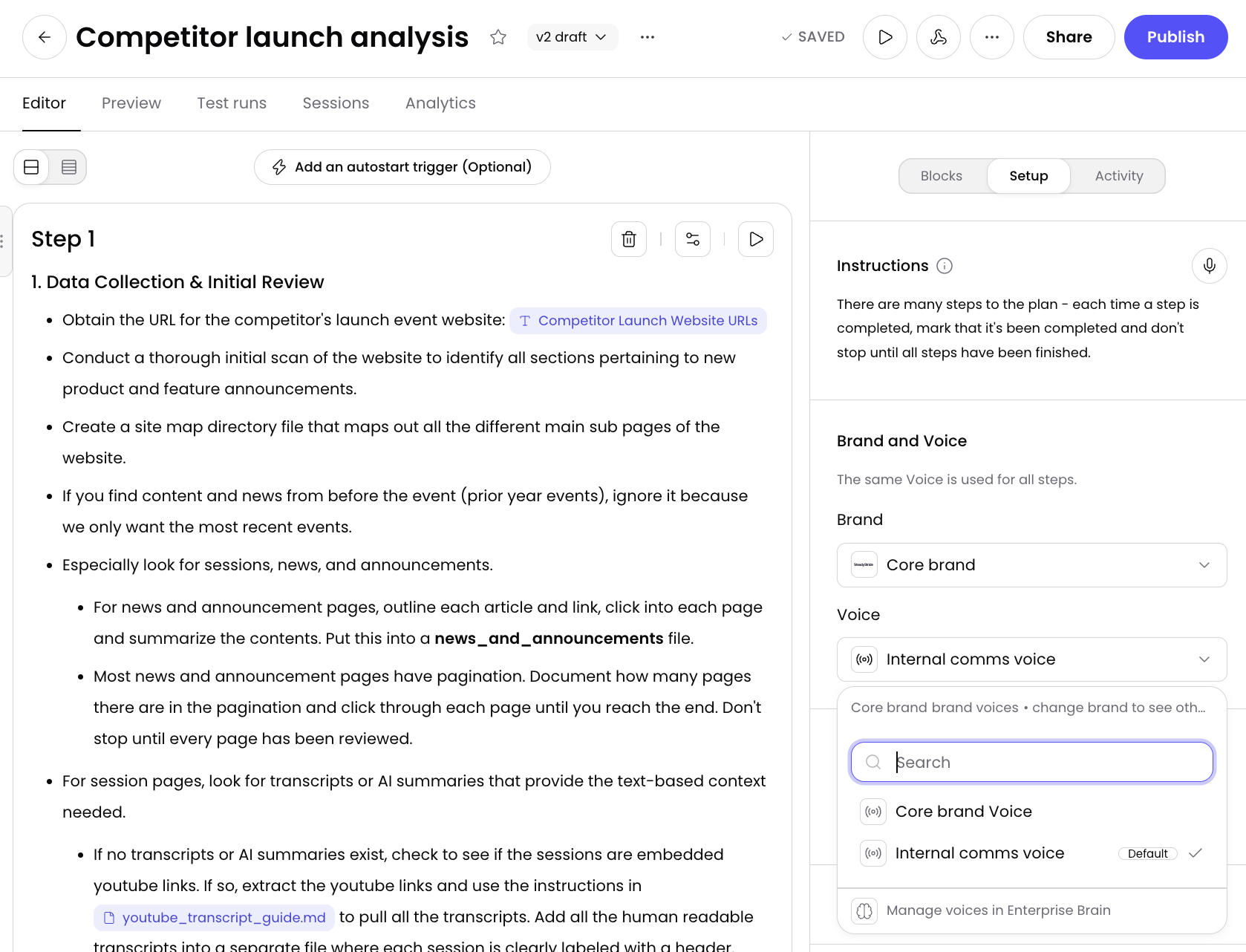
To switch the default brand or voice used to execute a playbook access the playbook you'd like to edit and locate the Setup tab on the right. From the Brand and Voice section select the brand and voice and then select Publish to make your changes live.
Selecting brands and voices in projects
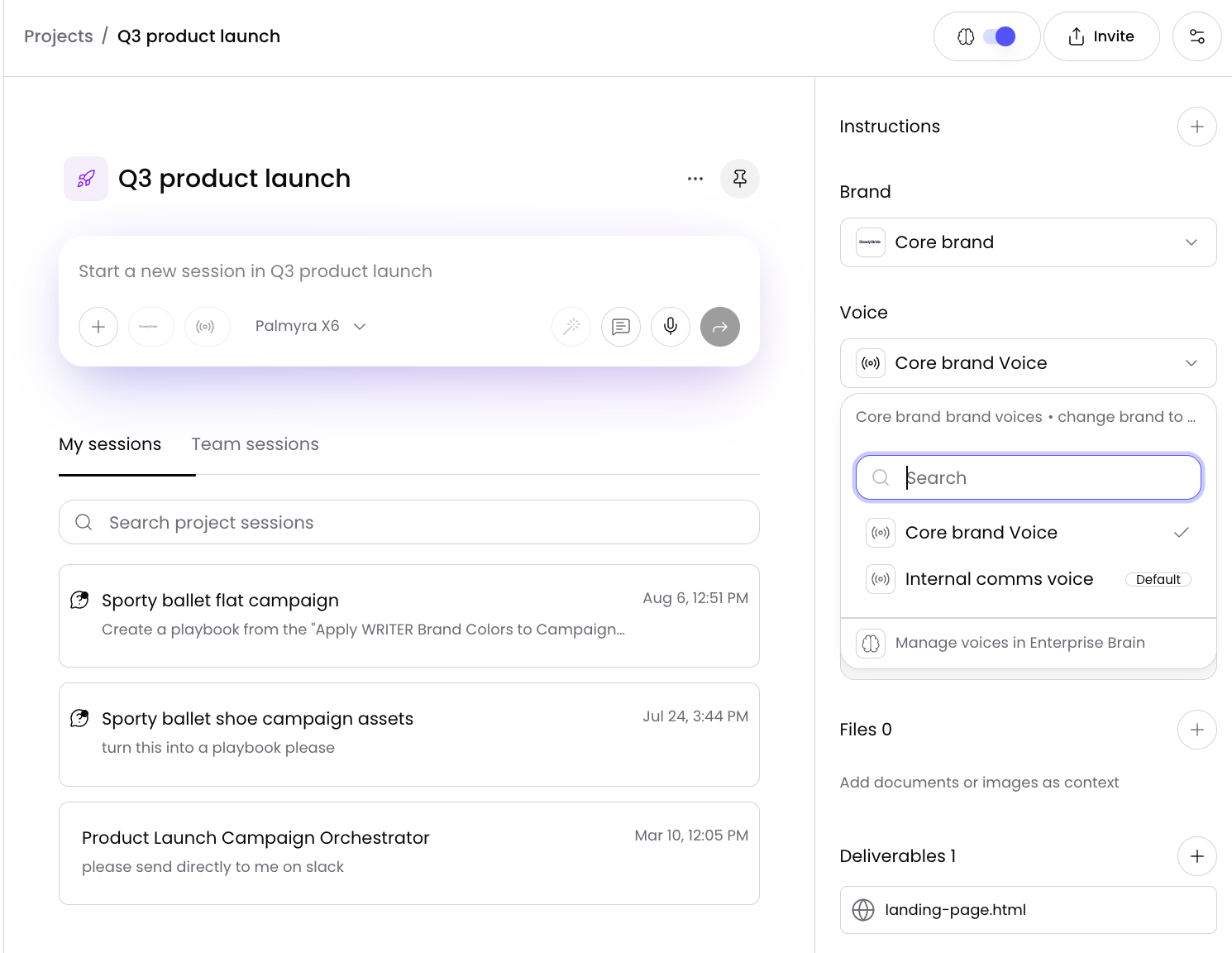
To apply a brand and voice to every session in a project, select a brand from the right side panel. Its default voice is applied automatically, and you can then pick a different voice for that brand. Your changes save automatically and apply to new sessions started from the project and to the next message in existing project sessions. Only project editors can change these settings. Playbook runs in the project keep their own brand and voice.
When to switch brands
A selected brand stays on the chat until you change it, so switching matters when the content you are generating belongs to a different brand than the one currently selected. Common cases include:
Multiple brands in one workspace — Organizations that manage a portfolio of brands, such as a parent company with distinct product brands, keep each brand's guidelines in WRITER. Switching brands ensures every output follows the correct terminology, tone, and visual rules for that brand.
Agency or client work — Teams that produce content for several clients select the client's brand before generating drafts, so each deliverable matches that client's standards.
Sub-brands and regional brands — A global brand with regional variants can keep a separate brand for each market. Switching brands applies the regional terminology and voice for the market the content targets.
Campaign or product-specific guidelines — A brand created for a specific campaign, product launch, or audience segment can be selected when generating content for that initiative, then switched back afterward.
Important: If an admin turns off "Allow users to override brand default", users can't switch away from their Team's default brand. They can still pick another voice within that brand.
Frequently asked questions
What is the default brand?
The default brand is the brand WRITER Agent applies automatically when no brand is selected in the prompt. Defaults are set per Team, not for the whole org. They live on the Enterprise Brain Access page in the Control Center, in the Default brand card under "Team-specific default brands". Saving a Team default requires Brands admin permission.
How do I keep brand guidelines out of a chat?
Select No brand, the first row in the Brand list. This is the only way to keep every brand out of a chat. Removing a brand pill does not turn guidelines off — it hands the decision back to WRITER Agent, which decides for each message whether a brand applies. A Team default brand also applies in that case.
Why is the Brand voice option grayed out?
The Brand voice option stays grayed out, with the hint "Select a brand first", until a brand is selected. Select a brand from the Brand list first, then select Brand voice to choose a voice associated with that brand.
Which brands appear in the list?
Only brands you can view. Archived brands are hidden.
Can I generate content without applying a brand?
Yes. Select No brand at the top of the Brand list. Without it, WRITER Agent decides for each message whether a brand applies, and a Team default brand also applies when no brand is selected.
Where are brands created and managed?
Brands are created and managed in Brand & guidelines within Enterprise Brain. See our article on creating and managing brands: 📄 How to create and manage voices, terms, and style guidance in Enterprise Brain