How to use WRITER Agent
Last updated: September 24, 2026
WRITER Agent is an intelligent interface that turns complexity into scale with repeatable, data-driven playbooks connected to the systems where work happens. Whether it's content strategy or financial research, prospecting or merchandising, WRITER Agent is built to handle complex, unstructured work across every department and vertical.
WRITER Agent doesn't just generate content. When you give it a goal, it breaks the goal into steps, selects the right logic and workflows, pulls in relevant company context, uses tools and capabilities to take action, and produces a finished deliverable. The agent is not improvising from scratch — it operates on top of the system your organization has defined.
Here's how WRITER Agent can help you in your day-to-day work:
Generate and refine content: Brainstorm ideas, draft emails, reports, or presentations, and iterate naturally until outputs meet your needs.
Analyze and act on data: Search and work with large files, internal documents, or third-party data to make decisions with confidence.
Automate repetitive workflows: Build reusable playbooks to scale frequent tasks without manual effort.
Stay organized and efficient: Schedule playbooks to run automatically as routines, and pick up where you left off in any session.
Agent capabilities
WRITER Agent can draw on a set of capabilities during execution, including:
Web search
Browser automation
File generation
Image analysis and generation
Presentation generation
Sheets analysis
Code compilation
Deployment and hosting
WRITER Agent can also generate presentations, run multi-step workflows with connectors, and schedule recurring tasks.
Starting a session
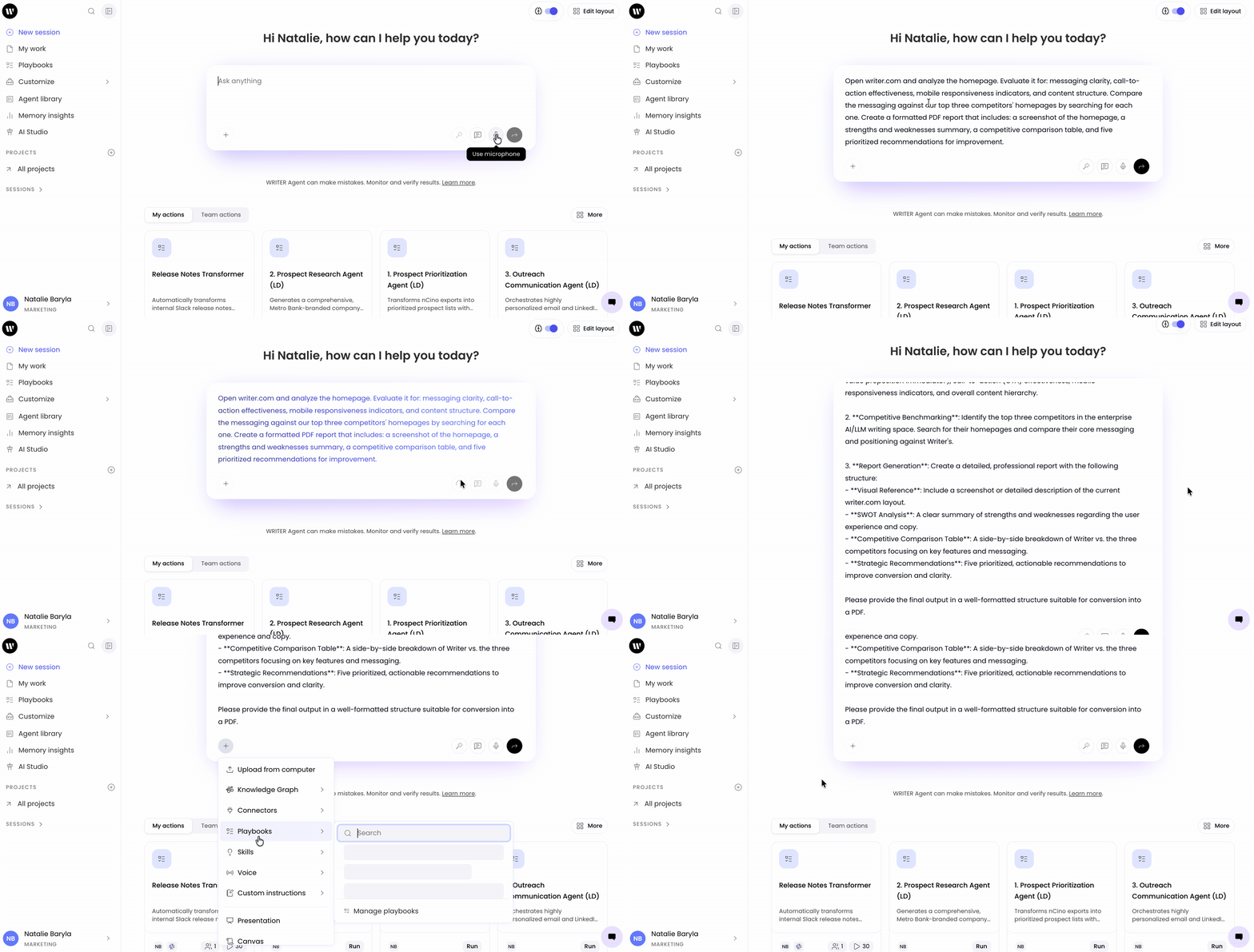
Enter your request in the input field on the home screen in plain language, or select the microphone icon to use voice-to-text. Select the + icon to add source files, connect to Knowledge Graphs, select from playbooks, or enable presentation mode.
Tip: Below the input field, you'll see suggested use cases and prompt completions based on what you've entered. Select one to load the prompt into WRITER Agent and explore the full range of its capabilities.
WRITER Agent can handle just about any file type. If it isn't able to handle a type of file, it has the ability to convert it or process it in a way it can use.
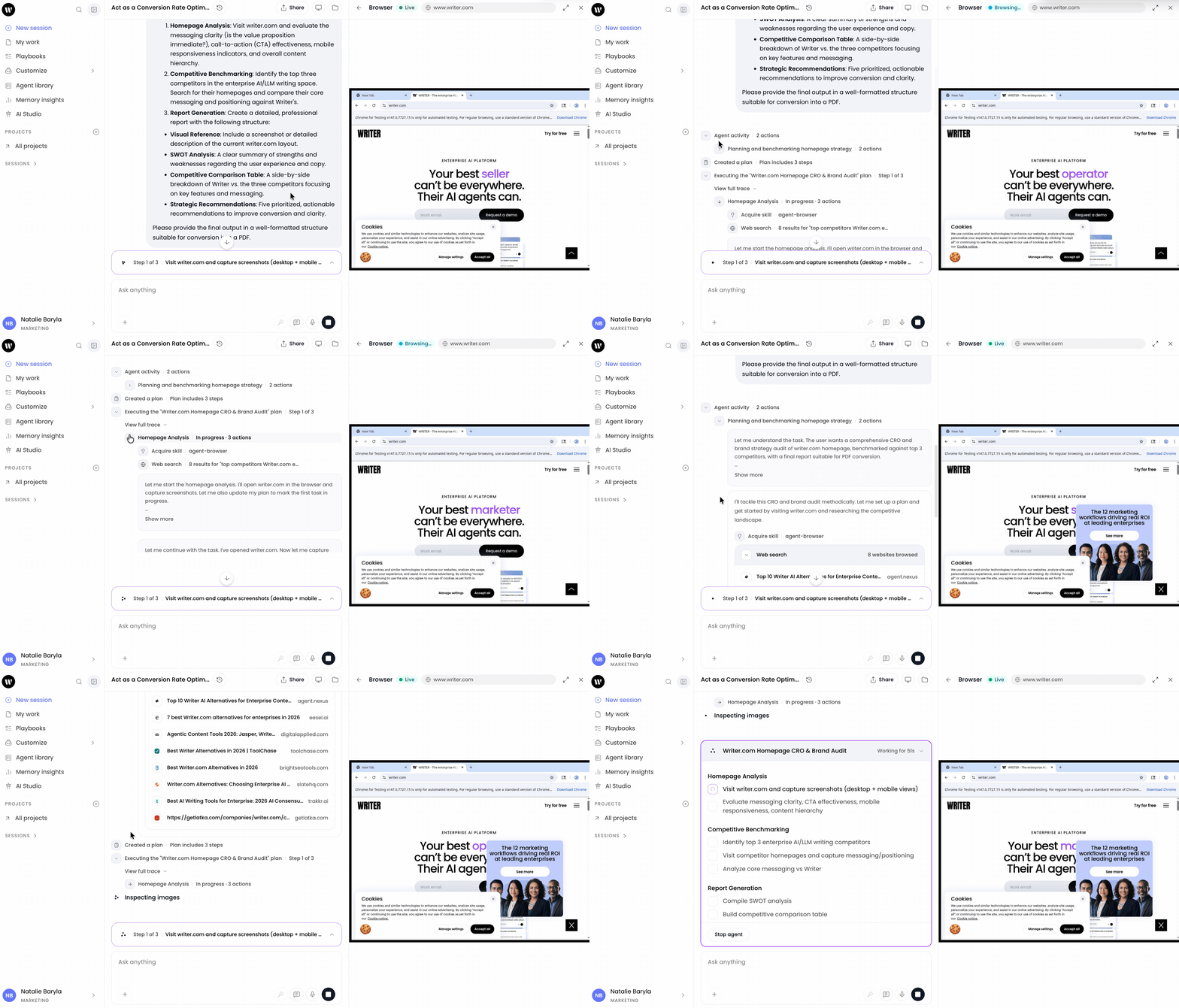
Once you've submitted a prompt, a new window appears. In the center pane, you'll see WRITER Agent keep a running explanation of everything it's doing and why. On the right side, you can see a status update for each step. Use the scroll bar at the bottom of the panel to view previous steps in the process.
Note: You can interrupt WRITER Agent at any time. If you see a fault in its logic, or simply want to change course, send a follow-up message in the central panel.
Note: You can navigate away from WRITER Agent without interrupting your workflow. It will continue to run until it completes its assignment.
When WRITER Agent has produced the final output, you'll see it displayed on the right side within the Deliverables tab. You can select files to expand them, download them, or open them in a new window.
Understanding sessions
WRITER Agent turns each conversation into a session. A session is an instance of WRITER Agent where the chat history and uploaded files persist even if you leave the chat. If there is a set of files you'll work with consistently, you can upload them into a session and return to it repeatedly.
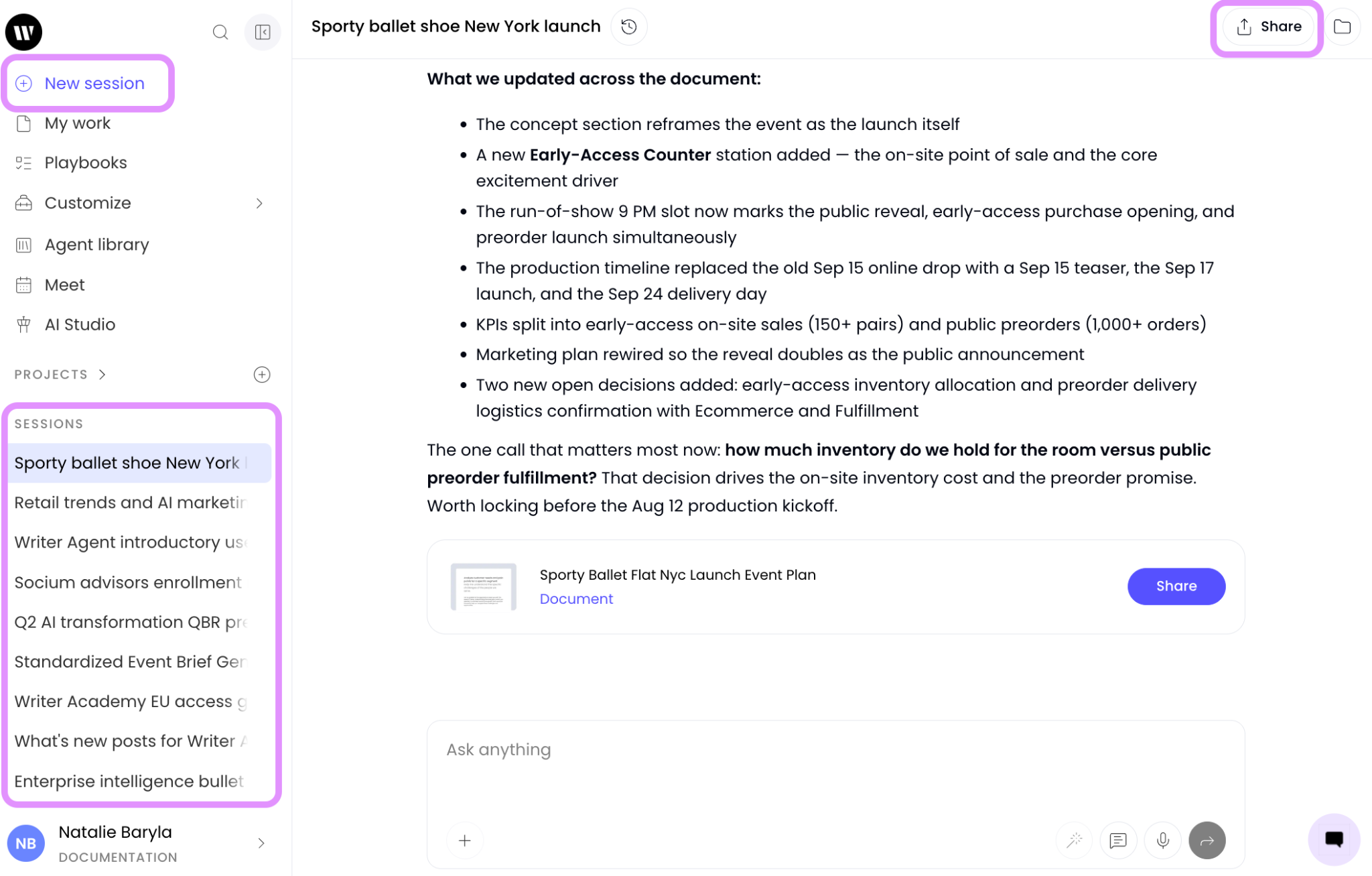
You can access previous sessions and switch between them from the left side menu.
Select + New session to create a blank session.
There is no limit to the number of sessions you can create.
You can share your session replay using the share icon in the top right. This shows another user your session but does not allow them to chat with and build upon the session you share.
You can access previous sessions from the Sessions menu on the left and from the My Work section.
Select the three dot menu that appears when you hover over the session name to delete previous sessions at any time.
Tip: Create a new session whenever you start working on a new query to keep your context clean.
Session branching
Session branching lets you branch from any completed response and take the conversation in a different direction. WRITER creates a new session with the full conversation copied up to that point, keeps the original session untouched, and links the branch back to its source. Session branching is now generally available for everyone.
A lot of valuable AI work is exploratory. You reach a useful point in a session, then want to try another strategy, rewrite for a different audience, test a different assumption, or pursue a separate idea. Branching lets you do that while keeping all of the context you already built up. There is no need to restart, re-explain the work, or turn one good session into a mess of competing directions.
Because the original session stays untouched, you can return to it at any time and branch again in a different direction. Each branch carries the full conversation up to the point you branched from.
How to branch from a completed response
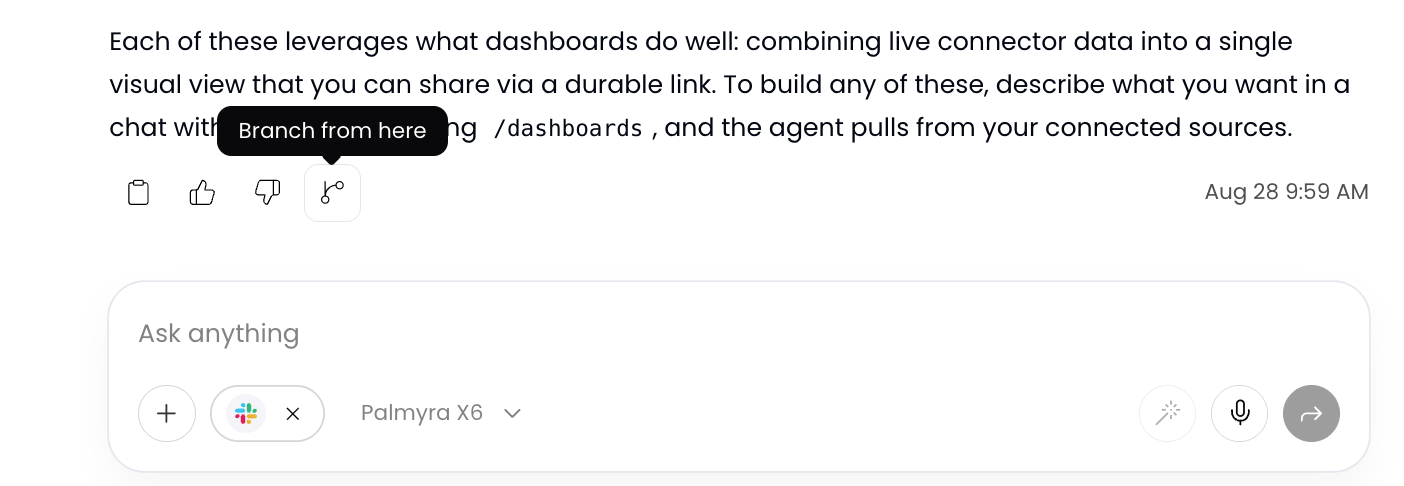
From the session that contains the response you want to branch from and select the Branch icon on that response.
WRITER creates a new session containing the full conversation copied up to and including that response.
The new branch opens as a separate session. You can continue the conversation in a new direction from that point.
Tip: Give each branch a descriptive name so you can distinguish between exploratory directions when you return to them later.
How branches relate to the original session
When you branch, WRITER:
Creates a new session with the full conversation copied up to the point you branched from.
Keeps the original session untouched. No changes you make in the branch affect the original session.
Links the branch back to its source so you can trace where it came from.
You can branch from any completed response in a session, and you can create multiple branches from the same session or from different points within it. Each branch is an independent session that can be continued, shared, or branched from again.
Note: Branching copies the conversation up to the point you branch from. Responses that came after the branching point in the original session are not included in the branch.
Working with files and data
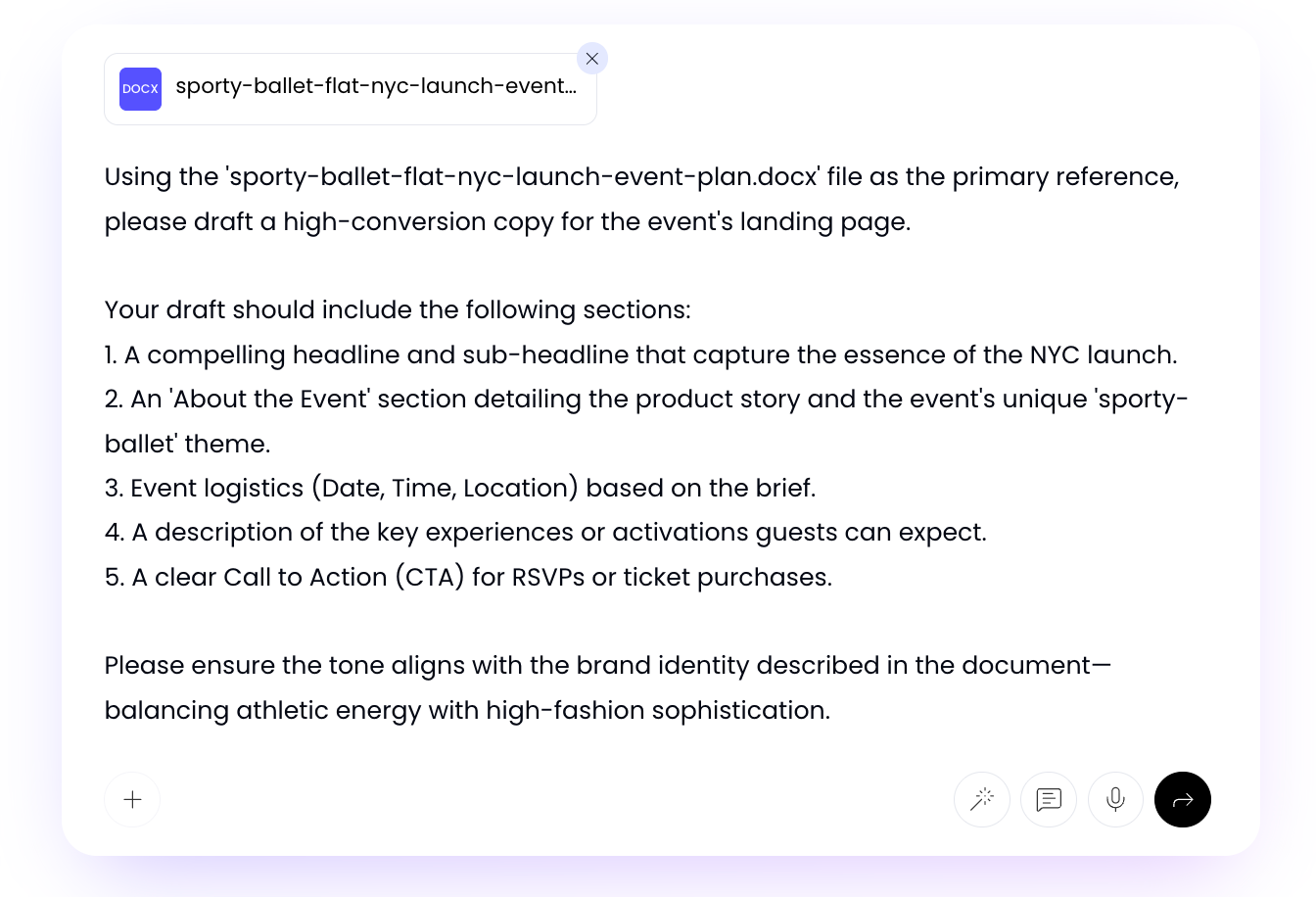
With WRITER Agent, you can work with source files to analyze, research, transform, summarize, and more. Drag your documents into the input field, or select the + icon to upload your files.
File upload limits
You can upload up to 10 files per session, with a maximum of 100MB per file, and a total of 500,000 words per session.
Supported file types
WRITER Agent can parse text from these file types: .xlsx/.xls, .csv, .pptx/.ppt, .pdf, .html, .txt, .srt, .docx/.doc, URLs, pasted text, and past sources. It can also analyze .jpg and .png images.
Example prompt
Need to show that you're on top of industry news? One company just published its quarterly earnings report, but you don't have time to read through the lengthy document. Download the earnings report as a PDF, then in the input field, select the + and Upload from computer. Use the following prompt:
Summarize this PDF into a bulleted list using language you'd use to explain something to a friend. Identify good indicators and concern indicators for investors.
Configuring voice profiles
Are the outputs not sounding like your organization? Configuring the voice profiles and custom instructions for WRITER Agent produces consistent, repeatable outputs.
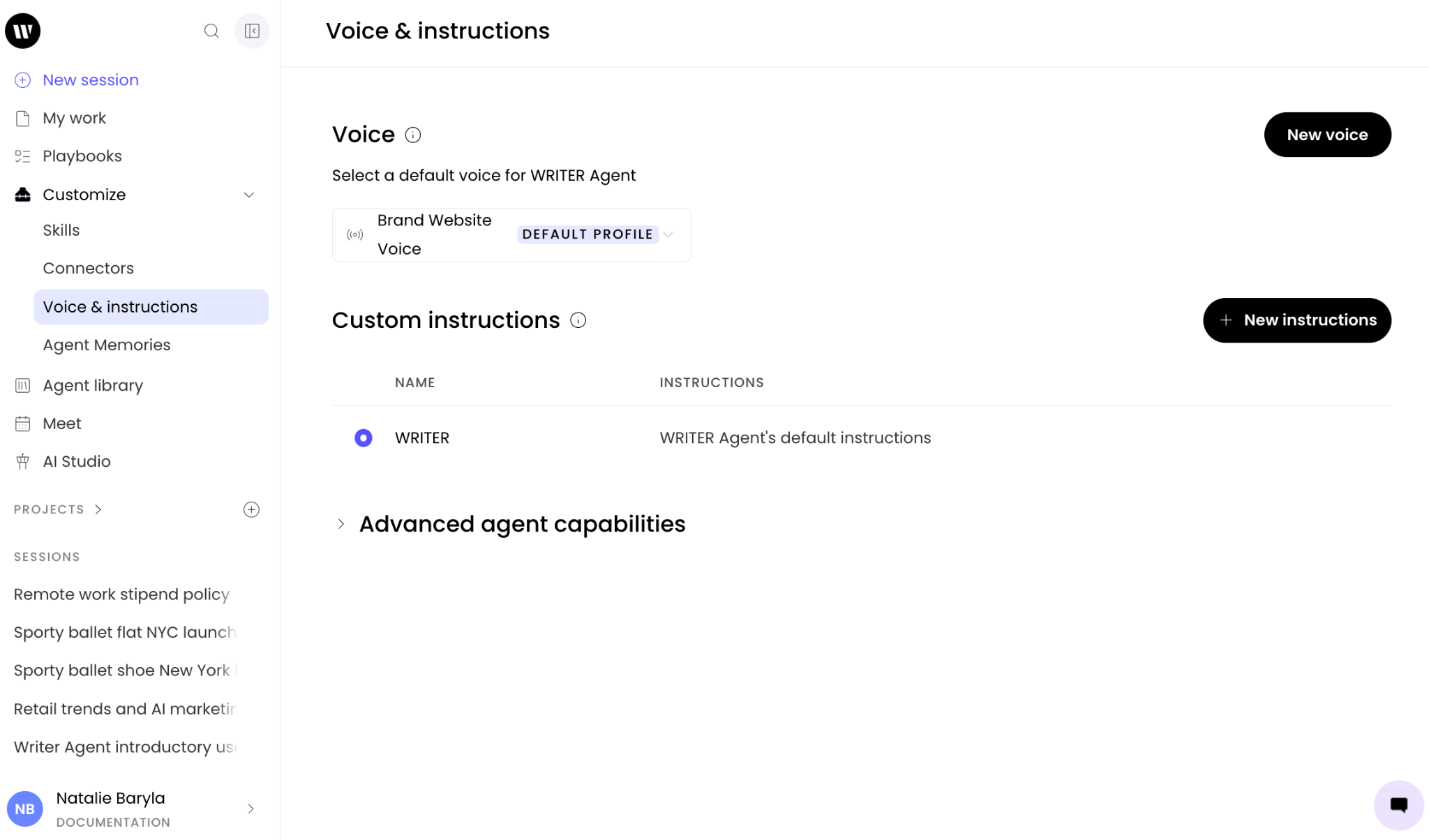
Select Voice & instructions from the customize menu on the left. From here you can select from the preset voices your admins have created, or create your own personal voice. Learn about creating custom voice profiles here.
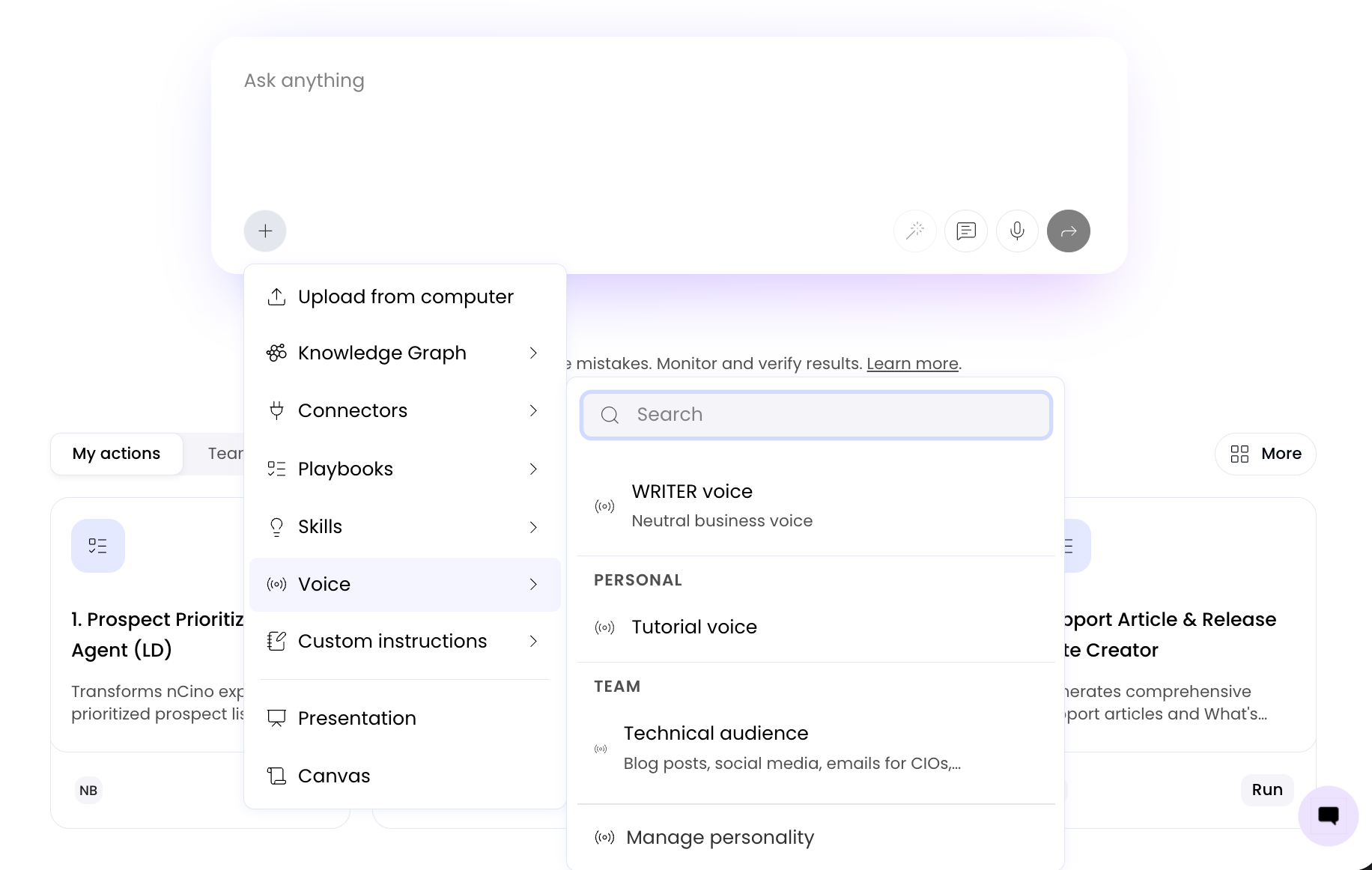
To apply a voice during a WRITER Agent session, select it from the + menu.
earn about creating custom voice profiles here.
Custom instructions
Custom instructions guide WRITER on how to respond and behave in your sessions, including specific formatting, style, voice, tone, persona, and more.
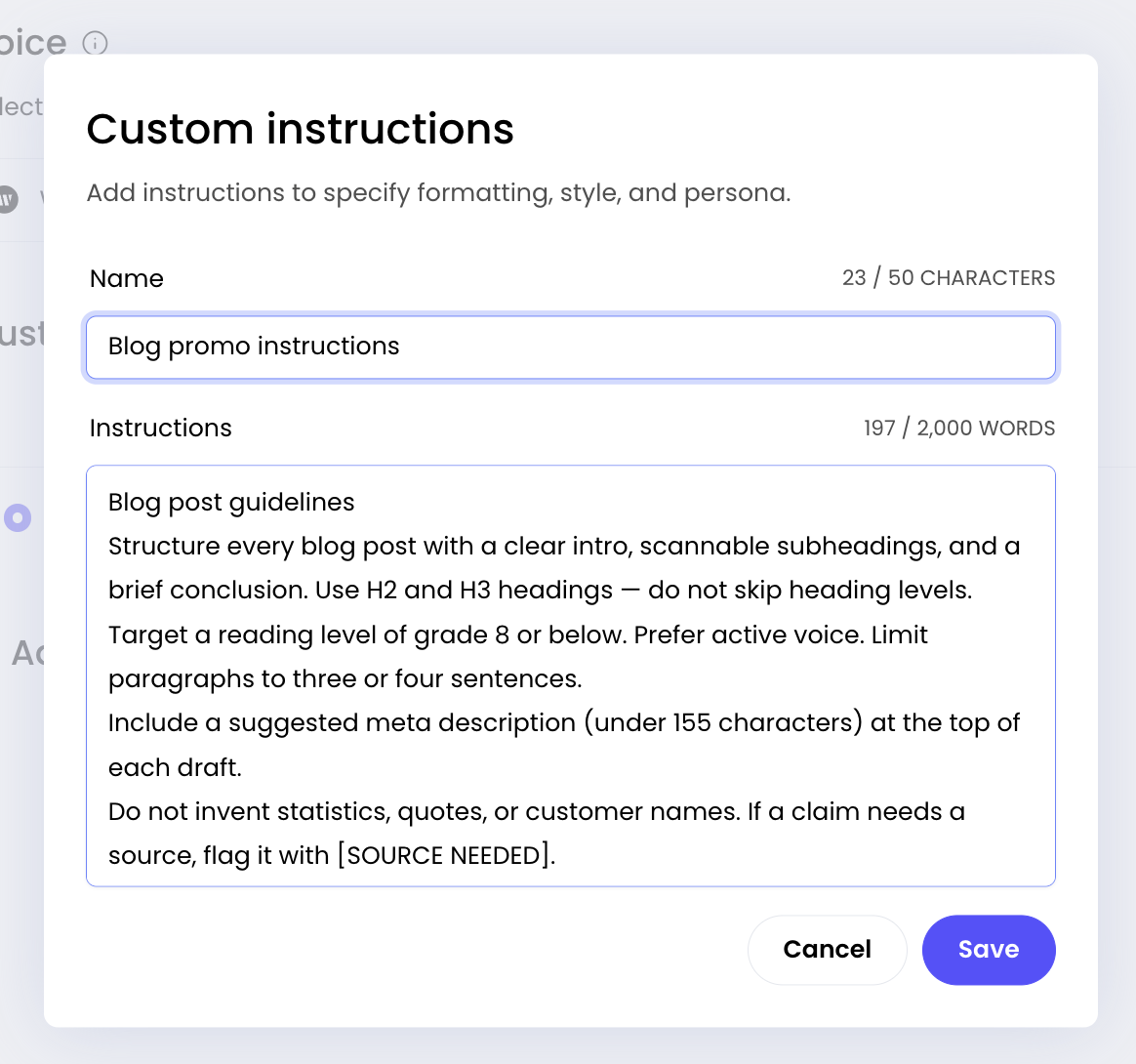
Select Voice & instructions from the customize menu on the left and then select + New instructions
Describe how you'd like WRITER to behave when generating responses.
Add a name for your instructions, then add the instructions, then select Save.
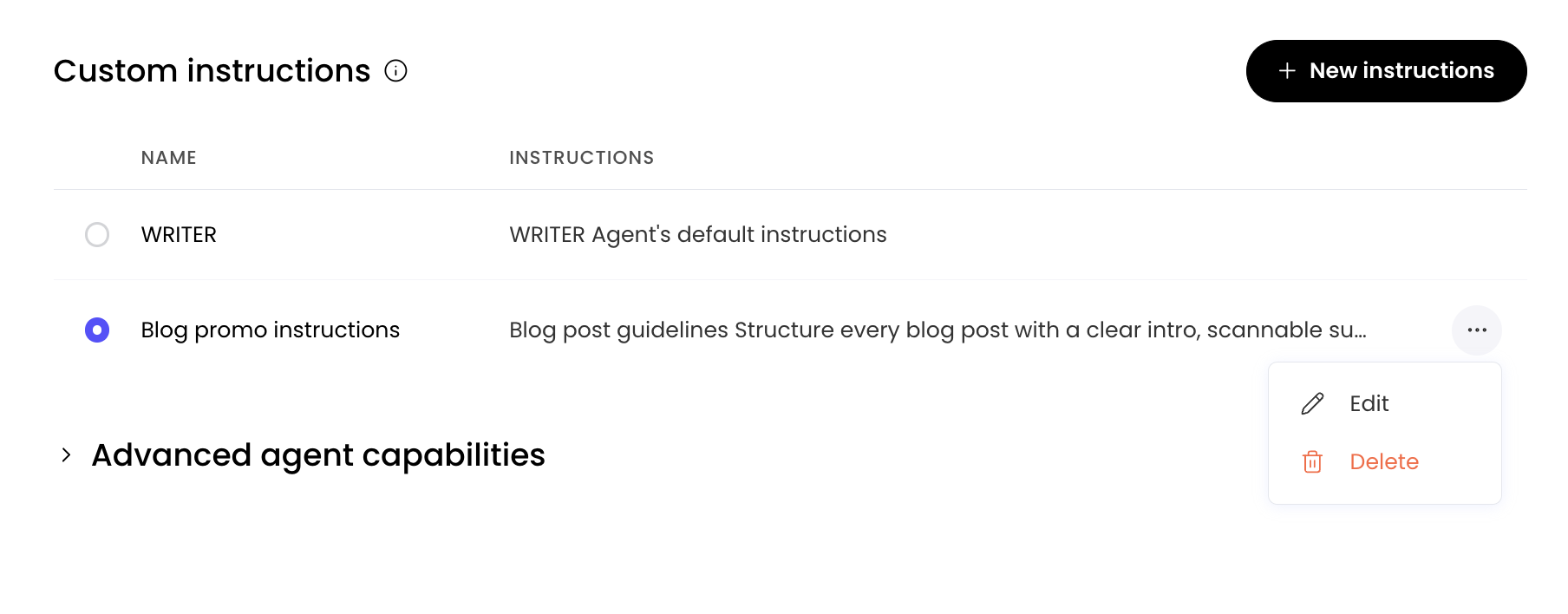
Once you've created your custom instructions, select the bubble to the left to activate them for your WRITER Agent sessions. You can also edit or delete your custom instructions using the three dot icon to the right of the instructions.
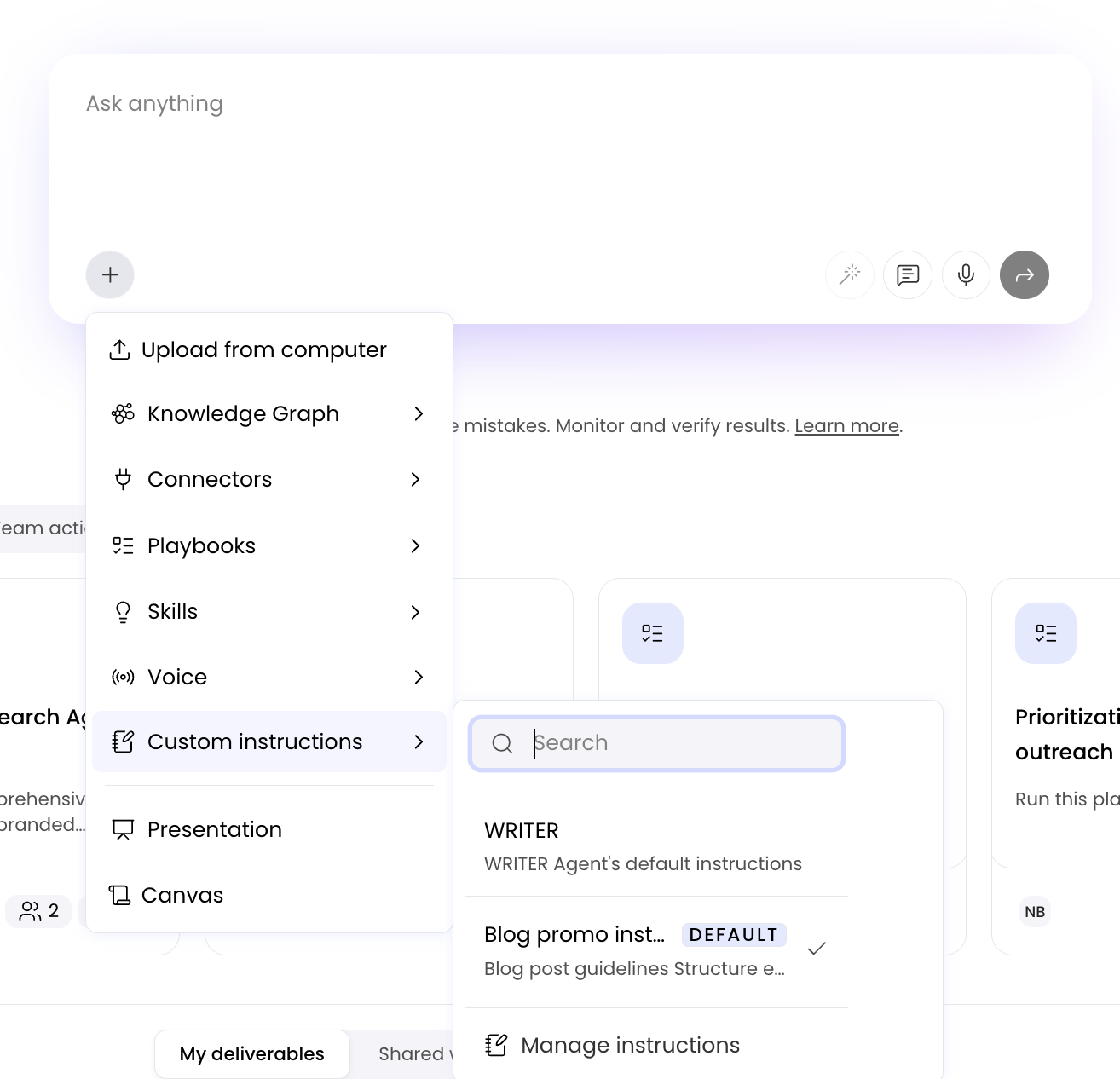
To switch between different custom instructions in WRITER Agent select the instructions from the + menu.
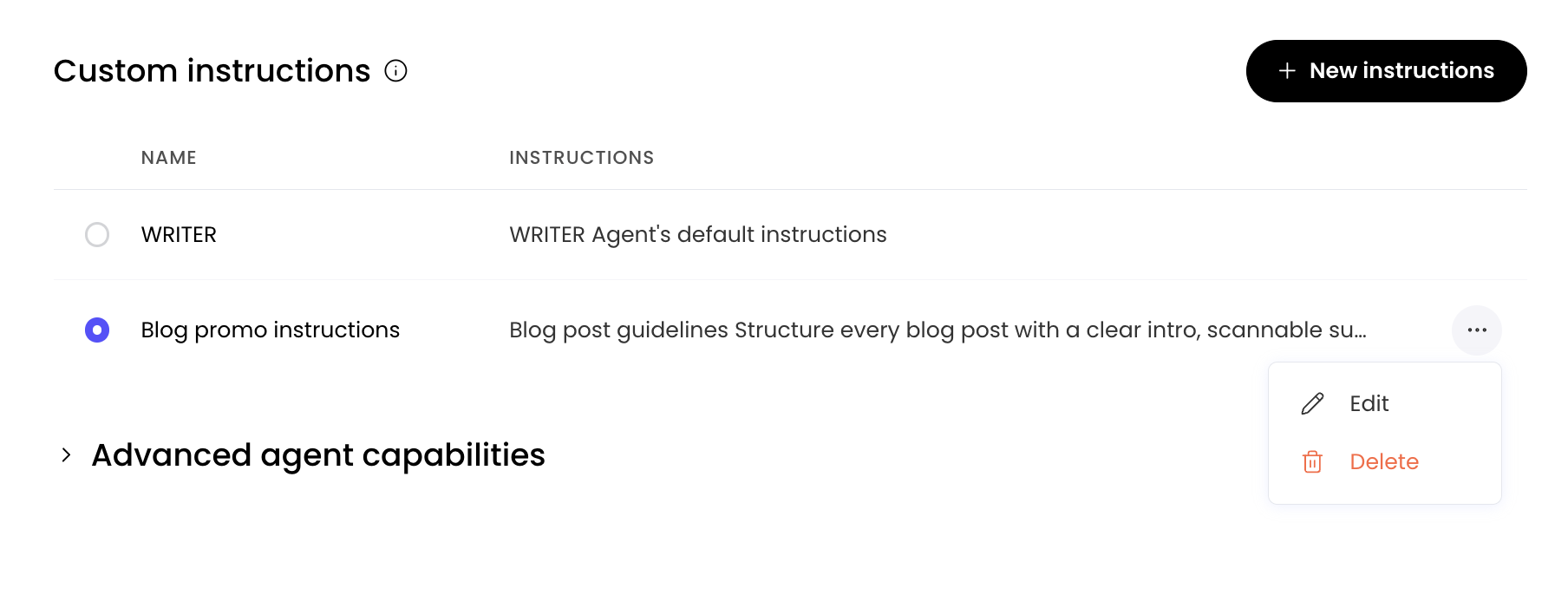
To delete or edit a set of saved instructions, select the three dot icon ••• to activate the menu and select the option you'd like.
Note: You can set custom instructions for your own use at the user level. A playbook can also include custom instructions that are shared across users.
Using Knowledge Graph
Sometimes, uploading individual source files isn't sufficient to answer your questions. You may need to access internal company data that isn't easily exportable and might be spread across different sources, or you may not be sure which of thousands of files contains the answer.
Knowledge Graph lets you search across many sources of internal data, both structured and unstructured. It analyzes all of the most important results and gives you an answer in a few minutes, not hours. Your team or org admin needs to configure Knowledge Graphs before you can use them, they can learn more here.
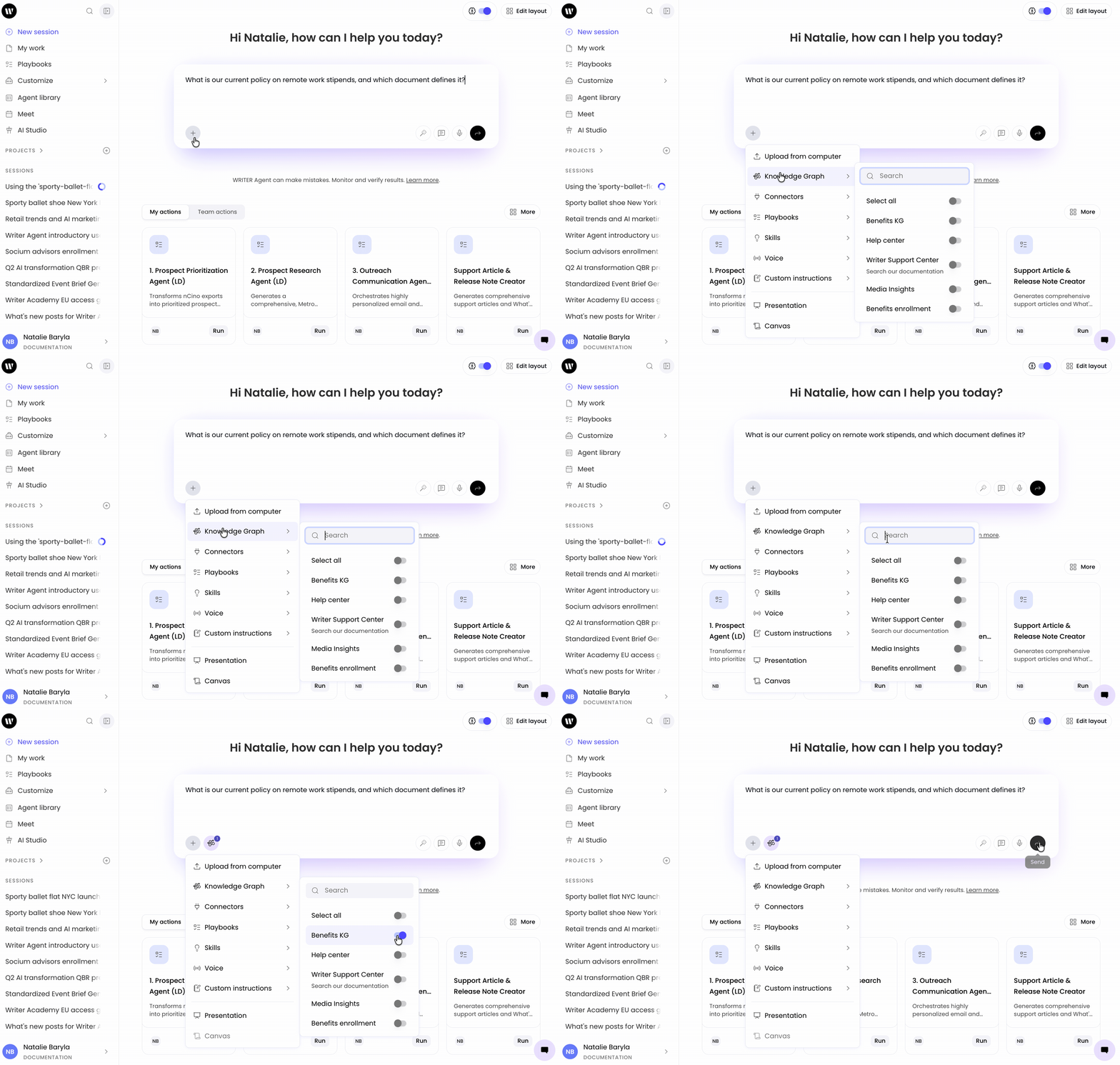
Select the + icon, then select Knowledge Graph.
Select the graph(s) you'd like to search.
Enter your query and submit it.
To change or remove the selected Knowledge Graph from your session, select the Knowledge Graph icon and adjust your graph selections.
When WRITER Agent generates an output based on sources from your Knowledge Graph, it displays inline citations so you can see precisely where and how sources contributed to your output. Hover over the inline citation to display the contributing file name, page number, and snippet.
Using Canvas
Canvas is an interactive workspace where you can iterate, tweak, and refine your output until it's perfect. Canvas is especially helpful for structured content like tables, formatted reports, or blog posts.
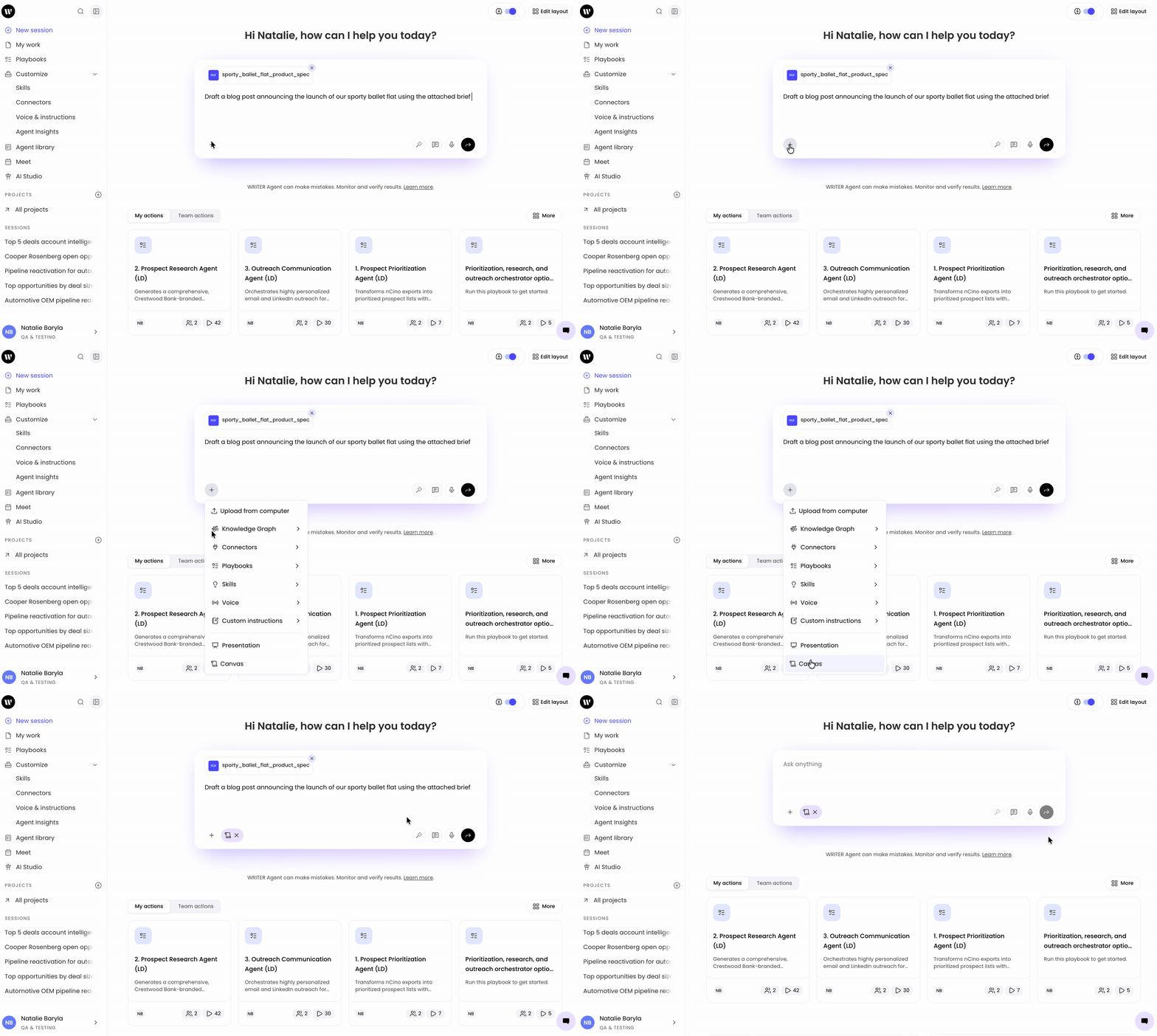
When making your request, select the canvas icon from the + menu to create a workspace for your output.
You'll see a preview of the generated output in the left window.
Continue to chat back and forth with WRITER Agent on the left, or make edits directly in the canvas.
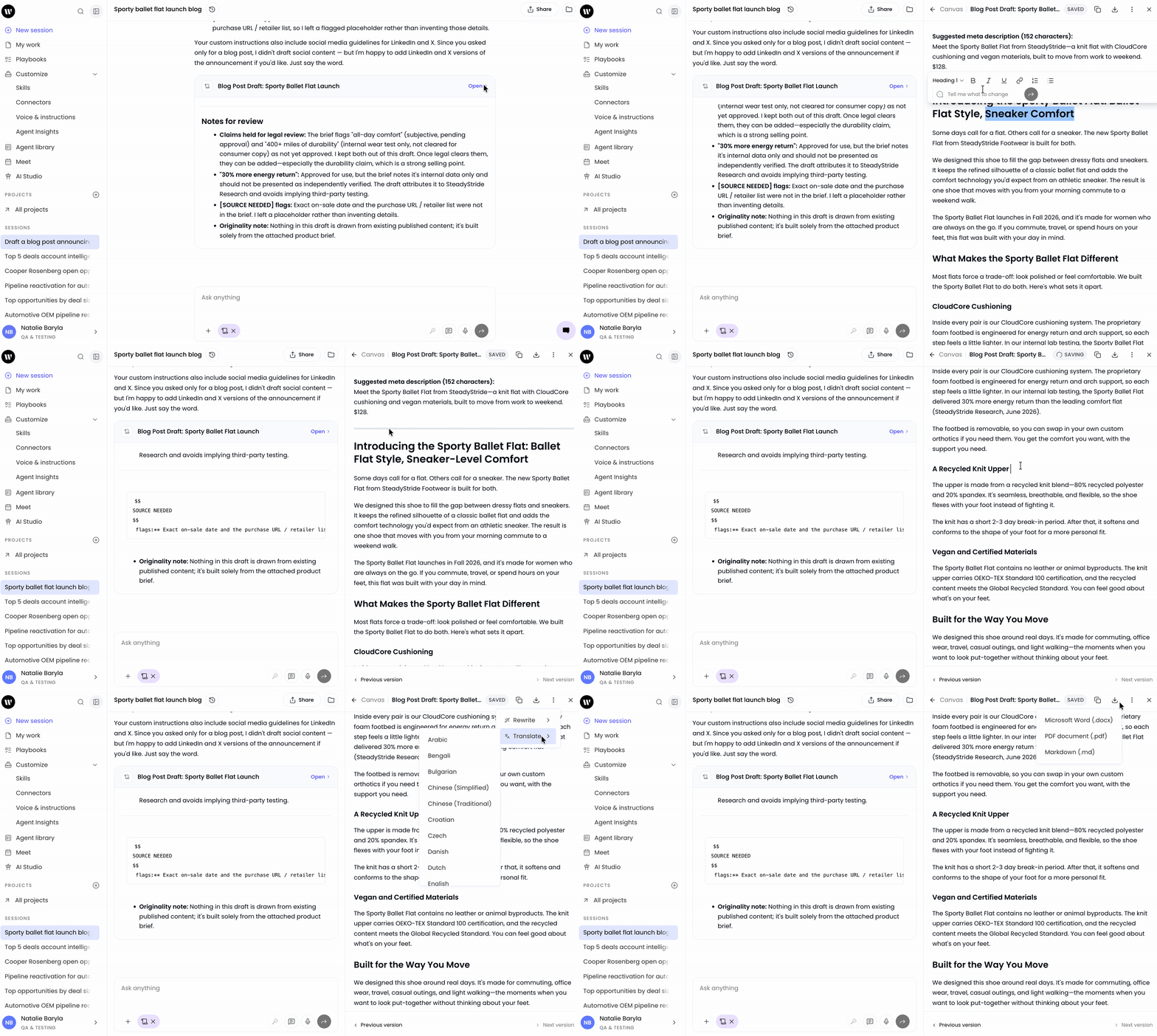
In the top right corner, you have several options to work directly with your canvas content:
Copy: Copy the contents of your canvas to your clipboard.
Download: Download your canvas to finalize your work in another tool.
Translate: Translate all of the content in your canvas to another language.
Rewrite: Transform your text.
Close: Use the X to close the Canvas panel.
You can highlight specific text within the canvas to show the edit menu. Within the menu, prompt WRITER Agent to edit for you. Tell it what to change and each edit creates a new Canvas version, so you can always navigate back to an older version if you don't like the changes.
Viewing sources
Whenever WRITER Agent references a source — whether it's a document, a website, or a Knowledge Graph — it cites its sources at the bottom of the output.
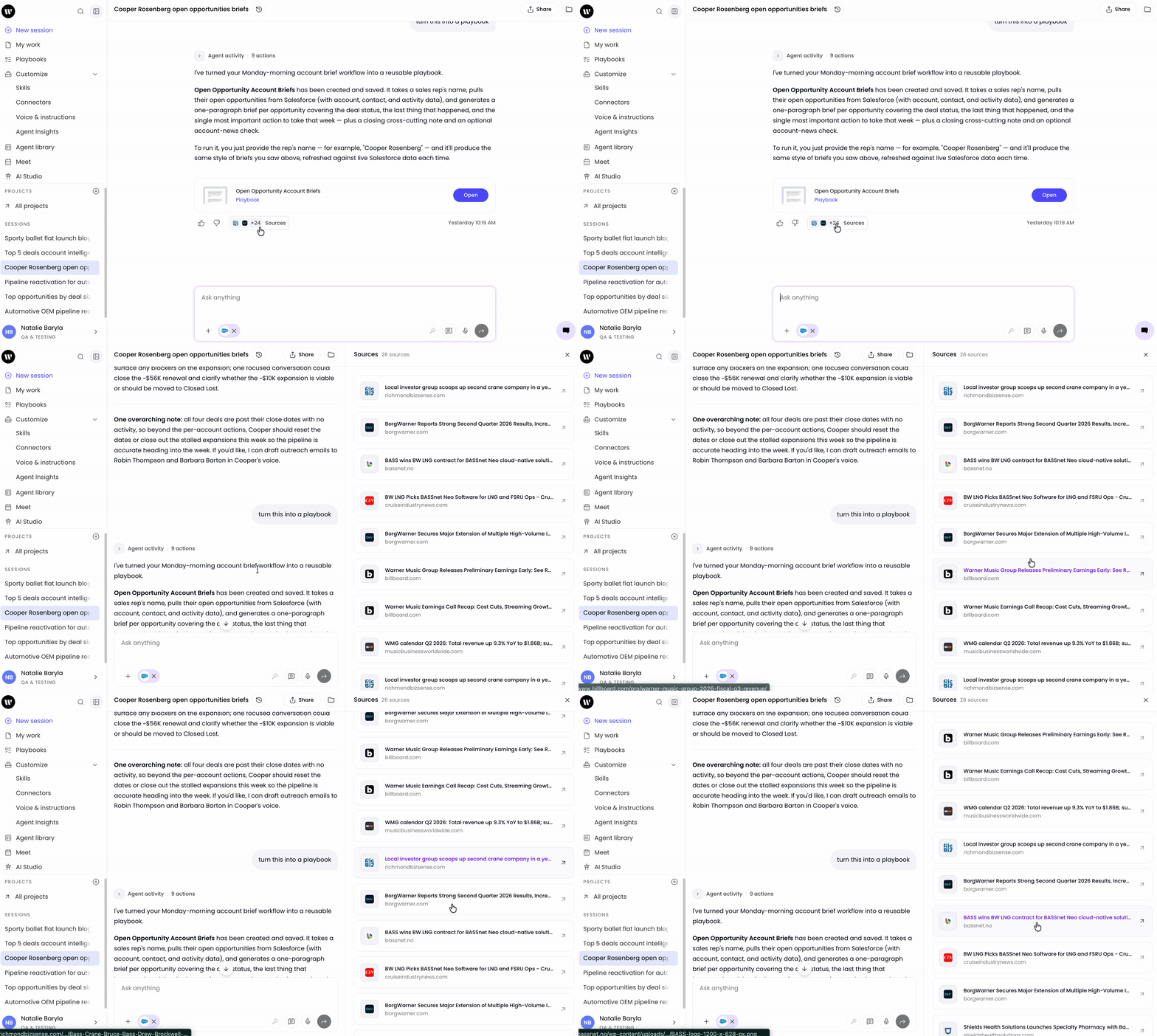
When you select the View sources button, WRITER Agent opens a list of cited sources for that output. Select any source tile to scroll directly to the relevant passage in the source file. The relevant passage is highlighted in green.
Common use cases
The examples below show how to combine the features in this article to accomplish real-world tasks. Each example includes a copyable prompt and notes the features it uses. Replace the bracketed text with your own information.
Summarize a research report
Upload a lengthy document and ask WRITER Agent to extract the key points into a format you can share.
Select the + icon and upload your file.
Enter the following prompt:
Summarize this report into a bulleted list. Identify the three most important findings and any risks or concerns highlighted by the author.
Features used: file upload, document analysis
Analyze a spreadsheet and create a summary
Upload a data file and ask WRITER Agent to identify patterns, rank results, or surface outliers.
Select the + icon and upload your spreadsheet.
Enter the following prompt:
Analyze this spreadsheet. Rank the top five performing products by revenue this quarter and summarize the key trends. Flag any anomalies or unexpected drops.
Features used: file upload, data analysis
Research a company and draft outreach
Ask WRITER Agent to gather information from the web and turn it into a personalized document.
Enter the following prompt:
Research {Company Name}'s latest news, funding rounds, and strategic initiatives. Based on what you find, identify two potential challenges or opportunities they may have. Draft a personalized outreach email that references a specific recent development.
Features used: web search, document creation
Ground a response in internal data
Use a Knowledge Graph to answer questions that span many internal documents without knowing which file has the answer.
Select the + icon, then select Knowledge Graph.
Select the graph(s) you'd like to search.
Enter the following prompt:
What is our current policy on remote work stipends, and which document defines it?
Features used: Knowledge Graph, inline citations
Create a presentation from source material
Upload reference documents and generate a brand-aligned presentation.
Select the + icon and upload your source files.
Select the + icon, then select Presentation.
Select a presentation theme.
Enter the following prompt:
Create a 10-slide presentation summarizing our Q3 performance. Use the data in the uploaded files. Include a title slide, an executive summary, three data slides, and a next steps slide.
Features used: file upload, presentation mode. For more detail, see creating presentations with WRITER Agent here.
Pull data from a connected tool and take action
Use connectors to retrieve information from an external tool and act on it in the same session.
Select the + icon, then select Connectors.
Select the connector(s) you'd like to use.
Enter the following prompt:
Pull the open deals from Salesforce that are in the negotiation stage and over $50,000. Summarize each deal and suggest a next step based on the deal age and amount.
Features used: connectors, data analysis.
Transform a transcript into structured content
Upload an audio or video recording and ask WRITER Agent to transcribe and repurpose it.
Select the + icon and upload your recording.
Enter the following prompt:
Transcribe this recording and separate each speaker. Then pull out the three most important quotes and draft a LinkedIn post for each one.
Features used: file upload, audio transcription, content generation
Advanced multi-step use cases
The examples below chain multiple capabilities together to accomplish complex, multi-step workflows. Each example shows how WRITER Agent breaks a goal into steps, uses tools and data sources, and produces a finished deliverable.
Build a competitive battlecard from multiple sources
Combine web research, uploaded documents, and document creation into a single deliverable.
Select the + icon and upload any internal competitive analysis documents you have.
Enter the following prompt:
Research {Competitor Name}'s product offerings, pricing model, and recent customer reviews. Compare their positioning against the internal competitive analysis document I've uploaded. Create a one-page competitive battlecard that includes: key product differences, common objections, pricing comparison, and three suggested talking points our sales team can use.
Features used: web search, file upload, document analysis, document creation
Enrich leads and route them to the right rep
Use connectors to pull data from external tools, apply decision logic, and write the result back.
Select the + icon, then select Connectors.
Select the connector(s) you'd like to use (e.g., Salesforce, ZoomInfo).
Enter the following prompt:
Pull the 20 most recent inbound leads from Salesforce. For each lead, check if the company meets our ICP criteria: more than 200 employees and in the financial services or healthcare industry. Assign a priority level (high, medium, low) based on company size and engagement score. Route high-priority leads to the senior rep for that region and medium-priority leads to the territory rep. Create a summary table of all leads with their priority and assigned rep.
Features used: connectors, data analysis, conditional logic, document creation. Learn more about using connectors here.
Turn a recorded meeting into a full campaign package
Transcribe a recording, extract key themes, and generate multiple downstream deliverables in one session.
Select the + icon and upload your meeting recording.
Enter the following prompt:
Transcribe this recording and separate each speaker. Identify the three main themes discussed. For each theme, create: a 500-word blog post draft, three social media posts for LinkedIn, and a one-page summary document. Package all outputs into a single zip file.
Features used: file upload, audio transcription, content generation, file generation
Research, analyze, and visualize market data
Chain web research, data processing, and visual output into a finished report.
Enter the following prompt:
Search the web for the latest market size data and growth projections for the {industry} sector. Create a spreadsheet with the following columns: year, market size in billions, growth rate percentage, and key drivers. Populate it with data from the last five years and projected data for the next three. Then create a visual chart showing the growth trend and save it as a standalone HTML page I can share with my team.
Features used: web search, data analysis, file generation, deployment and hosting
Build a customer onboarding workflow from scratch
Use WRITER Agent to design a process, create supporting documents, and generate a training presentation.
Select the + icon and upload any existing onboarding materials or process documentation.
Enter the following prompt:
Review the uploaded onboarding materials. Design a structured 5-step customer onboarding workflow. For each step, create: a one-page checklist document for the customer, an internal SOP document for our team, and a summary of what the customer should expect. Then create a 10-slide onboarding presentation that walks the customer through each step. Use our brand colors and include a welcome slide, one slide per step, and a next steps slide.
Features used: file upload, document analysis, document creation, presentation generation
Audit a website and generate a recommendations report
Combine browser automation, web search, and document creation to produce an actionable report.
Enter the following prompt:
Open {website URL} and analyze the homepage. Evaluate it for: messaging clarity, call-to-action effectiveness, mobile responsiveness indicators, and content structure. Compare the messaging against our top three competitors' homepages by searching for each one. Create a formatted PDF report that includes: a screenshot of the homepage, a strengths and weaknesses summary, a competitive comparison table, and five prioritized recommendations for improvement.
Features used: browser automation, web search, image analysis, document creation, file generation
Automating your work with skills, playbooks, and routines
Skills
A Skill defines the expertise needed to execute a specific task. It encapsulates logic that might otherwise live in someone's head — such as how to analyze a dataset, how to structure a type of content, how to apply decision rules, or how to transform one format into another. A Skill is a reusable unit of execution that ensures a task is done correctly every time.
Skills are intentionally narrow. They do not define an entire workflow. Instead, they represent individual capabilities that can be reused across many different contexts.
Playbooks
A Playbook defines how multiple steps come together to achieve an outcome. If a Skill answers "how do I do this one thing?", a Playbook answers "what needs to happen, in what sequence, to complete this entire task?" Playbooks chain together multiple Skills, incorporate conditional logic, and define end-to-end workflows.
Playbooks are reusable plans that you can create and save for your most common and complex tasks. Instead of retyping detailed instructions every time, you can trigger a playbook to get the job done. Playbooks are ideal for tasks like generating weekly reports, analyzing sales data, creating marketing campaign assets, or onboarding new clients.
To launch a playbook from WRITER Agent, select the + menu, then select the playbook you'd like from the menu. WRITER Agent fills in your prompt input field with the instructions. If your playbook contains variables, you'll be asked to complete these fields before you're able to run the agent. Once you select Run playbook, a new session runs where WRITER Agent executes the playbook.
Accessing deliverables via My Work
All deliverables you create with WRITER Agent are automatically saved to My Work, the centralized layer where outputs from agents live and persist across sessions. My Work allows you to:
Organize and revisit past deliverables
Share work with other users or teams
Pull past outputs into new sessions
Maintain continuity across projects
In the left sidebar, select My Work to see your deliverables hub with all files created by WRITER Agent.
This includes documents, spreadsheets, presentations, images, applications, code, and more.
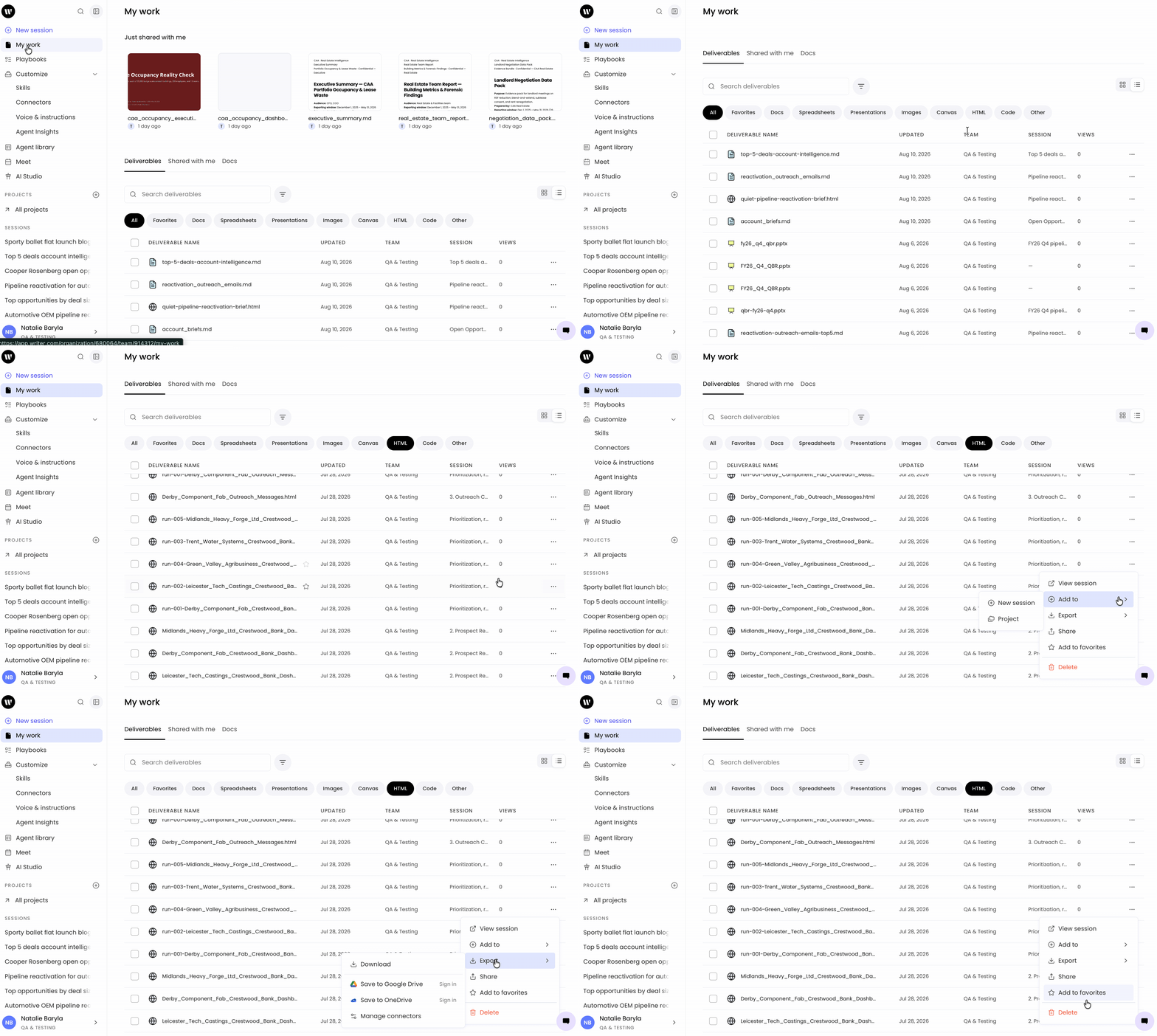
My Work organizes your deliverables into three tabs:
Deliverables: All files you've created with WRITER Agent.
Shared with me: Files other team members have shared with you.
Docs: Quick access to your document files.
At the top of My Work, the Just shared with me section displays recently shared deliverables in an easy-to-scan card format, so you can quickly access the latest files from your teammates.
Finding specific files
Use the built-in tools to locate deliverables quickly:
Search bar: Type keywords to search across all deliverable names.
Filters: View deliverables by team or shared status.
Filter deliverables by type:
All — all deliverables you've created
Favorites — mark your favorite deliverables with a star to find them quickly
Docs — any WRITER Agent generated content you've sent to a doc for editing
Spreadsheets
Presentations
Images
Canvas
Applications
Code
Other
Tip: Use type filters combined with search to narrow down results when you have many deliverables.
Understanding the Deliverables table
The main table shows key information for each file:
Deliverable name: The file name (select to open)
Updated: When the file was last modified
Team: Which team workspace the file belongs to
Session: The WRITER Agent session that created the file
Views: Number of times the file has been viewed
You can select multiple deliverables using the checkboxes to perform bulk actions, and toggle between grid and list views using the icons in the upper right corner.
Tips for getting the best results
To make your experience with WRITER Agent as effective as possible, keep these tips in mind:
Be clear about your goal: The more specific you are about the final product, the better. Instead of "make a presentation," try "make a 10-slide presentation for a sales kickoff meeting."
Provide context: If you have relevant files, data, or links, attach them to your request. The more information WRITER Agent has, the more accurate its work will be.
Think big: Don't be afraid to give it complex, multi-step tasks. WRITER Agent excels at breaking down big projects into manageable steps. A request like "Research our top three competitors and create a competitive analysis presentation" is a perfect task for it.
Review the plan: Pay attention to the plan it creates. If it doesn't look right, you can ask it to adjust its approach before it starts the work.
How can I get better output out of WRITER Agent?
If you've submitted a request to WRITER Agent but the output isn't quite right, consider the five most important questions:
Who — Who is the creator? Who is the audience?
What — What form should the output take? How long should it be? What tone should it use? Is there a specific call to action or bit of content which WRITER should use?
Where — Where will your audience consume this content, i.e., TikTok, Facebook, a blog?
Why — Why does the audience need this content? What are you aiming to achieve with it?
How — How should the output be structured? What should you reference to create the right content?
You don't have to answer all of these questions, but if you're stuck or unsure why your outputs aren't what you expected, consider telling WRITER the answer to a few of the questions above.
FAQs
What are the file size limits for WRITER Agent?
You can upload 10 files per session, 100MB per file, and a total of 500,000 words per session.
What is a session?
A session is an instance of WRITER Agent where the chat history and uploaded files will persist even if you leave the chat. If there is a set of files you'll work with consistently, you can upload them into a session and return to it repeatedly.
Does WRITER Agent consider the entire chat history when responding to a request?
WRITER Agent considers the full chat history for all options you select except when working with Knowledge Graph. If you select a Knowledge Graph within WRITER Agent, it will consider the most recent three chat back-and-forths between you and WRITER as context for what it generates next. If you do not want WRITER Agent to consider previous chat history, you can create a new session.
Are sessions shareable with teammates?
Yes. You can share your session replay using the share icon in the top right. This will show another user your session but will not allow them to chat with and build upon the session you share.
How do you access previous sessions?
You can access previous sessions by going to the Sessions menu on the left as well as from the My Work section.
Can you delete previous sessions?
Yes, you can delete previous sessions.
Can I branch from any response in a session?
You can branch from any completed response. You cannot branch from a response that is still being generated.
Does branching change or delete the original session?
No. The original session remains untouched. Branching creates a new, independent session that contains a copy of the conversation up to the branching point.
Can I create more than one branch from the same session?
Yes. You can branch from the same session as many times as you want, and you can branch from different points within the same session.
Is content from after the branching point included in the branch?
No. The branch contains the conversation up to the point you branched from. Any responses that came after the branching point in the original session are not included.
Is session branching available to everyone?
Yes. Session branching is generally available for all users.
Can I branch from a branch?
Yes. A branch is a standard session, so you can branch from any completed response within it just as you would in any other session.
Are custom instructions only available at the user level?
No. You can set custom instructions for your own use, however a playbook can include custom instructions that are shared across users.
Is there a limit to how long your source(s) can be?
The number of words in all the files that you upload into a session can't exceed approximately 350,000 words. You can upload up to 10 sources to a single session, as long as their total number of words does not exceed 350,000 words.
What types of files can WRITER Agent handle?
WRITER Agent can parse text from these file types: .xlsx/.xls, .csv, .pptx/.ppt, .pdf, .html, .txt, .srt, .docx/.doc, URLs, pasted text, and past sources. It can analyze .jpg and .png images. It can parse text from tables but may not understand table formatting and layout. It can parse PDFs but quality depends on how files were created.
Can WRITER Agent parse images?
Yes, WRITER Agent has image parsing capabilities.
Can WRITER Agent parse numerical data?
WRITER Agent can fetch and receive numbers from uploaded sources, but it cannot perform operations at this time. For example, if you uploaded a document that said, "Brickly has 100 employees, 43 of whom are women," you'd be able to ask WRITER Agent, "How many employees does Brickly have?" and "How many women are employed at Brickly?" but you couldn't ask "What percent of Brickly employees are women?" at this time.
Can WRITER Agent translate content?
WRITER Agent can translate content up to 500 words. For longer translations, use a translation prebuilt agent.
Are the files you upload available to teammates?
No, they are private to just you unless you share the session.
Does WRITER Agent store the files I upload?
WRITER stores the files you upload to WRITER Agent on Google Cloud Platform (GCP).
Can WRITER Agent analyze text across multiple files?
Yes, WRITER Agent looks across all source files you upload by default.
Can you reference files you previously uploaded in a new session?
No.
Can you upload multiple files at once?
Yes, you can bulk upload up to 10 files at a time.
I've uploaded a PDF but I'm getting an error message after I submit my prompt. What should I do?
Double-check whether your PDF is encrypted. For security reasons, WRITER cannot override the settings of your files. To check whether your PDF is encrypted:
Adobe Acrobat:
Windows: Choose the hamburger menu > Document Properties > Security — check for restrictions under Document Restrictions Summary, e.g., Page Extraction.
MacOS: File > Document Properties > Security — check for restrictions under Document Restrictions Summary, e.g., Page Extraction.
MacOS Preview:
Open the file. Click the (i) Info button in the toolbar. Select the lock to view security settings.
Where can I access WRITER Agent?
WRITER Agent is available on the web app.
How do we mitigate security, safety, and privacy risks given the level of autonomy and access of WRITER Agent?
WRITER Agent is designed with a multi-layered approach to mitigate risks associated with its autonomy, and backed by the security, reliability, and control provided by the WRITER platform.
Security Controls:
Isolated Sandbox Environment: Operates within a secure, containerized sandbox that is completely isolated from the host infrastructure and other user sessions.
Temporary Workspace: All files, data, and running processes are temporary and are permanently destroyed at the end of each session. This design prevents the persistence of malware or sensitive data.
Restricted Network Access: Outbound network connections are monitored and filtered, limiting it to standard web protocols (HTTP/S) and preventing malicious activities like network scanning or participation in DDoS attacks.
Safety Protocols:
Behavioral Guardrails: The underlying language model has built-in safety filters to prevent the generation of harmful, illegal, or unethical content.
Human-in-the-Loop Design: For critical actions, such as deploying applications or deleting files, the agent is programmed to stop and request explicit confirmation from the user. The user retains ultimate control over significant operations.
Resource Limiting: All processes are strictly limited in their use of CPU, memory, and execution time to prevent system instability or resource abuse.
Privacy Protections:
Stateless Sessions: WRITER Agent has no long-term memory and does not retain any data between sessions. Each interaction begins from a clean slate.
User-Controlled Data: WRITER Agent only has access to data that the user explicitly provides during an active session. It has no access to a user's local machine or files.
Encrypted Communication: All data transmitted between the user and the agent is protected with industry-standard HTTPS encryption.