How to create and manage a Knowledge Graph
Last updated: October 14, 2026
Knowledge Graph, WRITER's Retrieval-Augmented Generation (RAG) solution, is designed for precision, efficiency, and low latency at enterprise scale. The architecture combines intent-driven routing, multi-level retrieval, and advanced re-ranking, while minimizing unnecessary Large Language Model (LLM) invocations. By creating a Knowledge Graph filled with trusted data and source materials, you can be confident that your people are getting the correct information.
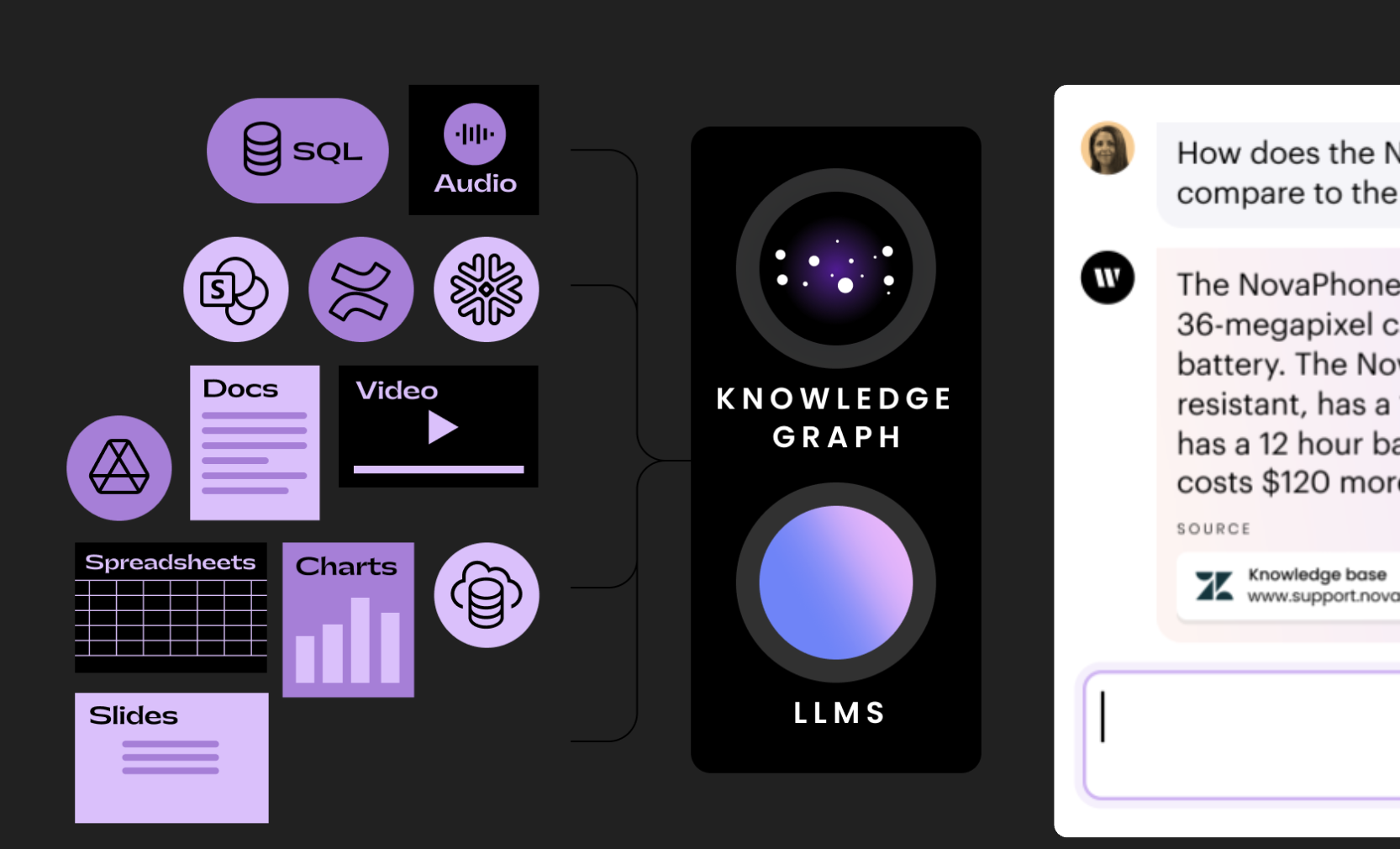
Important: Knowledge Graph is supported on Starter and Enterprise plans. Starter plans can create one Knowledge Graph; there are no limits for Enterprise plans. Org admins, IT admins, team admins, AI Studio full access users, and AI Studio builders can create Knowledge Graphs. Team members can use Knowledge Graphs within the products they have access to. Knowledge Graph is also available in WRITER Agent, the WRITER for Mac extension, the WRITER for Windows extension, the WRITER for Chrome extension, the WRITER for Edge extension, the WRITER for Figma extension, and within custom agents.
Trying to learn how to use Knowledge Graph? See our article on using Knowledge Graph.
Prepare to deploy Knowledge Graph
There are 4 key steps to complete prior to deploying Knowledge Graph at your organization:
Identify the core use cases you want to start with
Identify the appropriate users to manage your Knowledge Graphs
Map the files and data sources you need to include
Employ data hygiene and identify the right version of files
Identify the core use cases you want to start with
Knowledge Graph supports question-answering at scale. Knowledge Graph will be able to interpret the specifics of your question, retrieve the relevant pieces of information, and use advanced skills to construct a response that addresses your question. Learn more about the types of questions Knowledge Graph can answer in the Frequently asked questions section below.
Knowledge Graphs are built for a specific Team in your workspace. What kinds of questions do members of this Team need to be able to answer?
Some examples include:
Support: access knowledge base and provide answers on plans & products
Sales/Business development: identify proposals which have answered similar questions or tackled similar SOWs in the past to speed up the drafting of a new proposal
Sales enablement: find relevant customer references, quotes, statistics
Research: learn insights about a subject based on technical documents (medical research, financial documents, scientific papers, etc)
Identify the appropriate users to manage your Knowledge Graphs
Those assigned Org admins, team admins, AI Studio full access, and AI Studio builders roles can create Knowledge Graphs or upload files into them. Org admins may also create a role to extend Knowledge Graph permissions outside of these default roles.
The org admin, team admin, or AI Studio builder should be able to:
Access and identify accurate, up-to-date files
Verify accuracy of outputs - If we ask, "what was the expected answer?" you should be able to respond
Here is what each access role type can do in a Knowledge Graph:
Org admin | IT admin | Team admin | Team member | AI Studio full access | AI Studio builder | AI Studio view only | Business admin |
|---|---|---|---|---|---|---|---|
Create a new Knowledge Graph | Create a new Knowledge Graph | Create a new Knowledge Graph | - | Create a new Knowledge Graph | Create a new Knowledge Graph | - | - |
Upload files to a Knowledge Graph | Upload files to a Knowledge Graph | Upload files to a Knowledge Graph | - | Upload files to a Knowledge Graph | Upload files to a Knowledge Graph | - | - |
Delete files from a Knowledge Graph | Delete files from a Knowledge Graph | Delete files from a Knowledge Graph | - | Delete files from a Knowledge Graph | Delete files from a Knowledge Graph | - | - |
Download files from the sources cited in an Ask WRITER response | Download files from the sources cited in an Ask WRITER response | Download files from the sources cited in an Ask WRITER response | - | Download files from the sources cited in an Ask WRITER response | Download files from the sources cited in an Ask WRITER response | - | - |
Submit a query to a Knowledge Graph via Ask WRITER and receive a response with sources cited | Submit a query to a Knowledge Graph via Ask WRITER and receive a response with sources cited | Submit a query to a Knowledge Graph via Ask WRITER and receive a response with sources cited | Submit a query to a Knowledge Graph via Ask WRITER and receive a response with sources cited | Submit a query to a Knowledge Graph via Ask WRITER and receive a response with sources cited | Submit a query to a Knowledge Graph via Ask WRITER and receive a response with sources cited | - | - |
Manage any knowledge graph(aside from data connectors) | Manage any knowledge graph (aside from data connectors) | - | - | Manage any knowledge graph (aside from data connectors) | - | - | - |
Important: Only the Knowledge Graph creator can add or remove files for data connectors. This applies regardless of the roles listed above.
To learn more about roles and permissions, see Understanding roles and permissions in WRITER.
Map the files and data sources you need to include
What data sources are being used by your colleagues today to answer the kinds of questions you expect them to ask your Knowledge Graph?
Is there any data that should be excluded? Garbage in, garbage out applies: make sure you're only uploading content that is relevant and trustworthy.
Employ data hygiene and identify the right version of files
As mentioned above, the answers you get from your Knowledge Graph can only be as good as the data which feeds them. If you have multiple versions of your company's pricing plans going back to 2008, and you upload all of them into Knowledge Graph, your sales team is likely to pull up outdated information. Make sure all of the information added to your Knowledge Graph is up-to-date and relevant to the use cases for that specific team.
How to create a new Knowledge Graph
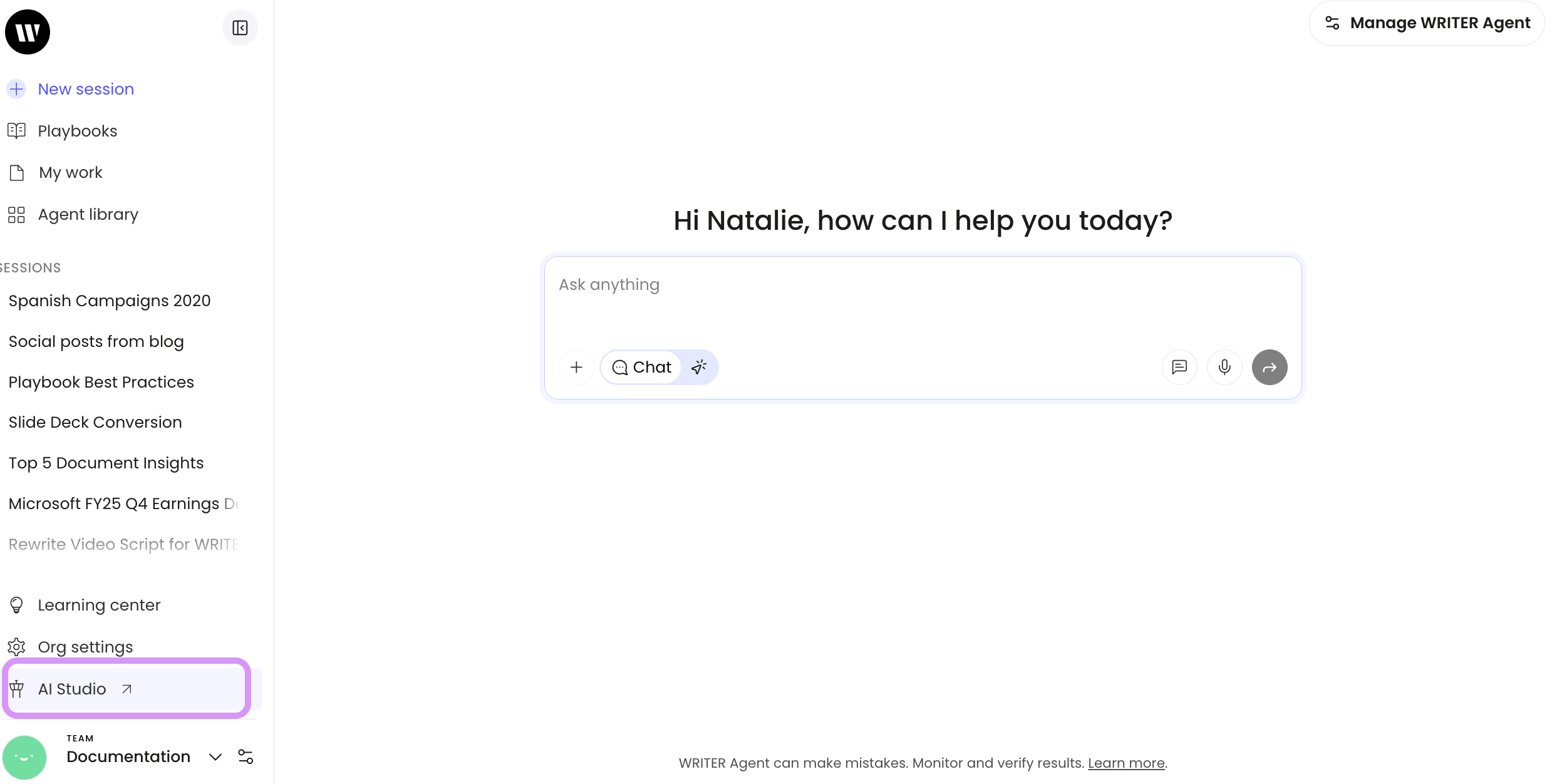
Select AI Studio from the left menu of WRITER Home.
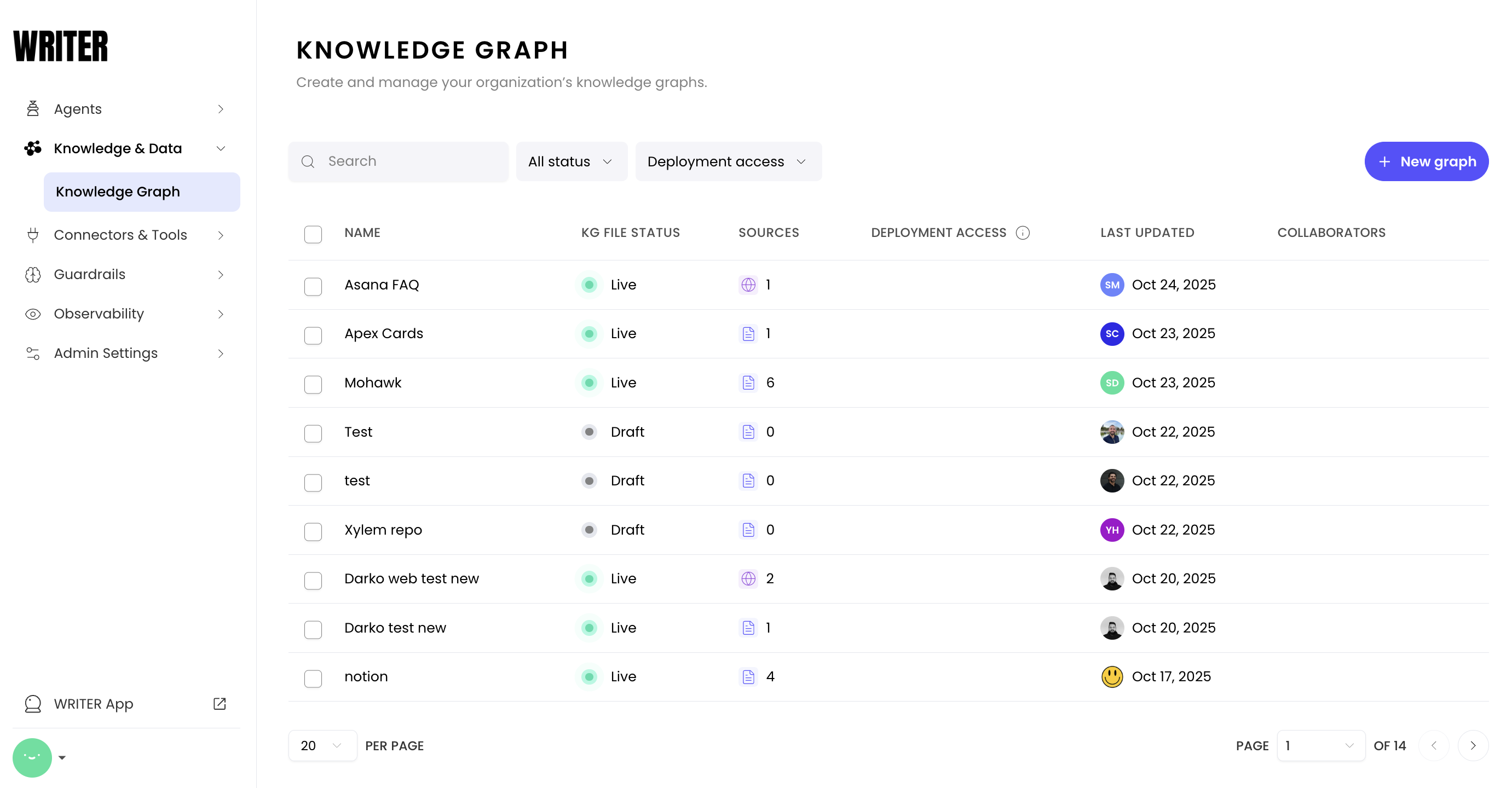
Select Knowledge & Data from the navigation menu in AI Studio and then select Knowledge Graph. Select + New graph to launch the Knowledge Graph creation process.
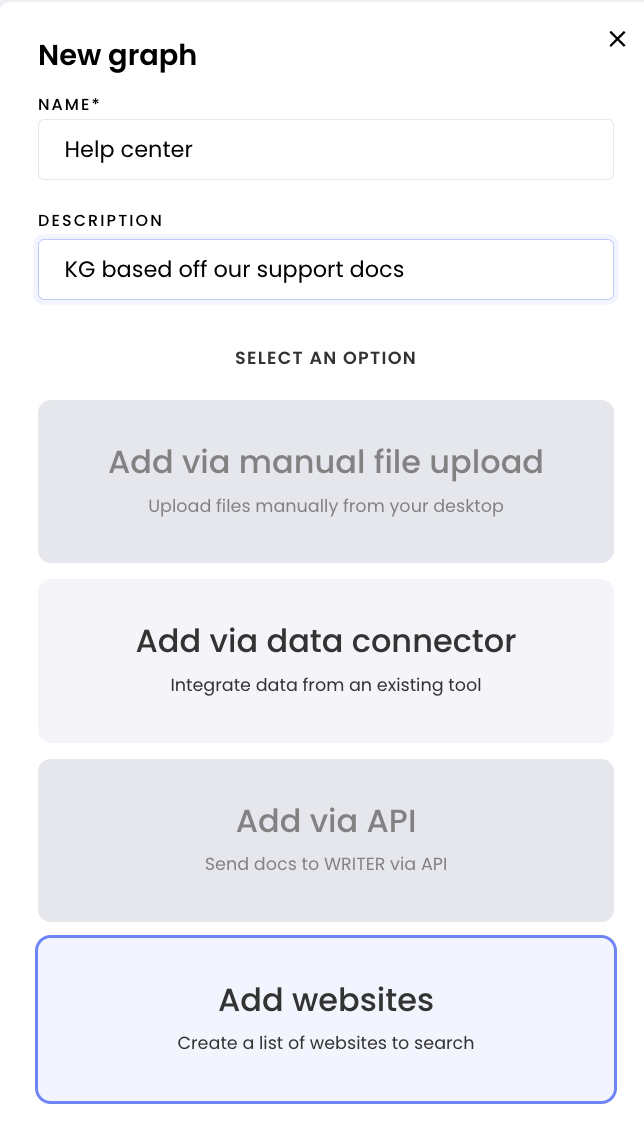
Give your new Knowledge Graph a name, an optional description, and then select the connection type.
Knowledge Graph sources
There are four different ways to add data into your knowledge graph: through manual file uploads, through data connectors, through a web connector, or through the API.
To add files manually to a Knowledge Graph, scroll down to see the section below.
To connect a Knowledge Graph to Confluence, Sharepoint, Google Drive, or Notion, see our article Setting up Knowledge Graph data connectors.
To connect a Knowledge Graph to specific domains and web pages, see our article Setting up Knowledge Graph web connectors. (This feature is still in beta!)
To add files via API, see the Knowledge Graph API documentation on dev.writer.com.
Deploying your Knowledge Graph
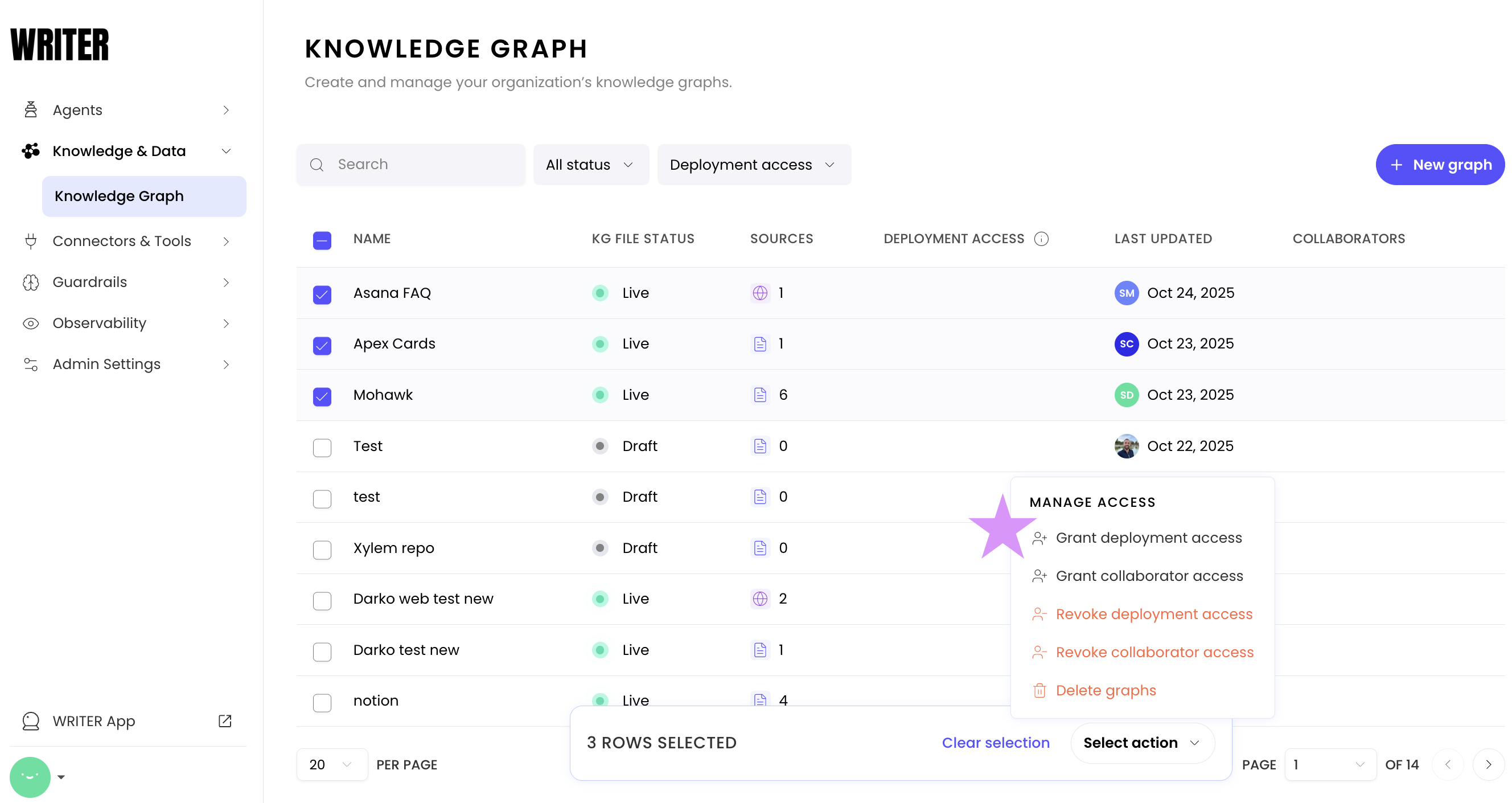
Once you've created your Knowledge Graph, you need to grant deployment access to make it available to Teams.
Locate your Knowledge Graph from the page and select the checkbox on the left to activate the menu.
From the menu, first select Revoke deployment access to remove it from AI Studio.
Then go back and select Grant deployment access to make it available to Teams in WRITER Agent.
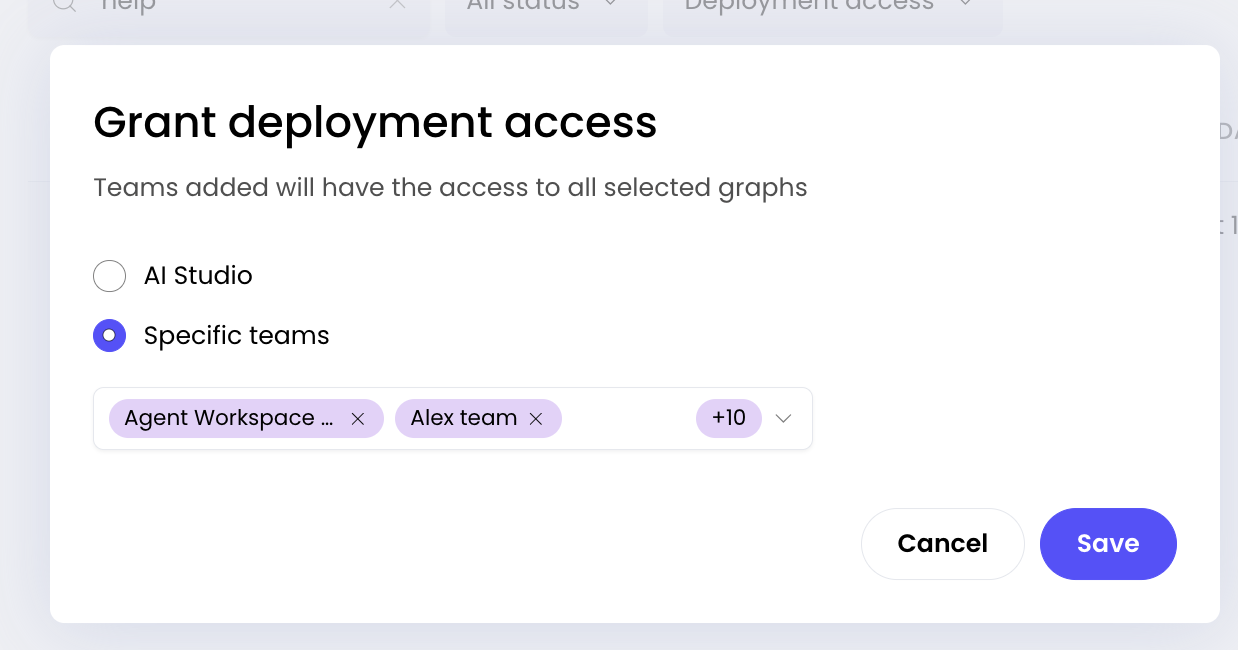
Select the Specific teams option, then select all or select the specific Teams you'd like to grant access to from the dropdown. Select Save. The Knowledge Graph will be made available to the selected Team(s) within WRITER Agent.
You'll see the Knowledge Graph listed with its deployment access updated to reflect the Teams you selected.
How to manually upload files to your Knowledge Graph
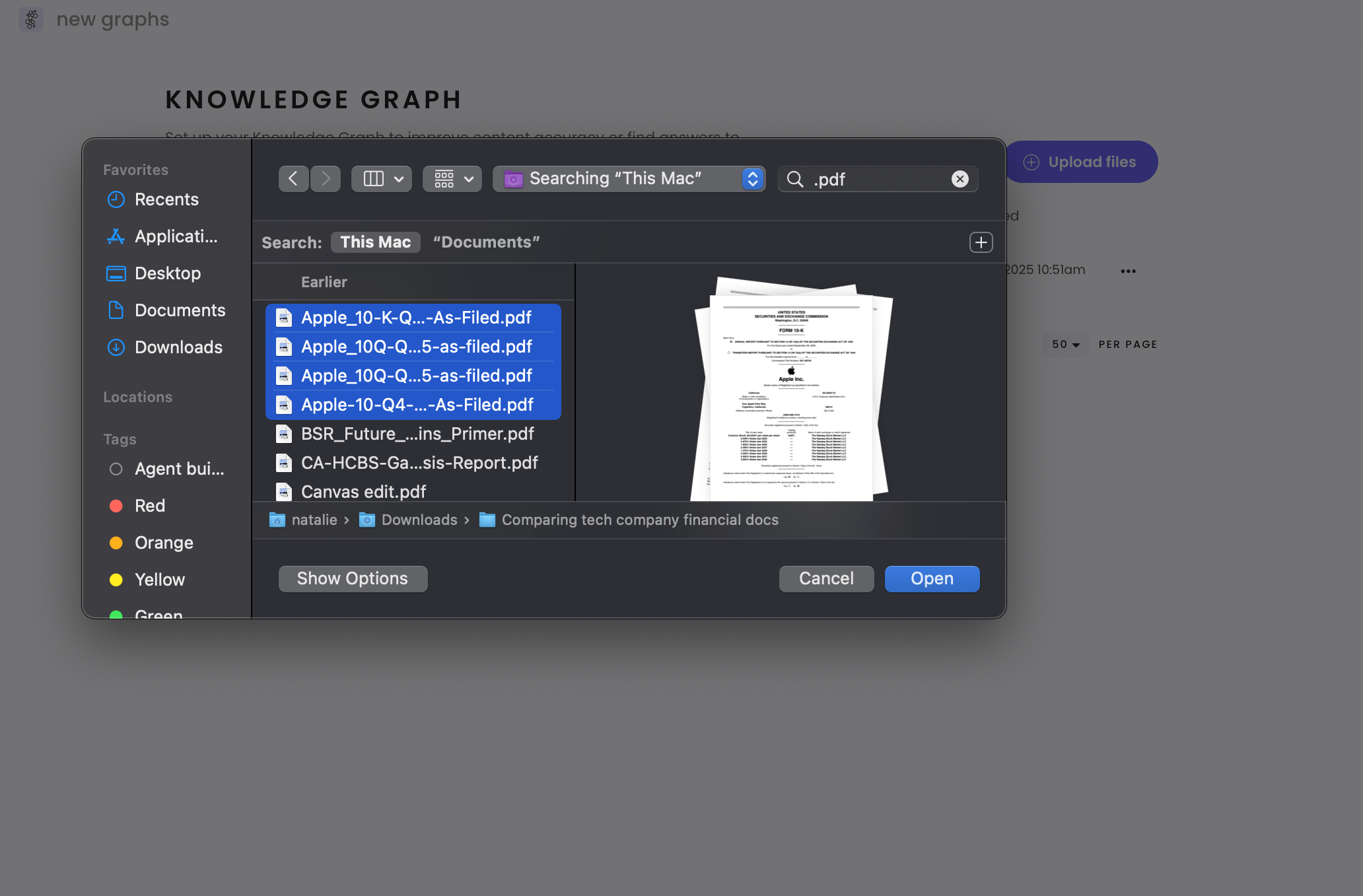
Select Upload files. Hold Cmd (⌘) on Mac or Ctrl on Windows to select and upload multiple files at once. Once you select Open, WRITER processes your files and displays them in a menu.
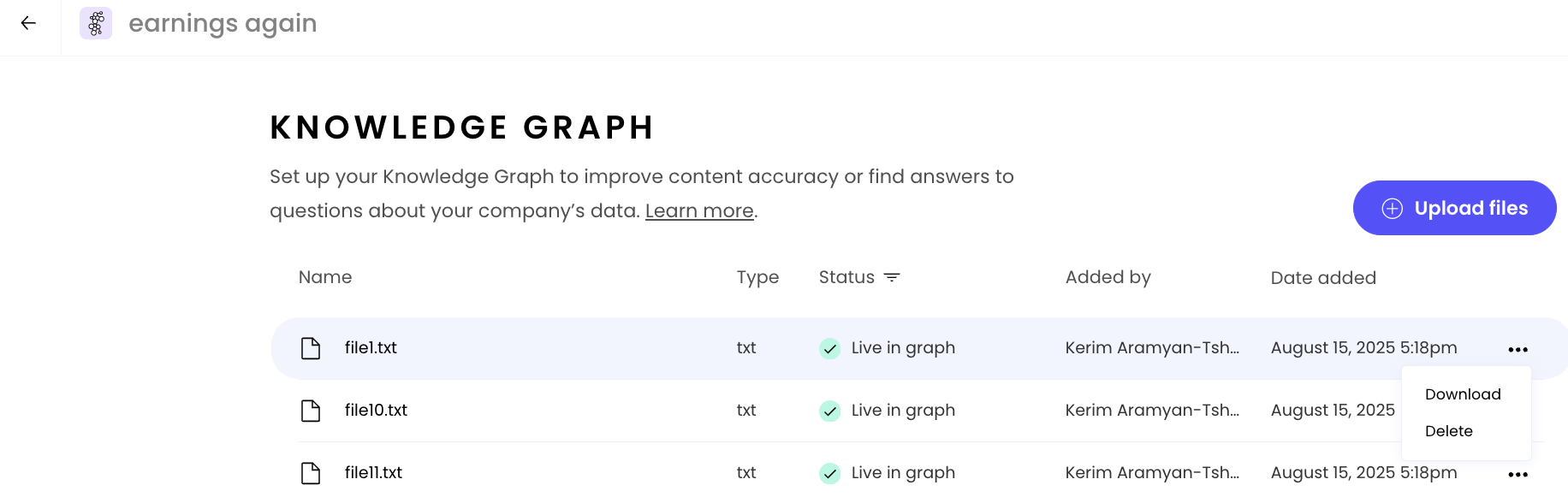
WRITER displays your uploaded files with columns for Name, Status, Added by, and Date added. Select the ••• three dot icon to the right of the source file to delete or download it.
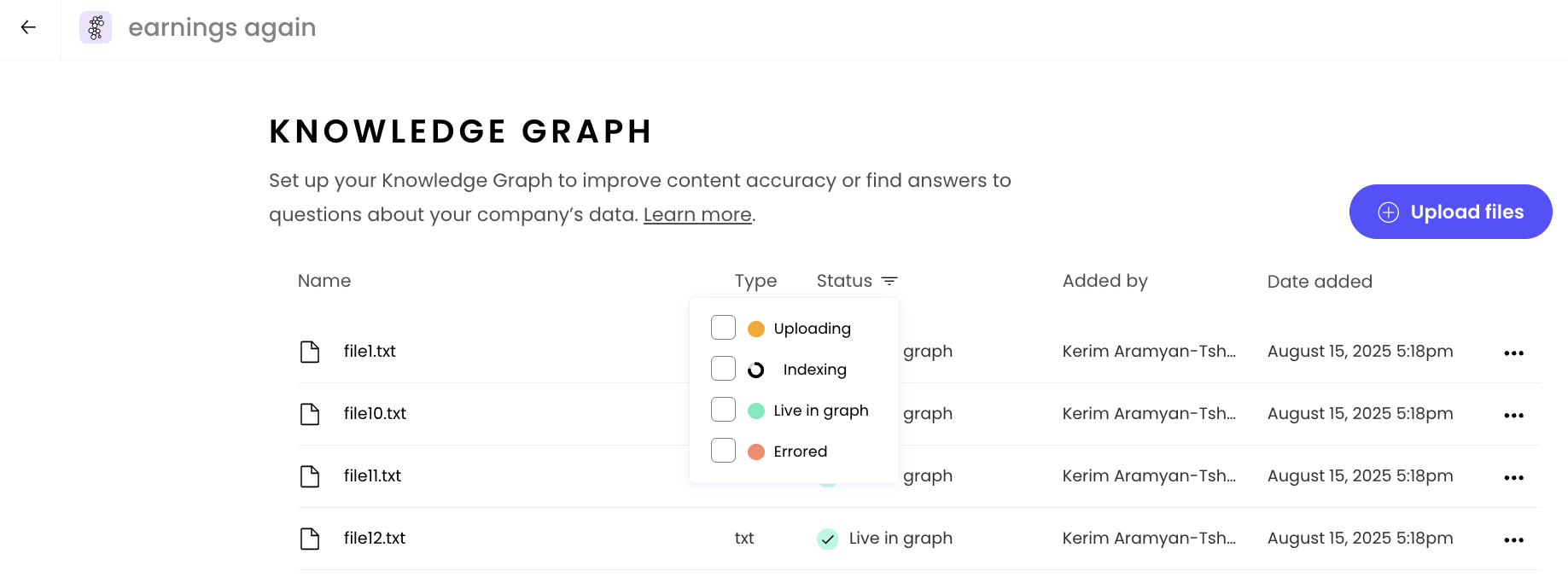
Select the Status header to filter by file status. The four file-level status options are:
Processing — WRITER is mapping your file into your Knowledge Graph. No action is necessary.
Queued — WRITER has not yet mapped your file into your Knowledge Graph. No action is necessary.
Errored — There was an issue uploading your file. Try uploading the file again. If the status persists, reach out to your Technical Account Manager.
Completed — The file has been uploaded into your Knowledge Graph and is available to be used.
Note: File-level statuses (Processing, Queued, Errored, Completed) describe the state of individual source files. Knowledge Graph-level statuses (Live, Draft, Uploading, Error) describe the overall state of the graph. These are different scopes — "Uploading" at the graph level means the Knowledge Graph is processing files, while "Processing" at the file level means a specific file is being mapped.
Managing a Knowledge Graph
Viewing your Knowledge Graphs
From AI Studio, select Knowledge & Data from the left menu, then select the Knowledge Graphs tab to see all your available Knowledge Graphs. For each Knowledge Graph, you can view:
Name: the identifier for your Knowledge Graph
KG file status: the status of the file uploads in the Knowledge Graph
Sources: the number of documents or data sources included
Deployment Access: who has permission to access this Knowledge Graph and where it can be used (for example, AI Studio access allows builders to use the Knowledge Graph in custom agents)
Last Updated: when the Knowledge Graph was last modified
Collaborators: designated users who can edit the Knowledge Graph
Knowledge Graph status
Knowledge Graphs can have several different statuses:
Live — Files in the Knowledge Graph have successfully uploaded. The Knowledge Graph is available for use.
Draft — The Knowledge Graph is saved but not yet active.
Uploading — Files are currently being processed and added to the Knowledge Graph.
Error — There was an issue processing the Knowledge Graph. Check individual sources for details.
Managing Knowledge Graph access
Select multiple Knowledge Graphs using the checkboxes to perform bulk actions:
Grant team access: Give specific Teams access to selected Knowledge Graphs
Revoke team access: Remove Team access from selected Knowledge Graphs
Grant collaborator access: Allow specific users to edit selected Knowledge Graphs
Revoke collaborator access: Remove editing permissions from selected Knowledge Graphs
Delete graphs: Remove selected Knowledge Graphs permanently
Collaborator access
If you are a team admin and want to give someone else access to edit a Knowledge Graph, you can use the collaborator workflow from the bulk actions menu. This grants edit, file add, and delete access for that Knowledge Graph.
Important: Users added as collaborators must have permissions to edit and manage a Knowledge Graph assigned to their user role. To learn more about roles and permissions, see Understanding roles and permissions in WRITER.
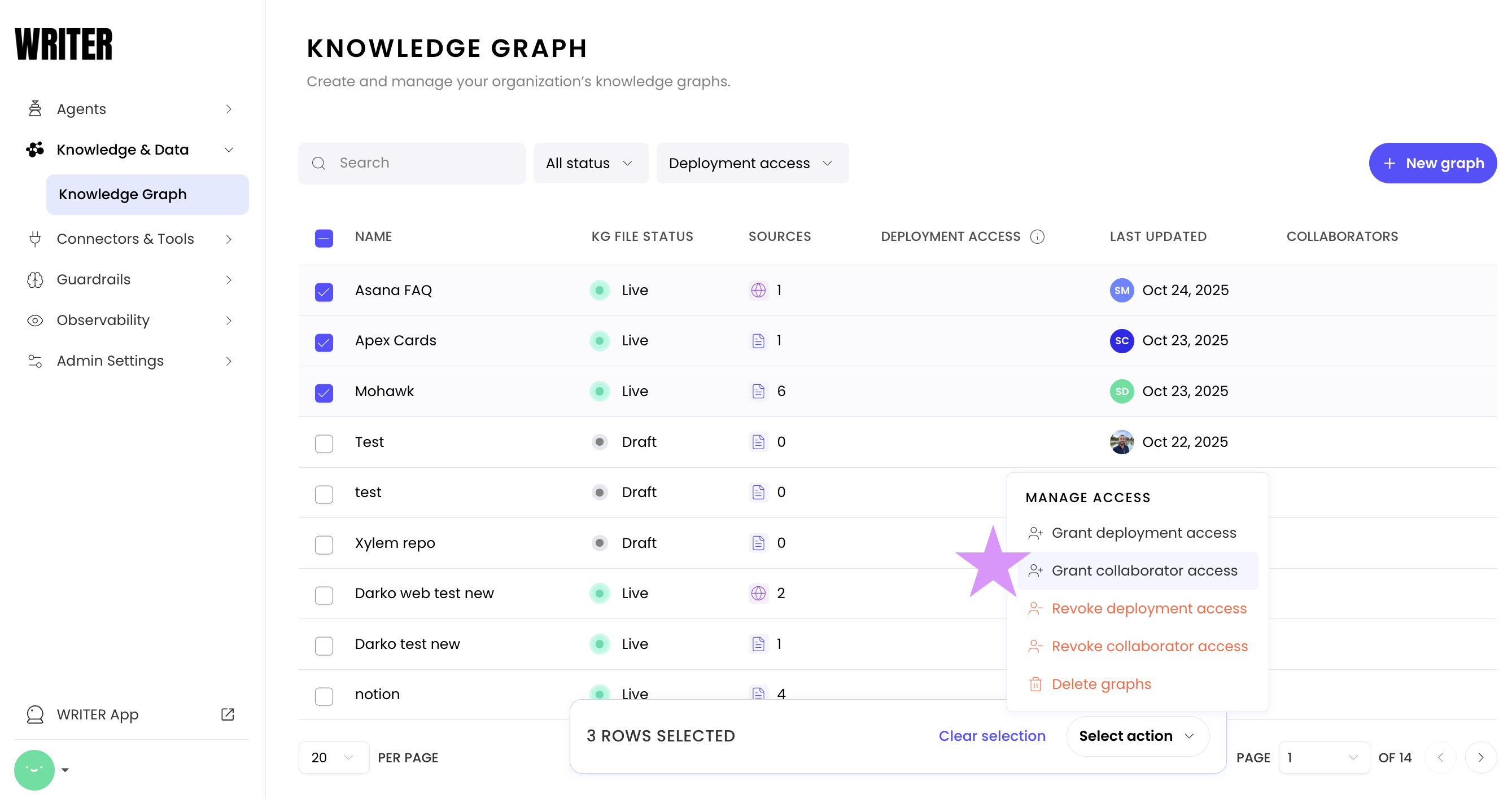
In AI Studio to the Knowledge Graphs page from the left menu.
Select the Knowledge Graph you want to manage.
Under the bulk actions menu, click Grant collaborator access.
Select the user or users you want to grant access to.
Search and filter
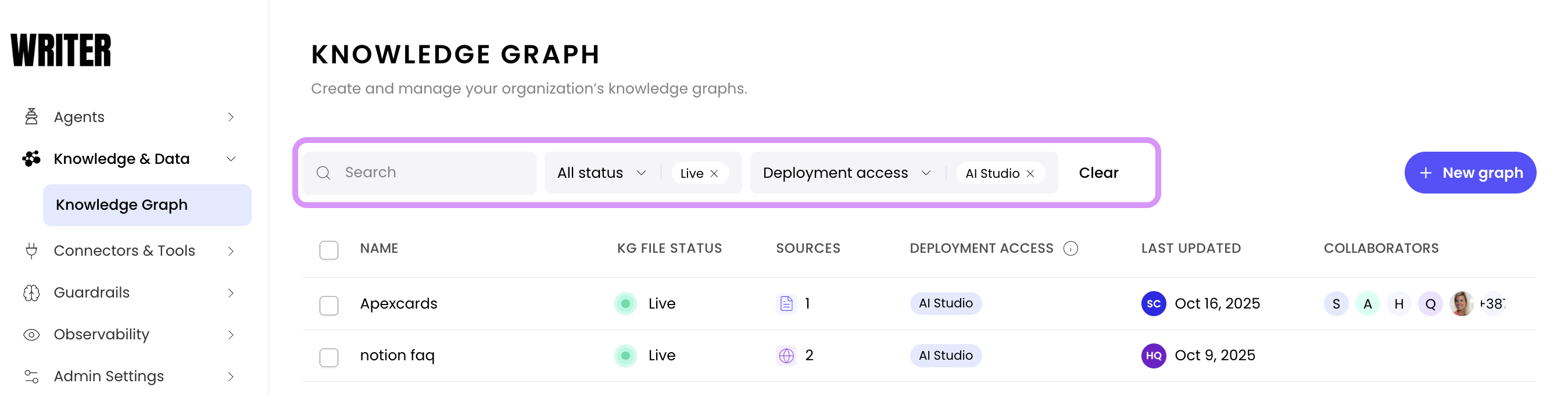
Use the search bar to quickly find specific Knowledge Graphs by name. You can also filter your Knowledge Graphs using the dropdown menus.
Filter by Status:
All status: Show all Knowledge Graphs regardless of status
Live: Knowledge Graph is available for use (files successfully uploaded, or website/connector sync complete)
Uploading: Show Knowledge Graphs currently processing files
Error: Show Knowledge Graphs that encountered processing issues
Draft: Show inactive or draft Knowledge Graphs
Filter by Deployment Access:
All team access: Show all Knowledge Graphs regardless of access level
AI Studio: Show all Knowledge Graphs available within AI Studio
Specific teams: Filter by individual Team assignments (for example, "Support Team")
You can use both filters simultaneously to narrow down your results.
Editing a Knowledge Graph
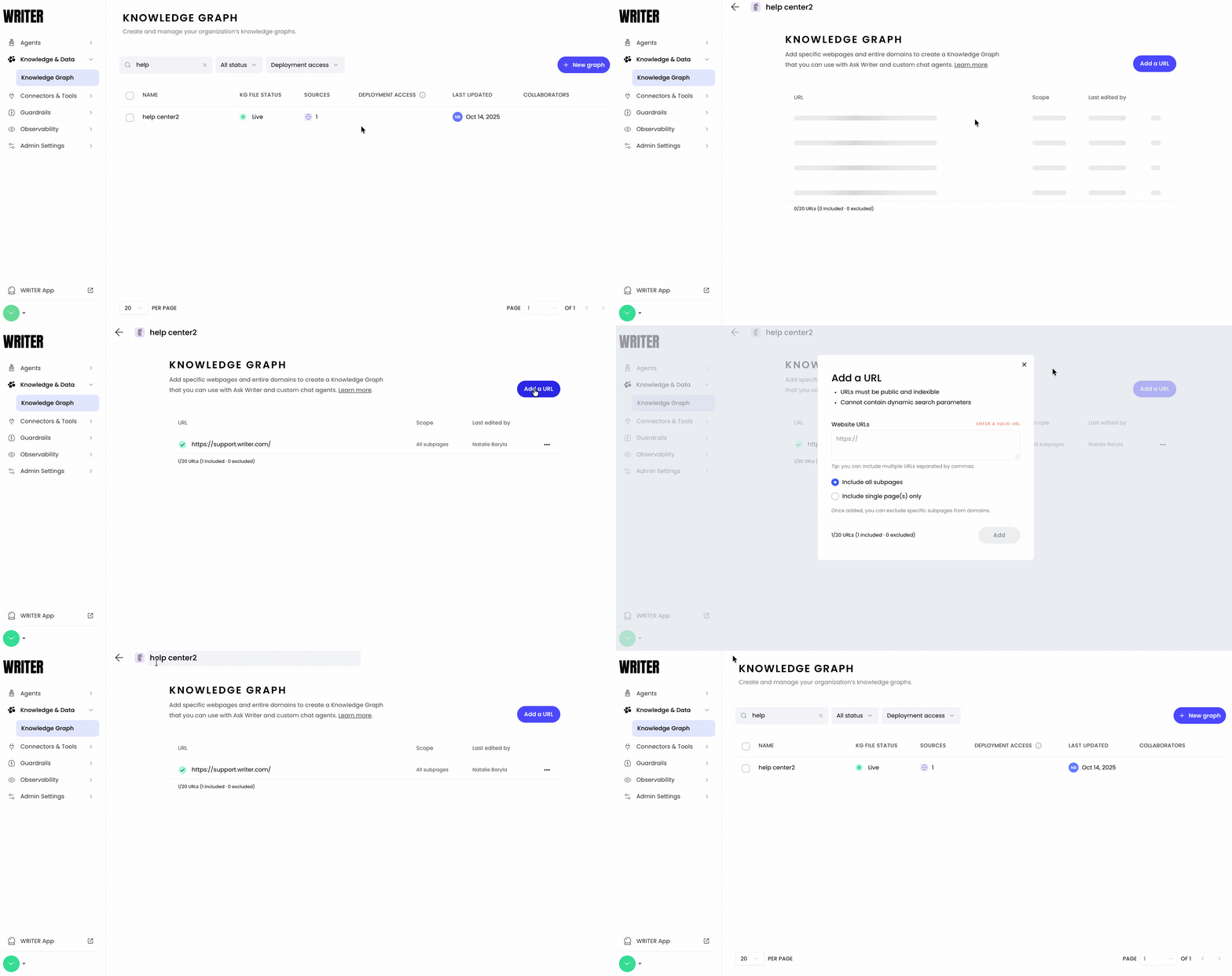
To edit an individual Knowledge Graph, select the Knowledge Graph you want to edit from the list. Depending on the type of Knowledge Graph, you can edit the following information:
For a Manual upload or API Knowledge Graph, you can download, delete, or add files.
For a Data connector Knowledge Graph, you can add more items, manage synced items, resync, or delete the connection.
For a Website Knowledge Graph, you can edit, delete, or add websites.
For more on the different types of Knowledge Graphs, see the Knowledge Graph concepts documentation on dev.writer.com.
FAQs
How many different Knowledge Graphs can I create?
Starter plans can create one Knowledge Graph, and there are no limits for Enterprise plans.
Can I create multiple Knowledge Graphs for the same Team?
Yes, you can give Teams access to multiple Knowledge Graphs.
Can I create different Knowledge Graphs for different Teams in my workspace?
Yes — this is encouraged. Different Teams need access to different critical information. For example, the product information your Sales Team may need access to is likely different from that of the Support Team.
What's the difference between Knowledge Graph and other types of AI-powered search?
Knowledge Graph serves a wider breadth and more advanced use cases than AI-powered search. AI-powered search is best suited for simple Q&A, with discrete, specific answers ("What is the annual price of our Premium subscription?"). Knowledge Graph can answer these questions, but also answer more advanced questions which require analysis, interpretation, and summarization ("Which Premium subscription features would be most valuable to this user?"). Knowledge Graph doesn't just find all of the relevant data, it composes a complete, well-reasoned answer and cites its sources.
When should users ask Knowledge Graph versus uploading files to WRITER Agent?
Scenario | Recommended approach |
|---|---|
The user already knows which file the answer is located in. | WRITER Agent |
The answer can be generated using 1–3 source files, of less than 5,000 total words. The source files are immediately available. | WRITER Agent |
The user does not know which file the answer is located in. | Knowledge Graph |
The type of question requires accessing lots of varied source data. | Knowledge Graph |
The answer requires using sources longer than 5,000 total words. | Knowledge Graph |
The answer doesn't have one straightforward answer, but requires reading multiple sources to decide which one best helps answer the question. | Knowledge Graph |
Can Knowledge Graph do math?
No, Knowledge Graph cannot perform numerical analysis. It can retrieve pieces of data, but it cannot perform calculations to produce numbers that aren't in the original source. For example, if a file were uploaded into a graph, a user could ask, "How many ThingyMajiggs did we sell in October?" and receive the right answer. However, a user could not ask "How much revenue did we generate from ThingyMajigg sales in October" because Knowledge Graph cannot calculate independently.
If you ask Knowledge Graph the same question multiple times, will Knowledge Graph return the same answer?
Each time you ask a question, Knowledge Graph pulls the relevant information and composes an answer. It might be worded slightly differently, but as long as the underlying files are the same, the data referenced should be the same.
What types of data sources can be connected to a Knowledge Graph?
You can currently connect a Knowledge Graph to Confluence, SharePoint, Google Drive, Notion, a set of domains or web pages, or a set of manually uploaded files.
What file types does Knowledge Graph support?
You can upload pdf, txt, doc/docx, ppt/pptx, eml, html, srt, csv, or xls/xlsx files.
How many files can I add to a Knowledge Graph? Is there a size limit?
For manual Knowledge Graphs, an admin can upload up to 50 GB of files. Each file can be up to 150 MB.
Can I upload files to multiple Knowledge Graphs at once?
No, a file can only be added to a single Knowledge Graph at a time. It doesn't matter whether the Knowledge Graphs are associated with the same Team spaces.
Can other Teams see what I've uploaded into different Knowledge Graphs?
Only the members of a specific Team can see what has been loaded into that Knowledge Graph. For example, if someone is a member of both the Sales Team and the Customer Success Team in your workspace, they will only be able to retrieve information from your Sales Knowledge Graph if they are currently working within the Sales Team space.
If I delete or rename a manually updated file in one Knowledge Graph, will it be deleted or renamed in other Knowledge Graphs at the same time?
Each Knowledge Graph is separate. What happens in one Knowledge Graph doesn't affect another Knowledge Graph.
What's the best way to keep my manually uploaded Knowledge Graph files up-to-date?
As a best practice, name your files with the date of their most recent review. On a regular basis, you can review anything with a given date stamp (for example, search "2026") to see whether a new version needs to be uploaded. If the information is still up-to-date, rename the file to reflect the most recent review.