Requiring admin approval to share skills
Last updated: November 17, 2026
Who can use this feature?
Org admins can enable and configure skill sharing approval. Team admins can approve sharing requests when configured as approvers.
Skills approval extends the admin approval workflow introduced for playbooks to skills, giving organizations control over which skills can be shared and used across their teams. When approval is required, an admin must approve a skill before it reaches new viewers or collaborators.
How skill sharing approval works
When the approval policy is enabled, sharing a skill with new viewers or collaborators requires admin approval before access is granted. The skill owner and any existing collaborators continue to have access while the request is pending.
Organizations can choose whether approvals are handled by org admins only or by both org admins and team admins. Reviewer eligibility is checked against the live policy at the time a request is reviewed, so changes to the approver configuration can affect requests that are already pending.
Enabling skill sharing approval
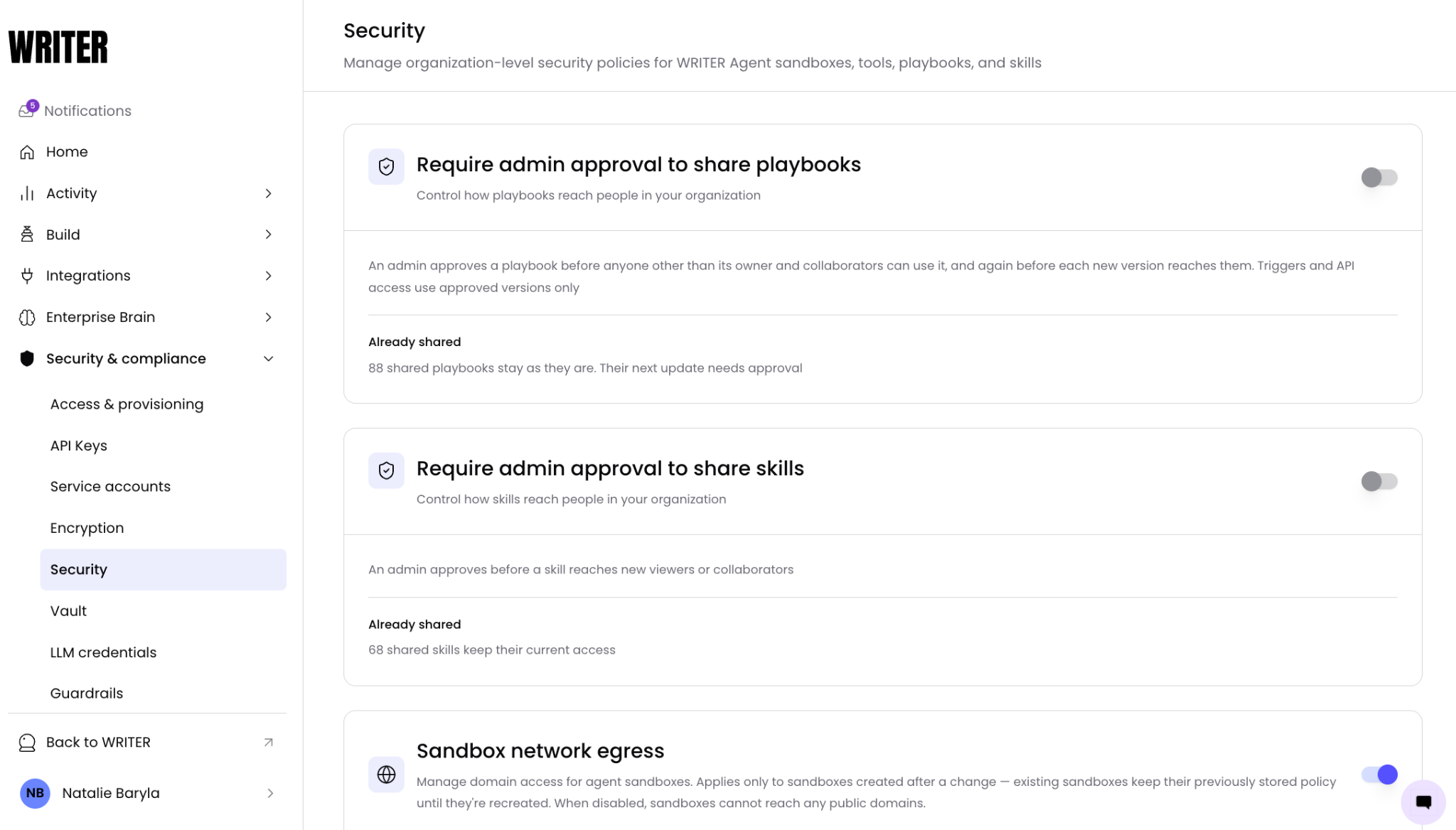
Navigate to Control Center > Security & compliance > security
Find the Require admin approval to share skills card.
Toggle Require admin approval to share skills to the on position. The policy is saved immediately.
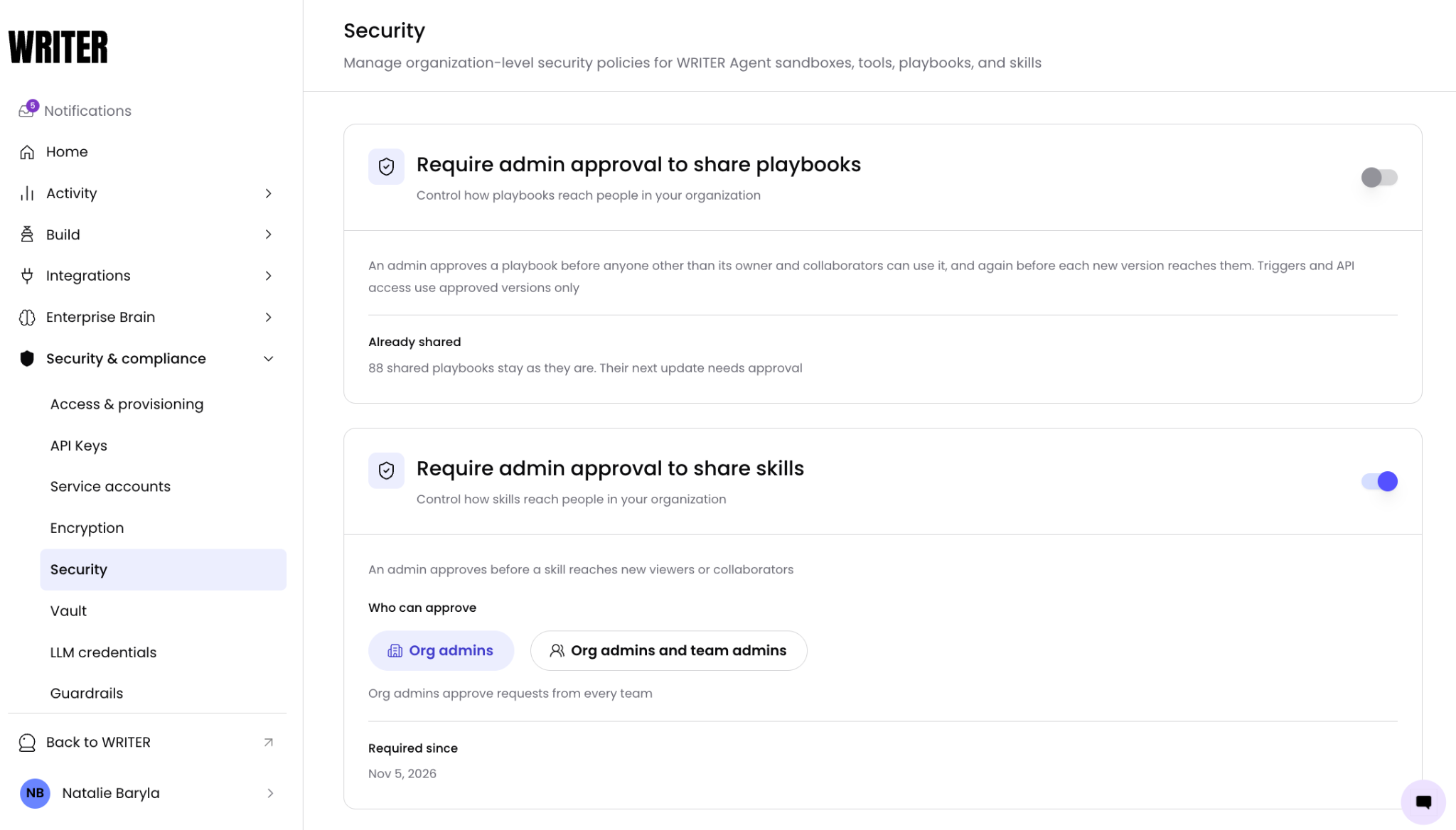
Under Who can approve, select one of the following:
Org admins — Only org admins can approve skill sharing requests. Org admins approve requests from every team.
Org admins and team admins — Both org admins and team admins can approve skill sharing requests. Team admins approve requests within their own teams.
You'll see the toggle switch to the on position and a Required since date appear on the card, confirming that the policy is active.
Note: The approval policy applies only to new sharing actions. Skills that are already shared with viewers or collaborators remain accessible. Their next update requires approval if the policy is enabled.
Note: The Who can approve option may not be available in all organizations. If the picker is not visible, the policy defaults to org-admin-only approval.
What happens when a skill is shared
[IMAGE: GIF showing a skill owner initiating a share action and an approval request being sent to an admin for review.]
When a skill owner shares a skill with new viewers or collaborators, the request is sent to the configured approvers. The recipients do not gain access until an admin approves the request.
Approvers can review the sharing request and choose to approve or decline it. Once approved, the recipients receive access to the skill.
Disabling skill sharing approval
Navigate to Control Center > Security & compliance > Security. Find the Require admin approval to share skills card and toggle it to the off position.
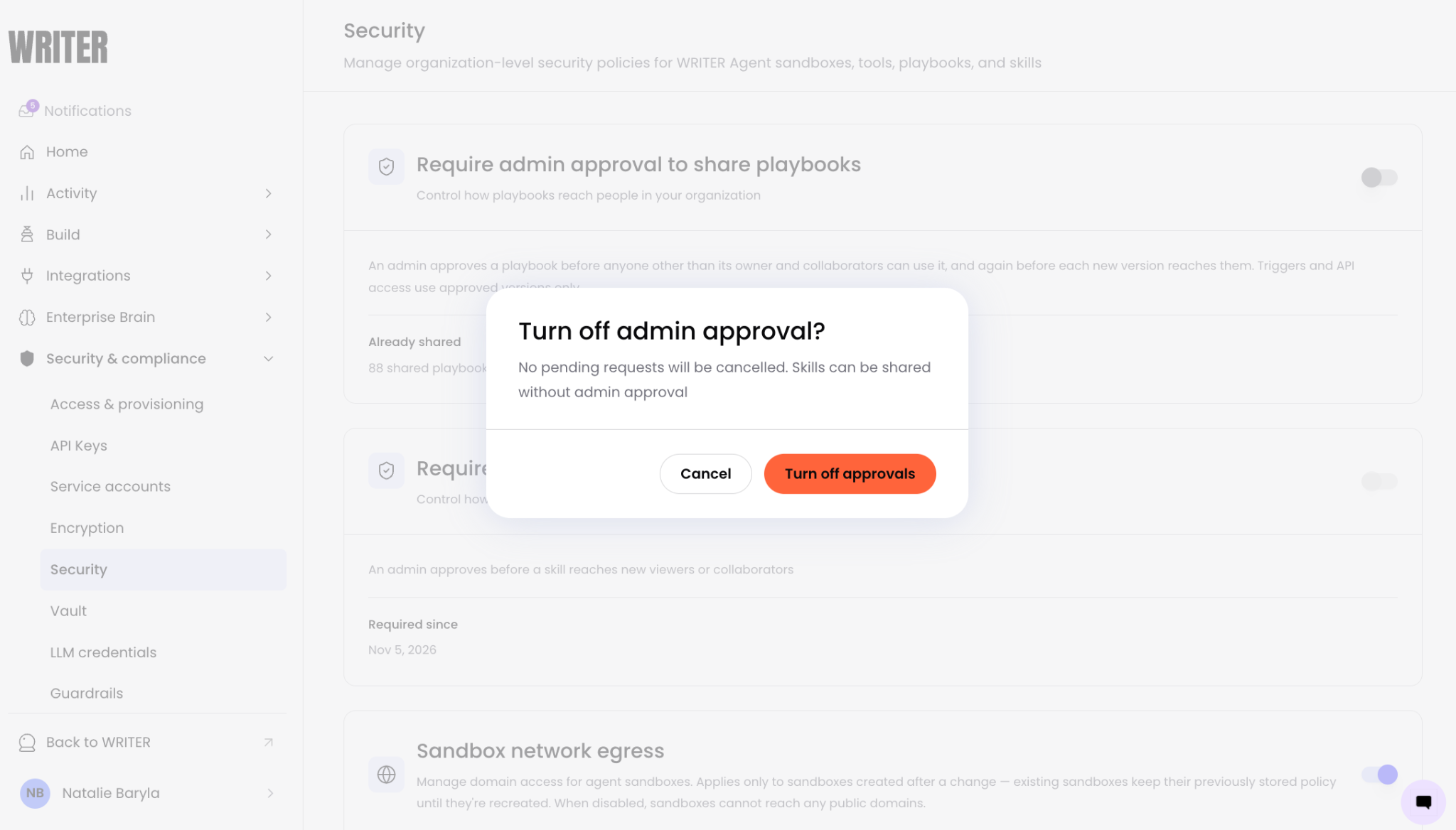
In the confirmation dialog, select Confirm to disable the policy and cancel all pending approval requests.
You'll see the toggle switch to the off position, confirming that the policy is no longer active. Skills can be shared without admin approval.
Warning: Disabling the approval policy immediately removes the review step. Any skills shared after disabling will be accessible to recipients without admin approval. Pending approval requests are cancelled.
Frequently asked questions
Does the approval policy affect skills that are already shared?
No. Skills that are already shared with viewers or collaborators remain accessible. The policy applies to new sharing actions only. The next update to an already-shared skill requires approval if the policy is enabled at the time of the update.
Can a skill owner still edit their skill while a sharing request is pending?
Yes. The skill owner and any existing collaborators retain full access to the skill while a sharing request is pending. The approval requirement applies only to new viewers and collaborators. After a skill is approved and shared, the owner's and collaborators' content edits reach viewers without further review. Skills do not have versioning, so there is no additional approval step for content changes.
What is the difference between org admin approval and team admin approval?
When Org admins is selected, only org admins can approve sharing requests, and they approve requests from every team. When Org admins and team admins is selected, team admins can also approve sharing requests for skills shared within their own teams, in addition to org admins.
What happens to pending requests if I change the Who can approve setting?
Reviewer eligibility is checked against the live policy at the time a request is reviewed. Changing the Who can approve setting can take authority away from a pending-request reviewer, so changes may affect requests that are already pending.
What happens to pending requests if I disable the approval policy?
Pending approval requests are cancelled when the policy is disabled. Any skills shared after disabling will be accessible to recipients without admin approval.