Creating presentations with WRITER Agent
Last updated: July 16, 2026
Who can use this feature
All users are able to create presentations with WRITER Agent
Overview
WRITER Agent can generate brand-aligned presentations based on a prompt. You can upload your own template, select a presentation theme, and the agent will apply your brand fonts, colors, and layouts to your slides.

Presentations are saved as fully editable PowerPoint (.pptx) files. Elements like bullet points, shapes, charts, and tables are all editable native elements. not flat images. What you see in the preview closely matches what you get when you download.
How consistent does your output need to be?
Before you set anything up, decide how consistent your output needs to look across runs. This is the most important question to answer before you start.
High consistency (same deck, every time): You need a fully templated skill with defined character counts, a dedicated playbook, and a theme. This setup takes more time upfront but produces highly predictable output.
Moderate consistency (same structure, some variation accepted): A theme combined with a skill is sufficient. The agent handles layout decisions within your brand guidelines.
One-off decks (variation is acceptable): A theme alone may be sufficient for ad hoc presentations.
The more you define upfront in your theme, skill, and playbook the less the agent has to interpret, and the more consistent your results will be. WRITER Agent has to reason through any information you do not provide explicitly. The more you define upfront, the less the agent reasons independently, which reduces variability and the chance of inconsistent output.
💡 Pro-Tip: While you can always create a presentation from a basic prompt, taking time to set up skills and playbooks before you start means less editing after generation.
Before you start: know what you want
Before you type anything into WRITER Agent, answer these three questions:
Who is this presentation for? For example: executive leadership, a sales prospect, or a new hire cohort.
What should they take away from it? Identify the one key message or action you want them to leave with.
What does a good result look like? Note any requirements: slide count, tone, data to include, or structure.
The more clearly you can answer these questions, the better your output will be. Think of it like going to a barber and just saying "give me a haircut." Without more direction, the result is unpredictable. The same applies here.
How the three-layer system works
Getting the best results from presentation generation comes down to three building blocks:
The theme (your visual foundation): A .pptx or .potx template file you upload to WRITER. It sets your fonts, colors, master layouts, and slide designs.
The skill (your design rules): A custom package that tells the agent your design rules, slide instructions, and any constraints, written in plain language. Skills are optional but recommended if you need consistent results.
The playbook (your repeatable workflow): An automated process that gathers your inputs, applies your theme, uses your skill, and delivers the final deck. Use this if you create the same type of presentation regularly.
You can use just a theme for one-off presentations, or combine all three layers for fully automated, on-brand deck generation.
When to use a theme, a skill, or both:
The right combination depends on your starting point:
No existing template: Your skill should define and generate the template. Use the skill-building process to create a master deck template, then attach it as your theme for future runs.
Existing master deck: Attach it directly as your theme. Use your skill for design rules only, you do not need to recreate the template.
Neither approach is wrong. The first is the natural starting point when nothing has been set up yet. The second applies once you already have a finalized master deck.
⚠ Note: Build your skill before your playbook. A solid skill foundation makes your playbook reliable. If you go straight to building a playbook without a tested skill, you are likely to get inconsistent results and need to redo work.
How to generate a presentation
While the majority of this article dives into the three step system for building consistent on-brand repeatable presentations, let’s first take a look at how to build an one-off presentation using WRITER Agent.

Select the + icon in the input field and choose Presentation.
💡 Pro-Tip: WRITER Agent can detect when you want a presentation from your prompt alone, but selecting Presentation mode explicitly gives you the most consistent results.
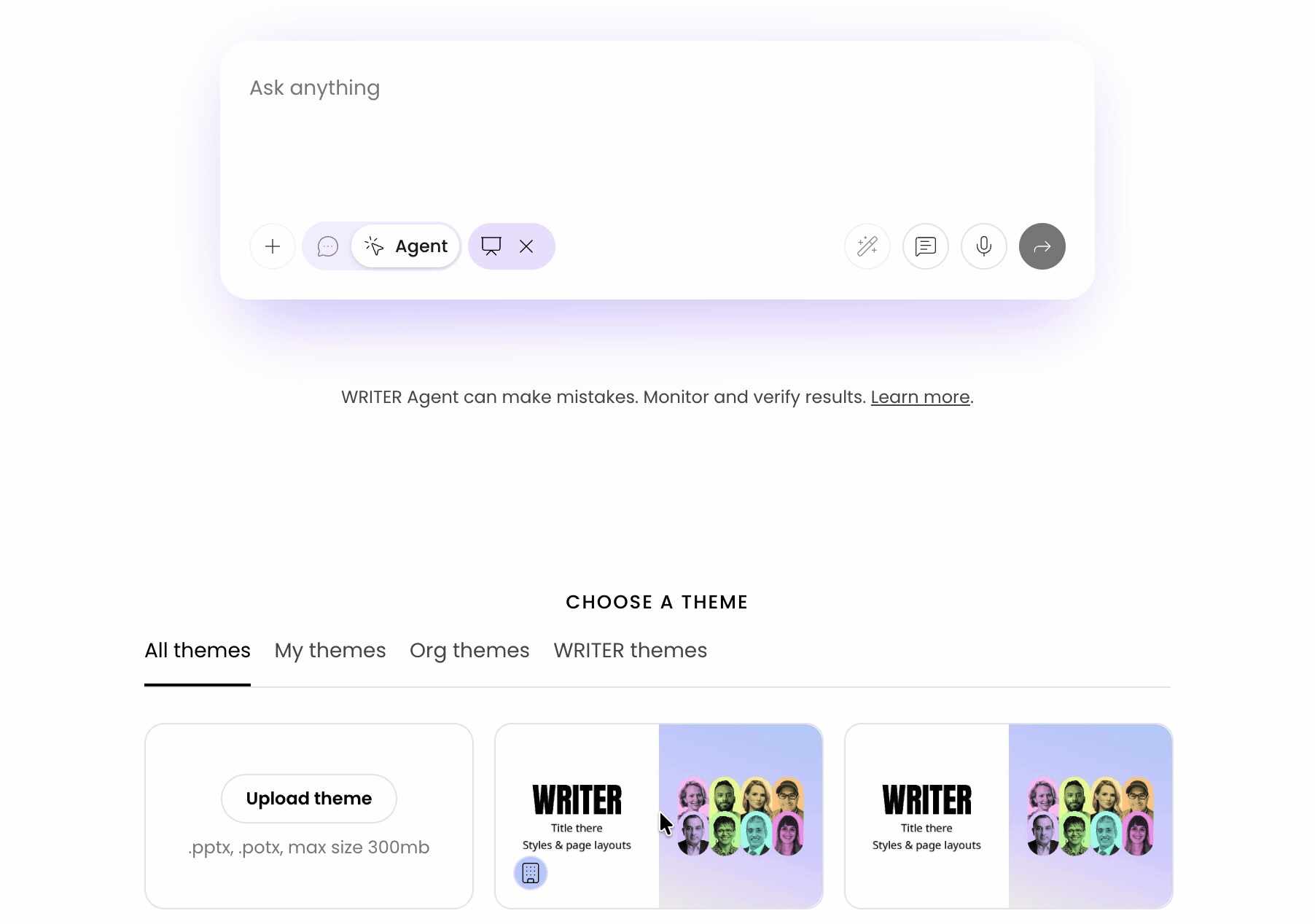
Select a presentation theme from the menu. You can upload a theme, choose from personal themes, or select themes shared across your organization. Learn more about managing themes here.
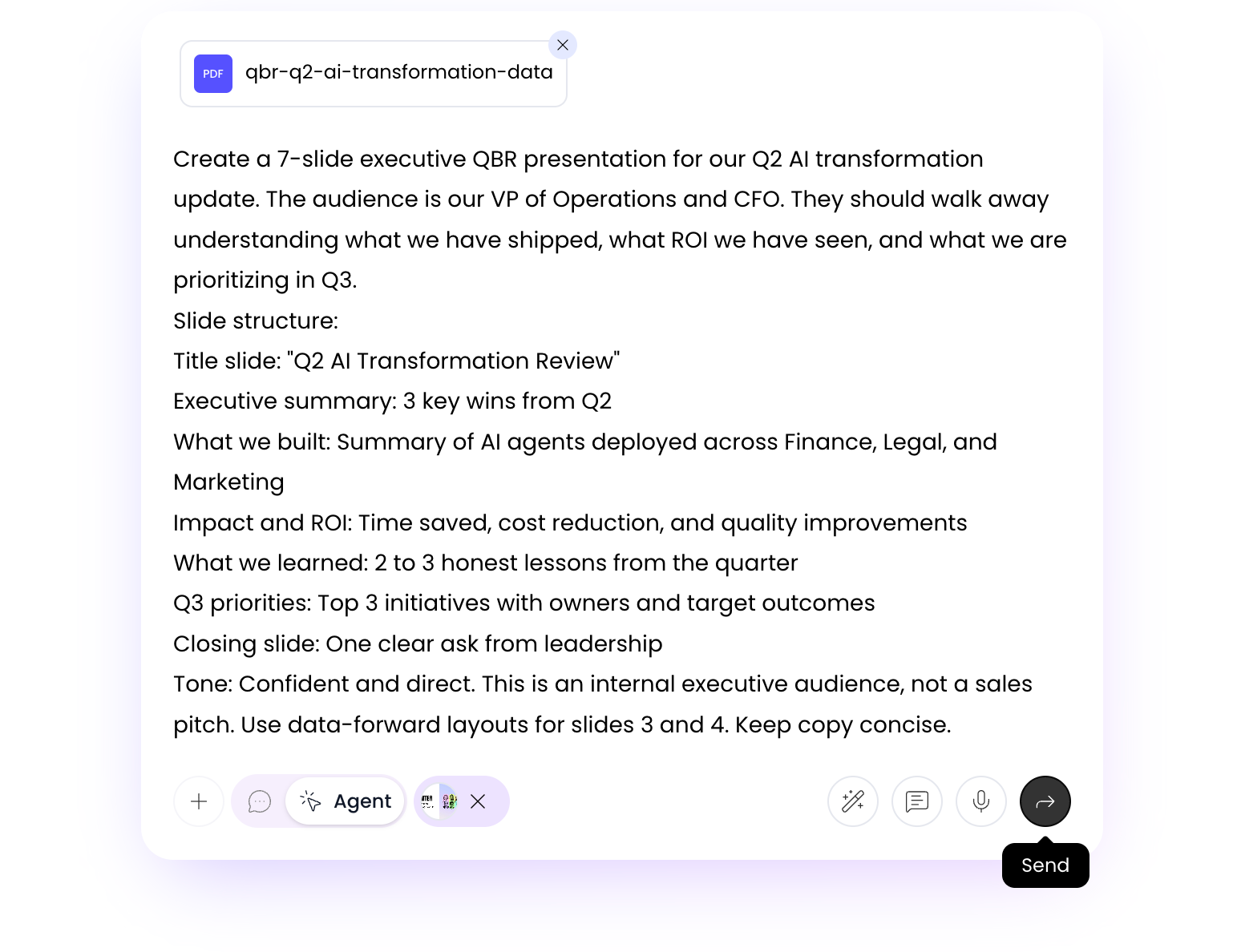
Enter your prompt. Include:
Who the presentation is for (for example: "This is for our sales team")
A suggested structure or slide count (for example: "5 slides: Title, Problem, Solution, Pricing, Next Steps")
Specific details about what you want on each slide type
Any documents or links you want the agent to draw from
💡 Pro-Tip: Speak your prompt instead of typing it. Select the microphone icon and talk through your audience, goals, and key messages. You do not need to be concise, more context produces better results. Review the transcript before submitting.
Select Enter to start building your deck.
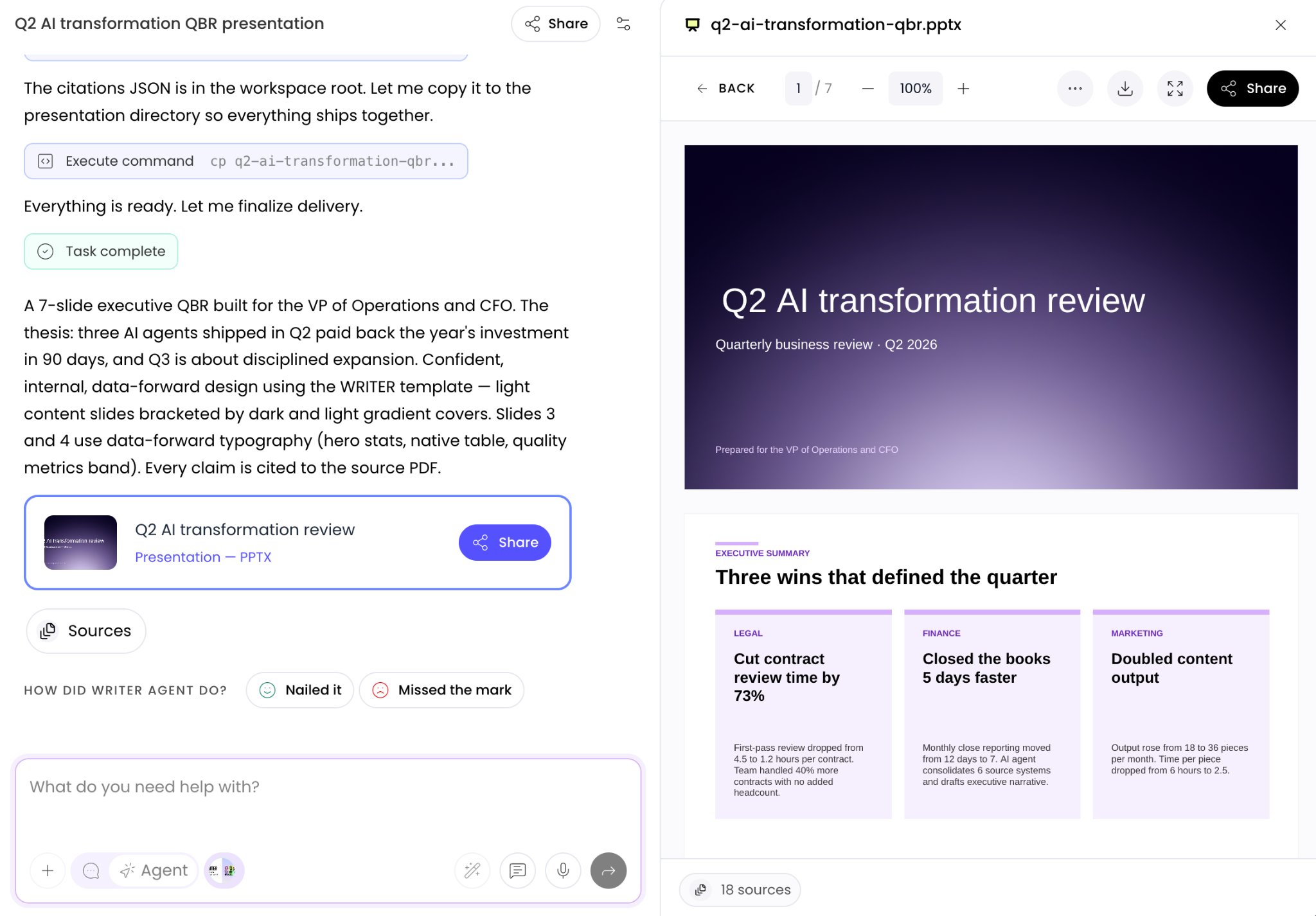
Once generation is complete, a slide-by-slide summary widget appears in the interface. Review each slide and chat to make edits before downloading. Let WRITER Agent know whether to include or remove inline citations.
💡 Pro-Tip: If you do not want inline citations in your final file, ask the agent to remove them during your chat session before you download.
Prepare your content before you build your deck
This is the step most users skip, and it makes the biggest difference. When WRITER Agent receives a clear, organized content brief, it can focus on layout and design. When it receives a raw transcript or a pile of documents, it has to do a lot of guessing, and results vary.
Follow these three steps before you run the presentation skill:
Step 1: Pick and document your slide templates
Choose 10 to 15 of your most useful slides. Select slides that cover meaningfully different layouts: a title slide, an executive summary, a data or insights slide, a tactical content slide, and an image-forward slide, for example.
In the prompt field of WRITER Agent write a short note about when and how you use each slide. For example: "Slide 4 is for presenting market data with a chart on the left and key takeaways on the right."
Upload your notes and these slides then use /skill-creator to package them. The notes you provide help the agent pick the right layout for each part of your deck instead of guessing.
Step 2: Turn your source material into a story
Before building slides, ask WRITER Agent to read your brief, transcript, or supporting documents and summarize the story you are trying to tell. For example:
"Here is my brief and supporting material. Read this and give me a summary of the story I should be telling my audience. What are the key messages and how do they connect?"
Review this summary and adjust it until it accurately reflects your message. This step is the bridge between your raw content and your final deck. Spending 15 to 20 minutes here will save you significant rework later.
Step 3: Map the story to a slide-by-slide outline
Ask WRITER Agent to convert the approved summary into a structured slide plan. For each slide, request:
What appears on the slide (headline, bullet points, data)
What you would say out loud to add context (your talk track)
Example prompt:
"Now take this story and map it to a slide-by-slide outline. For each slide, tell me: (1) what goes on the slide and (2) what I would say to the audience."
Review this outline and approve it before moving forward. Once you are happy with it, use it as your prompt input to generate the final deck.
The final generation step goes much faster when WRITER Agent is working from a clear, approved outline rather than raw source material.
Building reusable workflows with skills and playbooks
If you create the same type of presentation regularly, such as weekly sales reports, product briefs, or quarterly business reviews, set up a reusable workflow.
Step 1: Create a custom presentation skill
How you build your skill depends on whether you already have a master deck.
Path A: You have an existing master slide deck
Upload your master deck directly into WRITER Agent.
Type /skill-creator to package the templates into a reusable skill.
Ask the agent to convert it slide by slide into a template. For example:
"Go through this deck slide by slide and convert each slide into a template that documents the layout, field names, and content rules for each element."
Define character counts for every slide field
For each field in every slide template, title, subheader, body text headers, and body text, define a maximum character count. This is a required step, not optional.
Without character count constraints, generated text can overflow slide boundaries, wrap unexpectedly, and push content out of position breaking your layout entirely. Include instructions like:
"The title field is limited to 60 characters. The subheader is limited to 120 characters. Each body point header is limited to 40 characters. Each body point description is limited to 150 characters."
These constraints give the agent the boundaries it needs to generate text that fits your layout every time
Select Enter. The skill creator will read your input, extract the colors, fonts, and slide structures, and package everything into a ready-to-use skill.
Review the output and confirm the templates accurately reflect your deck. Chat back and forth with WRITER Agent to make changes.
Once your skill is created, you can use it in any WRITER Agent session or add it to a playbook. Learn more about skills here.
Path B: You are starting from scratch
In WRITER Agent, type /skill-creator to start.
Provide your brand guidelines, including exact hex codes and full font names. For example: "Apply background color #1A2B3C to dark slides and #F5F0E8 to light slides. Use Inter Bold for headings and Inter Regular for body text."
Ask WRITER Agent to generate a master deck template that identifies different slide layout permutations (title, executive summary, data and insights, tactical content, image-forward, and so on).
⚠ Important: Generate this template using the same JavaScript library (PptxGenJS) that WRITER Agent uses to create PowerPoints. If your template already exists in that format, WRITER Agent can invoke it directly. If it does not, the agent will have to recreate it in the correct format anyway, which reintroduces the variability you are trying to eliminate. You can ask WRITER Agent directly: "What JavaScript library do you use to generate PowerPoints?"
Define character counts for every slide field
For each field in every slide template, title, subheader, body text headers, and body text, define a maximum character count. This is a required step, not optional.
Without character count constraints, generated text can overflow slide boundaries, wrap unexpectedly, and push content out of position, breaking your layout entirely. Include instructions like:
"The title field is limited to 60 characters. The subheader is limited to 120 characters. Each body point header is limited to 40 characters. Each body point description is limited to 150 characters."
These constraints give the agent the boundaries it needs to generate text that fits your layout every time
Select Enter. The skill creator will read your input, extract the colors, fonts, and slide structures, and package everything into a ready-to-use skill..
Once your skill is created, you can use it in any WRITER Agent session or add it to a playbook. Learn more about skills here.
Step 2: Create a playbook
Go to Playbooks in the left menu, select + New playbook, and describe the workflow you want to build. Include:
The goal: What presentation deliverable should be created?
The data sources: What files, documents, or connected tools should the agent pull from?
Success criteria: What does a good output look like?
Requirements: Format, tone, slide count, slide types, or any other constraints.
Select Transform into a playbook to generate the steps.
💡 Pro-Tip: Build your playbook to ask questions first, then generate. Instead of asking users to write a full brief upfront, set up your playbook to ask one question at a time before it starts building. This approach produces a better brief without extra work from the user. In your playbook description, include something like: "Ask each question one at a time before moving to the next step."
Useful questions to include:
Who will be in the room?
What type of presentation is this (town hall, board review, product launch, sales pitch)?
What should the audience walk away knowing or doing?
What is the key story, where are we now, and where are we going?
Step 3: Add variables to your playbook
Variables are placeholders for information that changes each time someone runs the playbook, such as a client name or quarter. In the playbook editor, type / in your instructions and select the variable type from the menu. Learn more about building playbooks here.
Step 4: Connect your skill and theme
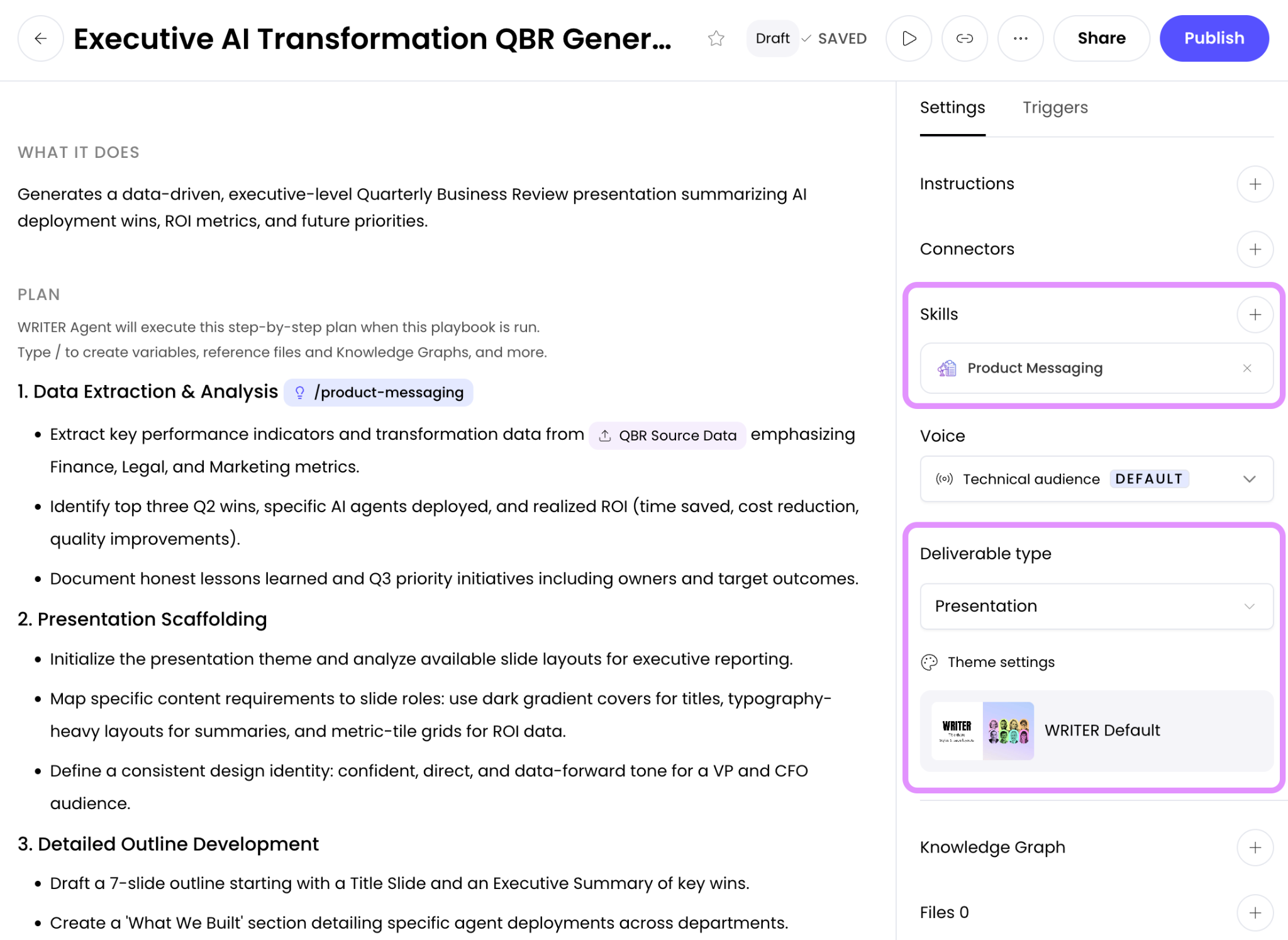
Connect the skill: Open the playbook editor, find the Skills section in the right-hand settings panel, and search for your custom skill. You can also type / directly in a playbook step to reference the skill inline.
Select your theme: Choose your uploaded brand template from the Theme dropdown.
Publish your playbook.
Use both your theme and your skill together. The theme controls visual layout. The skill controls the design decisions the agent makes during generation. Using both at the same time gives you the highest level of brand consistency.
💡 Pro-Tip: If you do not have an existing template, use your skill to generate the template first (Path B above), then attach the output as your theme. Once the template exists, you do not need to regenerate it, your skill handles design rules only on subsequent runs.
Managing playbook versions:
Draft version: Your working copy with unpublished changes.
Published version: The version your team sees and runs.
To publish: Select Publish in the top-right corner when your draft is ready.
Version history: Access and restore previous versions from the version history menu at the top of the editor.
Viewing sources and citations
To see where WRITER Agent pulled information for your slides:
For the full deck: Select the Sources button in the top-right corner of the screen to open the sources panel.
For a single slide: Select the Sources button within that slide to see references specific to it.
Downloading and exporting
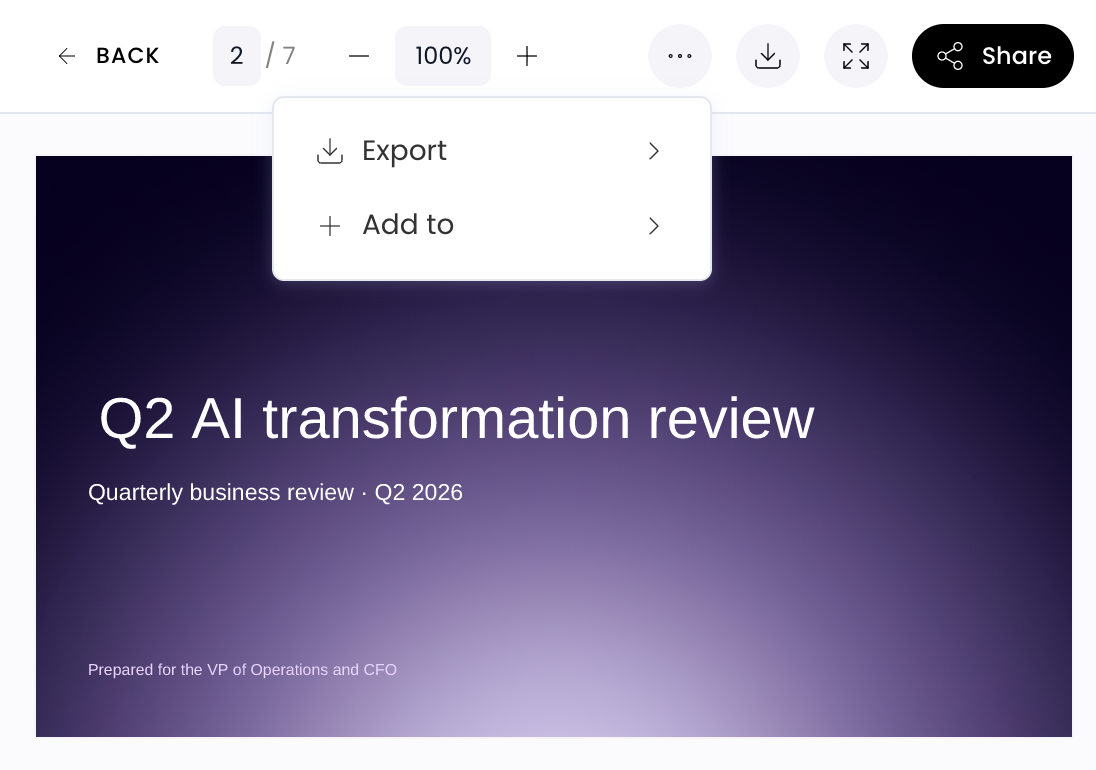
Select the Download button in the top-right corner of the presentation preview.
Choose your format:
PowerPoint (.pptx): Use this when you need to edit text, shapes, charts, or tables in Microsoft PowerPoint.
PDF: Use this for sharing, printing, or presenting without making further edits.
If enabled by your admin, you can export to Google Drive, Google Slides, or Microsoft OneDrive by selecting the three dot menu.
Sharing with your team
Select the Share button in the top-right corner of the presentation.
Enter the name or email addresses of the people you want to share with.
Select Share and your teammates will be able to access your presentation from the My Work section when the login to WRITER.
Tips for consistent results
Start with what you want to achieve
Before you write a prompt, identify your audience, your main message, and your desired outcome. This context shapes every decision the agent makes about layout, tone, and content. A prompt that starts with a clear goal produces more consistent results than one that just describes a topic.
Calibrate your setup to your consistency needs
Works well: Deciding upfront how consistent your output needs to be, then choosing the right combination of theme, skill, and playbook for that level.
Less effective: Skipping setup because it "seems like extra work," then spending more time editing output after generation.
Give the agent flexibility on layout
Rather than uploading a rigid template and asking the agent to overlay text on static backgrounds, upload a clean template that defines your colors and fonts and let the agent handle layout variety. This produces more visually engaging slides.
Works well: Uploading a clean .pptx file with your brand colors and fonts, then letting the agent choose layouts that fit the content.
Less effective: Uploading templates with pre-designed static backgrounds and asking the agent to place text exactly on top of them. This tends to produce repetitive, flat slides.
Cap your template at the right size
Pitfall: Uploading a template with 80 or more slides.
How to avoid: Keep your template to 10 to 15 slides that cover distinct layout types. Each slide should serve a different purpose: title, executive summary, data and insights, tactical content, image-forward, and so on. Write a short note for each slide describing when it is typically used. This helps the agent select the right layout instead of defaulting to the same few slides repeatedly.
Be specific in your skill instructions
Pitfall: Describing design rules in vague terms.
How to avoid: Use exact hex codes and full font names rather than descriptions like "our dark brand color" or "our brand font." Define character counts for every field in every slide template.
Works well: "Apply background color #1A2B3C to dark slides and #F5F0E8 to light slides. Use Inter Bold for headings and Inter Regular for body text. Title fields are limited to 60 characters."
Less effective: "Use our dark brand color for dark slides. Use our brand fonts."
Create separate playbooks for different use cases
Pitfall: Using one playbook for multiple types of presentations.
How to avoid: Build a dedicated playbook for each distinct use case, such as "Product Briefs," "QBRs," and "Sales Pitches." Each playbook should be tightly scoped to that content type.
Let WRITER Agent validate your skill automatically
Pitfall: Skipping skill validation.
How to avoid: Run /skill-creator and let the agent handle validation. It checks your instructions for formatting and metadata issues before packaging the skill.
Refine one change at a time
Do not expect the first output to be the final version. Use specific, targeted feedback to refine your slides.
Works well: "On slide 3, make the bullet points more concise and change the background to our secondary brand color."
Less effective: "Redo the whole presentation, it doesn't look right."
FAQs
What is the difference between a theme and a skill?
A theme is the visual template you upload as a .pptx or .potx file. It sets your fonts, colors, and master layouts. A skill contains your design rules and slide instructions in plain language. It tells the agent how to apply the theme to your content. Using both together gives you the best consistency.
What is the difference between a skill and a playbook?
A skill captures your design rules and slide logic, iit tells WRITER Agent how to build a presentation. A playbook is the workflow that determines when and how to run that process, including what data to pull from, what inputs to collect, and what steps to follow. Build and test your skill before creating a playbook that uses it.
How do I decide whether to build a skill from an existing deck or from scratch?
If you have an existing master deck, upload it directly to WRITER Agent and ask the agent to convert it slide by slide into templates. If you are starting from scratch, provide your brand guidelines, colors, and typography and ask WRITER Agent to generate a master deck template using PptxGenJS, the library it uses to generate PowerPoints natively.
Why does it matter which library my template is built in?
WRITER Agent generates PowerPoints using the PptxGenJS JavaScript library. If your template already exists in that format, the agent can invoke it directly. If your template is in a different format, the agent has to recreate it in the correct format anyway, which reintroduces variability. Build your template in PptxGenJS from the start to get the full benefit of templating.
Why do I need to define character counts in my skill?
Without character count constraints on each slide field, generated text can overflow slide boundaries, wrap incorrectly, and push all the content out of position breaking your layout. Define a maximum character count for every field (title, subheader, body headers, body text) in your skill instructions to prevent this.
How do I find skills that have been shared with me?
Select the Manage button in the top right and select Manage Skills. Skills shared with you appear in the Shared with me tab. Select the + button on a skill to add it to your current session.
What is the difference between downloading as a .pptx and a PDF?
When you download as a .pptx file, all elements are fully editable in Microsoft PowerPoint. When you download as a PDF, the file is a fixed-format document that is not editable but is easy to share or print.
Can I edit charts and tables in PowerPoint after downloading?
Yes. WRITER Agent generates native PowerPoint elements, so charts and tables in your downloaded .pptx file are fully editable. You can update data, change chart types, and format tables directly in PowerPoint.
Why does my downloaded presentation look different from the preview?
This is usually a font issue. PowerPoint uses the fonts installed on your local computer to render text. If your brand fonts are not installed on your machine, PowerPoint substitutes a different font. Install the correct brand fonts locally to resolve this.
How do I stop my presentation from looking repetitive when I use a brand template?
Upload a template that defines your brand colors and fonts but does not have pre-designed static backgrounds. This gives WRITER Agent room to vary the layouts and produce more engaging slides while staying on brand.
Can I use WRITER Agent to create a Google Slides presentation?
WRITER Agent generates .pptx and PDF files. You can upload your .pptx file to Google Drive and open it as a Google Slides presentation. If your admin has enabled a Google Drive or OneDrive connection, you can also export directly from WRITER Agent to those platforms.
Can I use a filled-in presentation as my theme?
Yes, however we recommend uploading a clean, empty master template (.potx) rather than a completed deck. Clean templates produce better font and color extraction and prevent the agent from picking up outdated content from old slides.
What do I do if the agent uses the wrong brand colors?
Confirm that your skill includes explicit hex codes in the Creation Rules section. You can also add a specific instruction such as: "Do not use any colors outside the approved palette."
How do I edit a single slide without rebuilding the whole deck?
Use the single-slide editing workflow: hover over the slide in the preview widget, select the pencil icon, type your requested change, and select Update. For minor adjustments, you can also edit the downloaded .pptx file directly in PowerPoint or Google Slides.
Can I pull live data from other tools into my presentation?
Yes. Use WRITER connectors in your playbook to pull live data from connected enterprise tools and data platforms. This lets you turn up-to-date data into slide content without copying and pasting manually.
Why does it take time to generate my presentation?
Presentation generation involves several steps: reasoning through your content, mapping it to slides, and rendering layouts. To speed things up, keep your theme under 15 slides and make your playbook steps clear and specific. Following the content brief workflow before you generate also reduces the amount of interpretation the agent has to do.
How do I make my presentations accessible?
Add accessibility requirements directly to your skill's Creation Rules section. Specify a minimum text contrast ratio (for example, 4.5:1), a minimum font size (for example, 14pt), and a requirement that all charts include clear data labels.
Does WRITER train its models on my presentation data?
No. We do not train our LLMs with customer data. WRITER adheres to global privacy laws and security standards, with measures in place to help you meet your compliance obligations.
How do I remove inline citations from my slides?
Ask the agent to remove citations during your chat session before you download. You can also choose to exclude citations at the time of download.