Managing presentation themes
Last updated: July 16, 2026
Who can use this feature
All users can upload personal themes; Admins can manage organization-wide themes.
Overview of presentation themes
Presentation themes allow you to apply your brand's visual identity, including colors, fonts, and slide layouts to any presentation generated by WRITER Agent. Instead of manually formatting slides after downloading them, you can upload a template or reference a style to ensure your presentations are on-brand by default.
You can manage themes at two levels:
User-level themes: Personal themes that you upload and use for your own presentation sessions.
Organization-level themes: Shared themes managed by administrators that are available to everyone in your organization.
How to upload a personal presentation theme

Once you select Presentation from the WRITER Agent input field you can select from existing presentation themes or upload your own.
Tip: For best results upload no more than 15-20 slides in .pptx, or .potx format with a max size 50MB

While building a playbook, select the presentation option from the Deliverables section on the right.
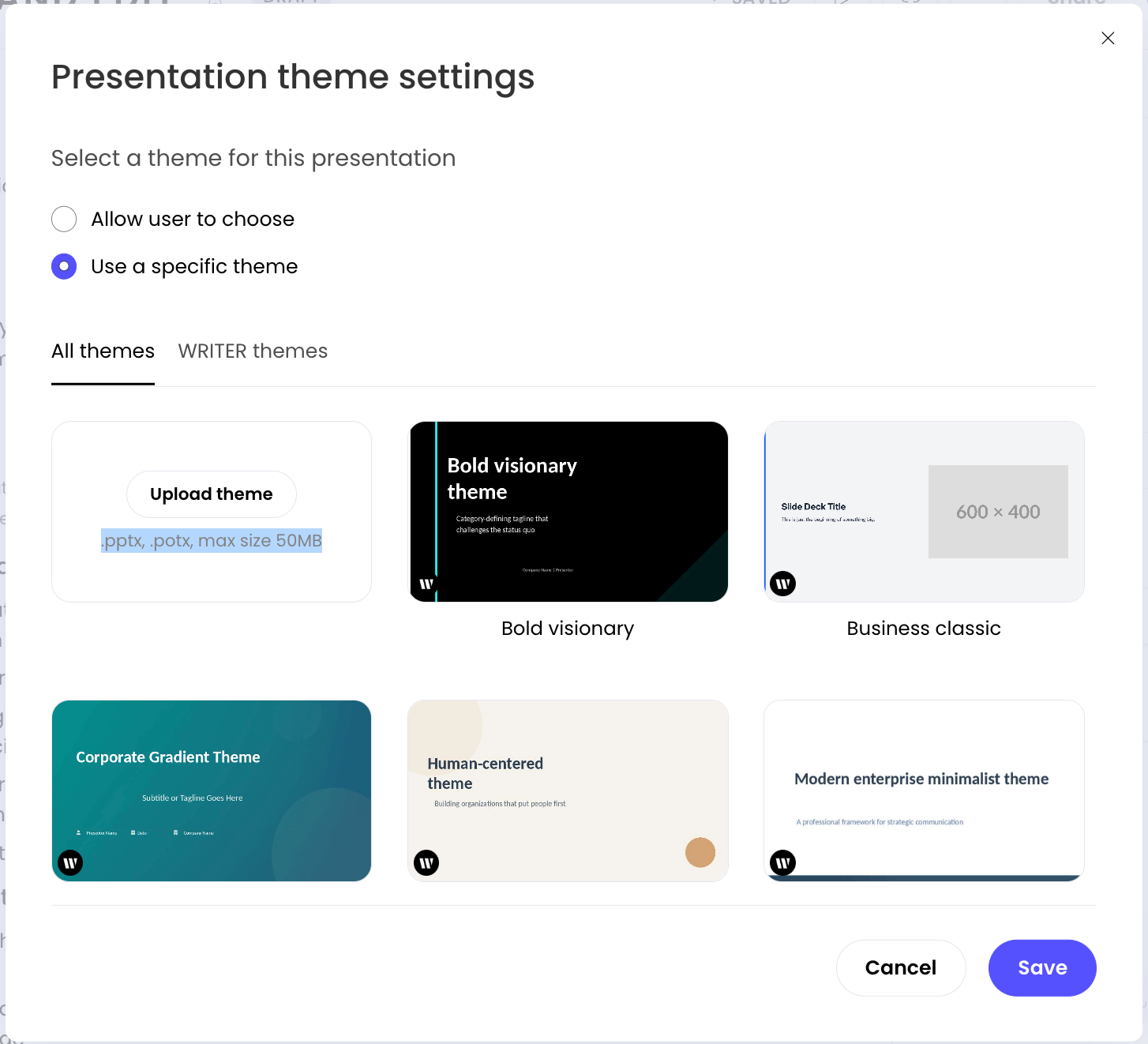
Once your playbook is set for a presentation, select Theme settings and from the popup you can apply a theme for your playbook to use next time you run the workflow. Select Use a specific theme, select a theme, and save your changes to apply the theme. Learn more about playbooks here.
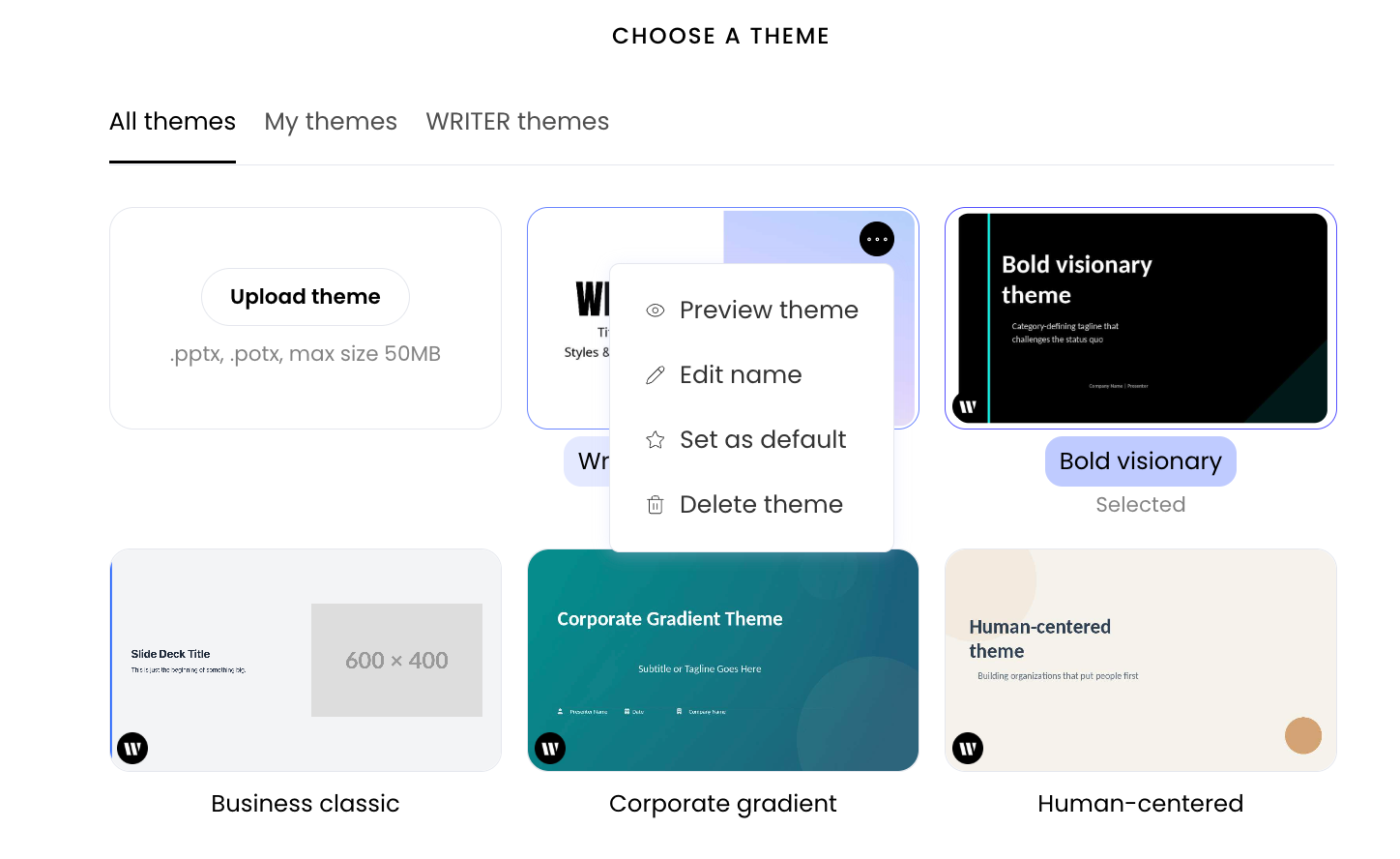
Once you’ve uploaded a theme you can manage it by selecting the three dot menu on the theme’s card. From there you are able to:
Preview the theme to see how the slides will display within WRITER Agent
Edit the theme’s name
Set the theme as the default to use anytime you generate presentations in WRITER
Delete the theme. If you’d like to replace your uploaded theme, use this option to delete the current version first and then upload your new version.
How to manage organization themes as an admin
Admins can upload and manage shared presentation themes that are automatically available to all team members. This ensures brand consistency across the entire organization without requiring individual users to upload their own templates.
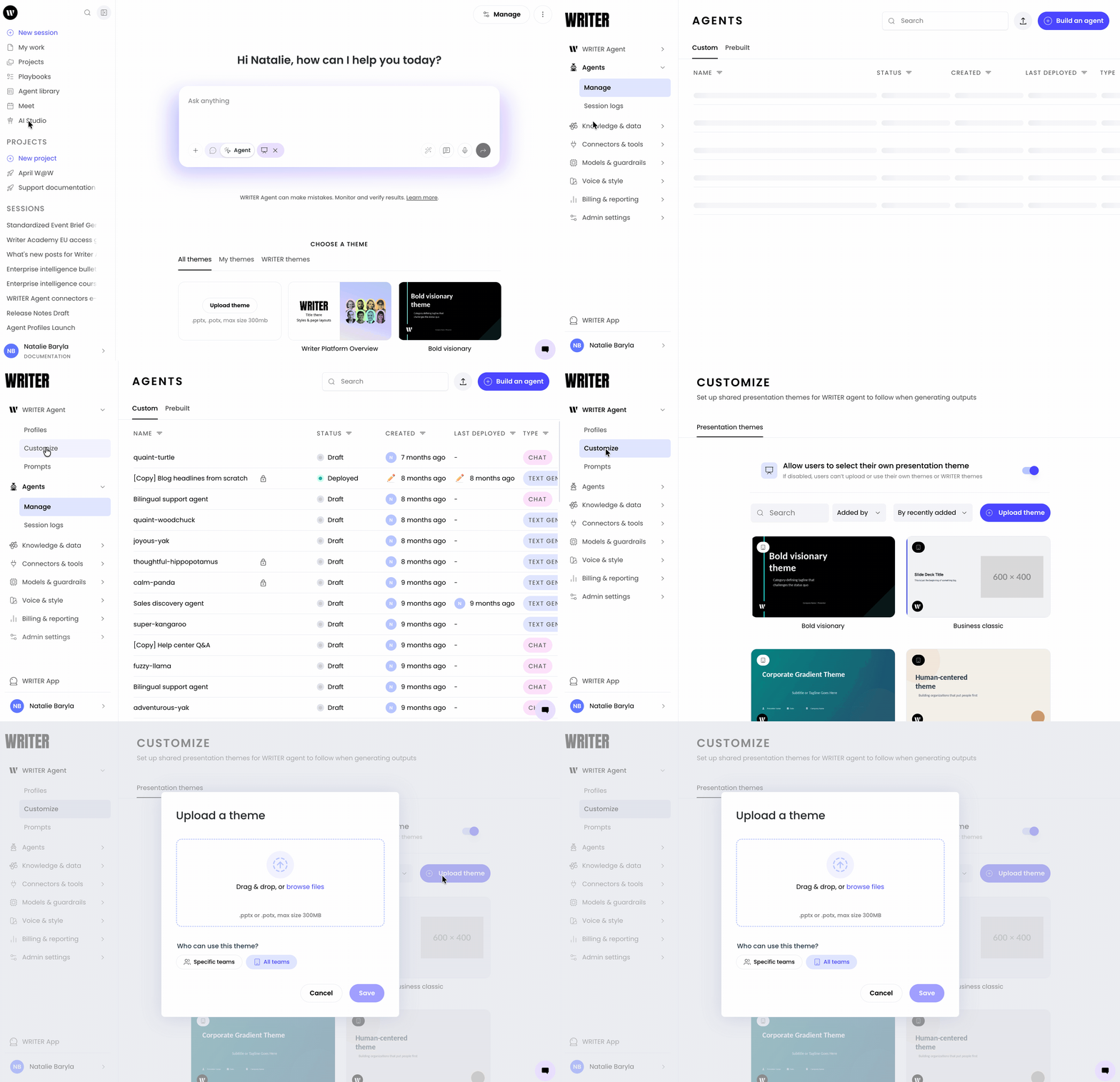
Navigate to AI Studio and select Customize from the WRITER Agent menu. From this page you can select if members in your org can upload their own theme or are limited to the themes you add in this section. Select Upload theme and add your file. For best results upload no more than 15-20 slides in .pptx, or .potx format with a max size 50MB. Next, you can limit the presentation theme to only be available to specific teams within your org.

To prevent your users from uploading their own presentation themes, toggle the switch off on this screen. When turned off this will block users from not only uploading their own presentation themes but also removes access to the default WRITER themes.
Supported file formats and requirements
To ensure high-fidelity presentation generation, your uploaded templates must meet the following requirements:
Supported formats: You can upload .pptx and .potx files.
Layout variety: Your template must include all necessary slide layouts (e.g., title slide, content slide, image slide, and section dividers).
Font compatibility: Use standard web-safe fonts or common system fonts in your template. If you use custom corporate fonts, ensure your team has them installed locally so PowerPoint can render them correctly after download.
💡 Pro-Tip: Before publishing an organization-wide theme, run a test generation with a simple prompt to verify that the agent maps your template's layouts and colors correctly.
Best practices for theme templates
Applying highly rigid corporate templates can sometimes result in repetitive, unengaging outputs. Follow these best practices to design templates that allow the agent to produce engaging slides:
1. Focus on colors and typography over static backgrounds
Instead of uploading a template with complex, pre-designed static background images on every slide, upload a clean template that defines your brand's core colors and typography. This allows WRITER's design engine to generate dynamic, engaging layouts while staying fully compliant with your brand guidelines.
Example:
Good: A template with a solid background color, defined header/body fonts, and a clean color palette that lets the agent dynamically place shapes, charts, and text.
Not as effective: A template where every slide layout has a complex, uneditable background graphic that limits where text and images can be placed, leading to overlapping content or rigid layouts.
2. Keep layouts clean and modular
Ensure your slide layouts have clear placeholders for titles, subtitles, and body content. Avoid overlapping placeholders or complex grouping in your master slides.
Review checklist:
☐ Template is saved as a .pptx or .potx file.
☐ Template includes at least one title slide layout and one content slide layout.
☐ Brand colors are correctly defined in the slide master.
☐ Placeholders are clean and do not overlap.
FAQs
What file formats can I upload for custom themes?
Currently, you can upload .pptx and .potx files to create custom presentation themes.
Why are my brand's custom fonts not rendering in the downloaded PPTX?
PowerPoint relies on local system fonts to render text. If your template uses custom corporate fonts, ensure you have those fonts installed on your local computer so PowerPoint can display them correctly.
How do I make a theme available to my entire team?
An administrator must upload the theme through AI Studio > WRITER Agent > Customize > Themes and select Save to make it available organization-wide.
Can I edit an existing theme?

You can edit the name of the theme uploaded but cannot edit file at this time. To update your theme simply delete the theme and upload a new one with the same level of access. This will automatically reflect to your users when they go to generate their next presentation.
Can I delete a theme I uploaded?
Yes. You can delete personal themes from the presentation selection dropdown in WRITER Agent. Admins can delete organization themes from the Customize tab in AI Studio.
Does uploading a theme affect data privacy?
No. We do not train our LLMs with customer data, including uploaded templates. WRITER adheres to global privacy laws and security standards, with measures in place to help you meet your compliance obligations.