Event-based triggers for playbooks
Last updated: July 16, 2026
Who can use this feature
Playbooks are available to all WRITER customers
Overview
Automate your workflows by configuring playbooks to run upon event-based triggers, such as a Gmail alert. Event-based triggers enable you to run playbooks automatically when specific events occur in your connected applications. This allows you to create reactive workflows that respond instantly to important events, such as receiving a specific email or when a message is posted to a Slack channel.
There are two types of triggers you can create:
Schedule-based triggers: Run playbooks on a recurring schedule (daily, weekly, monthly, or at custom intervals). Learn more here.
Event-based triggers: Run playbooks automatically when specific events occur in connected apps like Gmail or Slack
Each time a trigger fires, it creates a new session in WRITER Agent, allowing you to track execution history and results.
Available event-based triggers
Gmail triggers:
Email sent: Triggers when you send an email
Email received: Triggers when a new email is received
Slack triggers:
Message posted to channel: Triggers when a message is posted to a channel
Reaction added to item: Triggers when a user adds a reaction (emoji) to a message, file, or other item
Message from bot: Triggers when a message is sent by a bot user
Google Calendar
Event scheduled: Triggers when a event is scheduled, new event being scheduled (with specific keyword and from specific calendar) or an event ending
Event ending: Triggers when an event ends
Google Drive
File created: Triggers when a file within a specific folder is created
Gong
Call completed: Triggers when a call ends
Microsoft Sharepoint
New file: Triggers when a new file is created
New file in folder: Triggers when a new file is added to a folder
New folder: Triggers when a folder is created
New list: Triggers when a new list is created
New list item: Triggers when a new item is added to a list
Creating an event-based trigger
To configure event-based triggers for your playbook:
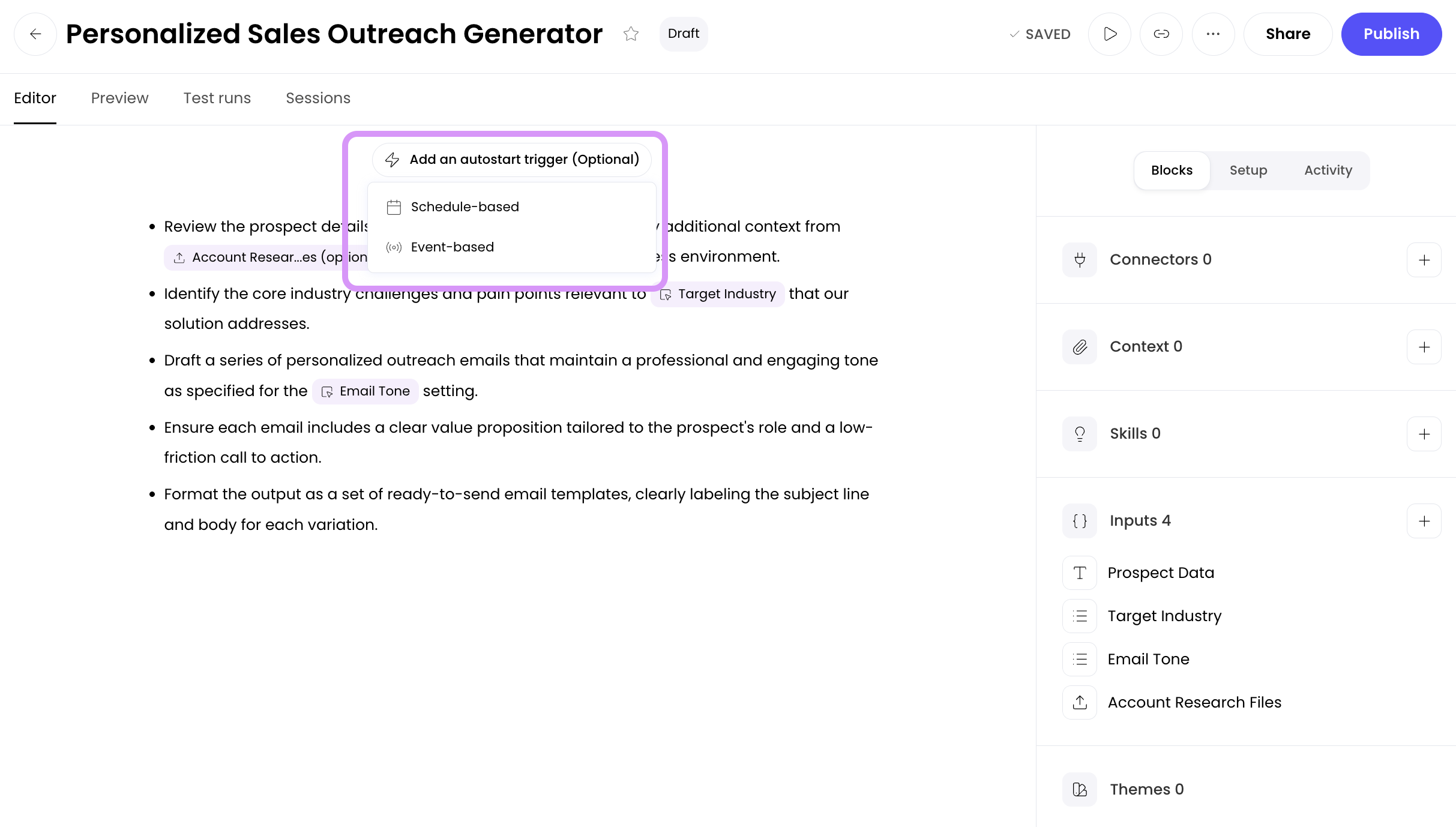
From the top of the playbook editor select Add an autostart trigger and then select Event-based.
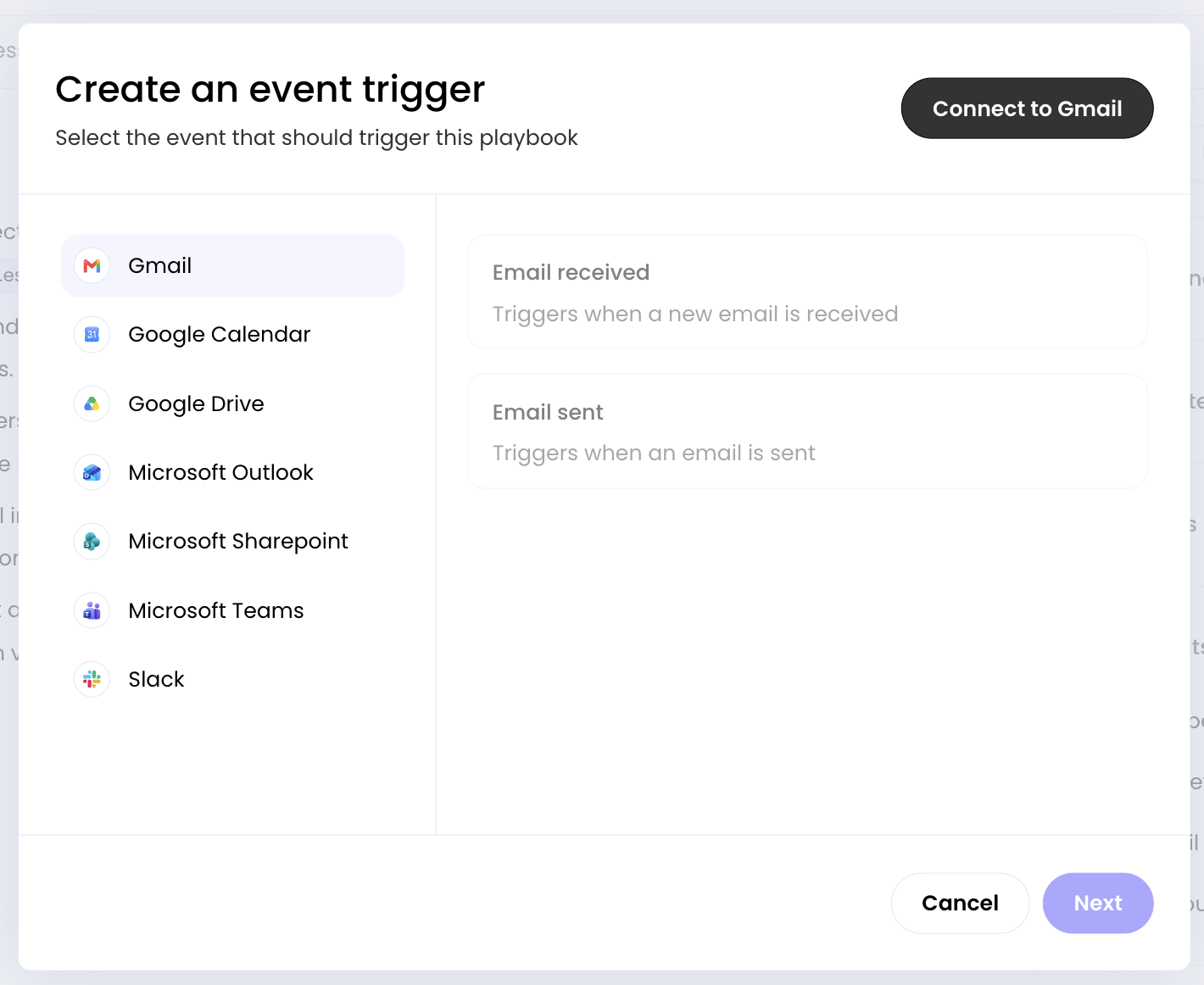
Select the app you'd like to use for the trigger and login if needed. Select the action you'd like to trigger your playbook based on from the list.
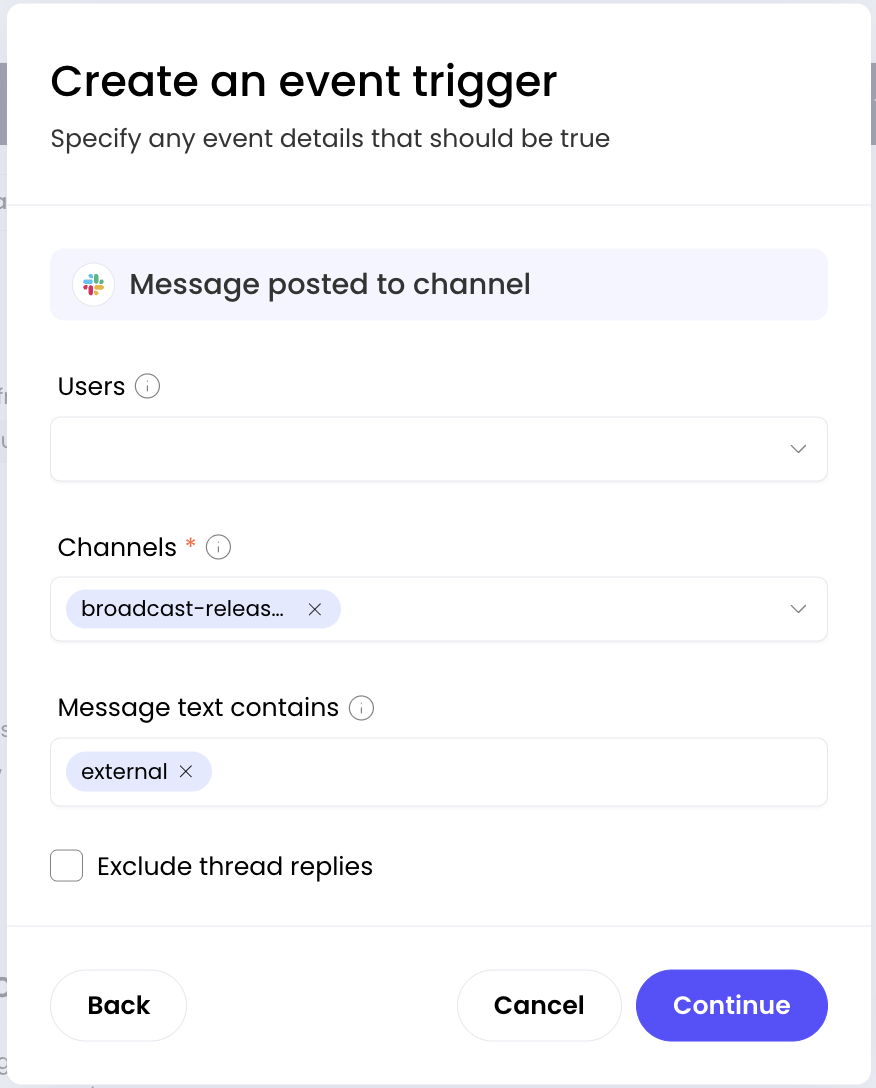
Complete the information requested for the trigger in the next screen, this differs based on trigger type. If your playbook includes variables the next screen will ask you to fill those in so that the playbook has the information required to run autonomously.

Give your trigger a name. If you belong to multiple teams, select the team you'd like the resulting WRITER Agent session to go in and then select Save.

Once your event-based trigger has been configured you can disable and reenable it at any time from the top of the playbook editor right above your first step. Select the trash icon next to it to delete the trigger or edit it using the edit icon on the right. You can add more triggers to automatically launch the playbook by selecting Add a trigger.
Managing event-based triggers
Once created, you can manage your event-based triggers from the Triggers tab when editing a playbook. From here you can:
Enable or disable individual triggers
Edit trigger configurations
Add multiple triggers to a single playbook
View trigger history and execution logs
Event-based triggers can only be enabled and disabled from the Triggers tab on the right when editing a playbook.
Troubleshooting
My trigger isn't running:
Verify the trigger is enabled in the Triggers tab
Check that the associated playbook still exists and is accessible
For schedule-based triggers, confirm the schedule is set correctly in your timezone
For event-based triggers, ensure the connected app integration is still active
My playbook requires input each time:
Review your playbook for variables that require manual input
Consider redesigning the playbook to eliminate required variables for autonomous operation
Alternatively, use preset values or default configurations where possible
Event-based trigger isn't firing:
Verify the trigger is enabled in the Triggers tab
Check that your connected app (Gmail, Slack) integration has proper permissions
Review the trigger configuration to ensure it matches the events you're expecting
Check the execution logs for any error messages
FAQs
Can I add both schedule-based and event-based triggers to the same playbook?
Yes! A single playbook can have multiple triggers of both types. For example, you could have a playbook that runs daily at 9am (schedule-based) and also runs whenever you receive an email (event-based).
How many triggers can I add to a single playbook?
There's no strict limit on the number of triggers per playbook. However, for performance and manageability, we recommend keeping triggers focused and purpose-driven. If you find yourself adding many triggers to one playbook, consider whether breaking it into separate playbooks might be clearer.
Will I be notified when a trigger fires?
Each trigger execution creates a new session in WRITER Agent. You can view the execution history and results in your WRITER Agent sessions. Depending on your notification settings, you may receive alerts for completed sessions.