Agent Library migration & deprecation
Last updated: September 9, 2026
⚠ IMPORTANT: Org admins must migrate and validate any agent that should keep running before October 9, 2026.
This guide shows you how to prepare for Agent Library deprecation and migrate existing agents to the supported replacement surfaces. After completing these steps, you can identify whether an agent should move to Agent Builder, Playbooks, or WRITER Agent, validate the migrated workflow, and update API-based integrations when migration changes how callers connect.
Agent Library deprecation affects these agent types:
Legacy Agent Builder agents migrate to Agent Builder.
Custom no-code agents (text generation, research, and similar) migrate to Playbooks.
Chat no-code agents are fully deprecated. Rebuild them in WRITER Agent or call POST /v1/chat/completions. They do not migrate to Playbooks and do not appear in the one-click migration modal.
Prebuilt (OOTB) no-code agents are retired with no migration path.
Access to the migration tool is limited to Org admins.
Deprecation timeline
Milestone | Date |
Announcement and creation lock | September 2, 2026 |
Migration deadline | October 9, 2026 |
Apps not migrated by the deadline | Removed — agents stop running and are no longer accessible |
Migrate and validate any agent that should keep running before October 9, 2026.
Understand what changes after deprecation
After deprecation banners appear, you can no longer create new Agent Library agents. Editing rules during the migration window differ by agent type:
No-code agents (text generation, research, chat): view and run only. You cannot edit a no-code agent before migration. To change a no-code agent, migrate it first, then edit the resulting Playbook. Chat agents cannot migrate — rebuild them in WRITER Agent or chat completions endpoint instead.
Legacy Agent Builder agents: you can still edit these during the migration window. Make any needed changes before migrating so the migrated Agent Builder app reflects them.
Applications API status
The Applications API (/v1/applications) is not being deprecated as part of Agent Library deprecation. If your integration calls a no-code agent through the Applications API, you can continue using those endpoints with the same application IDs and request format.
Migrate your no-code agents to Playbooks before October 9, 2026 so the agent keeps running in AI Studio. An alternative API migration path for Applications API callers is not available yet. Until that path is available, you do not need to change Applications API integrations solely because the agent migrated to a Playbook in the UI.
You still need to update integrations in these cases:
Chat no-code agents — fully deprecated. Move iFrame embeds and programmatic chat flows to POST /v1/chat/completions or WRITER Agent. See Rebuild chat agents in WRITER Agent.
Blueprint API triggers on legacy agents — after migration, update callers to the new agent builder app URL. The blueprint ID stays the same. See Update blueprint API triggers.
Use one-click migration
Org admins use the one-click migration modal to migrate legacy Agent Builder agents and eligible no-code agents.
The modal lists eligible Agent Library agents and lets an org admin select one or more agents to migrate. Selected agents are queued for migration. After migration finishes, the result screen returns links to the migrated Agent Builder apps or Playbooks.
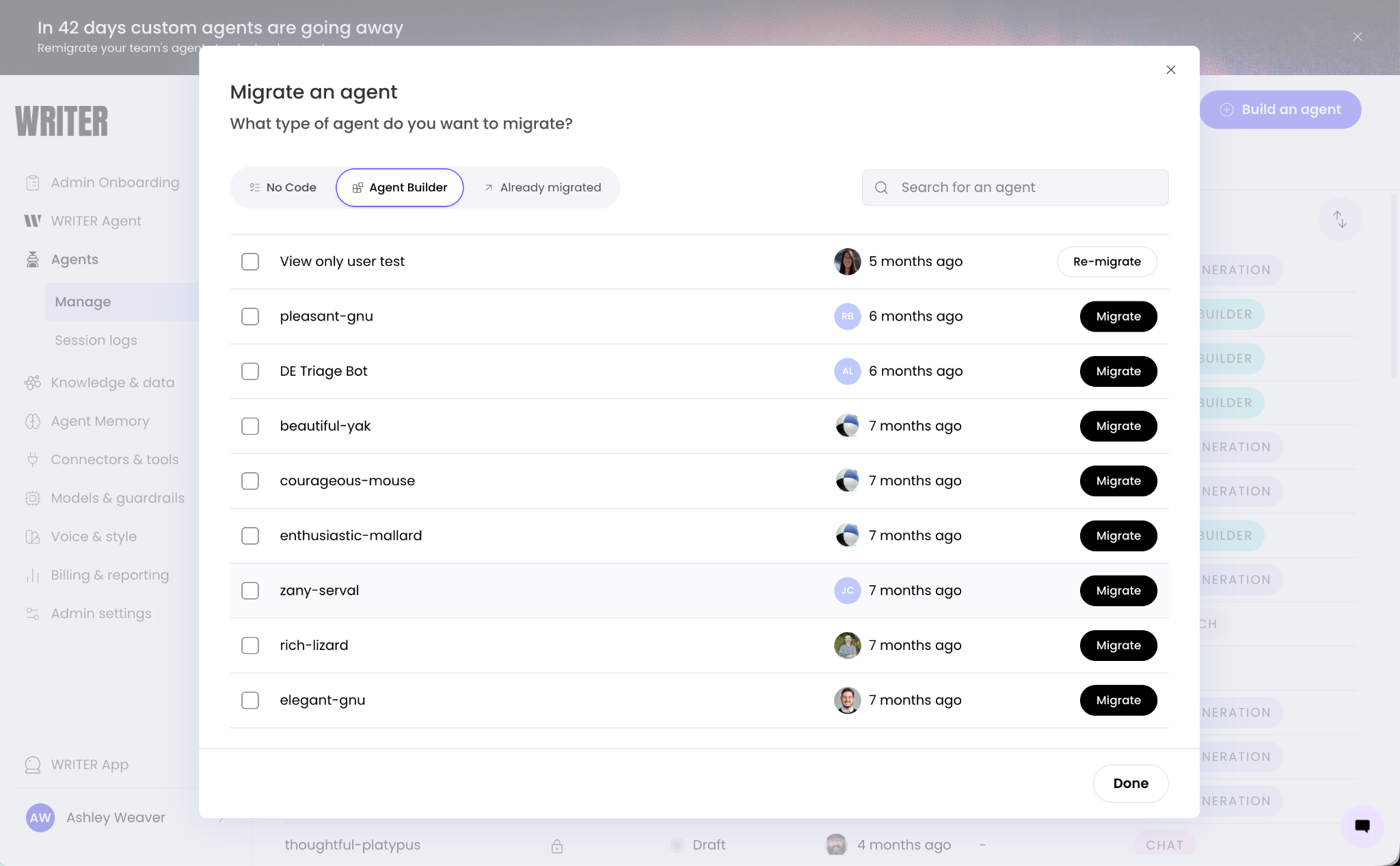
Navigate to AI Studio >Agents > Manage and select Migrate agent.
Complete the migration flow
Review the eligible agents in the No code and Agent Builder tabs.
Select one agent to migrate individually, or select multiple agents via the check boxes to the left to migrate in bulk.
Select Migrate and wait while selected agents are classified, queued, and migrated.
Open the returned links to review each migrated Agent Builder app or Playbook.
If you close the modal while migration is running, migration continues in the background. Return to the migration flow to review migration status and destination links.
If a migration fails or needs to be retried, users can select Try again from the Already migrated tab in the migration modal.
All Agent Library → ABv2 migrations should be initiated and managed through the migration UI. Migration through the ABv2 MCP is not supported, including attempting to recreate or trigger the migration flow programmatically. Users should use the migration modal for initial migrations, retries, and migration status.
📓 Note: An agent may not appear in the migration modal if it has not been deployed, has no usage in the last 30 days, or is a chat agent. Review inactive, undeployed, or chat agents manually before October 9, 2026 if you still need them.
Testing your migrated agent
Once your no-code agent has been migrated to a playbook you will need to publish it to make it active. Prior to publishing we strongly encourage thoroughly reviewing and testing the playbook.
If you're new to playbooks, take a look at our video above and learn more here.
Prepare legacy agents for migration
Before migrating a legacy Agent Builder agent to Agent Builder, finish any planned edits and validate the app works end to end. Migration copies the current app state — make legacy agent changes before you migrate, not after.
Finish any planned legacy agent edits while the agent is still in Agent Library.
Test the legacy agent end to end and confirm the workflow returns the expected output.
If the app exposes blueprint API triggers, note down each blueprint ID and expected inputs format from the legacy app before migration. The blueprint ID stays the same after migration, but you may lose access to these details after the original app is deprecated.
Migrate the legacy agent using Use one-click migration.
Update external blueprint API callers with the new app URL from the migrated agent. The blueprint ID, request body, and response format do not change.
If external systems trigger the legacy agent through blueprint API endpoints, update caller URLs after migration. The blueprint ID, request body, and response format stay the same — only the app URL changes. See Update blueprint API triggers.
📓 Note: Download and save a copy of the legacy agent for reference before October 9, 2026. After deprecation, you may no longer have access to the original Agent Library agent. From your cloud agent in Agent Builder, select the three dots in the top-right corner, then select Download agent .zip file to download a .zip file containing the agent's configuration.
Update blueprint API triggers
Legacy Agent Builder apps that expose blueprint triggers through the public API must update caller URLs after migration to the new Agent Builder. The request body, response format, and blueprint ID stay the same. Only the app URL changes.
Previously, legacy agent blueprint blueprint triggers used the central Writer API and required both an agent ID and a blueprint ID. See Trigger blueprints via API in the legacy Agent Builder documentation.
After migration, blueprint triggers call the deployed app's URL directly. Callers need the app's preview or production base URL, the same blueprint ID from the legacy app, and an API key authorized for that environment.
Map legacy agent blueprint endpoints to the new Agent builder
Use this table to update external callers after you migrate a legacy agent.
Legacy Agents | Migrated Agents |
POST https://api.writer.com/v1/agents/{agent_id}/blueprints/{blueprint_id} (sync) | POST https://{app_url}/_api/blueprint/{blueprint_id} |
POST https://api.writer.com/v1/agents/{agent_id}/blueprints/{blueprint_id}/jobs (async) | POST https://{app_url}/_api/blueprint/{blueprint_id}/jobs |
GET https://api.writer.com/v1/agents/jobs/{job_id} (poll async job) | GET https://{app_url}/_api/jobs/{job_id} |
Replace {app_url} with the deployed migrated app URL (for example, https://abcde123456789ababab.getwriter.app). Use the same {blueprint_id} from the legcay app. Create an environment API key in Agent Builder for the Authorization: Bearer header.
The request body still requires an inputs object:
{

  "inputs": {

    "prompt": "caller's prompt"

  }

}
Your blueprint blocks reference these values (for example, @{result.inputs.prompt}). The exact keys depend on how the migrated blueprint defines its API trigger input.
Trigger a migrated blueprint asynchronously
Start an async job against the migrated app, then poll for the result.
# Start the job

curl --location --request POST \

  "https://{app_url}/_api/blueprint/{blueprint_id}/jobs" \

  --header "Authorization: Bearer $WRITER_API_KEY" \

  --header "Content-Type: application/json" \

  --data '{"inputs": {"prompt": "Hello from the caller"}}'


# Poll for status and result

curl --location --request GET \

  "https://{app_url}/_api/jobs/{job_id}" \

  --header "Authorization: Bearer $WRITER_API_KEY"
Trigger a migrated blueprint synchronously
For short-running blueprints, call the synchronous endpoint on the deployed app:
curl --location --request POST \

  "https://{app_url}/_api/blueprint/{blueprint_id}" \

  --header "Authorization: Bearer $WRITER_API_KEY" \

  --header "Content-Type: application/json" \

  --data '{"inputs": {"prompt": "Hello from the caller"}}'
Review blueprint trigger gotchas
Capture blueprint trigger details from the legacy app before the original app is deprecated. After sunset, you may lose access to the agent ID, blueprint ID, and input schema that external callers rely on — even though the blueprint ID itself does not change after migration.
Gotcha | What to do |
Blueprint ID reference | Note down each blueprint ID from the legacy app before migration. The blueprint ID stays the same in the updated Agent Builder, but you may not be able to look it up after the original app is deprecated. |
App URL changes | Migrated agent callers use the deployed app URL, not api.writer.com/v1/agents/.... Update webhooks, schedulers, and integration configs with the new base URL. |
Input schema | Document the required inputs shape for each blueprint. Callers must send the same JSON structure the blueprint expects (for example, {"inputs": {"prompt": "..."}}). |
Re-migration | If blueprint triggers fail after an initial migration, re-migrate the legacy app and re-test with the updated app URL. |
Validate migrated agents
After using the one-click migration flow, validate migrated agents in their destination surface:
Legacy Agent Builder agents open as Agent Builder apps.
No-code agents open as Playbooks.
Use the returned migration links to open each migrated agent, then run the same task the original Agent Library agent handled before migration. After the migrated agent behaves as expected, re-share it with the teams and users who need access. Migration does not carry over the original agent's sharing settings.
Confirm expected behavior
For migrated Agent Builder apps and migrated Playbooks, confirm:
The app starts and loads in preview.
The migrated workflow accepts the expected inputs.
Inputs and outputs match the original workflow.
Generated files, markdown deliverables, citations, or research outputs appear when expected.
Required files, Knowledge Graphs, and connected resources are still available.
The migrated workflow uses supported Writer models.
API-based workflows still return the expected response shape.
Blueprint API triggers reach the migrated app at {app_url}/_api/blueprint/{blueprint_id} and return the expected result. See Update blueprint API triggers.
Applications API integrations still return the expected response shape when callers use /v1/applications/.... Do not change caller integrations until an alternative API migration path is available.
Review common migration gotchas
The following models are deprecated and are not available after deprecation:
palmyra-x-003-instruct
palmyra-vision
palmyra-med
palmyra-fin
palmyra-creative
If an agent uses one of these models, update the agent to a supported replacement. If migration includes automatic model remapping, verify the migrated app uses the replacement model before promotion.
Deleted files, deleted Knowledge Graphs, and references to removed resources do not work after migration. Review agent prompts, code blocks, tool configuration, and connected resources for stale references.
Area | What to check |
Agent Builder runtime configuration | Confirm variables, secrets, Writer API key, and runtime identity values exist where required. |
Blueprint API triggers | Legacy agent callers use api.writer.com/v1/agents/{agent_id}/blueprints/.... Migrated agent callers use {app_url}/_api/blueprint/{blueprint_id}. Update the URL and API key. The blueprint ID stays the same. See Update blueprint API triggers for migrated agents. |
Applications API integrations | Migrate dependent no-code agents to Playbooks before October 9, 2026 so those agents keep running in AI Studio. Legacy agent callers keep using /v1/applications/... with the same application IDs — no legacy agent code changes required. An alternative Applications API migration path will be announced separately. |
Chat API integrations | Chat no-code agents do not migrate. Move iFrame and programmatic chat flows to POST /v1/chat/completions or WRITER Agent. See Rebuild chat agents in WRITER Agent. |
KV storage or Writer Vault | Confirm mutable app data, environment variables, and secrets behave as expected. |
Research workflows | Confirm sources, Knowledge Graphs, citations, files, and deliverables behave as expected. |
Rebuild chat agents in WRITER Agent
Chat no-code agents are fully deprecated and have no one-click migration path. To keep chat capability, rebuild the agent in WRITER Agent or call the same behavior through the chat completions API.
One-click migration moves text generation and research no-code agents to Playbooks, but it does not migrate chat agents. WRITER Agent supports the same core capabilities: general content generation, Knowledge Graph answers, and document analysis.
Map chat agent configurations to WRITER Agent
Use this table to find the WRITER Agent equivalent for each no-code chat configuration.
No-code chat configuration | WRITER Agent equivalent |
Welcome message | Adjust the messaging in WRITER Agent via agent profiles. Set custom instructions at the user level for consistent behavior, or save a starter prompt in the prompt library. |
Avatar | No custom avatar. WRITER Agent uses a single shared chat interface. |
Model (for example, Palmyra X5) | Select from the models your org admin has approved in AI Studio, or use the default model your admin has set. See Model selection and management. |
Knowledge Graph mode | In WRITER Agent, select the + icon, select Knowledge Graph, then select the graphs to search. Responses include inline citations. You can limit users to specific Knowledge Graphs using team settings and/or through agent profiles. |
Document mode | In WRITER Agent select the + icon to upload files, then ask WRITER Agent to analyze or summarize them. |
iFrame embed | Replace the iFrame with a custom UI that calls POST /v1/chat/completions, or direct users to WRITER Agent in the web app. |
Recreate a chat agent in WRITER Agent
Open WRITER Agent in the web app and select + New session.
Set custom instructions that capture the original chat agent's role, tone, and constraints.
To answer from team data, select the + icon, select Knowledge Graph, then select the graphs the original agent used.
To analyze sources, select the + icon, upload the documents, then enter your request.
Run the same task the original chat agent handled, then confirm the output matches.
To verify a Knowledge Graph response, confirm the output includes inline citations that point to the expected source files. To verify document analysis, confirm the response reflects the uploaded files and lists them under View sources.
Org admins can configure WRITER Agent profiles for specific teams in their org. Within profile settings you can limit what features are available in WRITER Agent. You can also set defaults for voice, custom instructions, and Knowledge Graphs. Learn about creating agent profiles here.
Call chat capabilities through the API
If the original chat agent was called through the Applications API or embedded in an iFrame, use the chat completions endpoint at POST /v1/chat/completions. Send the conversation as an array of messages to preserve context across turns.
  curl https://api.writer.com/v1/chat/completions \
-H "Authorization: Bearer $WRITER_API_KEY" \

  -H "Content-Type: application/json" \

  -d '{

    "model": "palmyra-x5",

    "messages": [

      {"role": "system", "content": "You are a benefits support assistant for Acme Corp."},

      {"role": "user", "content": "What is our parental leave policy?"}

    ]

  }'
For conversation setup, streaming, and tool calling, see the chat completion guide.
Next steps
After you migrate Agent Library agents, you can:
Validate migrated agents in Agent Builder and Playbooks before October 9, 2026.
Rebuild chat agents in WRITER Agent or move programmatic chat flows to POST /v1/chat/completions.
Prepare legacy agents for migration — finish legacy agent edits, capture blueprint trigger details, then migrate and update caller URLs.
Update blueprint API triggers for migrated agents when external systems trigger legacy agent blueprints through the public API.
Get help
If you have questions about migration or run into issues, contact Writer support at support@writer.com. Contact support before the migration deadline if one-click migration fails after retry, or if you cannot recover blueprint IDs and input schemas for external callers.