How to connect your style guide and terms to a voice
Last updated: September 24, 2026
WRITER Agent can automatically apply your team's style guide and terminology to generated outputs, but only when those settings are connected to a voice profile. This article explains how team admins set up a style guide and terms, connect them to a team voice, and optionally can collaborate with Org or IT admins to enforce that voice across WRITER Agent through a profile. Org admins, Business admins, and team admins can perform the setup steps, however only Org and IT admins are needed to create and update agent profiles; team members use the resulting voice in their outputs. If terms and/or style guides aren't linked to a voice, you can still use them but only in extensions for proofreading assistance.
Optionally you can create a custom org wide role that allows users to manage a team's style guide and create WRITER Agent profiles.
How style guides, terms, and voices work together
WRITER uses three configuration surfaces that, when linked, ensure outputs sound like your brand and use your preferred terminology:
Style guide — controls proofreading, clarity, inclusivity, and compliance settings for your team.
Terms — manage and enforce organization-specific terminology.
Voice profile — defines how WRITER Agent sounds in its outputs.
Style guide and term settings do not affect WRITER Agent outputs on their own. They only apply once you connect them to a voice profile, and that voice is then used to generate content.
How to set up your team's style guide
Team admins, org admins, and IT admins can customize a team's style guide. Updates to the style guide apply to your whole team, not just you. A term list and style guide are created automatically with a new team and they cannot be created or deleted separately, only edited.
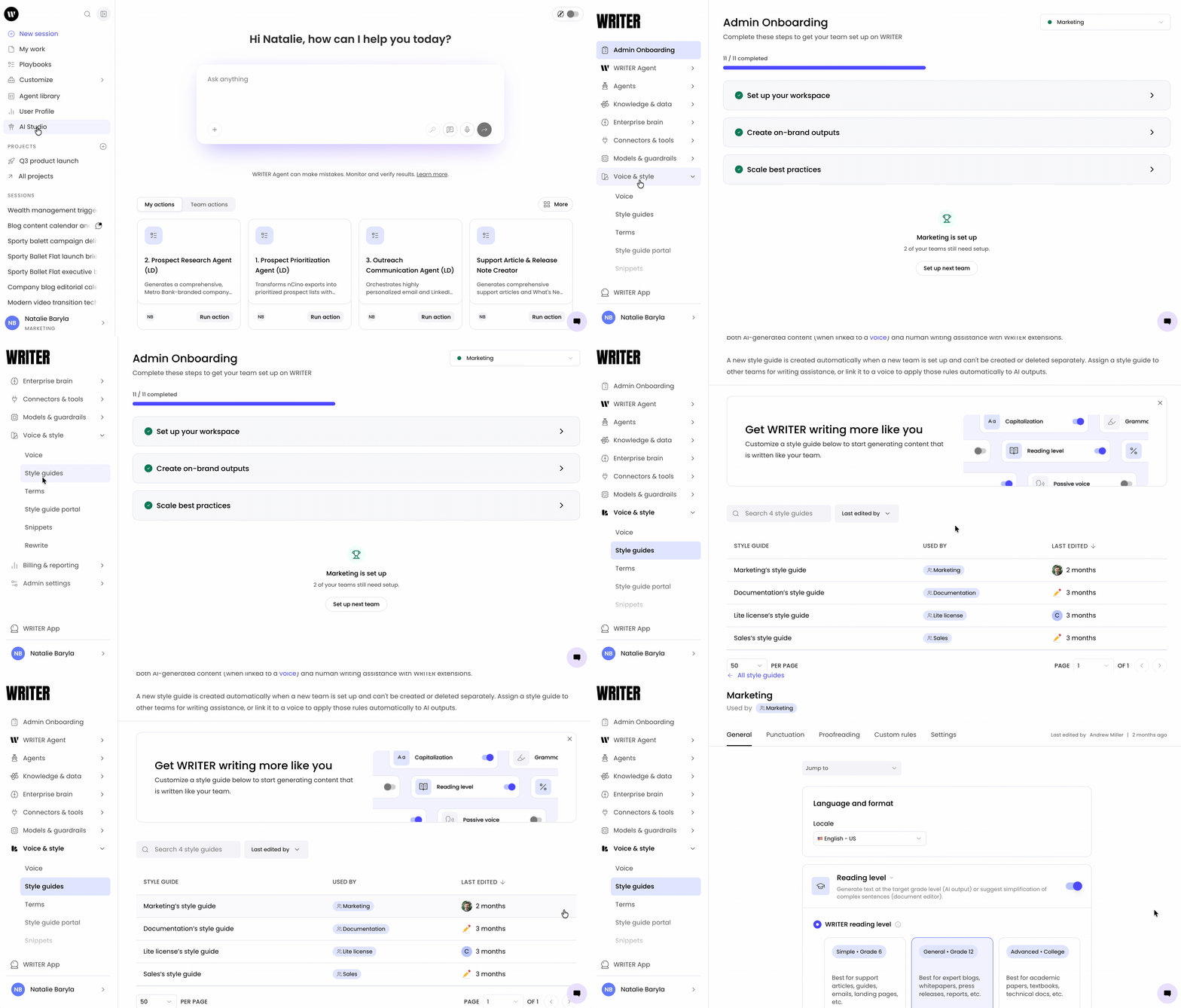
Select AI Studio from the left menu of WRITER Home, or select the settings icon (⚙) from the profile menu to access your team settings.
Navigate to Voice & style > Style guides.
Select your team from the list.
You'll see your selected settings saved for the team. These settings take effect in WRITER Agent outputs once you connect the style guide to a voice profile. Learn more about customizing your team's style guide.
Tip: Review the style guide with your team before publishing so everyone understands which rules are enforced.
How to add terms for your team
Org admins, business admins IT admins, and team admins can add and manage terms. Team members can only view terms. Terms are available on Starter, Team, and Enterprise plans.
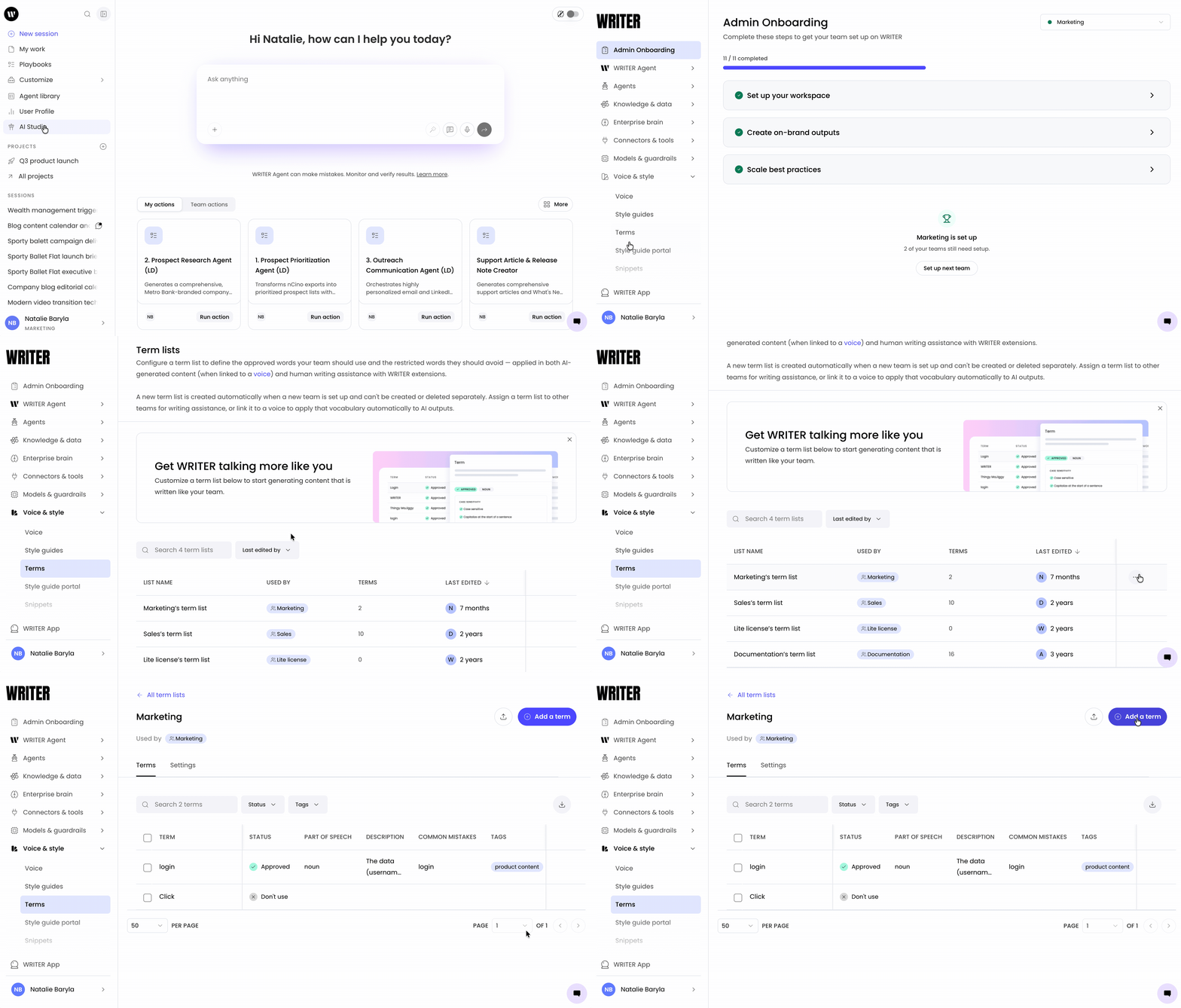
Select AI Studio from the left menu of WRITER Home, or select the settings icon (⚙) from the profile menu to access your team settings.
Navigate to Voice & style > Terms.
Select the team you'd like to update terms for from the list.
Select Add term in the top right.
Complete the term information, including the term, its type, and any guidance.
Select Save.
You'll see the new term added to your team's terms list. Terms take effect in WRITER Agent outputs once you connect them to a voice profile. Learn more about adding terms.
How to create or edit a team voice profile
Org admins and Team admins can create and edit team voice profiles. If no voices exist in your account, you'll tune the default voice; otherwise you can add a new voice or edit an existing one. Learn more about calibrating voice for your content.
How to connect your style guide and terms to a voice
This is the step that makes your style guide and terms apply to WRITER Agent outputs. You connect them in the final section of the voice profile creation or edit flow.
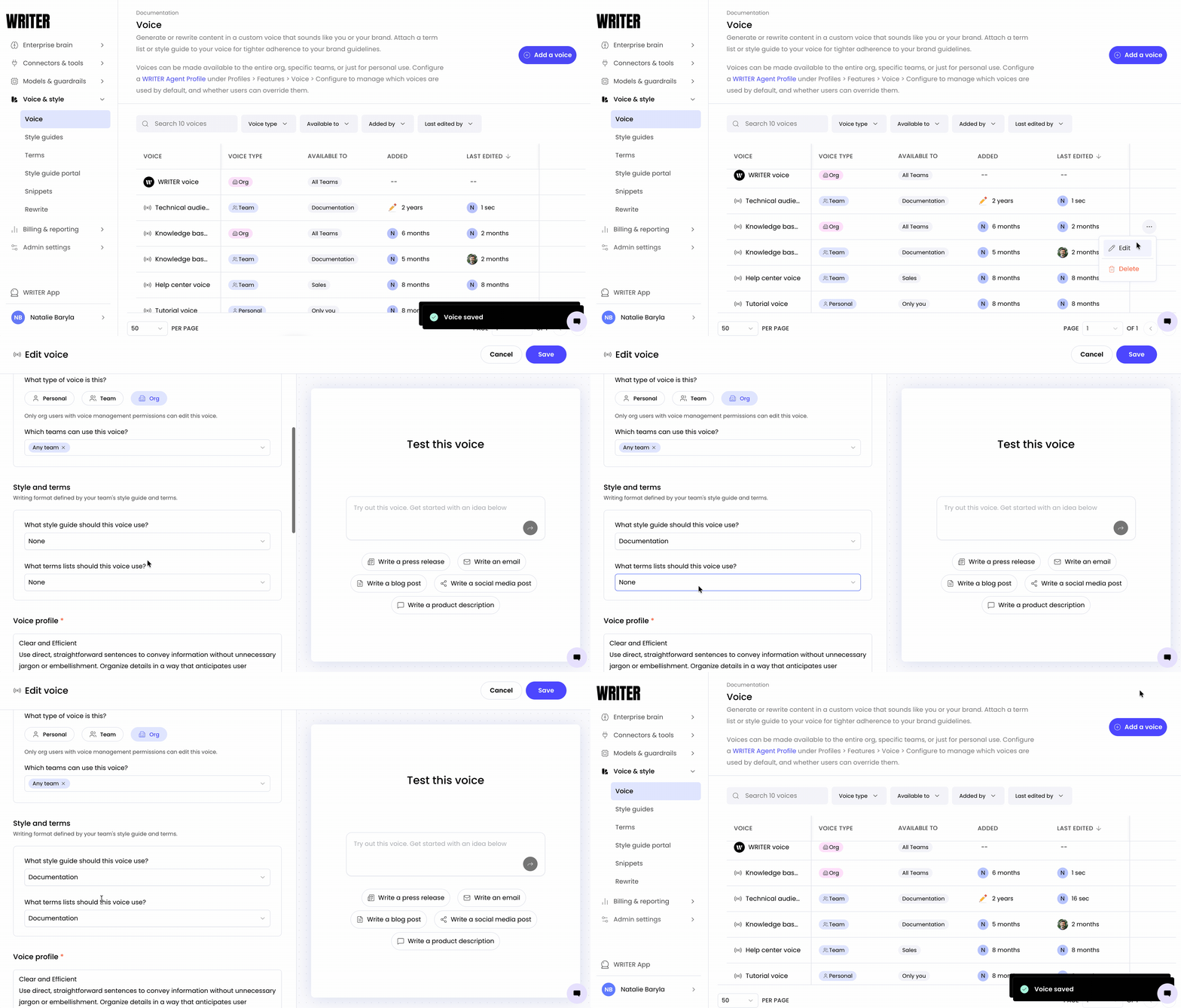
Navigate to Voice & style > Voice.
Locate the voice you'd like to connect your style guide and terms to.
Select the ••• menu next to the voice, then select Edit. If you're creating a new voice, continue through the creation flow to the final section.
In the Style and terms section of the voice profile connect the style guide you created to the voice profile.
Connect your terms to the voice profile
Select Save in the top right.
WRITER Agent will now apply that style guide and those terms to outputs generated using that voice profile.
Note: If you update your style guide or terms after connecting them, the changes apply automatically to any voice that uses them. You don't need to reconnect.
How to enforce a voice with a WRITER Agent profile
Once a voice has your style guide and terms connected, you can make it the default voice for your organization or restrict it so it's the only voice users can select. Org admins and IT admins configure WRITER Agent profiles.
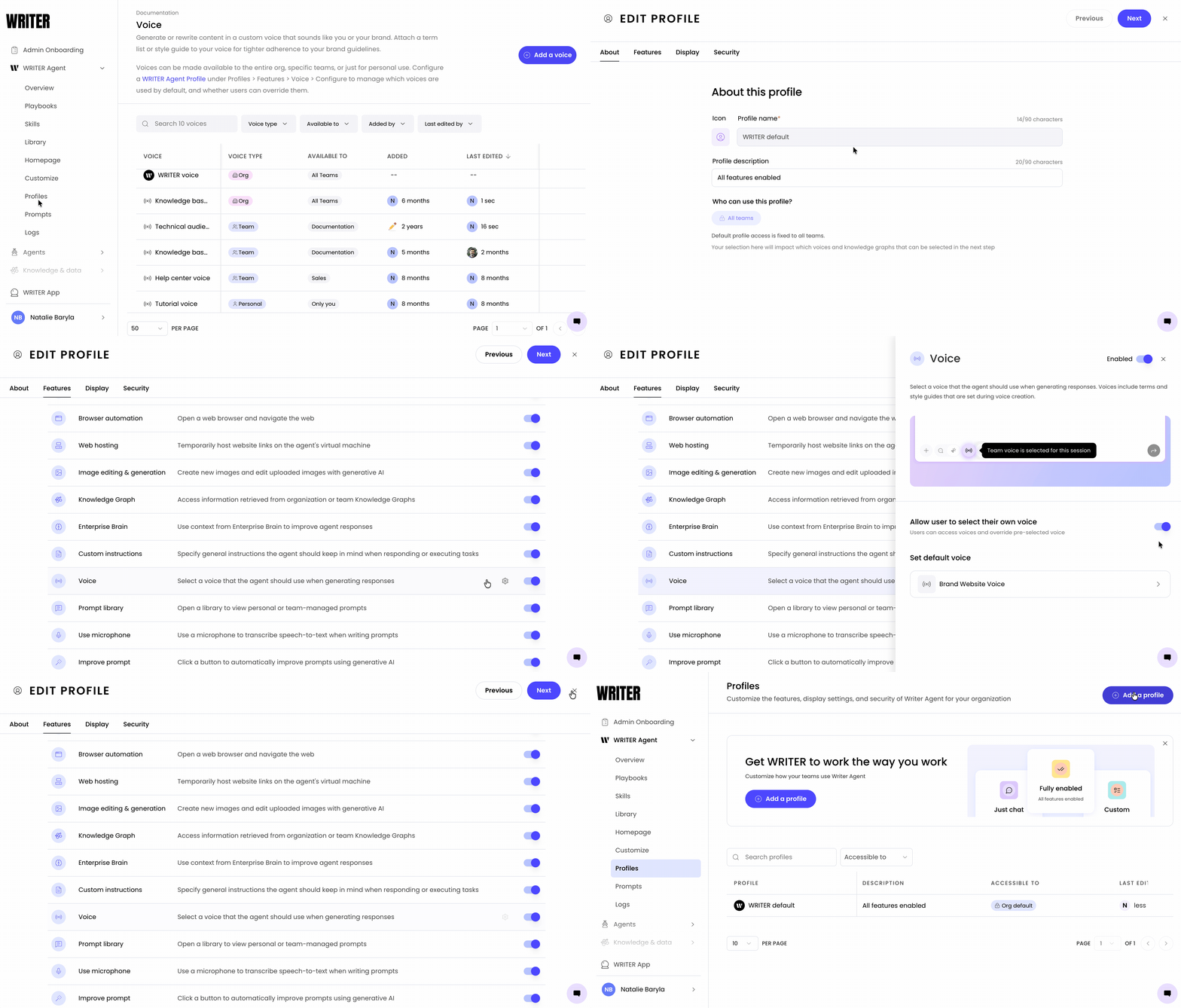
Navigate to AI Studio > WRITER Agent > Profiles.
Select the ••• menu next to the default profile, then select Edit. Or select +Add a profile to create a new profile.
In the Voice settings section, set the voice with your connected style guide and terms as the default voice. Select the setting to restrict the available voices so only the voice with your connected style guide and terms can be selected
Select Save.
Note: each profile can be applied org wide or to specific teams for granular brand controls.
Users in the profile's scope will now use that voice by default, with the style guide and terms automatically applied. Learn more about configuring WRITER Agent profiles.
Troubleshooting
My style guide and terms aren't showing up in WRITER Agent outputs. What should I check?
Confirm that you've connected the style guide and terms to the voice profile the user is generating with. Style guide and term settings only apply when linked to a voice, and only for outputs generated using that voice.
I updated my style guide, but outputs still reflect the old settings. Why?
Updates to the style guide apply automatically to connected voices. If outputs still reflect old settings, confirm the user is generating with the connected voice and not a different or personal voice.
A team member can't see the terms I added. Why?
Team members can view terms but only within the team(s) they belong to. Confirm the terms were added for the correct team and that the team member is part of that team.
FAQs
Do I need to connect the style guide and terms separately to a voice?
Both the style guide and terms are connected in the voice profile flow. Once connected and saved, WRITER Agent applies both to outputs generated using that voice.
Can I connect a style guide to more than one voice?
Yes. You can connect the same style guide and terms to multiple voice profiles. Each voice will apply those settings to its outputs.
What happens if a user selects a different voice?
Only the style guide and terms connected to the selected voice apply. If a user selects a voice without a connected style guide or terms, those settings won't apply to that output.
Who can connect a style guide and terms to a voice?
Team admins can create and edit team voice profiles, which includes connecting the style guide and terms. Org admins and IT admins can also perform these steps.
Can I enforce the style guide and terms without relying on users to select the right voice?
Yes. An org admin or IT admin can create a WRITER Agent profile that sets the connected voice as the default or restricts the profile so it's the only voice available. Users then inherit the settings automatically.
Do style guide and term changes apply to existing outputs?
No. Changes apply to outputs generated after the update. Existing outputs are not retroactively changed.