Using WRITER for Slack
Last updated: August 27, 2026
Overview
WRITER for Slack lets you interact with WRITER Agent from inside Slack itself. You can start a session, run a playbook, or resume a previous session from a Slack DM or channel. The WRITER Agent app lives in your Slack workspace, and you communicate with it through direct messages, channel @mentions, and slash commands.
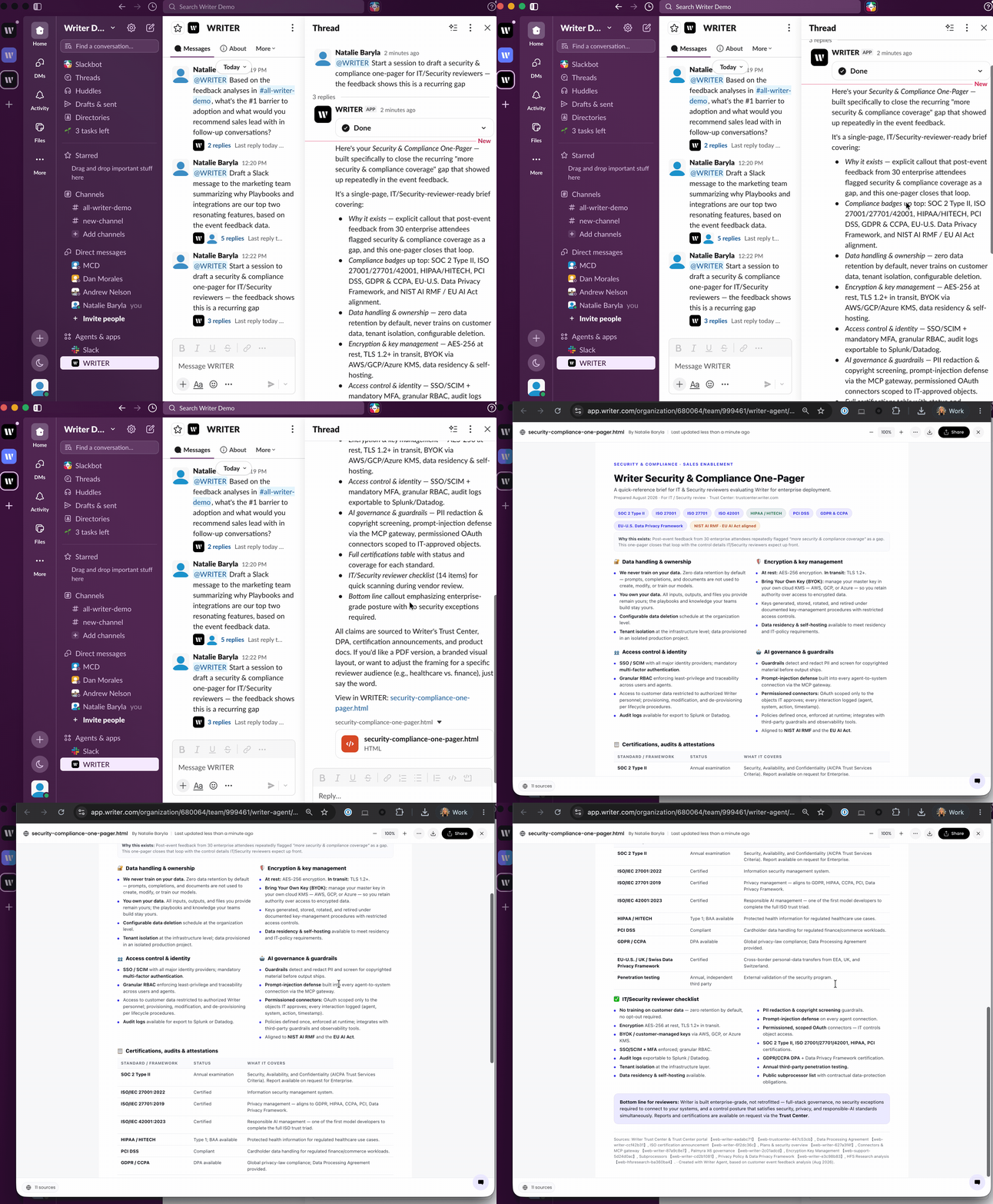
Important: WRITER for Slack requires a Slack admin to install the WRITER Agent app into your Slack workspace. If the app is not available in your Slack workspace, contact your Slack admin.
WRITER for Slack is distinct from the Slack connector. WRITER for Slack lets you interact with WRITER Agent from inside Slack. The Slack connector lets WRITER Agent take actions in Slack from within a WRITER Agent session. For details on the Slack connector, see 📄 Using the Slack connector with WRITER Agent
Setting up WRITER for Slack
Setting up WRITER for Slack takes three steps: adding the WRITER app in Slack, connecting your WRITER account, and selecting your WRITER team.
Step 1: Add the WRITER app in Slack
Important: A Slack admin must install the WRITER app into your organization before you can connect. If the app is not available in your Slack workspace, contact your Slack admin.
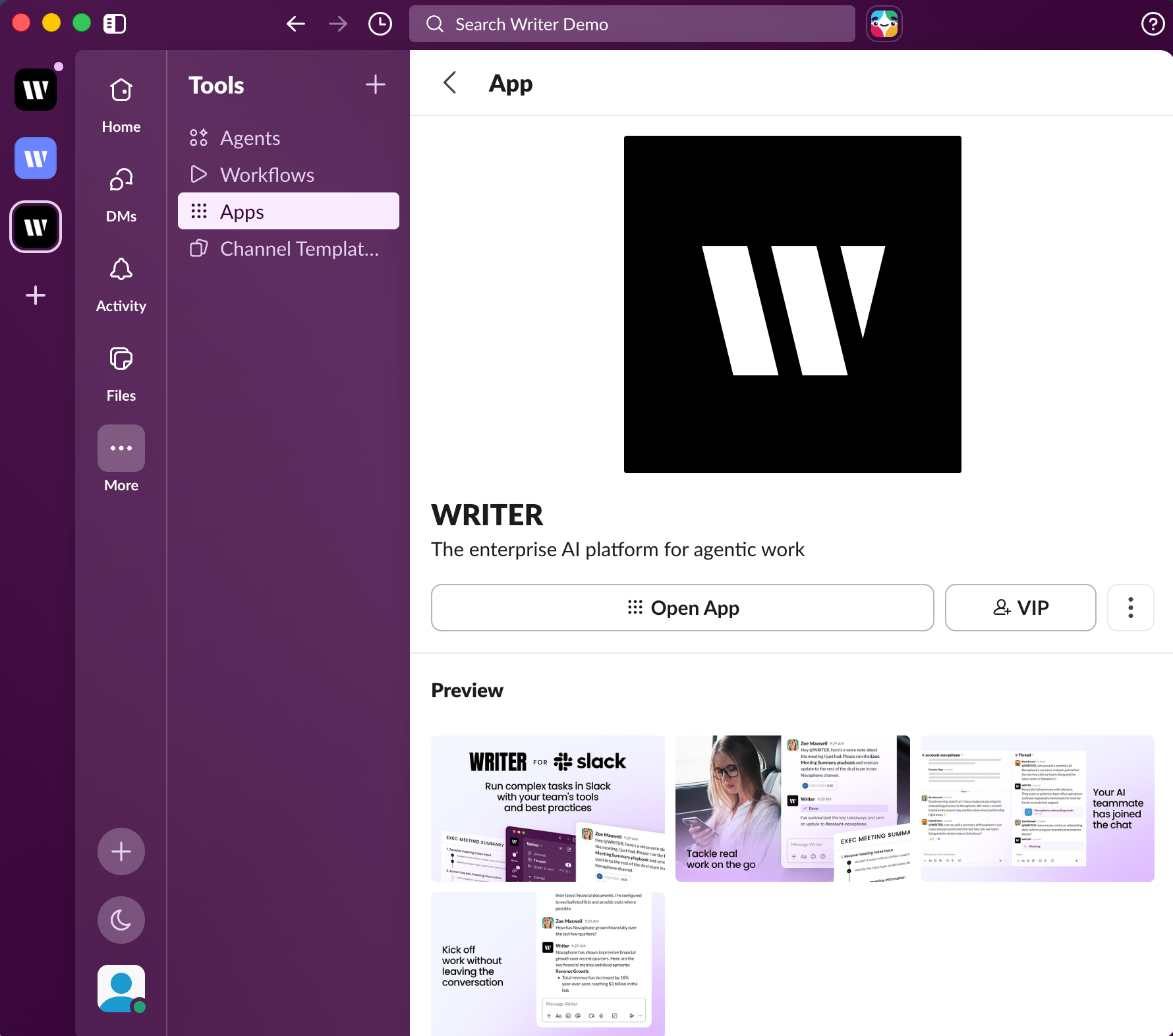
In Slack, select Tools from the left navigation, then select Apps from the submenu. Search for WRITER and select it from the results and select Open App.
Step 2: Connect your WRITER account
The WRITER app will appear in your Slack left sidebar. Select it to open a direct message with the agent.
Select Log in to connect your WRITER account.
Complete the authentication flow in the browser window that opens.
Step 3: Select your WRITER team
After logging in, a team picker will appear so you can select the right team.
Once you have made your selections, your WRITER for Slack setup is complete and you are ready to use WRITER Agent from Slack.
Slash commands
Once connected, use the following slash commands in your Slack DM with WRITER:
• /writer help — Show available commands
• /writer login — Authenticate with your WRITER account.
• /writer logout — Log out from your WRITER account.
• /writer resume — Continue a previous WRITER session.
• /writer team — Switch to a different WRITER Team.
• /writer playbooks — Run a playbook
Note: Inactive slash commands need a moment to warm up. If you receive a "trouble connecting" error, wait three seconds and select Submit again.
Starting a new session
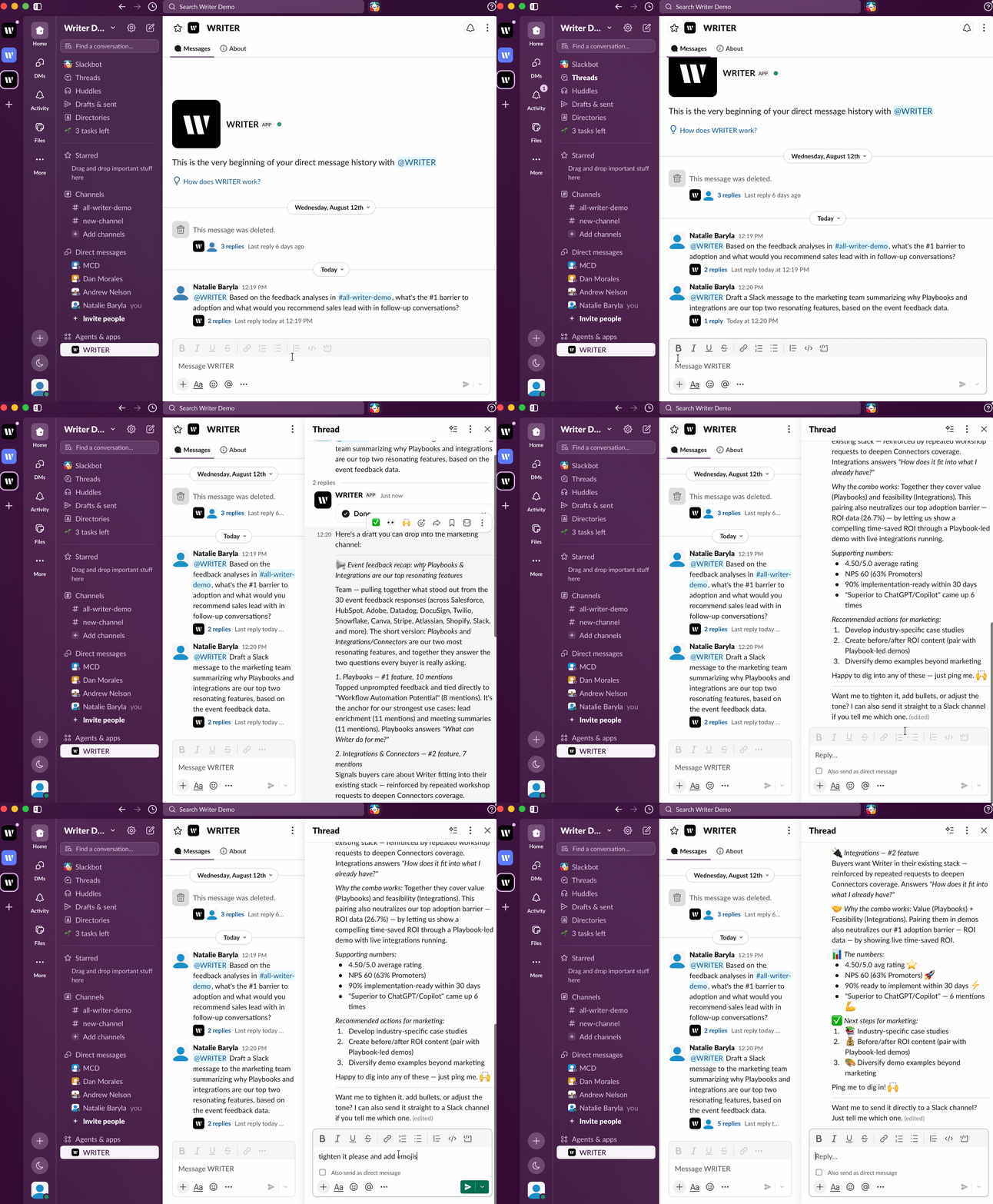
Open a direct message with WRITER and type your message or instruction. WRITER Agent will process your request and respond directly in Slack.
@mentioning WRITER Agent in a channel
You can bring WRITER Agent into any Slack channel or thread by @mentioning it.
Important: Before @mentioning WRITER Agent in a channel, invite the app into the channel. Type /invite @WRITER or use the channel member settings to add it. The app does not auto-join channels. If you @mention the agent and nothing happens, the app has not been invited to the channel.
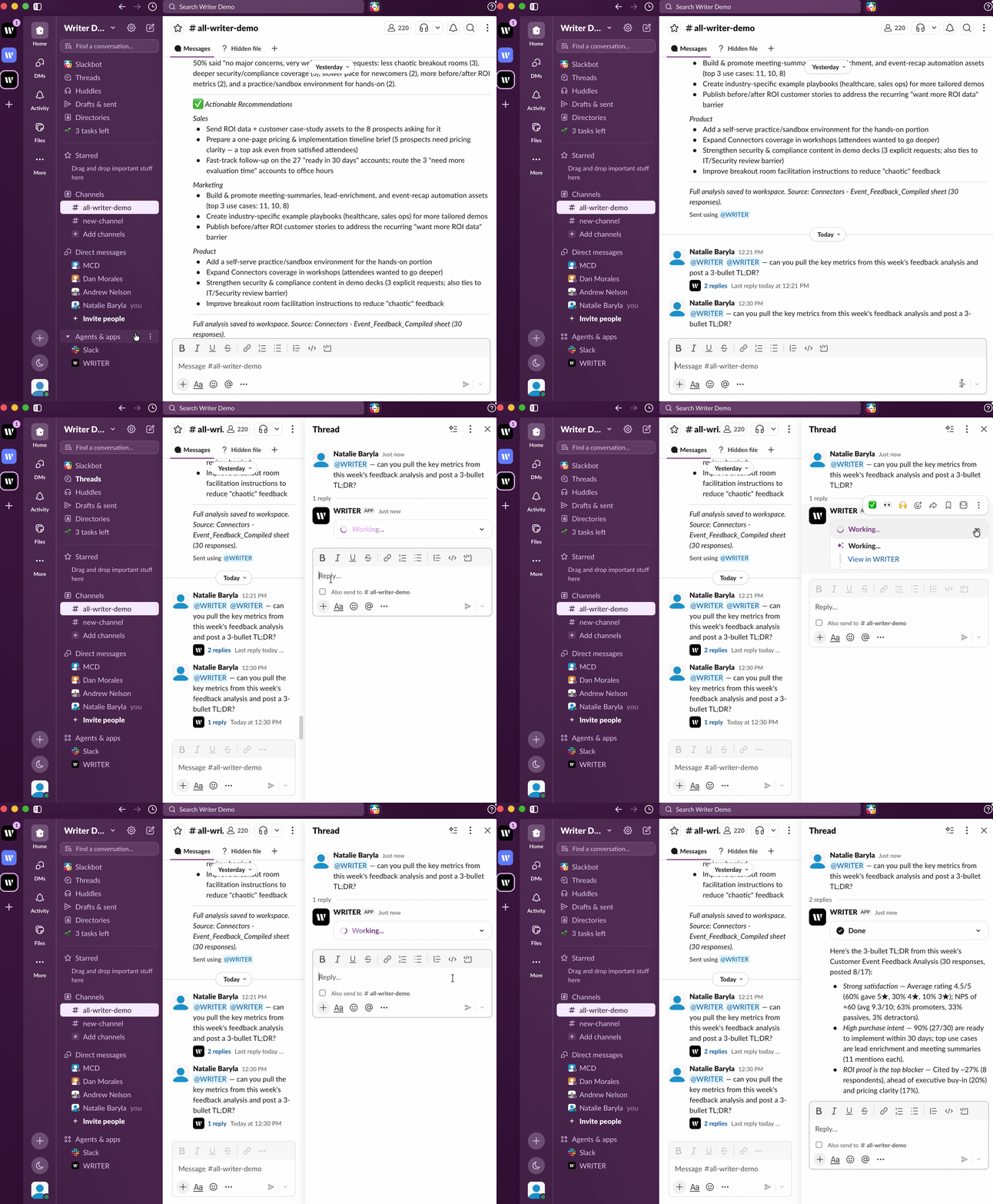
In the channel where you want to use WRITER Agent, type /invite @WRITER.
Confirm the app appears in the channel member list.
In any Slack channel, thread, or DM, type @WRITER followed by your message or instruction.
WRITER Agent will read the context and respond directly in Slack.
Using WRITER in group DMs
WRITER can be added to group DMs, but Slack does not allow bots to be added to existing group DMs after the fact. To use WRITER in a group DM, start a new conversation that includes WRITER as a member from the outset. Once the agent is in the group DM, it will persist for the remainder of that conversation.
Important: You cannot add WRITER to an existing group DM. Create a new group DM that includes WRITER from the start.
Running playbooks from Slack
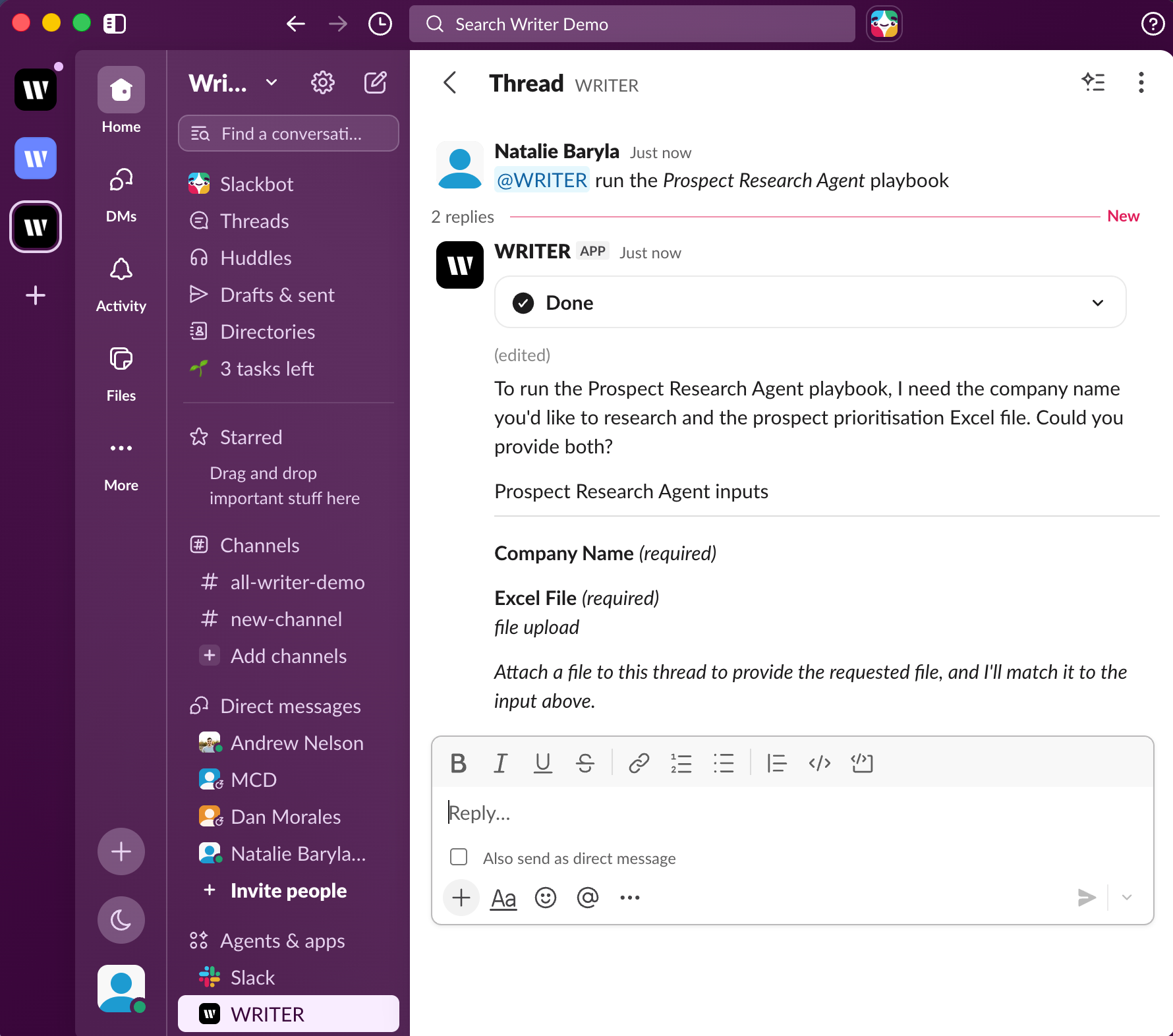
In your WRITER DM, type /writer playbooks.
A dropdown of your existing playbooks will appear.
Select the playbook you want to run.
WRITER Agent will execute the playbook and report results directly in Slack.
Important: Playbooks must be published (not saved as drafts) and shared with your account or your team to appear in the playbook picker. Draft or unshared playbooks will not surface in Slack.
Resuming a session from Slack
If you start a session in the WRITER web app and want to continue it from Slack, type /writer resume to open a dropdown of your recent sessions. Select a session to pick up where you left off without starting over.
Using WRITER on Slack mobile apps
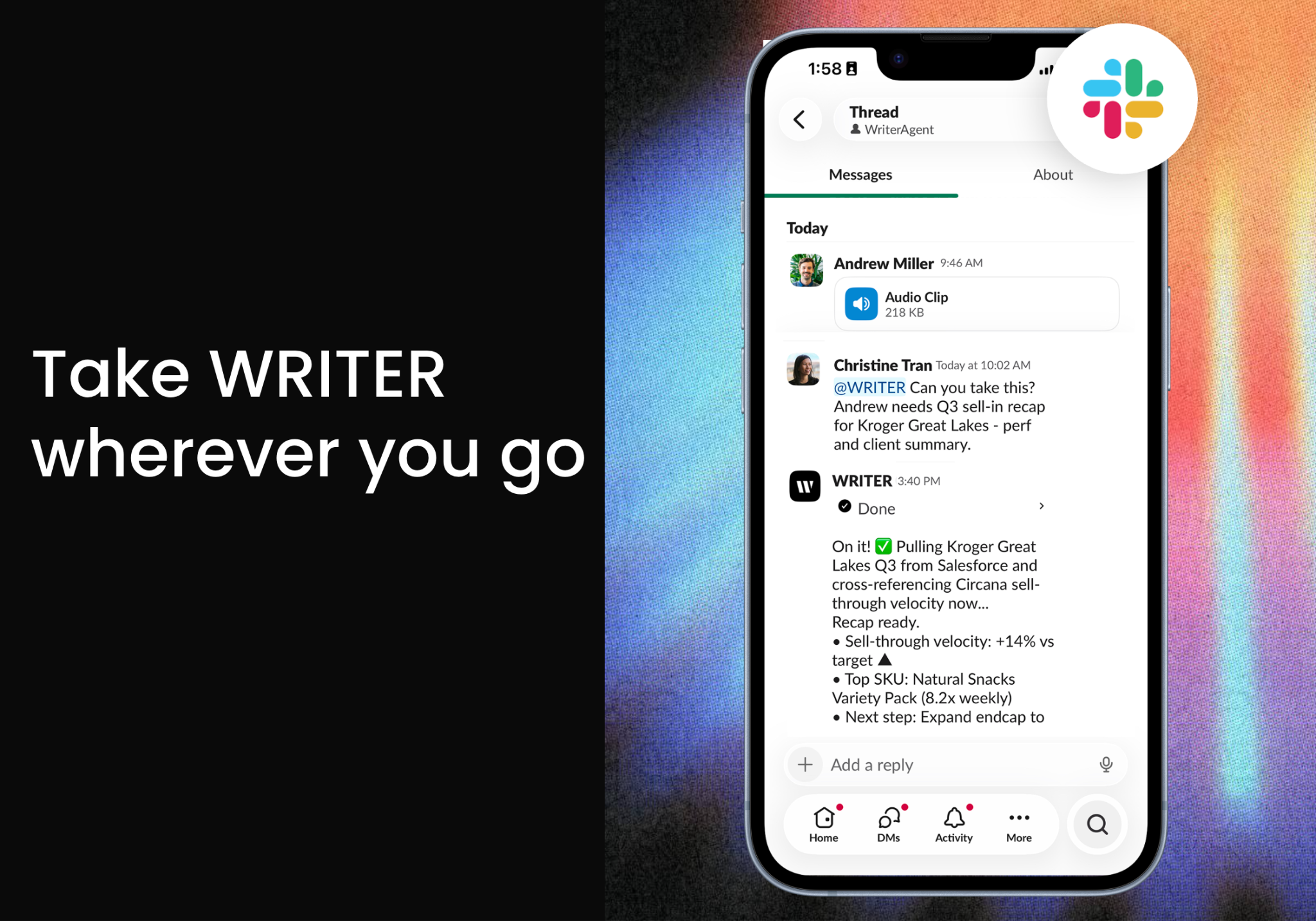
Every function described in this article can be completed on mobile devices via the Slack app.
Working with files
You can share files directly with WRITER Agent in your Slack DM or any channel where the app is installed. WRITER Agent can parse and work with both business documents and media files, making it useful for extracting information, summarizing content, and transcribing audio — all without leaving Slack.
Supported file types
WRITER Agent supports the following file categories:
Business documents: PDF, DOCX, XLSX, PPTX, CSV, TXT, and other common office formats
Images: PNG, JPEG, GIF, WebP
Audio: MP3, WAV, M4A, OGG, FLAC
Video: MP4, MOV, WebM
Sharing a file with WRITER Agent
Open your direct message with WRITER.
Select the Attach (paperclip) icon in the message input area, or drag and drop the file into the message field.
Choose the file you want to share from your device.
Add a message with your instruction, such as "Summarize this report" or "Extract the key metrics from this spreadsheet."
Select Send.
WRITER Agent processes the file and responds directly in Slack.
Tip: Include a specific instruction with your file so WRITER Agent knows what you need. For example, "Extract the action items from this meeting notes PDF" produces more useful output than attaching the file alone.
Working with media files
WRITER Agent can transcribe audio and video files, extract text from images, and describe visual content. This makes it useful for processing recorded meetings, voice notes, screenshots, and photos.
Example prompts:
"Transcribe this audio recording and summarize the key points."
"Extract the text from this screenshot."
"Describe what's shown in this image and identify any issues."
Capturing and sharing files on mobile
On the Slack mobile app, you can capture content directly and share it with WRITER Agent in a single flow:
Snap a photo: Use the camera to photograph a whiteboard, printed document, receipt, or any physical material, then send it to WRITER Agent for text extraction, summarization, or analysis.
Record a voice note: Record an audio clip and send it to WRITER Agent for transcription and processing.
Share from your camera roll: Attach existing photos or videos from your device.
Tip: On mobile, snapping a photo of a whiteboard or printed document and asking WRITER Agent to extract and organize the text is a quick way to digitize physical content.
Troubleshooting
The bot isn't responding to my @mention in a channel
WRITER Agent does not auto-join channels. Invite the app into the channel before @mentioning it.
In the channel where you want to use WRITER Agent, type /invite @WRITER.
Confirm the app appears in the channel member list.
Type your @WRITER message again.
My playbooks aren't showing in the playbook picker
Playbooks must be published and shared with your account or team to appear in Slack.
Open the WRITER web app and confirm the playbook is published, not saved as a draft.
Confirm the playbook is shared with you directly or via your team.
If the playbook was recently created or updated, save or republish it in the WRITER web app.
Return to Slack and run /writer playbooks again.
I'm getting a "trouble connecting" error when using a slash command
Inactive slash commands need a moment to warm up. Wait three seconds and select Submit again. This is typically a one-time behavior per session.
I'm getting a "something went wrong" error
This error originates from the core WRITER Agent side and may occur intermittently, particularly during release periods. Retry your request after a short wait. If the error persists, report it through the /logfeedback command.
The login button isn't working or I see a spinning wheel
Type /writer logout to disconnect your current session.
Type /writer login to start a fresh authentication.
Select the Log in button immediately after it appears.
Interacting with an existing thread causes a timeout
Calling an existing thread via @mention in Slack can cause timeouts or disrupt the original session. For complex thread-based workflows, use the WRITER web app.
FAQs
Can I use WRITER in a group DM?
Yes, but Slack does not allow bots to be added to existing group DMs. To use WRITER in a group DM, start a new conversation that includes WRITER as a member from the outset. Once the agent is in the group DM, it will persist for the remainder of that conversation.
Can I trigger a playbook directly from within a Slack thread?
No. Triggering a playbook directly from within an existing Slack thread is not yet supported. Currently, you can run playbooks from the /writer playbooks slash command in your WRITER DM.
Do I need the Slack connector to use WRITER for Slack?
No. Basic WRITER for Slack functionality — DMing the bot, using it in threads, and running playbooks — works without the Slack connector. The connector is required for reading private channels, DMs, and advanced functions such as creating canvases. Once connected on the WRITER web app, the connector works in Channels automatically.
How do I switch my connected WRITER team without logging out?
Type /writer team in your WRITER DM. A team picker will appear so you can select a different team. Your WRITER account stays connected throughout the switch.
How do I disconnect my WRITER account from Slack?
Type /writer logout in your WRITER DM. This disconnects your WRITER account from Slack. To reconnect, type /writer login and complete the authentication flow again.