How to use the Salesforce connector
Last updated: August 11, 2026
The Salesforce connector lets WRITER Agent securely access your Salesforce data and pull live information directly into your sessions. This article covers how to set up the connector, manage permissions, and use it for common Sales and Marketing workflows. Org admins, IT admins, team admins, and team members can follow the steps below, though admin actions are required before individual users can connect.
Before you begin
The Salesforce connector requires setup at two levels:
Org admin enables the connector. An org admin must enable the Salesforce connector before anyone in the organization can use it. Admins can learn more here.
Each user authenticates their own Salesforce account. After the admin enables the connector, each user connects their individual Salesforce account. WRITER Agent acts on behalf of the authenticated user and operates within the permissions that user holds in Salesforce.
Important: If the Salesforce connector is not visible in your connector library, contact your org admin to confirm it has been enabled for your team.
Connect your Salesforce account
After your org admin enables the connector, connect your own Salesforce account:
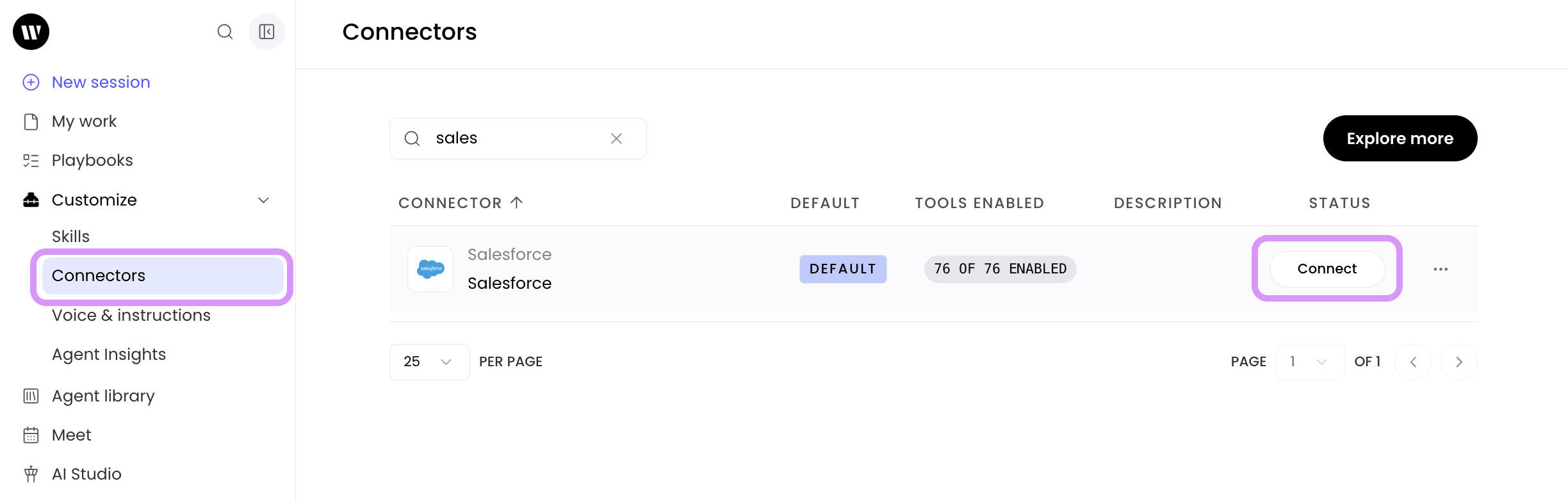
Navigate to Customize > Connectors. Search for Salesforce from the list of available connectors and select Connect. Follow the authentication prompts to sign in to your Salesforce account and grant WRITER Agent access.
Note: WRITER securely saves your connection for future sessions and playbooks. You do not need to authenticate each time you start a new session.
Managing connector permissions
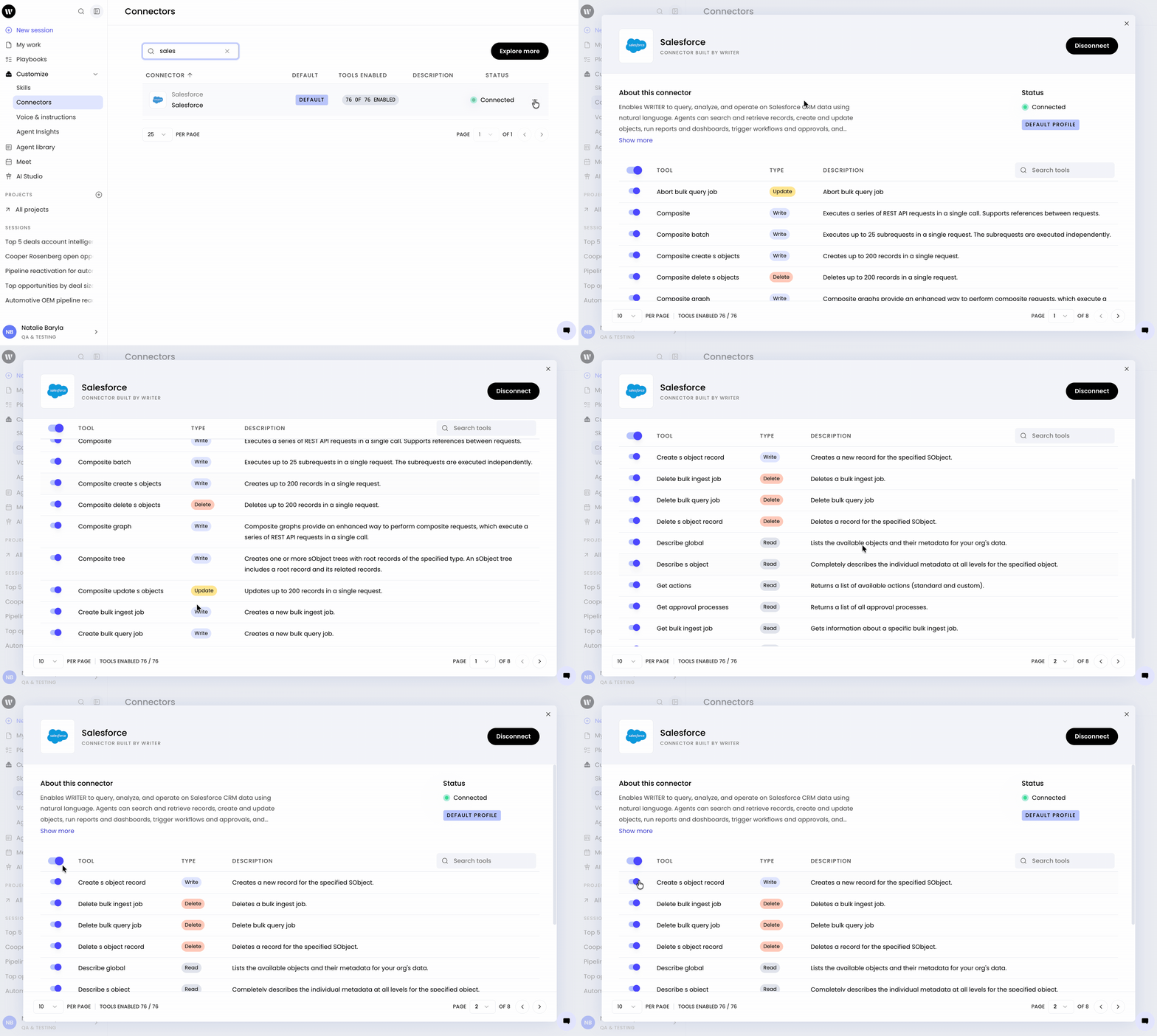
Each connector includes different tools that control what WRITER Agent can do. Select the Salesforce connector to view the available actions enabled for your organization. The Salesforce connector supports the following capabilities:
Read — Enables WRITER Agent to pull data from Salesforce.
Write — Allows WRITER Agent to perform actions or create items in Salesforce.
Delete — Grants permission to remove items within Salesforce.
Your org admin can enable or disable specific tools. If a capability is not working as expected, confirm with your admin that the required tool has been enabled.
To fine-tune permissions after linking:
Navigate to Customize > Connectors.
Select Salesforce.
Use the toggle next to each tool to enable or disable specific actions for WRITER Agent.
Tip: Disable the Write and Delete toggles if you want WRITER Agent to analyze Salesforce data without making any changes to your records.
Using the Salesforce connector in WRITER Agent
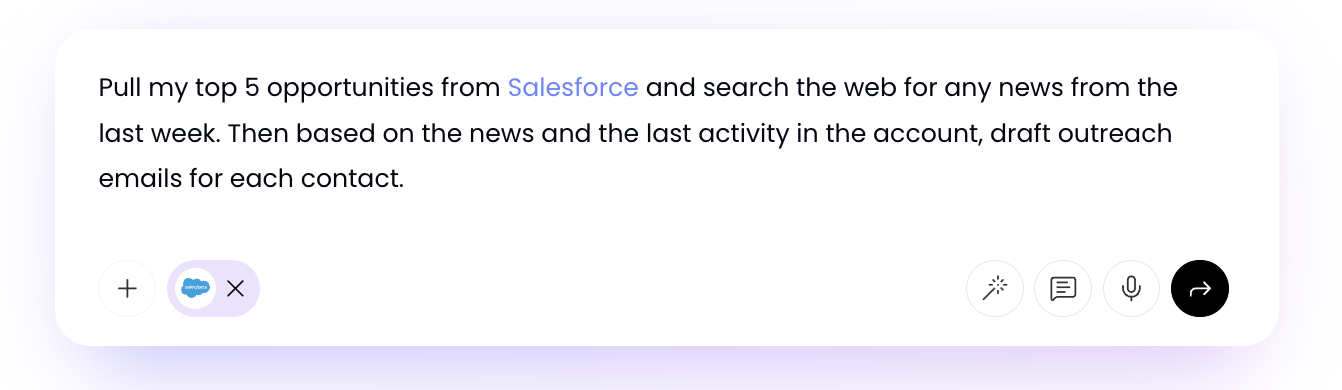
Once you have authenticated, you can reference Salesforce directly in your prompt or select the plus menu in the prompt box to ask WRITER Agent to pull information from Salesforce.
The connector pulls real-time data directly from your Salesforce instance. There are no stale exports or spreadsheets to maintain.
To verify where the information originates, open the sources panel at any point during your session. The sources panel displays the Salesforce records and fields that WRITER Agent referenced.
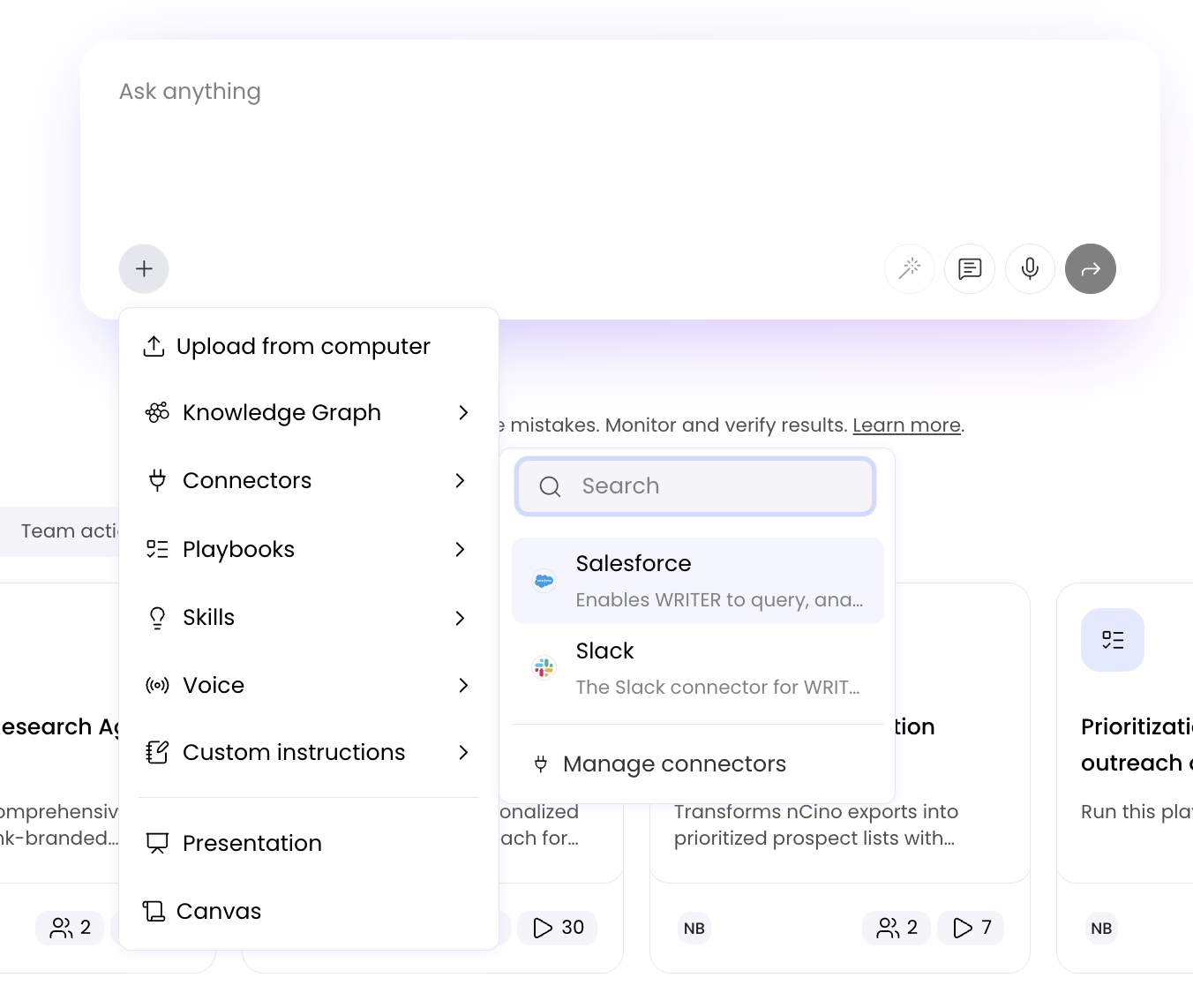
Alternatively, you can select Salesforce from the Connectors section of the + menu in the prompt.
Note: WRITER Agent plans the work: it queries Salesforce, pulls the relevant records, and synthesizes the results. The connector handles data retrieval; WRITER Agent handles analysis.
Use case examples for Sales teams
Identifying and reactivating dormant pipeline accounts
Use the Salesforce connector to surface accounts that have gone quiet and build a reactivation plan in minutes.
Open a new WRITER Agent session.
Enter the following prompt:
Look at our open pipeline in Salesforce. Identify every account that's gone quiet — no activity logged, stuck in an early stage — and recommend a reactivation campaign for each one. Include the audience, the angle, and the suggested next step for each account for the top 5 accounts by deal size.
Review the recommendations in the output.
Refine the results with a follow-up message, such as:
Draft the outreach email for the top account.
Tip: Treat your first result as a starting point. Iterate with follow-up messages to adjust the angle for a specific account, add a target contact, or request a drafted outreach email.
Generating Monday morning account briefings
Create a concise briefing for each open opportunity owned by a specific rep.
Open a new WRITER Agent session.
Enter the following prompt, substituting your own rep name:
It's Monday morning. For each open opportunity that Cooper Rosenberg owns, give me a one-paragraph account brief with the deal status, the last thing that happened, and the single most important thing Cooper should do this week for each account.
Review the briefs in the output.
Open the sources panel to confirm that the data originates from your live Salesforce records.
Building an executive-ready QBR deck
Combine Salesforce data with context from Slack to produce a pipeline review deck.
Open a new WRITER Agent session.
Enter the following prompt:
Using Salesforce and information from relevant Slack channels: Build a QBR deck for our sales team's FY26 Q4 pipeline review. Slides should cover: overall pipeline health, performance by rep, top 5 at-risk deals with recommended actions, and expansion opportunities we haven't activated yet. Make it executive-ready — tight narrative, not a data dump.
Review the generated deck.
Open the sources panel to verify references from both Salesforce and Slack channels side by side.
Note: The connectors work together. Salesforce supplies the structured data — pipeline totals, stage distribution, and win rates. Slack supplies the narrative context — what is happening on the deals that matter. WRITER Agent synthesizes both into a coherent story.
Tracking pipeline by stage
Monitor the health of your pipeline and identify deals that need attention.
Open a new WRITER Agent session.
Enter a prompt such as:
Pull our current pipeline from Salesforce and break it down by stage. Show the total value and deal count in each stage, and flag any deals that have been in the same stage for more than 30 days.
Review the breakdown and use follow-up messages to request recommended actions for flagged deals.
Use case examples for Marketing teams
Campaign attribution analysis
Connect Salesforce to analyze how campaigns influence pipeline and revenue.
Open a new WRITER Agent session.
Enter a prompt such as:
Pull our open and won opportunities from Salesforce and attribute them to the campaigns listed in the Campaign Influence object. Summarize which campaigns are driving the most pipeline value this quarter.
Review the attribution summary.
Use a follow-up message to request a formatted report or presentation of the results.
Customer segmentation
Segment your customer base using Salesforce account and contact data.
Open a new WRITER Agent session.
Enter a prompt such as:
Pull all accounts from Salesforce and segment them by industry, annual revenue, and lifecycle stage. Identify the top three segments by total open pipeline value and recommend a tailored messaging angle for each.
Review the segmentation output.
Use a follow-up message to draft target audience descriptions or campaign briefs for each segment.
Lead management and routing review
Review lead status distribution and identify leads that need follow-up.
Open a new WRITER Agent session.
Enter a prompt such as:
Pull all leads from Salesforce with a status of Open or Working. Group them by lead source and identify any leads that have had no activity logged in the last 14 days. Recommend a follow-up action for each group.
Review the grouped output and follow up to draft outreach sequences for each lead source.
Tip: Combine the Salesforce connector with the Slack connector to add narrative context. For example, ask WRITER Agent to pull lead data from Salesforce and summarize recent Slack discussions about those accounts in a single brief.
Automating Salesforce workflows with playbooks
To make any Salesforce workflow repeatable, save your session as a playbook so your team can run it on demand or on a schedule.
In your completed session, ask WRITER Agent to turn the session into a playbook.
Review and save the playbook.
To run the playbook automatically, create an autostart trigger:
Open the playbook editor.
Select Create an autostart trigger and choose Schedule based.
Set the schedule, such as every Monday at 8:00 AM.
To deliver the output automatically, add a final step to the playbook, such as:
Once completed, send the output to me via Slack.
Tip: Schedule the Monday morning account briefing playbook to run automatically and deliver the brief to your team's Slack channel, so the briefing is ready before the work week begins.
Troubleshooting
WRITER Agent can't connect to Salesforce
If WRITER Agent fails to connect to Salesforce, re-authenticate the connector:
Navigate to Manage WRITER Agent > Connectors.
Find the Salesforce connector.
Select REVOKE ACCESS.
Warning: Do not select Disconnect. Revoking access and reconnecting is required for the re-authentication to work correctly. Selecting Disconnect will not resolve the issue and you will need to reconnect and still revoke access.
Select Connect to open the OAuth flow and authenticate into Salesforce again.
Return to the session where WRITER Agent encountered the error and ask WRITER Agent to try again.
A specific tool is not working
If WRITER Agent cannot read, write, or delete data in Salesforce, confirm with your org admin that the required tool has been enabled for the Salesforce connector. Admins can enable or disable specific tools, and a disabled tool will prevent the corresponding action.
Salesforce data is not appearing in results
Open the sources panel to verify that WRITER Agent is referencing Salesforce records. If no Salesforce sources appear, confirm that:
Your Salesforce account is authenticated.
The Read tool is enabled for the connector.
Your Salesforce user has access to the records you are asking about.
If the issue persists, contact your admin.
FAQs
What data can the Salesforce connector access?
WRITER Agent accesses data based on the permissions of the authenticated Salesforce user and the tools enabled for the connector. The Read tool lets WRITER Agent pull data, the Write tool lets it create or update items, and the Delete tool lets it remove items. Your org admin controls which tools are enabled.
Do I need to authenticate every time I use the connector?
No. Once you authenticate your Salesforce account, WRITER securely saves the connection for future sessions and playbooks. You only need to re-authenticate if the connection fails or if you revoke access.
Can I limit WRITER Agent to read-only access?
Yes. In the connector settings, disable the Write and Delete toggles so WRITER Agent can analyze Salesforce data without making changes to your records.
Can the Salesforce connector work with other connectors?
Yes. The Salesforce connector can be used alongside other connectors, such as Slack, in the same session. WRITER Agent can pull structured data from Salesforce and narrative context from Slack, then synthesize both into a single output.
How do I make a Salesforce workflow repeatable?
Save your session as a playbook. You can then run the playbook on demand or create a schedule-based autostart trigger so it runs automatically on a recurring schedule. Add a final step to deliver the output to a channel such as Slack.
Who can set up the Salesforce connector?
An org admin must first enable the connector for the organization. After that, each user authenticates their own Salesforce account. WRITER Agent operates on behalf of the authenticated user, within the permissions that user holds in Salesforce.
What permissions does the Salesforce connector require?
The permission scope varies based on the capabilities the connector supports. WRITER requests only the permissions required for the connector's enabled tools. Review the permissions listed on the connector's setup screen before authorizing access.