Understanding WRITER Agent Memory
Last updated: November 19, 2026
WRITER Agent's memory system learns your preferences, working style, and the context of your work from your sessions, then applies that context to future conversations so you don't have to re-explain yourself.
Any WRITER user can access Agent memory, which can be enabled or disabled by org admins and IT admins. Learn more here: 📄 How to manage Agent Memory
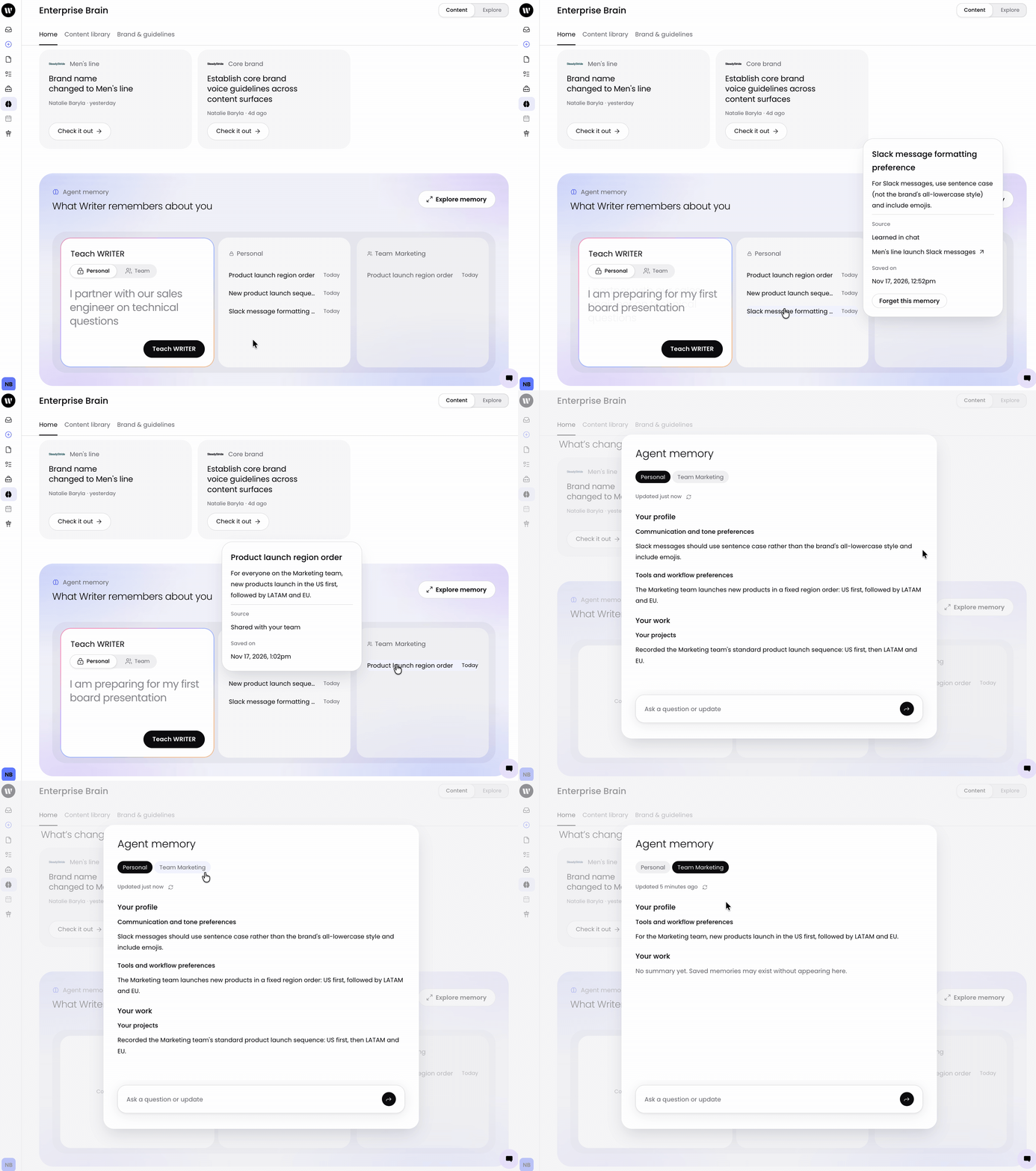
What WRITER Agent Memory captures
WRITER Agent memory captures context from how you work and turns it into reusable knowledge. The context it learns falls into a few categories:
Preferences and working style — how you structure outputs, the tone you prefer, and the standing instructions you'd otherwise type at the start of every prompt.
Tools and workflow — the tools, workflows, and processes you rely on.
Sources and research standards — the sources you trust and the standards you expect WRITER Agent to follow.
Focus and interests — the projects and topics you return to.
Agent preferences — how you like WRITER Agent to behave, such as formatting choices or response length.
Over time, WRITER Agent gets calibrated to the way you work without you having to re-explain yourself. The result is faster first drafts, lighter reviews, and outputs that feel closer to work your team would actually ship.
What is learned from your sessions
Memory capture happens in the background as you interact with WRITER Agent. When you send a message, WRITER Agent stores relevant context from that session. The next time you ask WRITER Agent to do something, it looks for context from your past interactions to help inform its answers and decisions.
If you're ever working on sensitive content or brainstorming ideas you don't want WRITER Agent to capture, you can enable incognito mode. This keeps you in control of what context WRITER Agent captures for future use.
Shared context at the team level, such as facts, decisions, and patterns that define how the team works, is also included in Agent memory. You can request that one of your personal memories be promoted to a team memory, and a team admin reviews and approves or denies the request.
Managing your memories in Enterprise Brain
Memory managemen lives on the home screen of Enterprise Brain. From the main navigation on the left, select Enterprise Brain to open the home page, where you can see the memories WRITER Agent uses and edit them directly.
Reviewing your memories
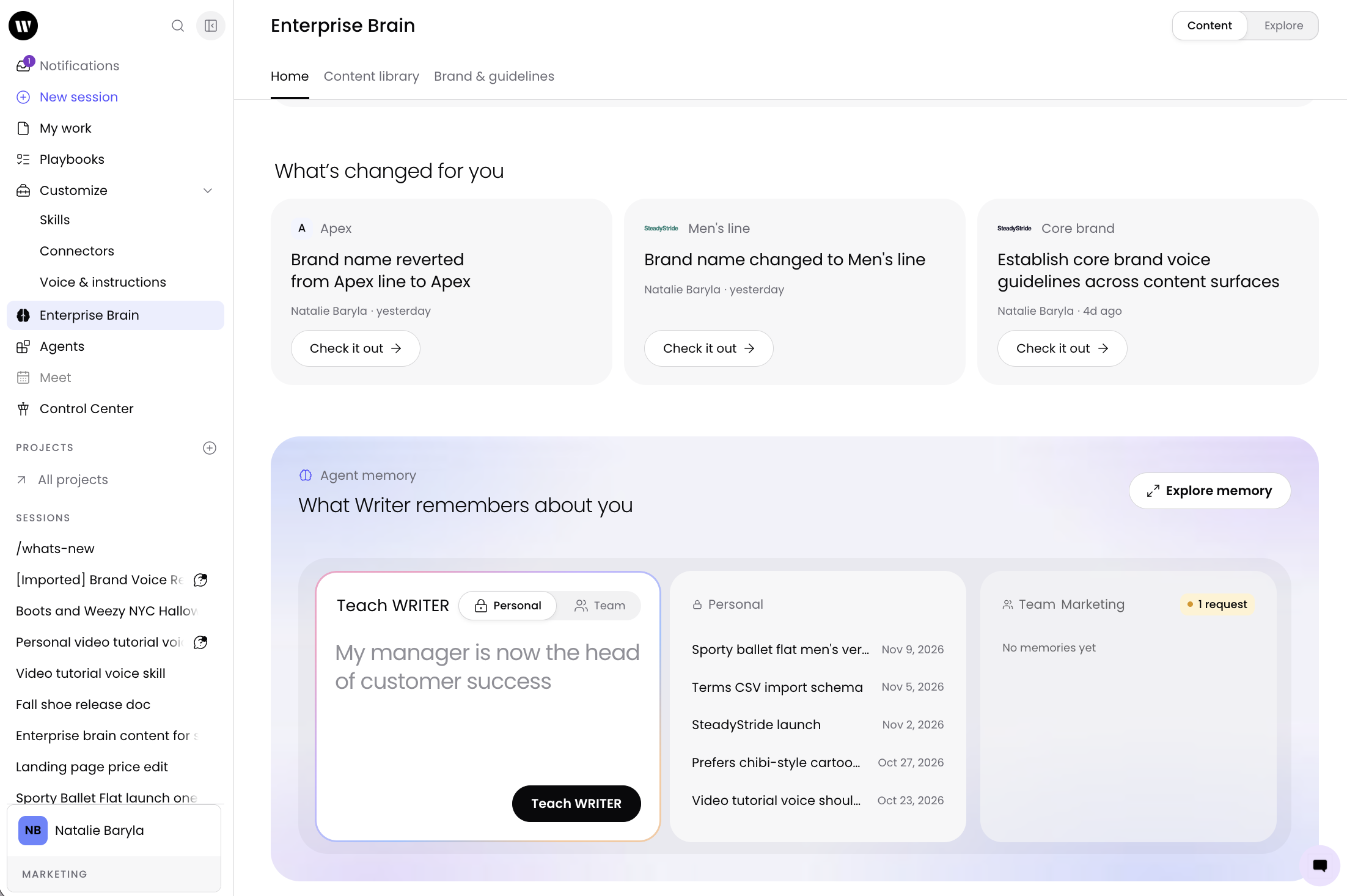
The Agent memory section on the Enterprise Brain home page shows what WRITER Agent remembers about you, organized into Personal and Team Documentation cards.
From the main navigation on the left, select Enterprise Brain.
Scroll to the Agent memory section, labeled "What Writer remembers about you."
Review the memories listed under the Personal and Team Documentation cards.
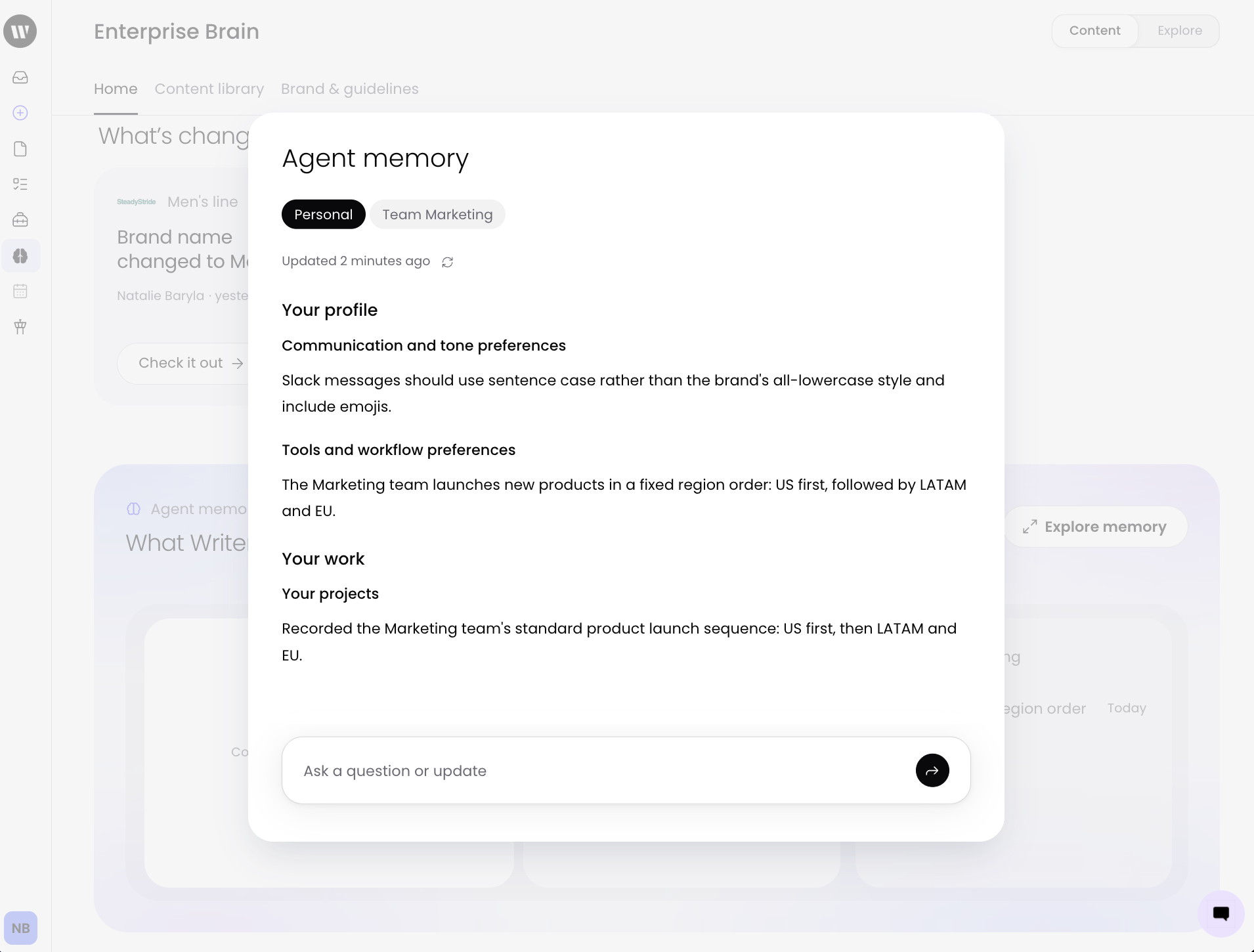
To open the full memory view, select Explore memory. The Agent memory panel opens with tabs for Personal, Team Documentation, and Requests.
Teaching WRITER Agent something new
Use the Teach WRITER box on the Enterprise Brain home page to tell WRITER Agent something to remember. You can also update your memories this way.
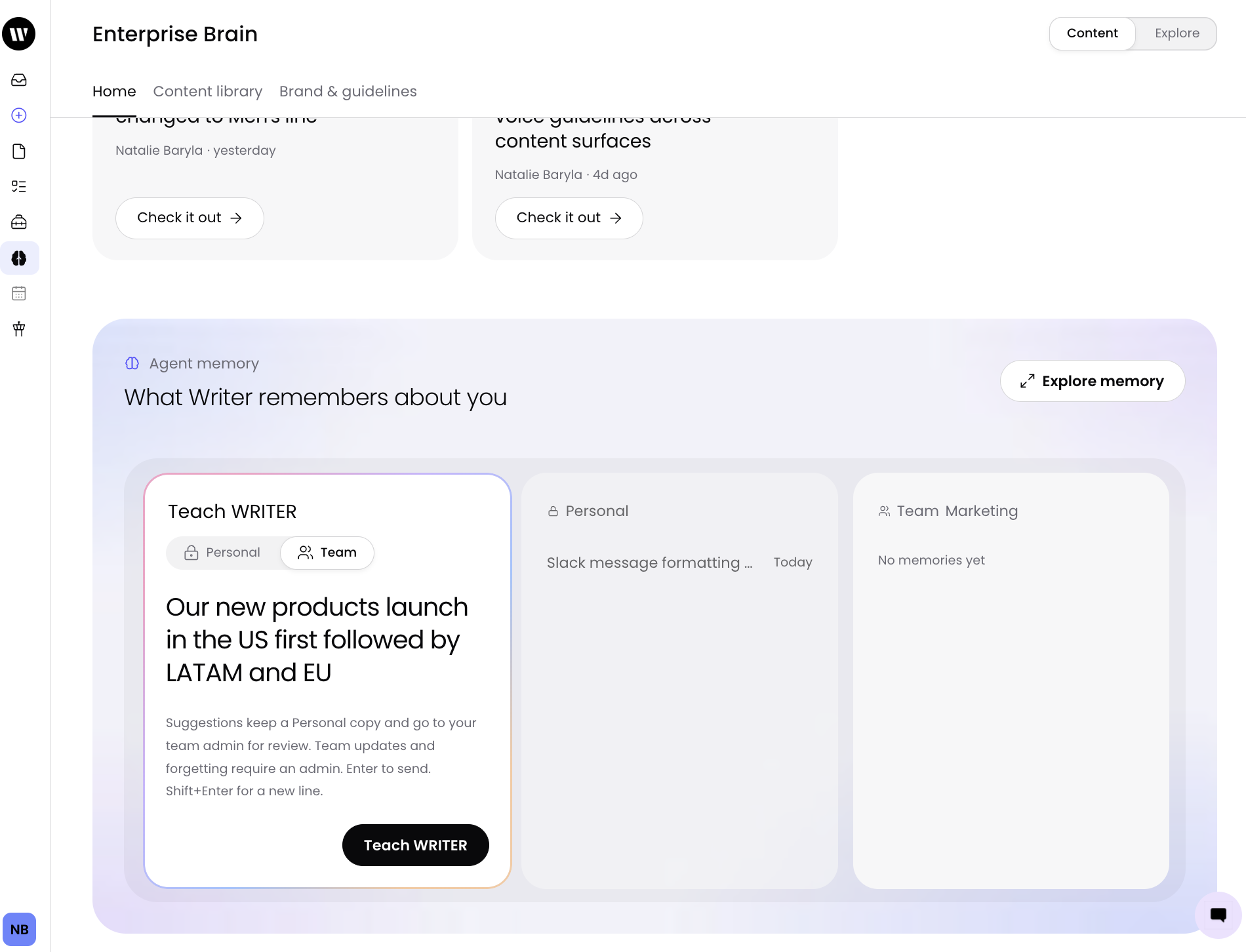
From the main navigation on the left, select Enterprise Brain.
In the Agent memory section, locate the Teach WRITER box.
Select the scope for the memory: Personal or Team.
Enter what you want WRITER Agent to remember in the text box.
Select Teach WRITER.
WRITER Agent saves the memory under the scope you selected.
Note: Personal memories are visible only to you. Team memories are shared with your team.
Editing or deleting memories
You can edit or remove memories directly from the Enterprise Brain home page.
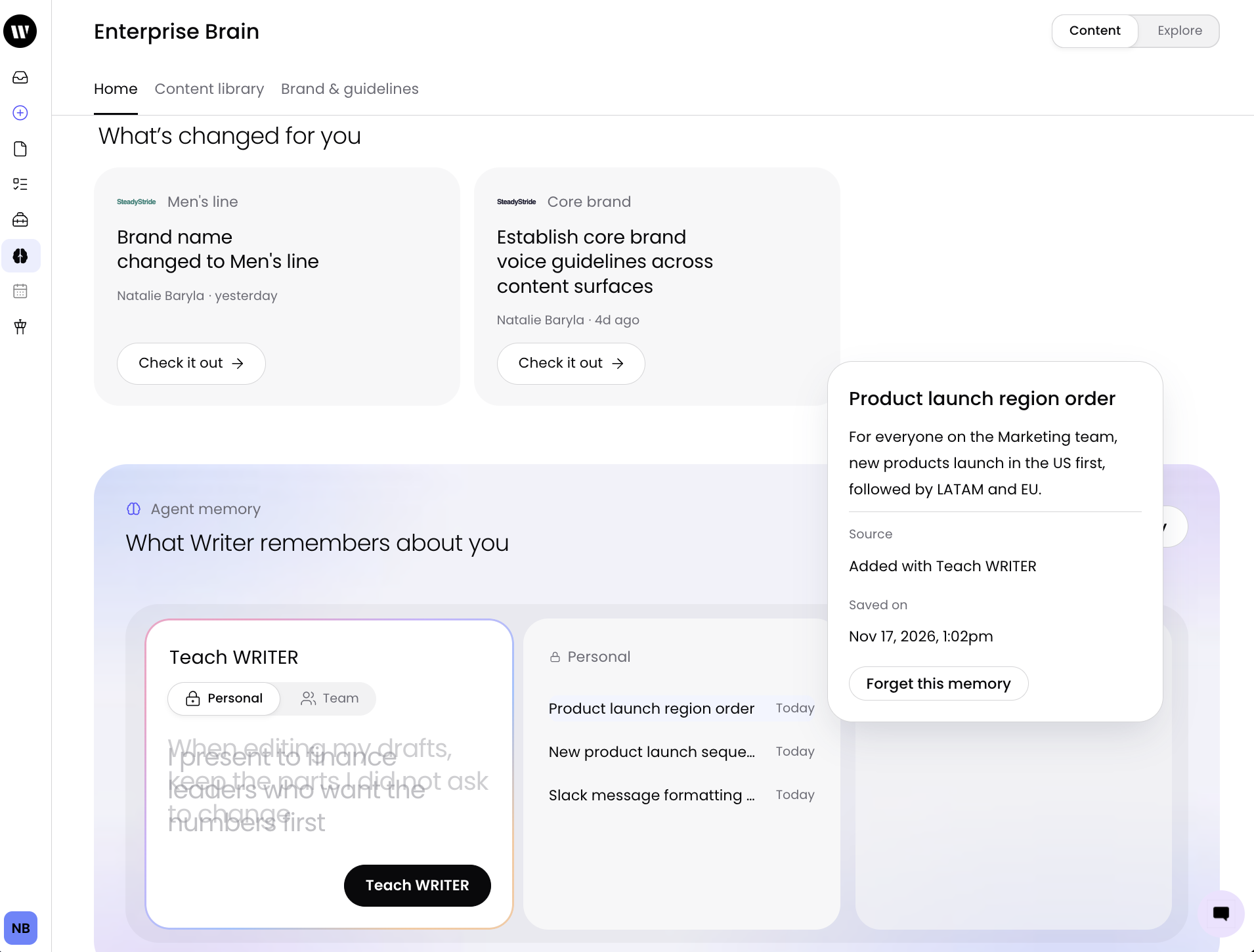
Hover over a memory and select Forget this memory to remove it.
To edit a memory select Explore memory.
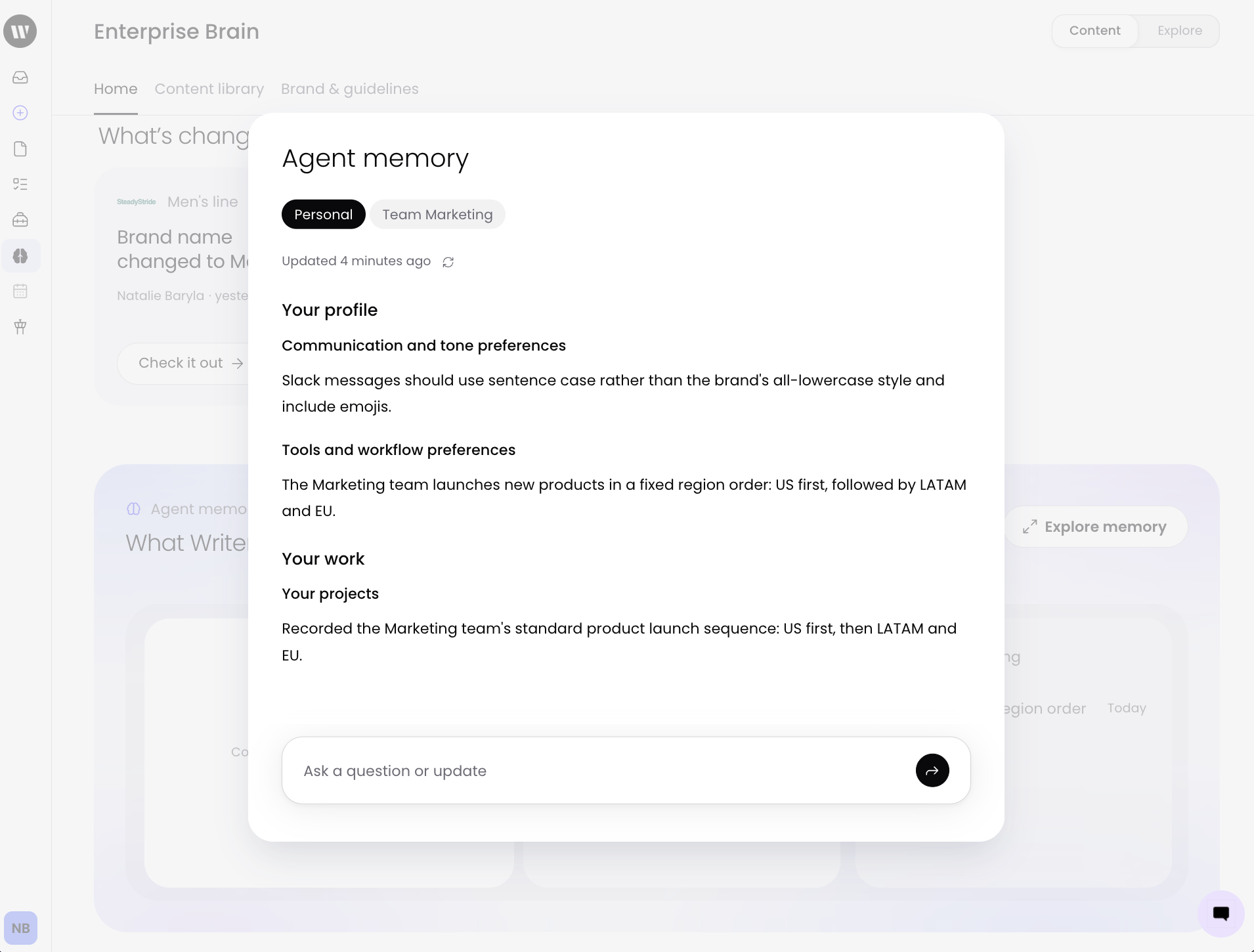
Use the chat to update the memories WRITER Agent has saved for you.
Requesting a memory promotion to team level
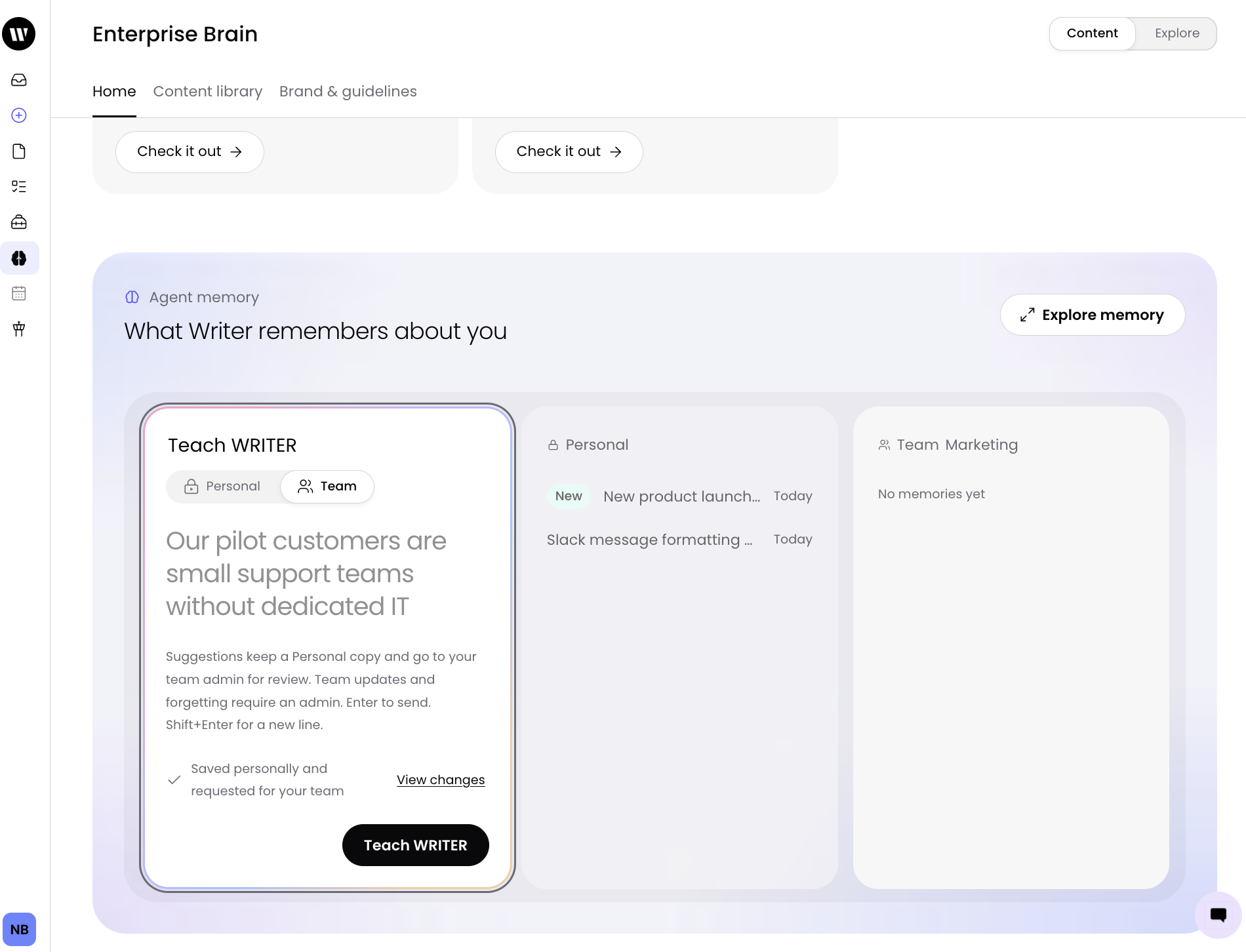
You can suggest that one of your personal memories be promoted to a team memory. Team admins review and approve or deny these requests.
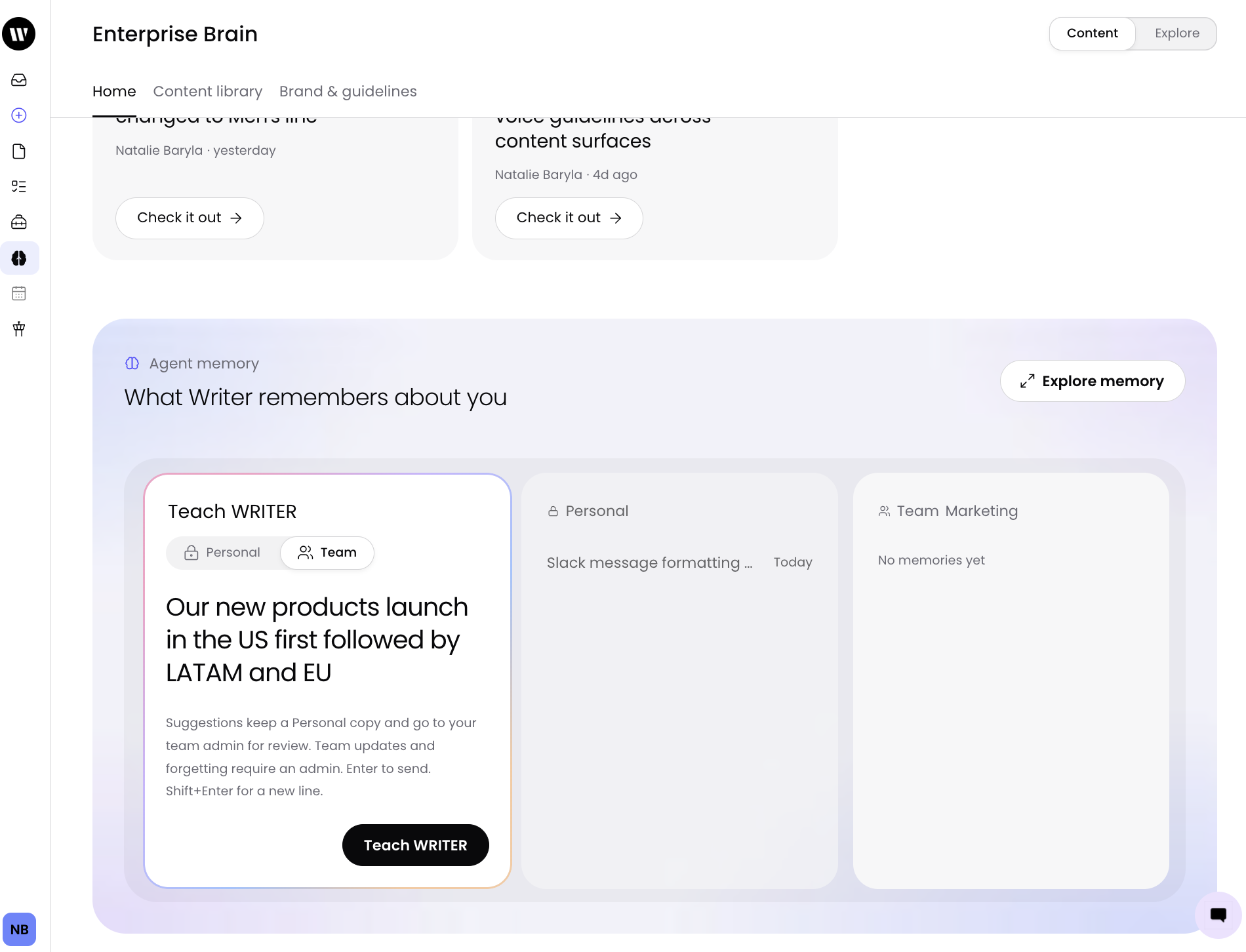
Select Enterprise Brain from the main navigation on the left and locate the team memory section. Type the memory you want saved as a team preference and then select Teach WRITER.
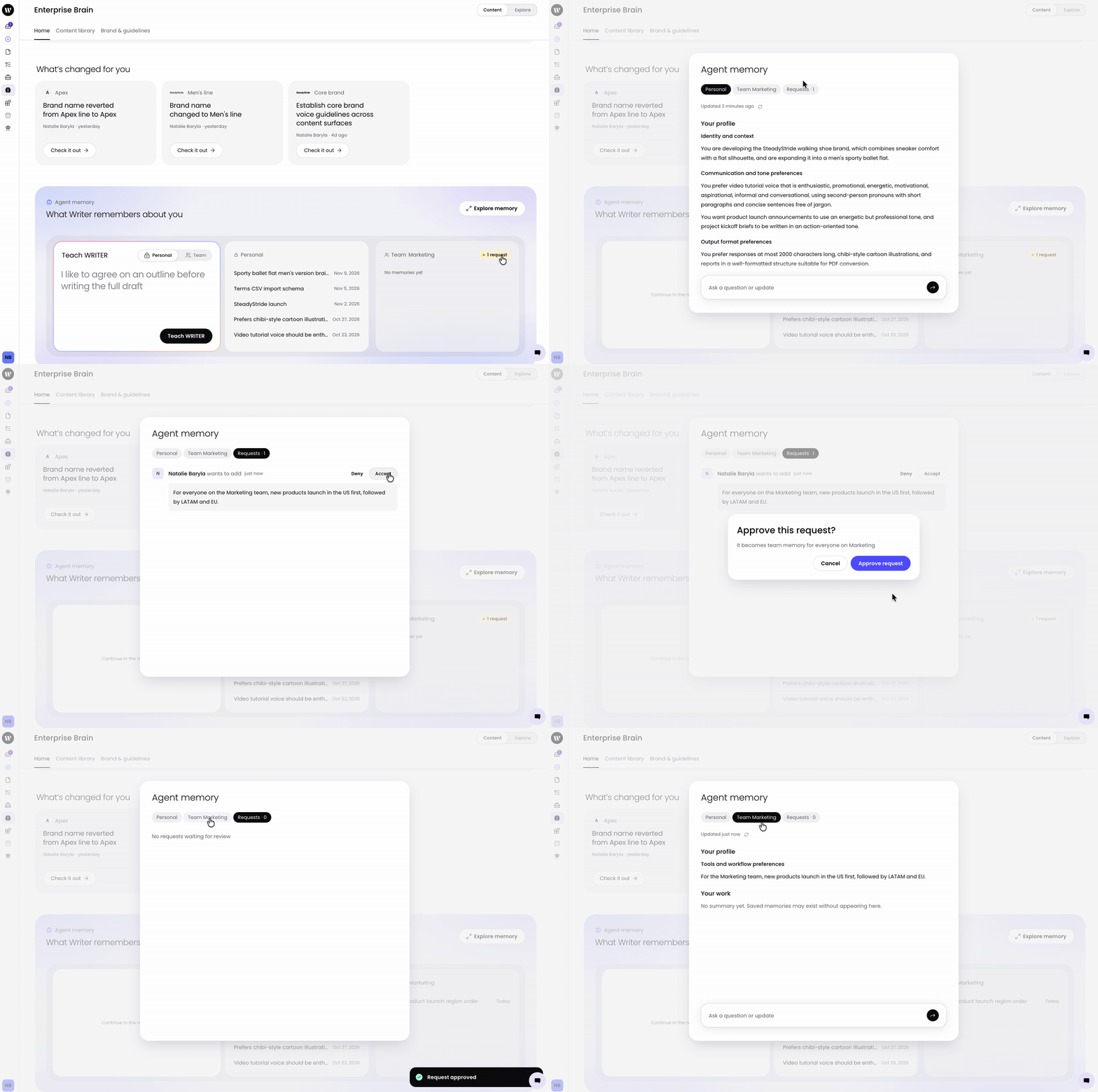
Your request is sent to your team admins for review within Enterprise Brain.
Important: Team admins approve or deny promotion requests. A memory isn't shared with your team until an admin approves the request.
Viewing memory within WRITER Agent sessions
Within a session you’ll see an Agent Memory card below a response which lets you see exactly which memories informed a response.
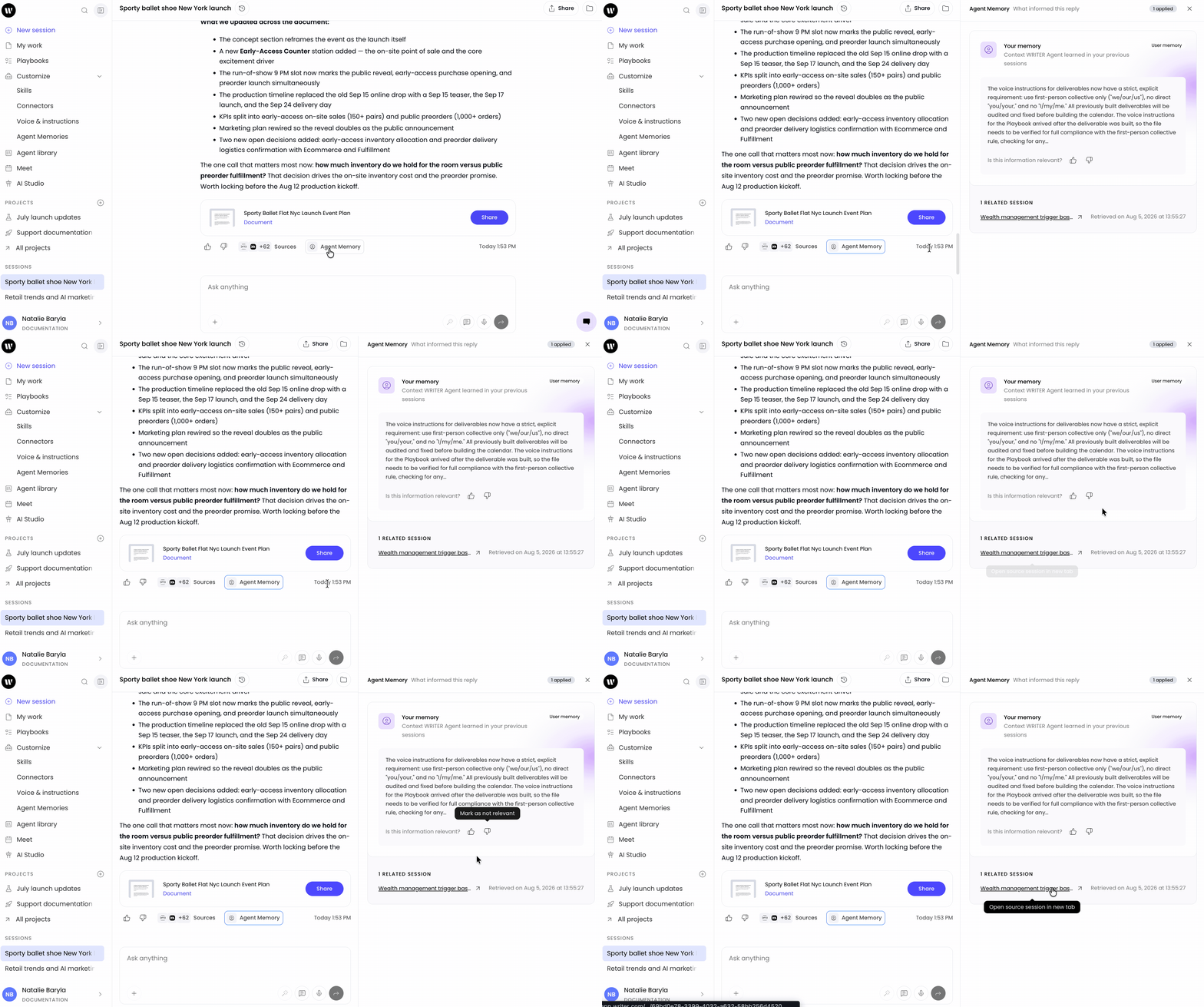
Within a session, select the Agent Memory pill at the end of a turn to open the memory panel.
From there you can see specifically what context was applied. Select the thumbs up or down icon below the memory to denote its relevance. Below the memory you’ll find a link to take you back to the session that generated that memory.
Using Incognito mode
Incognito mode pauses agent memory for a session. When it's on, WRITER Agent won't store context or learn from that chat, and it won't draw on any past memories for the duration of the session.
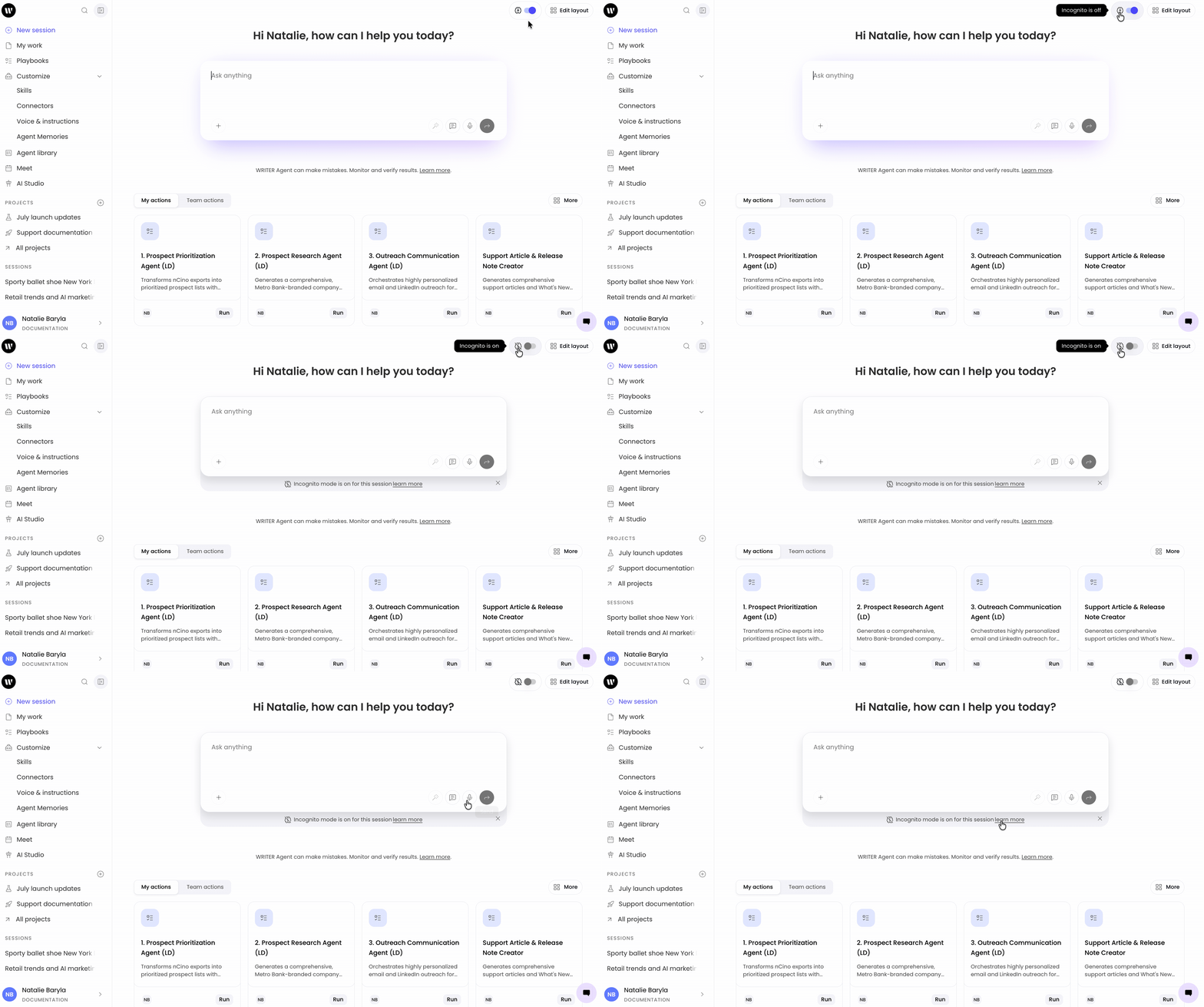
From the top right of WRITER you’ll see a brain icon you can toggle on or off as needed. When incognito mode is turned on, WRITER Agent won't store context or learn from this session. Turn the toggle off to resume memory for future sessions.
Tip: Use Incognito mode for sensitive conversations or when you don't want a session to influence your profile.
Privacy and sharing
WRITER Agent prioritizes privacy when storing context. Your personal memory stays personal to you. Other people can't access it.
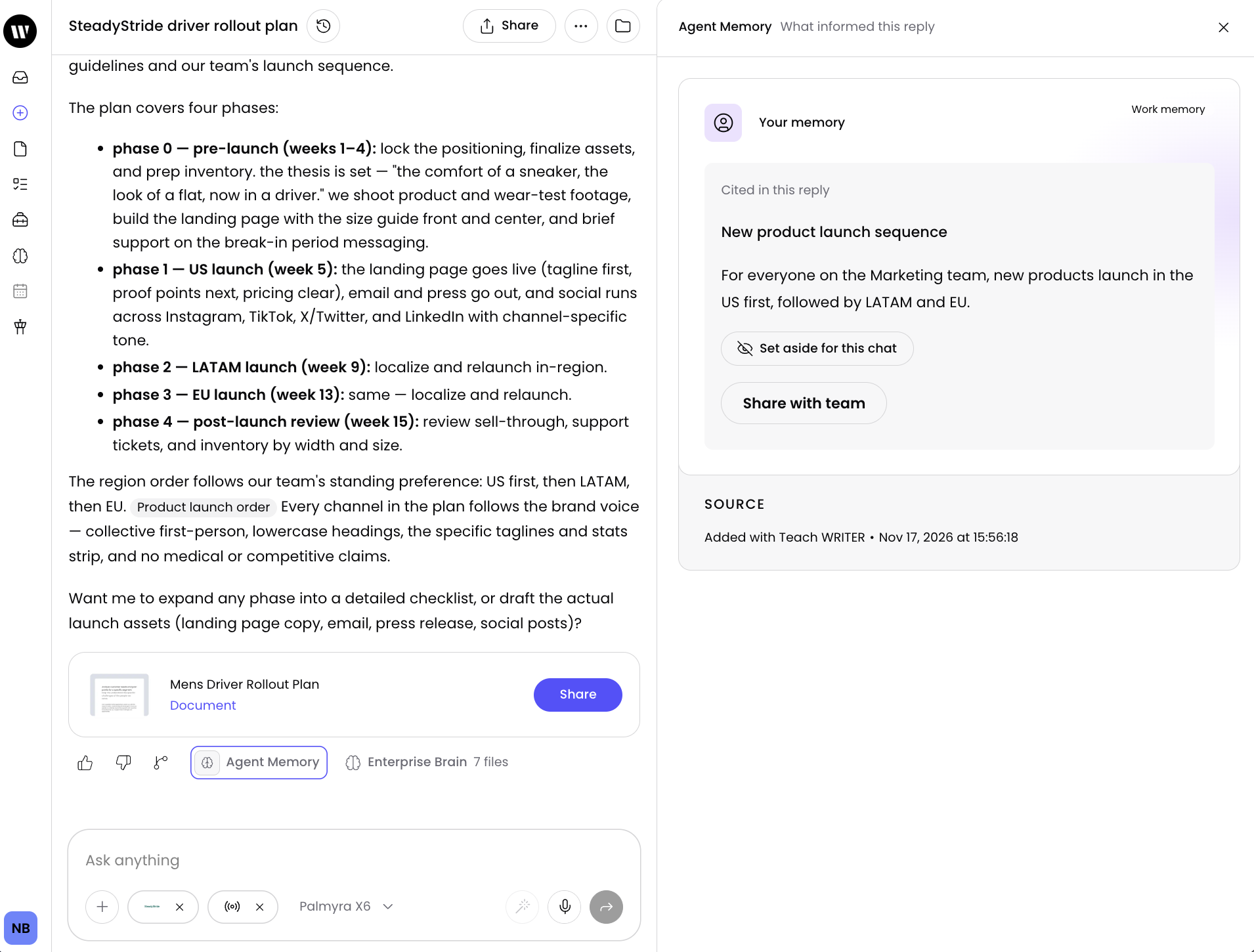
Shared context at the team level such as facts, decisions, and patterns that define how the team works are also included in Agent Memory.
Troubleshooting
Why doesn't WRITER Agent seem to remember something from a previous session?
Check whether Incognito mode was on for that session. When Incognito mode is on, WRITER Agent doesn't store context or learn from the chat, so nothing from that session contributes to your profile. You can also review your memory to confirm whether the context was captured.
Why is WRITER Agent pulling in context from a different project or topic?
Sometimes memories surface from unrelated sessions when the content is similar. Select the Agent Memory pill on the response to open the memory cards, then downvote any irrelevant memory. Downvoting prevents that memory from surfacing again for the rest of the session.
Can I see where a memory came from?
Yes. Each memory includes lineage showing which session contributed it. Select the related session link to open the original session.
Does WRITER Agent learn automatically, or do I have to set it up?
WRITER Agent learns automatically as you interact with it. You don't need to configure anything to start. Org admins and IT admins can disable memory for the organization.
Can I control what is remembered?
Yes, manage memories from Enterprise Brain and turn on Incognito mode to pause memory for a session.
Is my personal memory shared with my team?
No. User memory is personal to you.