Using the Slack connector with WRITER Agent
Last updated: August 24, 2026
The Slack connector lets WRITER Agent take actions in Slack from within a WRITER Agent session. When the connector is active, your agent can search across your Slack workspace, retrieve conversation history, send messages on your behalf, and look up user information. The connector operates using your authenticated Slack account, so your agent can only access the content and channels your account has permission to view.
Important: The Slack connector requires an org admin to enable the connector and grant team access in WRITER. If the connector is not available in your session, contact your org admin.
The Slack connector is distinct from WRITER for Slack. The connector lets WRITER Agent reach into Slack from a WRITER Agent session. WRITER for Slack lets you interact with WRITER Agent from inside Slack itself. For details on WRITER for Slack, see
Activating the Slack connector in a session
Before you begin, confirm that your org admin has enabled the Slack connector for your team.
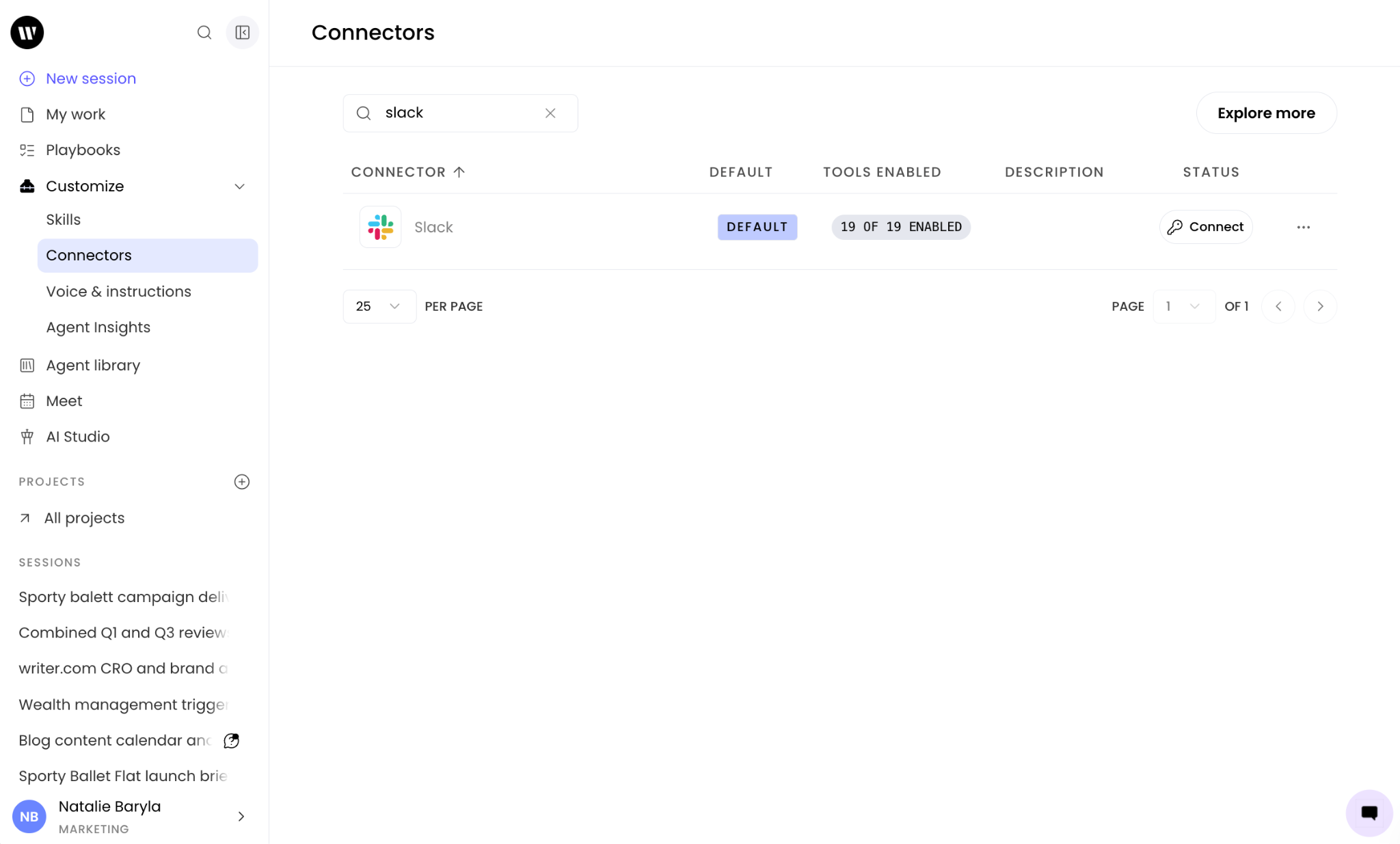
Select Customize from the left menu and then select Connectors.
Search for Slack and select it to activate it for your session.
If prompted, complete the OAuth authorization to connect your Slack account.
Once the OAuth flow completes, the Slack connector is active for your session. You can now ask WRITER Agent to perform Slack actions on your behalf.
Note: The OAuth authorization grants WRITER Agent access to the Slack scopes your account permissions allow.
Managing Slack actions in your session
Once connected, you can control which specific Slack actions are available for WRITER Agent. We suggest leaving all of the actions available turned on to give you the best experience.
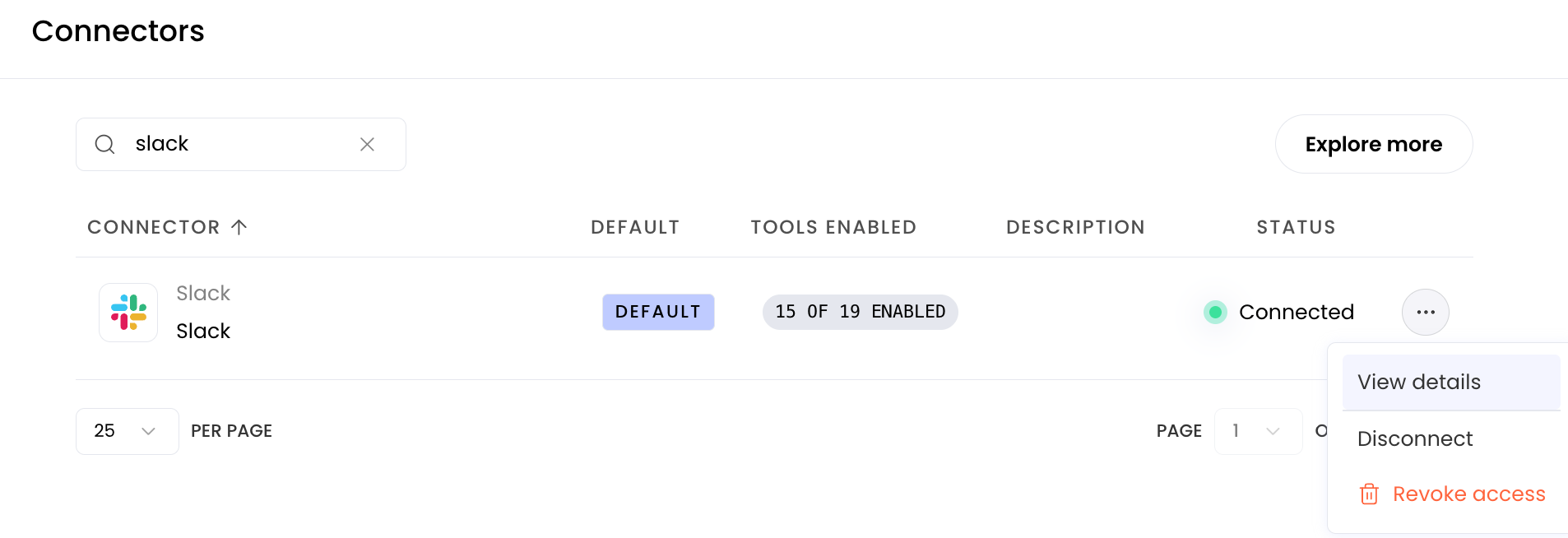
Select the three dot icon and then select View details
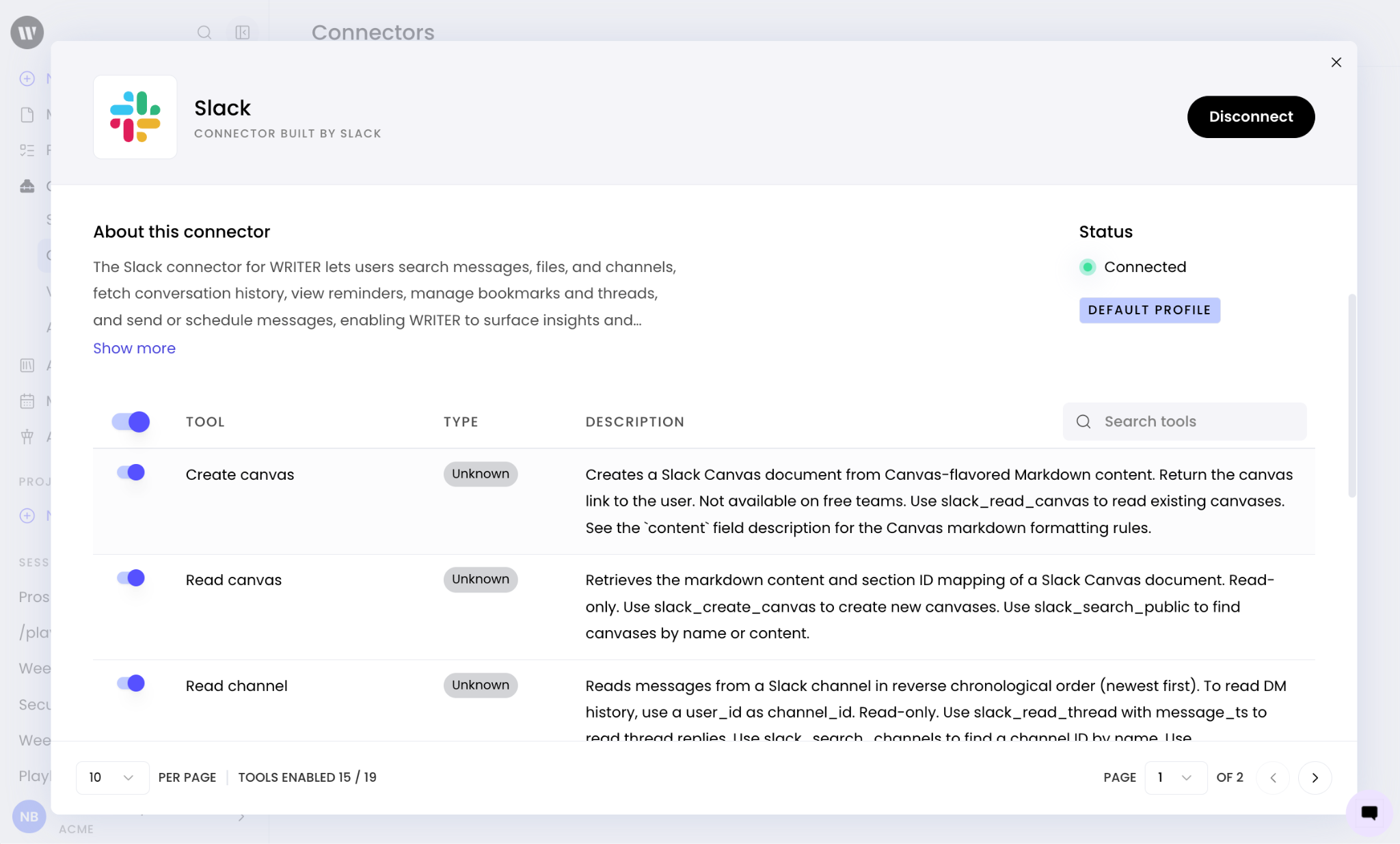
Your org admin can control which tools are available for you to select from. By default, every tool your admin has enabled will be turned on once connected to Slack in WRITER.
What the Slack connector can do
With the Slack connector active in your session, WRITER Agent can perform the following actions on your behalf.
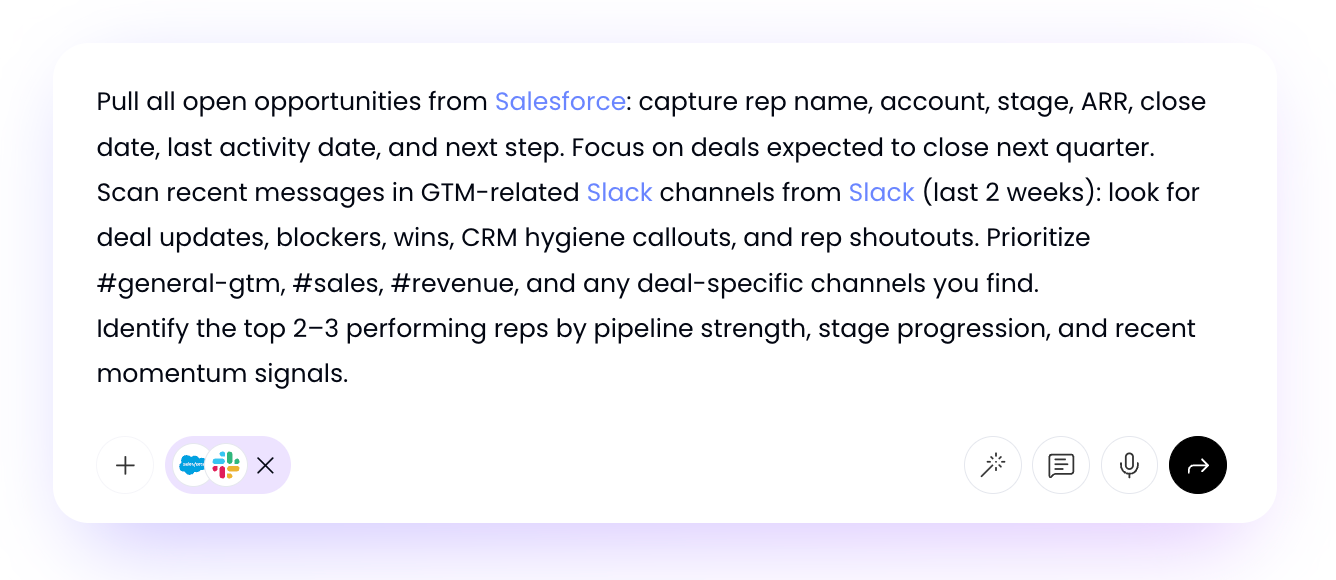
Search messages and files
Ask your agent to search across your Slack workspace, including:
Public channels
Private channels
Direct messages
Multi-party direct messages (group DMs)
Files
User information
Read conversation history
Your agent can retrieve message history from public channels, private channels, direct messages, and group DMs.
Example prompt: "Summarize the last 20 messages in #engineering-standup."
Send messages
Your agent can send messages to Slack channels or users as you, using your authenticated account.
Note: Messages are sent using your authenticated account. [VERIFY: whether the agent can send messages to channels it is not a member of, whether it can post to private channels, and whether messages are identifiable as agent-sent]
View user information
Your agent can look up user information and email addresses across your Slack workspace. The scope of what it can access depends on the OAuth permissions granted during authentication.
Disconnecting the Slack connector
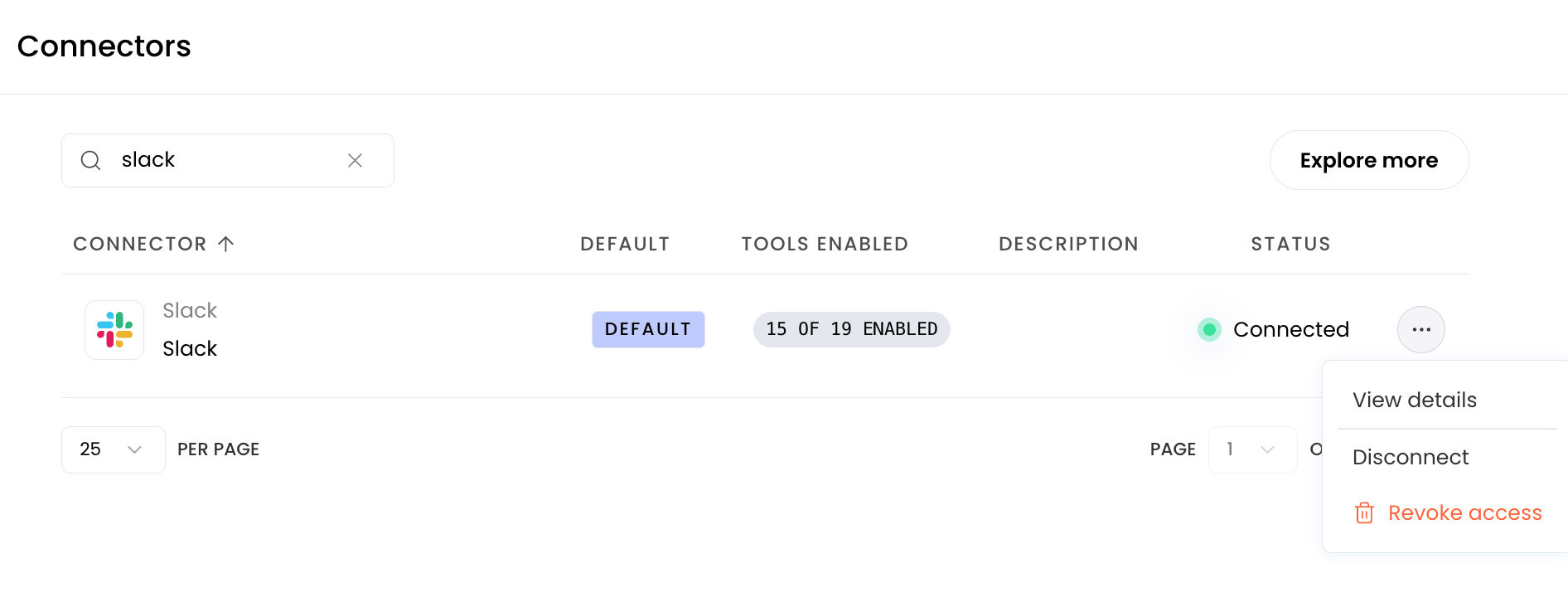
Navigate to Customize > Connectors and locate the Slack connector.
Select Disconnect to disable the connector.
Troubleshooting
A connector shows as "not connected" in WRITER
Connectors may display as disconnected in WRITER even when they appear enabled in the WRITER web app.
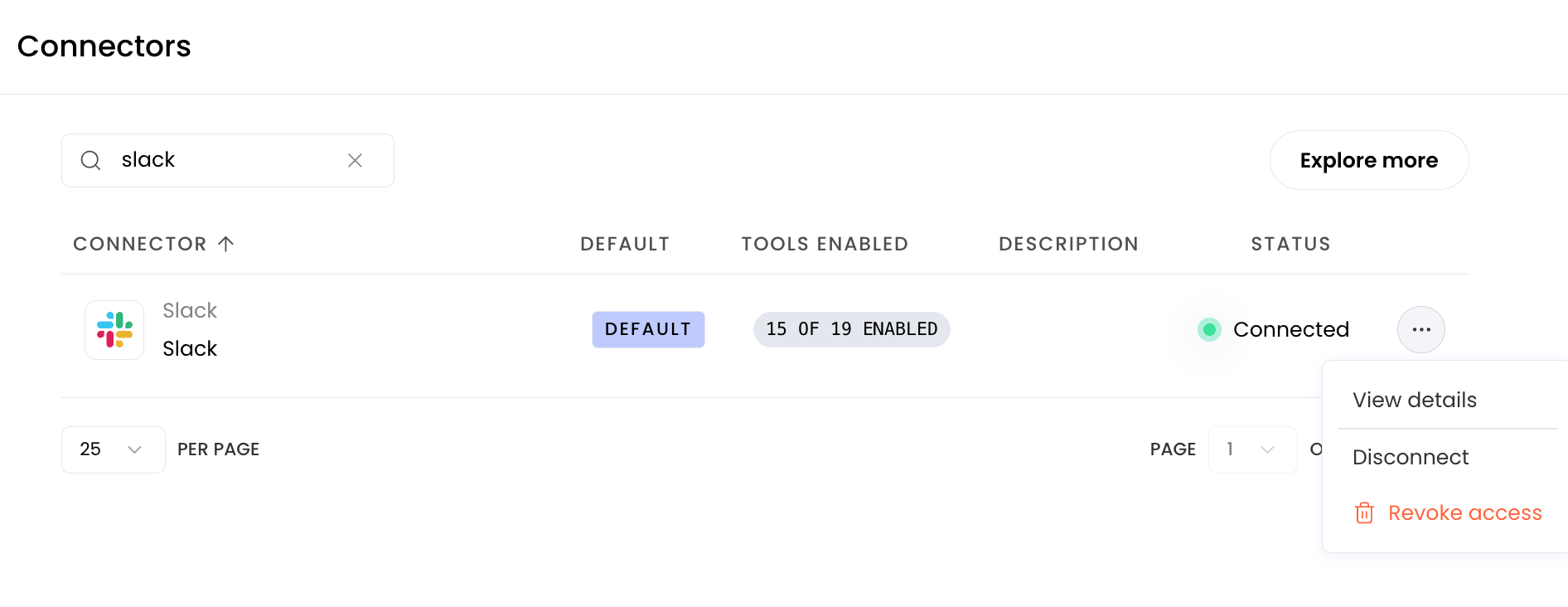
Open the WRITER web app and navigate to the connector settings.
Revoke the connector's authorization.
Reconnect the connector and complete the OAuth flow.
I'm getting a "something went wrong" error
This error originates from the core WRITER Agent side and may occur intermittently, particularly during release periods. Retry your request after a short wait. If the error persists, report it through the /logfeedback command.
FAQs
Can I search private Slack channels with WRITER Agent?
Yes. WRITER Agent can search private channels, DMs, and group DMs in addition to public channels. Your agent only accesses content that your authenticated Slack account has permission to view.
What Slack actions can I enable or disable in my session?
Select the dial icon next to the Slack connector in your session to enable or disable specific actions. Available tools include searching messages and files, reading conversation history, sending messages, and viewing user information.
Do I need the Slack connector to use WRITER for Slack?
No. Basic WRITER for Slack functionality — DMing the bot, using it in threads, and running playbooks — works without the Slack connector. The connector is required for reading private channels, DMs, and advanced functions such as creating canvases. Once connected on the WRITER web app, the connector works in Channels automatically.
Who can activate the Slack connector?
Team members can activate the Slack connector in any WRITER Agent session, provided an org admin has already enabled the connector and granted team access in WRITER. If the connector does not appear in the connector menu, contact your org admin.