How to pin playbooks to the homepage
Last updated: July 20, 2026
Who can use this feature
All users can pin playbooks for individual use. Team administrators can configure pinned playbooks for their teams.
Overview
Pin the playbooks you and your team rely on most so they are always one click away.This is your space to surface the playbooks that cover your core workflows. Unlike the Playbook Showcase, which highlights curated examples from WRITER, pinned playbooks are the ones your and your organization has built and customized for your specific use cases. Think of it as configuring your team's front door: the work that matters most to you, ready to run the moment you open WRITER.
Team administrators can also configure a standard set of playbooks for their entire team in AI Studio, ensuring everyone has consistent access to the right tools from day one. Once you’ve added playbooks to your team library you’ll be able to pin these to WRITER home so your team members can access your workflows quickly. You can learn more about creating your team playbook library here.
Getting started
Pinning a playbook for yourself
By default you’ll see 4 of your playbooks appear within the My action tab. If you’ve marked a playbook as a favorite those will appear here, otherwise it will be 4 playbooks you’ve created or have access to. You can edit the list and pin your most-used playbooks to access them instantly from the WRITER home screen.
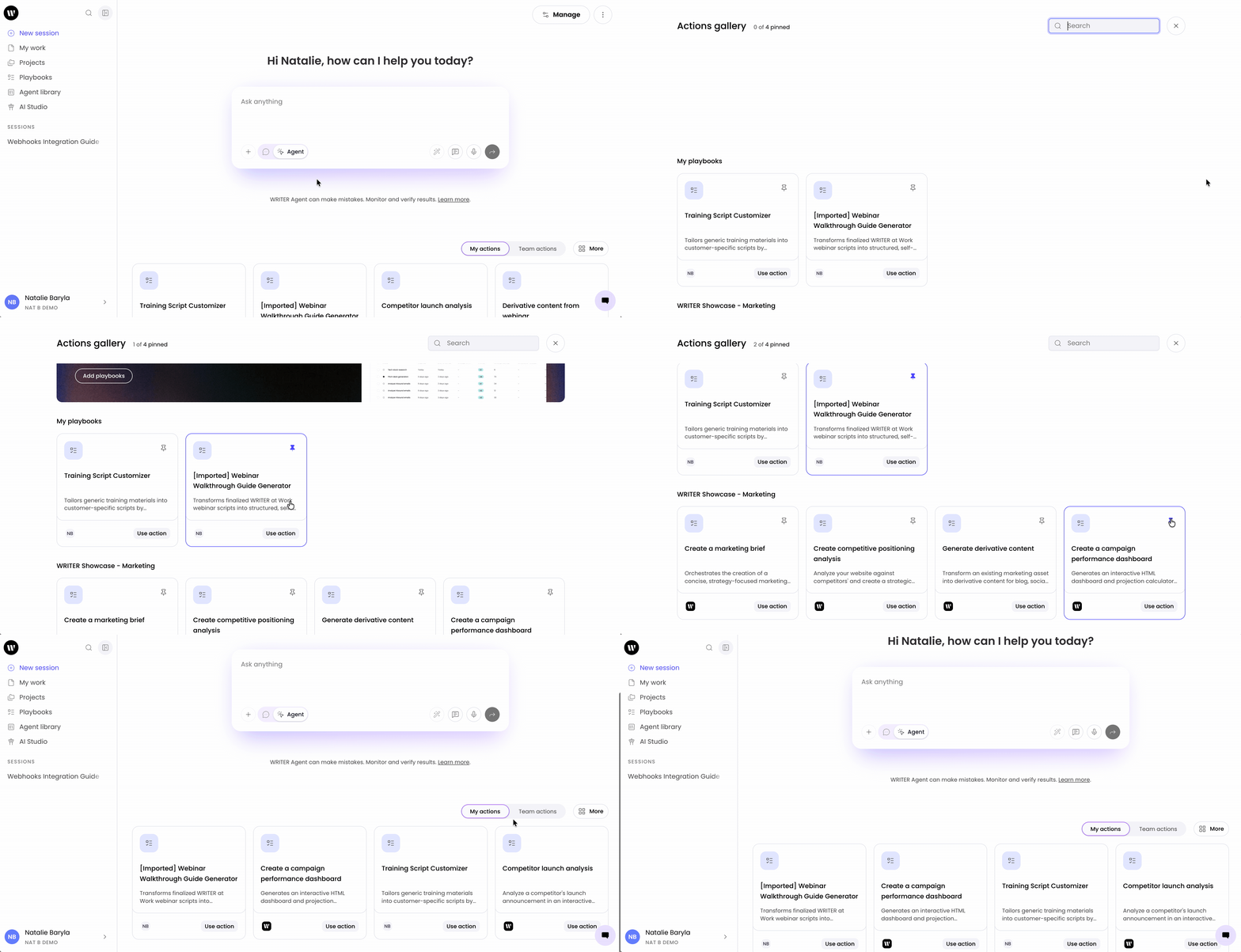
Select the More button next to the actions menu. Search or scroll to locate the playbooks you’d like to pin and then select the pin icon next to it to add it to the actions menu. To unpin a playbook, select More and then select the pin icon next to the playbook you’d like to remove. Select the X in the top right to close the window and save your changes.
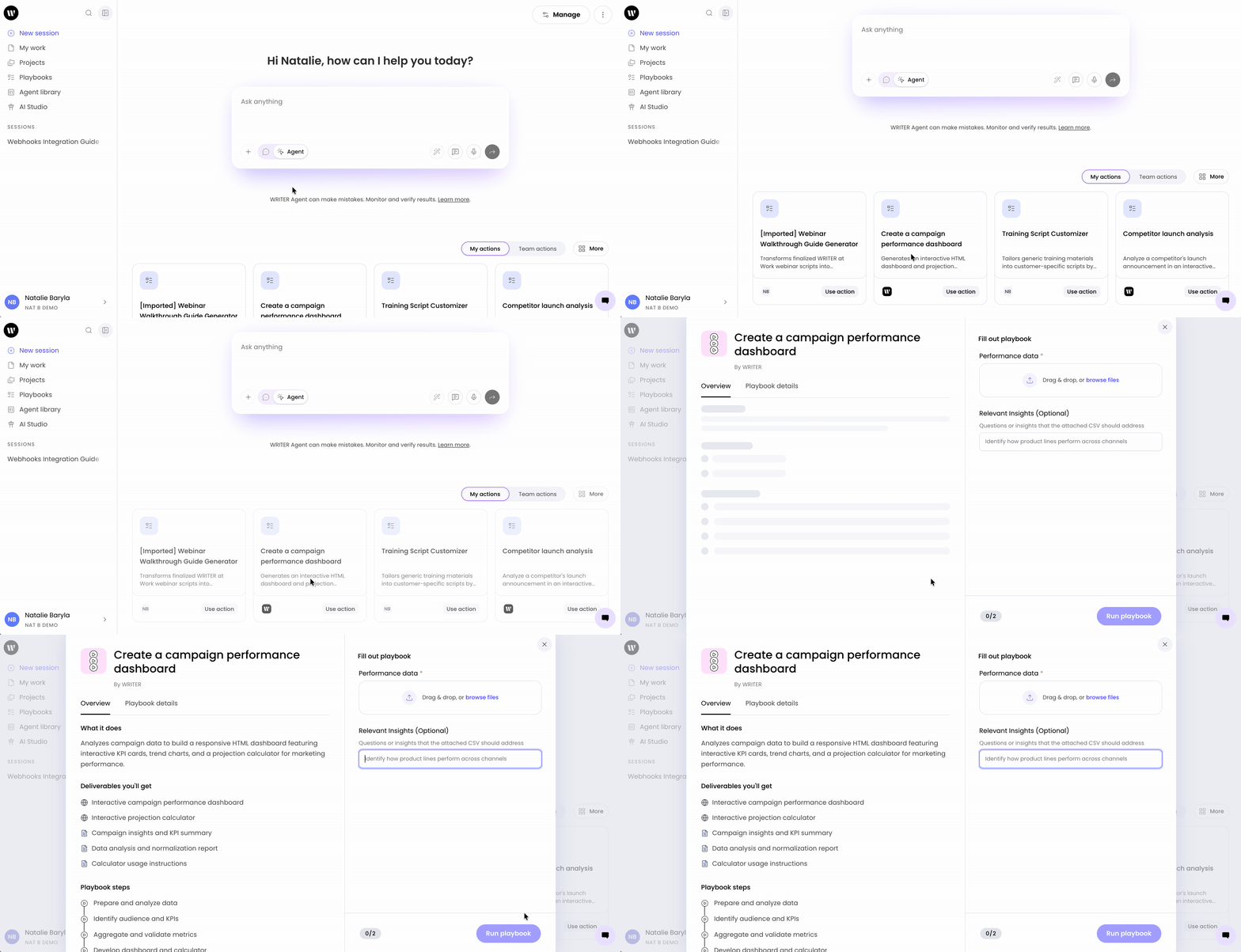
Once added to your actions menu you can run the playbook by clicking on it and completing the required information.
Configuring team pins
Team administrators can establish a standard set of pinned playbooks for their entire team to drive alignment and simplify onboarding.
⚠ Note: You can only pin playbooks that are published in the team library. Ensure the playbook is published there before configuring team pins. Learn how to configure your team playbook library here.

Navigate to AI Studio > WRITER Agent > Homepage. If you are an admin for multiple teams, make sure you have the correct team selected in the top menu. From here you can select the playbooks from your team library you’d like to pin for your users.
Best practices
Follow these recommendations to get the most out of playbook pinning:
Pin the playbooks that cover your team's highest-frequency, highest-impact workflows. For marketing teams, this typically includes use cases like content production, campaign creation, field marketing, and ABM personalization.
Prioritize playbooks that are already tested and working well. The action bar should surface your team's most reliable tools, not works in progress.
Team administrators should review pinned playbooks when team priorities shift or new campaigns launch.
Keep the action bar focused. Pin the playbooks your team needs every day, not every playbook you have.
FAQs
What is the difference between individual pins and team pins?
Individual pins are set by you for your own use. Team pins are established by team administrators and appear for everyone on the team, ensuring consistent access to important playbooks.
What is the difference between pinned playbooks and the Playbook Showcase?
The Playbook Showcase surfaces curated examples from WRITER to help you explore what is possible. Pinned playbooks are your own, the customized playbooks your team has built for your specific workflows. Pinning puts those directly on your WRITER home screen for immediate access.
Can I pin skills as well as playbooks?
Currently, you can only pin playbooks. The ability to pin skills will be added in a future update.
Why can't I find a playbook to pin for my team?
Team administrators can only pin playbooks that are already published in the team library. Ensure the playbook is published there first. Learn more about the team playbook library here.
Can I unpin a playbook that my team administrator pinned?
No. Playbooks established by team administrators are fixed for the team and cannot be unpinned by individual users.
Where do I go to configure team pins?
Team administrators can configure team pins by navigating to AI Studio and accessing the Homepage settings within the WRITER Agent menu.
Who can see my individual pinned playbooks?
Only you can see what playbooks you’ve pinned for personal use on your homepage.