How to customize the team playbook library
Last updated: October 8, 2026
Who can use this feature
Users with the AI Studio full access, Org admin, IT admin, and Team admin roles can customize the playbook library for their end users
Overview
The team playbook library is a centralized space within WRITER where team admins curate and organize playbooks for their teams. It provides a dedicated area for admin-approved playbooks to help your team access relevant tools for their workflows.
Team admins maintain governance and control over the playbooks their teams use. For end users, the interface consolidates personal and shared playbooks into a single view to improve navigation.
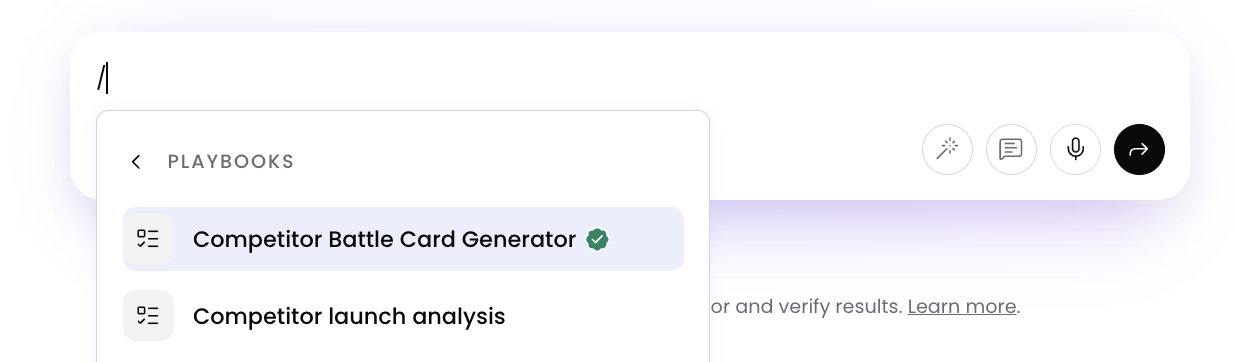
Playbooks are added to the team library display a green check badge in list views, both on the Playbooks page and when selecting playbooks from the prompt box, making it easy for users to identify their organization's official, admin-approved playbooks at a glance.
How to curate the team playbook library (Admins)
As a team admin, you can set up and manage the playbooks available to your team.

Navigate to AI Studio > WRITER Agent > Library. If you’re an admin of more than one team be sure to select the specific team to configure from the dropdown. Select Add a playbook or Add a category to start selecting the playbooks you'd like to add to the library.
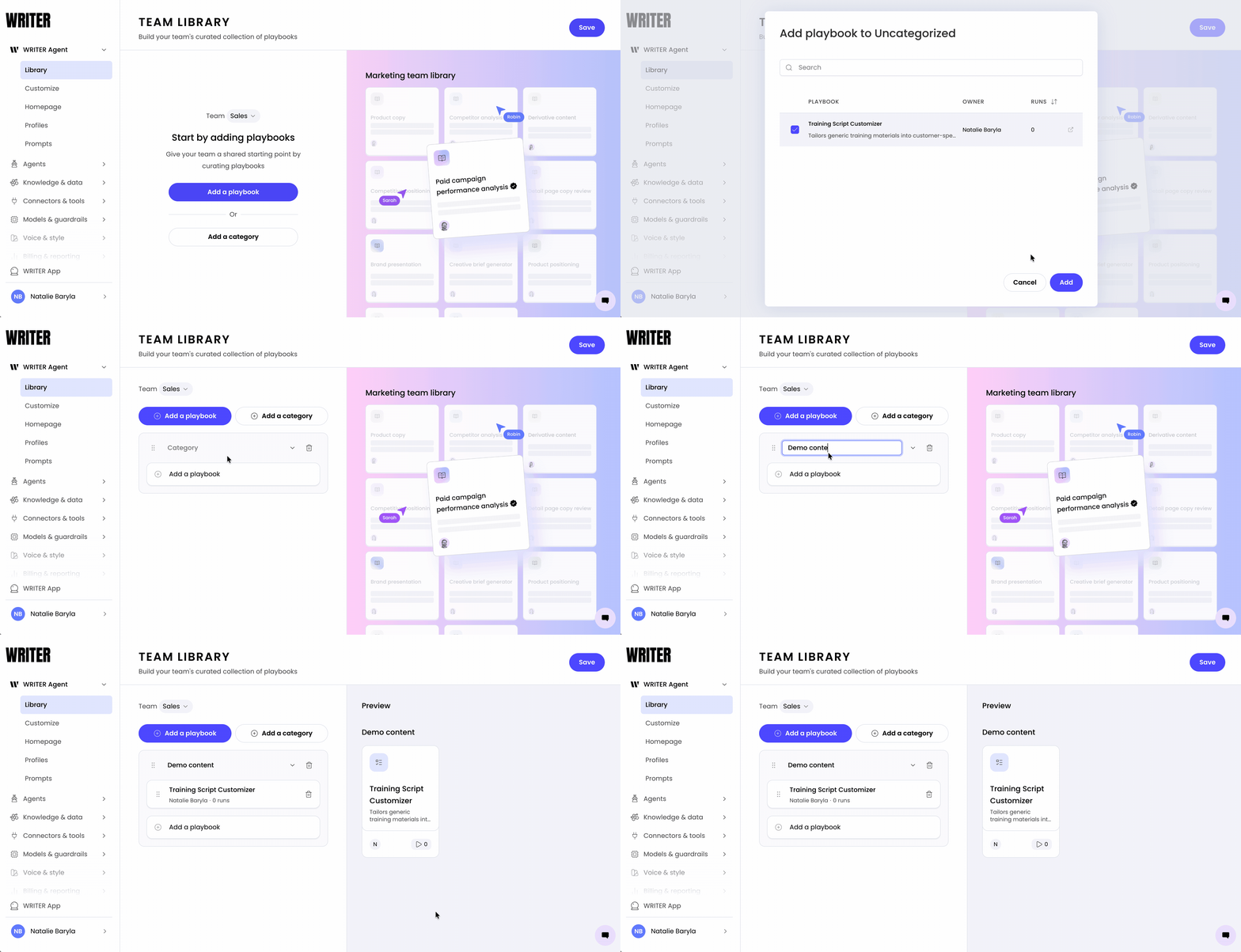
Drag and drop the playbooks to re-order them.
💡 Pro-Tip: Add playbooks directly from the Playbooks > Team library > Add playbooks button. This forwards you to the WRITER AI Studio page.
How to pin playbooks to your team’s homepage
Team admins can establish a standard set of pinned playbooks for their entire team to drive alignment and simplify onboarding. Once a playbook has been added to the team’s library you will be able to also pin that playbook to the homepage of those team members.

Navigate to AI Studio > WRITER Agent > Homepage. If you are an admin for multiple teams, make sure you have the correct team selected in the top menu. From here you can select the playbooks from your team library you’d like to pin for your users.
Navigating playbooks
Locate and access playbooks using the consolidated view.
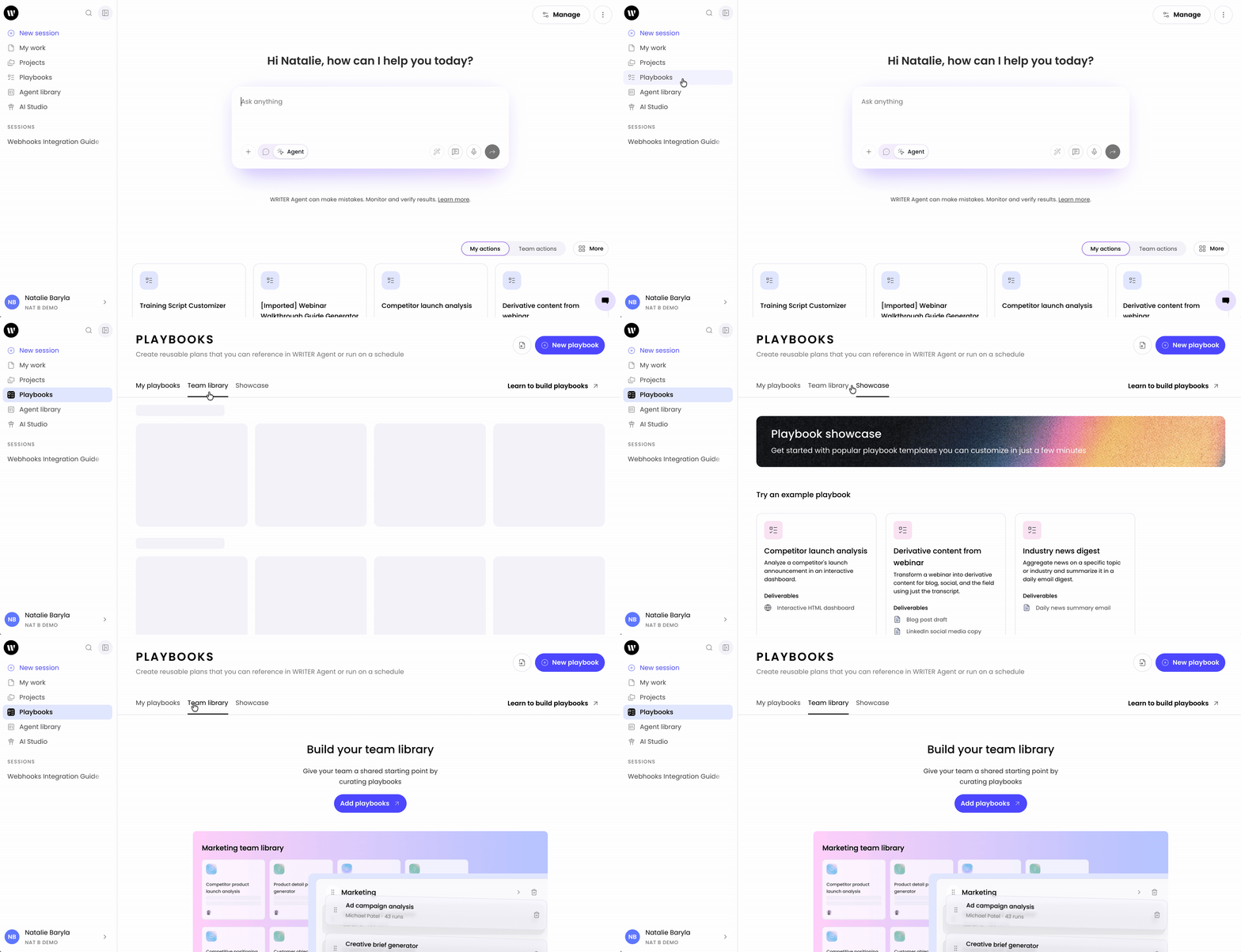
Open the Playbooks section.
View your consolidated playbooks on the main page. This combines your personal playbooks and those shared with you.
Select the Team library tab to access the playbooks curated and approved by your team admin
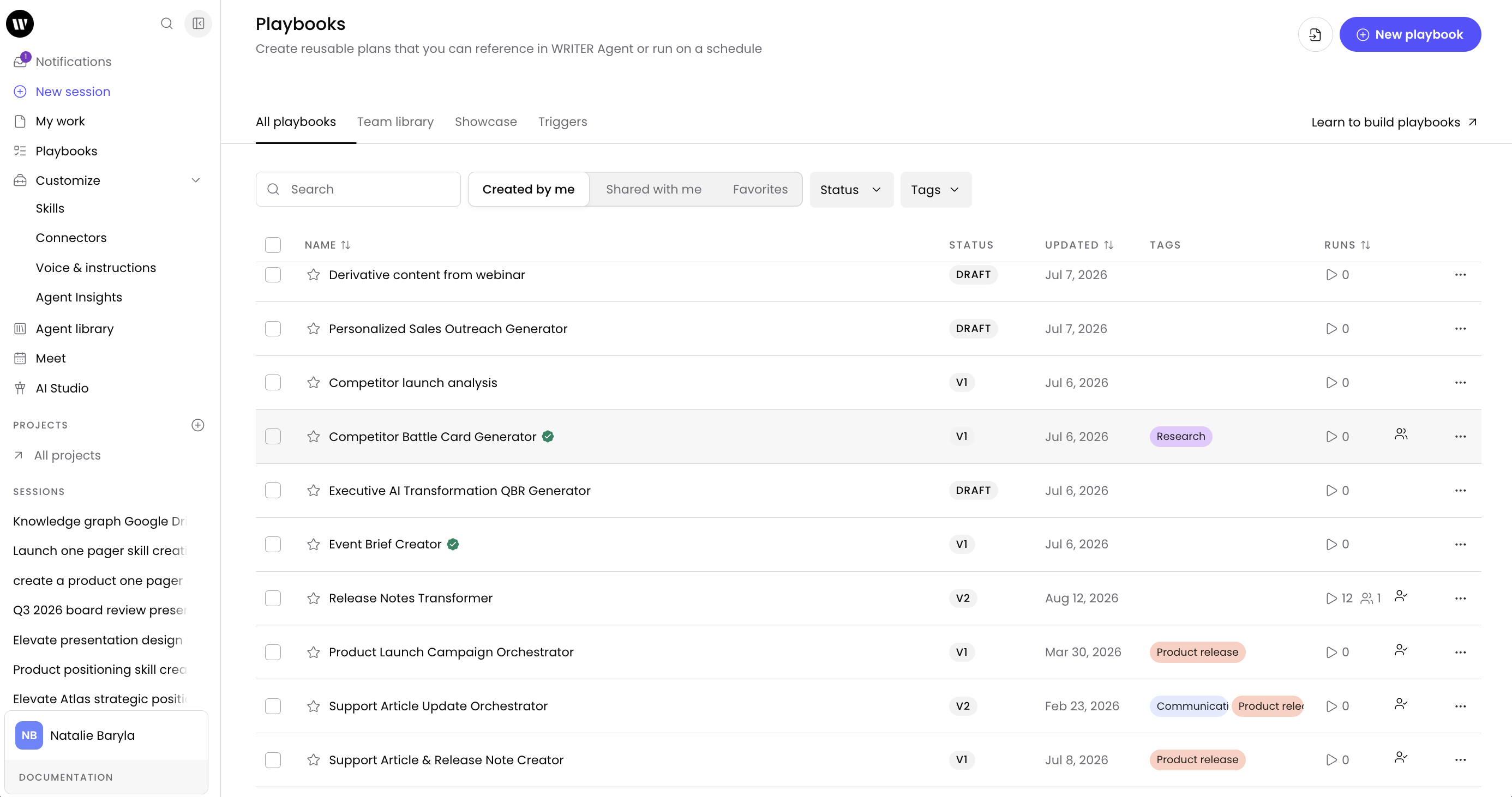
Within the list view of playbooks, your users will see green check marks next to the playbooks in the library noting they are the official playbooks for that team.
Best practices
Good: Organize playbooks into descriptive categories so your team can locate them.
Not as effective: Leaving playbooks uncategorized, which makes the library difficult to navigate.
Review and update the playbooks in the team playbook library regularly to maintain relevance.
Use the drag-and-drop feature to position the most frequently used playbooks at the top of the list.
Review checklist:
☐ Select the correct team to configure.
☐ Organize playbooks into logical categories.
☐ Communicate the availability of the team playbook library to your team.
FAQs
What is the difference between the team playbook library and my personal playbooks?
The team playbook library contains playbooks curated and approved by your team admin for the entire team. Your personal playbooks are those you create or that others share directly with you. These are now consolidated into a single view.
Can I add my own playbooks to the team playbook library?
Only team admins have permissions to add and organize playbooks within the team playbook library. Share a playbook with your admin if it benefits the team.
What happens if an admin removes a playbook from the team playbook Library?
If an admin removes a playbook from the team playbook library, it is no longer visible under the Team library tab. If the playbook was also shared directly with you, it remains in your consolidated playbooks view.
How do I find a specific playbook in the team playbook library?
Navigate to the team library tab and browse the categories created by your admin.
Can I re-order the playbooks in the team playbook library?
As an end user, you cannot re-order the playbooks in the team playbook library. The team admin determines the order.
Where can I access the team playbook library?
Access the team playbook library by navigating to the Playbooks section and selecting the Team library tab.
How do I troubleshoot if I cannot see the team playbook library?
If you cannot see the Team library tab, verify that you are part of a team with a configured library. Contact your team admin to verify your access permissions if the issue persists.
Can I create categories in the team playbook library?
Only team admins can create categories within the team playbook library.