How to customize your home screen tiles
Last updated: August 24, 2026
Your WRITER home screen displays tiles that give you quick access to your work, meetings, and items that need your attention. You can add and remove tiles, rearrange them, expand or collapse them, and adjust what each one shows.
Your home screen can include the following tiles:
My work — shows the files you've recently accessed and files recently shared with you by teammates, so you can pick up where you left off or jump into a teammate's work. You can share and use files quickly in a new session.
Meet — gives you quick access to common actions in Meet. You can see upcoming meetings, join and start taking notes in one click, and access notes from recent meetings.
Waiting for you — shows recent sessions from the last 30 days that are blocked waiting for your input, so nothing falls through the cracks.

Getting started

Select Edit layout in the top right corner of WRITER.

The tiles enter edit mode. Each tile displays three controls in its top right corner:
Expand (
< >) — expands or collapses the tileSettings (⚙) — opens the tile's settings menu
Drag handle (
::) — lets you drag the tile to a new position

If only two of the available 3 tiles are active, + Add a tile button appears at the bottom of the screen.
Adding and removing tiles
Select Edit layout in the top right corner of WRITER Home.
Select + Add a tile at the bottom of the screen.
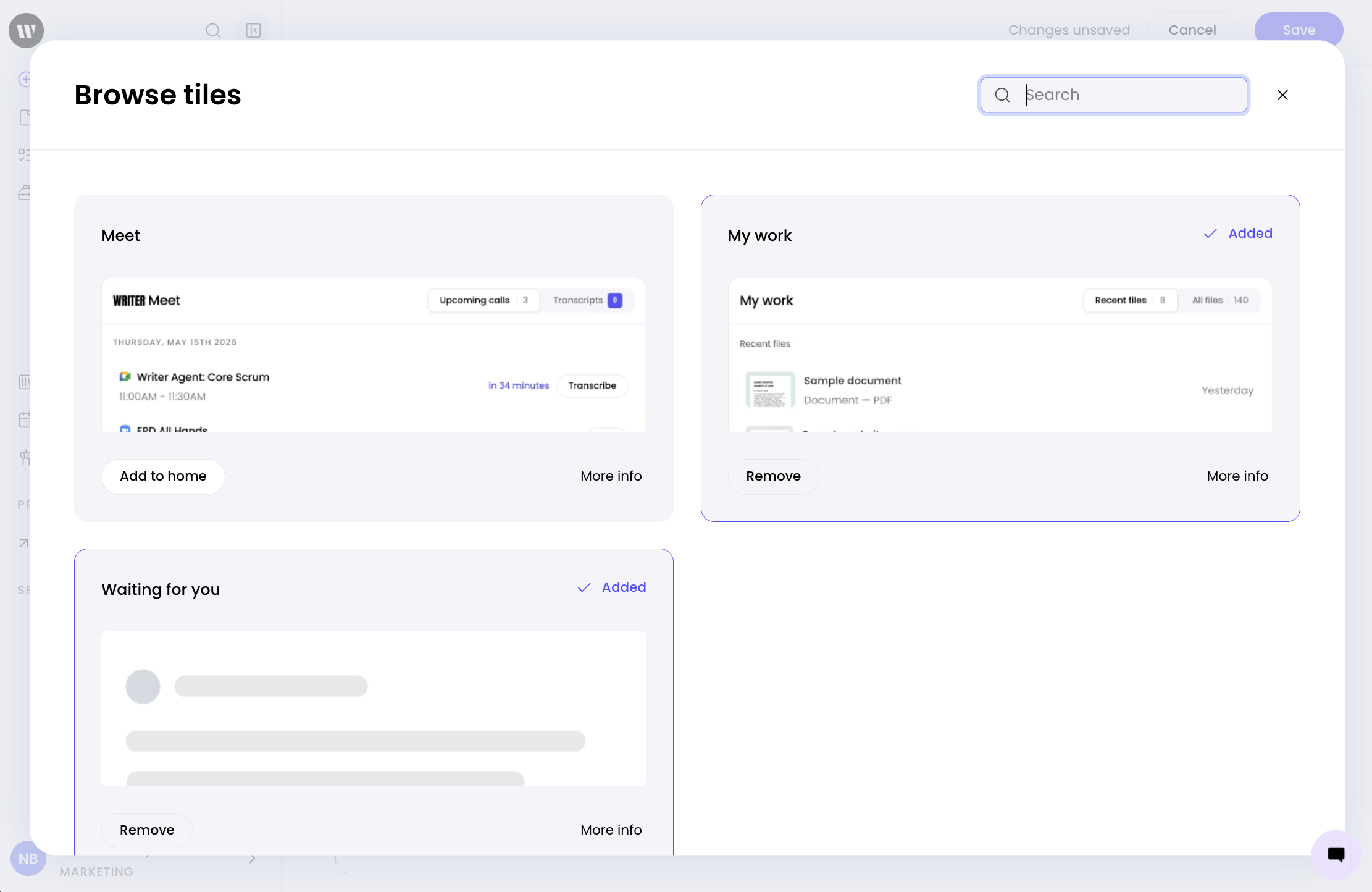
Find the tile you want to add. Use the search bar if you don't see it.
Select More info to read a description and preview of the tile, or select Add to home to add it directly.
The tile appears on your home screen. Tiles you've already added show a checkmark and a Remove option instead of Add to home.
Removing a tile
Select the Settings (gear) icon on the tile you want to remove. Under SETTINGS, select Remove. Additionally, you can remove them via the Add tiles option.
Note: Removing a tile from your home screen doesn't delete the underlying files, meetings, or sessions. It only removes the tile from your view.
Expanding and collapsing a tile
Expanding a tile makes it span the full width of your home screen, giving you more room to see its contents. Other tiles shift to fit the remaining space.
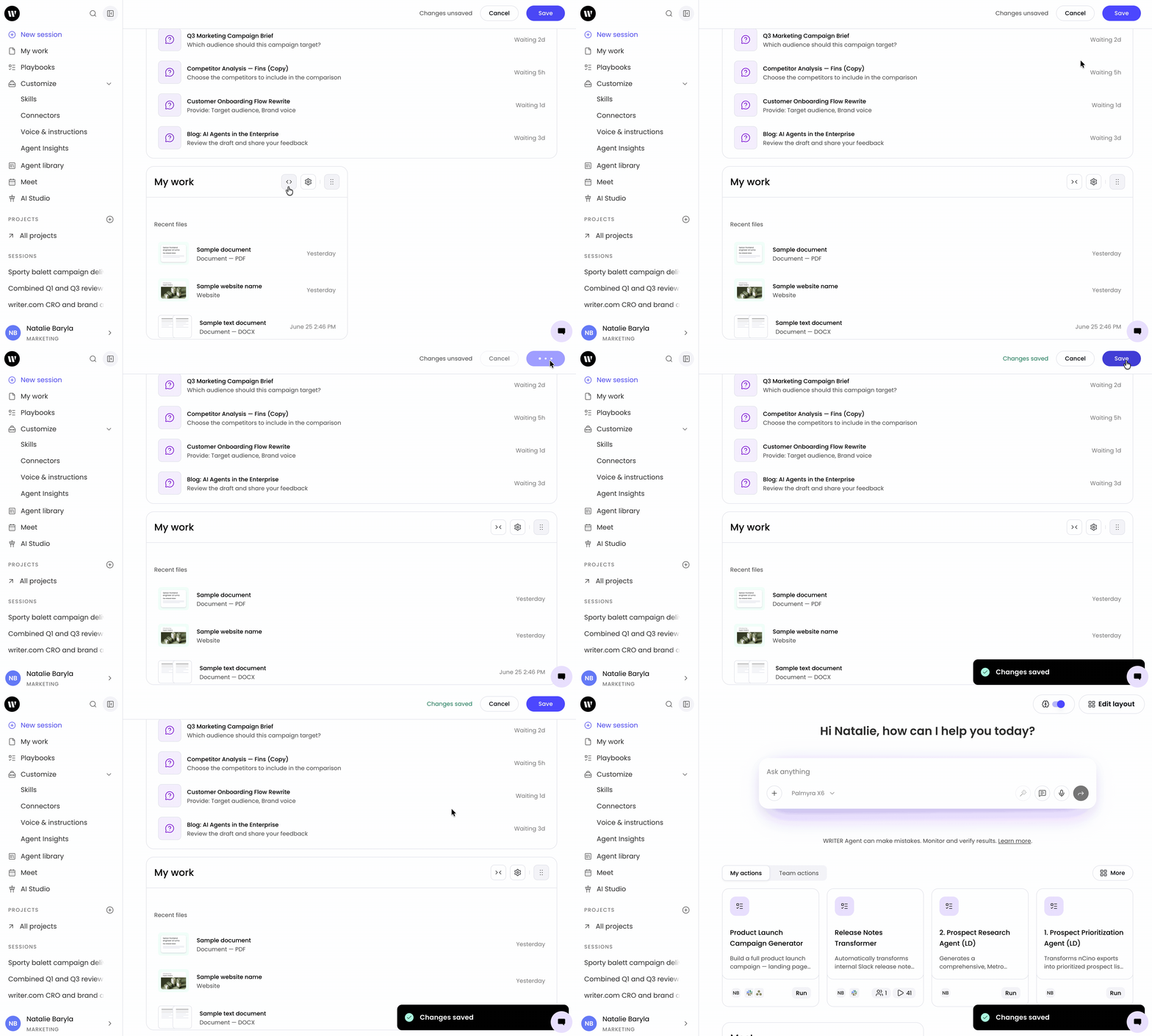
Select Edit layout in the top right corner of WRITER Home then select the Expand icon ( < > ) on the tile you want to expand.
The tile expands to full width, and its icon changes to Collapse ( > < ). To return the tile to its original size, select the Collapse icon ( > < ).
Rearranging tiles
You can change the order of your tiles by dragging them.
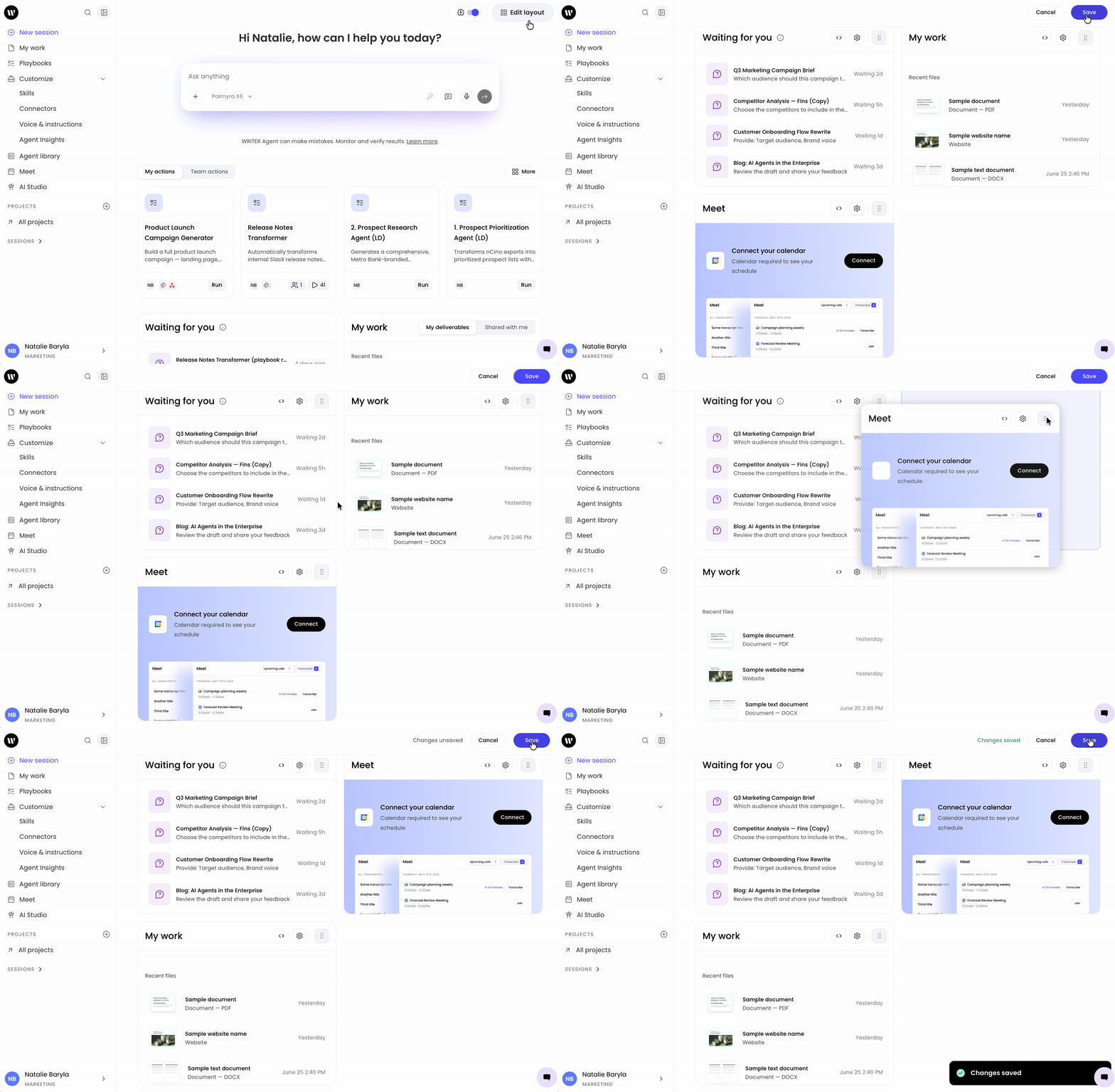
Select Edit layout in the top right corner of WRITER Home then select and hold the drag handle ( :: ) on the tile you want to move.Drag the tile to its new position and release it.
The other tiles shift to make room. Your arrangement is saved automatically when you exit edit mode.
Customizing the My work tile
The My work tile lets you choose which file types appear in your recent files list. You can filter by Deliverables, Documents, and Websites.

Select Edit layout in the top right corner of WRITER Home then select the Settings (gear) icon on the My work tile.
Under FILTERS, select or clear the checkboxes for the file types you want to show or hide:
Deliverables
Documents
Websites
The My work tile updates to show only the file types you've selected.
Tip: Keep all three filters selected to see every file type at a glance. Clear the ones you use least to focus the tile on the work that matters most to you.
FAQs
What tiles can I add to my home screen?
Currently My work, Meet, and Waiting for you are the available tiles. Select + Add a tile while in edit mode to browse available tiles and add them to your home screen.
Do my layout changes affect anyone else?
No. Your home screen layout is personal to you. Adding, removing, rearranging, expanding, or filtering tiles only changes your own view.
What happens to my files when I remove the My work tile?
Removing the My work tile doesn't delete or change any of your files. It only removes the tile from your home screen. Your files remain available wherever you access them in WRITER via the My Work tab on the left menu.
How far back does the Waiting for you tile go?
The Waiting for you tile shows sessions from the last 30 days that are blocked waiting for your input.
Can I see more detail about a tile before adding it?
Yes. In the Browse tiles panel, select More info on any tile to read a description and preview what it looks like before you add it to your home screen.