Adding users
Last updated: July 16, 2026
Who can use this feature
Supported on Team and Enterprise plans
Org admins and business admins can add users to a WRITER account
In this article, we'll show you how to add new users to your WRITER account, and how to create a new org admin.
Please review WRITER access roles here.
Adding users manually vs SCIM
Users can be added to WRITER automatically via SCIM provisioning, or by inviting them manually. SCIM provisioning is managed by your IT team.
Note that accounts with SCIM provisioning enabled are still able to invite users manually on an ad hoc basis.
To set up SCIM provisioning for your WRITER account, see our Help Center article here.
Inviting a user to WRITER

Select the gear icon next to Org settings from the profile menu, then select Users, teams, & roles from the Admin settings menu.
Select the +New user button in the top right corner.
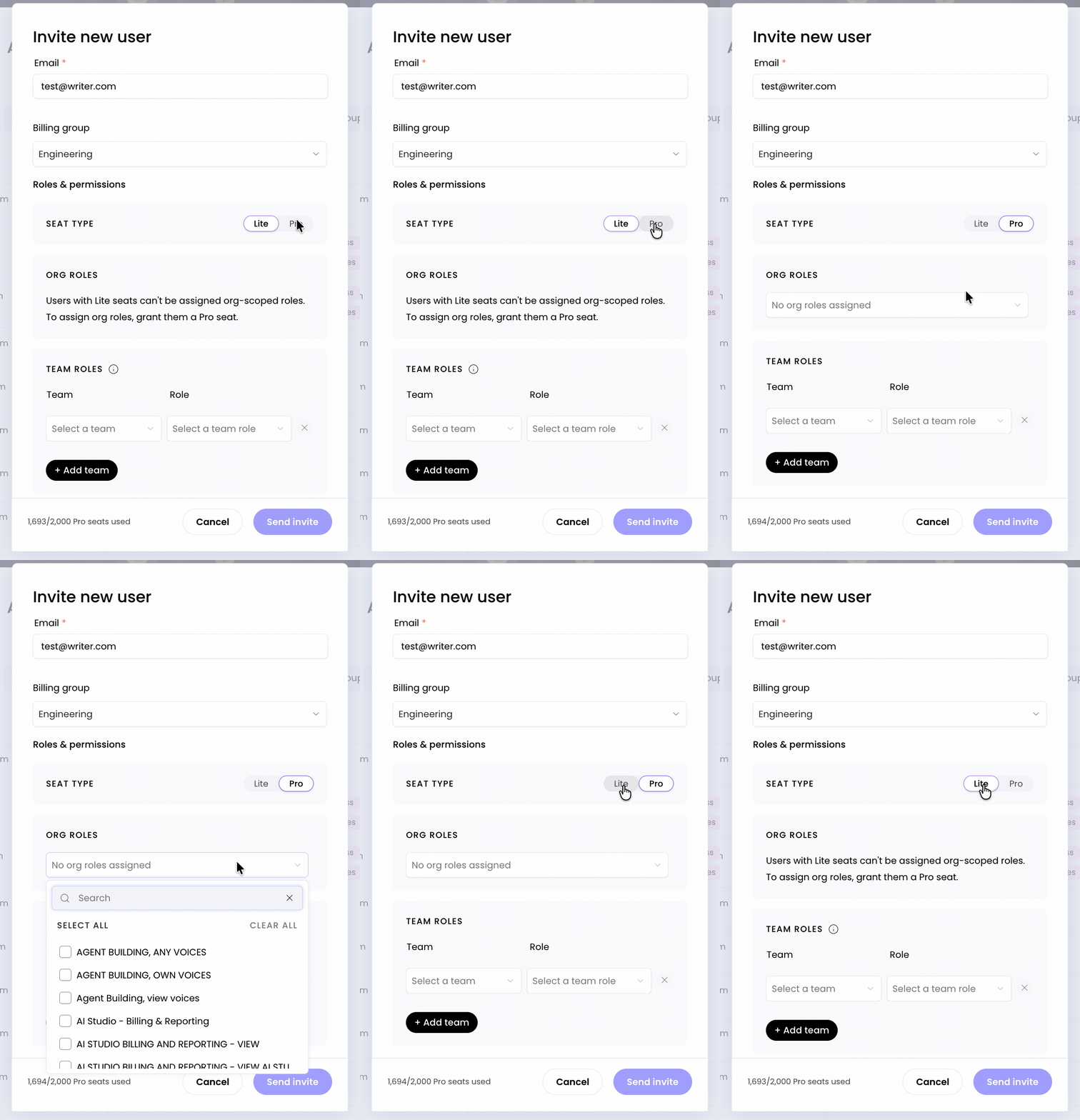
Enter the email address of the person you'd like to add to your WRITER org. You can add multiple email addresses at a time, separated by a comma – but all users will be given the same access role and team. Next, add a user to a billing group if applicable. Learn more about billing groups here. If you select to add the user as a Lite seat type, this will limit the ability to assign them an org role as they are limited to team member access only. Learn more about Lite users here.
Next, add the user(s) to the appropriate Org role and select their team and team access role.
Learn more about access roles here.
Finally, select Send invite to send out the email invitation to your new org member(s).
Creating or downgrading an org admin
Users cannot be invited directly into the account as org admins. Instead, on the uSERS page, select the ••• three dot menu to the right of their name and select Make org admin.
Downgrading an org admin
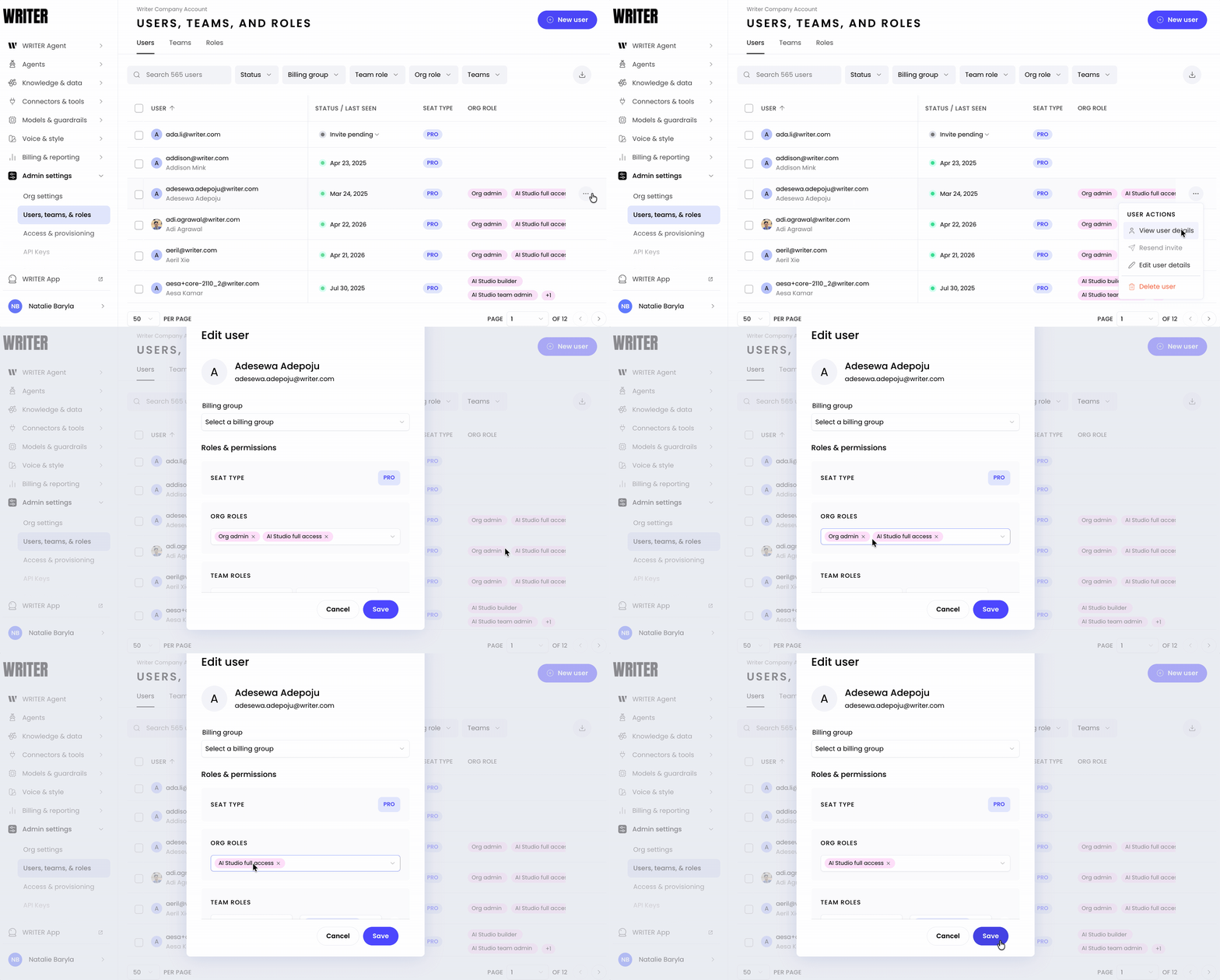
To downgrade an org admin, go to the Users page, select the ••• three dot menu to the right of their name and select the X on the org admin role to remove the permissions from the user. They will be downgraded to a team admin of any team they belong to.
Creating or downgrading a team admin

Need to upgrade an existing user's team role? Navigate to the Users tab of the Users, teams, & roles page. Select then the ••• three dot menu next to their name and select Edit user details. From there you can adjust the team membership and role from the Team roles section. Be sure to save your changes!
Adding or removing existing users from teams
Navigate to the Users tab of the Users, teams, & roles menu. Select then the ••• three dot menu next to their name and select Edit user details.
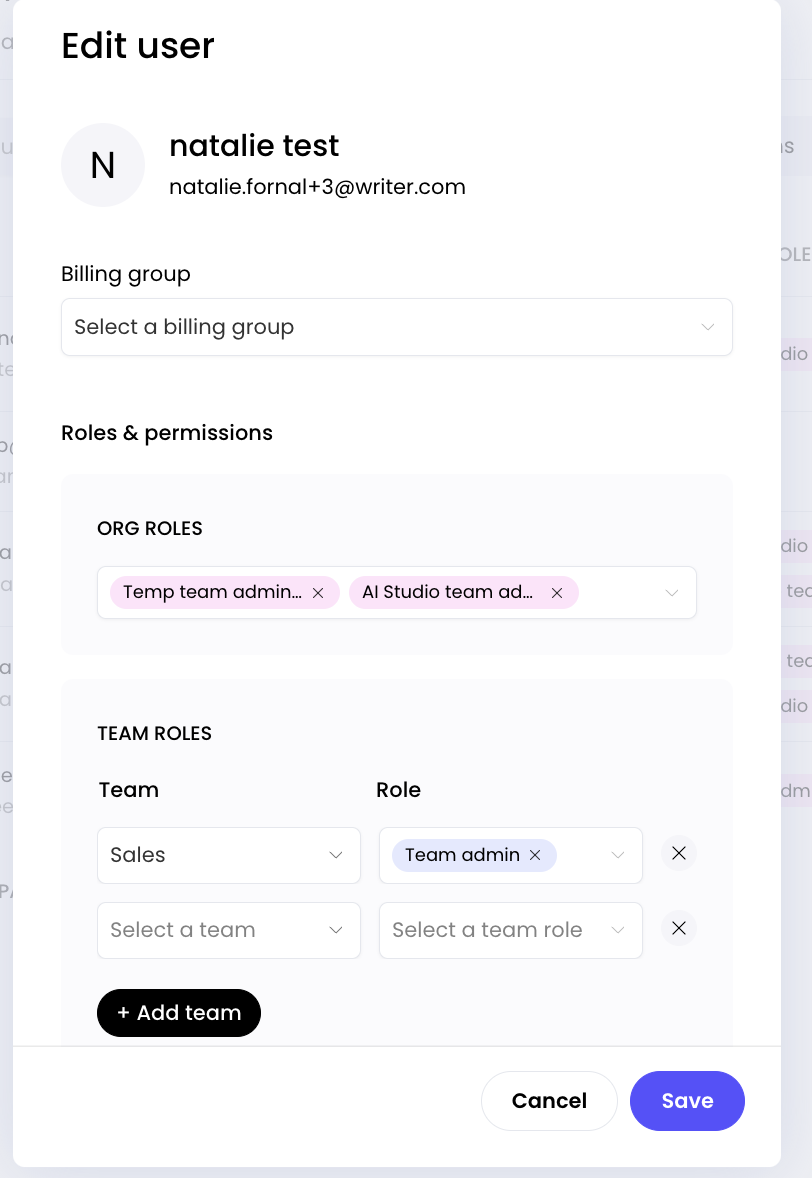
Select +Add team then select the team and the role to add the user to the desired team. Select Save and they will be added to the team.
Additionally you can remove the user from the team by selecting the X and then selecting Save.