Installing WRITER for Microsoft Teams (Admins Only)
Last updated: September 14, 2026
Last updated September 14, 2026
WRITER for Microsoft Teams (Beta) lets your organization use WRITER Agent right inside Teams. Before anyone can start a session, run a playbook, or @mention WRITER Agent in a channel, a Teams admin needs to install the WRITER Agent app into your Teams environment. This article walks admins through that process.
Getting access: WRITER for Microsoft Teams is currently in Beta. If you're a Teams admin and you don't have the app package yet, please use the link below to get the app package.
Good to know: Installing the WRITER app is a one-time setup. Once the app is uploaded and made available, users connect their own WRITER accounts individually. See Using WRITER for Microsoft Teams for the end-user setup experience.
What you'll need
A Teams admin account with permission to upload custom apps
The WRITER app package (.zip file), available from your Writer rep or the download link they provide
Custom app uploads enabled in your Teams environment
Step 1: Download the app package
Download the WRITER for Teams app package (.zip) from the link provided by your Writer rep:
👉 Download the WRITER for Teams app package
Save the file somewhere easy to find, such as your Downloads folder. The file you receive is the complete app package — do not unzip it. Teams expects the .zip file as-is.
Step 2: Upload the app package
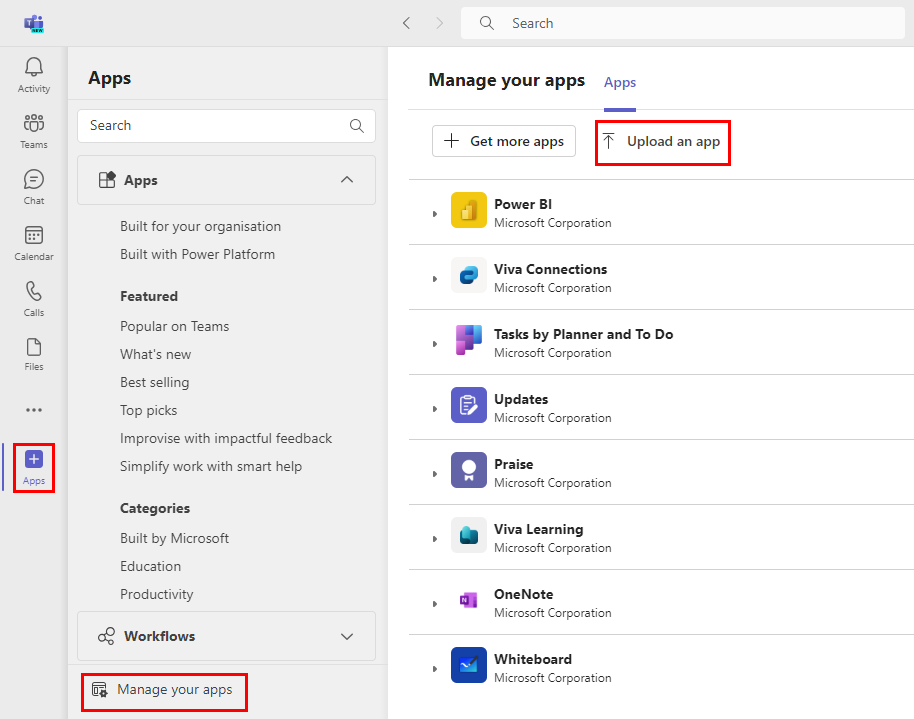
Sign in to the Teams admin center at admin.teams.microsoft.com.
In the left navigation, go to Teams apps → Manage apps.
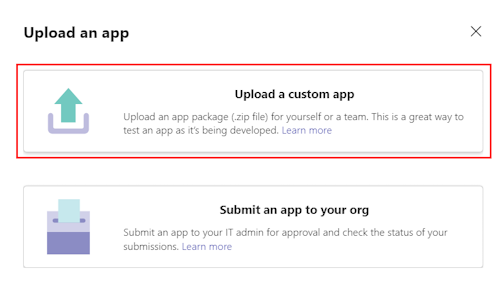
Select Actions → Upload new app.
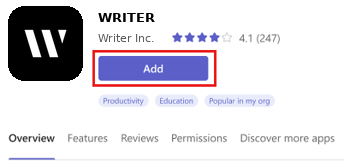
Browse to and select the .zip file you downloaded in Step 1, then select Add in the resulting app dialogue.
The WRITER app appears in your app list.
Step 3: Review app permissions
Once the app is uploaded, you can review what it requests:
In Teams apps → Manage apps, search for and select the WRITER app.
Review the permissions the app requests on the app detail screen.
This is where you can see exactly what the app needs before making it available to users.
Step 4: Make the app available to users
After uploading, the app is installed for no one by default. You control who can use it:
In the Teams admin center, go to Teams apps → Setup policies.
Create or edit a setup policy (for example, a "WRITER policy") and add the WRITER app.
Choose whether to pin the app to users' workspaces and whether to automatically add it to new channels.
Go to Teams apps → Permission policies and confirm the policy allows your target users to use the app.
Edit the app's availability to make it available to everyone, or to specific users and groups.
Important: The app does not auto-join channels. Even after it's available, users need to add the app to a team before @mentioning WRITER Agent in a channel. See Using WRITER for Microsoft Teams for the end-user steps.
Troubleshooting
I don't see "Upload new app" in the Teams admin center.
Custom app uploads need to be enabled in your environment. Check your permission and setup policies to confirm custom app uploads are allowed. It can take a few minutes for a policy change to take effect.
The upload fails or I get an error.
Make sure you're uploading the .zip file, not the extracted files. Teams requires the package as a single .zip.
Re-download the .zip from the link in Step 1 to make sure the file isn't corrupted.
Confirm you're in a supported environment. Custom app upload is supported in standard and GCC environments, but not in GCC High, DoD, or Teams operated by 21Vianet.
The app is uploaded but users can't see it Check the app's availability setting. By default, a newly uploaded app is installed for no one. Edit the availability to make it available to everyone, or to the specific users and groups who need it. Also confirm your permission and setup policies include the target users.
Users @mention WRITER Agent in a channel and nothing happens.
The app does not auto-join channels. Users need to add the app to the team first, then @mention WRITER Agent. See Using WRITER for Microsoft Teams for details.
FAQs
Do users need to do anything after I install the app? Yes. After the app is available, each user connects their own WRITER account by opening a direct chat with WRITER in Teams and typing /writer login. See Using WRITER for Microsoft Teams for the full end-user setup.
Do I need the Microsoft Teams connector to install the app? No. The Microsoft Teams connector is a separate feature that lets WRITER Agent take actions in Teams from within a WRITER Agent session. It's not required to install or use the app. Basic functionality — chatting with the bot, using it in channels, and running playbooks — works without the connector.
Can I limit the app to specific users or groups? Yes. After uploading, edit the app's availability to make it available to specific users and groups rather than everyone in your organization. You can also use setup and permission policies to control access.
Is custom app upload available in all Teams environments? Custom app upload is supported in standard and GCC environments. It is not available in GCC High, DoD, or Teams operated by 21Vianet.