Setting up SAML/OIDC SSO
Last updated: October 14, 2026
Who can use this feature
Supported on Enterprise plans
Anyone with an Org admin or IT admin role can access and edit SSO
In this article, we'll show you how to set up single sign-on, so users can authenticate into WRITER easily. If you're looking for information about automatically provisioning new users, check out our article, Setting up SCIM provisioning.
Configuring single sign-on
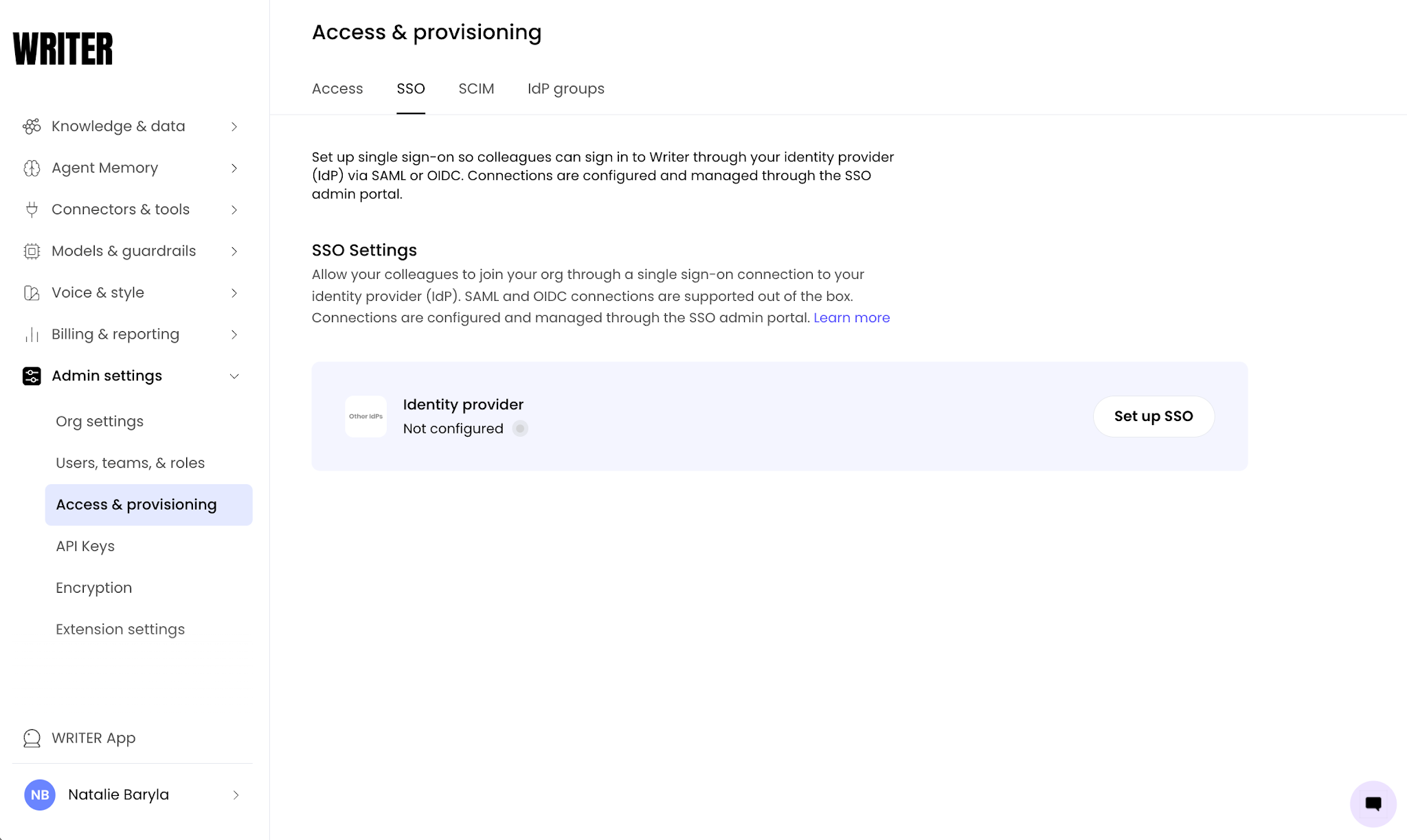
Start by navigating to AI Studio > Admin settings > Access & provisioning then selecting the SSO tab. Select Set up single sign-on.
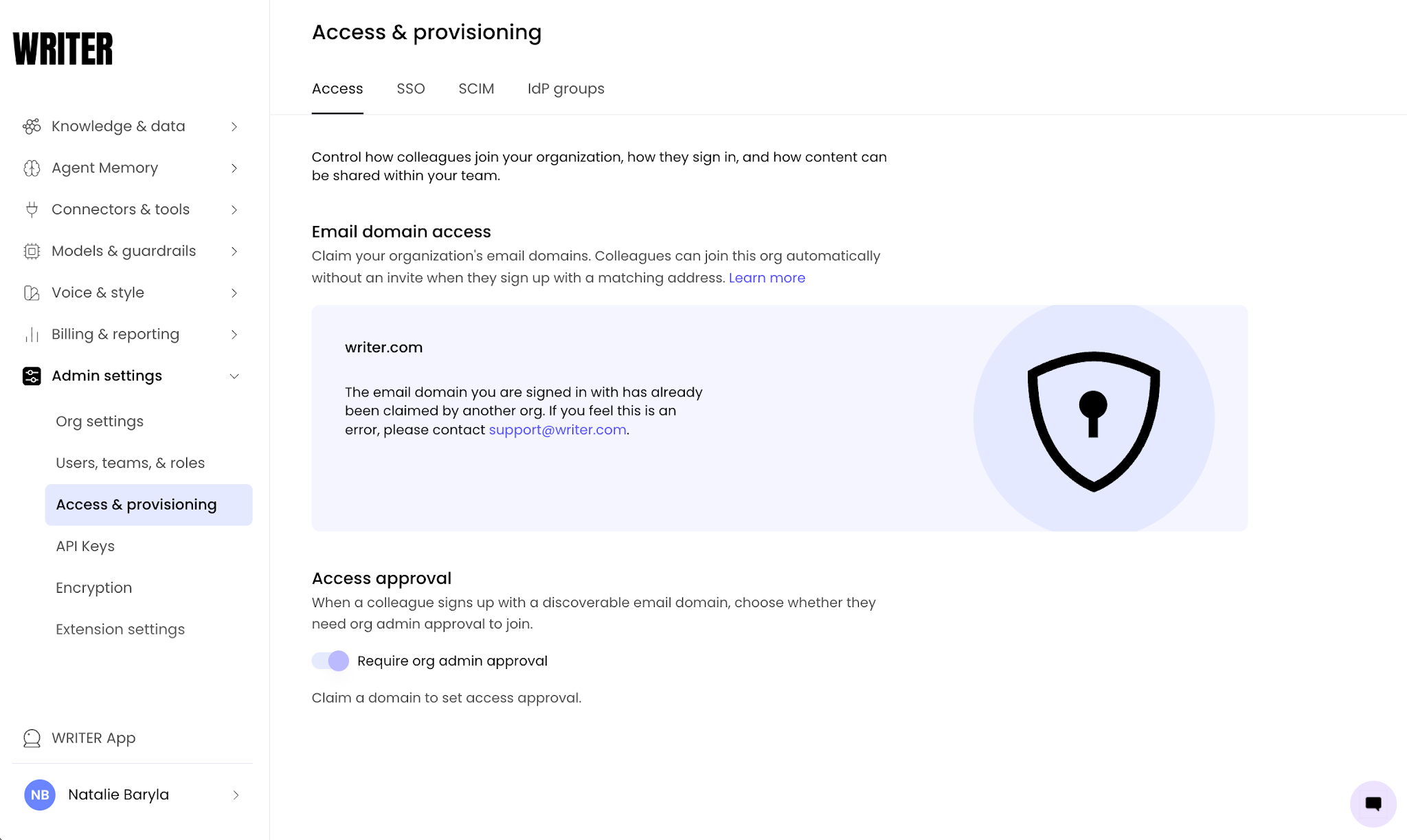
Before you can set up single sign-on, you'll need to claim your domain. To do so, navigate the Access and select Claim domain. Learn more about claiming a domain here.
Configuring domain access before setting up single sign-on
We strongly recommend the following configuration choices:
Enable domain discoverability before you continue setting up single sign-on.
Keep the ability to create passwords turned on until you've fully tested your SSO configuration.
These two steps will prevent users from being locked out of WRITER while you're troubleshooting your single sign-on configuration.
Once you've successfully launched and tested single sign-on, you can turn off password creation if you wish. You can also enforce SSO for your organization by disabling direct password login, which blocks both password and social sign-in for org members.
Next, you'll switch between WRITER and your identity provider (IdP) to share information between the two systems. SSO configuration is managed through the SSO management portal — select Manage in portal to access IdP setup, test connections, certificate rotation, and signing/encryption settings. We recommend testing your connection in the portal before enabling it for users.
Select your IdP (identity provider)
Once you select Set up SSO, you'll be able to access specific documentation based on what identity provider you're using. Select your identity provider from the list to begin your setup. You'll be presented with the steps specific to your identity provider that you will need to follow to complete the SSO connection.
WRITER supports any identity provider that uses the SAML or OIDC protocol, including but not limited to: Microsoft Entra ID (formerly Azure AD), Google Workspace, Okta, OneLogin, PingFederate, PingOne, Microsoft AD FS, JumpCloud, CyberArk, Auth0, Salesforce, Keycloak, and generic SAML/OIDC connections.
Full list of providers available here.
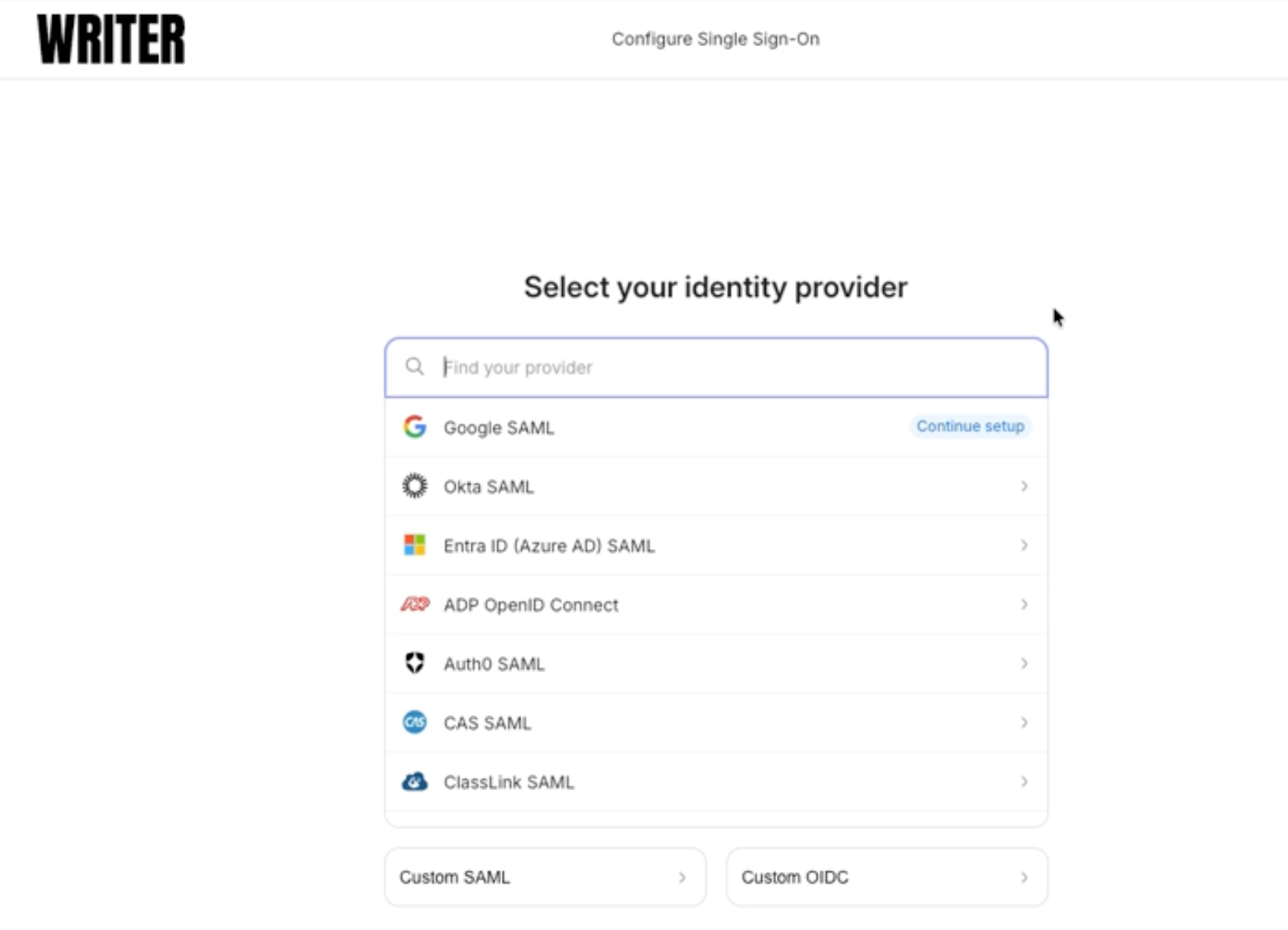
Select your identity provider from the list to begin your setup.
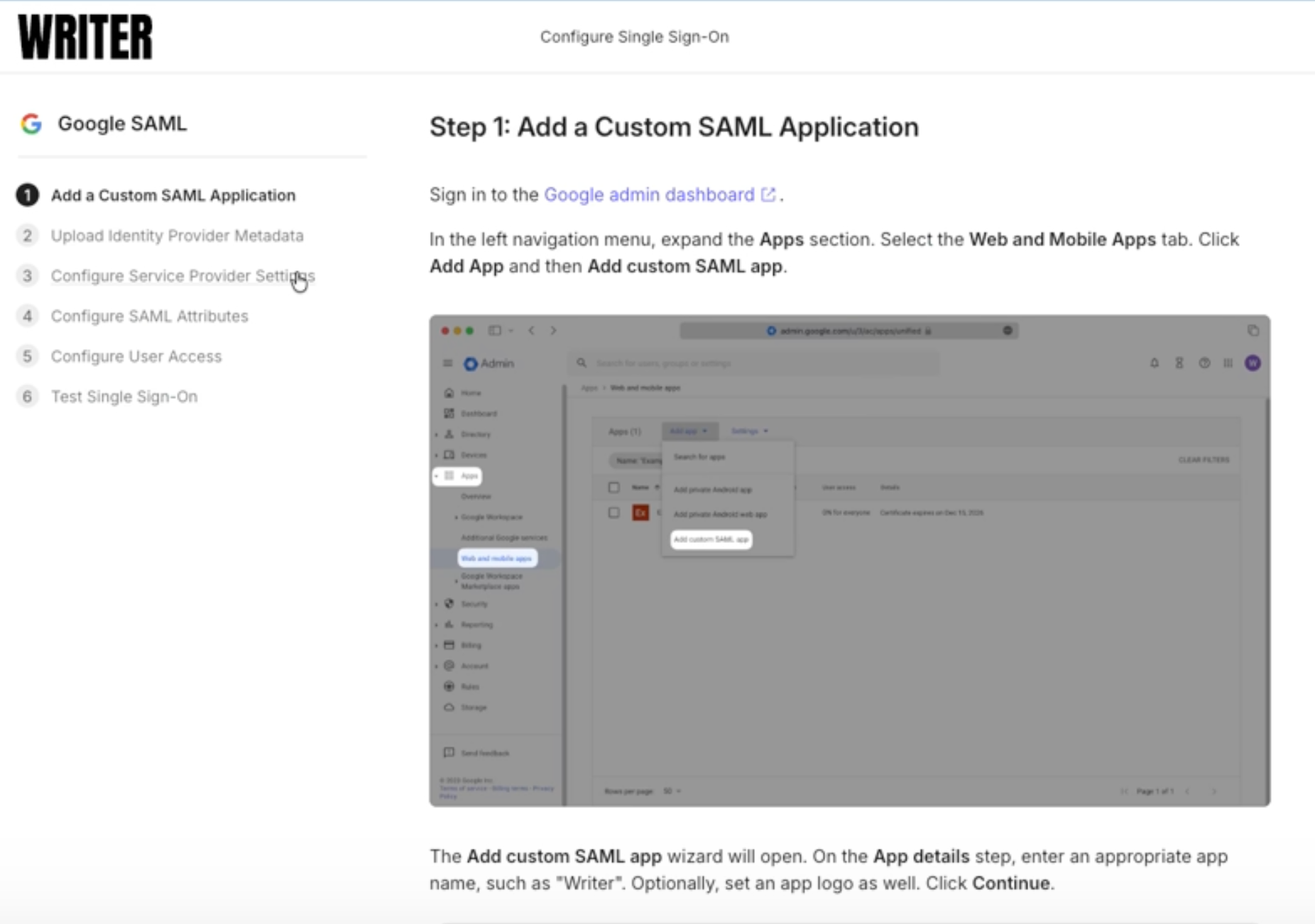
You'll be presented with the steps specific to your identity provider that you will need to follow to complete the SSO connection.
Single sign-on settings
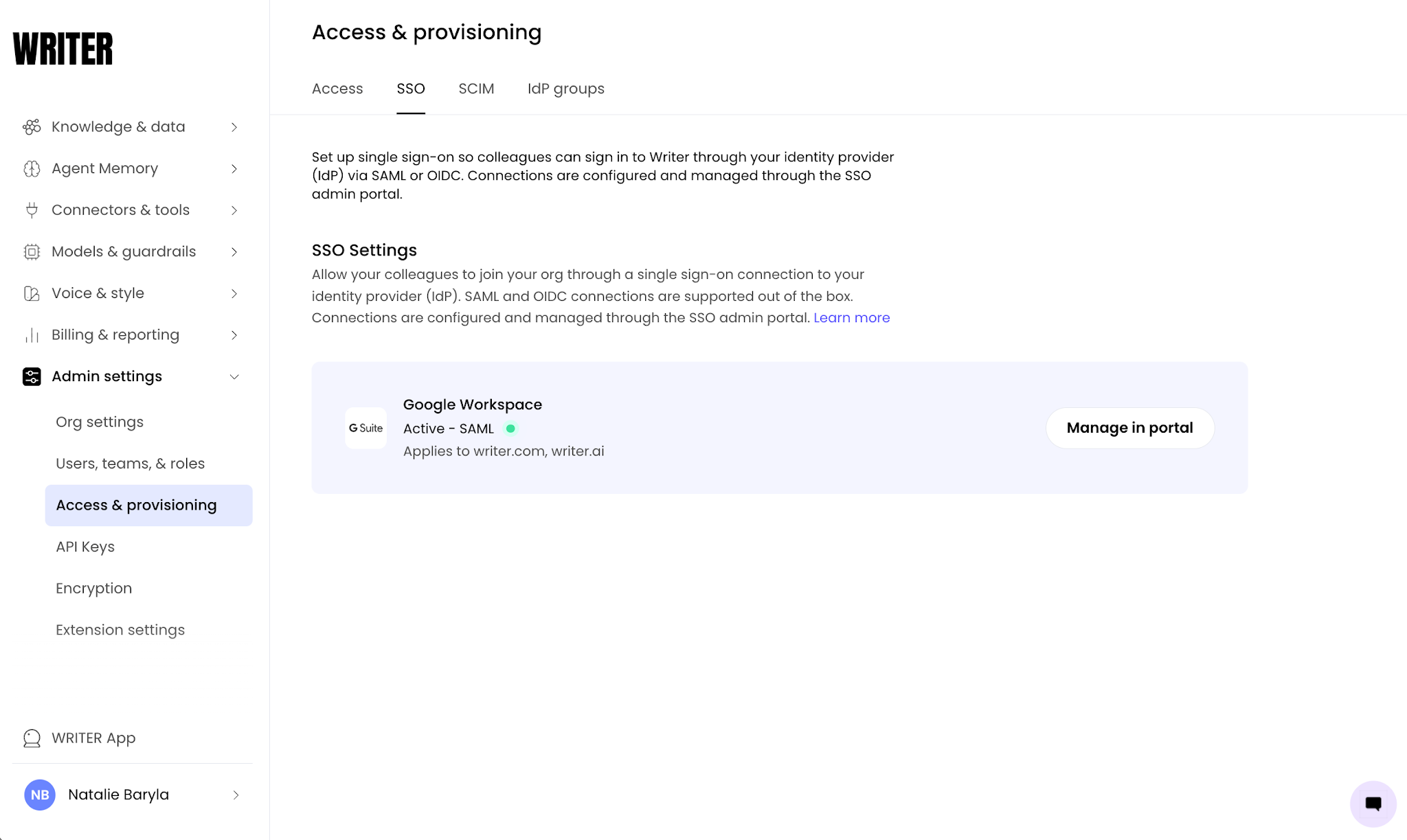
When you navigate to Admin settings > Access & provisioning and select the SSO tab, you should see your new SSO identity provider at the top of the page.
To edit or delete your configuration settings, select Manage in portal. This opens the SSO management portal, where you can configure your IdP, test connections, rotate certificates, and adjust signing/encryption settings.
Set up SCIM provisioning
Once your SSO configuration is complete, you can provision users directly from your IdP by setting up a SCIM (System for Cross-domain Identity Management) connection. SCIM provisioning is configured in the SSO management portal under the Directory Sync section, separate from your SSO connection. SCIM provisioning is available on select Enterprise tiers. If you don't have access, contact your CSM. Learn more in our Help Center article: Setting up SCIM provisioning.
Frequently asked questions
Do I need to do anything in the IdP before my users are able to sign on via SAML or OIDC?
Make sure to assign users to the app in your IdP before they can sign on via SSO.
Do you support configurable session timeouts from the IdP?
No. WRITER manages session length and it is not configurable from the IdP.
How do I switch identity providers?
In the SSO management portal, remove your current SSO connection and set up a new one with your new IdP.
What role/access will new users have when added via SAML?
They will have the default role as specified in Admin > Access & provisioning under the Domain access tab. Learn more here.
Does your application support SAML 2.0 and OIDC authentication?
Yes. WRITER supports OIDC natively, alongside SAML.
Does your application provide SAML SP metadata?
Yes. In the SSO management portal, once you've selected an identity provider, you can download the SP Metadata XML.
What is the SAML Single Sign On URL (ACS URL, Recipient)?
The ACS URL is specific to each SSO connection. You can find it in the SSO management portal when you set up your connection.
What is the SAML SP Entity ID (Audience)?
The SP Entity ID is specific to each connection. You can find it in the SSO management portal once an identity provider is selected.
What SAML binding do you support?
HTTP POST.
What is the default SAML relay state?
We don't enforce a default value. This can be empty.
What SAML NameID formats do you support?
emailAddress or any other format if the email profile attribute is defined.
What additional profile attributes, if any, are you expecting in the assertion/claim from the SAML/OIDC IdP?
email (required), firstName, lastName. If your IdP sends non-standard attribute names (e.g., givenName, sn), you can remap them inside the SSO management portal.
Do you require encrypted assertions?
No. WRITER does not require encrypted assertions. Signing and encryption are configurable per IdP in the SSO management portal.
Do you require encrypted name identifiers?
No. As with assertions, signing and encryption for name identifiers are configurable per IdP in the SSO management portal.
Do you support Service Provider Initiated SSO, Identity Provider Initiated SSO, or both?
Both. Note: when a session is started from your IdP's app launcher, WRITER restarts it as a Service Provider–initiated flow, so any deep-link target in your IdP's RelayState won't be honored.
Do you support "deep linking" and if yes, how do you offer this?
Yes, for Service Provider–initiated SSO. When a user clicks a WRITER link while signed out, they're returned to that destination after authenticating. (Not supported when the session is launched from your IdP's app tile — see above.)
Do you support JIT or OOB user provisioning?
Both. Just-in-time (JIT) provisioning creates users on first sign-in. For out-of-band (OOB) provisioning, use SCIM. Learn more about setting up SCIM provisioning here.
Can the application be configured to remove users who have not logged in for a specific period of time?
No.
Do you support group or role claim mapping from the IdP?
No. WRITER does not read group attributes from SAML or OIDC assertions on login. SCIM is the only way to drive role and team membership from your IdP.
Does WRITER support social sign-in?
Yes. Google OAuth and Microsoft OAuth social sign-in are supported.
Can one SSO connection cover multiple domains?
Yes. A single SAML or OIDC connection covers all of your organization's claimed domains.
How do I rotate my SSO certificate?
Certificate rotation is handled in the SSO management portal. WRITER also sends expiry reminders before your certificate expires.
Error messages
When I add my email domain and select Next, I'm getting an error that says "One or more of the domains you added are already registered by another organization."
Email domains that you add to single sign-on have to be completely unique. It's possible that someone else from your organization has already set up another WRITER account. To resolve this, email support@writer.com and we'll help you sort it out.
When I configure my IdP in the SSO management portal, I get an error that the identity provider or entity ID is already registered.
Each IdP configuration must be unique. It's possible that someone else from your organization has already set up another WRITER account. To resolve this, email support@writer.com and we'll help you sort it out.
I got an email from WRITER saying that our SSO certificate is about to expire. Where do I upload a new certificate?
Certificate rotation is handled in the SSO management portal. Navigate to Admin > Access & provisioning and select the SSO tab, then select Manage in portal to update your certificate. WRITER also sends expiry reminders before your certificate expires.
What services are available through WorkOS?
ADP OpenID Connect
AWS Cognito
Access People HR
Apple
Auth0
BambooHR
Breathe HR
CAS SAML
Cezanne HR
ClassLink
Clever OIDC
Cloudflare
CyberArk SAML
CyberArk SCIM
Duo
Entra ID OIDC (formerly Azure AD)
Entra ID SAML (formerly Azure AD)
Entra ID SCIM (formerly Azure AD)
Firebase
Fourth
GitHub OAuth
GitLab OAuth
Google Analytics
Google Directory Sync
Google OAuth
Google OIDC
Google SAML
HiBob
Intuit OAuth
JumpCloud SAML
JumpCloud SCIM
Keycloak
LastPass
LinkedIn OAuth
Login.gov OpenID Connect
Microsoft AD FS SAML
Microsoft OAuth
NetIQ
NextAuth.js
Okta OIDC
Okta SAML
Okta SCIM
OneLogin SAML
OneLogin SCIM
OpenID Connect
Oracle SAML
PingFederate SAML
PingFederate SCIM
PingOne SAML
React Native Expo
Rippling SAML
Rippling SCIM
SAML
SCIM
SFTP
SailPoint SCIM
Salesforce OAuth
Salesforce SAML
Segment
Shibboleth Generic SAML
Shibboleth Unsolicited SAML
SimpleSAMLphp
Slack OAuth
Stripe
Supabase + AuthKit
Supabase + WorkOS SSO
VMware
Vercel OAuth
Workday
Xero OAuth
miniOrange