Managing and sharing playbooks
Last updated: July 30, 2026
Who can use this feature
All users can create and use playbooks. To learn how to get started with playbooks see the article here.
Managing playbook versions
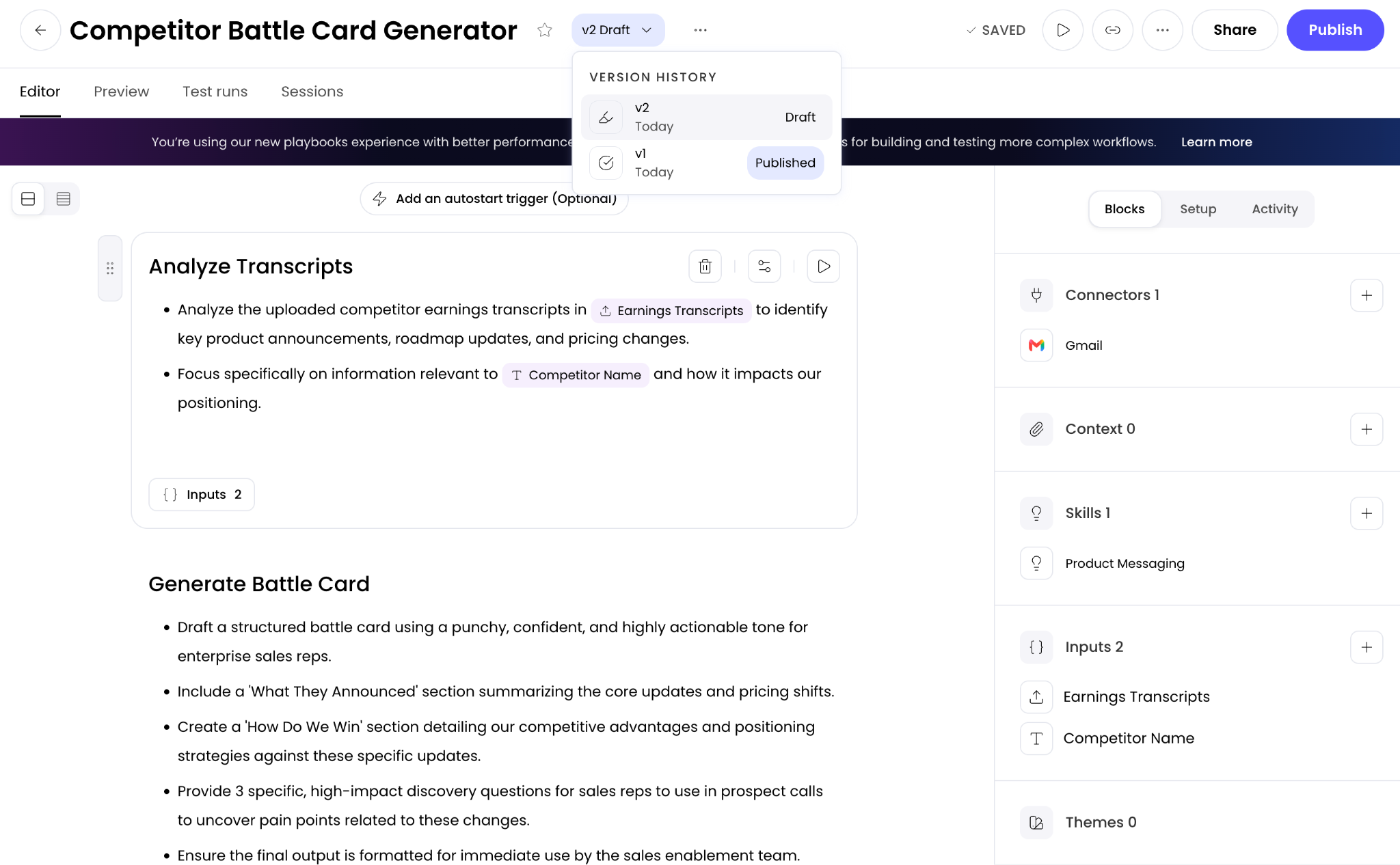
When you edit a playbook, WRITER automatically creates a draft version. This allows you to make changes, test them thoroughly, and publish updates without affecting pending triggers or other people who are using your playbook.
Why version control matters:
Test changes safely without disrupting active users
Run A/B tests by comparing different versions
Restore previous versions if needed
Track your playbook's evolution over time
Understanding drafts and published versions
When you edit a playbook that's already been published, you're working in a draft version. Your changes are saved automatically, meaning you can safely close the window and return later without losing your work.
Draft version (Autosaved) = Your work-in-progress copy. It saves automatically as you type.
Published version = The official, active version of your playbook.
What if I don't share my playbooks?
Even if you keep your playbook completely private, you still use drafts and publishing. Publishing does not share your playbook with others. It simply takes your autosaved draft and makes it the official version. This is critical because any scheduled triggers or webhooks will only run the published version, not your work-in-progress draft. If you have shared the playbook, publishing is what makes your updates visible to your team.
Publishing your changes
"Publishing" simply means taking your autosaved draft and making it the active, live version.

Once you've tested your draft and are confident in the changes:
Select the Publish button in the top right corner and your draft becomes the new published version.
The updated version is now live for you in WRITER Agent. If the playbook has scheduled triggers, they will now use this new version. If you have already shared the playbook, anyone with access will now see and be able to run this updated version.
💡 Pro-Tip: Always test your draft thoroughly before publishing, especially if others depend on this playbook for critical workflows.
Accessing version history
You can view and restore previous versions of your playbook from the top of the edit page. The Activity tab located on the right side is still under construction by our team, more information on that coming soon.
To restore a previous version select the top menu to the right of the name of your playbook and select the version from the dropdown. To make that the active version of your playbook select Publish.
⚠ Note: Restoring a previous version creates a new draft. You'll need to publish it to make it the active version for automations and/or shared users.
A/B testing with versions
Version control makes it easy to test different approaches and compare results:
Publish Version A: Share your current playbook with users.
Create a draft: Make changes to test a new approach.
Test the draft: Run it multiple times to evaluate results.
Publish Version B: If it performs better, publish the new version.
Compare results: Use version history to see what worked best.
Managing playbook sessions and test runs
The new version includes dedicated screens that give you complete visibility into how your playbook is being used, while keeping your tests separate from your real work.
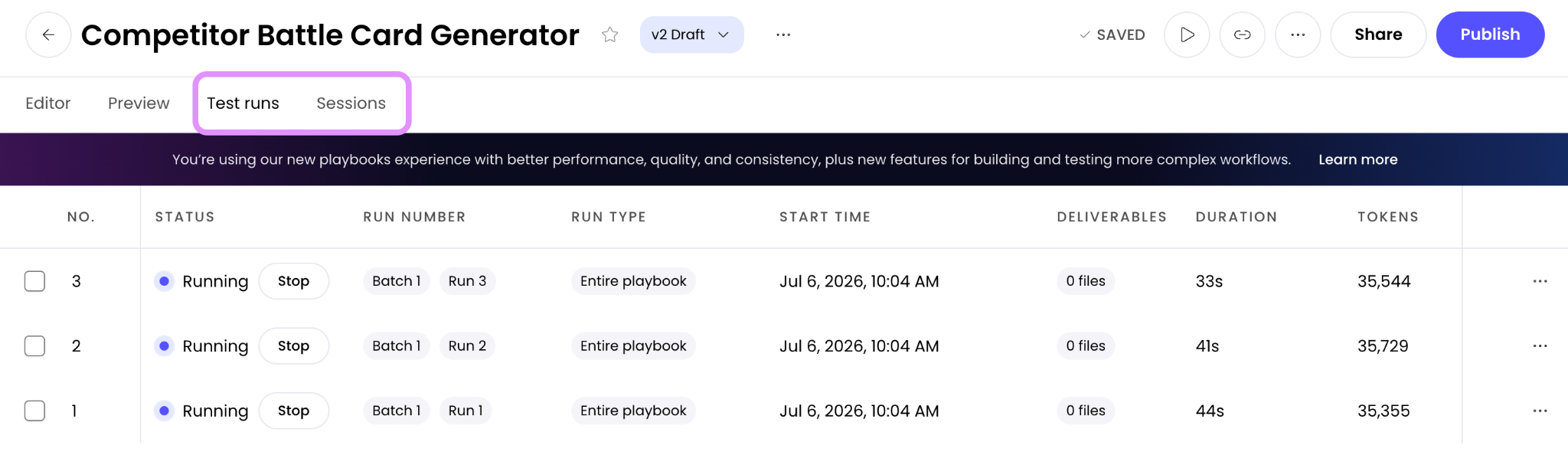
When you navigate to your playbook, you'll see two distinct tabs for history:
Sessions tab: This is the official history of your playbook. It logs every time someone selects Run playbook or when a trigger automatically executes the workflow.
Test runs tab: This is your sandbox history. It logs every time you select Test run or Test with synthetic data. This keeps your experimental runs from cluttering up the actual production data.
To view a past session or test run:
Navigate to your playbook.
Select either the Sessions or Test runs tab.
View the historical list of runs.
Click into any specific run to see the exact inputs used, the steps executed, and the final output generated.
Sharing playbooks
If other members of your team would benefit from using the playbook you've created, select the Share button from the top right. When sharing a playbook you can select between two levels of access which give the following permissions:

Viewer
View and run the playbook
See test results and outputs
Create their own copies to customize
They CANNOT edit your original playbook
They CANNOT share the playbook with others
Collaborator
View and run the playbook
See test results and outputs
Create their own copies to customize
They CAN edit your original playbook
They CAN share the playbook with others
From the share screen you can select to expand your playbook to be accessible by individual members, your org, or specific teams. You can also assign ownership of a playbook to someone else if you need to hand off management of the workflow.
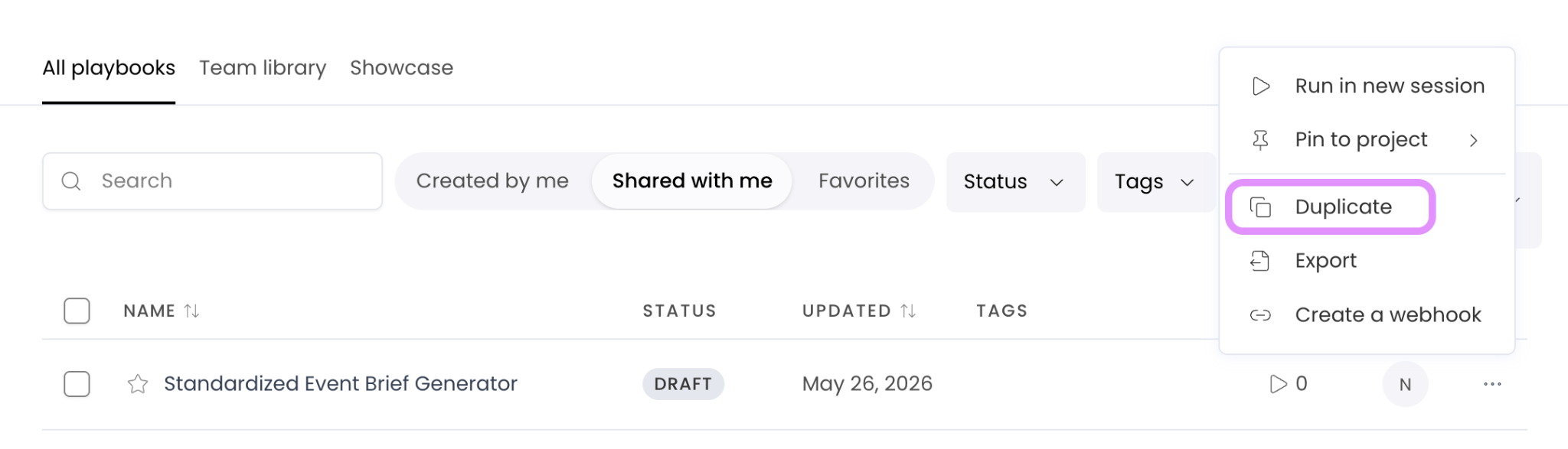
You can find playbooks shared with you by navigating to Playbooks > shared with me. You can duplicate playbooks that are shared with you by selecting the three dot menu next to the playbook and then selecting Duplicate.
Additionally, you can export playbooks and reimport them elsewhere, including across orgs. Exported playbooks will retain files, connectors, instructions, and deliverable type. However, they will not retain any referenced Knowledge Graphs, voice, or triggers.

To export a playbook, select export from the three dot menu.
To import a playbook, select the import icon in the top right of the Playbooks page. From there you can make any adjustments to the playbook and save it. Imported playbooks will have the prefix [Imported] in front of their name and they will be private to you by default.
Organizing playbooks
As your library of playbooks grows, tags make it easy to keep everything organized and quickly find what you need. Tags are personal to you, so you can build a system that matches how you work, whether that's by use case, project type, or any other category that's useful to you.
Adding tags to a playbook

Navigate to the playbooks page, hover over the playbook you want to tag, and select the tags option. Create a new tag or choose an existing one to apply it. By selecting Manage tags you can rename, delete, and recolor your tags. You can apply multiple tags to a single playbook if it fits more than one category. Tags only apply to your view of playbooks.
Filtering playbooks by tag
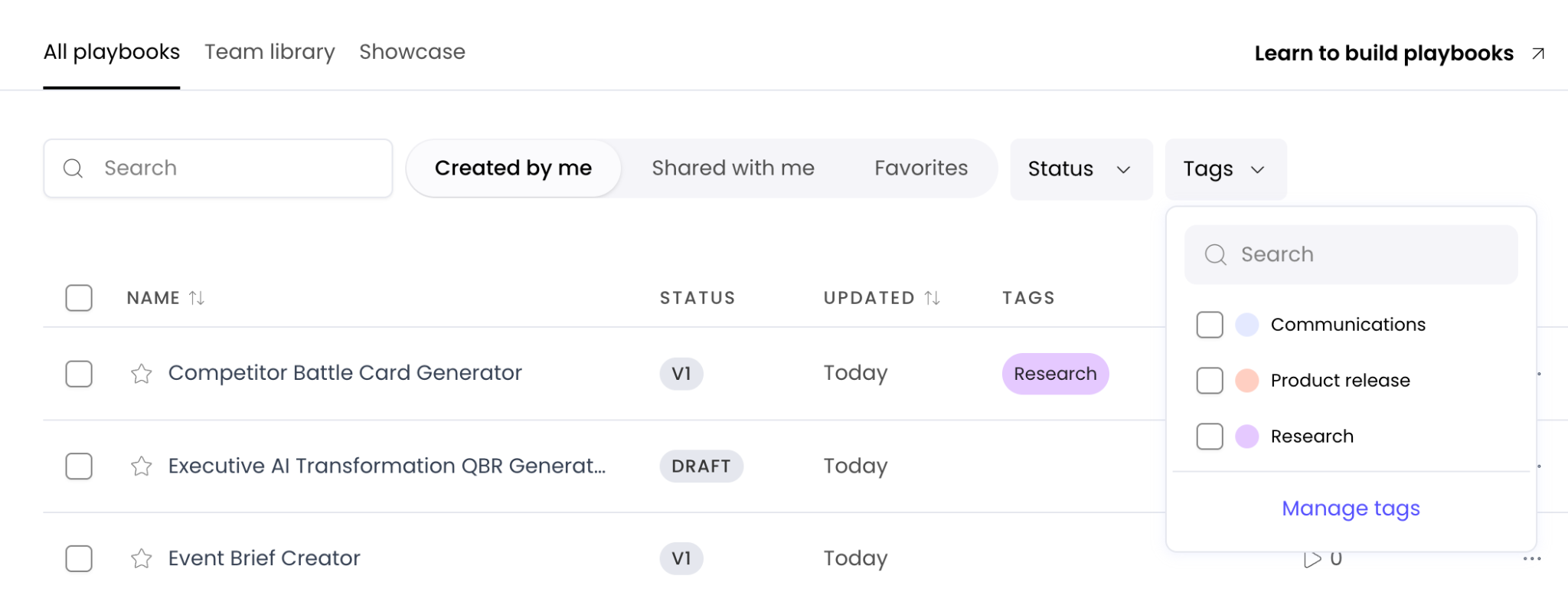
Once you've tagged your playbooks, use the tags menu at the top of the Playbooks page to filter the list. Select a tag to display only the playbooks with that tag applied.
Managing your tags
You can edit or delete your tags at any time. Editing a tag updates its name everywhere it's been applied. Deleting a tag removes it from all associated playbooks, but the playbooks themselves remain unaffected. From the Manage tags menu, select the trashcan icon to the right of the tags you would like to delete. To edit the tag select the color on the left or simply edit the text. Selecting Done will save and apply your changes across your playbooks.
Bulk actions
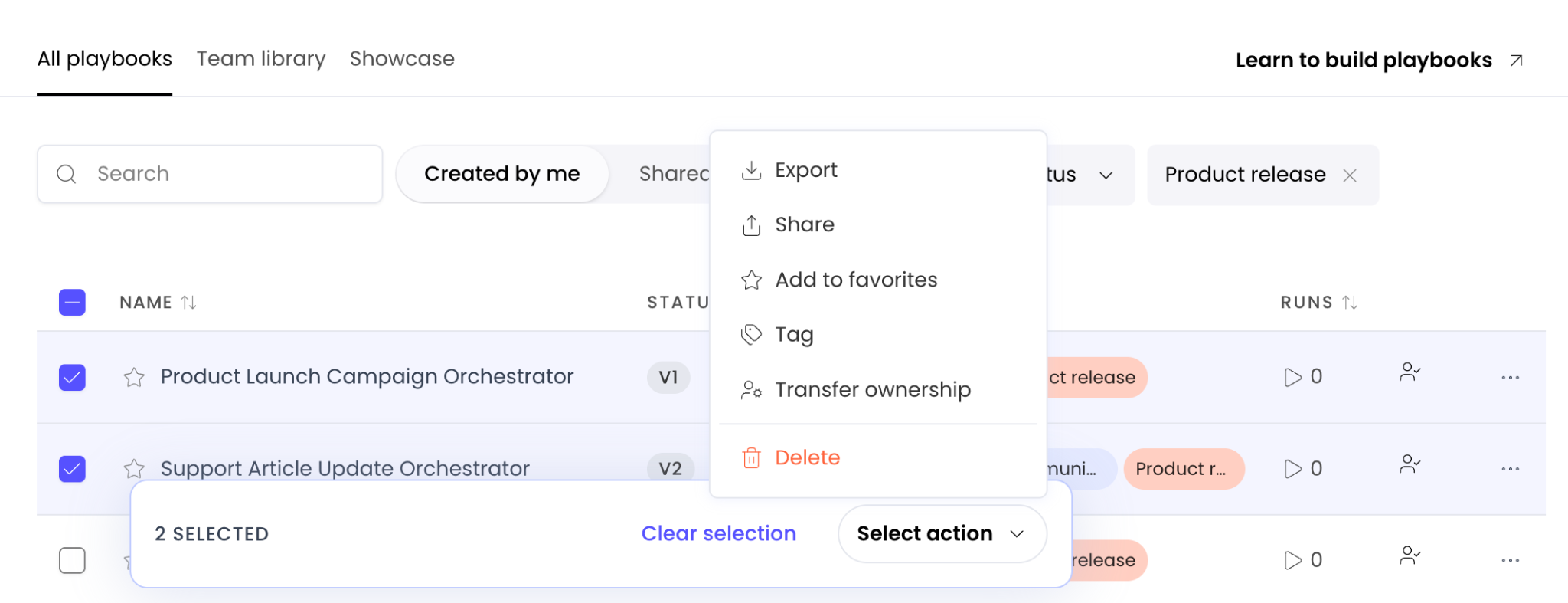
You can manage multiple playbooks at once directly from the Playbooks page. Use the checkboxes next to your playbooks to activate the bulk actions menu, which allows you to share, favorite, tag, and delete multiple playbooks simultaneously.
💡 Pro-Tip: Use tags to create a personal organizational system that grows with your playbook library. Grouping by workflow type, project, or frequency of use can save you time when you need to find the right playbook fast.
Monitoring playbooks
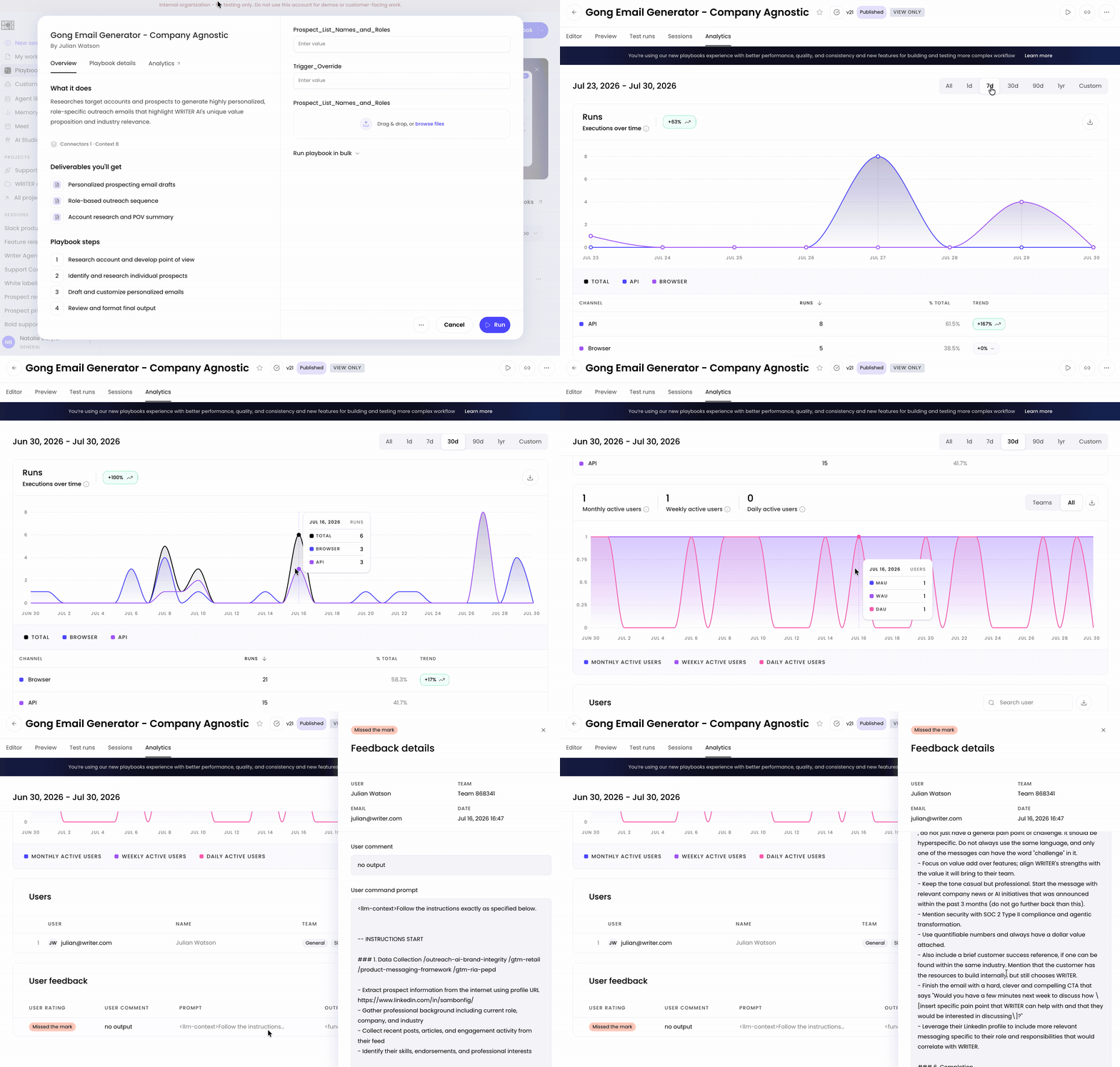
From the Analytics tab of your playbook you can track usage and performance over time. Select the time period you'd like to view data for and scroll the page to see where your users are triggering your playbook from, how many active users your playbook has, and any feedback reported using the thumbs up/down icons on the output the playbook produced.
FAQs
What happens to my draft if I don't publish it?
Your draft is saved automatically and will remain available for you to continue editing. It exists separately from your published version, so you can work on it over time without affecting users who are running the published playbook. However, only you can see and test your draft—shared users will continue to see only the published version.
Can I have multiple drafts of the same playbook?
No, you can only have one draft at a time for each playbook. When you edit a published playbook, it creates a single draft version where all your changes are saved. If you want to test multiple different approaches, you'll need to duplicate the playbook to test variations independently.
If I restore a previous version, will it affect people using my playbook?
No, restoring a previous version creates a new draft—it doesn't automatically change the published version. People who have access to your playbook will continue to see the current published version until you explicitly publish the restored version.
Do version changes affect schedule-based triggers?
Yes, when you publish a new version of a playbook, any triggers scheduled to run that playbook will use the newly published version. If you have a trigger running an important playbook, test your draft version thoroughly before publishing.
Where can I see past runs of my playbook?
You can view all past runs in the new Sessions tab located within your playbook. This shows you the inputs, execution path, and outputs for every time the playbook was run.
Can I edit a playbook after it's been shared with my team?
Yes! You can edit your playbook at any time, even after sharing it. Your edits will be saved as a draft until you publish them.
How do I stop sharing a playbook with someone?
Go to the sharing settings for your playbook and remove the individual user or team that you no longer want to have access. They'll lose access to view or run the playbook, but any copies they've already created will remain theirs.
What happens if I delete a playbook that's being used by others?
If it's shared, then the shared user will no longer have access as it will be fully deleted.
Can I delete, share, or tag playbooks in bulk?
Yes! Use the checkboxes on the Playbooks page to activate the bulk actions menu to share, favorite, tag, and delete multiple playbooks at once.