Get started with playbooks
Last updated: October 1, 2026
Who can use this feature
Users with limited team member roles can use playbooks. All other default roles can create and use playbooks.
What are playbooks?
Do you find yourself running the same prompts repeatedly in WRITER Agent? Or searching through past sessions to copy successful prompts? It's time to create a playbook. Playbooks are reusable workflows that automate your most common and complex tasks, saving you time and ensuring consistency. Playbooks are perfect for tasks like:
Generating weekly reports
Analyzing sales data
Creating marketing campaign assets
Onboarding new clients
Playbook showcase
Get started with popular playbook templates you can customize in just a few minutes. Browse example playbooks built around core use cases, see them in action with replay demonstrations, and test them with your own inputs to explore what's possible.
The playbook showcase makes it easy to:
Discover pre-built playbook examples for common workflows
Watch replays to see how playbooks work end-to-end
Test playbooks with your own data before building your own
Learn best practices for structuring effective playbooks
Whether you're new to playbooks or looking for inspiration for your next automation, the showcase helps you explore proven workflows and jumpstart your productivity.
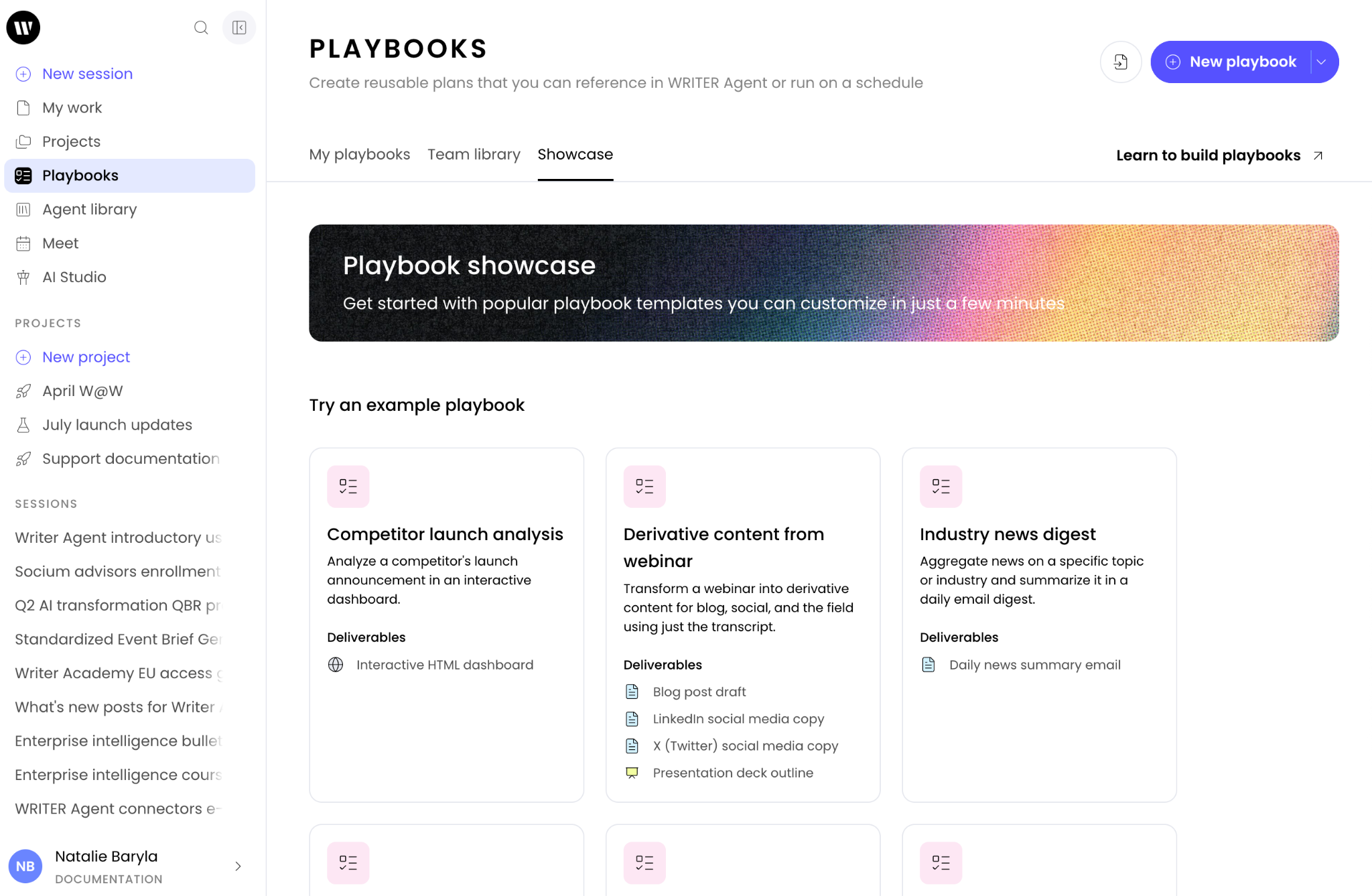
Access the playbook showcase directly from the Playbooks section in WRITER and select a playbook to learn more or try it out.
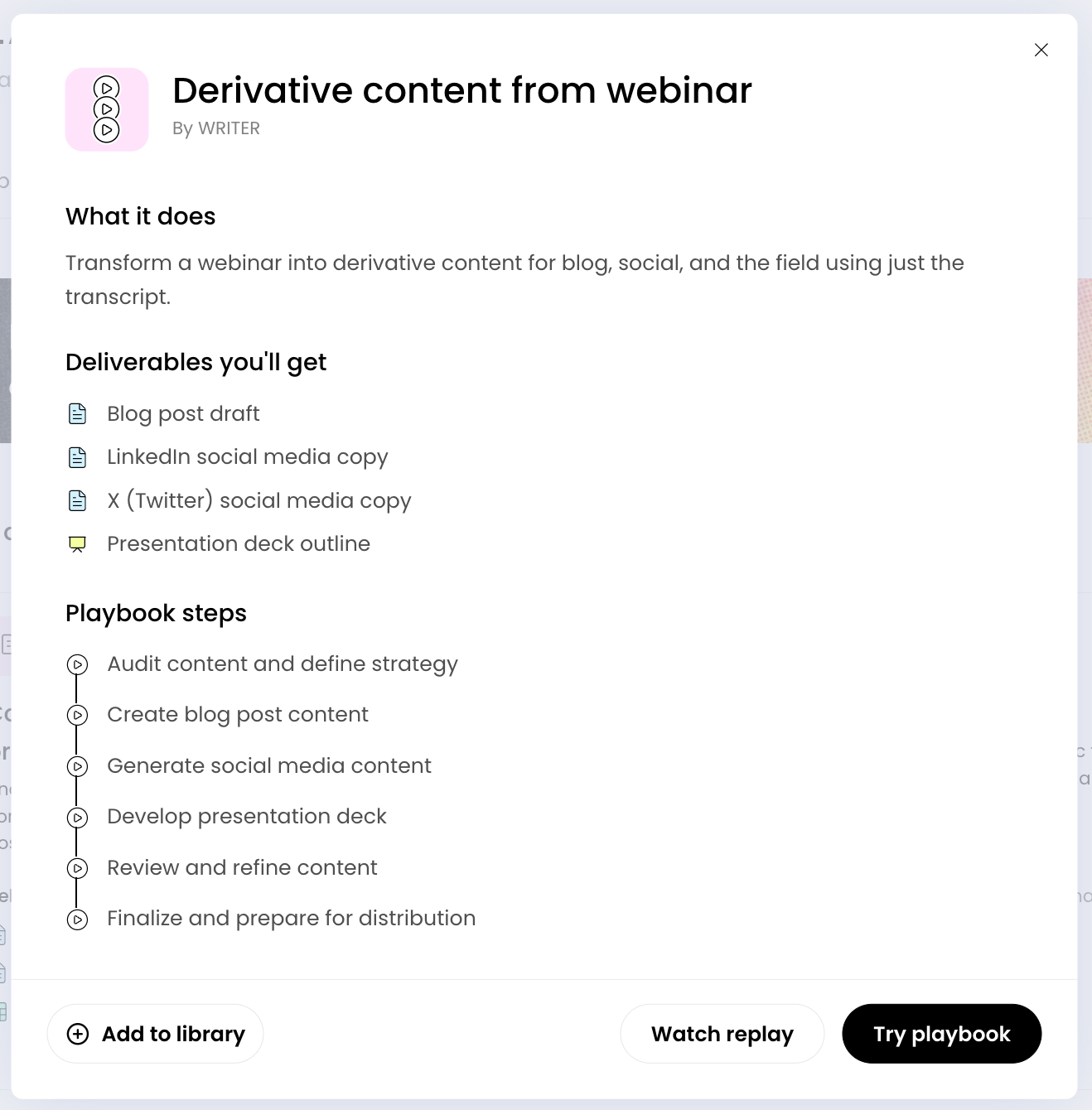
From the showcase tab you can select a playbook from the list and are able to give it a try with your own inputs or watch a replay of the playbook in action.
Team playbook library
Your team admins are able to curate official playbooks for you.

From the Playbooks page select Team library to view playbooks suggested by your team admin. Select the playbook to view its details or run it.
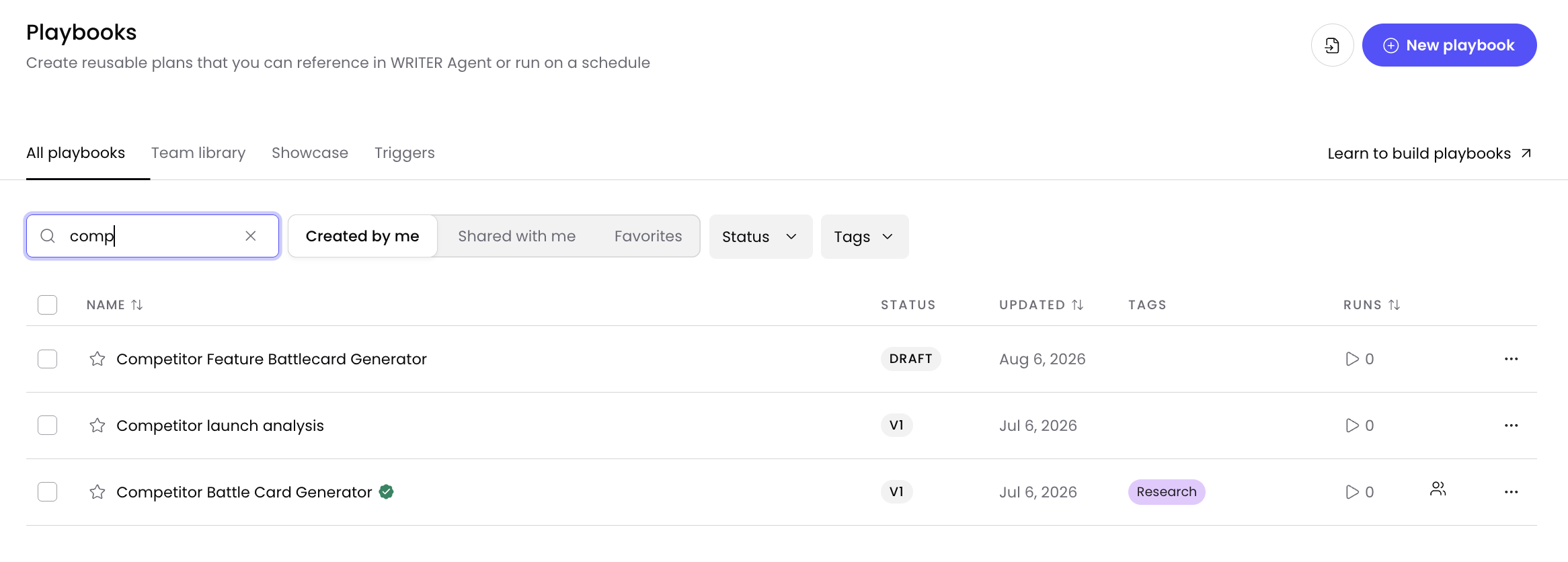
You can find playbooks from your team library noted with a green checkmark in playbooks list view.
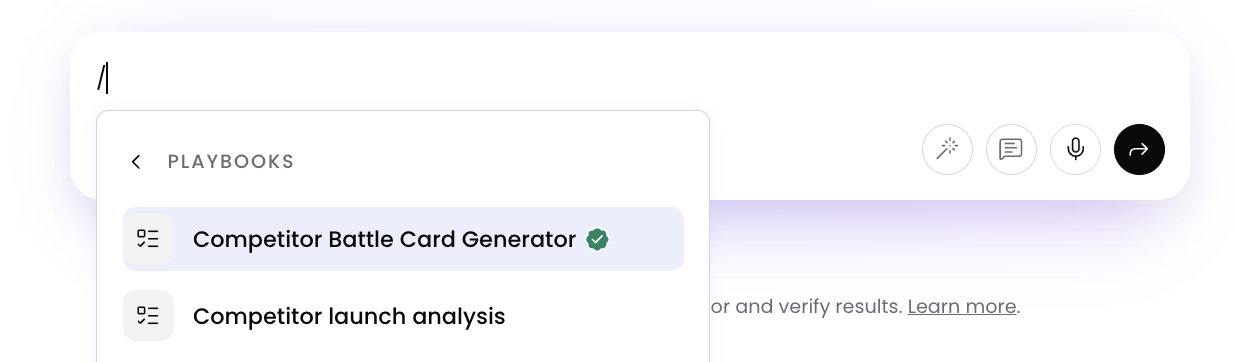
Additionally, if you select playbooks from the WRITER Agent prompt box you'll see the green check mark next to those playbooks there as well.
Playbooks shared with you
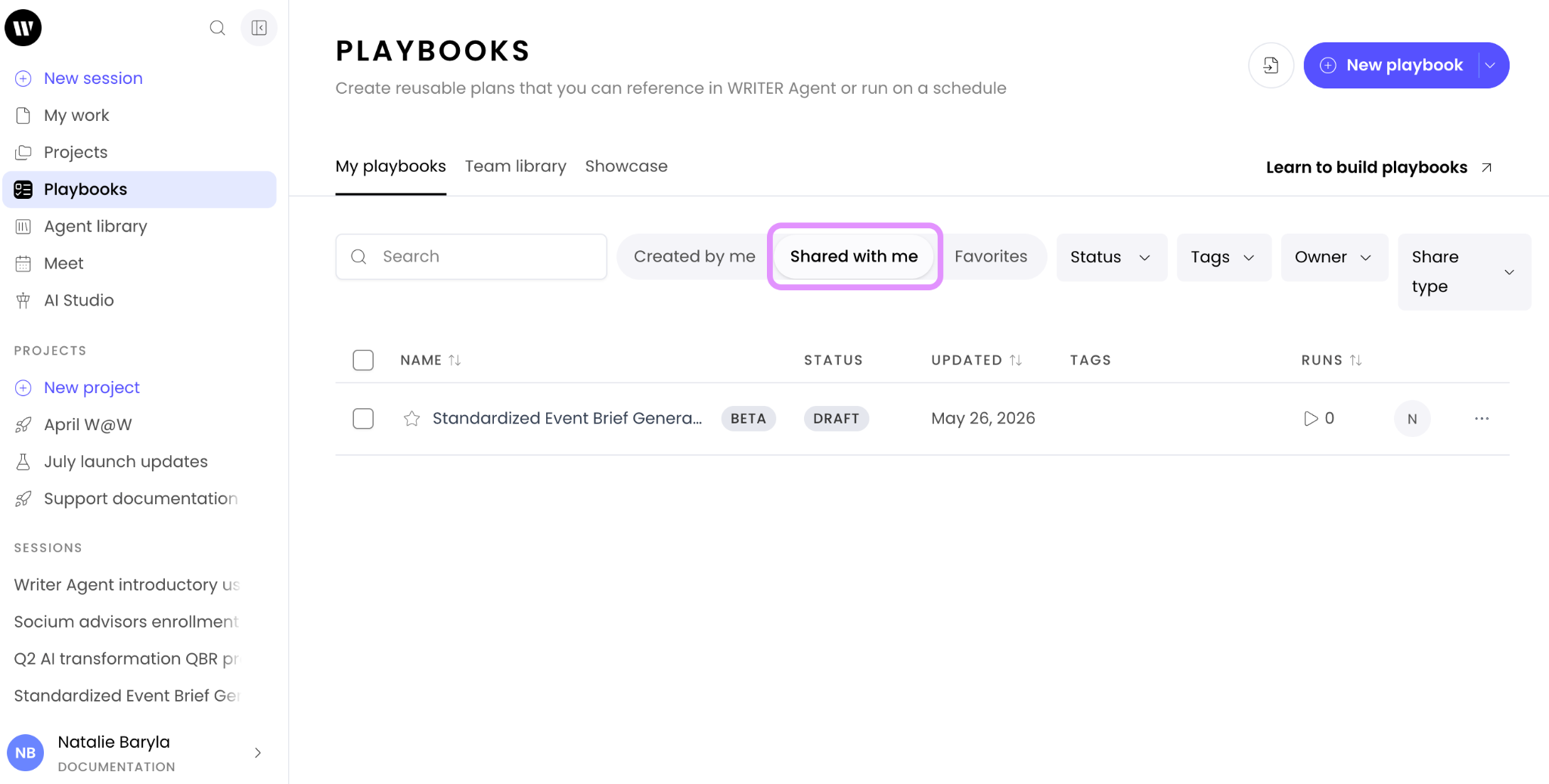
When a teammate shares a playbook with you, you’ll receive an email and the playbook will appear in the Shared with me section within the My playbooks tab.
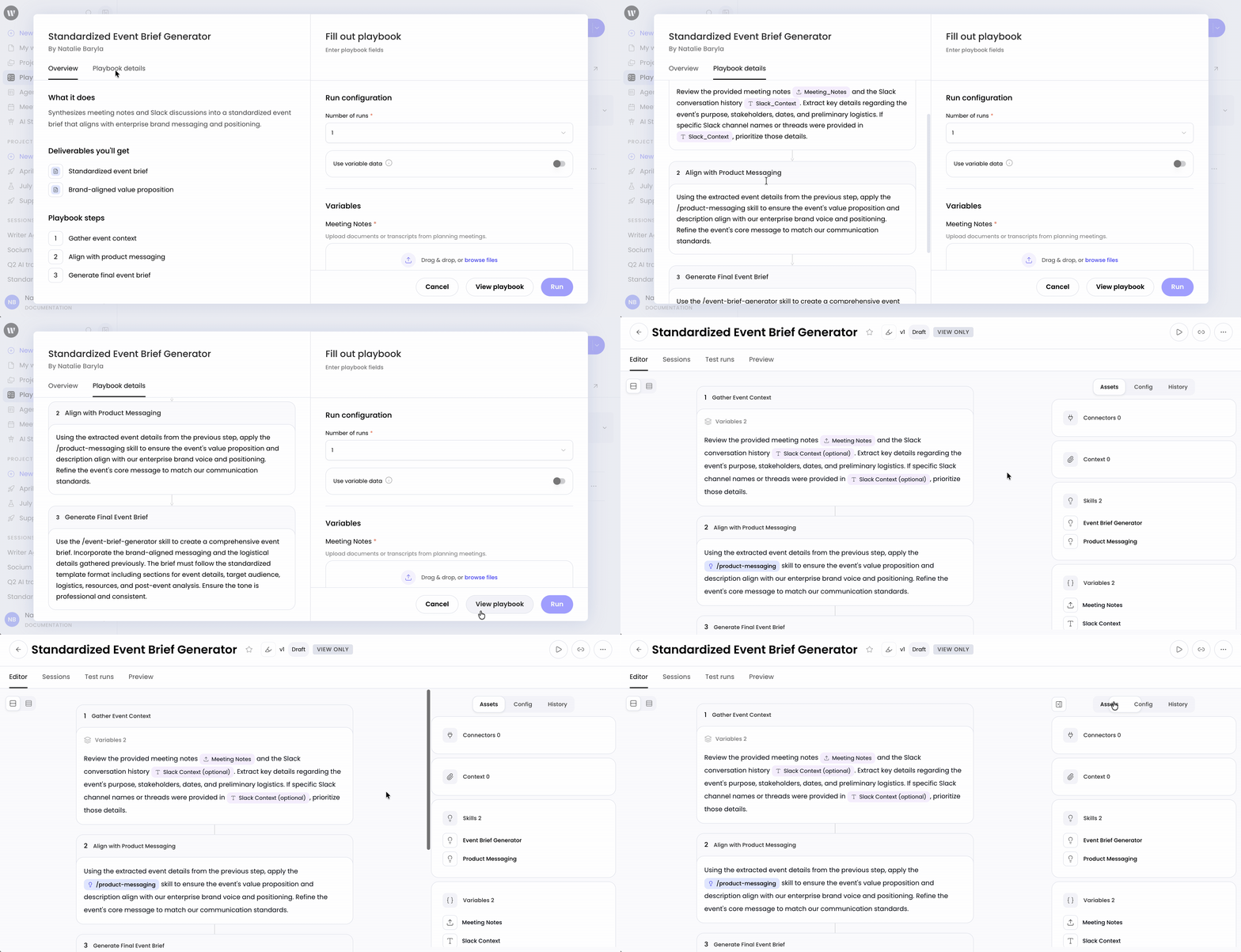
Select the playbook to view an overview of the workflow. You can view the details by selecting Playbook details on the left side or selecting View playbook from the right. From the playbook’s page you’ll see all the steps outlined along with the configuration settings on the left.
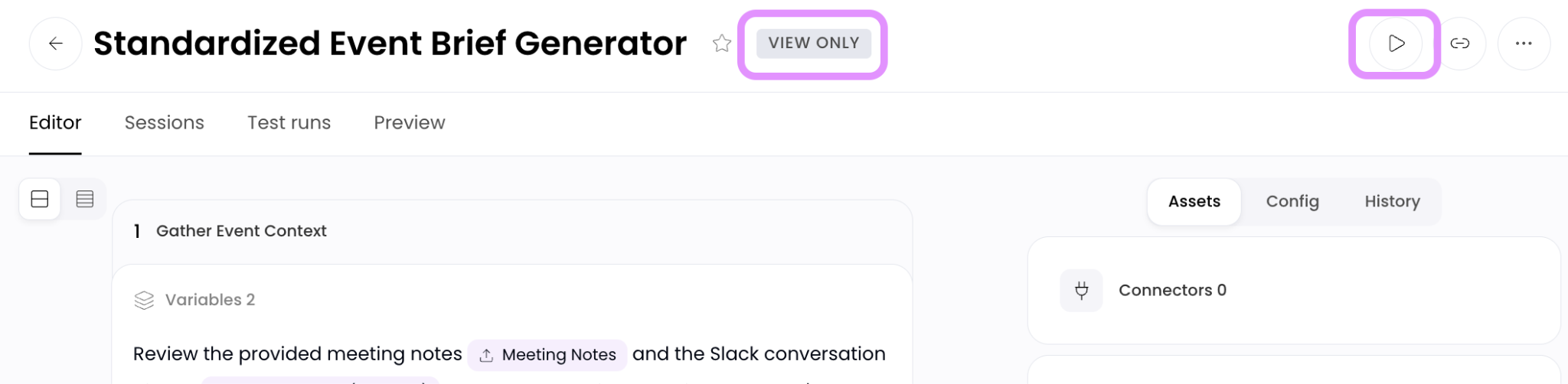
You’ll notice a View only tag at the top of the playbook. To use the playbook select the play icon ( ▶) in the top right and then select Run playbook.
Using playbooks
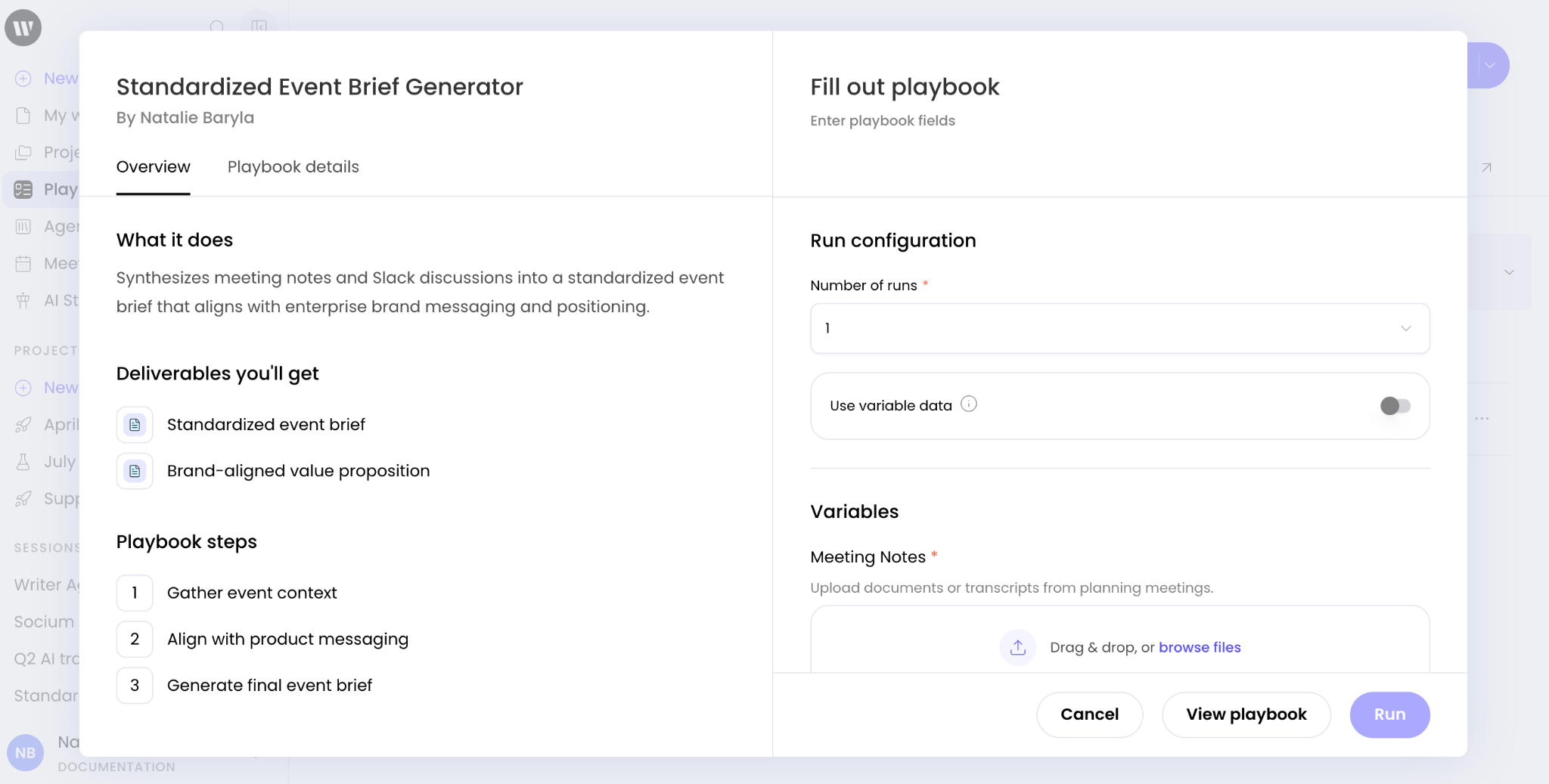
From the right side, complete the fields required to run the playbook and select Run. Playbook inputs can be a text field, dropdown menu, and or a file upload.
If you’d like to run the playbook multiple times, select from the dropdown labeled Number of runs within the Run configuration section. Next enable the toggle that says Use variable data and either complete the required fields.

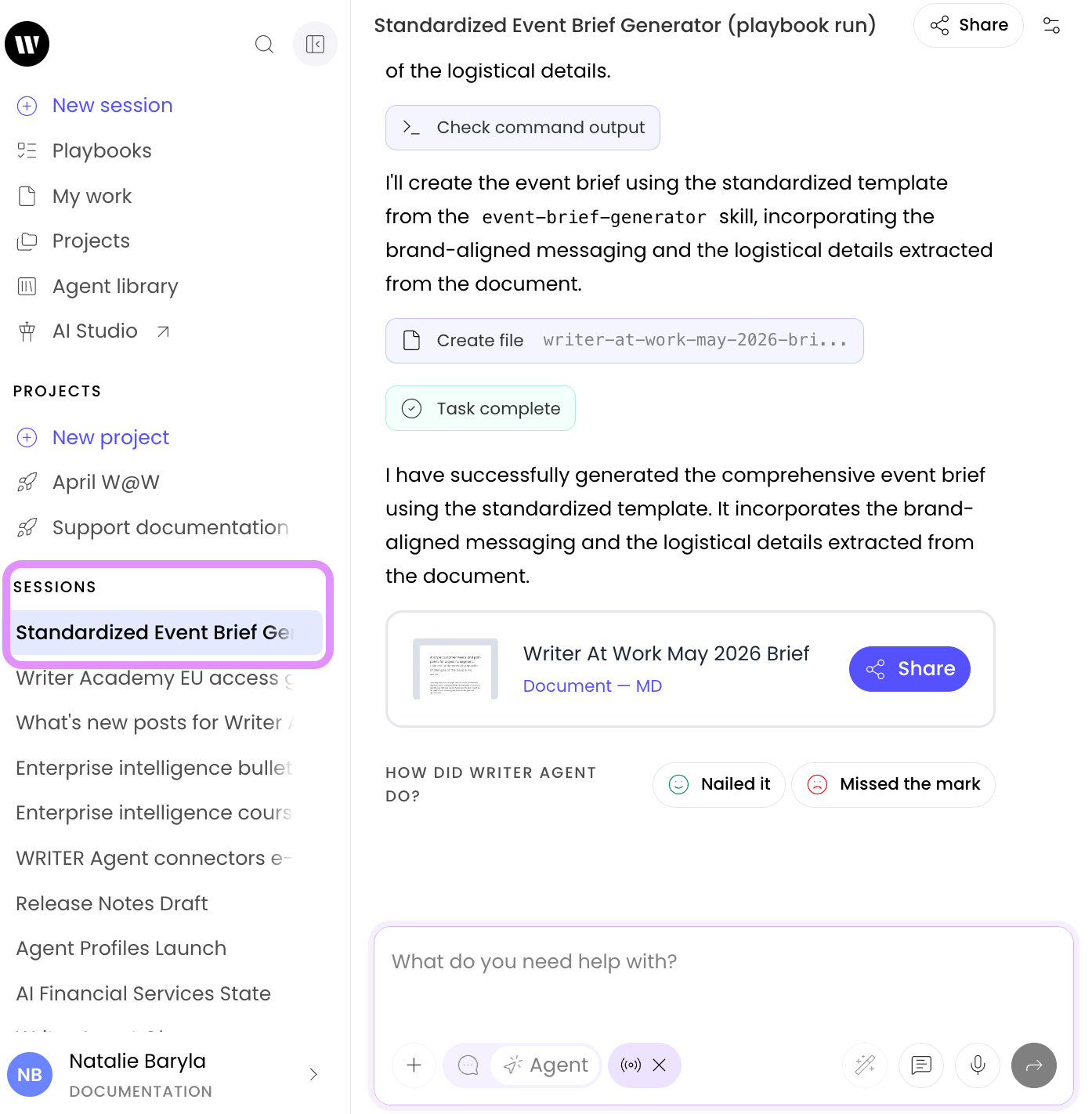
Once you’ve selected Run you’ll be able to find the session from the Sessions tab within the playbook as well as from the Sessions section of the main WRITER Agent menu.
Editing Playbooks
Sometimes playbooks shared with you require customization to make them work for your unique workflow. You don’t need to start completely from scratch to rebuild playbooks shared with you, instead you can duplicate the one you’d like to customize.
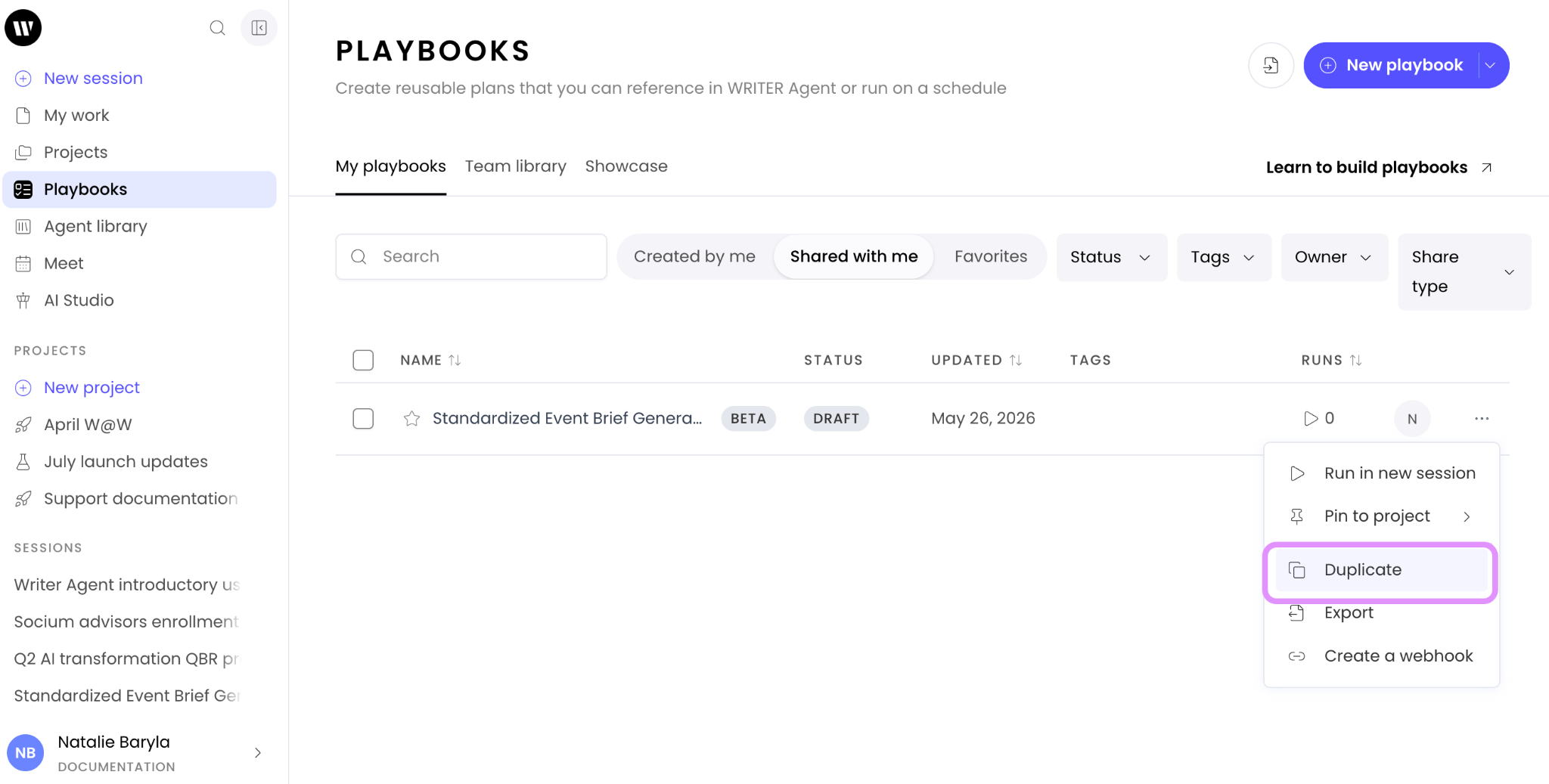
Locate the playbook you’d like to customize, select the three-dot menu (...) next to the playbook you want to edit, and select Duplicate. The duplicated playbook will now appear in the My playbooks tab, where you have full editing permissions.
Creating playbooks
You can save a WRITER Agent session as a playbook. Just ask WRITER Agent "save this as a playbook" and WRITER Agent will transform your session into a reusable playbook.
To create a playbook outside of a WRITER Agent session, follow these steps:
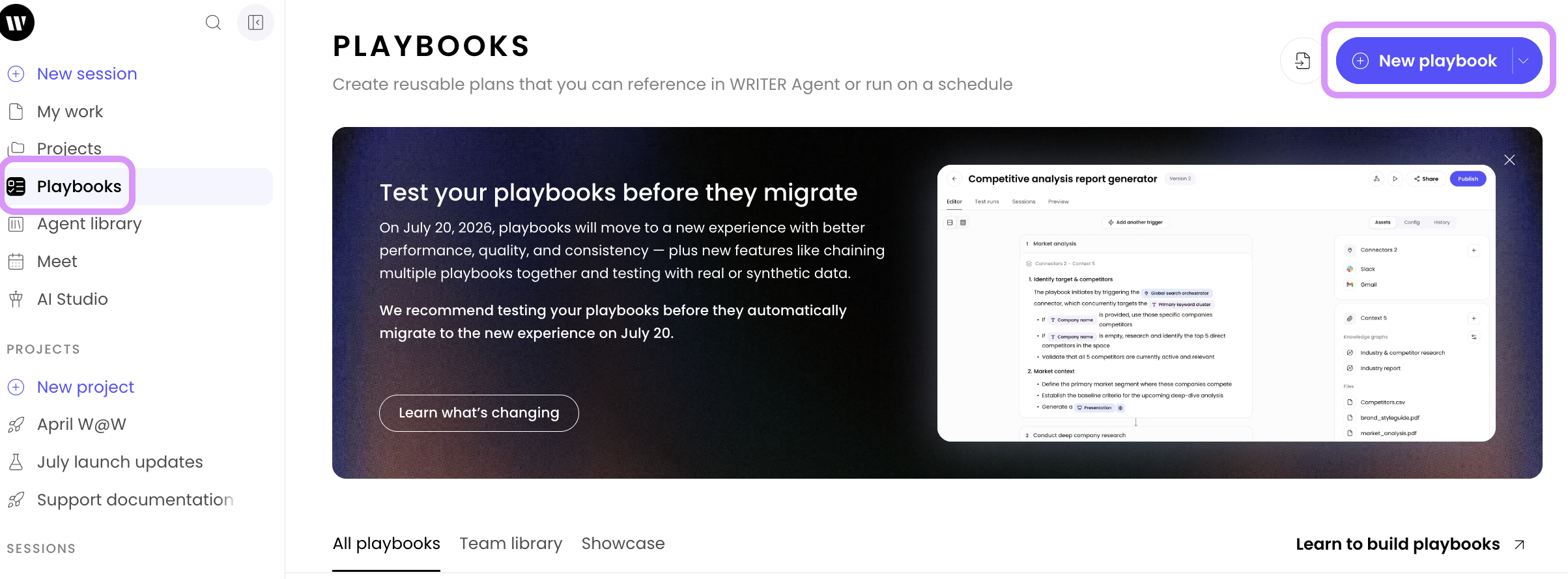
Select Playbooks from the main menu on the left and then select +New playbook.

Type your request or use the microphone icon to speak in your prompt for WRITER Agent and then select Create a playbook.
For best results when creating your playbooks:
Define what the playbook should accomplish. Think of it as writing instructions for a highly capable assistant. Include the task objective, data sources, success criteria, and specific requirements.
Outcomes-based prompt template:
When defining your playbook's objective, we highly recommend using this outcomes-based template to ensure you provide all the necessary context for the best results:
I need to ________________ because ________________.
My audience is ________________ and they need to ________________.
Success looks like ________________ and the tone should be ________________.
💡 Pro-Tip: Use the / key or + button to reference Knowledge Graphs, files, or connectors directly in your description. This ensures WRITER Agent has the right context.
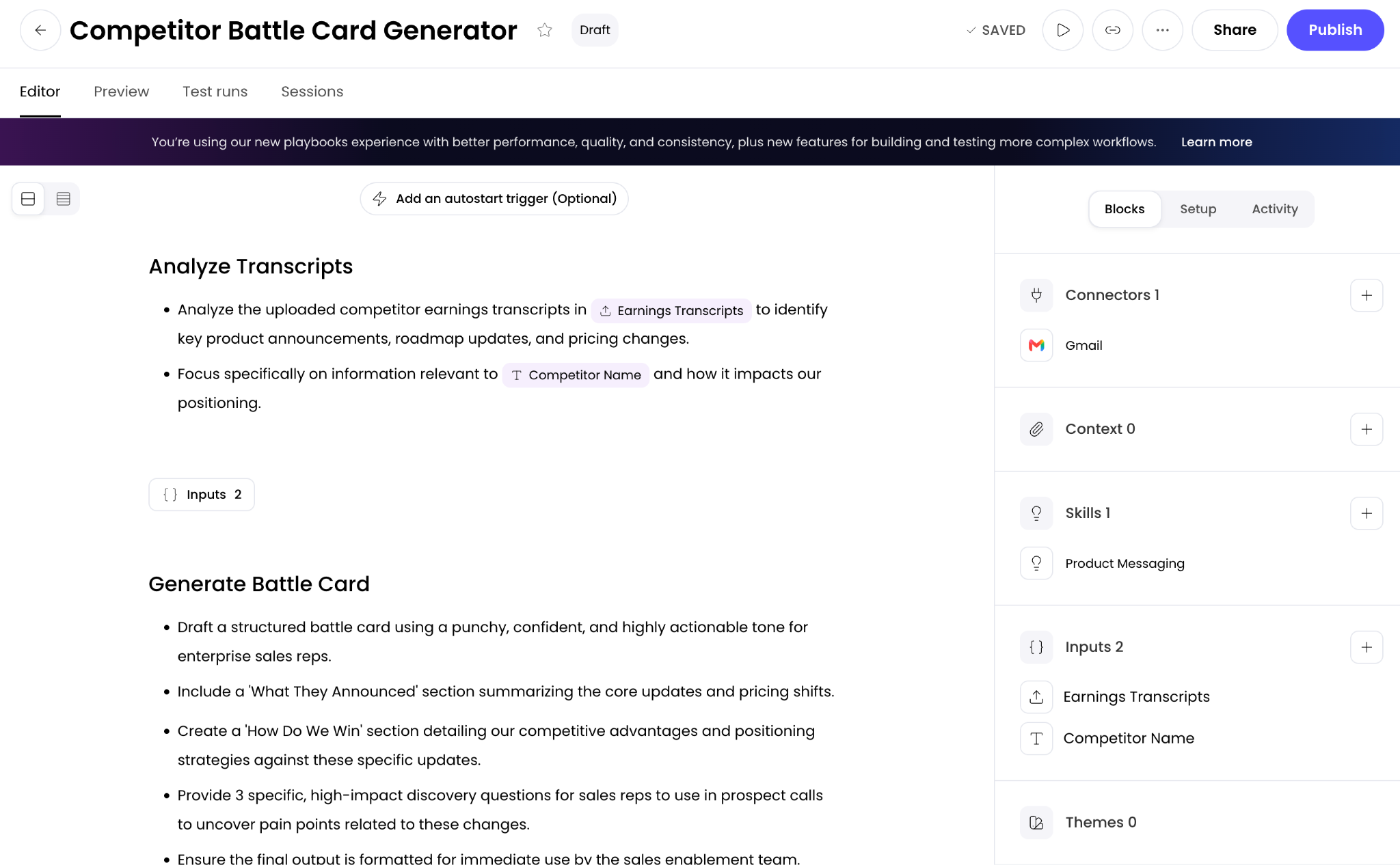
In the next step, you'll see WRITER Agent has given the playbook a name and description, and outlined a plan with specific steps. Click directly into each step to edit the text. Changes save automatically.
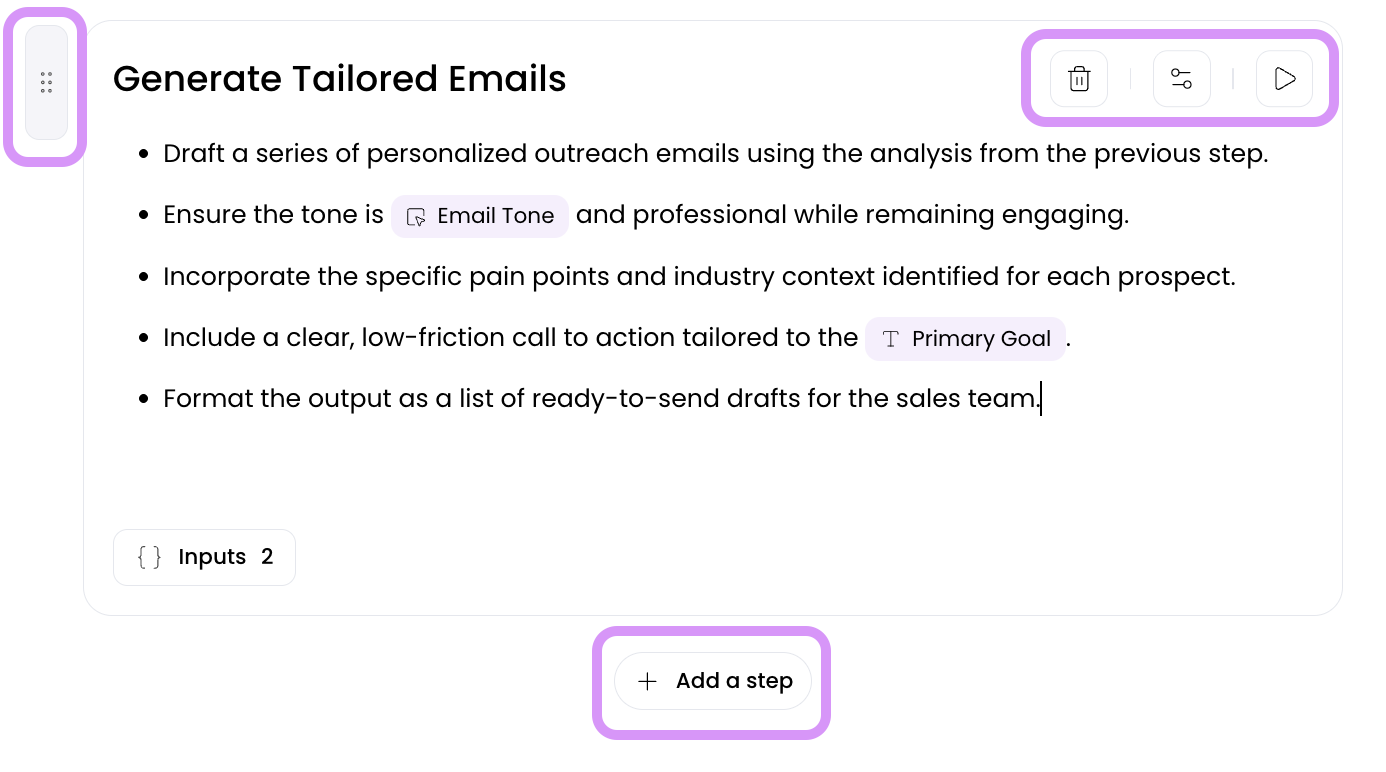
When you hover over a step in the editor it will activate a menu of options.
From the left you can drag and drop your steps in the canvas to reorder them.
In the top right menu you can delete the step, setup advanced configurations for the step, or test it independently of the rest of your workflow.
Hovering over the final step in your playbook will activate the +Add a step button.
Autosaving vs. Publishing:
As you make edits, your changes are saved automatically as a draft. This means you can safely close the window and return later without losing your work. However, these changes will not be active until you explicitly click Publish. Think of "Publishing" as making your saved draft the official, live version.
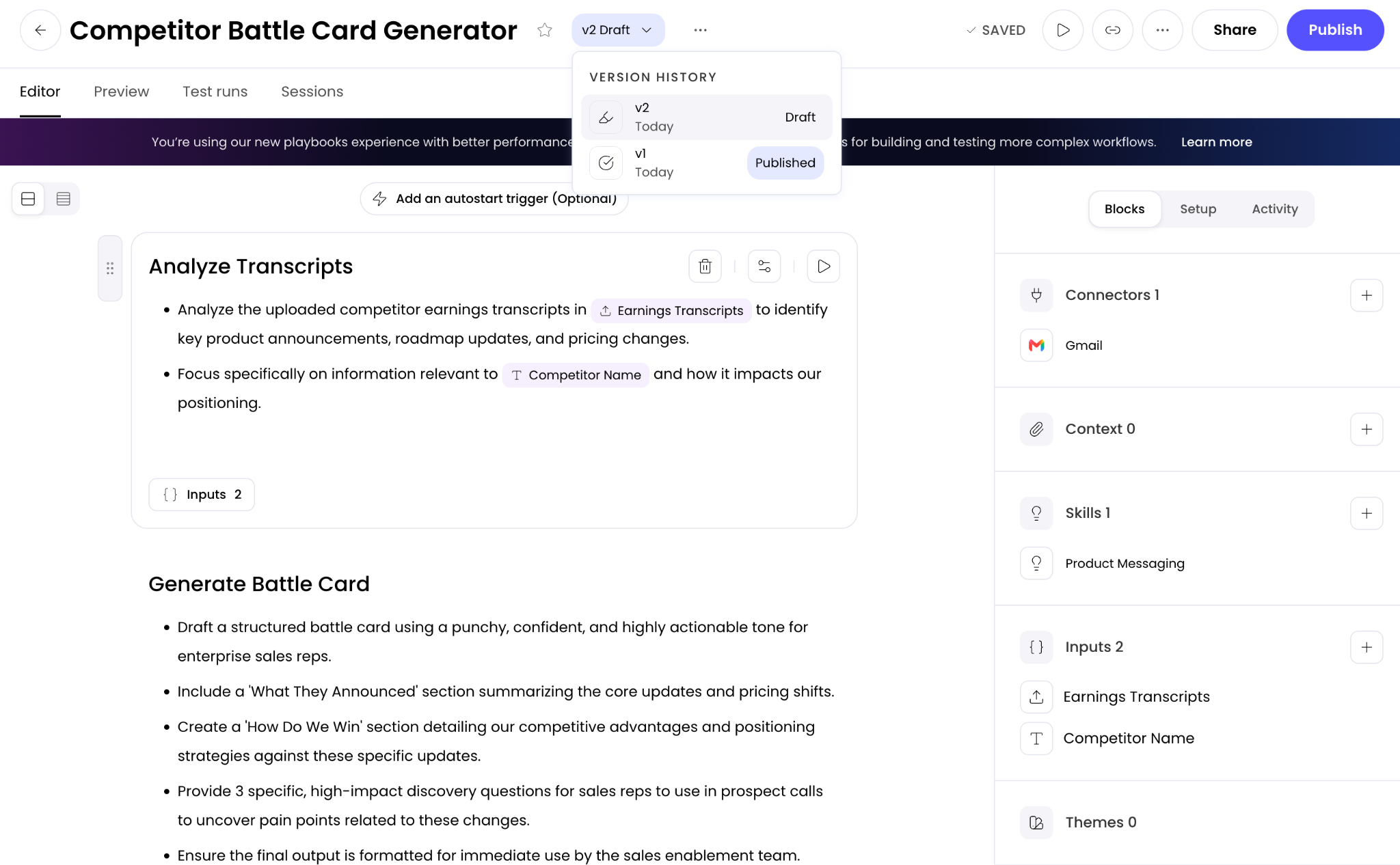
Note: Publishing does not automatically share your playbook with others. It simply makes the updates live for you when you run it in WRITER Agent, and ensures any scheduled triggers or webhooks use the latest version. If you have already shared the playbook, publishing will update the version your team sees within the Shared with me tab.
Configuring inputs
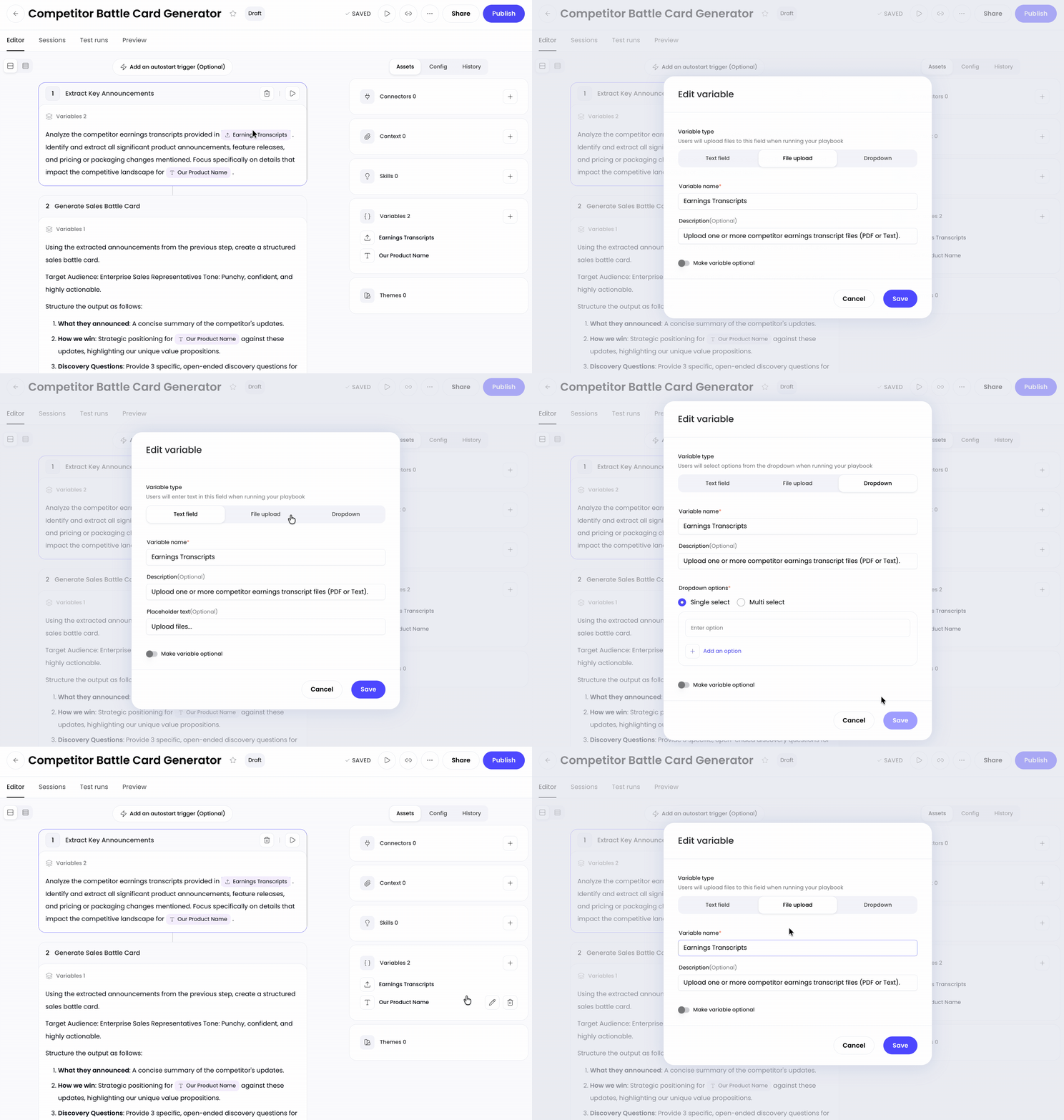
Inputs make playbooks reusable by creating placeholders for information that changes each time you run it. WRITER Agent will automatically detect where to apply inputs when generating your playbook based on your prompt. These will display as purple boxes that can be edited by selecting the input within the text boxes or from the menu on the right.
You can create three types of inputs: text input, file upload, or dropdown menu.
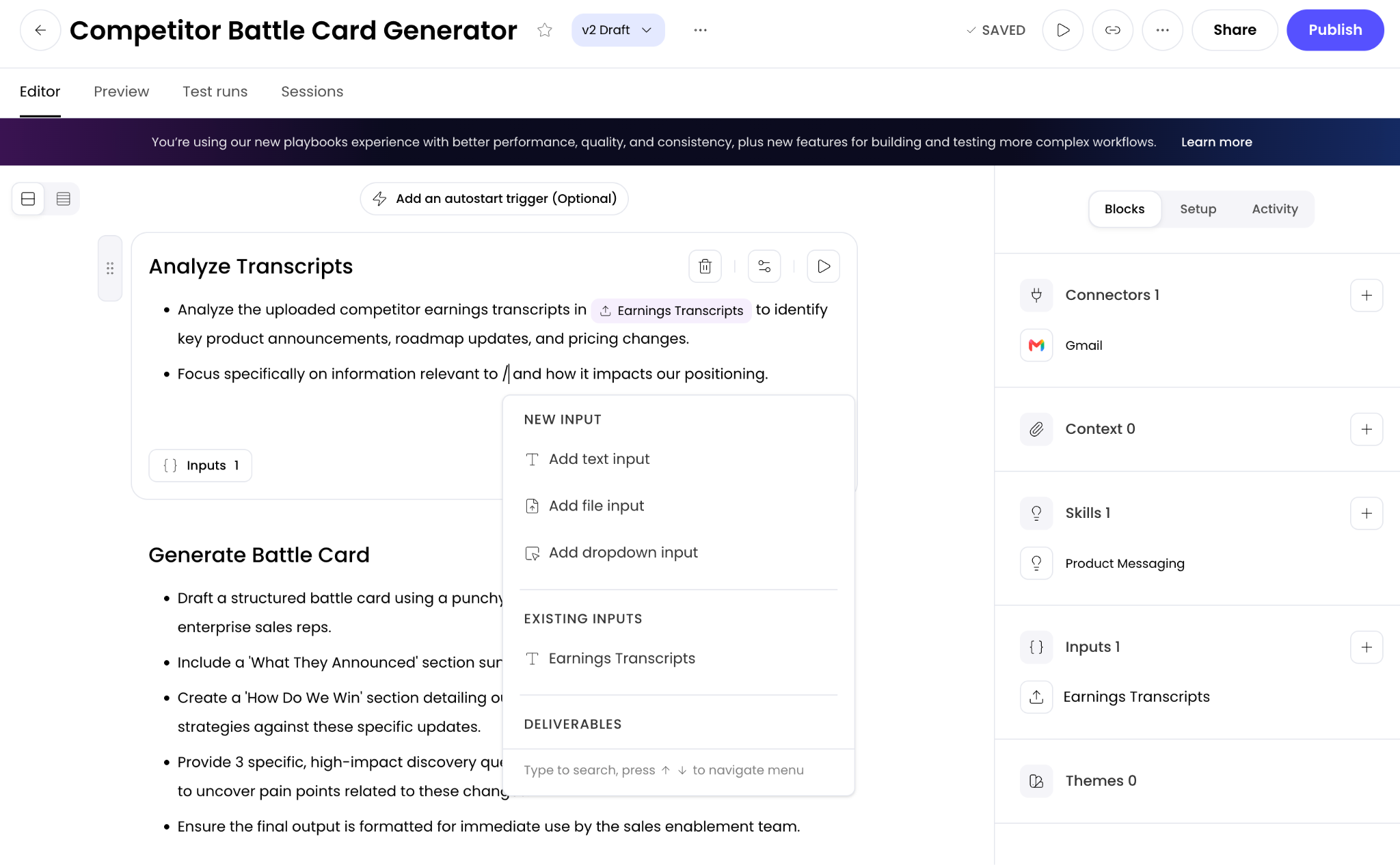
You can easily create your inputs by typing / in your instructions and selecting the input type from the menu. Complete the information to configure your input. When you go to run a playbook, these inputs will become text fields you input before WRITER Agent can complete the workflow.
💡 Pro-Tip: Give your inputs clear, descriptive names (e.g., Target_Audience instead of Input_1). This makes it much easier for your team to understand what information they need to provide when running the playbook.
Using skills
While playbooks orchestrate the overall workflow (the "WHAT"), Skills provide the expert-level execution for specific steps (the "HOW"). For a deep dive on skills view our article here.
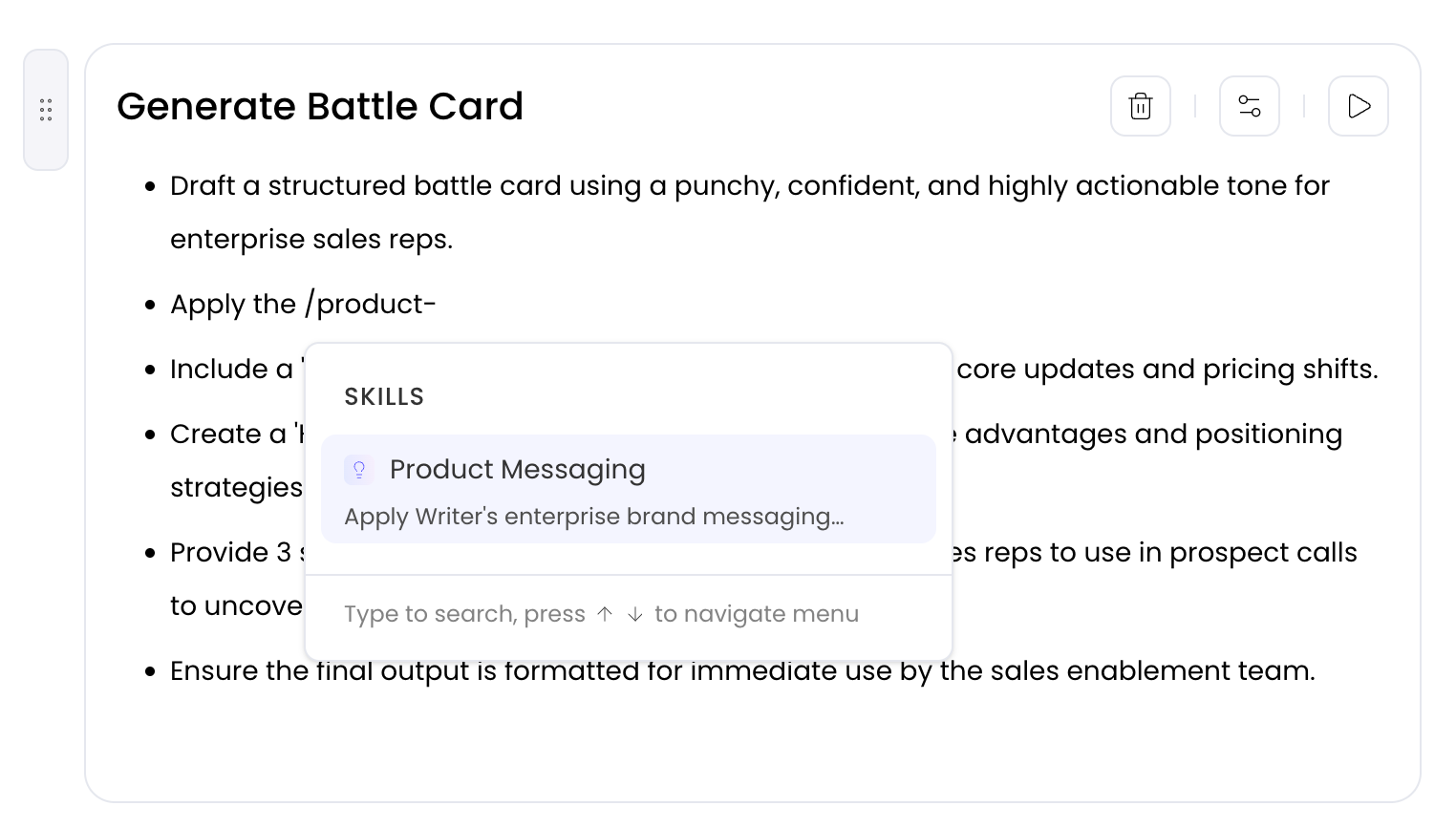
Built-in skills: Skills for processing standard files (like pdf, docx, and xlsx) are automatically acquired by the playbook if your workflow involves processing those corresponding document types. You do not need to manually add them.
Custom skills: You can also enable custom skills in your playbook template to handle highly specialized tasks. Add them via the Blocks tab in the right-hand menu or by referencing them in your instructions using the / menu.
Configuring your playbook
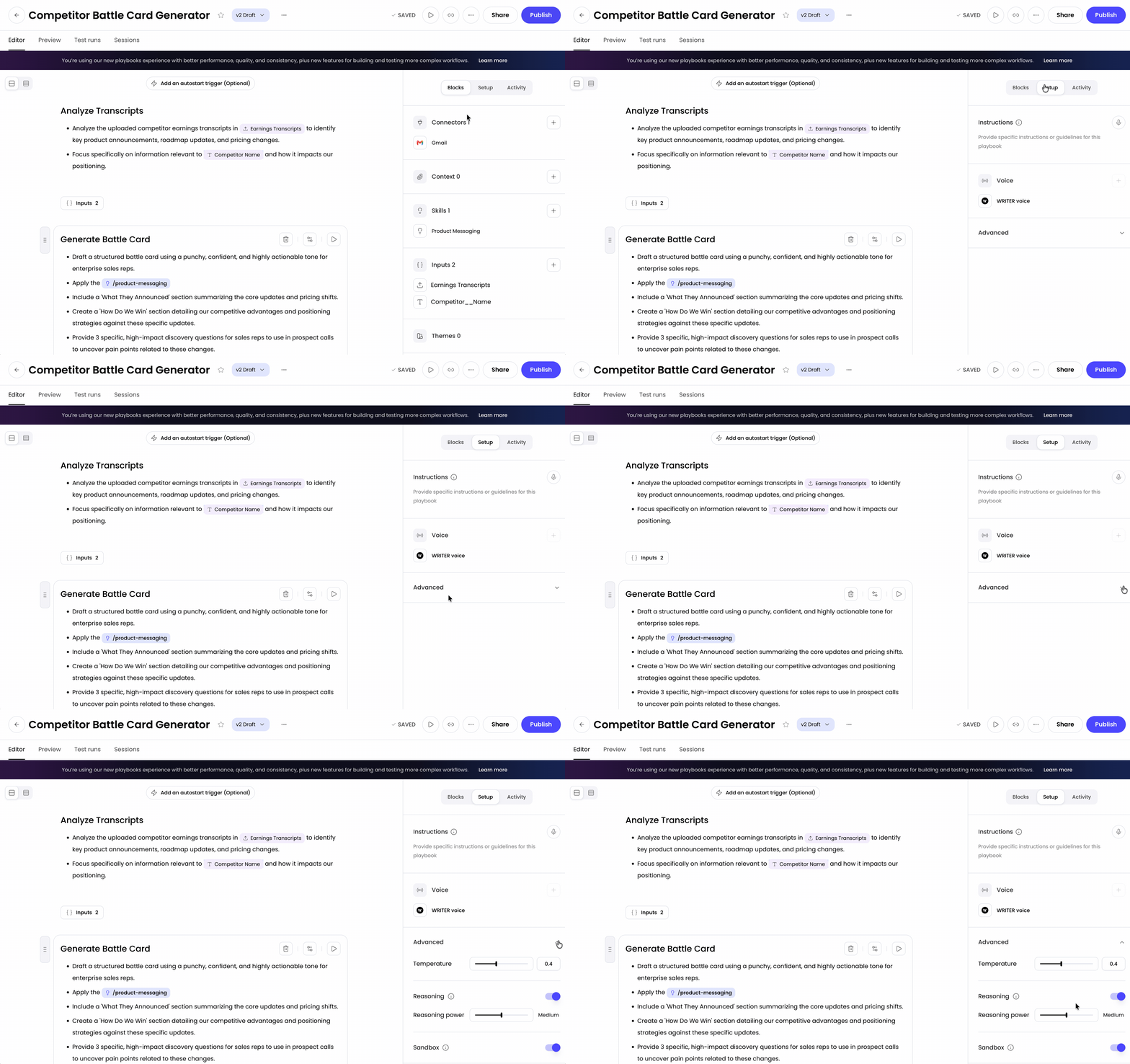
The right menu of the playbook editor includes several configuration options to give your playbook the exact context and capabilities it needs.
Blocks: This tab allows you to:
Configure the connectors within your playbook to pull information from or send information to your other tools. Learn more about using connectors here.
Add context to your playbook by uploading files for WRITER Agent to reference when generating your deliverables.
If you’ve added any skills to your playbook they will appear next. Learn more about skills here.
Inputs added to your playbook will be located next in the right panel. Select any input to edit it from this list.
If your playbook is delivering a presentation you may upload a template for WRITER Agent to use when generating your slides.
Setup: This tab allows you to set custom instructions and select a voice to control WRITER agent's personality and tone.
Advanced Setup: Under the Setup tab, you can expand the Advanced section to fine-tune how the AI processes your playbook. This is especially useful if you want to use playbooks for simpler, faster text-generation tasks without spinning up a full reasoning environment. Options include:
Temperature: Adjust the creativity of the output (lower for more factual/deterministic, higher for more creative).
Reasoning: Keep this enabled for complex, multi-step tasks. Disable it for simple tasks where speed is critical.
Reasoning power: Adjust how much computational power WRITER agent dedicates to reasoning through the problem.
Sandbox: Allow Writer to run your playbook in a virtual sandbox. This is required for complex tasks like file creation and code execution, but can be turned off for simple text generation.
Activity: This tab allows you to view the version history of your playbook. This section is still in development and will be released in the near future.
Adding an autostart trigger:
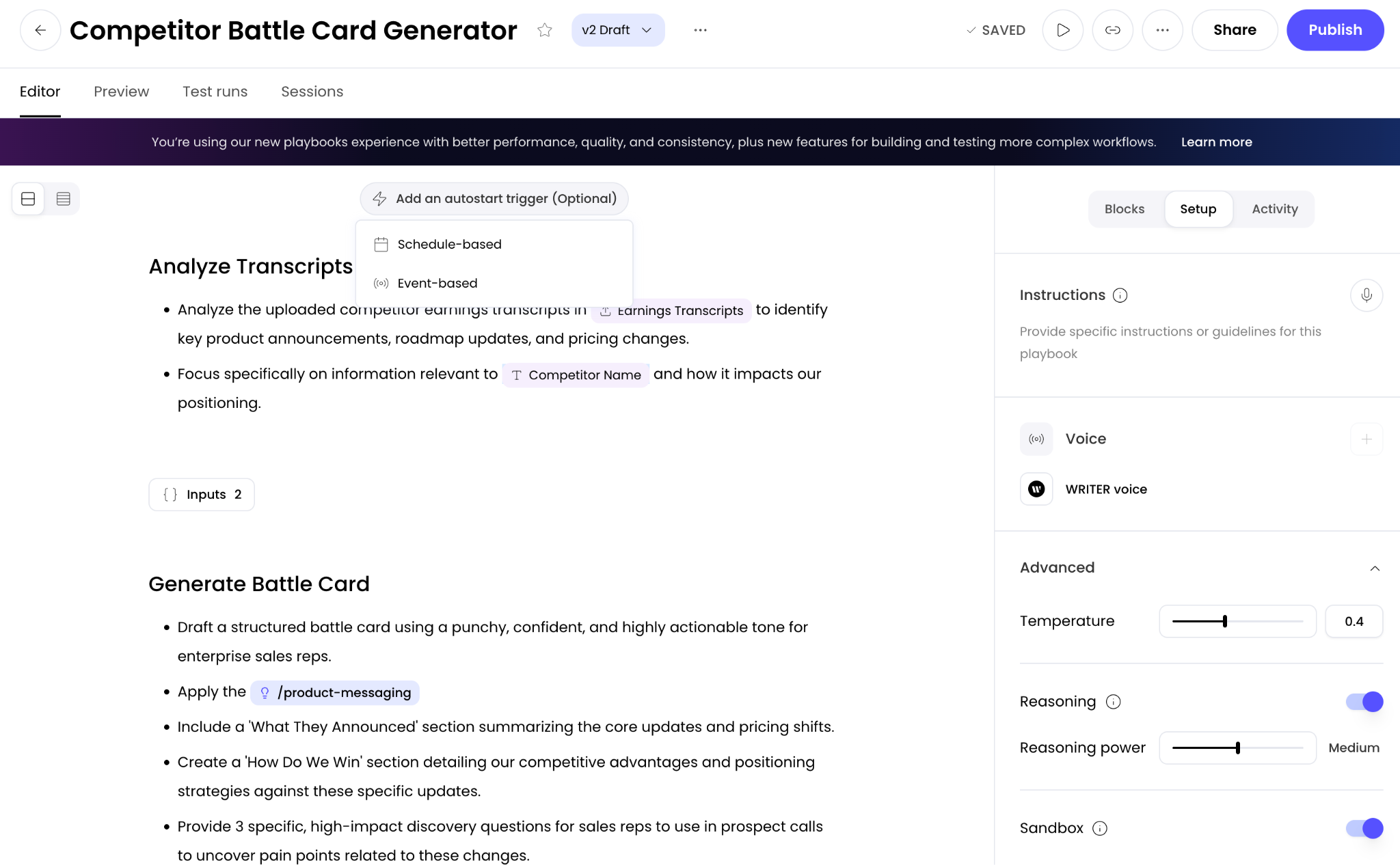
At the top of the editor, you'll see an option to Add an autostart trigger. This allows you to set up a schedule or event that runs your playbook automatically without manual intervention. Learn more about automating playbooks with triggers here.
Step approvals
Step approvals add a human-in-the-loop checkpoint to your playbook. When a step with approvals enabled runs, the playbook pauses and notifies the designated reviewer that their review and sign-off are required. The workflow proceeds only after that reviewer approves the step.
When to use step approvals:
High-stakes or irreversible actions — sending external communications, publishing content, or modifying production systems.
Compliance and governance requirements — steps that must be signed off to satisfy regulatory or organizational policy.
Sensitive data or access decisions — steps that grant access to content or act on confidential information.
Quality gates — points where a reviewer should confirm output quality before downstream steps build on it.
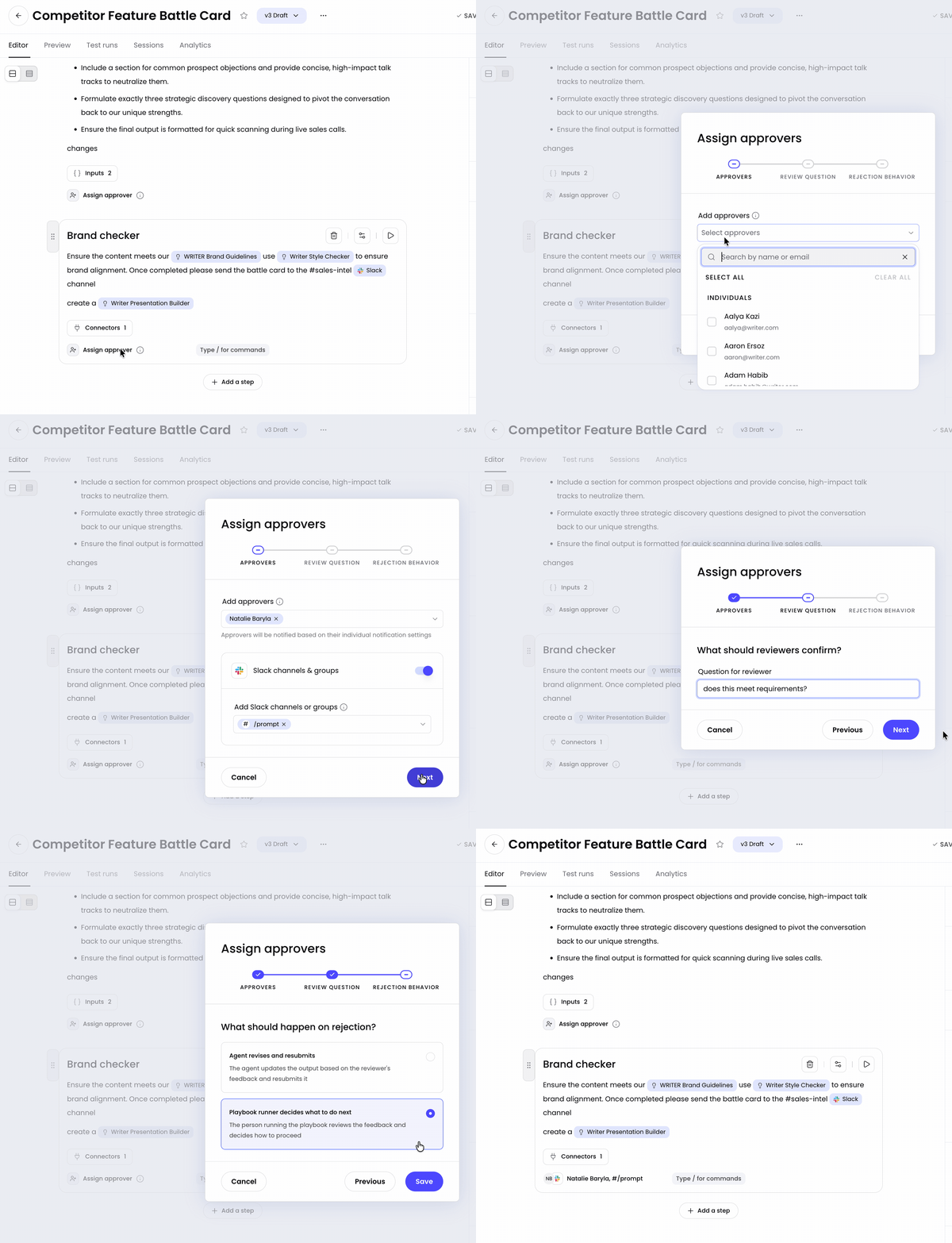
Select Assign approver from the step to configure approval options. Next select who you'd like to approve the output and if they should be notified via Slack and select Next and enter the question for the reviewer so they know what to confirm. Finally, select what WRITER Agent should do:
Agent revises and resubmits- The agent updates the output based on the reviewer's feedback and resubmits it
or
Playbook runner decides what to do next- The person running the playbook reviews the feedback and decides how to proceed
Select Save and the approval flow will be activated once you publish the changes.
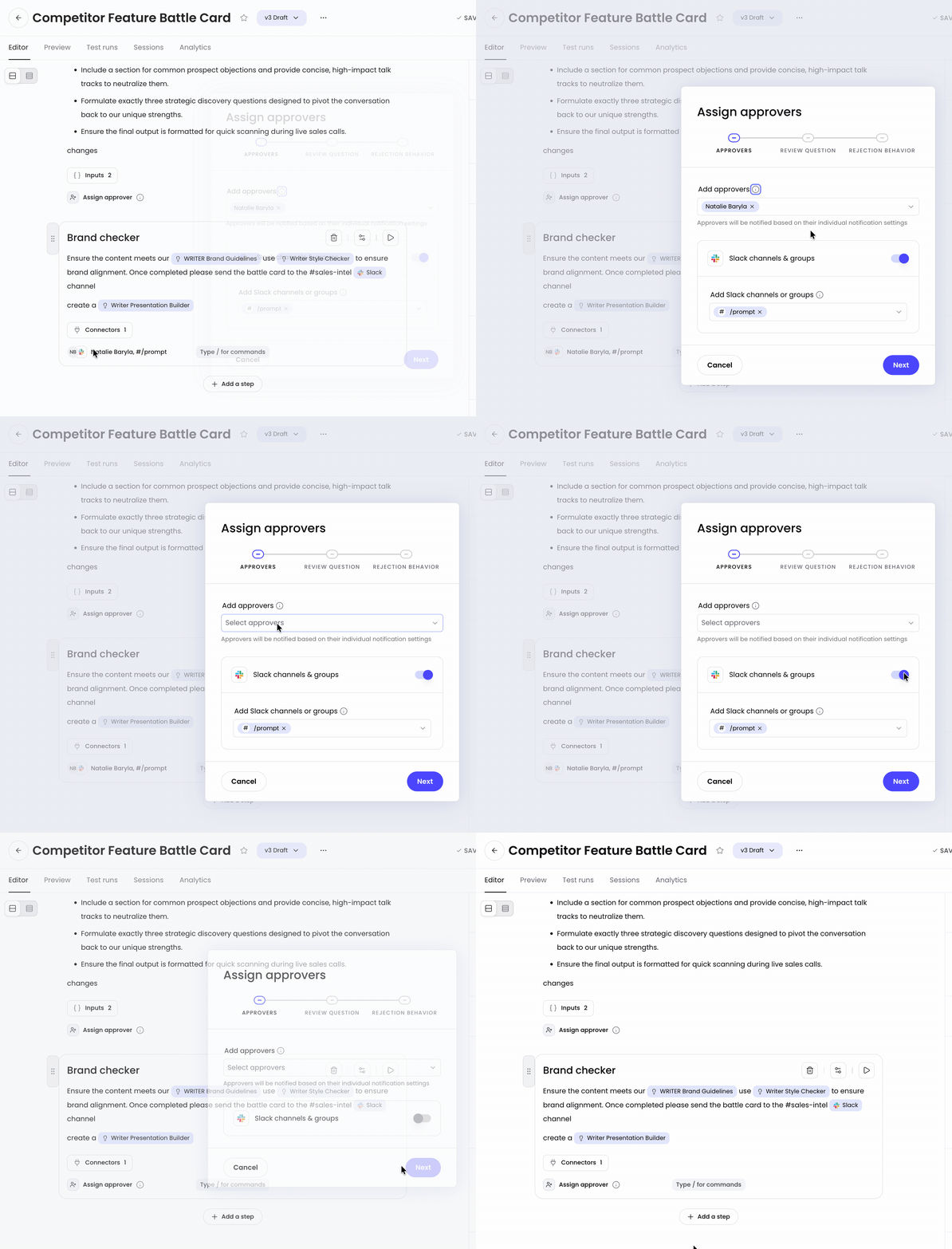
To remove an approval select it from the playbook step. Remove the approver and toggle off any notifications, then select Remove approval.
Avoid approvals on routine, low-risk, or fully deterministic steps. Pausing for sign-off there adds latency without value. Reserve approvals for decision points where human judgment genuinely changes the outcome.
⚠ Note: If a playbook with approval steps is scheduled to run autonomously, the run pauses whenever it reaches an approval step and waits for reviewer input. Design scheduled playbooks to run without requiring user input, or confirm that a reviewer will be available to act on the notification.
Testing your playbook
The new experience introduces a powerful new testing space. Before publishing or sharing your playbook with others, you can test it thoroughly using the new preview screen.
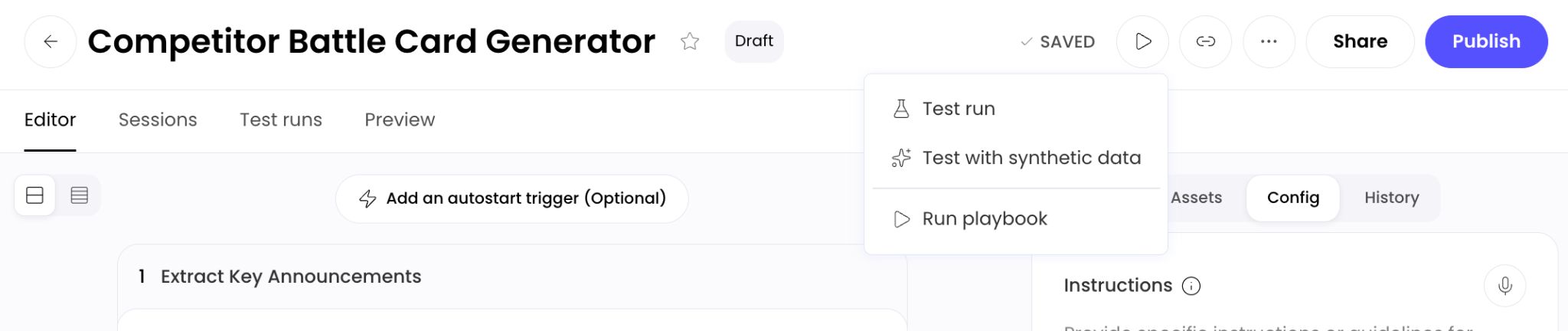
Open your playbook in the editor, and select the play icon. From the menu you have the following options:
Test run: test the playbook with your own data. Sessions run via this option will go into the Test runs tab of the playbook screen.
Test with synthetic data: Have WRITER Agent create synthetic test data. Sessions run via this option will go into the Test runs tab of the playbook screen.
Synthetic inputs will be generated automatically. WRITER Agent will create the missing values and any required test files behind the scenes before this run starts. Generated files will be attached to the run thread and copied into the workspace once execution begins. Use the test configuration above to reuse one generated input set or create a different one for each run.
Run playbook: This allows you to run the playbook with your own data. Sessions run via this option will go into the Sessions tab on the playbook screen.
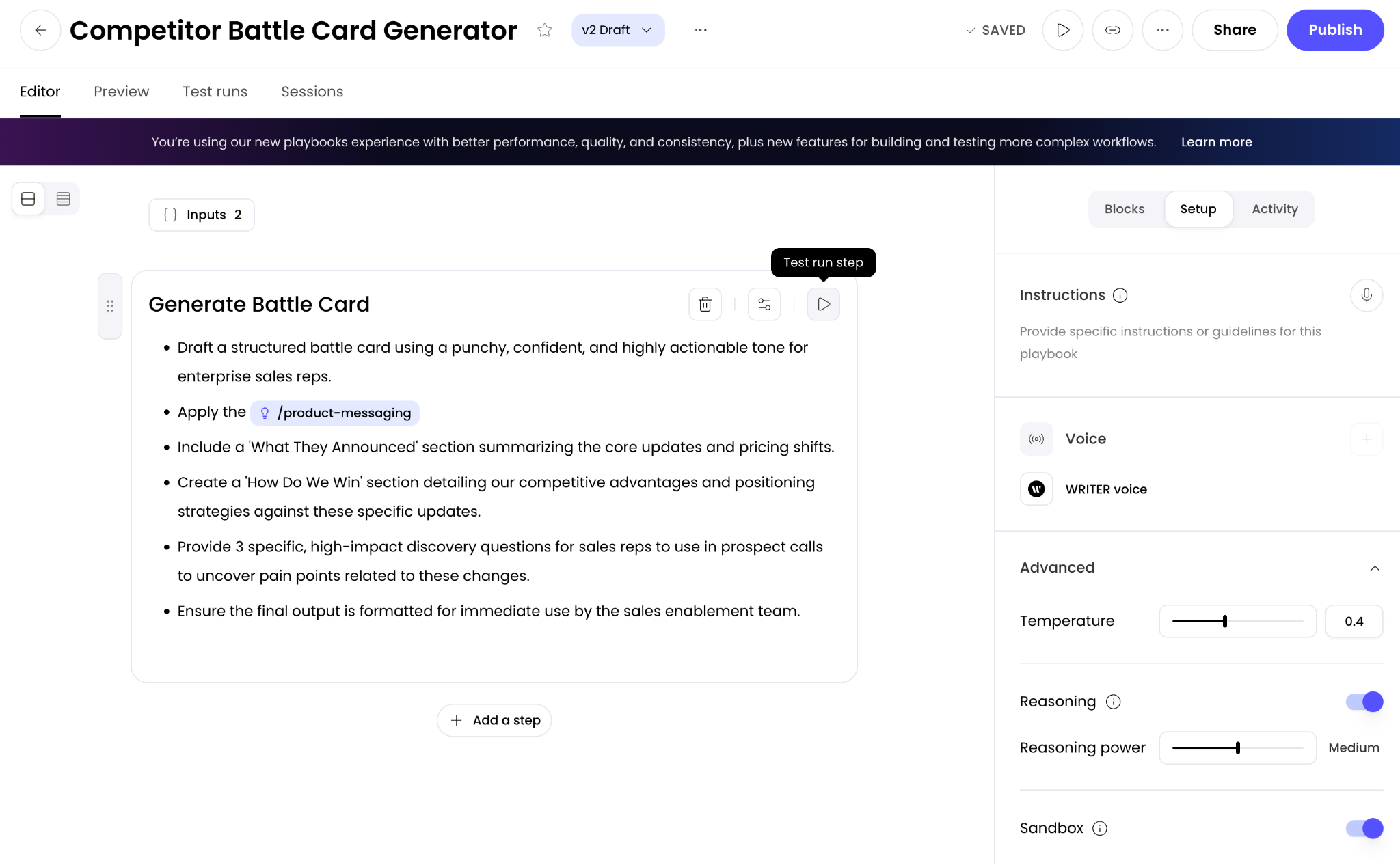
Alternatively, use the play icon next to individual steps to verify them one by one.
What to check during testing:
Does it access the right data sources?
Are all steps executing in the correct order?
Is the output format what you expected?
Does it complete successfully without errors?
Best practices
Writing playbook instructions:
Good: "You are an expert marketing manager creating social media content from
Blog_URL. Extract key insights from the post and create 3 LinkedIn posts optimized for technical audiences. Each post should be 150-200 words."
Not as effective: "Create social media posts from the blog."
Example of a highly effective, detailed playbook description:
"Extract all contacts from uploaded documents with complete profiles, including Full Name, Title(s), Department/Function, Email Address, Phone Numbers, LinkedIn URLs, Reporting Structure, and Key Responsibilities. Prioritize contacts who appear in email portfolio documents as HIGH engagement level. Create separate entries for contacts with multiple titles or departments. Consolidate duplicate contacts across documents into single complete profiles. Assign engagement scoring: HIGH (mentioned in emails + strategic priority), MEDIUM (multiple document mentions), LOW (single mention). Map each contact to related pain points, Writer value propositions, recommended talking points, and source document references. Flag any contacts missing critical information for follow-up. Build a searchable contact database with all details."
Structuring complex workflows:
Good: Breaking down a massive task into smaller, modular playbooks and nesting them using the / menu. For example, creating a "Data Extraction" playbook and calling it as step 1 inside your "Weekly Reporting" playbook.
Not as effective: Writing a single 30-step playbook that is difficult to test, troubleshoot, and maintain.
Review checklist:
☑ Is the name clear and searchable?
☑ Does the description accurately reflect what it does?
☑ Are the steps in the right order?
☑ Are any steps missing or unnecessary?
☑ Do the steps reference the correct Knowledge Graphs/files/connectors?
☑ Could any complex steps be broken out into their own nested playbook?
Troubleshooting
If the playbook doesn't work as expected:
Note which step is failing or producing wrong output.
If you're not sure what went wrong, just chat with WRITER Agent asking it how to adjust the playbook for better results.
Return to the playbook editor and edit that specific step with more detailed instructions.
Test again using the individual step testing feature.
⚠ Remember: Using AI is iterative. It's normal to test and refine multiple times before getting it perfect. Spending the time to set the playbook up now will save you time later.
FAQs
What is the difference between a playbook and a regular WRITER Agent session?
A playbook is a reusable, automated workflow that you can run multiple times with different inputs, while a regular Agent session is a one-time conversation. Playbooks save you time by eliminating the need to re-enter the same prompts repeatedly. Think of it like the difference between a template and a one-off document.
What is the difference between a Playbook and a Skill?
Skills represent technical capabilities (HOW), while playbooks represent business processes (WHAT). Playbooks orchestrate complex workflows, and they can call upon skills to provide expert-level execution for specific steps within that workflow.
How many times should I test a playbook before sharing it?
We recommend you test your playbook at least 2-3 times with different inputs to ensure it produces consistent, accurate results. If it's a critical workflow that others will rely on, test it more thoroughly with edge cases and different scenarios.
What makes a "good" playbook vs. a "bad" one?
Good playbooks include clear, specific instructions with well-defined objectives, data sources, and success criteria. They focus on one task and break it into logical steps. Bad playbooks are vague ("do some research"), try to do too many things at once, or lack specific requirements about format and output.
Will my playbook produce the same results every time?
Playbooks should produce consistent results when run with the same inputs and data sources. However, AI-generated content may have slight variations in wording or structure. If you're seeing major inconsistencies in the output quality or format, review and refine your playbook instructions to be more specific.
What is the difference between testing the whole playbook and testing a step?
Testing the whole playbook runs the entire workflow from start to finish. Testing a single step allows you to isolate and verify just that specific instruction, which is incredibly helpful for troubleshooting complex playbooks.
What should I do if my playbook keeps failing at the same step?
First, identify which specific step is failing. Then, either chat with WRITER Agent directly in the failed session to understand what went wrong, or return to the playbook editor and add more detailed instructions to that step. Be more specific about what you want, include examples, constraints, or format requirements. Test again using the individual step testing feature.
How do I use synthetic data?
In the testing space, look for the synthetic data generation option near your input inputs. WRITER will automatically analyze what the input expects and generate realistic dummy data so you can test your playbook immediately.