Skills reporting and governance
Last updated: October 16, 2026
Who can use this feature
Org admins, IT admins, and AI Studio full access admins. Custom org-level roles can be granted access by an existing org admin. Team admins are also able to access these features scoped to their team(s).
Overview
Skill reporting and governance gives you dedicated visibility and control over every skill running in your organization. You get two distinct views: an Analytics tab that shows usage data at the skill level, and a Govern tab that provides a complete org-wide inventory of all skills alongside the controls to manage them.
Together, these views help you answer the questions that matter most for a healthy skills ecosystem: Which skills are actually being used? Which ones are connected to the most playbooks, and therefore carry the most organizational risk if they fail? Who owns each skill, and are those owners still active? And what do you do when a skill needs to be updated, transferred, or turned off?
How to access skills analytics and governance

Navigate to AI Studio > WRITER Agent > Skills and you’ll see two sub-tabs: Analytics and Govern.

From the analytics page you can view skills by teams or user seat type (pro and lite) or use the date picker to filter down to a specific time.
Skills analytics
The Analytics tab gives you a usage overview of all skills in your organization for any selected time period.

Overall skill runs
The total number of times skills have been executed across all WRITER Agent activity in the selected period. This gives you an aggregate sense of how much work your skills layer is performing, independent of which specific skills are running or who initiated the runs.
Runs by skill
A breakdown of execution counts at the individual skill level, showing which skills are being called most frequently. Use this to move beyond aggregate totals and understand the distribution of activity across your skill library.
Most-used skill leaderboard
Skills ranked by total run count in the selected period. The most-used skills are your highest-impact building blocks your organization depends on most. These are the skills most deserving of documentation, quality review, and ownership continuity.
Most-connected skill leaderboard
Skills ranked by the number of playbooks that reference them. It tells you which skills are structural dependencies, the ones embedded in the most workflows. A skill at the top of this leaderboard is not just popular; it is foundational. If it fails, is disabled, or is modified without coordination, multiple playbooks may be affected simultaneously.
💡 Pro-Tip: Cross-reference the most-used and most-connected leaderboards. A skill that ranks highly on both lists is your highest-risk, highest-value asset. Prioritize it for ownership succession planning, documentation, and quality review.
Skills governance
The Govern tab is your org-wide control center for all skills.

Search and filters
Find any skill by name quickly using search or leverage the filter options to narrow the view to skills matching specific criteria. Filtering by Status lets you see only Active or Disabled skills at a glance. Filtering by Owner lets you scope the view to skills owned by a specific user, particularly useful when auditing skills before an offboarding. Additionally you can view skills within a specific time period using the date range selector from the right.
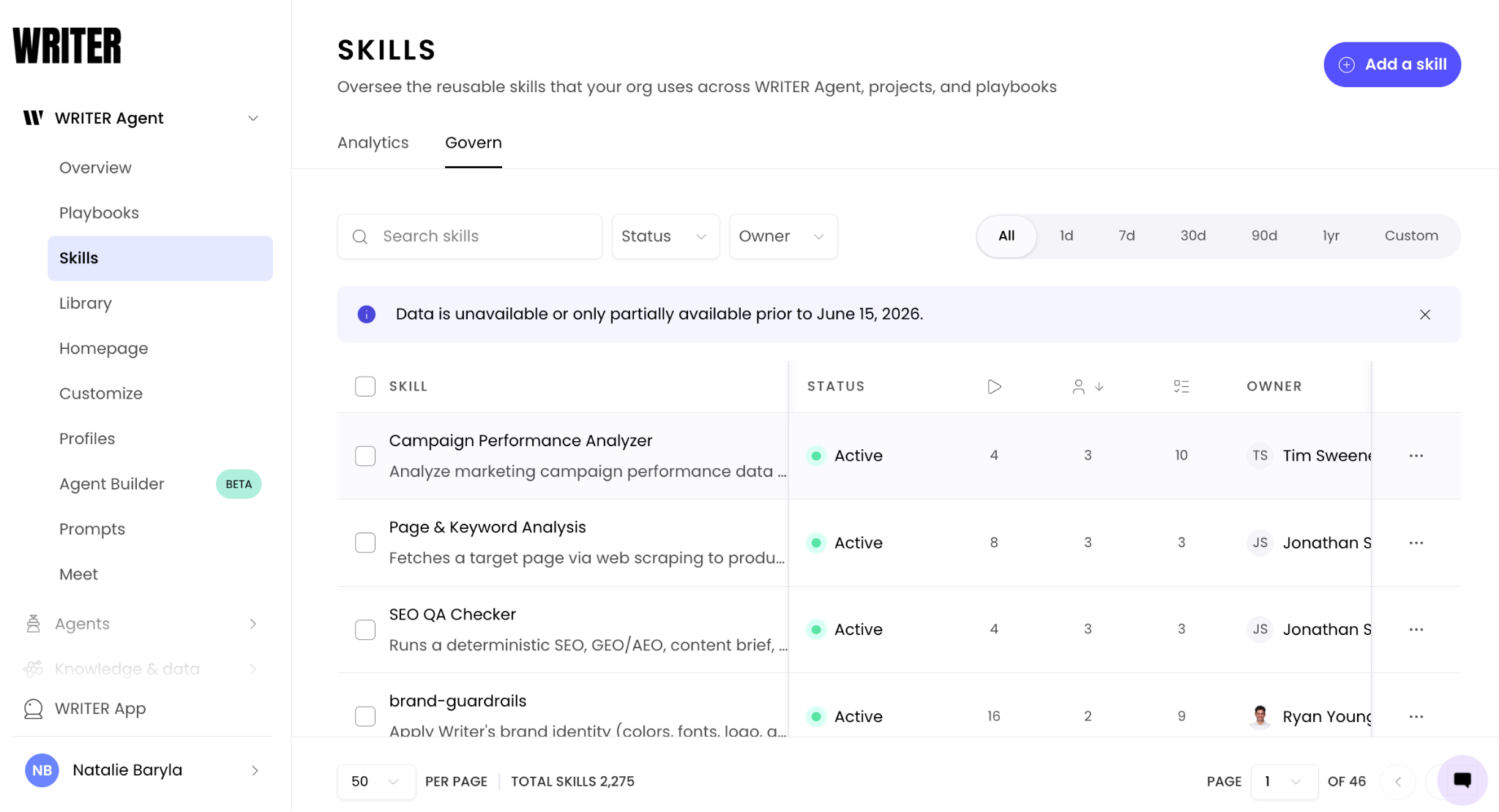
Use the table here to view the following:
STATUS
Shows whether the skill is currently Active (running and available to playbooks) or Disabled (turned off and unavailable). This column lets you quickly audit which skills are live and which have been turned off, and filter by status using the dropdown above the table.
Runs column (▷↓)
Displays the total number of times the skill has been executed in the selected time period. A skill with a high number of runs in a given period is a high-volume asset, one whose stability and ownership should be actively maintained.
Unique users column (👤)
Shows the number of distinct users who have run this skill. This column reveals the user footprint of each skill. A skill with thousands of runs but only one unique user is deeply embedded in one person's workflows which may represent a concentration risk if that user leaves.
Connected playbooks column (☰)
Shows how many playbooks currently reference this skill. This is your dependency visibility column. A skill with a high connected playbook count is structurally embedded in your organization's workflows. Before taking any action on that skill such as disabling it, modifying it, or transferring ownership, check this number and coordinate with the owners of its dependent playbooks.
OWNER
Shows the user currently responsible for the skill, with their avatar and name. Owner visibility is essential for governance: when a skill needs to be updated or when a user leaves the organization, you know exactly who to contact or which ownership to transfer.
⚠ Note: If you see a skill with a high connected playbook count alongside a low unique user count, that skill is likely a foundational building block authored by one person and shared broadly through playbooks. These skills warrant the highest governance attention as they combine high organizational impact with concentrated ownership risk.
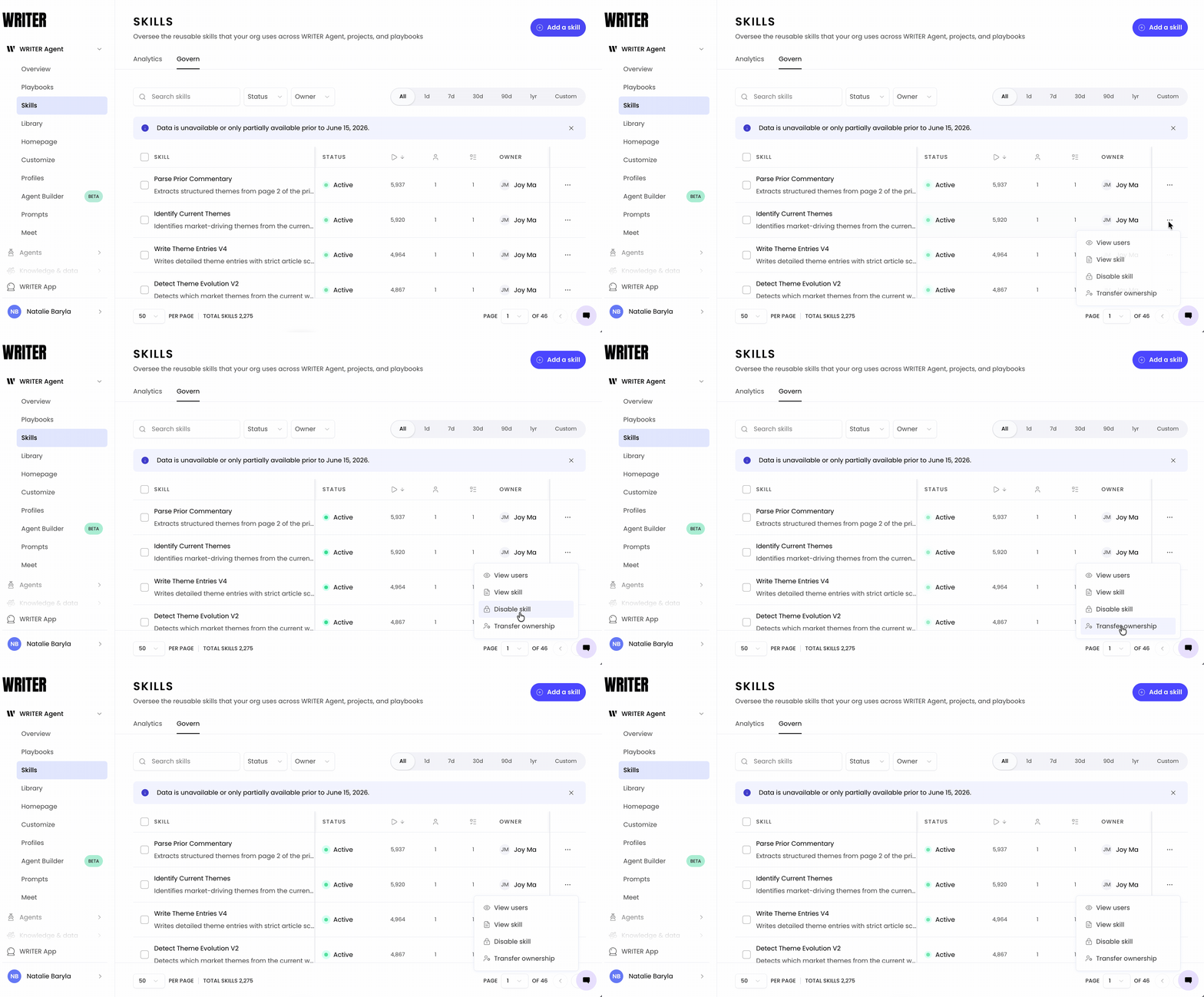
To access actions for any skill, select the three dot icon at the right end of its row. A dropdown menu appears with these options:
View users
Opens a view of all users who have run this skill. Use this to understand who depends on the skill before making changes, and to identify the users who will be affected if you disable it.
View skill
Opens the skill's configuration and details. Use this to review what the skill does, how it's built, and whether it meets your organization's current standards before deciding whether to keep it active.
Disable skill
Turns off the skill so it can no longer be executed or referenced by any playbook. Once disabled, the skill is no longer available to writers or automation workflows. The skill remains visible in the table so you retain a record of its existence, disabling is not the same as deleting.
⚠ Note: Before disabling a skill, check the connected playbooks count and the Unique users column. Disabling a skill that is referenced by active playbooks will cause those playbooks to fail when they reach the step that calls the skill. Review dependencies and coordinate with playbook owners before disabling any skill with a non-zero connected playbook count.
Transfer ownership
Reassigns the skill from its current owner to a new user. This is the action to take when the original creator changes roles or leaves the organization. Transferring ownership ensures there is always an active, responsible user who can manage and update the skill.
💡 Pro-Tip: When you transfer ownership of a skill, notify the new owner of the skill's run volume and connected playbook count. A high-impact skill is not a passive asset the new owner should understand they are taking responsibility for something that active workflows depend on.
Questions you can answer with this data
"Which skills are being used most, and which are essentially inactive?"
The most-used leaderboard on the Analytics tab and the runs column on the Govern tab give you a clear picture of usage distribution. Low-run skills that have been active for an extended period are candidates for review as they may be redundant, poorly discovered, or no longer needed.
"Which skills are embedded in the most playbooks and therefore carry the most risk?"
The most-connected leaderboard on the Analytics tab and the connected playbooks column on the Govern tab both address this question. Sort the Govern table by connected playbooks to see your most structurally critical skills at a glance.
"Are there skills in my inventory that are redundant or overlapping?"
The skill name and description preview in the Skill column lets you scan the inventory for duplicate or competing skills at a glance. Consolidating redundant skills reduces library confusion and concentrates token consumption on the best version of each capability.
"Is this skill still meeting our quality and compliance standards?"
Use View skill from the action menu to open a skill's configuration and review its instructions and behavior. If it no longer meets standards, disable it and coordinate with the owner on a replacement or update.
Best practices
Build a connected playbooks audit into your quarterly review.
Once a quarter, open the Govern tab, sort by connected playbooks descending, and review the top ten skills. For each one, confirm that the owner is still active, that the skill's configuration is current, and that its behavior still meets your standards. These ten skills are the load-bearing pillars of your playbook ecosystem.
Treat high-connected skills as infrastructure, not content.
A skill referenced by 20 playbooks is not just a piece of content, it's infrastructure. Apply the same standards to it that you would apply to any critical system: clear ownership, documentation, change management before modification, and a succession plan. When a skill at this level needs to change, communicate with all dependent playbook owners before making the update.
Use the Unique users column as a resilience indicator.
A high unique user count on a skill means broad, distributed adoption as that skill has become a standard way of working across multiple people or teams. A low unique user count on a high-run skill means one person is running a critical workflow that others don't know about yet. Use this signal to identify which skills deserve broader promotion and which carry concentration risk.
Establish a skills ownership handoff protocol.
Work with HR or IT to ensure that when a user leaves the organization, all skills they own are transferred to a new owner before their account is deactivated.
Use the Status filter to audit your disabled skills inventory.
Filter the Govern table to show only Disabled skills on a quarterly basis. Confirm that disabled skills were turned off intentionally and that no active playbooks are waiting for re-enablement. If you find a disabled skill that active playbooks depend on, coordinate with the playbook owners to either re-enable the skill or update those playbooks to use a replacement.
Data availability
Data start date: Reporting data is fully available starting from June 15, 2026. The page displays a banner noting that data is unavailable or only partially available for dates before June 15, 2026. When selecting time ranges for analysis, use June 15, 2026 as your start date for reliable results.
FAQs
Who can access skill reporting and governance?
Org admins, IT admins, and AI Studio full access admins have full access to both the Analytics and Govern tabs. Custom org-level roles can be granted this permission by an existing org admin. Team admins are also able to access these features scoped to their team(s).
What is the difference between the Analytics tab and the Govern tab?
The Analytics tab shows usage data — run counts, leaderboards for most-used and most-connected skills, and period comparisons. The Govern tab shows the full org-wide skill inventory in a searchable, filterable table and provides the controls to view users, view skill details, disable a skill, or transfer ownership.
What does "connected playbooks" mean?
Connected playbooks shows how many playbooks currently reference a skill, meaning those playbooks have at least one step that calls this skill. This is your dependency visibility metric: the higher the number, the more workflows will be affected if the skill is changed or disabled.
What happens when I disable a skill?
The skill becomes unavailable for execution and can no longer be referenced by any playbook. Playbooks that currently reference the skill will fail when they reach the step calling it. The skill remains visible in the skills inventory in a Disabled state, it is not deleted. Disabling is reversible.
Can I re-enable a skill after disabling it?
Yes. A disabled skill remains in the skills inventory and can be re-enabled. Use the same ... action menu on the Govern tab to manage the skill's status.
How do I find a skill quickly in the Govern table?
Use the Search skills text field at the top of the Govern tab to search by name. You can also use the Status and Owner dropdown filters to narrow the list, and the time range selector to see run data for a specific period.
Is the skills data real-time?
The Govern page reflects current skill status and ownership in real time. Run count data reflects recent activity and may not update instantaneously. Use the data for trend analysis and governance decisions rather than second-by-second monitoring.
What is the best way to audit skills before an employee offboarding?
Filter the Govern tab by the departing user's name using the Owner dropdown filter. This shows all skills they own. Transfer ownership of each skill to an appropriate successor before the account is deactivated. For high-impact skills, those with high run counts or high connected playbook counts, brief the new owner on the skill's role in the organization's workflows.
Can I bulk-transfer or bulk-disable skills from the Govern tab?
Each skill row has a checkbox on the left-hand side of the Govern table, which enables bulk selection. Use bulk actions to manage multiple skills at once rather than taking action row by row.