Understanding the Admin audit log
Last updated: October 7, 2026
Who can use this feature
Supported on Enterprise plans
Accessible to org admins and business admins
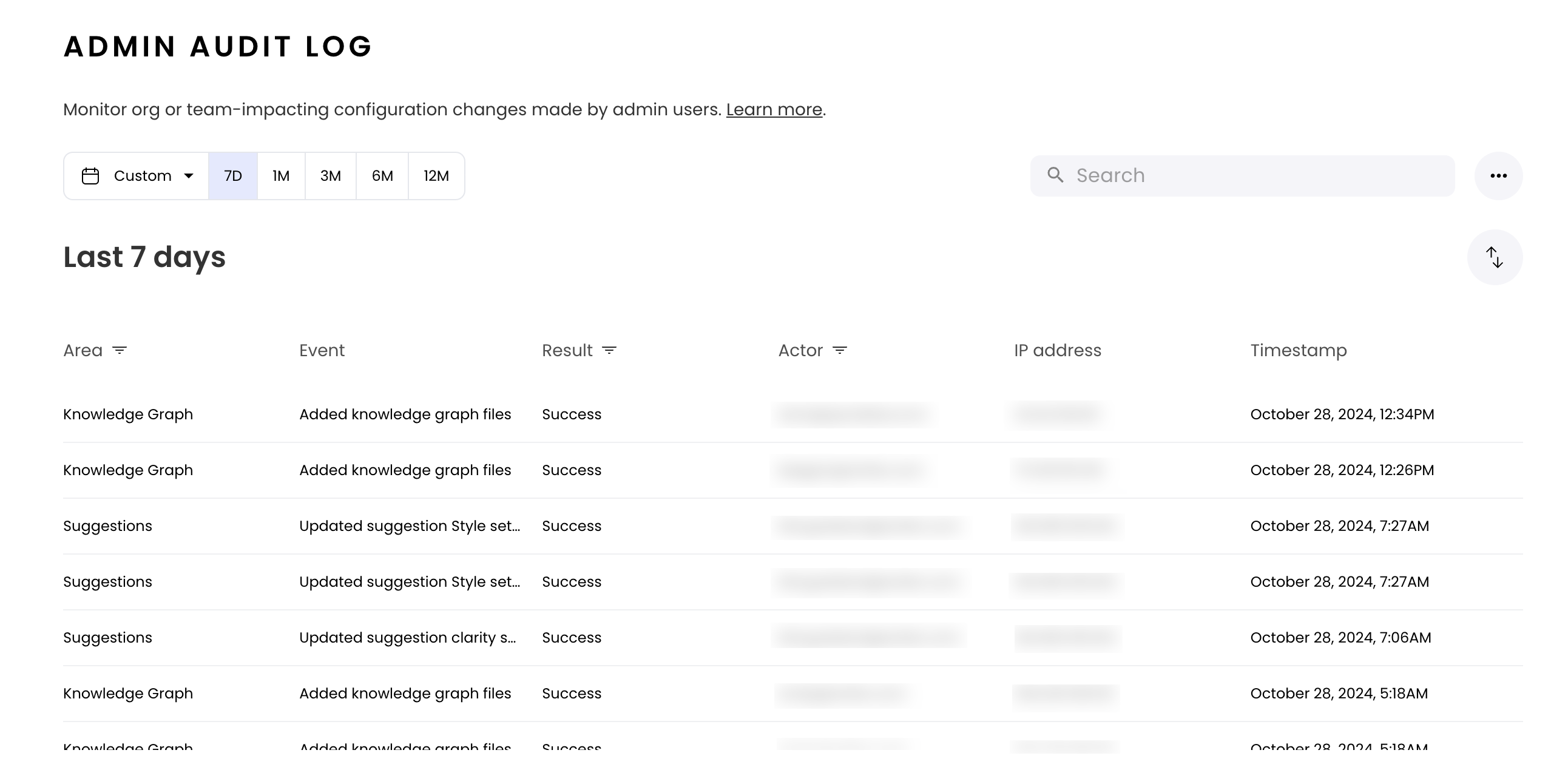
Maintain transparency and control with our new Admin audit log: a centralized record of all system-level activity.
Accessing the Admin audit log
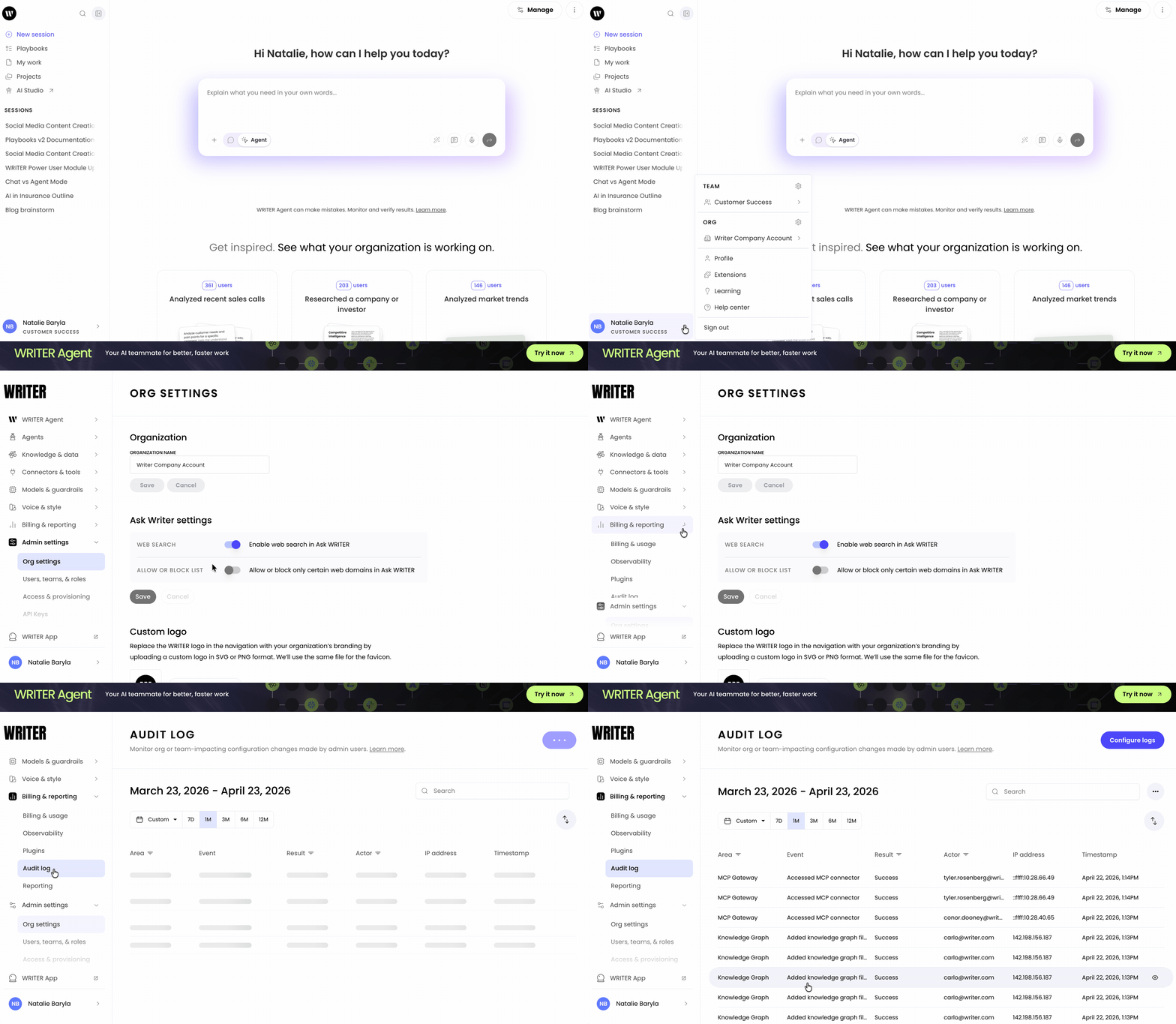
To access the Admin audit log, go to Org settings > Billing & reporting > Audit log.
The Admin audit log provides admins with the information they need to track system-level activities like:
Configuration changes
User management updates
Security-related activities
Understanding the Admin audit log
The Admin audit log records actions occurring in the WRITER app and via API. For a full list of events recorded, see the chart below.
Each recorded action includes key metadata, including:
Actor (user email)
IP address
Product area (the part of the product in which the action occurred, e.g. style guide, settings, sign-in, etc)
Action taken
Result (whether the attempt was successful or not successful)
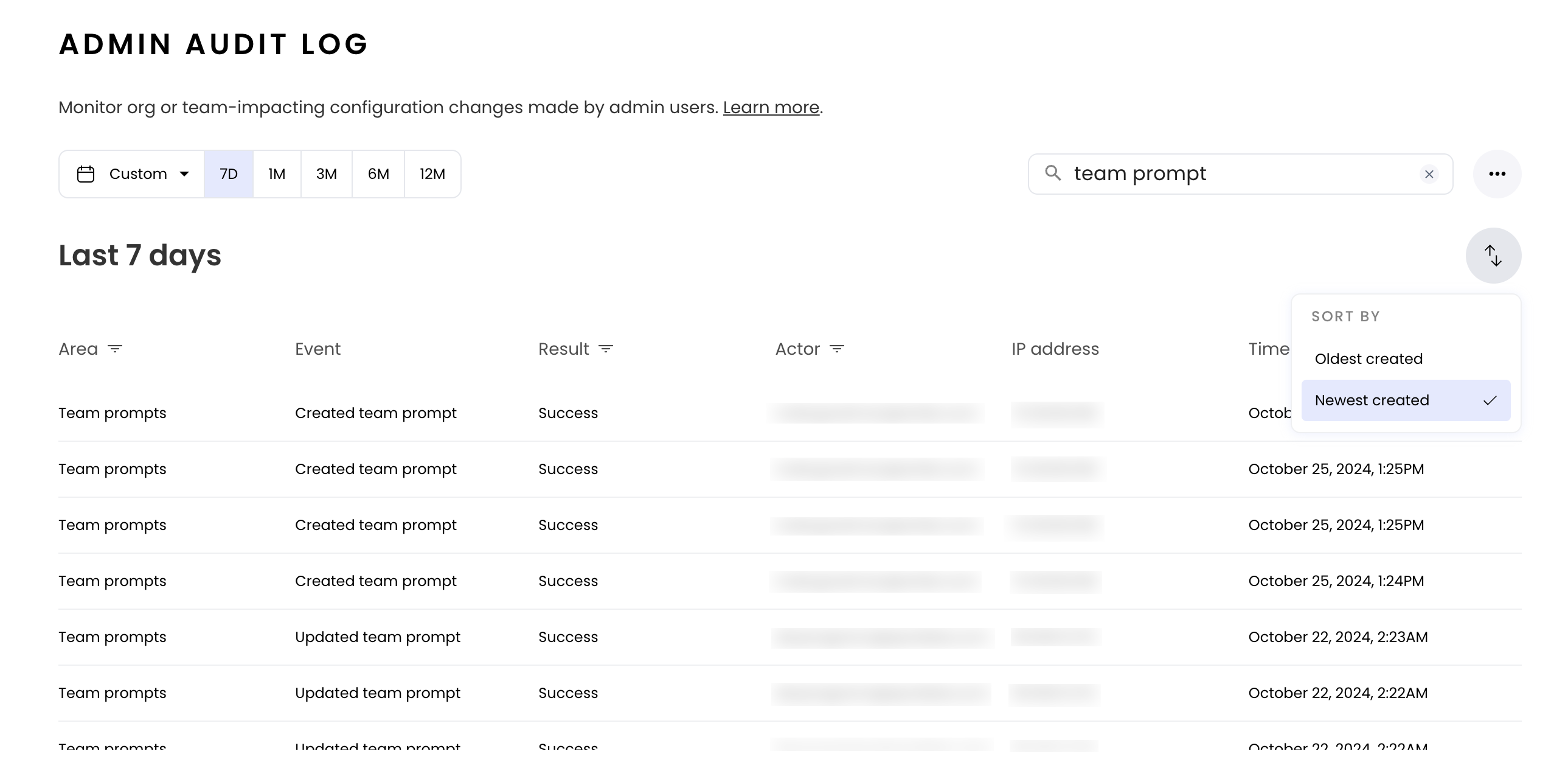
You can conduct a search to narrow down the events on display. You can search by:
Event
IP address
You can filter by:
Area
Event
Actor (email address)
Result (whether the attempt was successful or not successful)
You can sort by the most recent or least recent events.
Events captured in the Admin audit report
Product Area | Action |
Sign in | Enable password |
Sign in | Disable password |
SAML/Domain discoverability | Enable SAML domain |
SAML/Domain discoverability | Disable SAML domain |
SAML/Domain discoverability | Update domain discoverability settings |
Security | Updated domain management settings |
Billing groups | Create a billing group |
Billing groups | Update a billing group |
Billing groups | Delete a billing group |
ServiceAccount | Created service account |
ServiceAccount | Deleted service account |
OAuthApp | Created OAuth app |
OAuthApp | Updated OAuth app |
OAuthApp | Deleted OAuth app |
Team | Created team |
Team | Updated team |
Team | Deleted team |
Style guide | Created style guide page |
Style guide | Updated style guide page |
Style guide | Deleted style guide page |
Style guide | Published style guide |
Style guide | Unpublished style guide |
Style guide | Updated style guide settings |
Style guide | Updated style guide appearance |
People | Invited WRITER app user |
People | Invited AI Studio user |
People | Deleted user |
People | Updated user billing group |
People | Updated user organization role |
People | Updated user organization console role |
Suggestion | Updated suggestion Punctuation settings |
Suggestion | Updated suggestion Style settings |
Suggestion | Updated suggestion Clarity settings |
Suggestion | Updated suggestion Delivery settings |
Suggestion | Updated suggestion Inclusivity settings |
Suggestion | Updated suggestion Compliance settings |
Suggestion | Updated suggestion Plagiarism settings |
Suggestion | Updated suggestion General settings |
Suggestion | Updated suggestion Grammar checker settings |
Suggestion | Updated suggestion Terms settings |
Term | Created term |
Term | Updated term |
Team | Deleted term |
Snippet | Created snippet |
Snippet | Updated snippet |
Snippet | Deleted snippet |
Voice | Created voice |
Voice | Updated voice |
Voice | Deleted voice |
Team prompt | Created team prompt |
Team prompt | Updated team prompt |
Team prompt | Deleted team prompt |
Knowledge Graph | Created knowledge graph |
Knowledge Graph | Updated knowledge graph |
Knowledge Graph | Deleted knowledge graph |
Knowledge Graph | Added knowledge graph files |
Knowledge Graph | Deleted knowledge graph files |
Knowledge Graph | Data connector added to Knowledge Graph |
Knowledge Graph | Data connector removed from Knowledge |
Magic link | Added magic link website |
Magic link | Deleted magic link website |
Teammate | Added teammate |
Teammate | Removed teammate |
Teammate | Updated teammate role |
Connectors | MCP connector created |
Connectors | MCP connector updated |
Connectors | MCP connector deleted |
Connectors | MCP connector accessed |
Team | Home team updated |
People / Users | User invited from users |
People / Users | User invited from people teammate |
People / Users | User organization deleted |
People / Users | User org join request approved |
People / Users | User org join request rejected |
People / Users | User added to team from users |
People / Users | User added to team from teams |
People / Users | User provisioned |
People / Users | User updated |
People / Users | User added to group |
People / Users | User removed from group |
Groups | Group provisioned |
Groups | Group updated |
Groups | Group deleted |
Roles | Role created |
Roles | Role updated |
Roles | Role deleted |
Roles | User role added from users |
Roles | User role added from roles |
Roles | User role added from teams |
Roles | User role removed from users |
Roles | User role removed from roles |
Roles | User role removed from teams |
Roles | User role updated from users |
Roles | User role updated from roles |
Roles | User role updated from teams |
Prompts (Personal) | My prompt created |
Prompts (Personal) | My prompt updated |
Prompts (Personal) | My prompt deleted |
Knowledge Graph | Knowledge graph URL added |
Knowledge Graph | Knowledge graph URL updated |
Knowledge Graph | Knowledge graph URL deleted |
Gateway (LLM) | Gateway model created |
Gateway (LLM) | Gateway model updated |
Gateway (LLM) | Gateway model deleted |
Gateway (LLM) | Gateway guardrail created |
Gateway (LLM) | Gateway guardrail updated |
Gateway (LLM) | Gateway guardrail deleted |
Gateway (LLM) | Gateway credential created |
Gateway (LLM) | Gateway credential updated |
Gateway (LLM) | Gateway credential deleted |
Gateway (LLM) | Gateway organization created |
Gateway (LLM) | Gateway organization updated |
Gateway (LLM) | Gateway organization deleted |
Gateway (LLM) | Gateway organization mask content updated |
Gateway (LLM) | Gateway user created |
Gateway (LLM) | Gateway user updated |
Gateway (LLM) | Gateway user deleted |
Gateway (LLM) | Gateway budget created |
Gateway (LLM) | Gateway budget updated |
Gateway (LLM) | Gateway budget deleted |
Gateway (LLM) | Credential rotated |
Gateway (LLM) | Credential redacted value viewed |
Gateway (LLM) | Credential attached |
Gateway (LLM) | Credential detached |
Gateway (LLM) | Guardrail enabled |
Gateway (LLM) | Guardrail disabled |
Connectors (MCP) | Mcp user oauth connected |
Connectors (MCP) | Mcp org oauth connected |
Connectors (MCP) | Mcp user profile connected |
Connectors (MCP) | Mcp user profile updated |
Connectors (MCP) | Mcp user profile deleted |
Connectors (MCP) | Mcp tool updated |
Connectors (MCP) | Mcp tool deleted |
Agents / Review | Agent review approved |
Agents / Review | Agent review rejected |
Agents / Review | Agent review changes requested |
Agent Profiles | Agent profile created |
Agent Profiles | Agent profile updated |
Agent Profiles | Agent profile access updated |
Agent Profiles | Agent profile order updated |
Agent Profiles | Agent profile deleted |
Agent Profiles | Agent profile features updated |
Agent Profiles | Agent profile display updated |
Audit Log Streaming | Audit log streaming created |
Audit Log Streaming | Audit log streaming deleted |
Seat Management | Lite seat entitlement enabled |
Seat Management | Lite seat entitlement disabled |
Seat Management | Subscription seat quantity updated |
Seat Management | Seat assigned |
Seat Management | Seat removed |
Seat Management | Seat type changed |
Seat Management | Seat upgraded |
Seat Management | Seat upgrade requested |
Seat Management | Seat upgrade approved |
Seat Management | Seat upgrade rejected |
Model Selection | Model selection default agent model configured |
Model Selection | Model selection default image model configured |
Model Selection | Model selection model enabled |
Model Selection | Model selection model disabled |
Model Selection | Model selection provider all models enabled |
Model Selection | Model selection provider all models disabled |
Model Selection | Model selection provider new models auto enabled |
Model Selection | Model selection provider new models auto disabled |
Model Selection | Model selection model order updated |
Model Selection | Model selection model team access updated |
Writer Agent Configuration | Browser automation config updated |
Writer Agent Configuration | Web search config updated |
Writer Agent Configuration | Website hosting config updated |
Writer Agent Configuration | Github integration config updated |
Writer Agent Configuration | Public deployment config updated |
Writer Agent Configuration | Sharing config updated |
Writer Agent Configuration | Meeting config updated |
Writer Agent Configuration | Presentation theme config updated |
Writer Agent Configuration | Sandbox egress policy config updated |
Org Customization | Organization logo added |
Org Customization | Organization logo removed |
Agent Vault | Vault created |
Agent Vault | Vault updated |
Agent Vault | Vault deleted |
Agent Vault | Vault scope changed |
Agent Vault | Vault revealed |
Encryption (EKM/BYOK) | Encryption key rotated |
Encryption (EKM/BYOK) | Encryption key revoked |
Encryption (EKM/BYOK) | Encryption key paused |
Note: the following connector types are supported: Box, GoogleDrive, Notion, OneDrive, SharePoint, Confluence, Zendesk
Configuring audit log export
You can ingest data from our admin audit log into your SIEM of choice via S3 export, allowing you to query and integrate WRITER audit log data into your preferred platforms.
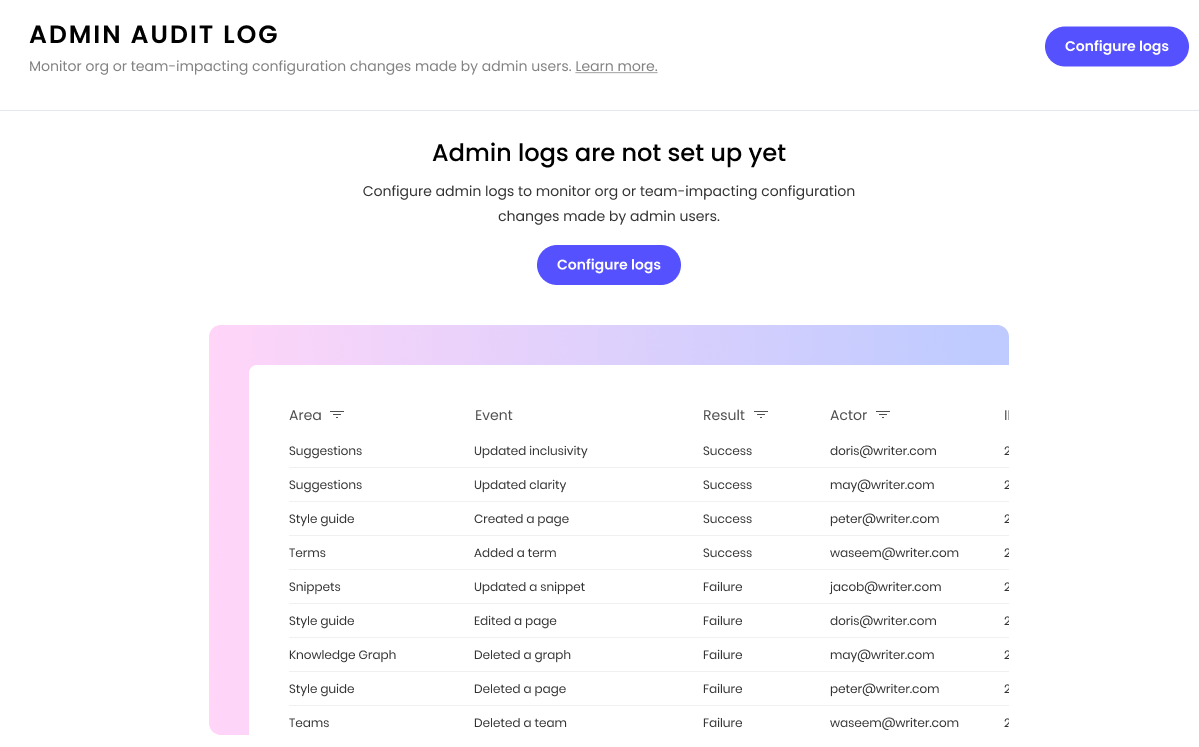
To get started, select Configure logs from the top right corner of the page.
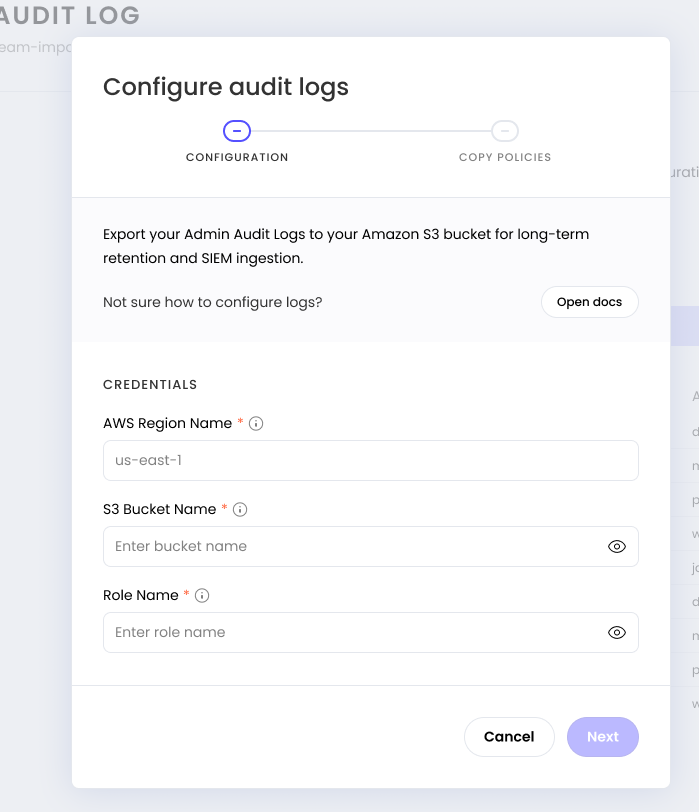
Next, setup an S3 bucket and corresponding IAM policy on AWS.
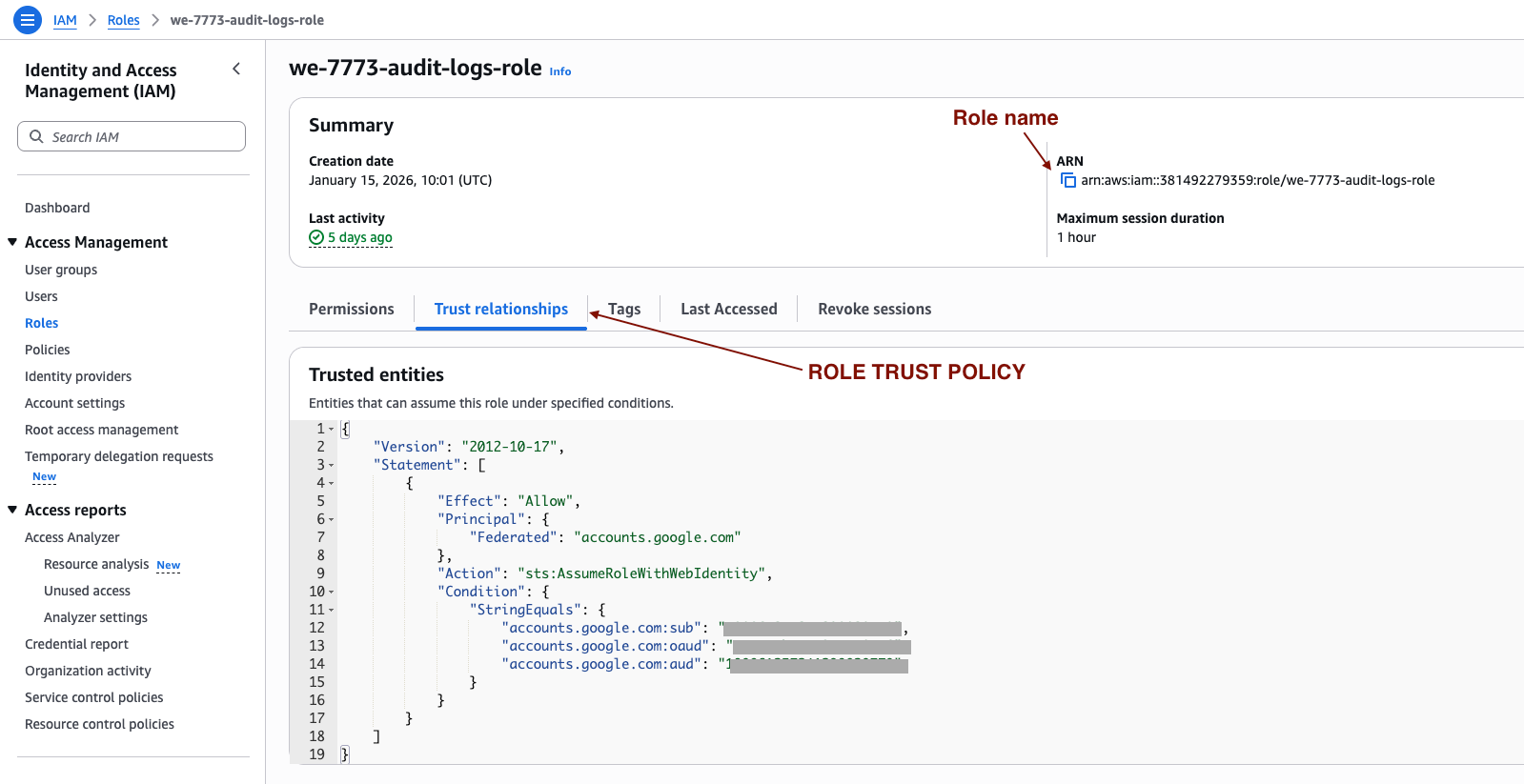
Enter your S3 bucket name and role name (ARN) copied from your IAM policy into your Writer settings and select Next.
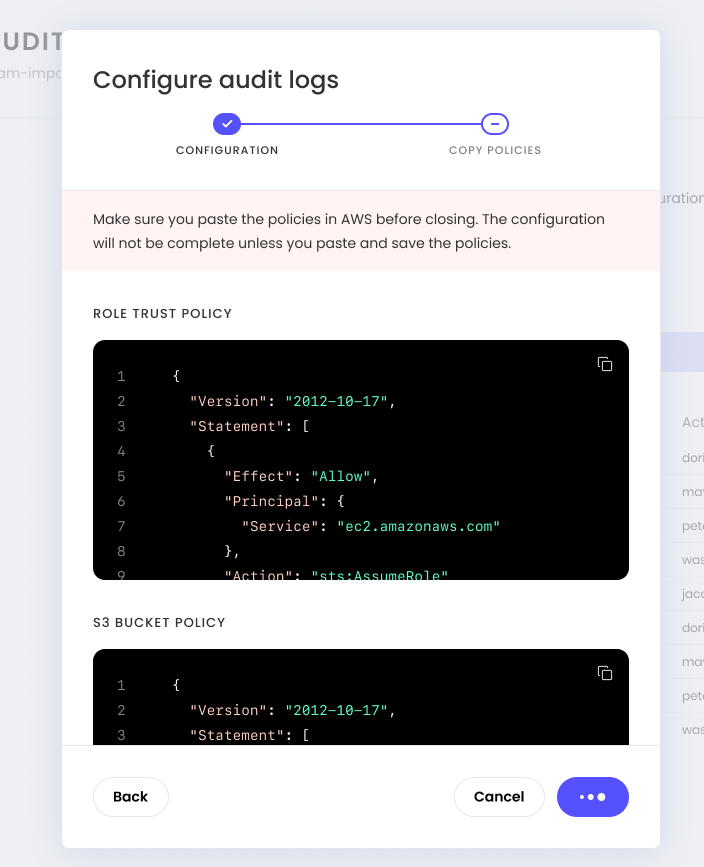
Copy the ‘Role Trust Policy’. In your AWS console, navigate to IAM > Roles, ‘Trust relationships’ and then ‘Edit trust policy’ and paste the policy.
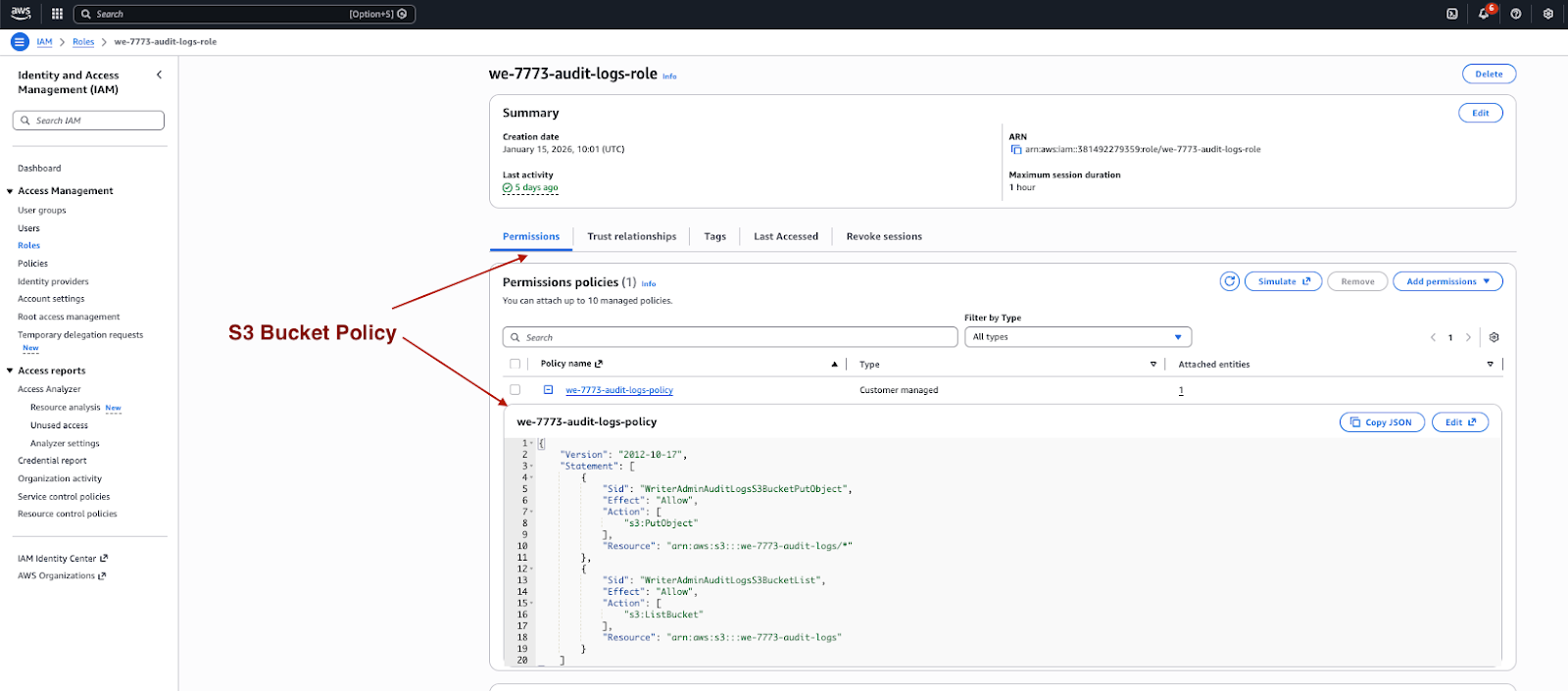
Copy the ‘S3 Bucket Policy’. In your AWS console, navigate to your IAM policy and add this as a permission in the policy editor.
Click ‘Test & Save’ and you’ll see a successful authentication notice if configured correctly.
Frequently asked questions
Can I export the Admin audit log?
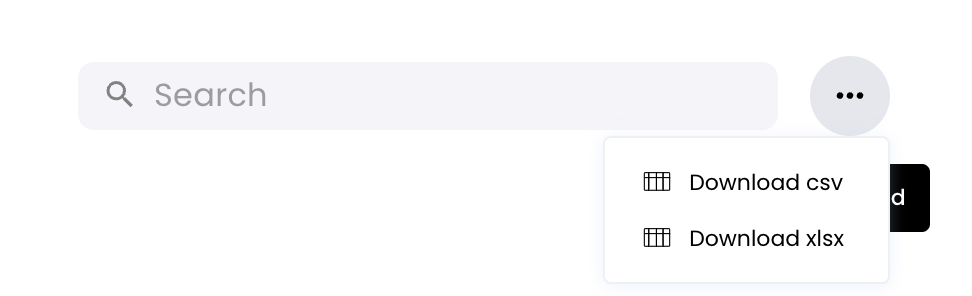
Yes, you can select the ••• menu next to the search bar to export as a CSV or an XLSX file. You can also set up S3 export as described above to automatically export log events.
How far back does the Admin audit log data extend?
The Admin audit log retains data up to 2 years and 1 month old.