Using connectors
Last updated: August 7, 2026
Who can use this feature
Org admins and IT admins can manage what connectors are set up and who has access to them in AI Studio, learn more here.
What are connectors?
Connectors allow WRITER Agent to securely access and interact with your external tools and data sources, such as Google Drive, Salesforce, Jira, Slack, and more. By using connectors, you can avoid manual data entry and allow WRITER Agent to pull real-time information directly into your workflows. Your WRITER admin will need to set up connectors before you’re able to use them within WRITER Agent.
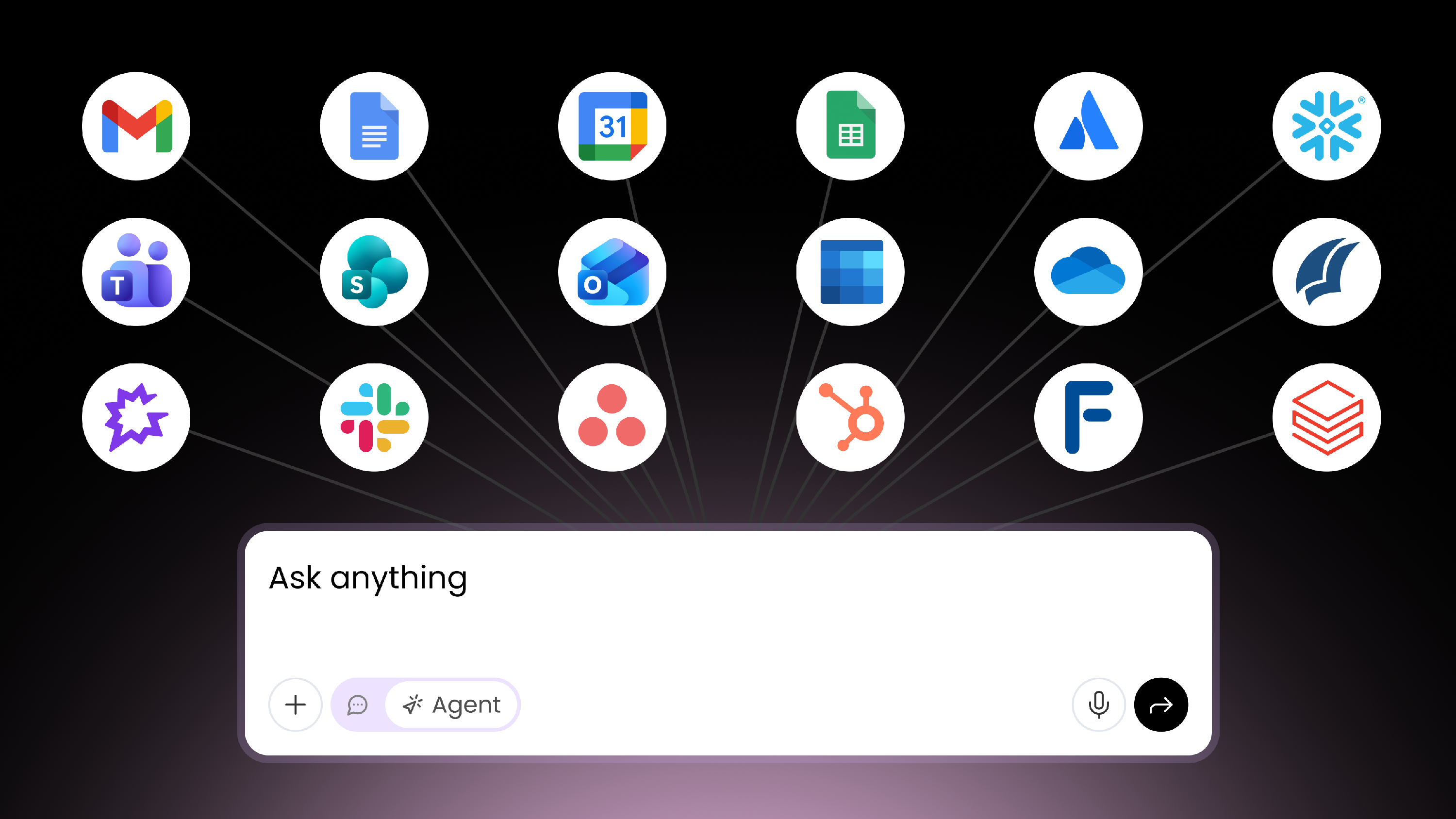
Every AI workflow is only as good as the data powering it. Without connectors, WRITER agent operates on static prompts and uploaded files, snapshots of information that go stale the moment a session ends. Connectors change that equation in four ways.
Real-time data, not stale inputs. When WRITER Agent pulls live records from Salesforce, active tickets from Jira, or recent threads from Slack, the outputs it generates reflect your actual business state — not a manually prepared summary from earlier in the week.
No more manual data entry. Copying CRM fields into a prompt, pasting Slack feedback into a document, or downloading a spreadsheet to attach to a session all introduce friction and error. Connectors remove those steps entirely.
End-to-end execution, not just drafts. Connectors allow agents to close the loop. A playbook can draft a project update and post it to Slack. A WRITER Agent session can retrieve open Jira tickets and generate a prioritized action plan. The work moves into your systems, it does not stop at content generation.
Governed access at enterprise scale. Each connector requires explicit authentication and permission scoping. IT controls which tools are enabled, which teams have access, and what operations agents can perform. WRITER Agent acts on behalf of the authenticated user, within the access controls IT has already established.
Note: Your admin must first enable these tools for your organization. For detailed setup instructions, click here.
Supported connectors
Prebuilt connectors cover the systems your go-to-market, operations, and engineering teams rely on every day. A full list of the available prebuilt connectors can be found here.
Category | Connectors |
Productivity | Google Workspace (Docs, Drive, Sheets, Calendar, Gmail), Microsoft (Calendar, OneDrive, Outlook, SharePoint, Teams), Slack |
CRM | Salesforce, HubSpot, Gong |
Project management | Asana, Atlassian (Jira + Confluence) |
Data warehouses | Snowflake, Databricks, Google BigQuery |
Financial data | FactSet, PitchBook |
Content management | Adobe Experience Manager |
Org admins can also create custom connectors by uploading an OpenAPI specification (JSON or YAML) or connecting to an external MCP server. This means WRITER Agent can connect to virtually any tool your organization uses, including internally built applications. Once configured in AI Studio, custom connectors are available to users and playbooks just like any prebuilt connector.
For step-by-step setup instructions, see Setting up custom connectors.
💡 Pro-Tip: Your org admin enables connectors in AI Studio. If a connector you need is not available in your session, contact your admin to request access.
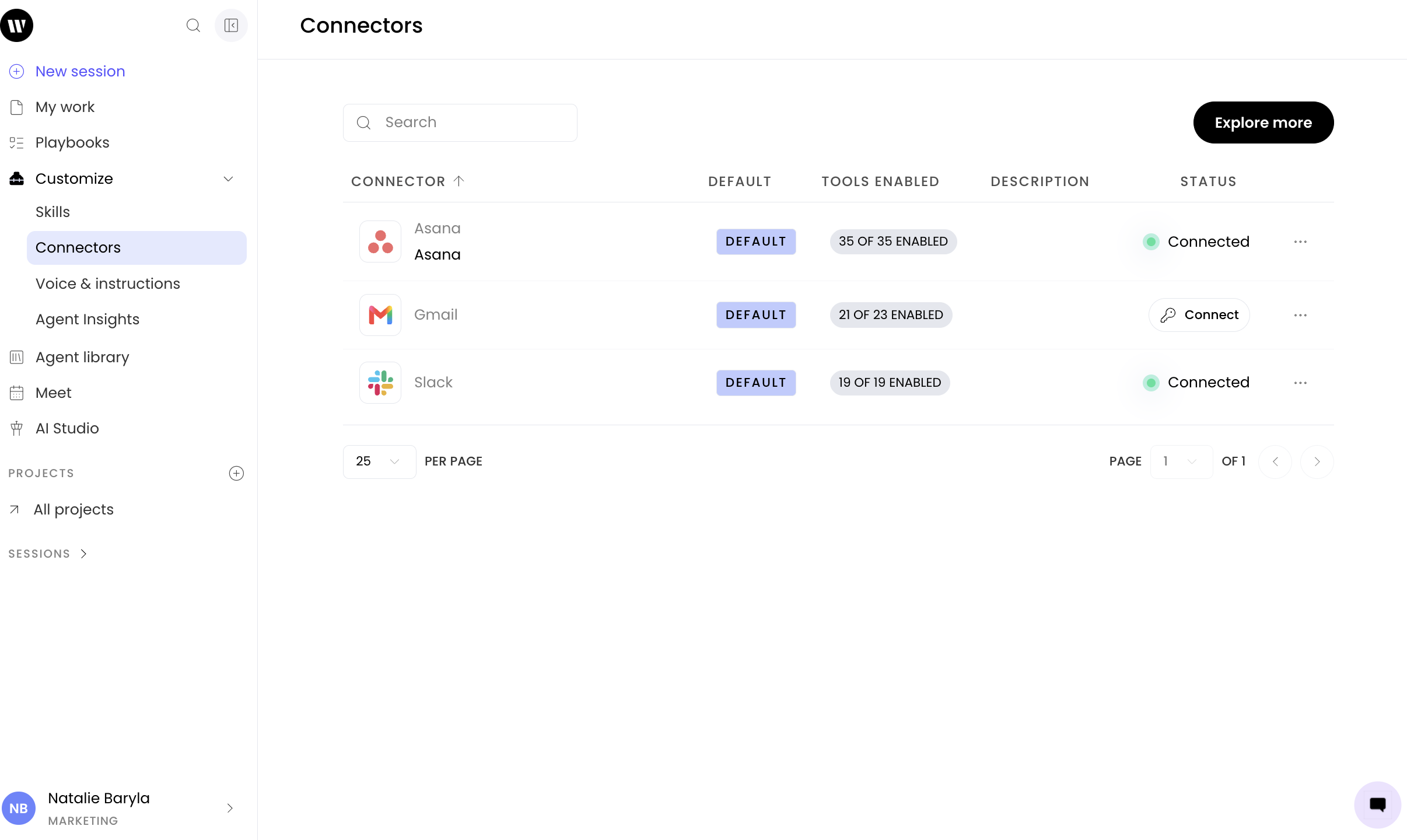
Navigate to Customize > Connectors > Explore more to see what connectors are available for you to use. In the library, you can explore available options and review specific capabilities by clicking Details. This list also identifies which tools require an active login to function.
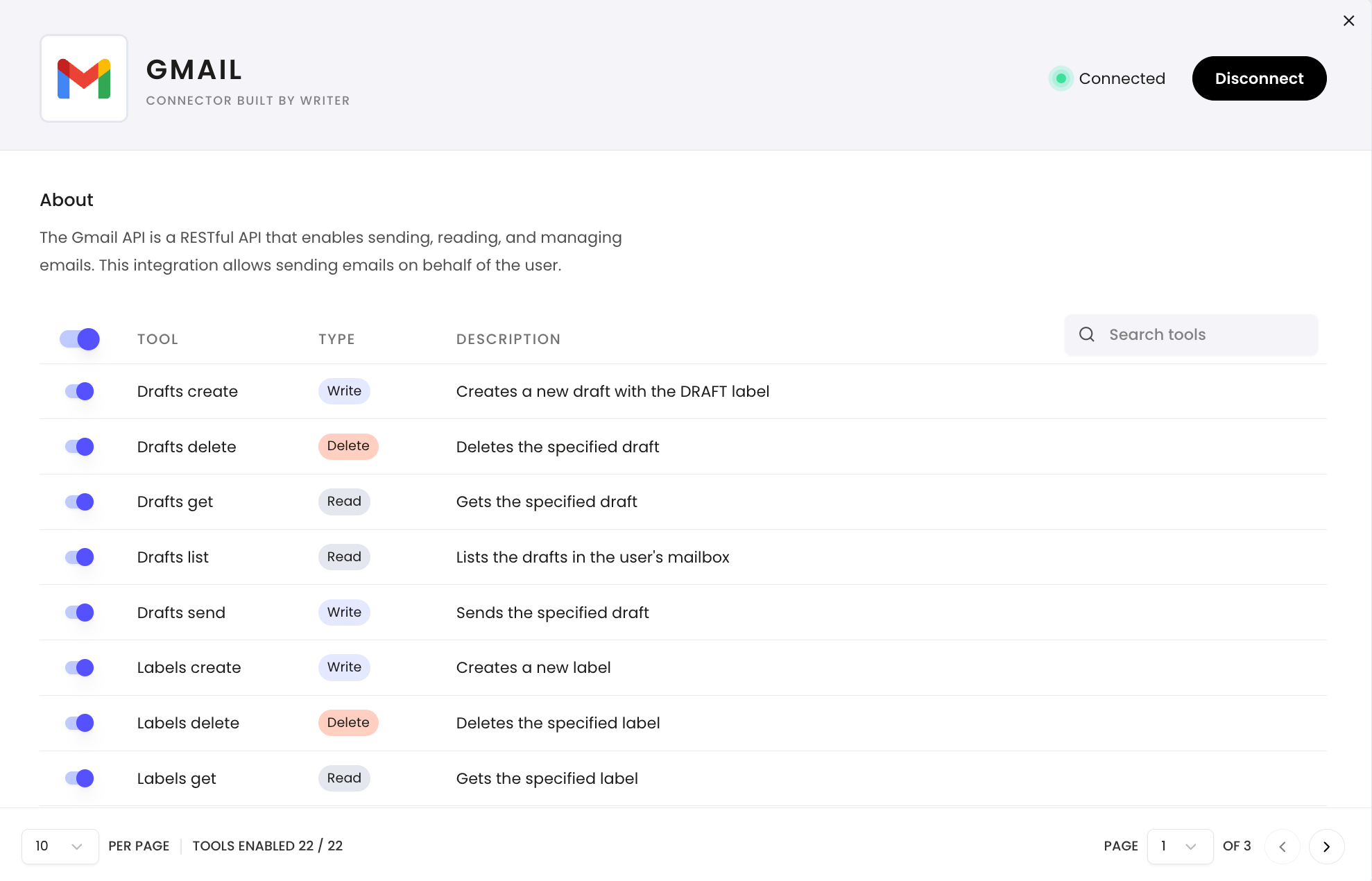
The details page provides an overview of what each integration can do. Capabilities include:
Read: Enables WRITER Agent to pull data from the source.
Write: Allows WRITER Agent to perform actions or create items.
Delete: Grants permission to remove items within the app.
Click Connect to authorize WRITER Agent to use the selected tool.
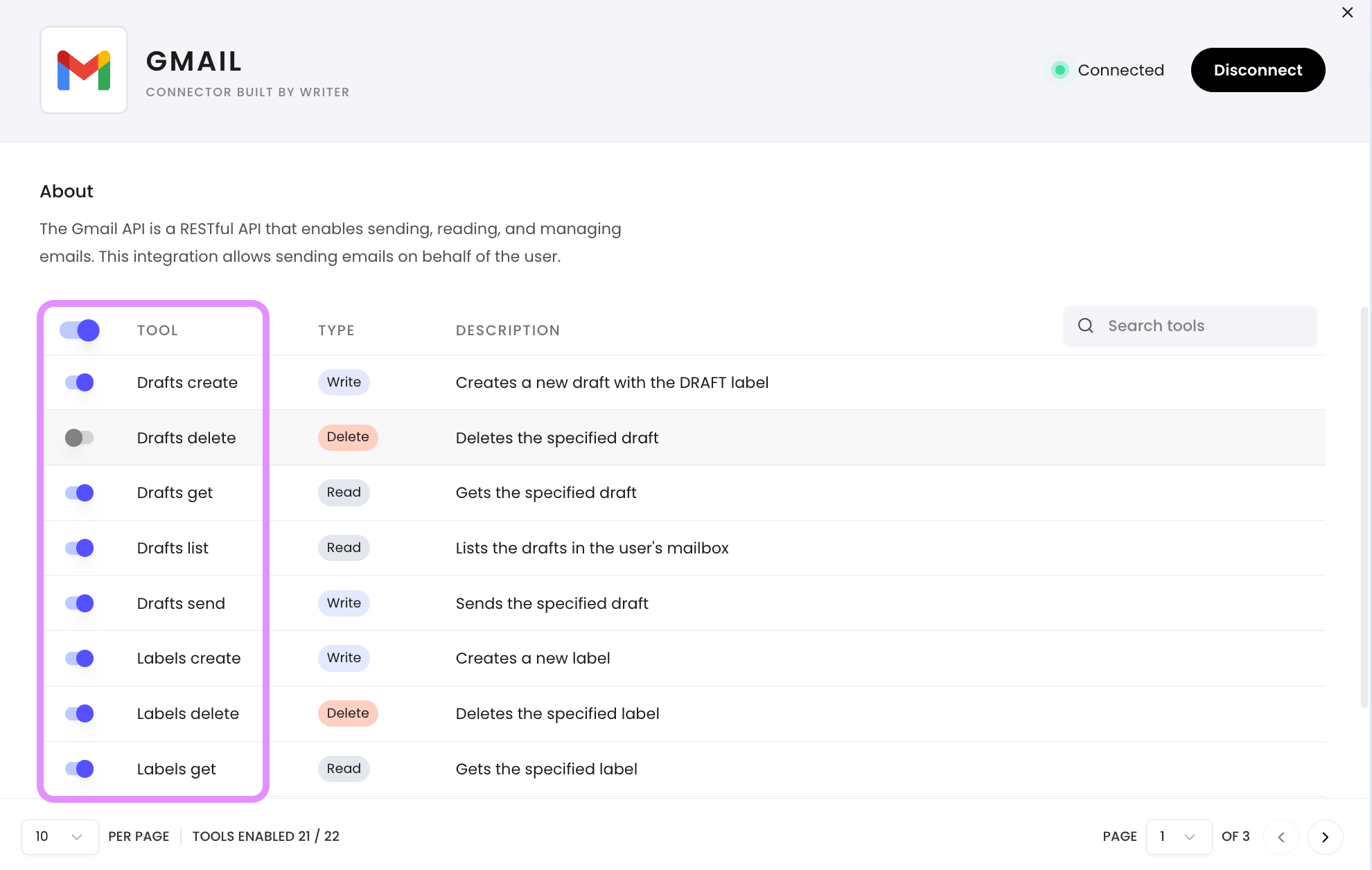
Once linked, you can fine-tune permissions. Use the toggle icon next to each tool to enable or disable specific actions for WRITER Agent.
Example use cases
Content-to-campaign lifecycle
Marketing teams use connectors to close the gap between content creation and distribution. Pull campaign briefs from Google Drive, draft assets in WRITER, and push finalized content directly into Adobe Experience Manager or WordPress, without leaving the workflow. WRITER Agent moves with the asset at every stage.
Example: "Retrieve the Q3 campaign brief from Google Drive, write five email subject line variants based on the messaging pillars, and save the options back to the same folder."
Pipeline generation and sales acceleration
Sales teams use connectors to turn CRM data into personalized outreach at scale. Connect Salesforce to surface account context, recent activity, and open opportunities, then generate tailored prospecting emails, follow-up sequences, or battle cards grounded in real account data.
Example: "Pull the ten most recently created opportunities in our CRM where the stage is Prospecting, summarize each account's industry and recent activity, and draft a personalized outreach email for each."
SEO and customer acquisition
Connect your data warehouse, like Snowflake or Databricks, to surface search performance data, keyword gaps, or traffic trends. Feed that data directly into content briefs or page optimization recommendations without exporting CSVs or switching tools.
Personalization at scale
Combine CRM signals with WRITER's content generation to produce personalized assets for every segment, persona, or account. Connectors make it possible to retrieve the right data for each record in a batch and generate outputs that reflect individual context, not generic templates.
Cross-functional project coordination
Use Asana or Jira connectors to surface task status, blockers, and team workload. WRITER Agent can generate status reports, prioritize backlogs, or draft stakeholder updates grounded in live project data.
Example: "Search Jira for all open tickets assigned to [Assignee Name] and summarize their current status."
Operational communication
Use the Slack connector to monitor channels for signals — customer feedback, support escalations, or team updates — and generate structured summaries, action items, or responses. Use the Gmail connector to read, draft, and send emails without leaving WRITER.
Example: "Summarize the last two weeks of posts in the #product-feedback Slack channel and organize the feedback by theme."
How to use connectors in WRITER Agent sessions
You can use connectors during a session with WRITER Agent to quickly retrieve information or perform actions in other apps.
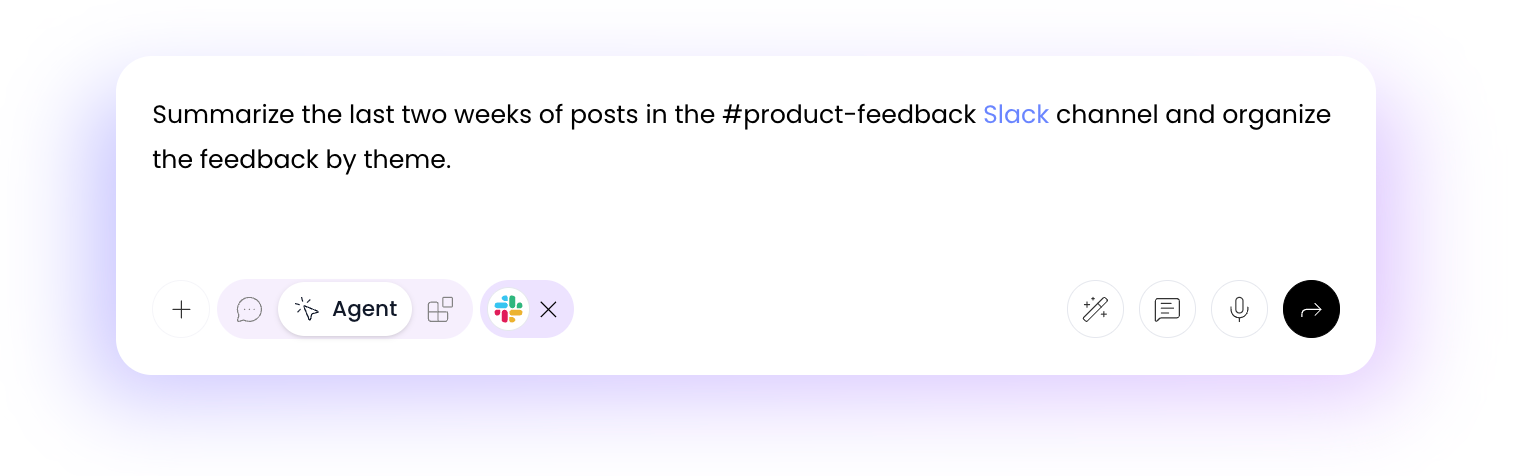
Start a new session with WRITER Agent.
In your prompt, explicitly ask WRITER Agent to use a specific tool. For example: "Summarize the last two weeks of posts in the #product-feedback Slack channel and organize the feedback by theme."
Alternatively you can use the + menu and select Connectors to see what's available and connect an app.
If you haven't authenticated the connector yet, WRITER Agent will prompt you to log in and grant access.
WRITER Agent will fetch the data and use it to answer your question or complete your task.
How to use connectors in playbooks
To make playbooks as effective as possible, we highly recommend leveraging connectors to automate data retrieval and actions across your tech stack.

If the tool is already connected to WRITER Agent you will find it in the Connectors section of the + menu in the playbook creation prompt. Either select the tool from that menu or mention the tool within the prompt to have it included in the playbook you’re creating.

How to add a connector to an existing playbook:
Open your playbook in the editor.
Type / in your playbook instructions and select the connector you want to use from the menu.
Alternatively, you can add connectors from the Blocks tab in the right-hand menu of the playbook editor.
Describe exactly what data the connector should fetch or what action it should take.
Example instruction:
"Search Jira for all open tickets assigned to Assignee_Name and summarize their current status."
If you’d like to change the tool you’ve connected, click on the tile and select another connected tool from the list.
Recommended approach for connectors in playbooks
Be specific in your instructions. Vague connector steps produce inconsistent results. Specify the object type, filter criteria, channel name, folder path, or record field.
Sequence connector steps deliberately. If a later step depends on data retrieved by an earlier connector, make that dependency explicit in the instructions.
Test before automating. Run the playbook manually at least once to verify the connector retrieves the correct data and the output meets your expectations before setting it on a schedule.
Use connectors for both read and write actions. Playbooks are most powerful when WRITER Agent retrieves context, generates content, and writes the result back into your systems, closing the loop without human intervention
Writing effective connector prompts
How you write a connector prompt directly affects the quality of the output. The more specific you are about the system, scope, and desired action, the more reliable the result.
Good: "Search Jira for all open tickets in the MKTG project assigned to Sarah Chen that were updated in the last seven days, summarize the status of each, and draft a brief Slack message for the #marketing-ops channel."
Not as effective: "Check Jira and tell me what's going on with marketing tickets."
Good: "Pull the five most recent closed-won deals from Salesforce for accounts in the healthcare industry, extract the deal size and primary contact, and draft a personalized thank-you email for each contact."
Not as effective: "Use Salesforce to write some emails."
Key principles for connector prompts:
Name the system explicitly: "Use Salesforce to…" or "Search Slack for…"
Specify the scope: date ranges, assignees, channels, folders, or record types
State the desired output: a summary, a draft, a list, or an updated record
Chain actions: retrieve, generate, and write back in a single prompt
⚠ Note: Connectors can only perform actions that your org admin has enabled in AI Studio. If a specific action fails, verify with your admin that the relevant tool is enabled for your team.
FAQs
Do I need to authenticate connectors every time I use them?
No. Once you authenticate a connector (like logging into your Google account), WRITER securely saves that connection for future sessions and playbooks. If WRITER Agent is failing to connect try the following steps to resolve your issue:
To fix this:
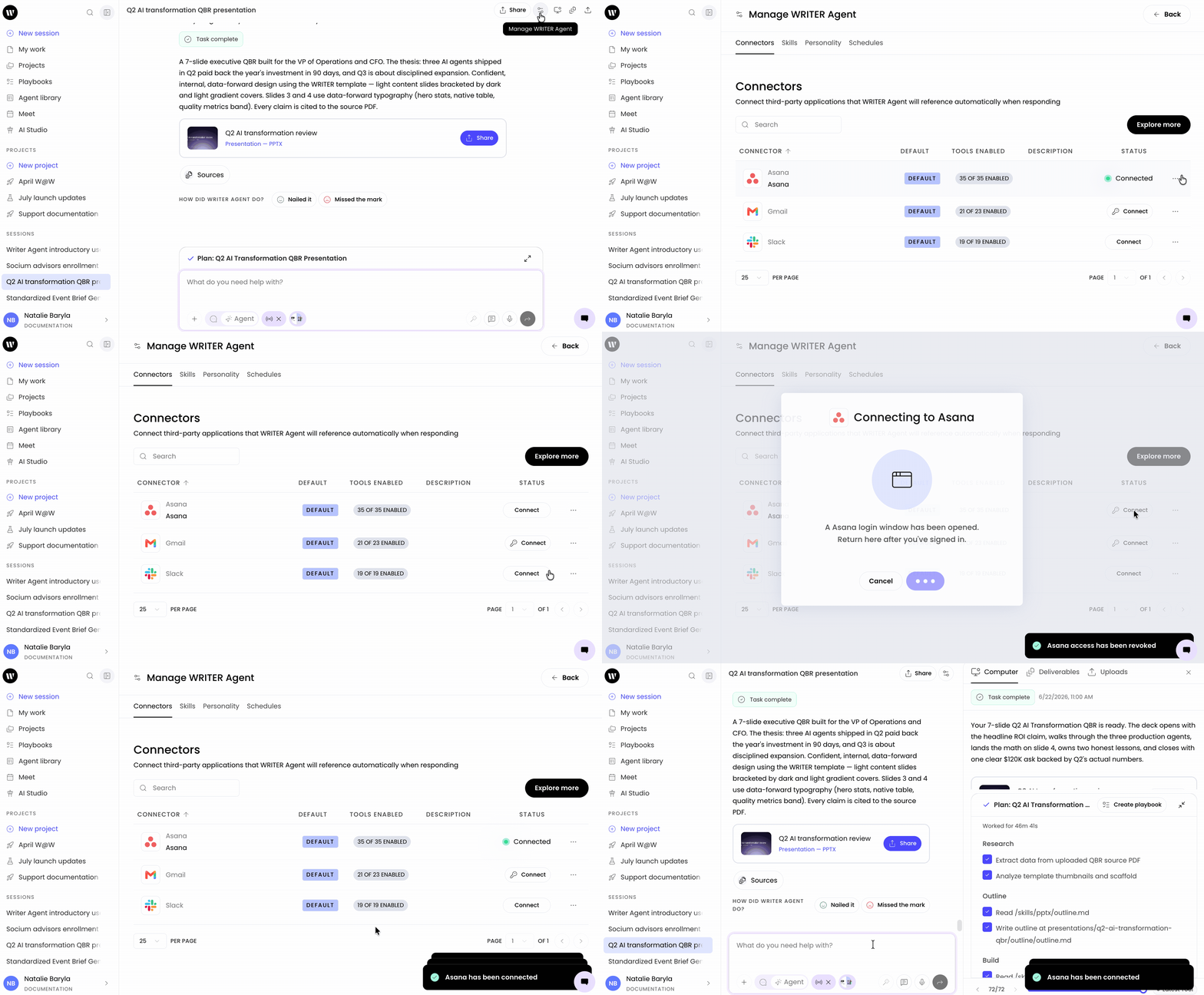
Navigate to Manage WRITER Agent > Connectors
Find the impacted connector
Hit
REVOKE ACCESS- do NOT hit disconnect or it won't work and you'll have to reconnect and still revoke accessHit
connect. This will open the oauth flow to authenticate into the app. Follow the instructions to reconnectNavigate back to the session where WRITER Agent encountered the error and ask WRITER Agent to try again. If the issue persists, contact your admin.
Can a playbook use a connector to post messages or update external systems?
Yes, depending on the specific connector's capabilities. For example, you can instruct a playbook to draft a project update and then use the Slack connector to post that update to a specific channel.
Who can see and use my connected apps?
Connectors are authenticated per user. Other team members cannot access the systems you have connected unless they authenticate their own accounts. Org admins control which connectors are available to the organization and which tools each connector is permitted to perform.
What permissions does WRITER request when I connect an app?
The permission scope varies by connector and the actions it supports. WRITER requests only the permissions required for the connector's supported capabilities. Review the permissions listed on the connector's setup screen before authenticating.
Can I use multiple connectors in a single playbook?
Yes. A single playbook can include multiple connectors. For example, a playbook can pull data from Salesforce, generate a summary in WRITER, and post the result to Slack, all in one automated run.
What happens if a connector loses authentication?
If a connector's authentication expires or is revoked, WRITER Agent will surface an error and prompt you to reconnect. Re-authenticate using the connector's setup flow to restore access.
Can I use connectors in both ad hoc sessions and scheduled playbooks?
Yes. Connectors work in both contexts. Use them on demand in WRITER Agent sessions for one-off tasks, and embed them in playbooks to automate recurring workflows.
What is the difference between a connector and a Knowledge Graph?
Connectors give WRITER Agent the ability to take real-time actions in external systems, reading live records, writing data back, and triggering operations. A Knowledge Graph stores curated, indexed content from your organization that WRITER Agent can search and reference. Use connectors when you need live data or write-back capability; use a Knowledge Graph when you need WRITER Agent to reference stable internal documentation or structured company knowledge.
Can my org connect to more than one instance of the same tool?
Yes. Connector profiles allow organizations to create multiple configurations of the same connector type in AI Studio. For example, two separate Salesforce orgs, or a production and sandbox Snowflake environment. Each profile is independently configured and team-scoped.
Can my organization build a custom connector?
Yes. Organizations can create custom connectors by uploading an OpenAPI specification (JSON or YAML) or connecting to an external MCP server URL. Custom connectors are configured and managed in AI Studio alongside prebuilt connectors, and support API key and OAuth authentication.
I don't see a connector I need. What should I do?
Contact your org admin to request that the connector be enabled in AI Studio. If the tool is not available as a prebuilt connector, your admin can create a custom connector using an OpenAPI specification or MCP server URL.