Lite Seats
Last updated: October 14, 2026
Who can use this feature
Supported on Enterprise plans
Org admins and admins with access to billing can manage Lite users and promote them to Pro
Org admins and IT admins can configure domain access and domain discoverability
Lite Seats let you give users limited access to WRITER without assigning them a Pro Seat. They’re a good fit for people who need to explore the platform, review shared work, or use WRITER only occasionally. Learn more about the differences between these seat types here.
Because Lite Seats use an individual monthly credit allocation, Lite seat usage does not draw from your organization’s shared Pro user resources. Lite users are able to access and use all standard WRITER features that any team member can use.
What you should know about Lite Seats
Lite Seats are included with your WRITER subscription at no additional cost.
Each Lite Seat user receives an individual monthly credit allocation. Those credits are separate from your organization’s shared pool, so Lite user usage does not affect the credits available to Pro users.
Lite user credits refresh monthly and do not roll over.
Lite user receive $30 in credits per month.
Once a Lite user has used their monthly balance, they won’t be able to use WRITER Agent, custom agents, or playbooks again until either their monthly balance refreshes or an admin upgrades them to a Pro Seat.
Lite Seats are designed for lighter usage and come with a few important limitations:
Lite users can’t be assigned org-scoped roles
Lite users can’t access AI Studio, team, or org settings
Lite users are limited to the Team Member role
If a user needs org-level permissions, broader admin access, or more ongoing usage, upgrade them to a Pro user.
Note: Pro seats cannot be manually downgraded to Lite through the WRITER UI. However, if you use SCIM with IdP groups, moving a user out of all Pro groups will automatically downgrade them to Lite during the next sync.
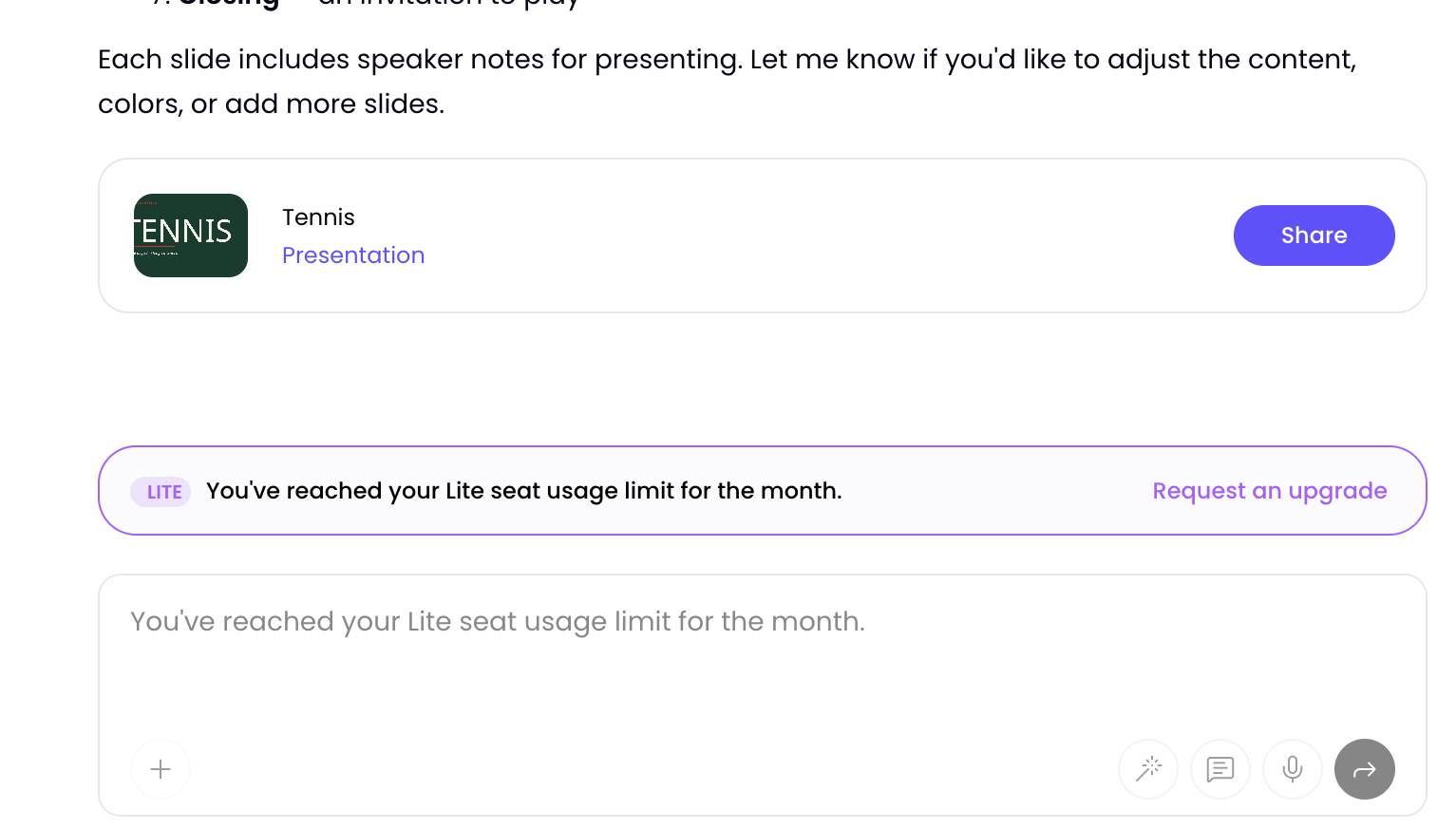
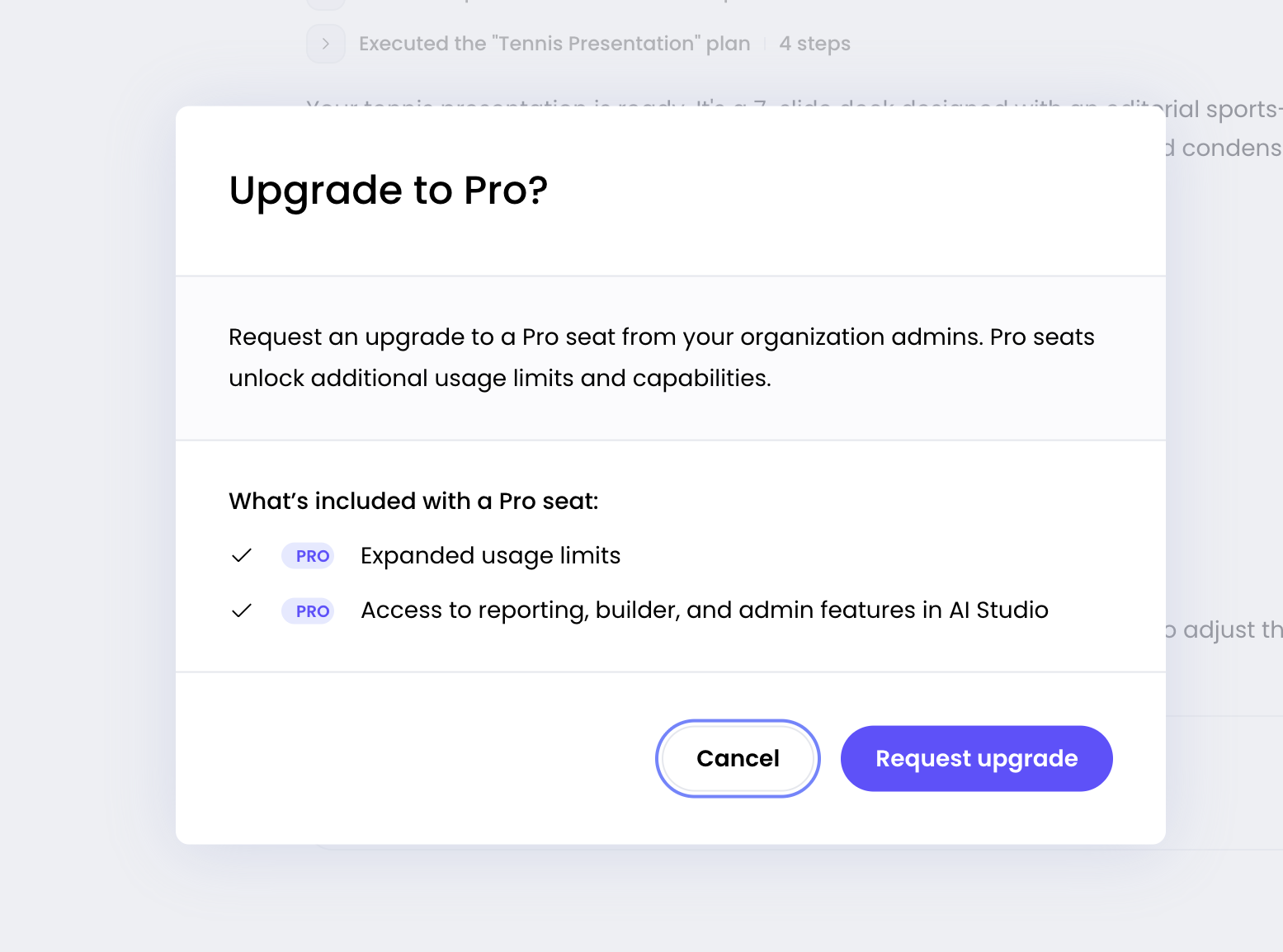
Lite users are able to request an upgrade to a Pro seat from within a WRITER session when their credit limit has been met.
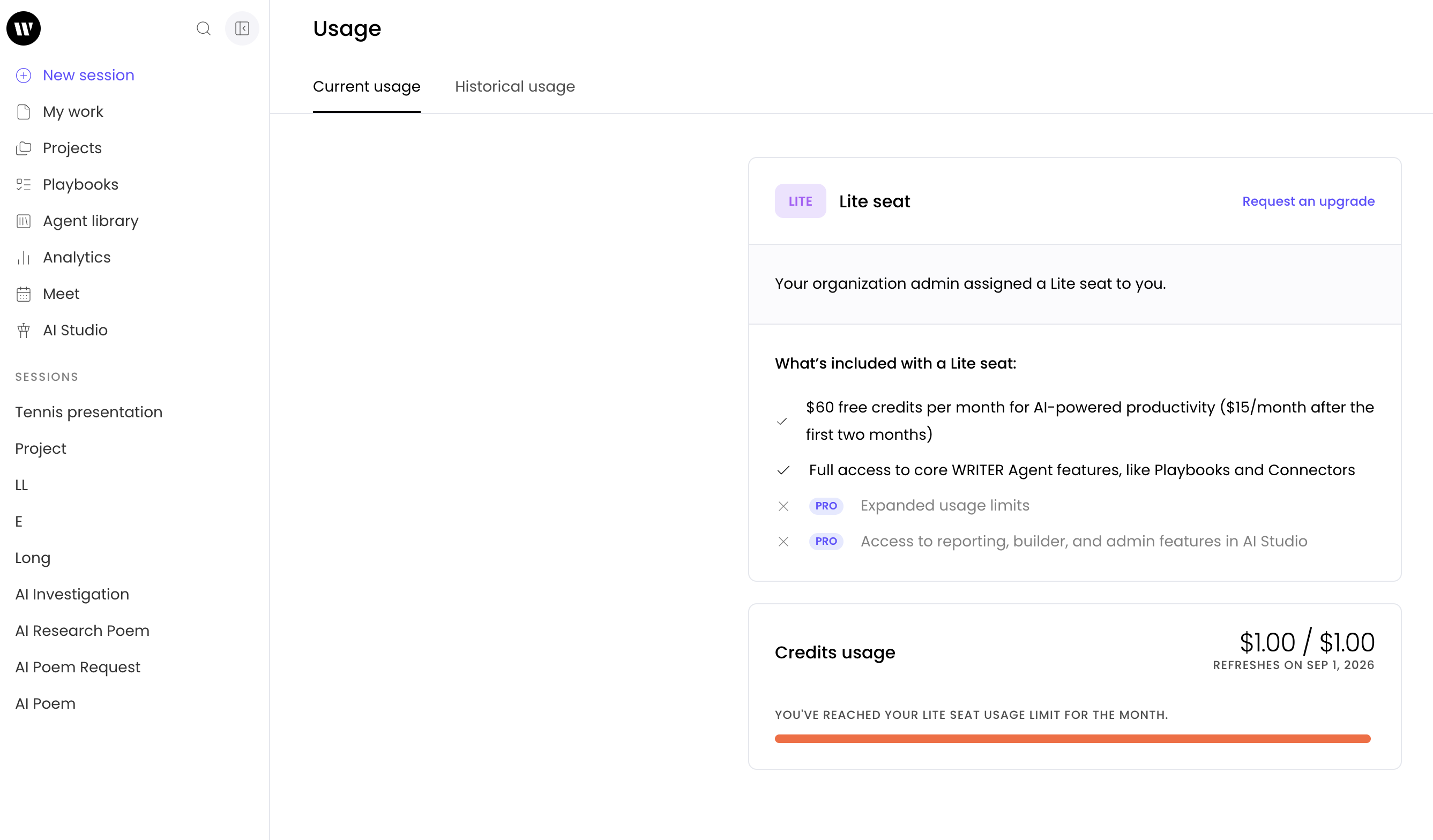
A user that has run out of credits will still be able to access previous sessions and deliverables they created but they will not be able to start a new session. Instead of seeing WRITER Agent on their home screen, they will see a notification that they have run out of credits and will be able to request an upgrade from the module.
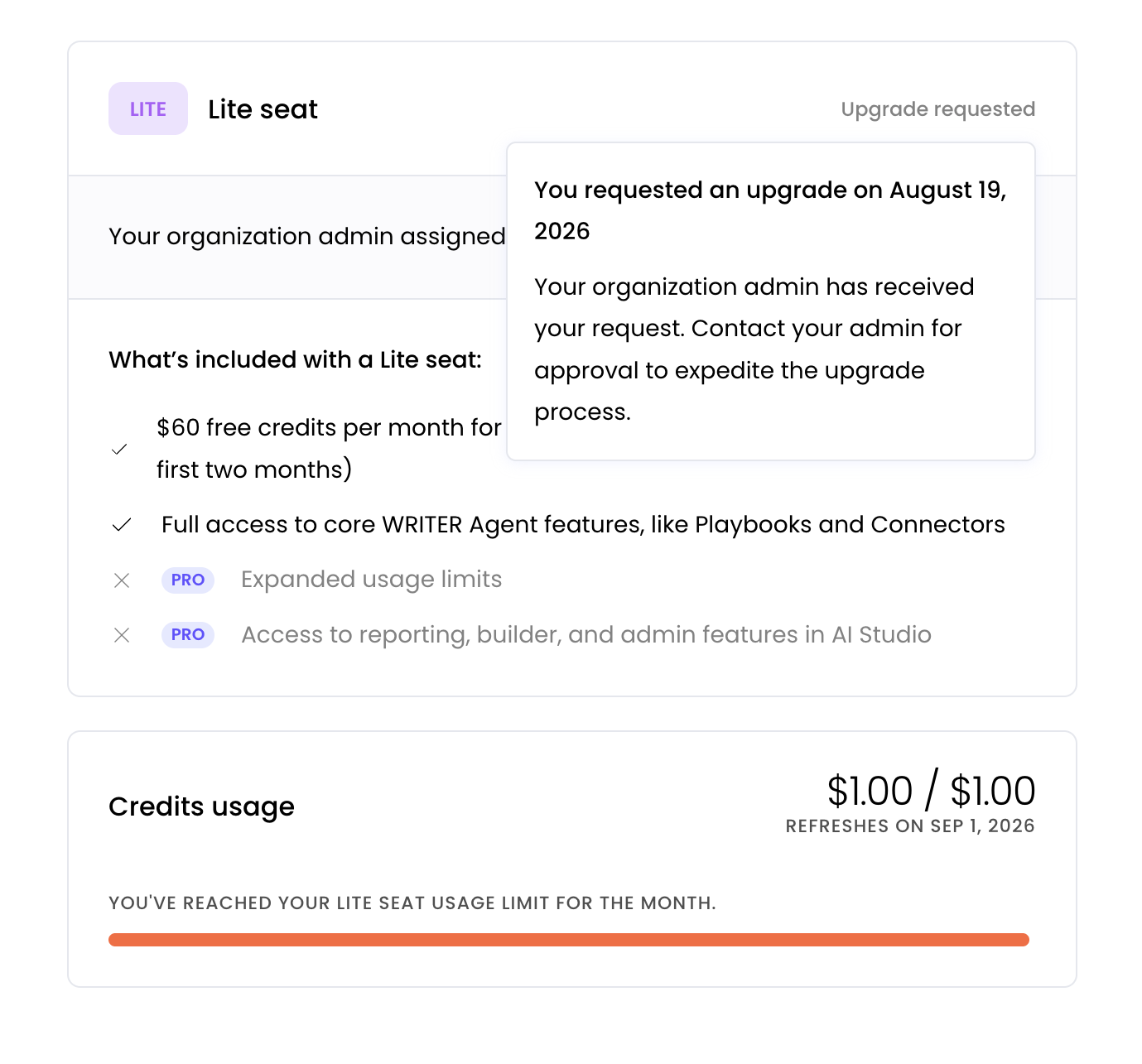
Once a Lite user has requested an upgrade, they will see a message display noting when they requested the upgrade.
Invite Lite users automatically through domain discovery
Use this option when you want users at your company email domain to join your WRITER organization automatically as Lite users.
Domain access is required before you can use domain discoverability. WRITER’s domain access settings are located under Access & provisioning, and claimed domains can be edited later from the same area.
If domain discovery isn’t turned on yet

Navigate to Org settings > Admin settings > Access & provisioning > Access.
If your domain has not been claimed yet, follow the steps in Setting up domain access to claim the domain and turn on domain discoverability. WRITER requires domain access before setting up domain discoverability, SSO, or SCIM.
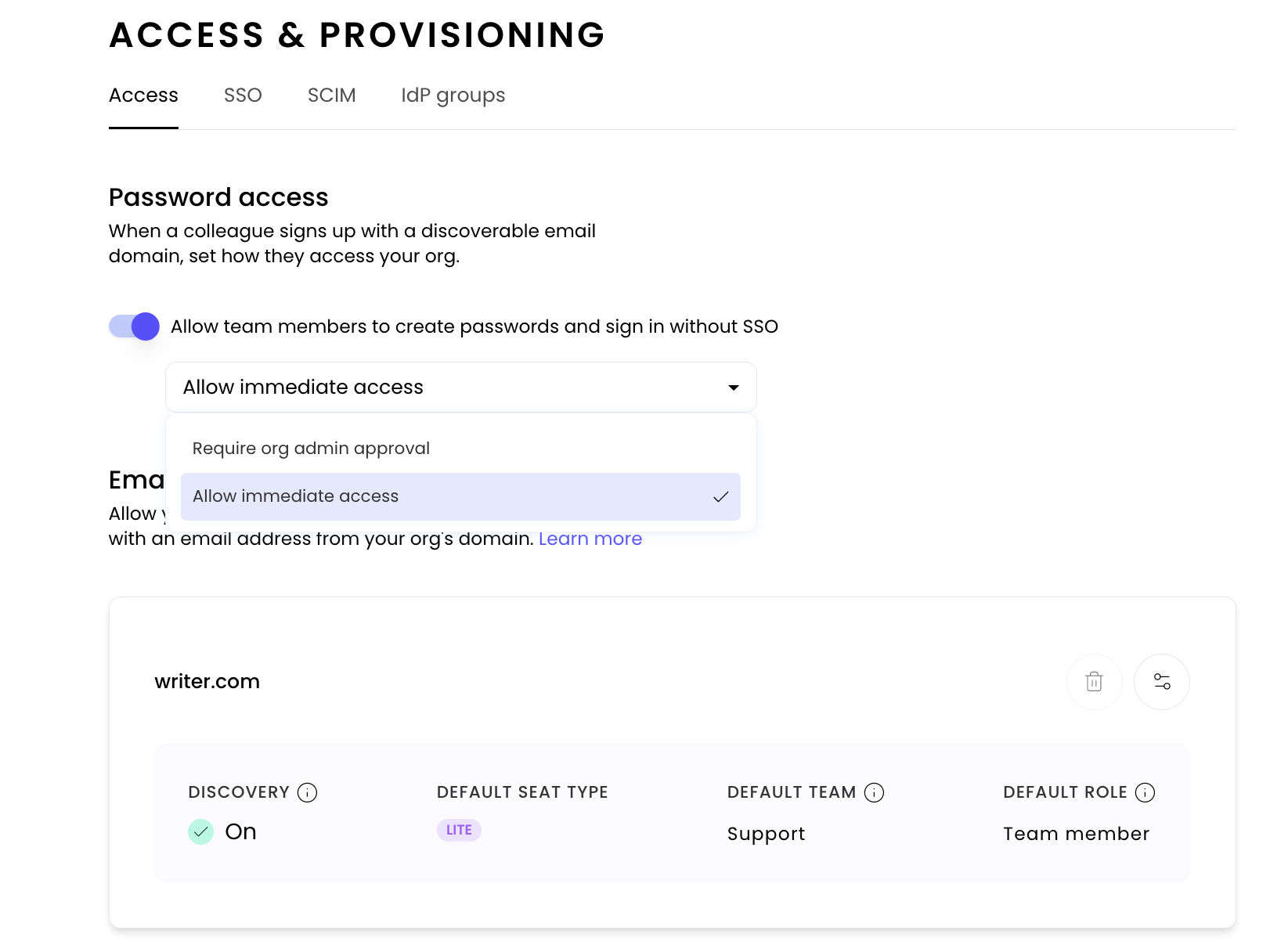
Set Password access to Immediate. WRITER’s help article explains that password access determines whether users can join automatically or require admin approval, and these settings apply across claimed domains.

Choose the appropriate default team and role for new users joining through domain discovery. WRITER’s domain access flow supports setting default teams and roles for users who join through a claimed domain.
Save your changes and users signing up to join WRITER with an email address from your claimed domain will be prompted to join your organization.
If domain discovery is already turned on
Navigate to Your name > Org settings > Admin settings > Access & provisioning > Access.

If not already selected, set Password access to Immediate. Next, select the edit control for that claimed domain you wish to edit.
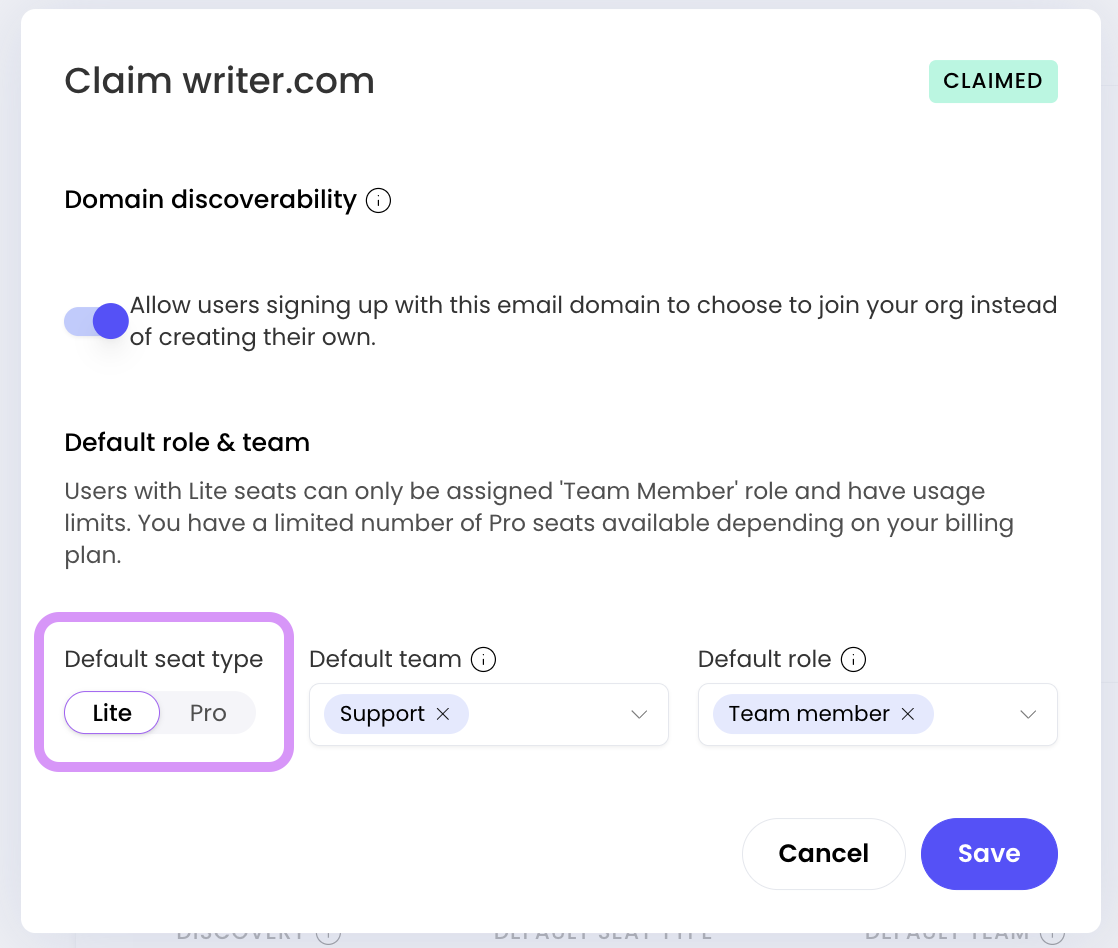
Change the default seat type to Lite and save your changes.
After this is enabled, new users who join through domain discovery for that domain will be assigned a Lite user seat by default. Learn more about team settings here.
Invite Lite users manually
Use this option when you want to invite specific users as Lite users.
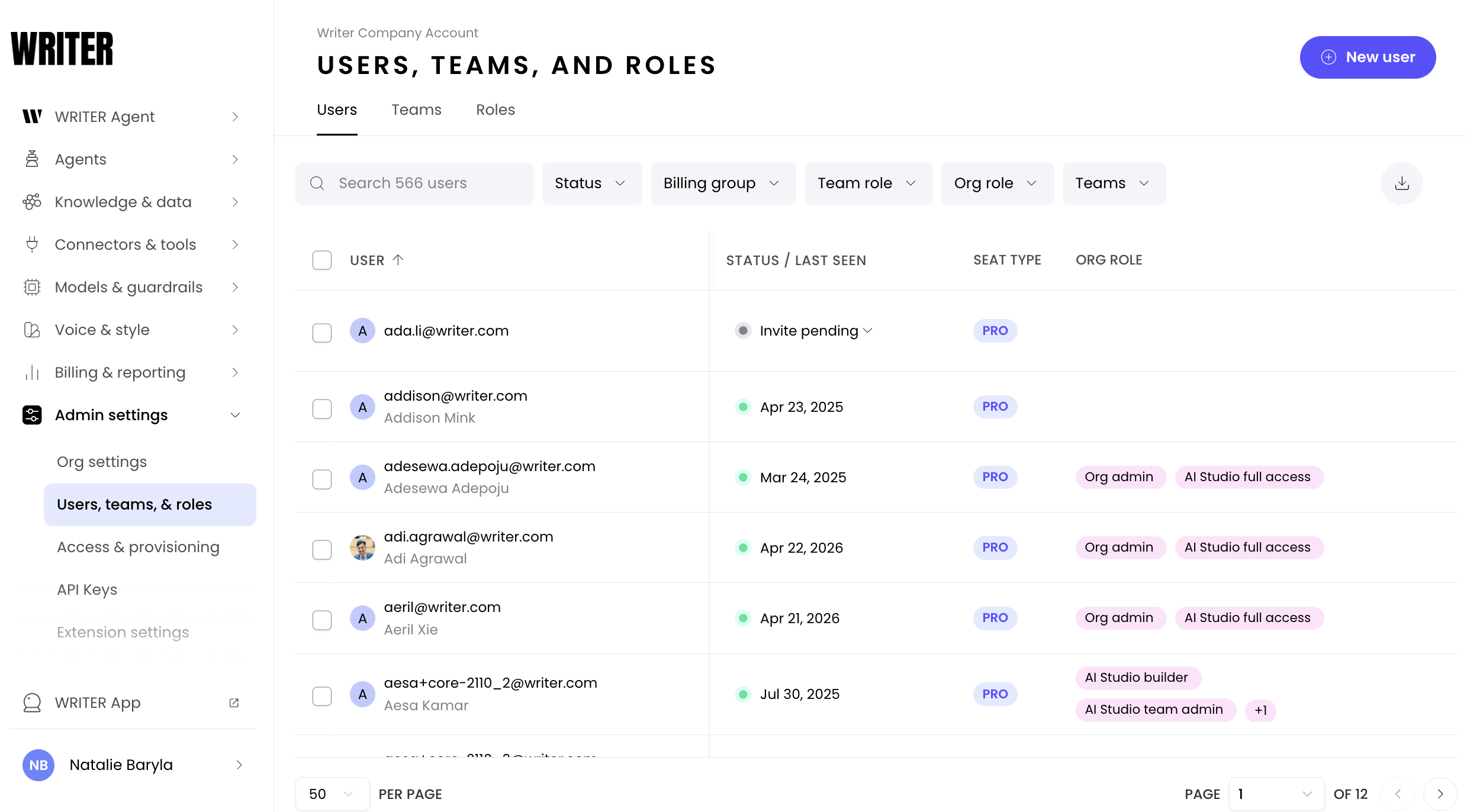
Navigate to to Your name > Org settings > Admin settings > Users, teams, & roles. Select + New user in the top-right corner.
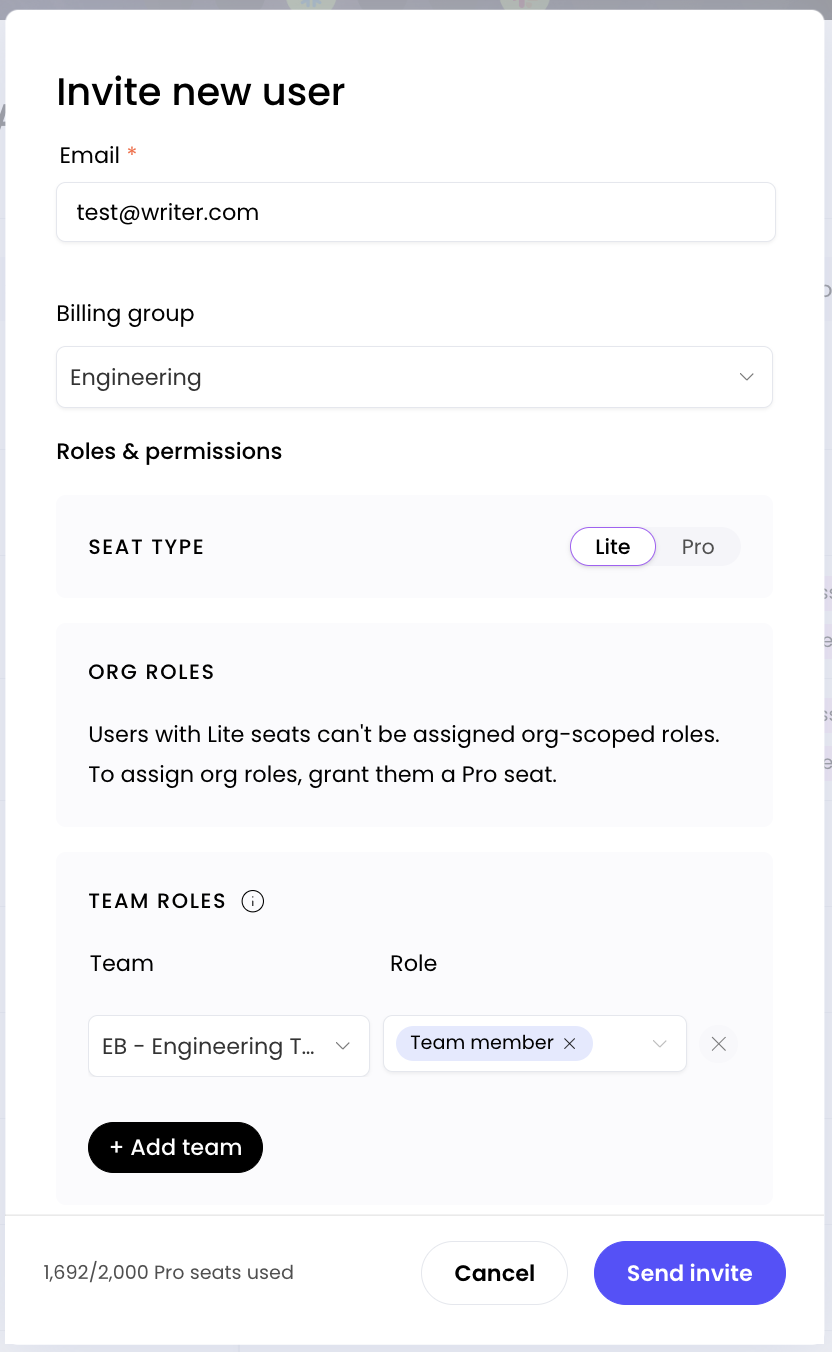
In the Email field, enter the user’s email address. To invite multiple users at once, separate email addresses with commas. WRITER supports inviting multiple users in one entry, as long as those users will receive the same access setup. Complete the required information to invite your user(s):
If needed, select a Billing group.
Under Seat type, select Lite.
Assign the appropriate team and role.
Click Send invite.
Use manual invites when you want more control over which users receive Lite user access, or when you don’t want to assign Lite users automatically through domain discovery.
If Pro seats are full: When Pro seat overages are off and Pro seats are at capacity, you'll see a dialog explaining that the user will be invited as a Lite user with org roles removed. You can confirm to proceed with the Lite invite, or cancel.
Upgrading Lite users to Pro
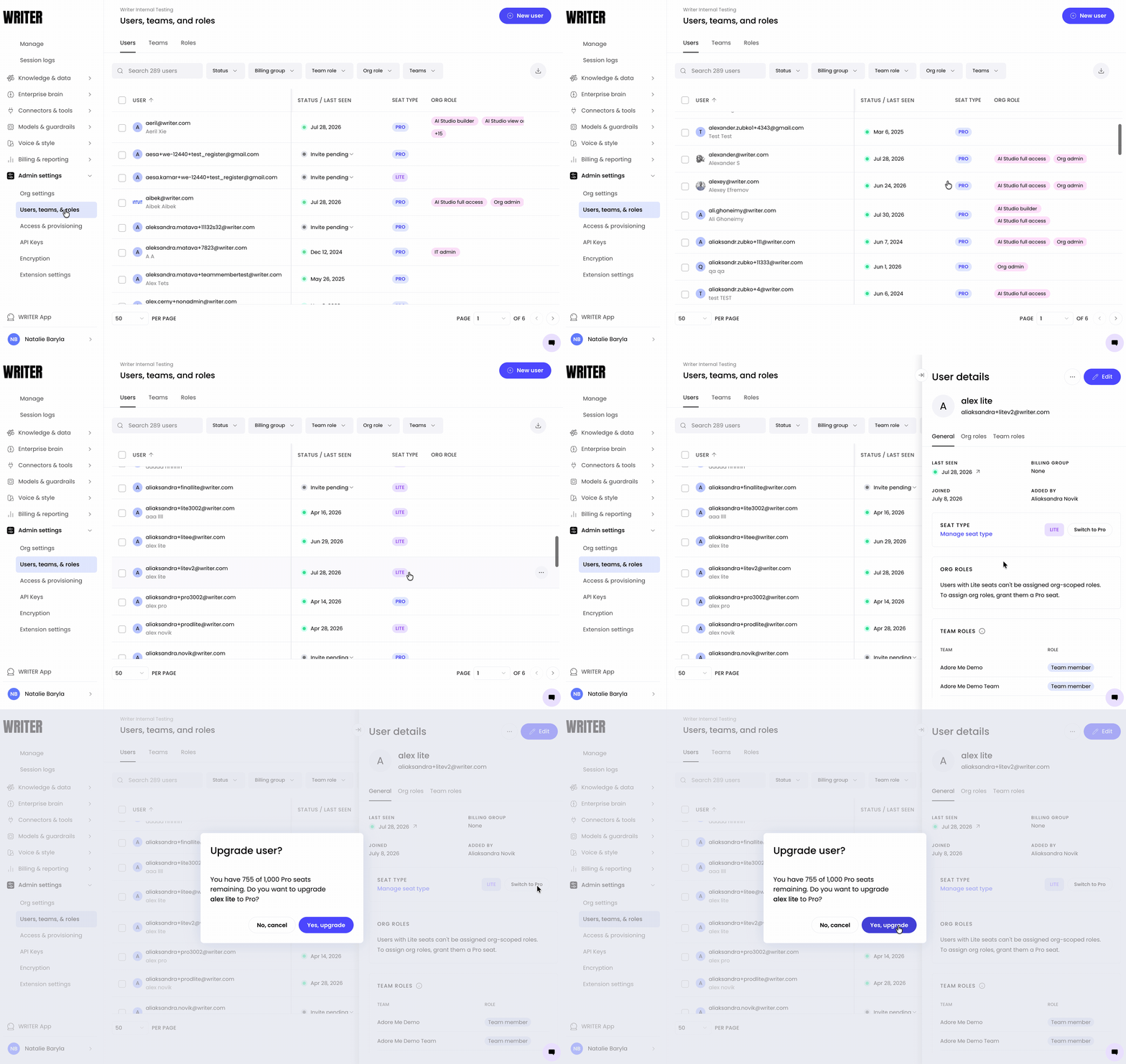
Navigate to to AI Studio > Admin settings > Users, teams, & roles. From this page, locate the user you'd like to upgrade, select their row in the table. From the Manage seat type section, select Switch to pro > Yes, upgrade and their seat type will be changed to Pro.
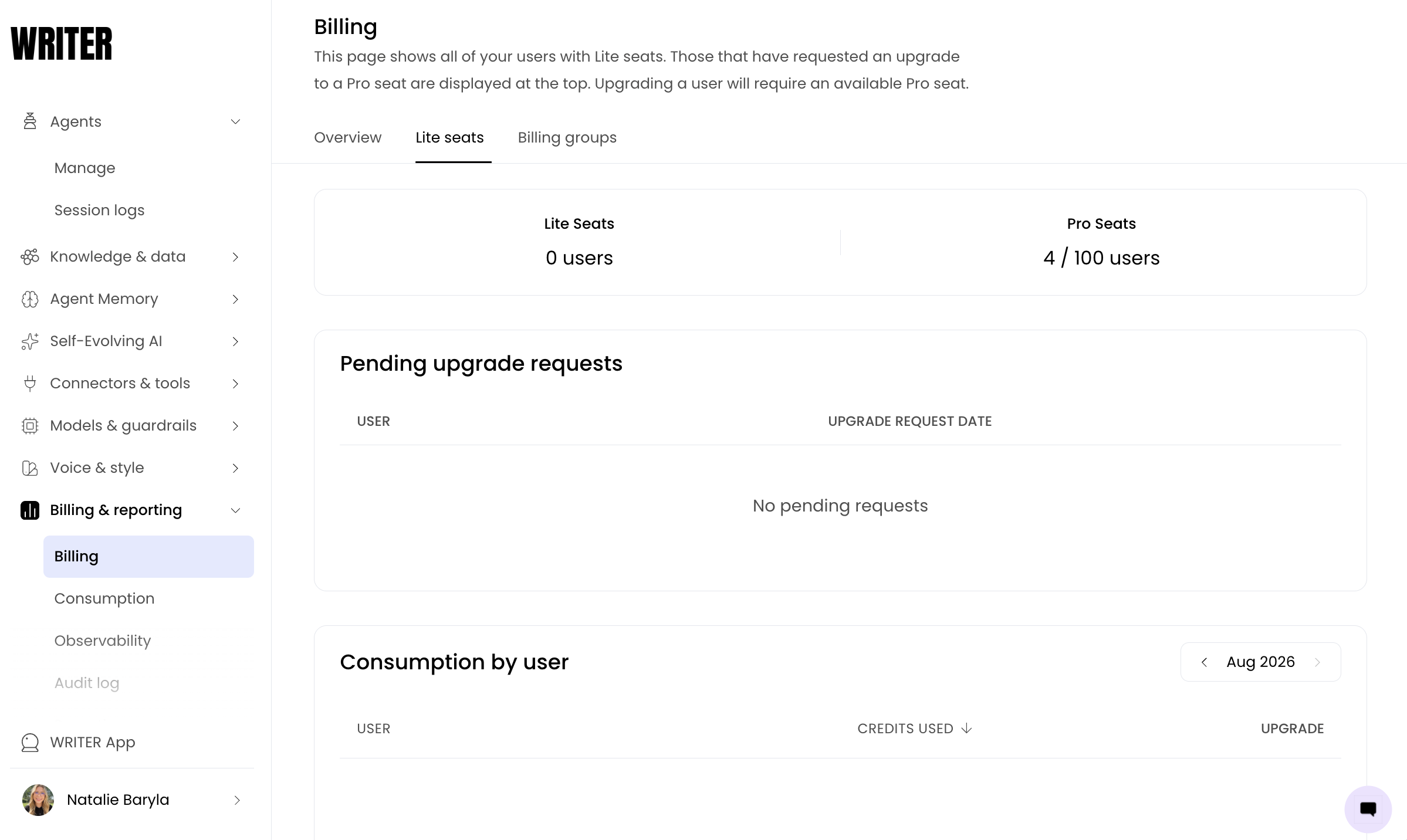
Additionally, you can find pending upgrade requests in AI Studio > Billing & reporting > Billing > Lite seats.
SCIM/IDP groups
You can assign both Pro and Lite seat types to users provisioned through SCIM by mapping each IdP group to a seat type.
To assign a seat type to an IdP group:
Navigate to AI Studio > Admin settings > Access & provisioning > IdP groups.
Select the group you want to configure.
In the Seat type column, choose Pro or Lite.
Save your changes.
How seat type is determined ("Pro wins"):
If a user belongs to any group mapped to Pro, they receive a Pro seat.
If all of a user's groups are mapped to Lite, they receive a Lite seat.
If a user has no group memberships, the organization domain's default seat type is used.
If a user joins your WRITER org and belongs to an IdP group assignment, the group's seat type will override the SSO default role/seat. If the user does not match any IdP group, they will join using the domain's default seat type.
Switching a group from Pro to Lite: A confirmation dialog appears explaining that existing users in that group will be downgraded to Lite and their org roles will be removed. Team roles are narrowed to Lite-safe roles (Team member or Limited team member).
Learn more about setting up SCIM provisioning here: 📄 Setting up SCIM provisioning
Reactivation: When a previously removed member is reactivated via SCIM, WRITER re-reads their IdP group memberships and reapplies the seat type rule. Their seat type may differ from before if group mappings have changed.
Pro seat overages and Lite fallback
When your organization's Pro seats are full, new users can automatically receive Lite seats instead of being b locked.
When a user is auto-downgraded to Lite, their org-scoped roles are automatically removed and team roles are narrowed to Lite-compatible roles (Team member or Limited team member).