Cost controls and spend notifications
Last updated: November 2, 2026
Org admins and team admins can create, manage, and edit spend notification policies. Spend notifications are available to customers on a credit contract model, and only Pro seat usage counts toward spend tracking.
Spend notifications help you proactively manage AI spend across your organization. You can create policies that send email and in-app notifications when spending reaches a configured dollar amount within a calendar month. Spend notifications are informational only — they alert you to spending levels but do not block or restrict usage in any way.
Important: Spend notifications are available to customers on a credit contract model. Only Pro seat usage counts toward spend tracking. Lite users are excluded.
How spend notifications work
You can create policies at four scope levels:
User — tracks spend for an individual Pro seat user
Team — tracks spend for all members of a specific team
Playbook — tracks spend generated by a specific playbook
Organization — tracks spend across your entire organization
Spend tracking resets at the beginning of each calendar month. Threshold crossings from the previous month do not carry over. If a policy was triggered in one month, it will trigger again in the next month if spend crosses the configured amount again.
Note: Policies to enforce spend limits are in development and will be available shortly. When quota enforcement ships, the section will be renamed from "Spend notifications" to "Spend policies."
Accessing the Cost controls page
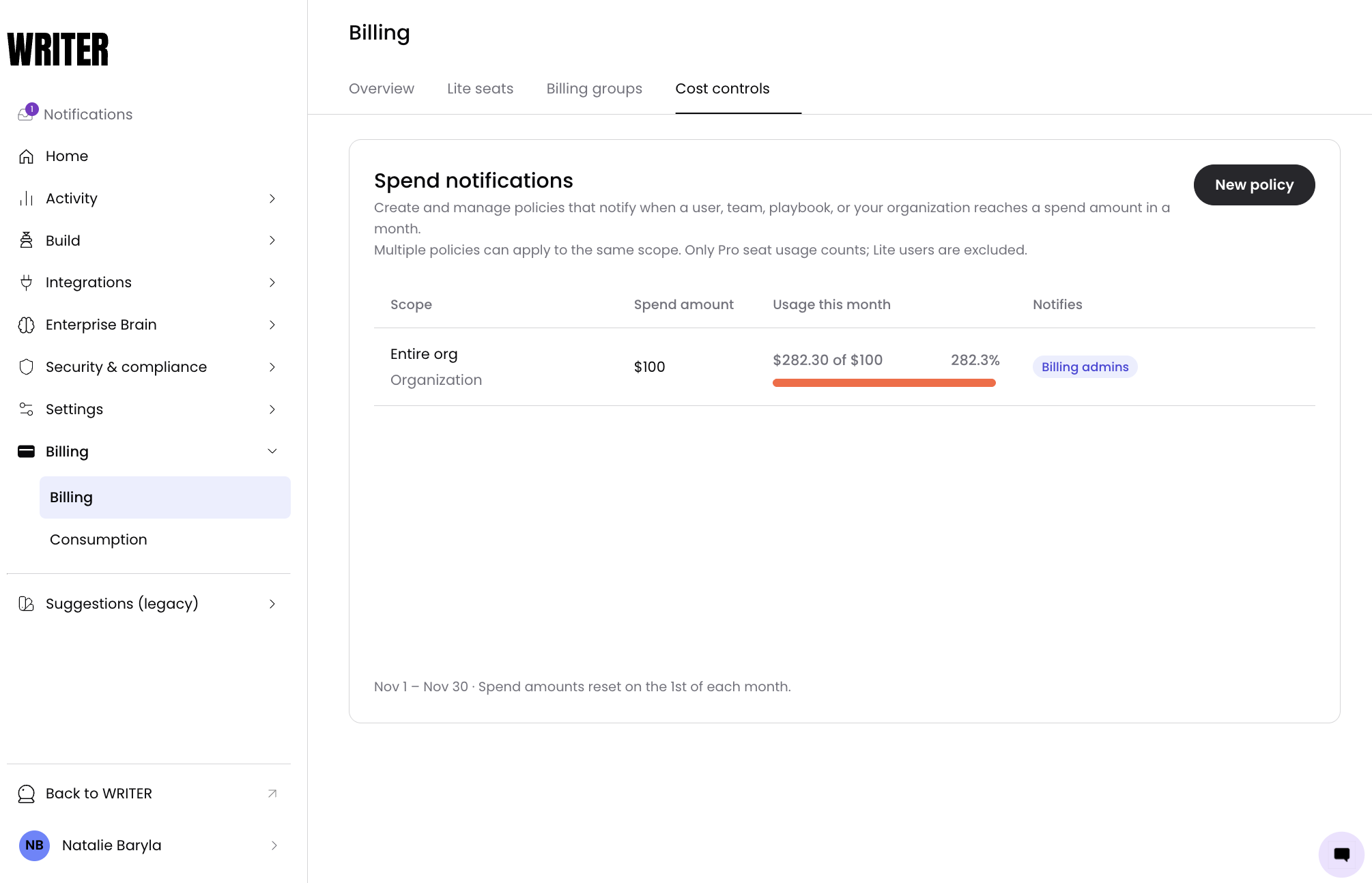
Navigate to Control Center > Billing > Billing > Cost controls.
You'll see a list of all existing spend notification policies in your organization, showing the spend amount, who is notified, and which scope each policy tracks.
How to create a spend notification policy
On the Cost controls page, select New policy.
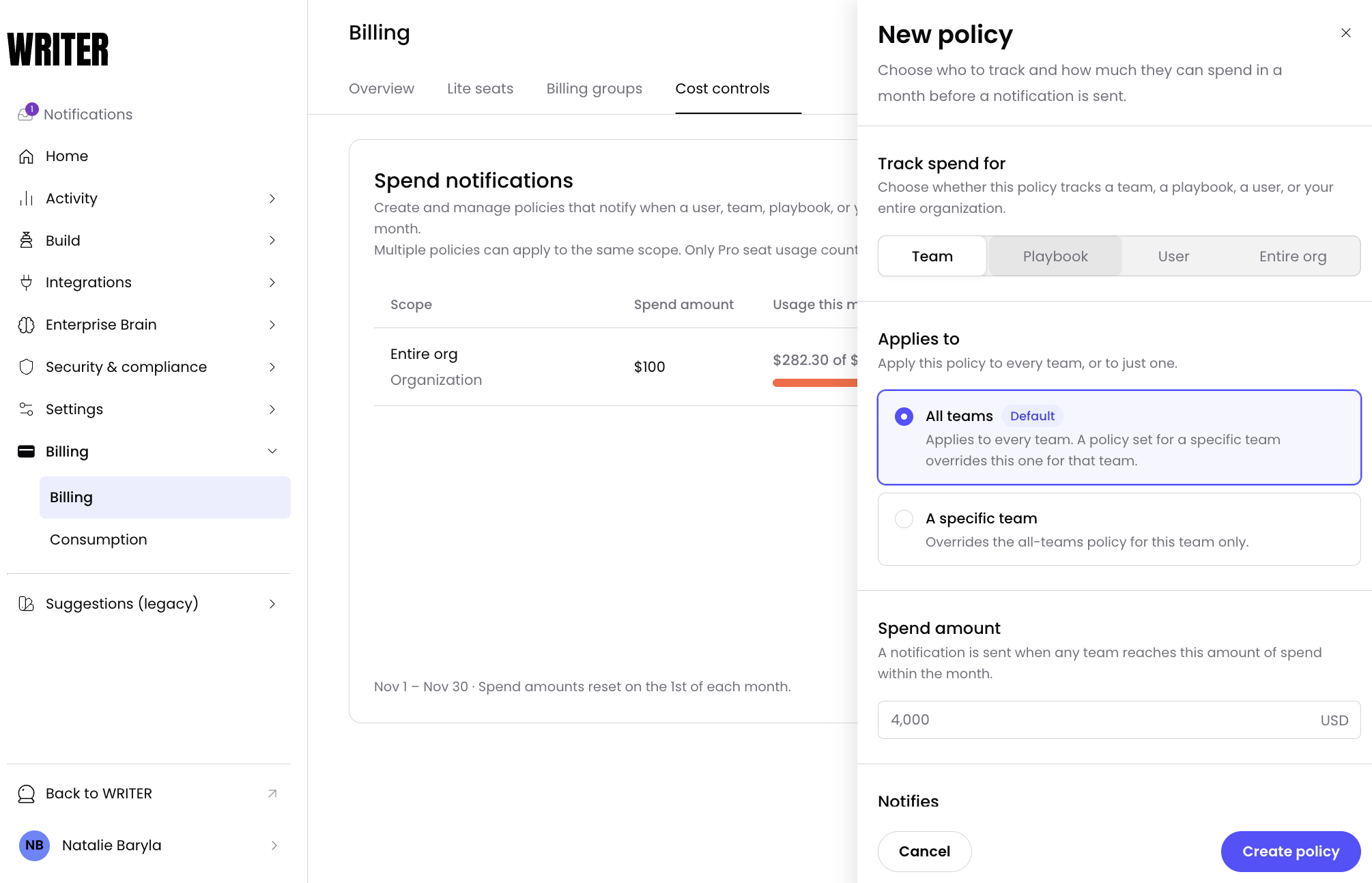
Choose who to track. Select whether this policy tracks a team, a playbook, a user, or your entire organization.
Choose what the policy applies to.
Select All [teams / playbooks / users] (Default) to apply the policy to every entity of that type. A policy set for a specific entity overrides this default for that entity only.
Select A specific [team / playbook / user] to apply the policy to one entity. This overrides the all-entities policy for that entity only.
Set the spend amount. Enter the dollar amount that triggers the notification. A notification is sent when the tracked entity reaches this amount of spend within the month.
Select Create policy.
Tip: Set multiple policies at the same scope as a ladder of thresholds — for example, $500, $1,000, and $2,000 — to receive early warnings before spend climbs further. Creating a second policy with the same scope + target raises an inline error "A policy already exists for this scope"
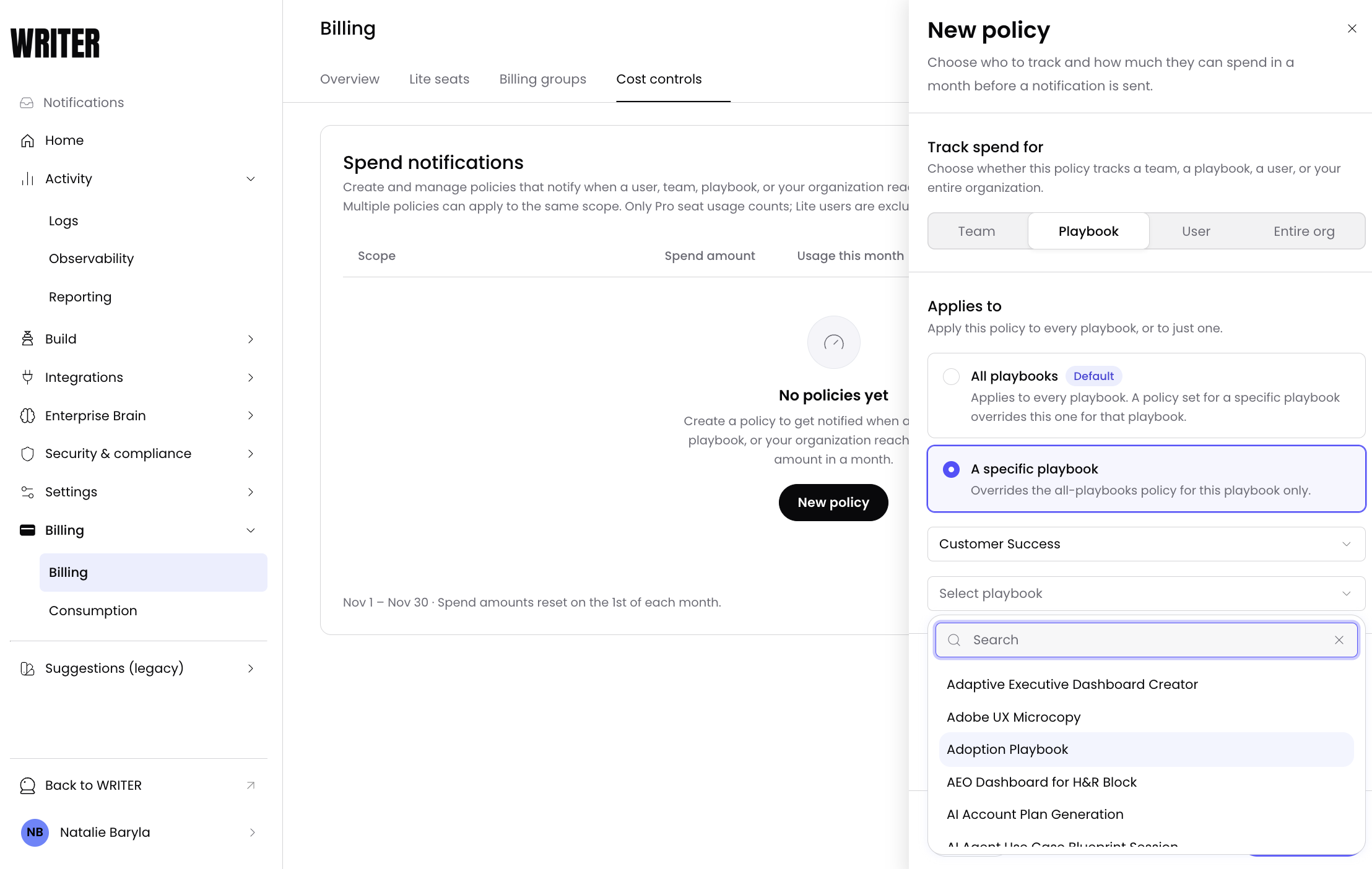
Note: Playbooks live within the teams so when setting policy for a specific playbook you must first select A specific playbook then select the team to activate the playbook selector.
Managing spend notification policies
From the Cost controls page, you can view all policies in a table with the following columns:
Scope — the entity type the policy tracks (user, team, playbook, or organization)
Spend amount — the dollar amount that triggers the notification
Usage this month — the current amount spent during the month and what % of your total usage that is
Notifies — who is notified when the threshold is reached.
Billing admins refer to the org admin, team admin, and any other custom role with that permission if applicable.
For Team policies, team members are also notified; for User policies, only the targeted user is notified.
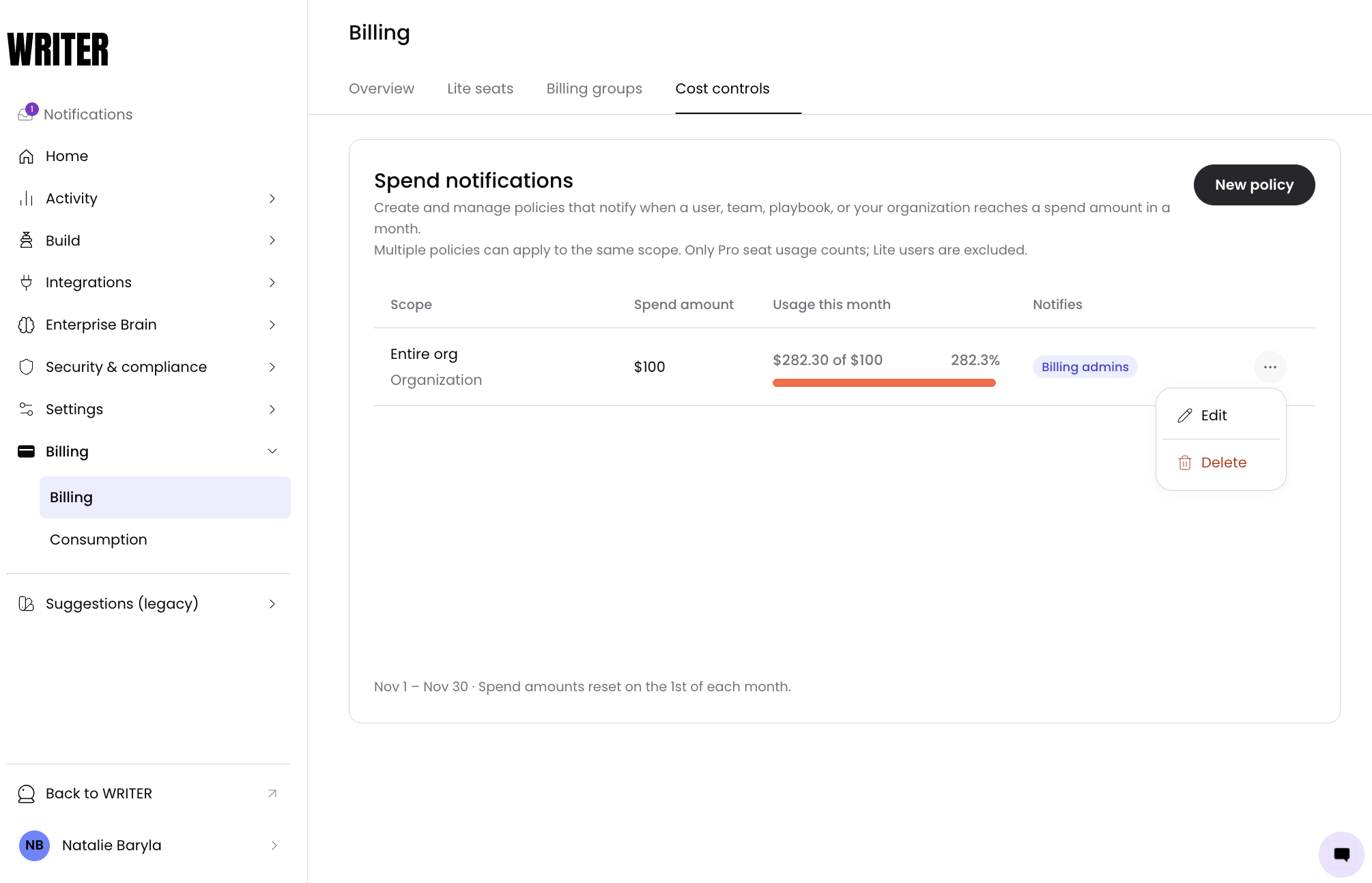
To delete a policy, select it from the list and remove it. Deleting a policy stops all future notifications for that policy.
Note: The ability to enable and disable individual policies without deleting them is planned for a future release. Currently, you can delete a policy to stop notifications, or manage email preferences globally in your notification settings.
Editing a spend policy
Select the Edit button from the three dot menu within the policy you'd like to edit.
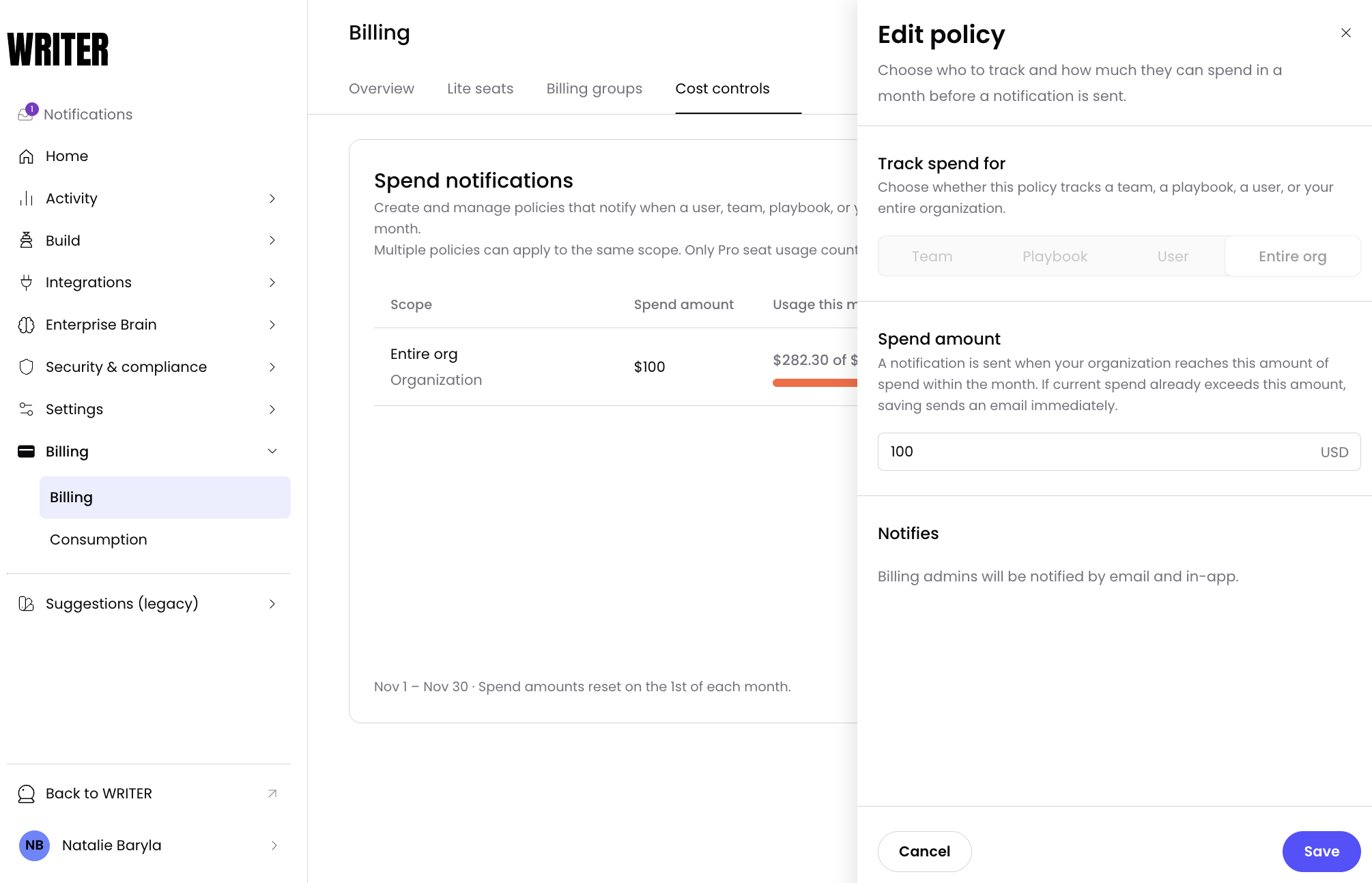
Make the adjustments you need and select Save.
How notifications are delivered
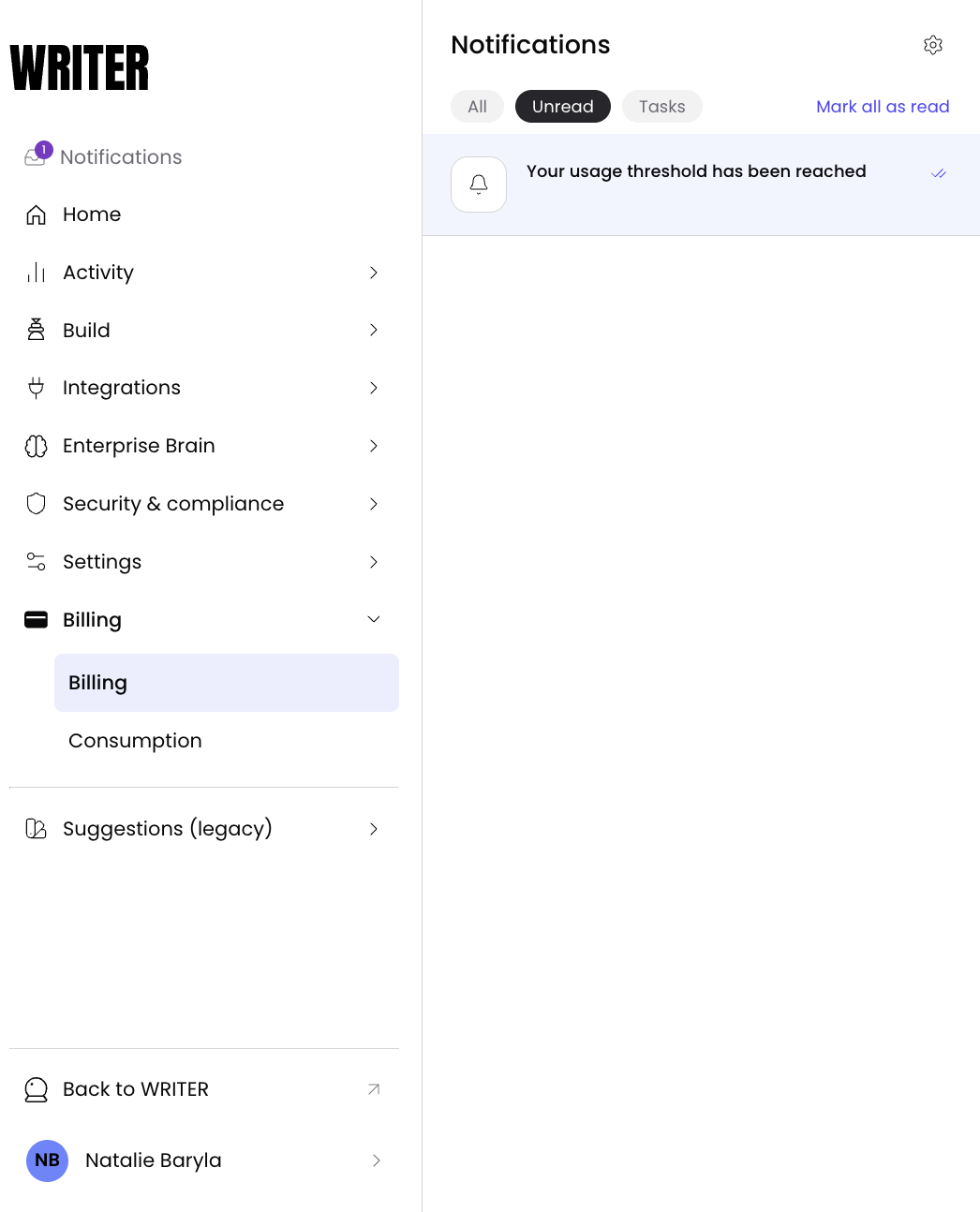
Notifications are delivered through two channels:
Email — Sent to configured recipients when spend crosses the threshold.
In-app — appears in the WRITER Agent notification center (the bell icon).
Each threshold crossing is recorded once per policy, threshold, and billing period. Once a threshold crossing is recorded, it is not re-triggered within the same billing period even if spend later drops below the threshold. Duplicate or stale replayed events cannot recreate a logical notification event.
Default and override behavior
Each scope can have a default policy that applies to all entities of that type, for example, "All teams" at $500 per month. A specific policy for one team, user, or playbook overrides the default for that entity only.
All [teams / playbooks / users] — applies to every entity of that type. A policy set for a specific entity overrides this one for that entity only.
A specific [team / playbook / user] — overrides the all-entities policy for that entity only.
Multiple policies can apply to the same scope and act as a ladder — for example, $500, $1,000, and $2,000.
Frequently asked questions
Can I block usage when spend reaches a certain amount?
Not yet. Spend notifications in this release are informational only. Quota enforcement — the ability to block usage when spend reaches a configured limit — is planned for a future release. When that ships, the section will be renamed from "Spend notifications" to "Spend policies."
Do Lite users count toward spend tracking?
No. Only Pro seat usage counts toward spend tracking. Lite users have their own individual credit balances and are excluded from spend notification policies.
Can I disable a policy without deleting it?
The ability to enable and disable individual policies is planned for a future release. Currently, you can delete a policy to stop notifications, or manage email preferences globally in your notification settings.
What happens if spend crosses the threshold but then drops?
Once a threshold crossing is recorded, it is not re-triggered within the same billing period even if spend later drops below the threshold. The notification fires once per policy, per threshold, per billing period.
Can I set multiple thresholds for the same scope?
Yes. Multiple policies can apply to the same scope and act as a ladder — for example, $500, $1,000, and $2,000. Each threshold fires independently when spend crosses it.
Does spend tracking carry over between months?
No. Spend tracking resets at the beginning of each calendar month. Threshold crossings from the previous month do not carry over. If a policy was triggered in one month, it will trigger again in the next month if spend crosses the configured amount again.