Organizing WRITER Agent with projects
Last updated: August 21, 2026
Projects help you organize your WRITER sessions and save time by pre-configuring settings that apply automatically to every session you create. Think of projects as smart folders that not only organize your work but also ensure consistency across all your conversations.
Understanding projects
Projects are organizational folders that help you group related sessions together and apply consistent settings across them. When you create a project, you can configure context files, voice settings, and custom instructions that will automatically apply to every session started from that project.
Projects help you:
Save Time: Instead of uploading the same files or entering the same instructions for every new session, configure them once in a project and they'll apply automatically.
Stay Organized: Group related sessions together in one place, making it easy to find and manage your work.
Ensure Consistency: Apply the same voice settings and custom instructions across all sessions in a project, ensuring consistent AI responses.
Collaborate Effectively: Share projects with teammates so everyone can use the same pre-configured settings without needing to set them up individually.
Projects work well for:
Department-specific configurations: Create a project for your marketing team with brand guidelines and relevant files pre-loaded
Client-specific setups: Set up a project for each client with their specific context files and custom instructions
Recurring task templates: Configure projects for tasks you perform regularly, like weekly reports or content creation
Team collaboration: Share standardized configurations with your team to ensure everyone works with the same settings
Creating a project

To create a new project:
Select Projects from the main navigation menu
Select +New Project
Enter a Project Name (required)
Add a Description to help you and your teammates understand the project's purpose (optional)
Choose an Icon to make your project easily recognizable (optional)
Select Create

💡 Tip: Use descriptive project names that clearly indicate the purpose, like "Q1 Marketing Campaign" or "Client XYZ Support" rather than generic names like "Project 1."
Once created, you'll be taken to your project page where you can configure settings and start creating sessions.
Configuring Project Settings
After creating a project, you can configure three types of settings that will apply to all sessions started from this project: context files, voice settings, and custom instructions.
Adding files
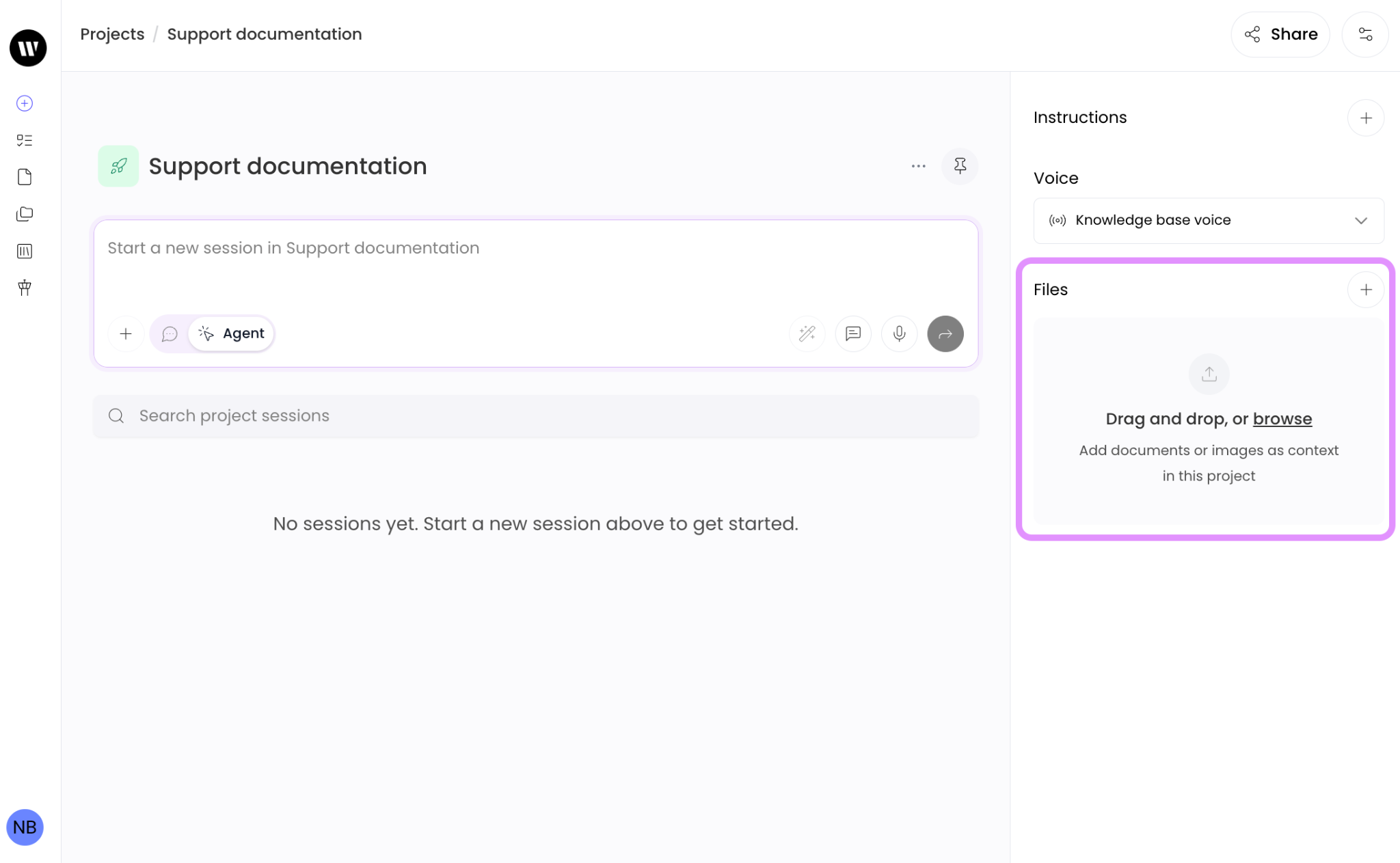
Adding files to a project will provide background information to WRITER. When you add files to a project, they'll automatically be included in every session you start from that project.
To add files:
Open your project
Navigate to the Files section
Select Add Files or Upload Files
Choose the files you want to include
The files will now be automatically attached to any new session you start from this project, saving you from having to upload them manually each time.
💡 Tip: Add frequently referenced documents like brand guidelines, product specifications, or company policies to save time and ensure consistency.
Selecting voice settings
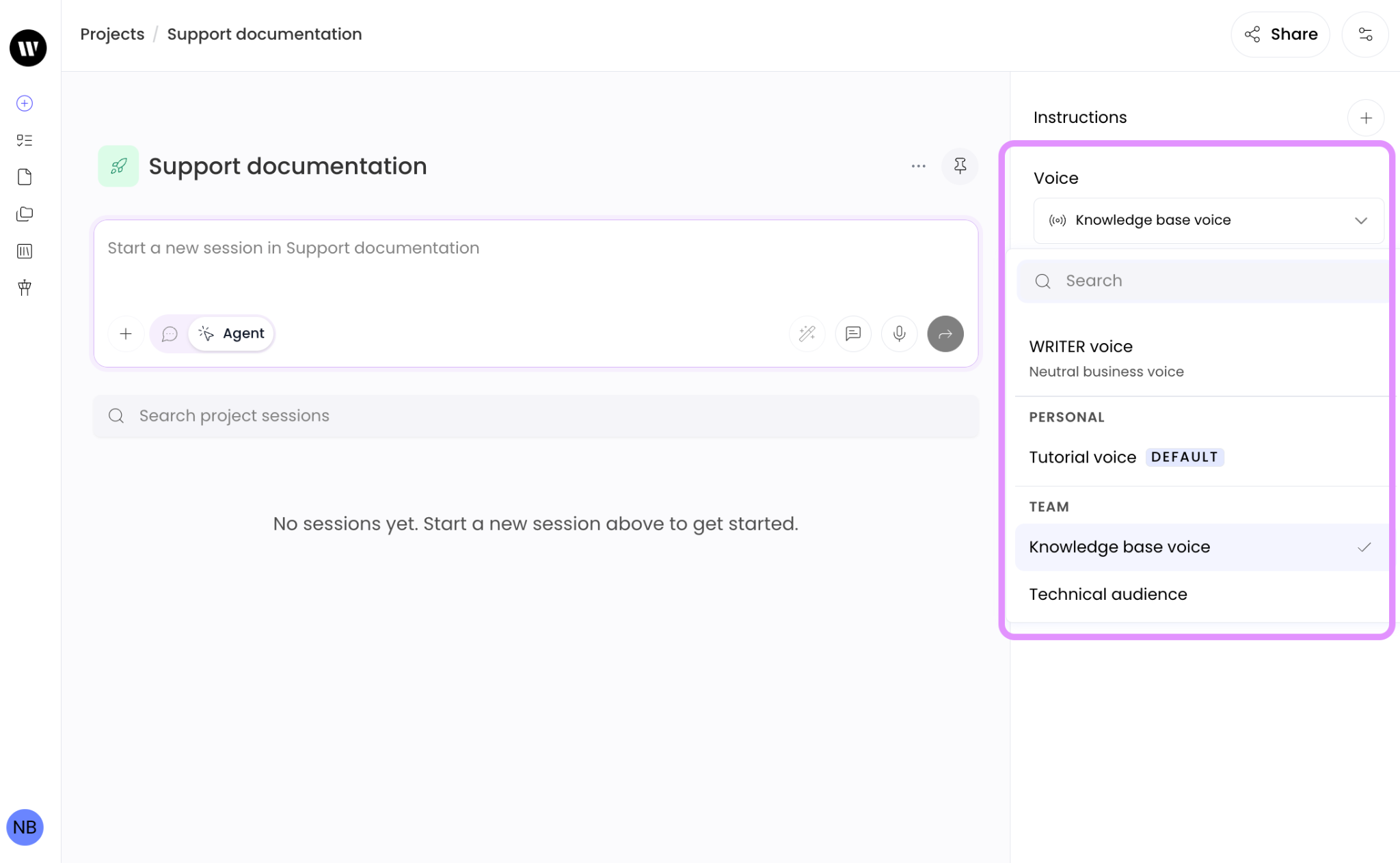
Voice settings determine how WRITER sounds when generating content. You can choose from team voices (available to your entire organization) or personal voices (your own custom voices). Learn more about voice here.
To configure voice settings from the project, select a voice from the dropdown menu
Team Voices: Voices available to all team members
Personal Voices: Your custom voices
This voice will be used for all sessions started from this project.
📝 Note: You can only select one voice per project. The selected voice will apply to all sessions created from the project.
Creating custom instructions
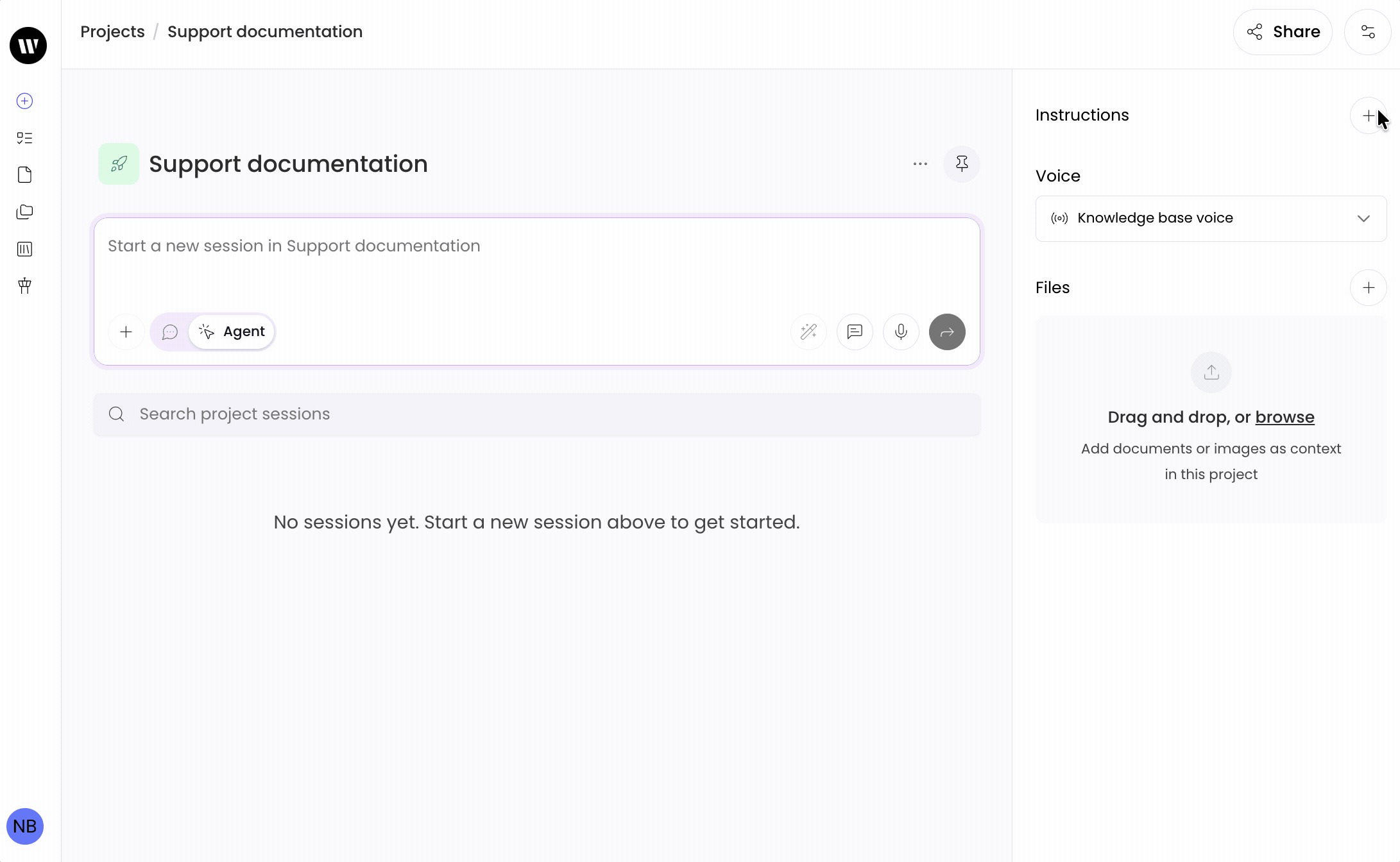
Custom instructions guide WRITER on how to respond and behave in your sessions. These instructions apply to both agent mode and chat mode. You can create your custom instructions for the project by selecting the pencil icon.
Example instructions:
"Always use active language and speak directly to the reader"
"Format all code examples with proper syntax highlighting"
"Maintain a professional but friendly tone in all responses"
"When referring to WRITER the company or product, use all caps"
💡 Tip: Be specific in your custom instructions. The more detailed you are, the better WRITER can tailor responses to your needs.
Starting sessions from a project

Once you've configured your project settings, you can start creating sessions that automatically inherit all your configurations. You can run playbooks or connect to external tools. Learn more about WRITER Agent here.
Your new session will automatically include:
All context files you've added to the project
The voice settings you've configured
The custom instructions you've created
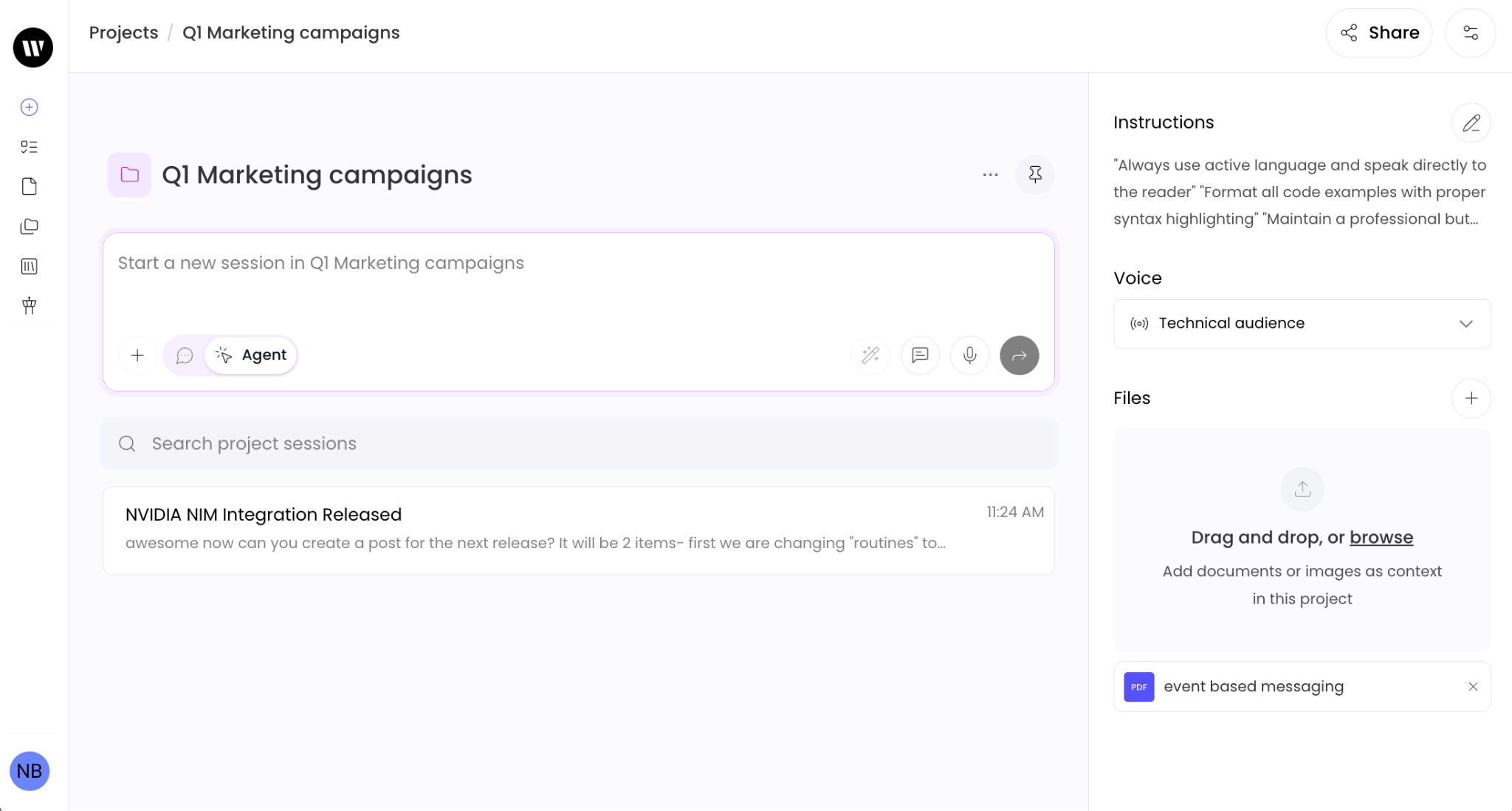
All sessions you start from a project appear in a list below the WRITER Agent input field, making it easy to find and resume your work. If you end up having a lot of sessions within your project you can use the search bar to quickly get back to the session you need.
📝 Note: Playbooks launched from within a project will retain the custom instructions and voice of the project. If they are different the project they will be overwritten by those within the playbook.
Managing your projects
Viewing all projects

From the projects page you’ll see both your projects and those that have been shared with you.
Sorting projects
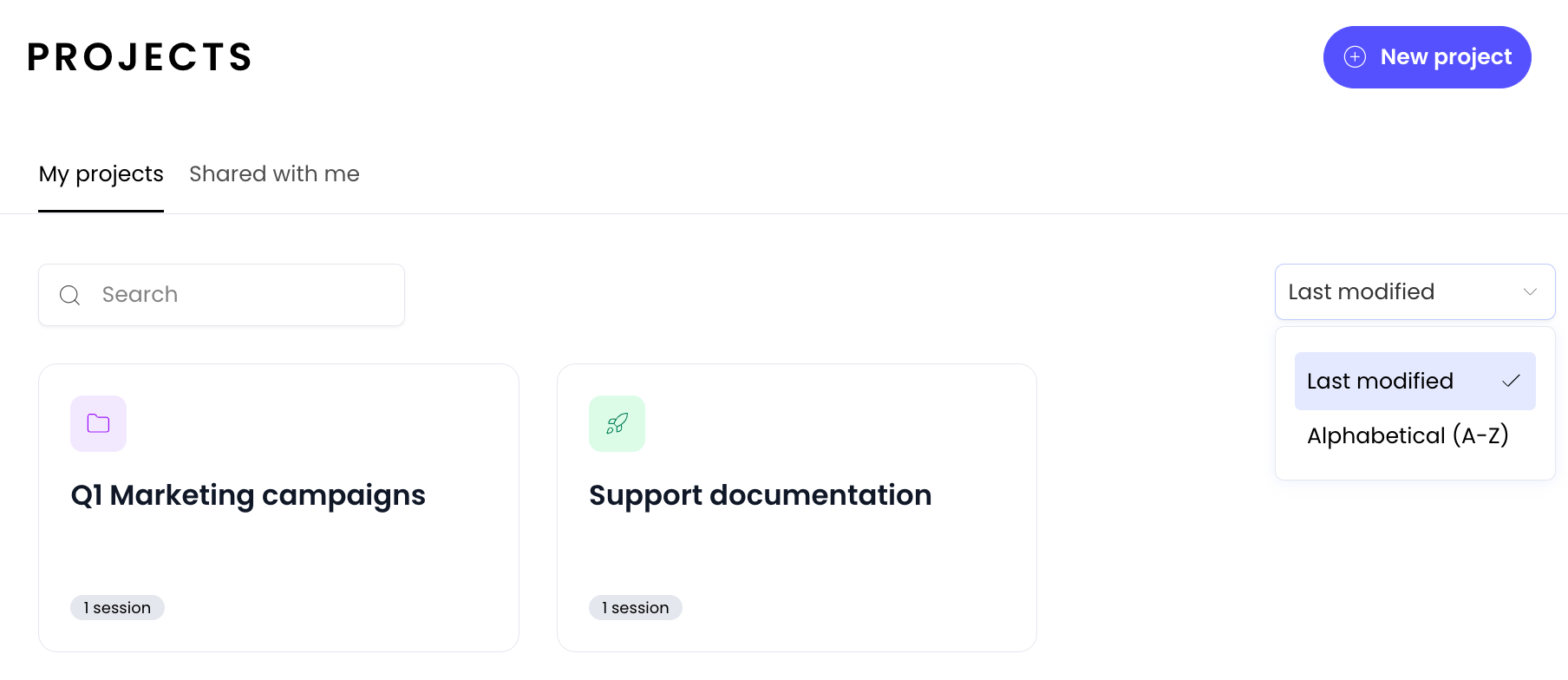
You can sort your projects to find what you need quickly:
Sort by Name (A-Z): Alphabetical order
Sort by Last Modified: Most recently updated projects appear first
What counts as "last modified":
Updating the project name or description
Changing project configuration (files, voice, or instructions)
Starting a new session from the project
Updating a session within the project
Pinning projects
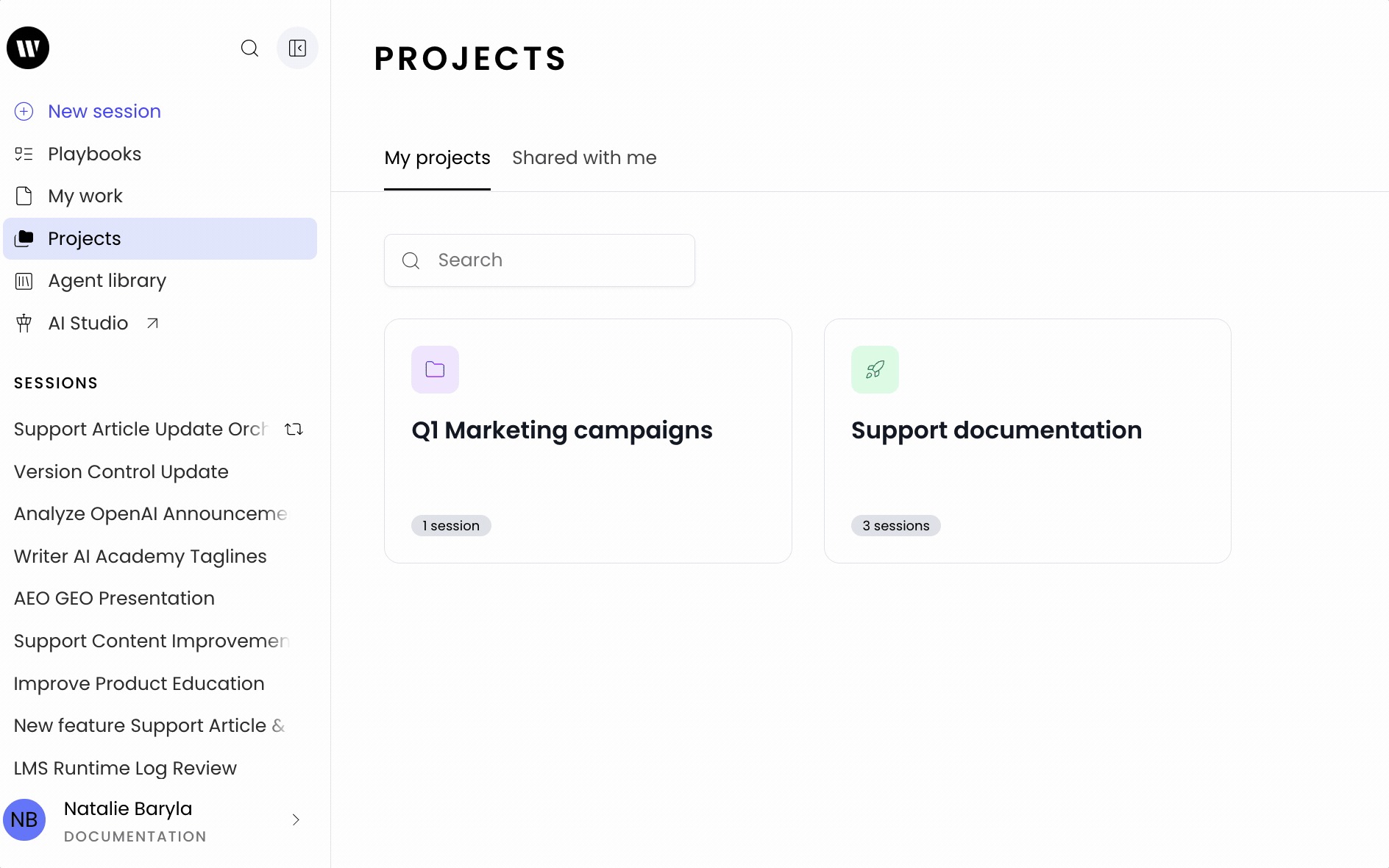
For projects you use frequently, you can pin them to the sidebar for quick access. You can also drag and drop sessions into the projects when pinned from the left menu.
To pin or unpin a project use the pin icon from the projects page. The left navigation will display up to 5 pinned projects in alphabetical order. Select see more to expand the menu and view more projects.
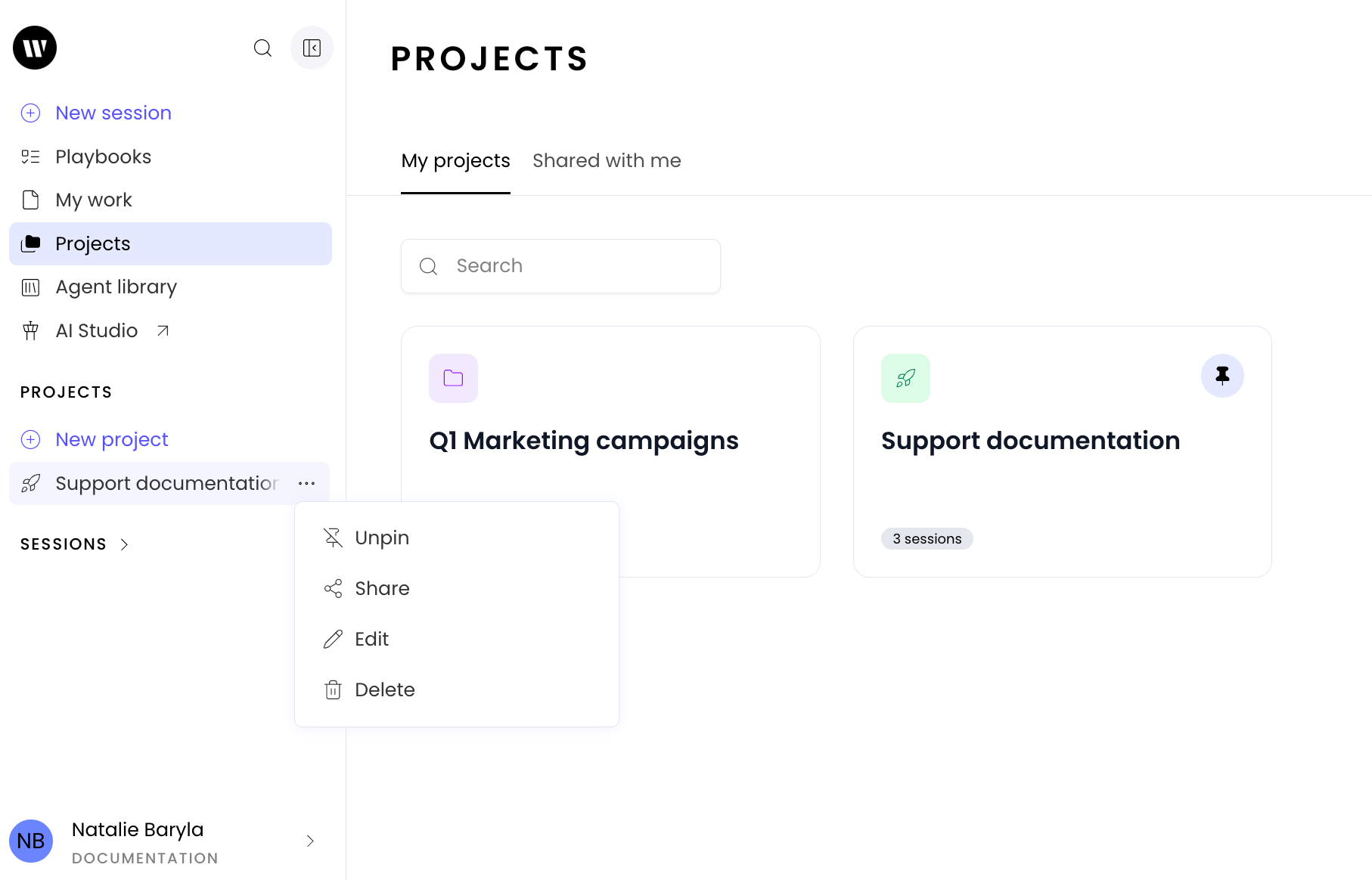
Additionally you can use the three dot icon next to the project in the left menu to perform quick actions like unpinning the project.
💡 Tip: Pin your most frequently used projects to access them with a single click, without having to navigate to the Projects page.
Editing projects
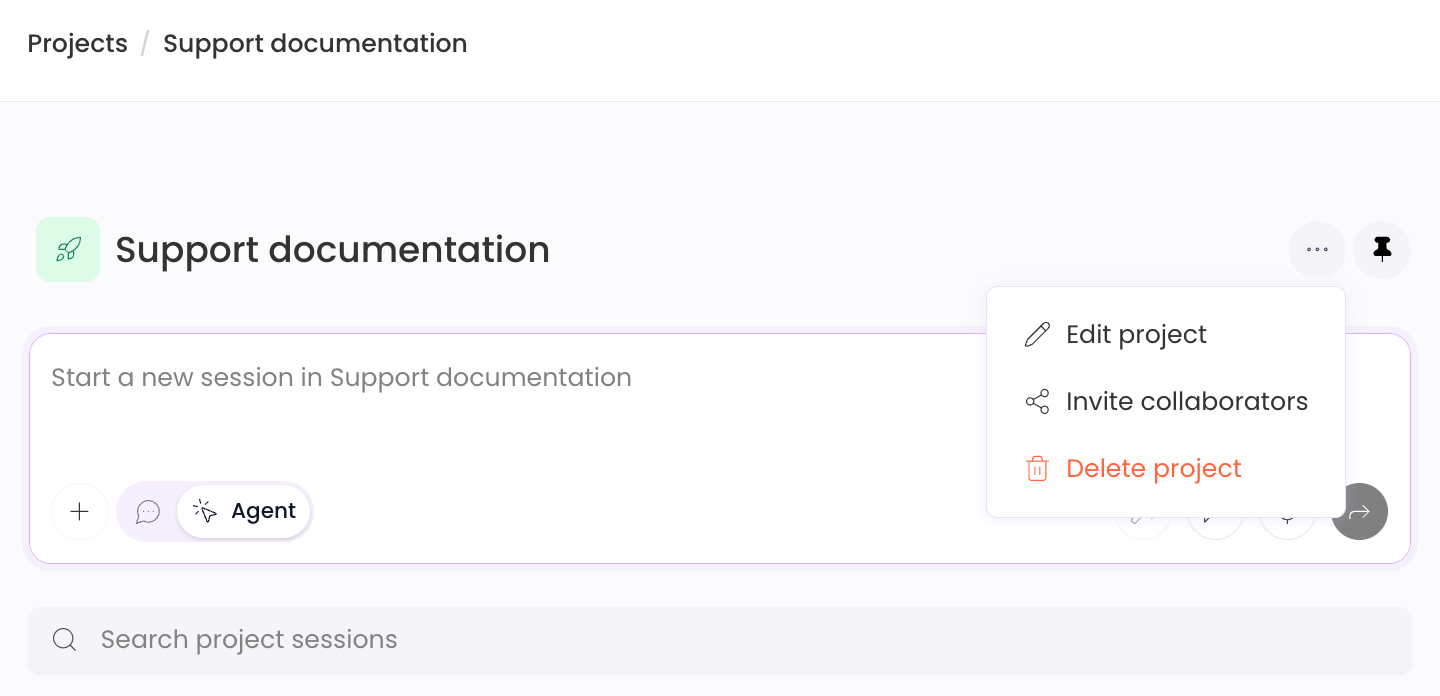
To modify a project:
Open the project you want to edit and select the three dot menu
Select Edit project update the project name, description, or icon
Modify files, voice settings, or custom instructions as needed
Changes are saved automatically
Sharing projects with your team
Sharing a project allows your teammates to use the same pre-configured settings without having to set them up individually. This is perfect for ensuring team consistency and saving time. When you invite a teammate to a project you have two levels of access to choose from:
What gets shared with a collaborator
When you add someone as a collaborator:
The ability to edit project configurations and share the project with other teammates
Access to the project configuration files, voice settings, custom instructions)
The ability to start new sessions using these settings
View access to sessions stored within the project
Access to deliverables created with project sessions
What gets shared with view only access
When you add someone as a viewer, teammates receive:
Access to the project configuration files, voice settings, custom instructions)
The ability to start new sessions using these settings
View access to sessions stored within the project
Access to deliverables created with project sessions
Viewers cannot edit the project
How to share a project
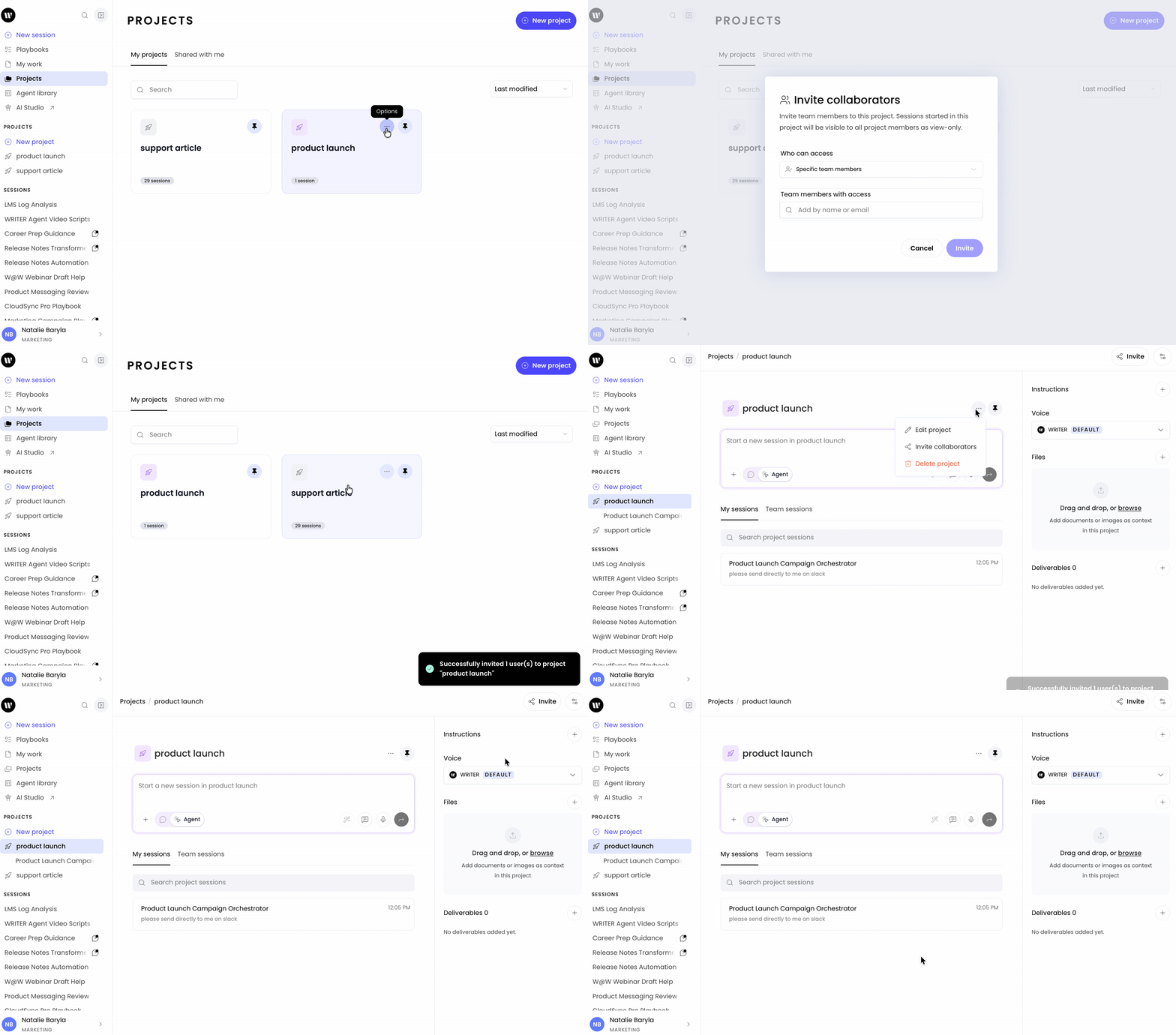
There are multiple ways to share projects with your team. You may do so from the Projects page by selecting the three dot icon and then selecting Share from the menu. Alternatively from within the project you can select Invite from the top right corner or select Invite collaborators from the three dot menu within the project.
Choose your sharing option:
All Team Members: Every user belonging to this team can access the project
Specific Individuals: Select specific teammates to share with
Select Invite to confirm.
Moving sessions to a project
You can move existing sessions into a project to organize your work and apply the project's settings to those sessions.
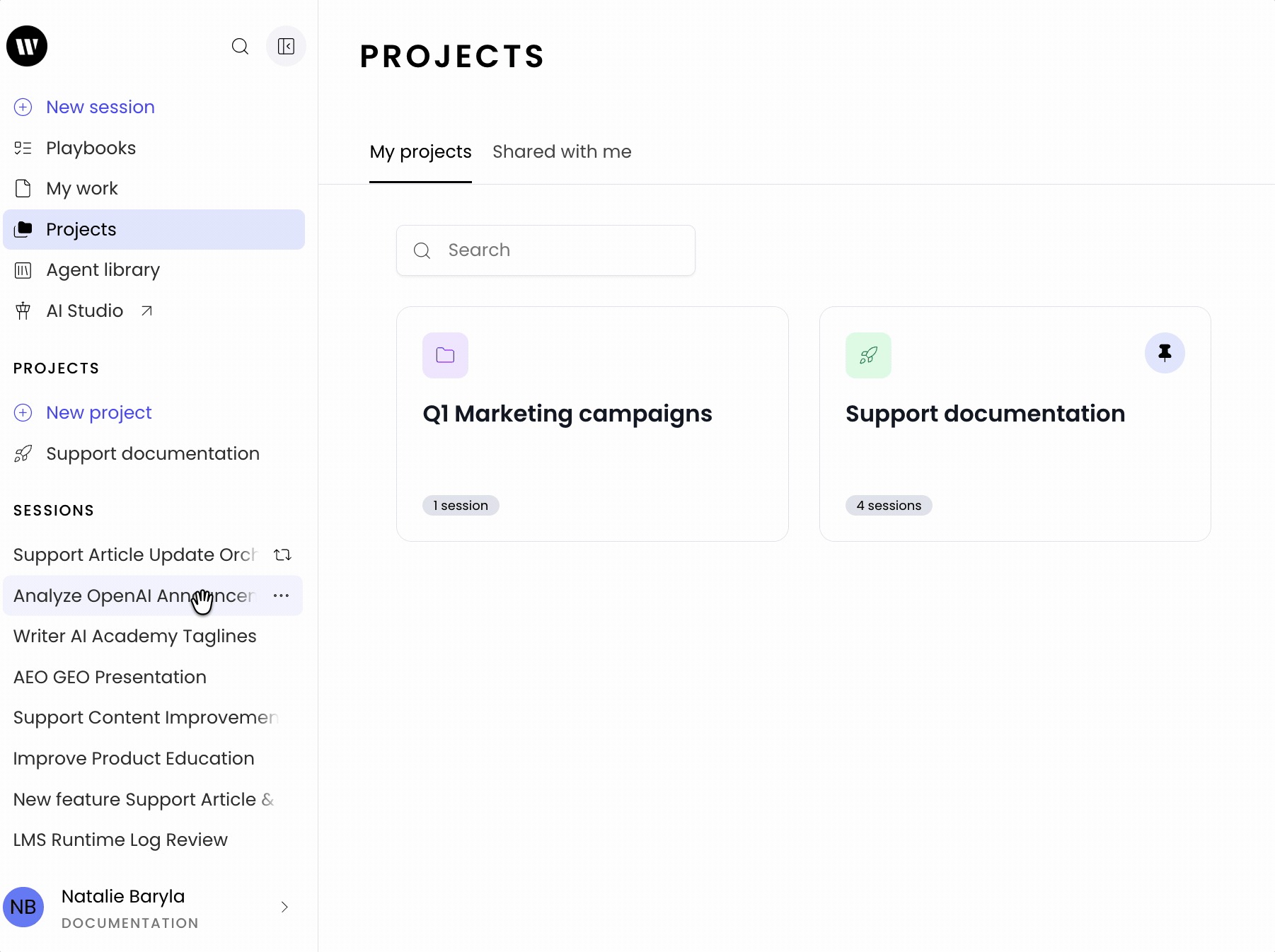
To move a session to a project select the three dot icon to the right of your session and select the project from the list. Alternatively, you can drag and drop sessions into your pinned projects from the left menu.
What happens when you move a session
When you move a session to a project:
The session appears in the project's session list and is viewable to everyone you've shared the project with
Any future use of this session will include the project's context files, voice settings, and custom instructions
Previous voice settings or custom instructions you had configured for that session will be overridden by the project's settings
⚠ Important: Moving a session to a project will override any previous voice or custom instruction settings with the project's configuration.
Removing sessions from a project
If you no longer want a session to be part of a project, you can remove it.

You can remove the session from the project or move it to another project by using the same three dot icon to the right of the session from the left menu.
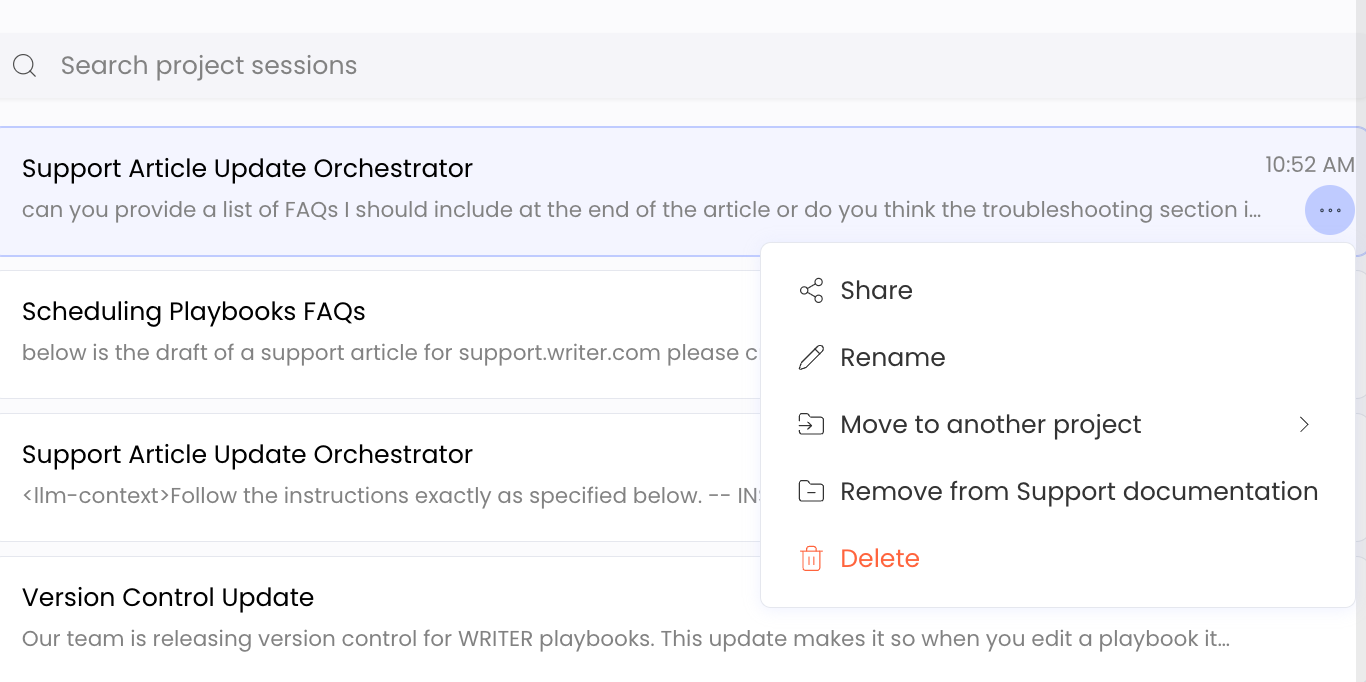
You can also remove a session or move it to another project from within the project by finding the session in the list and using the three dot icon to expand the menu.
What happens when you remove a session
When you remove a session from a project:
The session is no longer associated with the project
Custom instructions and voice settings reset to your default user settings
Files from the project are no longer automatically included
FAQs
Can I move sessions between projects?
Drag-and-drop functionality to move sessions between projects is not supported in the initial release. To move a session from one project to another, you can use the three dot icon to expand the menu.
Can shared teammates edit project settings?
No, in the current release, only the person who created the project can modify its settings. Teammates with whom the project is shared have use-only access, meaning they can create sessions using the project configuration but cannot change the project settings themselves.
Are my sessions visible to teammates when I share a project?
Yes your teammates will be able to view your sessions within a project but will not be able to edit them.
What happens if I delete a project?
When you delete a project, the project and its configuration are removed. Sessions that were part of the project will no longer be associated with it, and their settings will revert to your default settings. (Note: Specific deletion behavior may need confirmation from product team)
Can I use both team voices and personal voices in the same project?
You can select one voice per project - either a team voice or a personal voice. If you need to use different voices, consider creating separate projects for different voice configurations.
Do custom instructions apply to both agent mode and chat mode?
Yes, custom instructions you create for a project apply to both agent mode and chat mode in all sessions started from that project.
How many context files can I add to a project?
The specific limit on context files may vary. If you encounter any limitations, please contact WRITER support for assistance.
Can I share a project with people outside my organization?
Project sharing is currently limited to team members within your organization. You cannot share projects with external users.
Can I rename a project after creating it?
Yes, from the projects page select the three dot menu on the project and select Edit.
Can I duplicate/copy a project to create a similar one?
Not at this time
Do project settings apply to existing sessions when I move them to a project?
Previous generations within the session remain unchanged. The latest project settings will apply to that session going forward as you submit new prompts.
Can I change which voice or instructions are used in a project after sessions are created?
Yes if you are the project owner you can change the voice through the dropdown on the left of the project’s page.
Can I have the same session in multiple projects?
No, a session can only belong to one project at a time.
What happens to shared projects if the creator leaves the organization?
If the creator is deleted or removed from org, nothing will happen - the project will still be there.
Can I reorder my projects in the list?
No, they will appear in alphabetical order in the pinned projects list on the left.