Creating legacy playbooks
Last updated: July 20, 2026
Who can use this feature
Playbooks are available to all WRITER customers
Note: This article covers the legacy playbooks creation experience which will be deprecated in early August. All playbooks will be migrated to the new experience once the beta period is complete. Learn more about the migration here or get started with the new playbook experience here.
What are playbooks?
Do you find yourself running the same prompts repeatedly in WRITER Agent? Or searching through past sessions to copy successful prompts? It's time to create a playbook. Playbooks are reusable workflows that automate your most common and complex tasks, saving you time and ensuring consistency. Playbooks are perfect for tasks like:
Generating weekly reports
Analyzing sales data
Creating marketing campaign assets
Onboarding new clients
Playbook showcase
Get started with popular playbook templates you can customize in just a few minutes. Browse example playbooks built around core use cases, see them in action with replay demonstrations, and test them with your own inputs to explore what's possible.
The playbook showcase makes it easy to:
Discover pre-built playbook examples for common workflows
Watch replays to see how playbooks work end-to-end
Test playbooks with your own data before building your own
Learn best practices for structuring effective playbooks
Whether you're new to playbooks or looking for inspiration for your next automation, the showcase helps you explore proven workflows and jumpstart your productivity.
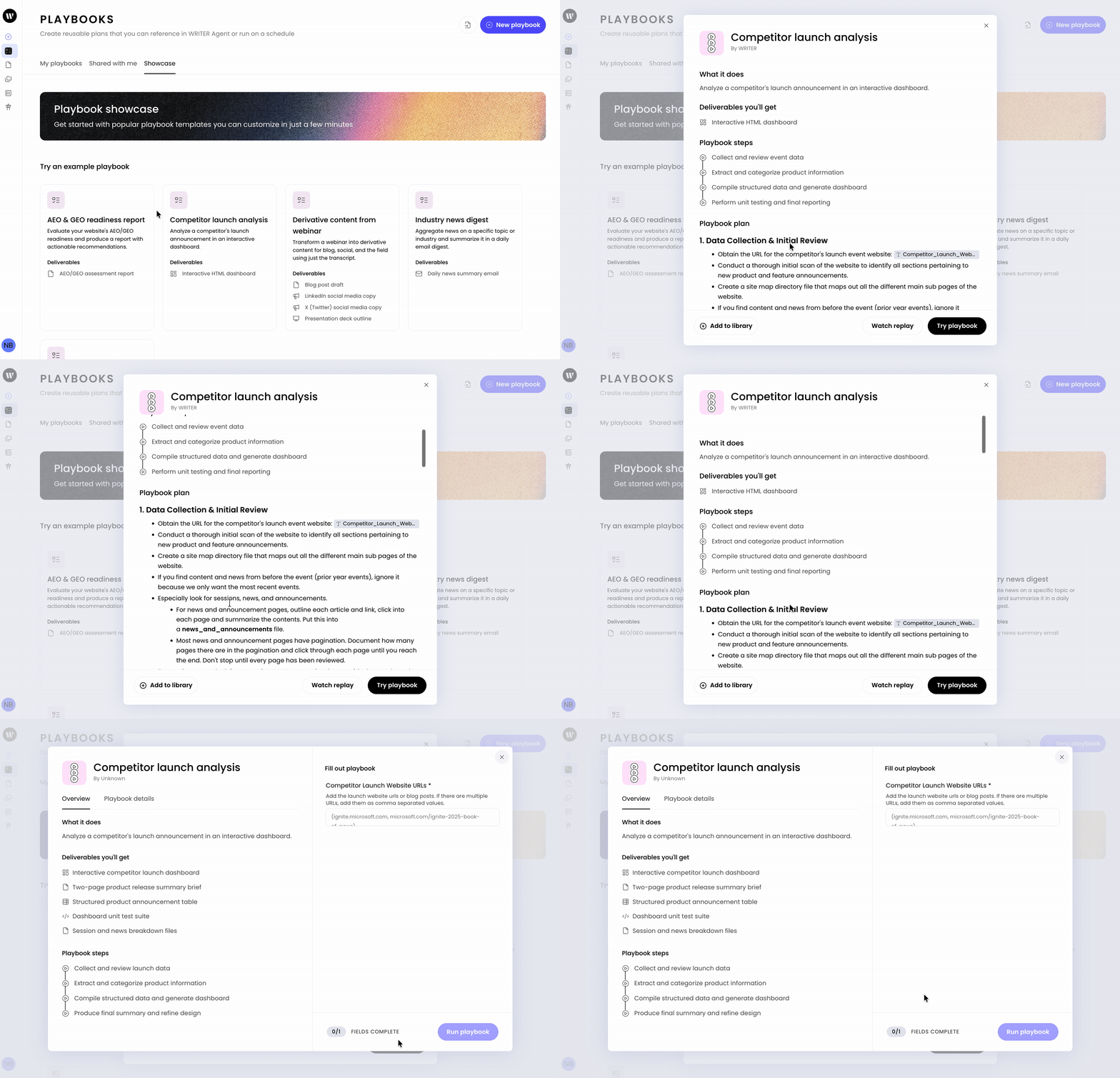
Access the playbook showcase directly from the Playbooks section in WRITER. From the showcase tab you can select a playbook from the list and are able to give it a try with your own inputs or watch a replay of the playbook in action.
Creating playbooks
You can save a WRITER Agent session as a playbook, just ask WRITER Agent "save this as a playbook" and the agent will transform your WRITER Agent session into a reusable playbook.

To create a playbook from scratch, select Playbooks from the main menu on the left.

From the Playbooks page select the drop down next to New playbook and then select Create legacy playbook to create a playbook in the legacy experience.
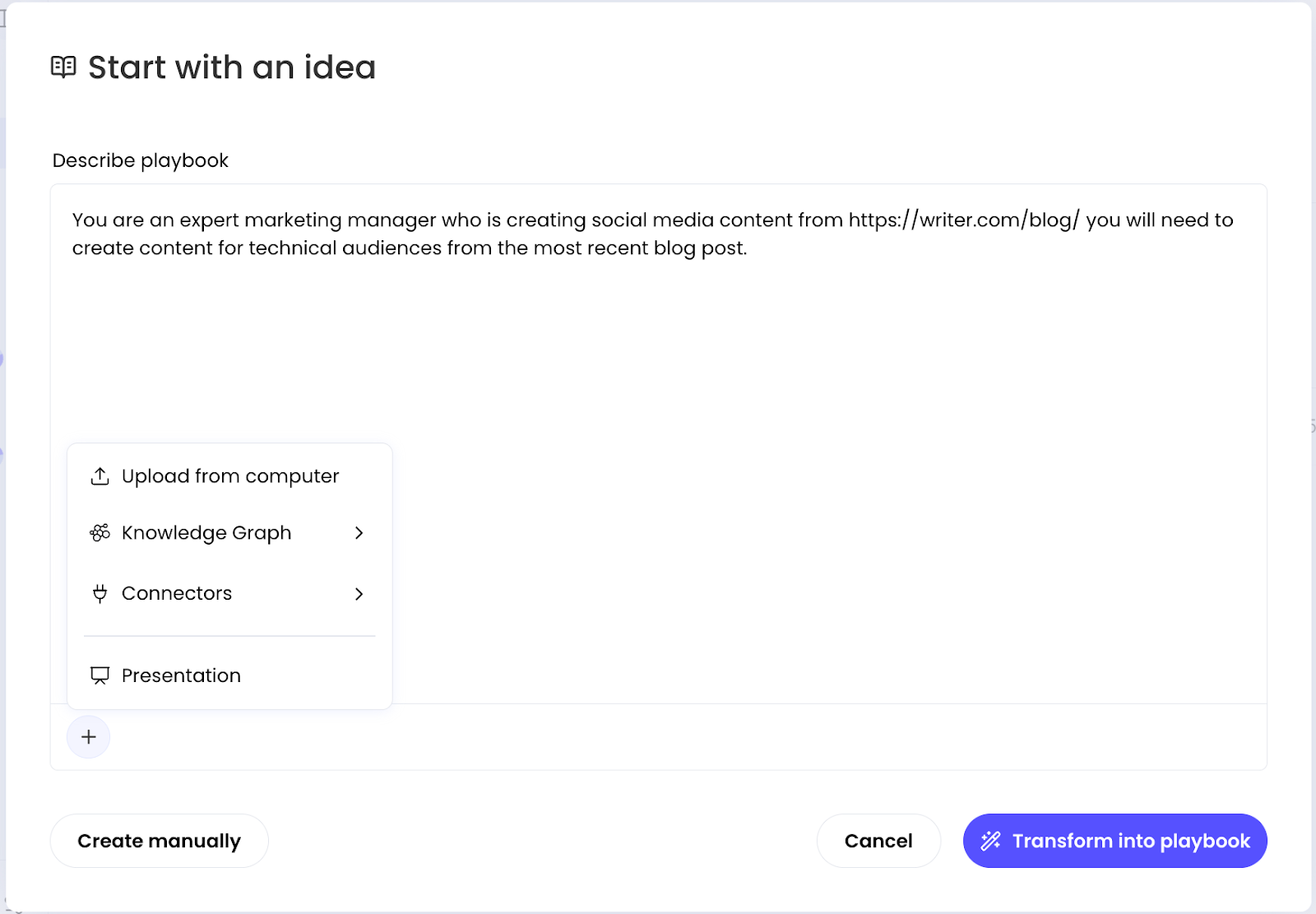
This is where you define what the playbook should accomplish. Think of it as writing instructions for a highly capable assistant.
What to include in your description:
The task objective: What final deliverable should be created?
The data sources What information should the Agent analyze or use?
Success criteria: What makes the output "good"?
Specific requirements: Format, tone, length, or other constraints
Example:
Good: "You are an expert marketing manager creating social media content from https://writer.com/blog/. Extract key insights from the most recent blog post and create 3 LinkedIn posts optimized for technical audiences. Each post should be 150-200 words, include relevant hashtags, and highlight one specific feature or benefit.
Not as effective: "Create social media posts from the blog.”
Once you’ve defined your idea, select Transform into a playbook and watch the magic happen!
💡 Pro-Tip: Use the / key or + button to reference Knowledge Graphs, files, or connectors directly in your description. This ensures the Agent has the right context.
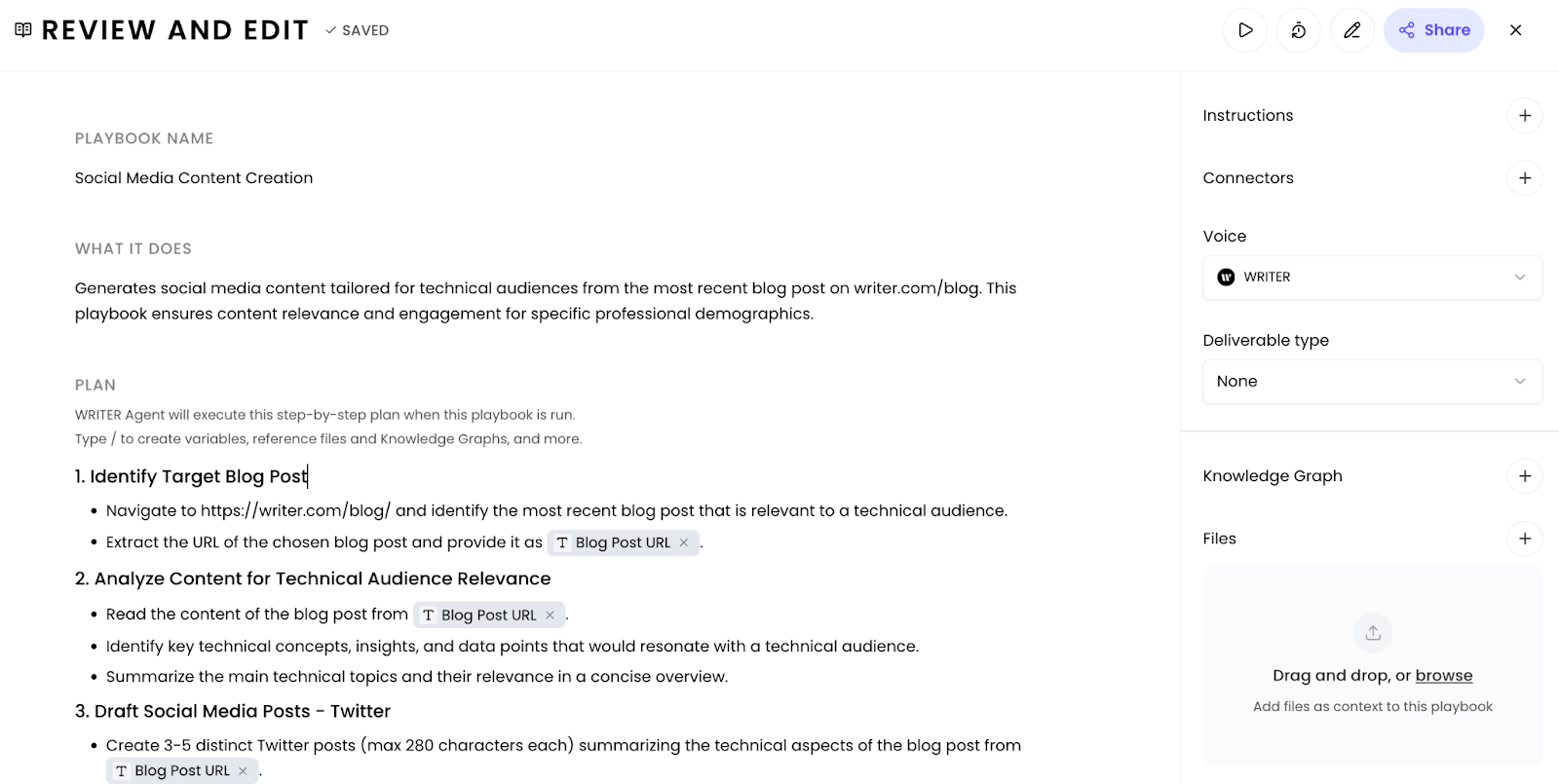
In the next step you’ll be able to review, test, and edit the playbook before saving it. You’ll see WRITER Agent has given the playbook a name and description and then outlined a plan with specific steps the agent will perform to complete the job you described. Click into the text here to make any changes to the name, description, and playbook steps that you’d like.
Review checklist:
Is the name clear and searchable?
Does the description accurately reflect what it does?
Are the steps in the right order?
Are any steps missing or unnecessary?
Do the steps reference the correct Knowledge Graphs/files/connectors?
Click directly into any text to edit it. Changes save automatically.
Testing your playbook
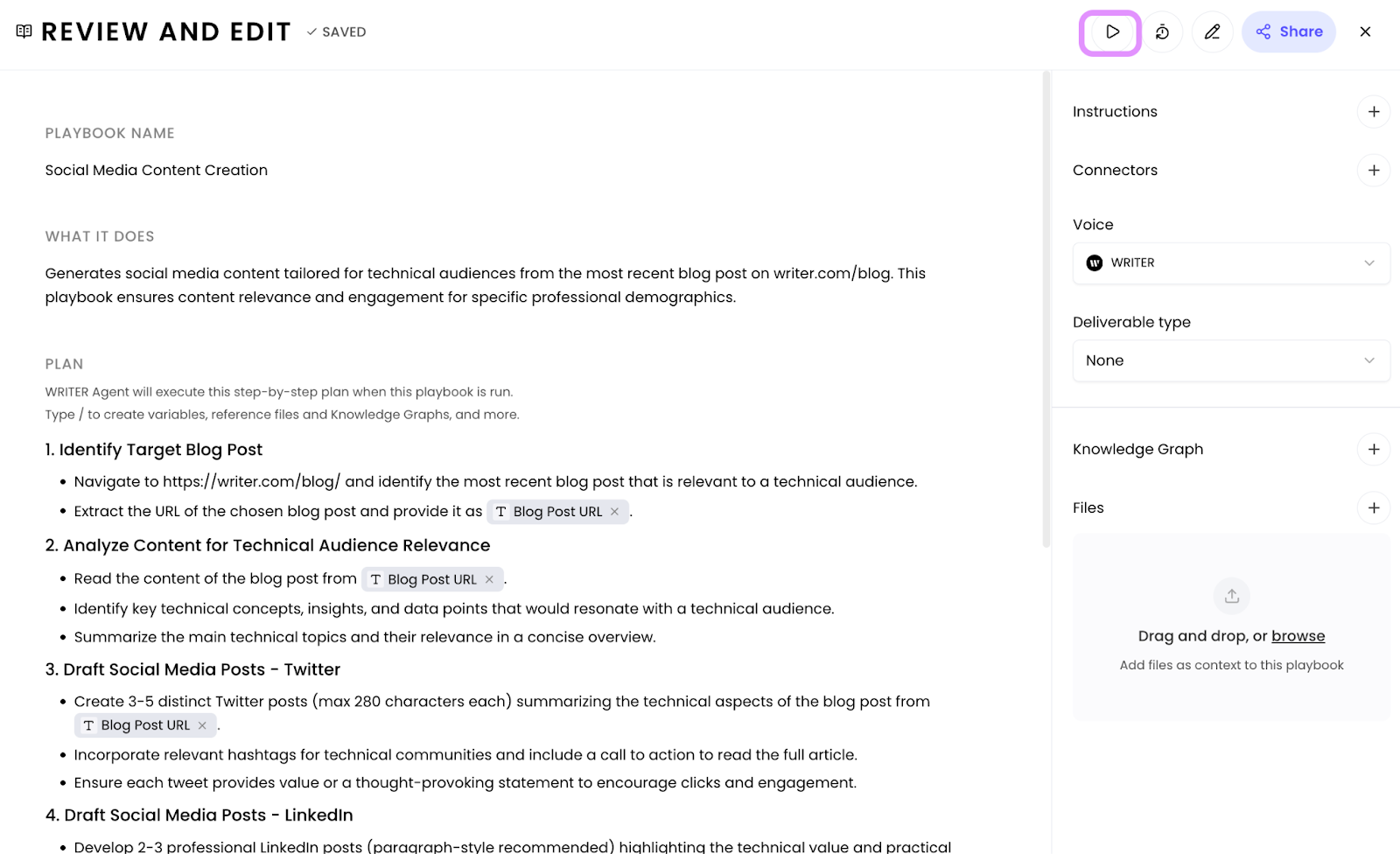
Once the instructions look good, you can preview and test it by selecting the ▶ play button in the top right.

Before sharing your playbook with others, test it thoroughly. Fill in any required variables in the sidebar and then select Run playbook.
A new Agent session tab will open showing the playbook in action.
What to check during testing:
Does it access the right data sources?
Are all steps executing in the correct order?
Is the output format what you expected?
Does it complete successfully without errors?
If you run it multiple times (with the same inputs), is it consistent?
If the playbook doesn't work as expected:
Note which step is failing or producing wrong output
If you’re not sure what went wrong just chat with the Agent asking it how to adjust the playbook for better results
Return to the playbook editor
Edit that specific step with more detailed instructions
Test again
Remember: Using AI is iterative. It's normal to test and refine multiple times before getting it perfect. Spending the time to set the playbook up now will save you time later.
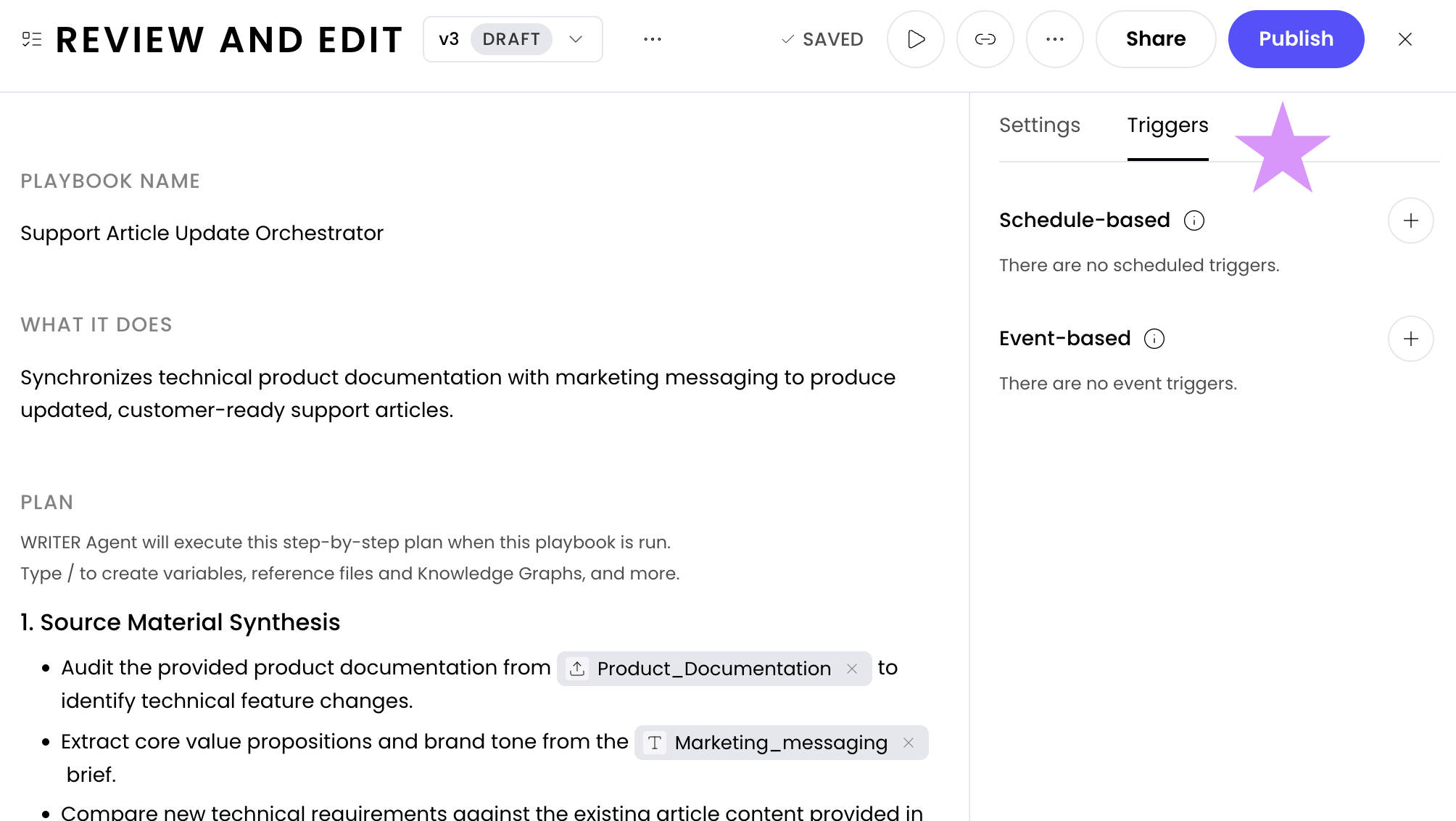
If you'd like your playbook to run autonomously you can set up a trigger from the right menu. Learn about event-based triggers here or how create schedule-based triggers here.
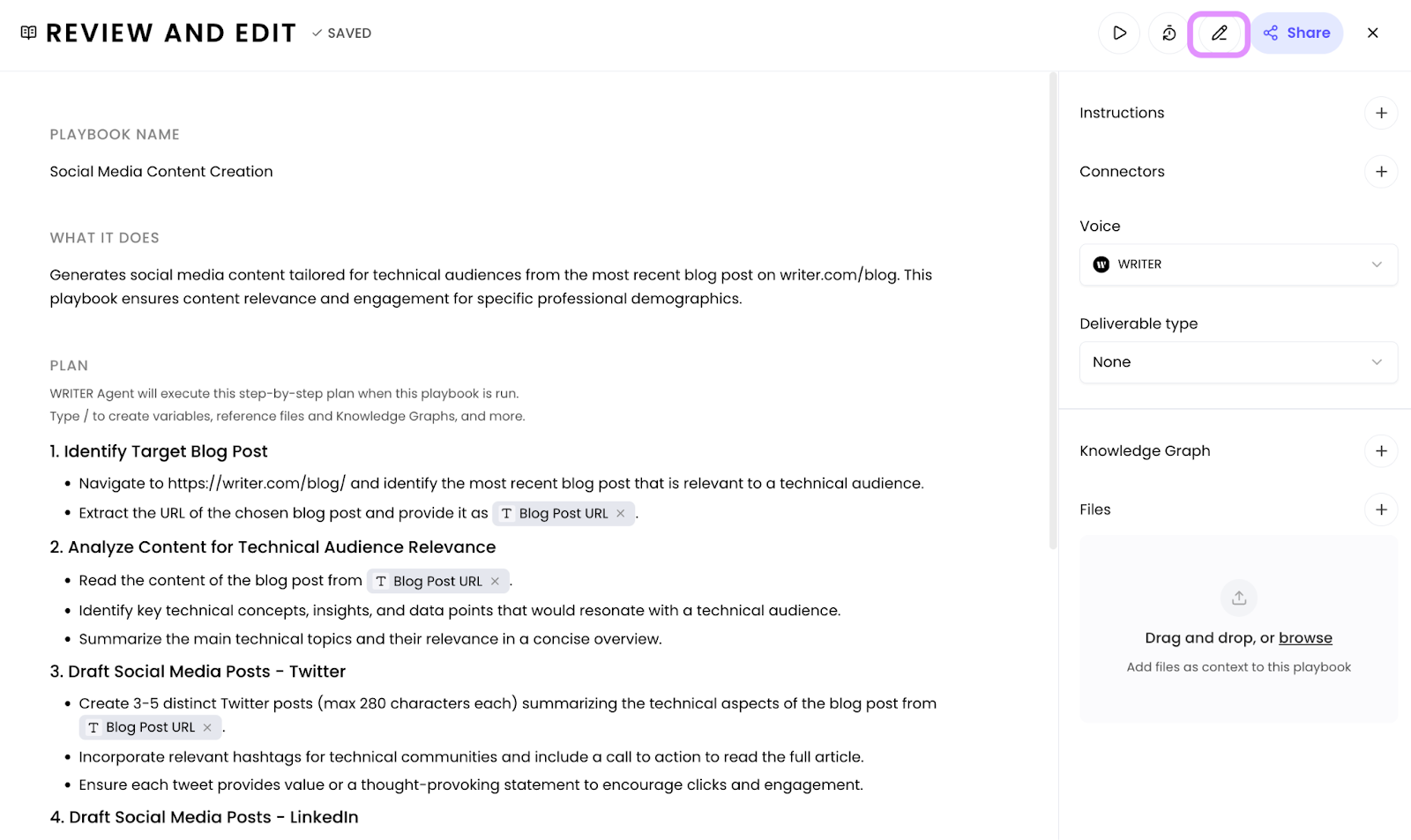
If you’re looking at the generated playbook and are thinking to yourself, “Maybe I didn’t explain my idea as clearly as I should,” select the pencil icon and adjust the original idea the playbook was built on. You’ll see the steps on the left get adjusted and can continue to make changes as needed.
Managing playbook versions
When you edit a playbook, WRITER automatically creates a draft version. This allows you to make changes, test them thoroughly, and publish updates without affecting people who are already using your playbook.
Why version control matters:
Test changes safely without disrupting active users
Run A/B tests by comparing different versions
Restore previous versions if needed
Track your playbook's evolution over time
Understanding drafts and published versions
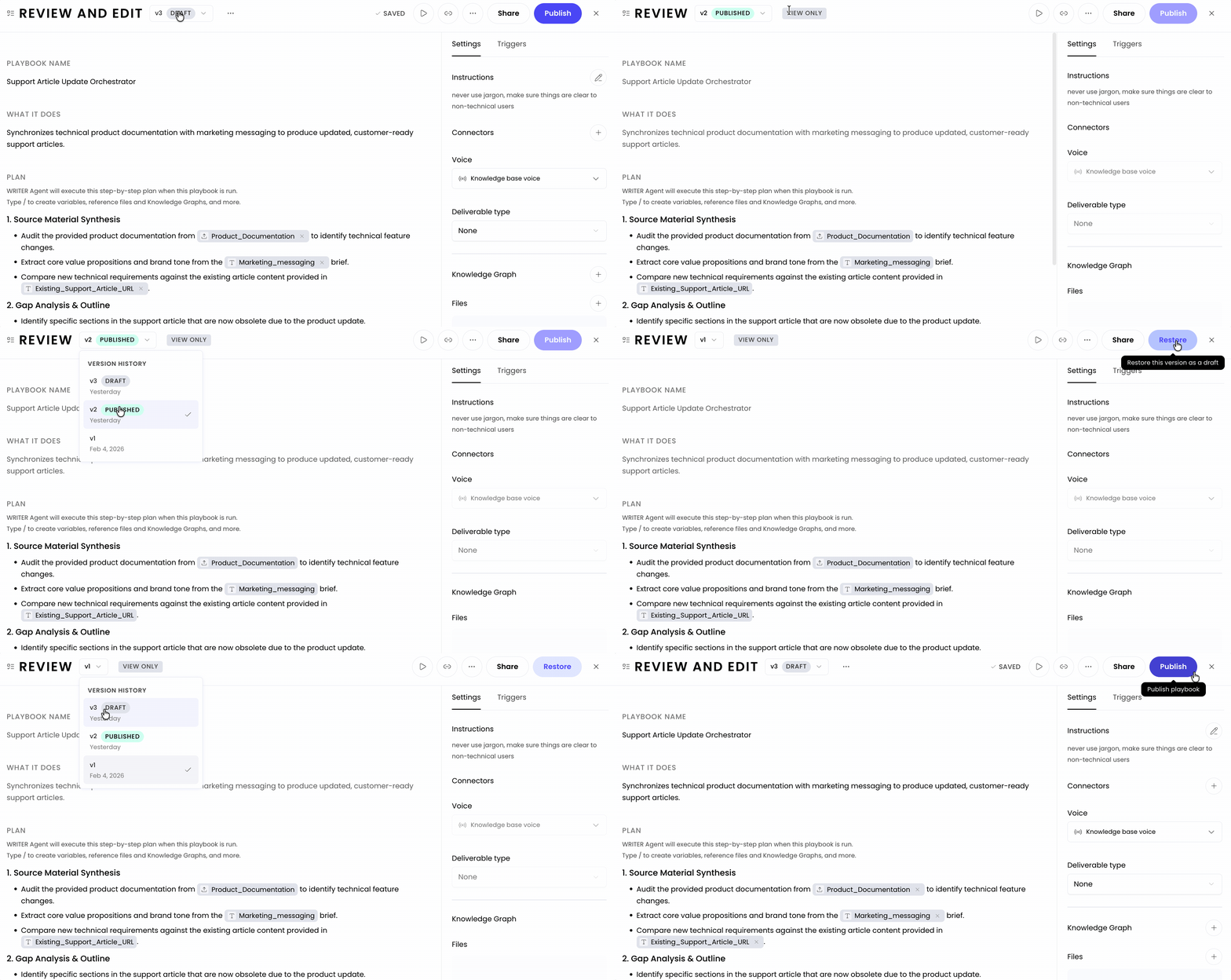
When you edit a playbook that's already been published, you're working in a draft version. Your changes are saved automatically, but they won't be visible to people you've shared the playbook with until you publish.
Draft version = Your working copy with unpublished changes
Published version = The version that shared users can see and run
Think of it like editing a document: you can make all the changes you want in your draft, and only share it with others when you're ready.
Publishing your changes
Once you've tested your draft and are confident in the changes:
Select the Publish button in the top right corner
Your draft becomes the new published version
Anyone with access to the playbook will now see and run this updated version
💡 Pro-Tip: Always test your draft thoroughly before publishing, especially if others depend on this playbook for critical workflows.
Accessing version history
You can view and restore previous versions of your playbook from the version history menu at the top of the editor.
What you can do with version history:
See all published versions of your playbook
View when each version was published
Restore any previous version
Compare changes between versions
To restore a previous version:
Open the version history menu at the top
Select the version you want to restore
Review the playbook steps from that version
Publish if you want to make this the active version
Remember: Restoring a previous version creates a new draft. You'll need to publish it to make it the active version for shared users.
A/B testing with versions
Version control makes it easy to test different approaches and compare results:
Publish Version A: Share your current playbook with users
Create a draft: Make changes to test a new approach
Test the draft: Run it multiple times to evaluate results
Publish Version B: If it performs better, publish the new version
Compare results: Use version history to see what worked best
Example scenario:
You have a "Weekly Sales Report" playbook. You want to test whether including competitor analysis improves the reports.
Version 1 (Published): Current workflow without competitor analysis
Version 2 (Draft): Same workflow + competitor analysis section
Run both versions for two weeks and compare output quality
Publish the version that produces better results
Best practices for version management
When to create a new draft:
Making significant changes to playbook steps
Adding or removing data sources
Changing output format or structure
Testing experimental approaches
When to publish:
After thorough testing with multiple inputs
When the draft consistently produces better results than the published version
After confirming all connectors and data sources work correctly
When changes are ready for your team to use
Version control checklist:
✓ Test draft with various inputs before publishing
✓ Document what changed in each version (use descriptive notes)
✓ Notify your team when you publish significant updates
✓ Keep at least one stable published version
✓ Use A/B testing for major workflow changes
Sharing playbook
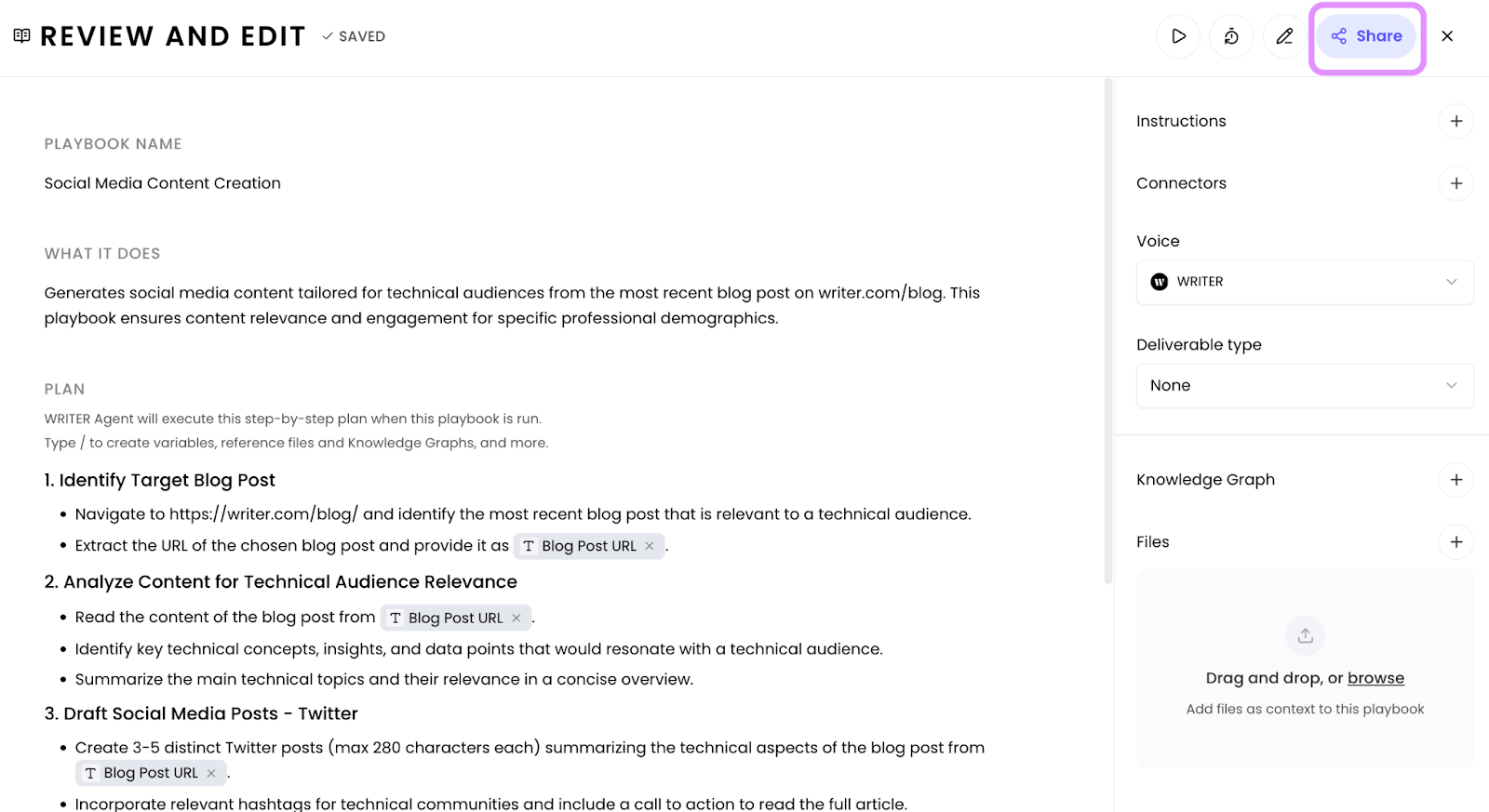
If other members of your team would benefit from using the playbook you’ve created, select the Share button from the top right. When sharing a playbook you can select between two levels of access which give the following permissions:
Viewer
View and run the playbook
See test results and outputs
Create their own copies to customize
They CANNOT edit your original playbook
They CANNOT share the playbook with others
Collaborator
View and run the playbook
See test results and outputs
Create their own copies to customize
They CAN edit your original playbook
They CAN share the playbook with others
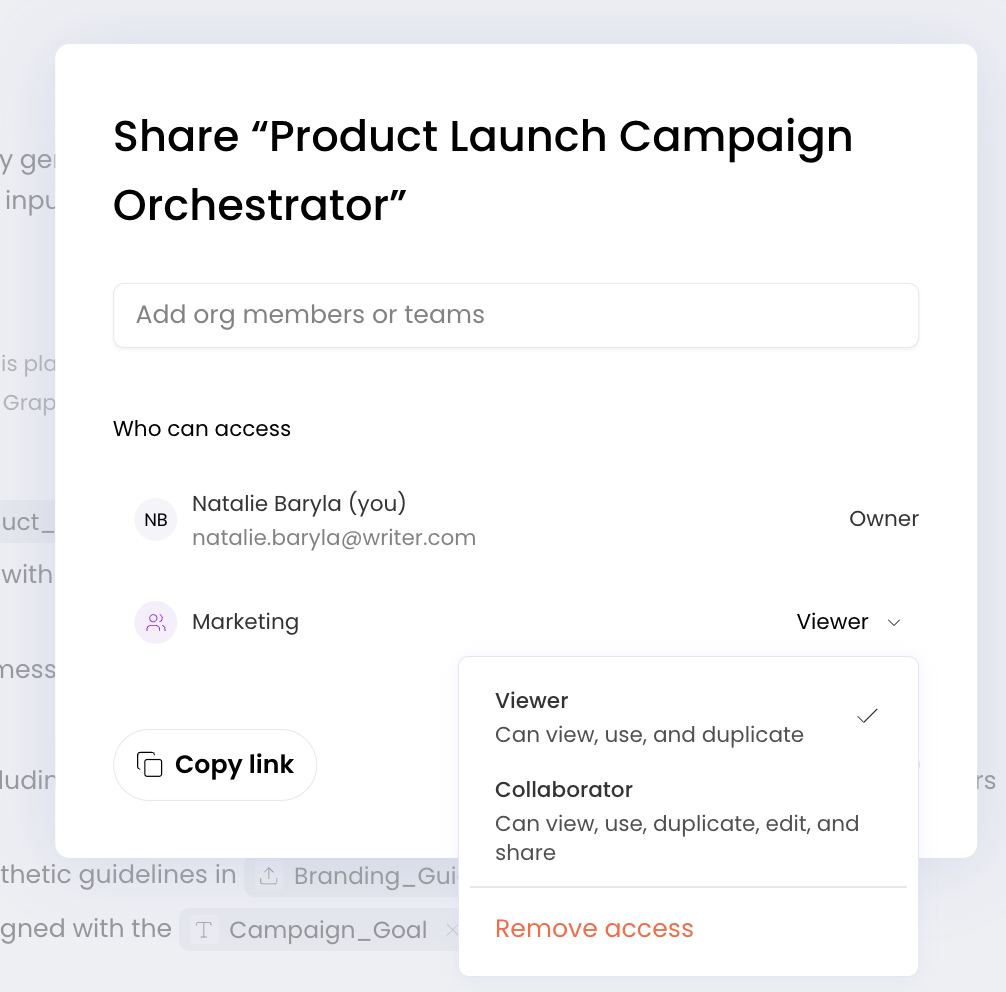
From the share screen you can select to expand your playbook to be accessible by individual members or your org or specific teams.

You can find playbooks shared with you by navigating to Playbooks > shared with me.

You can duplicate playbooks that are shared with you by selecting the three dot menu next to the playbook and then selecting Duplicate.
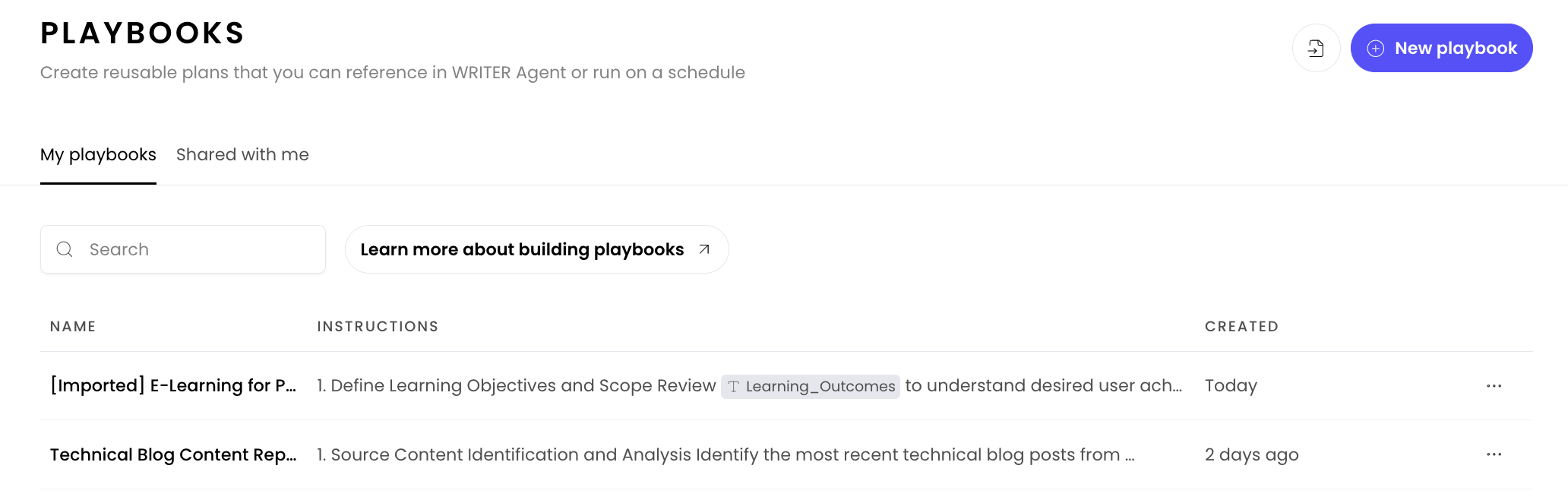
Additionally you can export playbooks and reimport them elsewhere, including across orgs. Exported playbooks will retain files, connectors, instructions, and deliverable type. However, they will not retain any referenced KGs, voice, or triggers.

To export a playbook, select export from the three dot menu.

To import a playbook, select the import icon in the top right of the Playbooks page. From there you can make any adjustments to the playbook and save it. Imported playbooks will have the prefix [Imported] in front of their name and they will be private to you by default.
Configuring your playbook
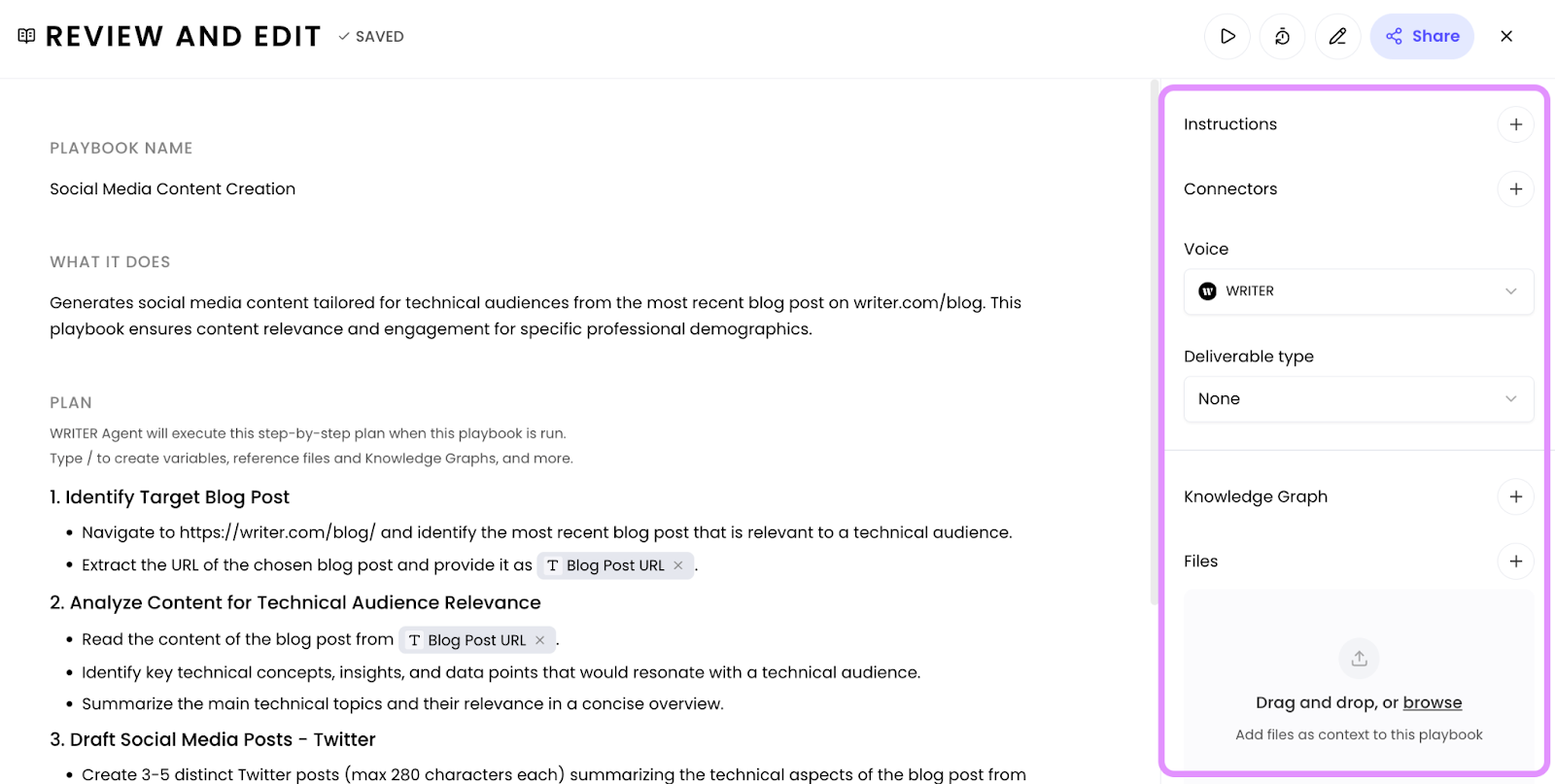
The right menu of the playbook edit includes some other options, starting with Instructions. The majority of your instructions will live in the playbook itself, however the custom instructions on the right here control more about the agent’s personality. You can learn more about configuring the personality of WRITER Agent here.
If your agent needs to connect to external tools to complete the required workflow you’ll see those in the Connectors section. You can learn more about using WRITER Agent with Connectors here.
Next you can specify the deliverable type you’d like the agent to create. Currently WRITER Agent has two options here, none and presentation. Select presentation from the dropdown if you’d like the output to be a slide deck. The "None" option doesn't mean no output—it means the output type is defined in your playbook instructions rather than being locked to presentations.
If your playbook requires internal knowledge to complete the workflow you can select a Knowledge Graph. You can learn more about using Knowledge Graphs here. If the knowledge you’d like to connect to lives within a couple files you have access to you can add those files to the final section on the left menu.

As you make edits to your playbook you’ll see the Saved message at the top. Any changes you make will show the playbook as a draft and be saved if you leave the playbook by selecting the X in the top right. If you'd like your changes to be saved and reflected when you or others run the playbook, be sure to select Publish.
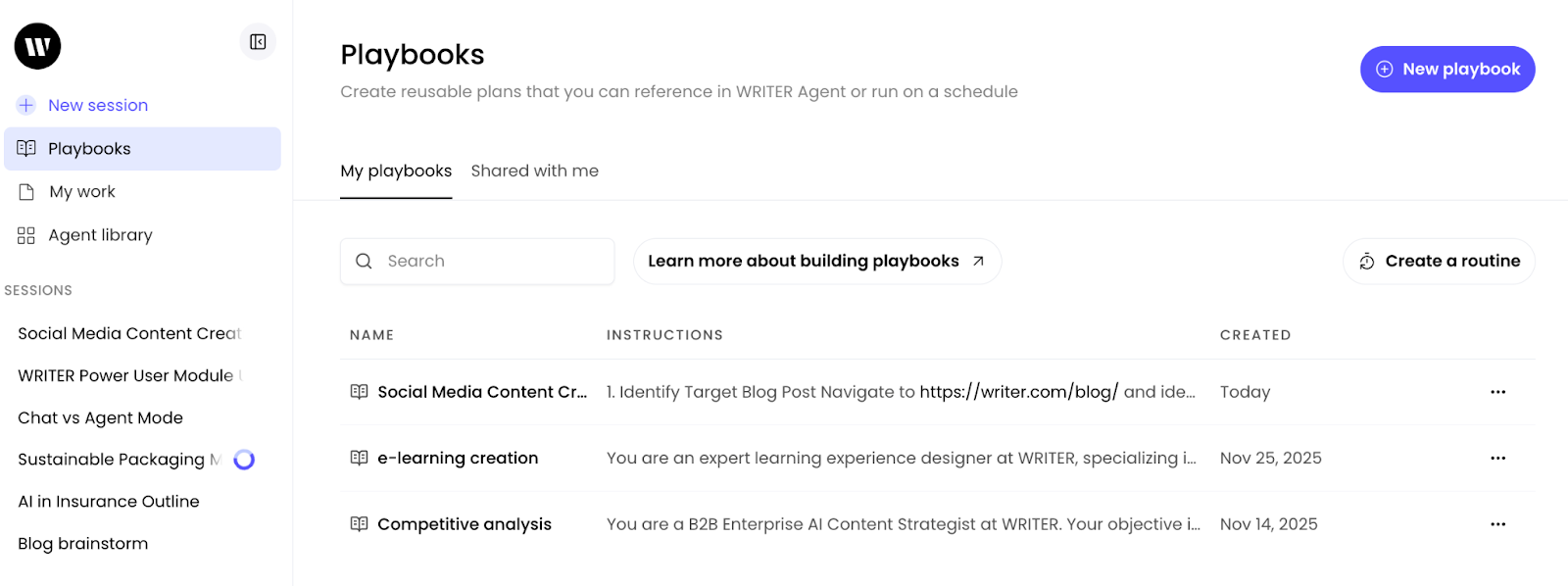
You’ll then see it displayed at the top of the list in the playbooks section. To edit your playbook you can click on it and the editor will relaunch.
Using variables in your playbook
Variables make playbooks reusable by creating placeholders for information that changes each time you run it.
How to create a variable:

Easily create variables for text and file inputs by typing “/” and selecting the item you’d like to reference from the list. From there complete the information to configure your variable. When you go to run a playbook these variables will become text fields you input before WRITER Agent can complete the workflow.
How to identify variables in a playbook:
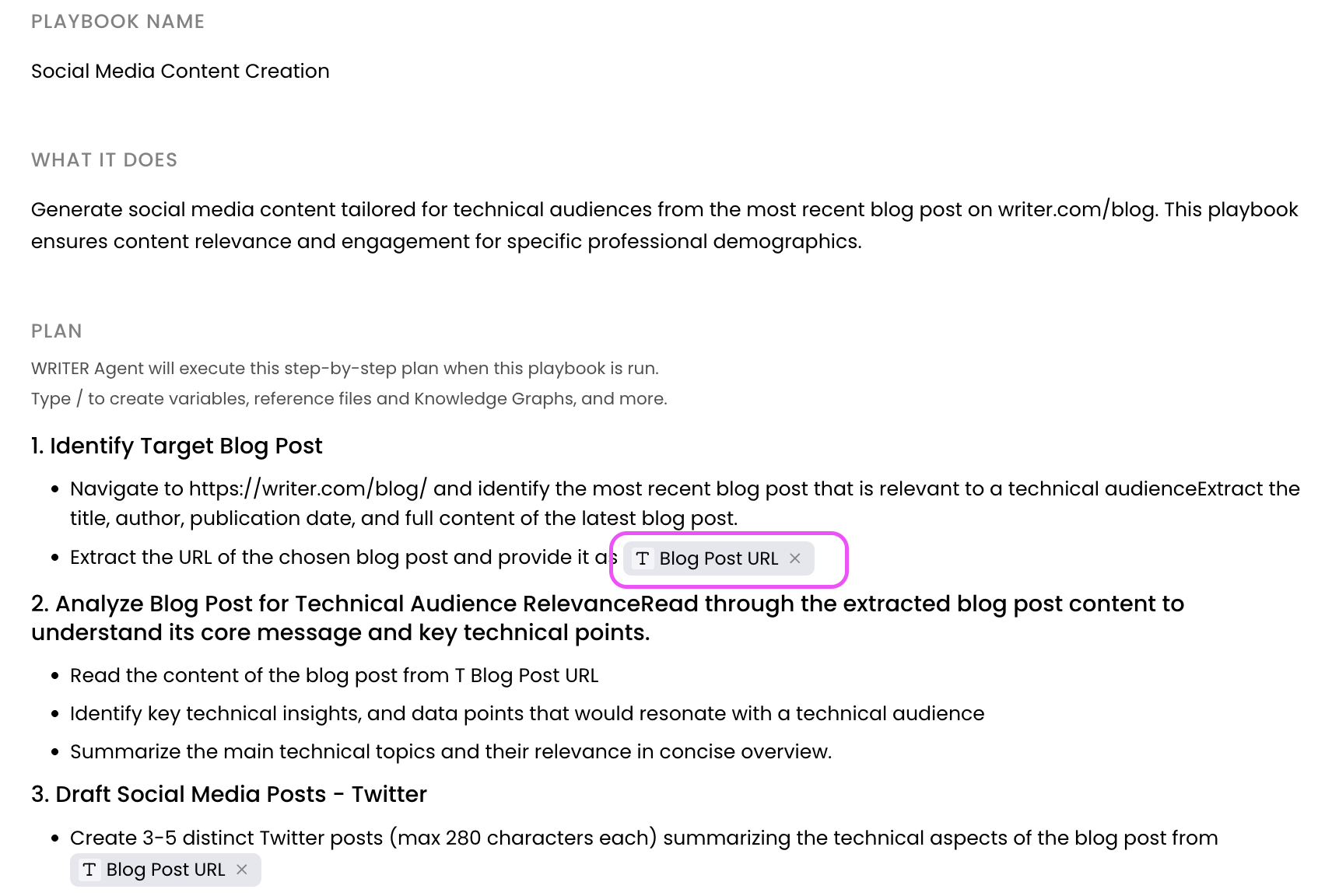

If you're working in a playbook that you've already created, you can edit a variable by selecting it directly within the plan.
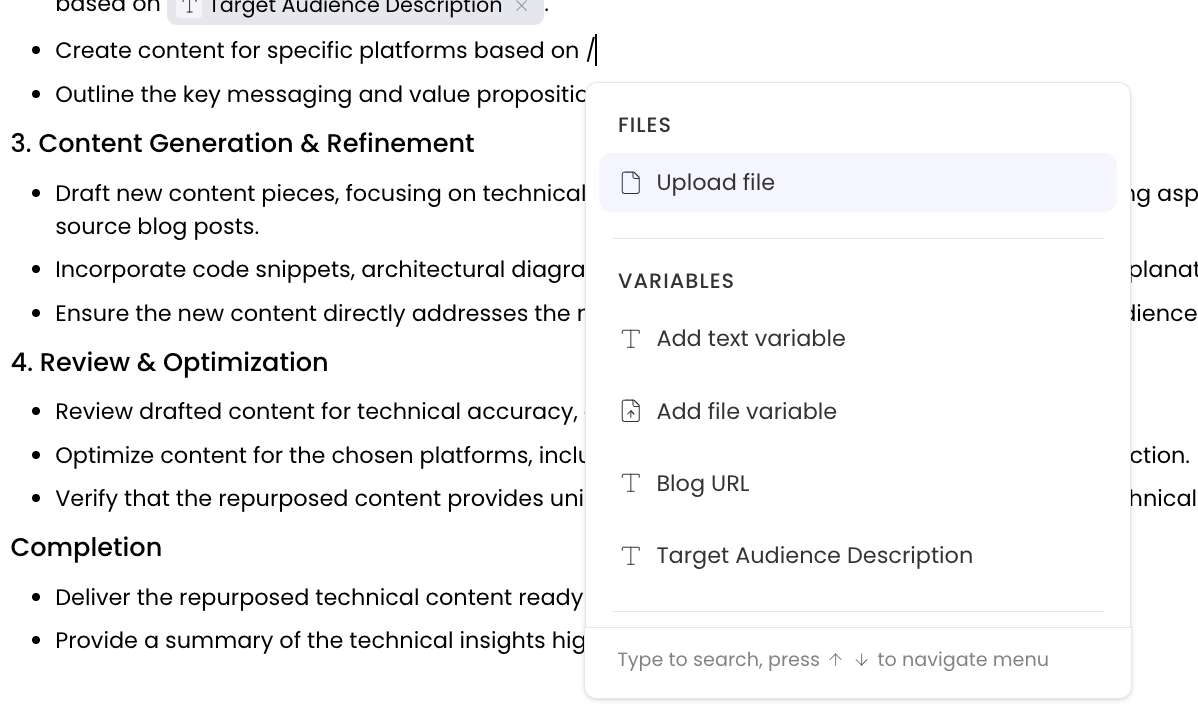
You can add a variable when editing a playbook by entering a forward slash, " / ", in the instructions and then selecting the variable type from the menu.
Organizing playbooks
As your library of playbooks grows, tags make it easy to keep everything organized and quickly find what you need. Tags are personal to you, so you can build a system that matches how you work, whether that's by use case, project type, or any other category that's useful to you.
Adding tags to a playbook
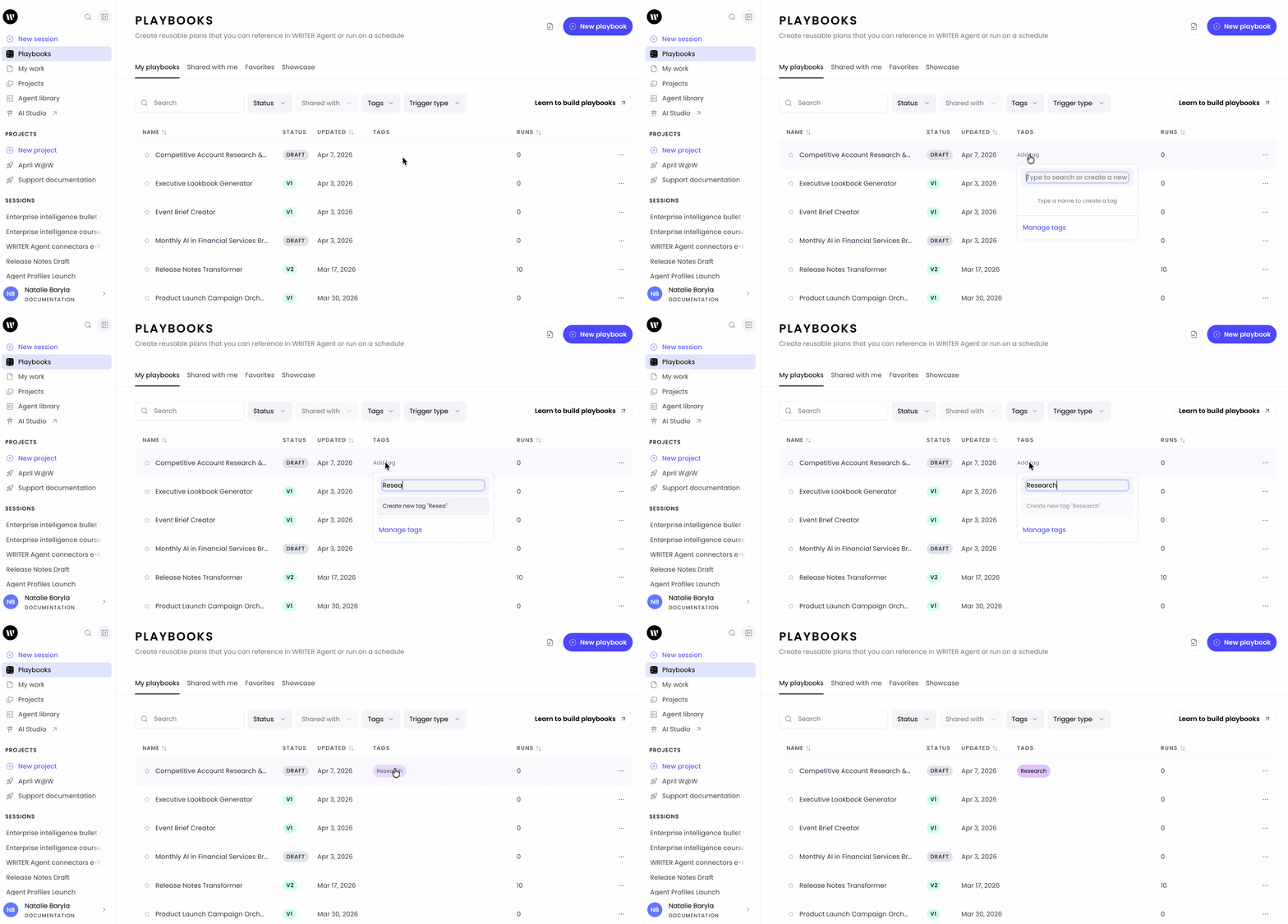
Navigate to the playbooks page, hover over the playbook you want to tag, and select the tags option. Create a new tag or choose an existing one to apply it.
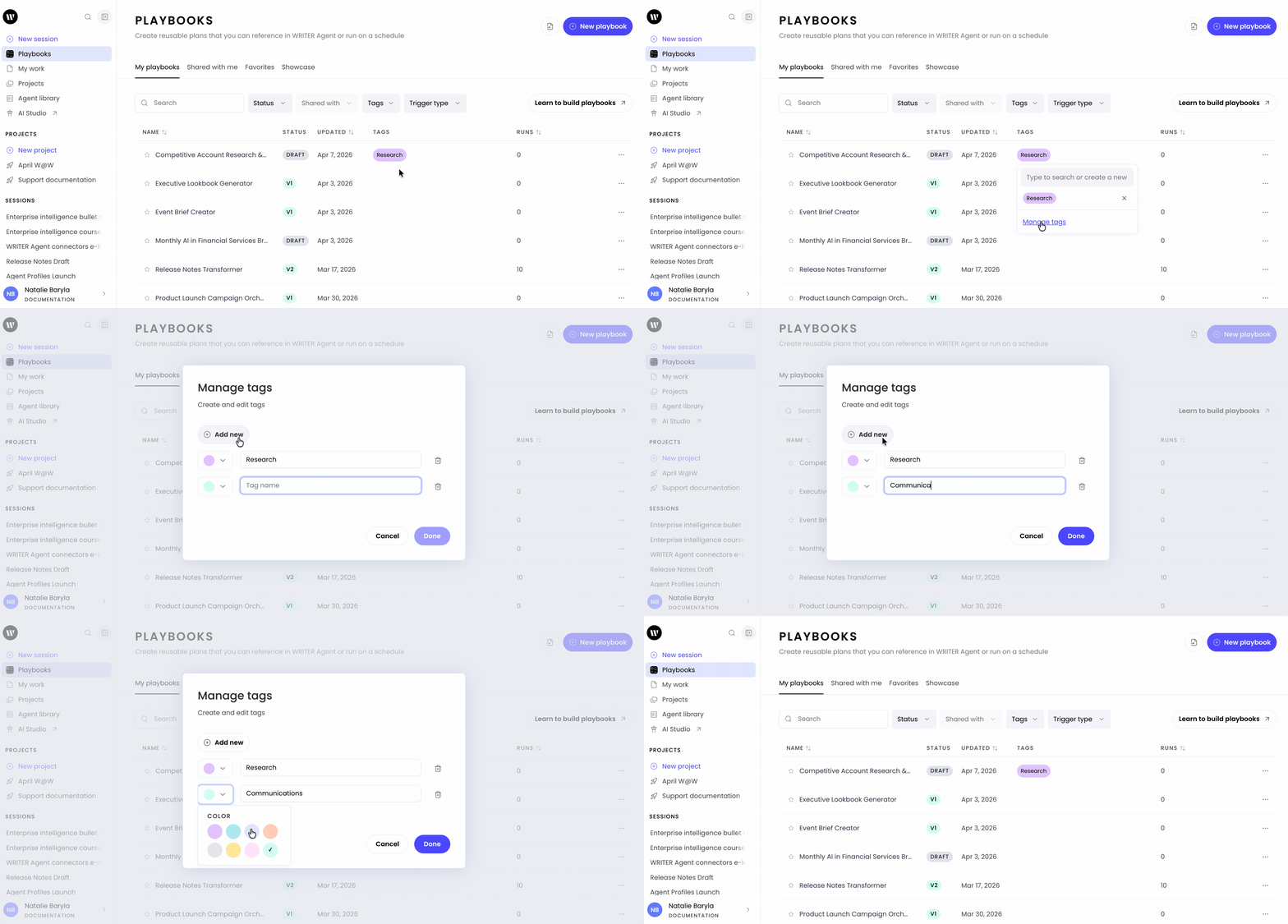
By selecting Manage tags you can rename, delete, and recolor your tags. You can apply multiple tags to a single playbook if it fits more than one category.
Filtering playbooks by tag
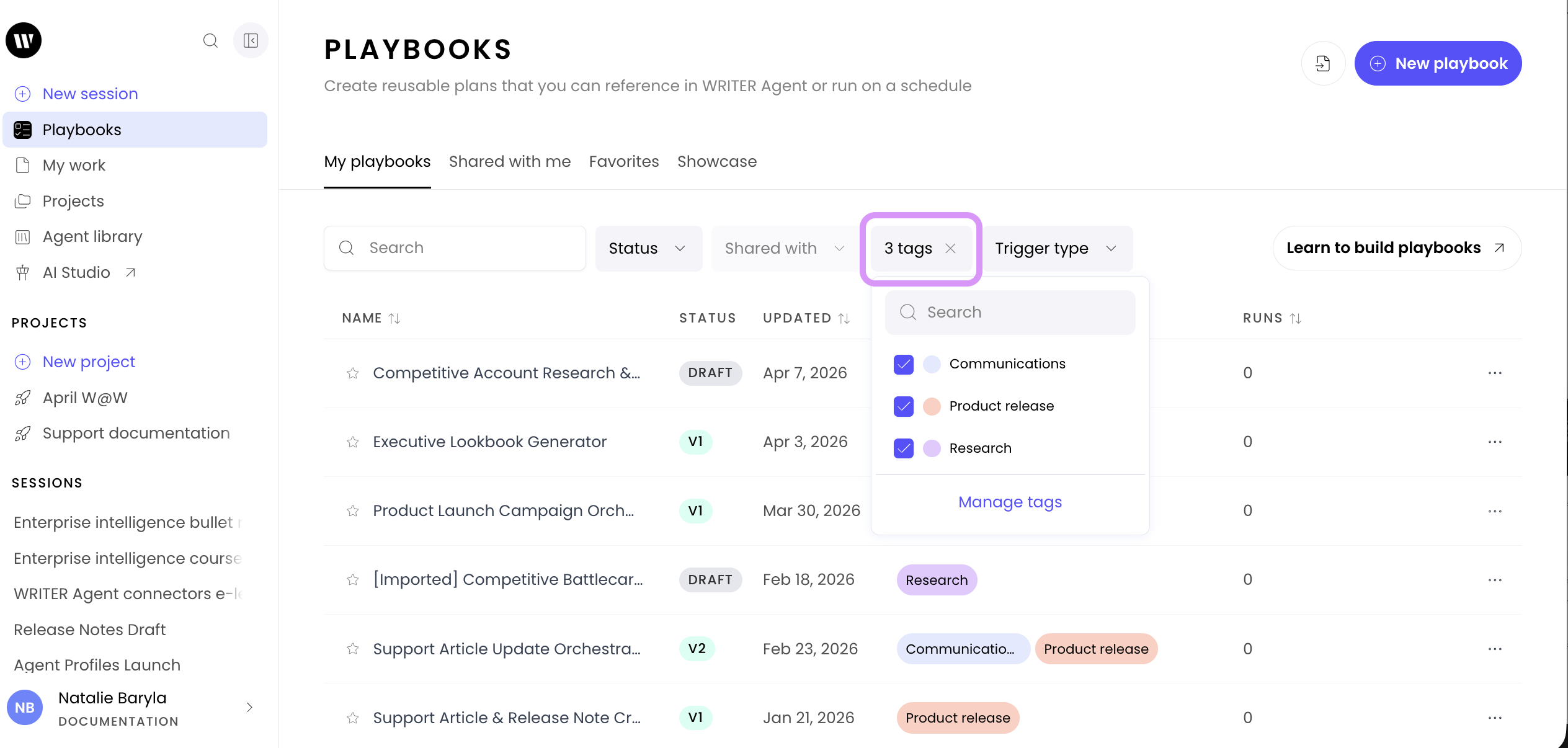
Once you've tagged your playbooks, use the tags menu at the top of the Playbooks page to filter the list. Select a tag to display only the playbooks with that tag applied.
Managing your tags
You can edit or delete your tags at any time. Editing a tag updates its name everywhere it's been applied. Deleting a tag removes it from all associated playbooks, but the playbooks themselves remain unaffected.
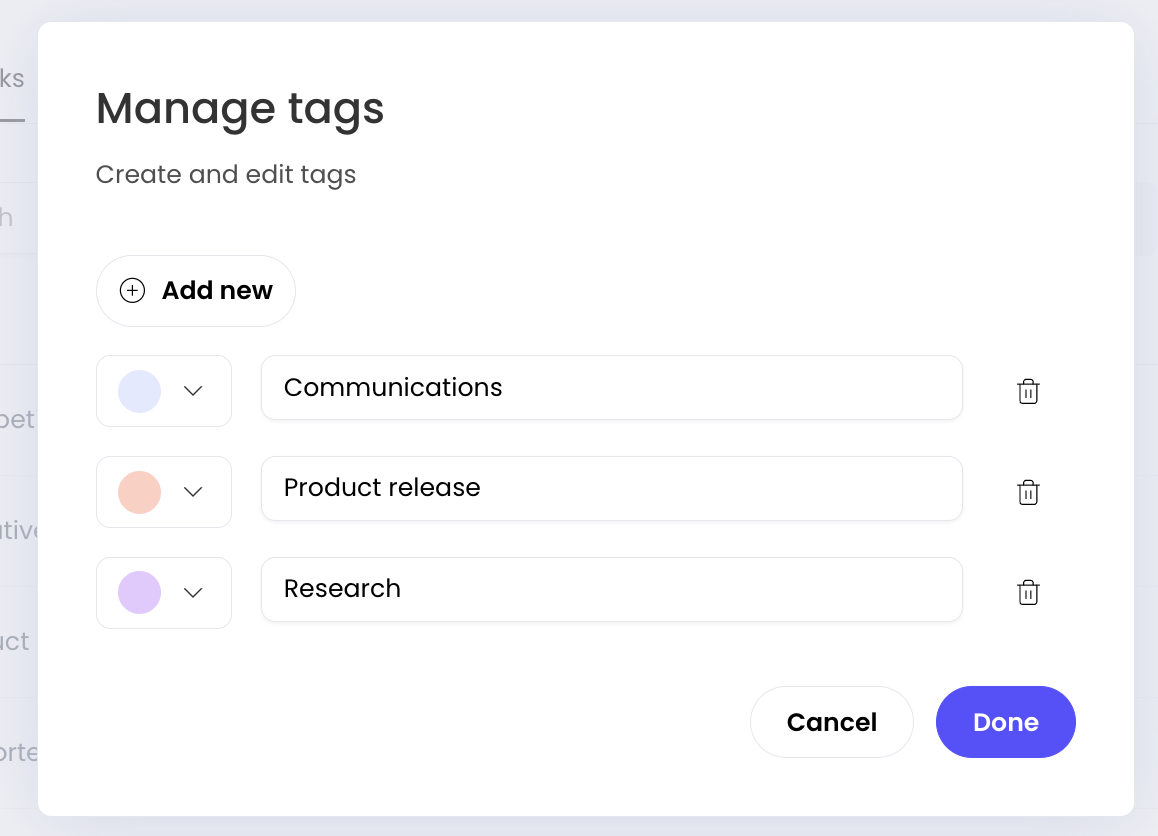
From the Manage tags menu, select the trashcan icon to the right of the tags you would like to delete. To edit the tag select the color on the left or simply edit the text. Selecting Done will save and apply your changes across your playbooks.
💡 Pro-Tip: Use tags to create a personal organizational system that grows with your playbook library. Grouping by workflow type, project, or frequency of use can save you time when you need to find the right playbook fast.
Executing playbooks with webhooks
Want to start a playbook without even opening the WRITER app? You can now use webhooks to trigger your automated workflows from other tools in your tech stack, such as Slack, your project management software, or a custom internal dashboard. This allows you to integrate WRITER’s powerful reasoning directly into your existing team processes.

To get started, select the link icon within your playbook.
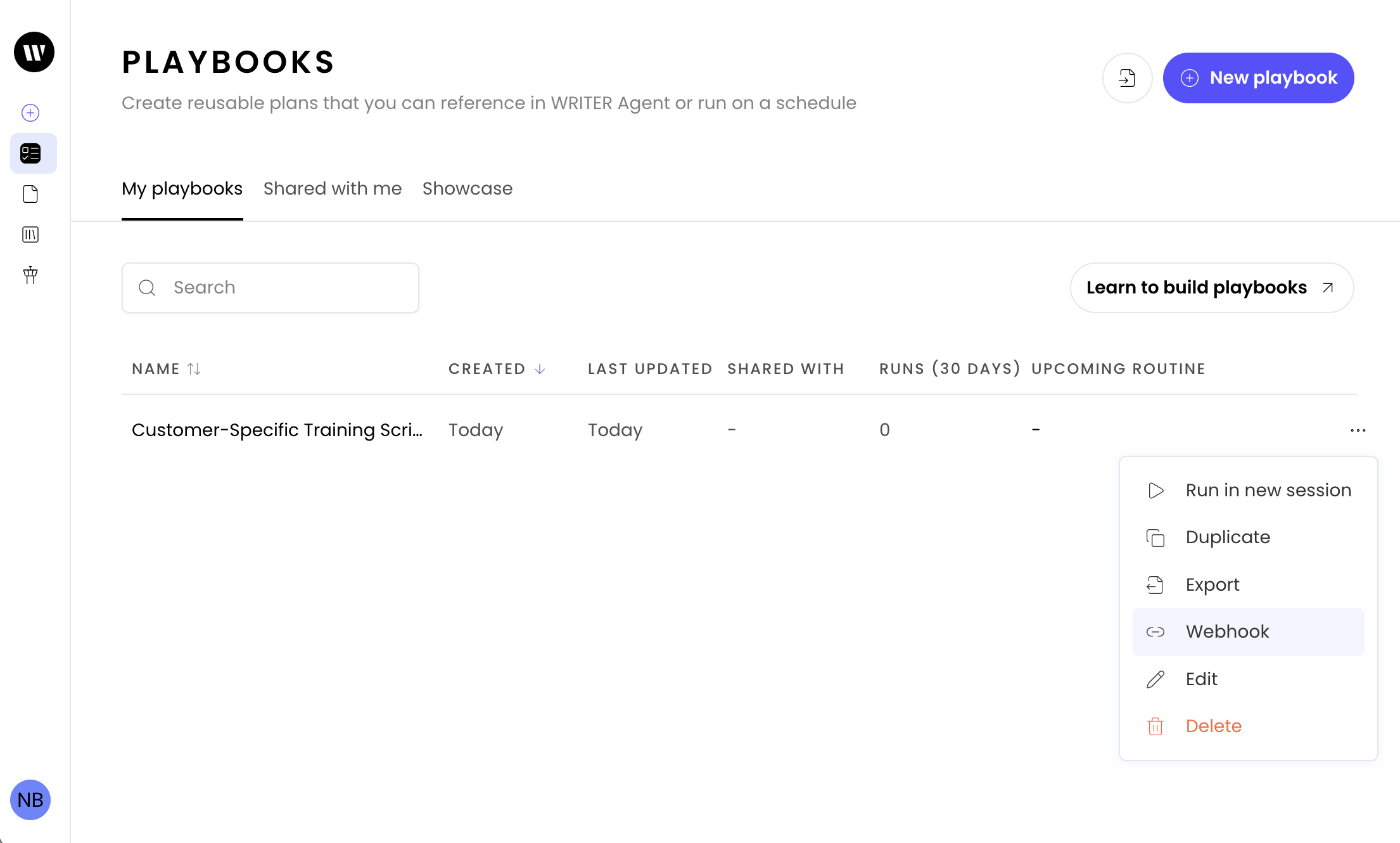
Alternatively, from the playbooks page you can select Webhook from the three dot menu next the the playbook of your choosing.
Complete the steps:
Generate a Trigger URL: In your playbook settings, you can now generate a unique webhook URL for that specific playbook.
Configure the External Tool: Set up your external application to send a
POSTrequest to that URL whenever you want the playbook to run.View Results in WRITER: Once triggered, the playbook will execute its steps automatically. You can jump into WRITER to view the session, review the final deliverables, and continue the conversation with the Agent.
💡 Pro-Tip: Use this to bridge the gap between your data and your insights. For example, you can set up a webhook so that every time a new "Competitive Intelligence" ticket is closed in your tracking system, it automatically triggers a WRITER playbook to summarize the findings for the week.
Note: Currently, webhooks allow you to start playbooks from external systems. The resulting content and deliverables will remain within WRITER.
FAQs
What is the difference between a playbook and a regular WRITER Agent session?
A playbook is a reusable, automated workflow that you can run multiple times with different inputs, while a regular Agent session is a one-time conversation. Playbooks save you time by eliminating the need to re-enter the same prompts repeatedly. Think of it like the difference between a template and a one-off document.
Can I run a playbook without filling in variables?
If your playbook includes required variables, you must fill them in before running. Optional variables can be left empty. When you click to run a playbook, you'll see which fields are required before the Agent can start working.
What is a trigger and how is it different from a playbook?
A playbook is the workflow itself—the set of instructions for what WRITER Agent should do. A trigger is the schedule that runs your playbook automatically at specific times. For example, you might create a "Weekly Sales Report" playbook and set up a schedule-based trigger to run it every Monday morning.
Can I delete, share, or tag playbooks in bulk?
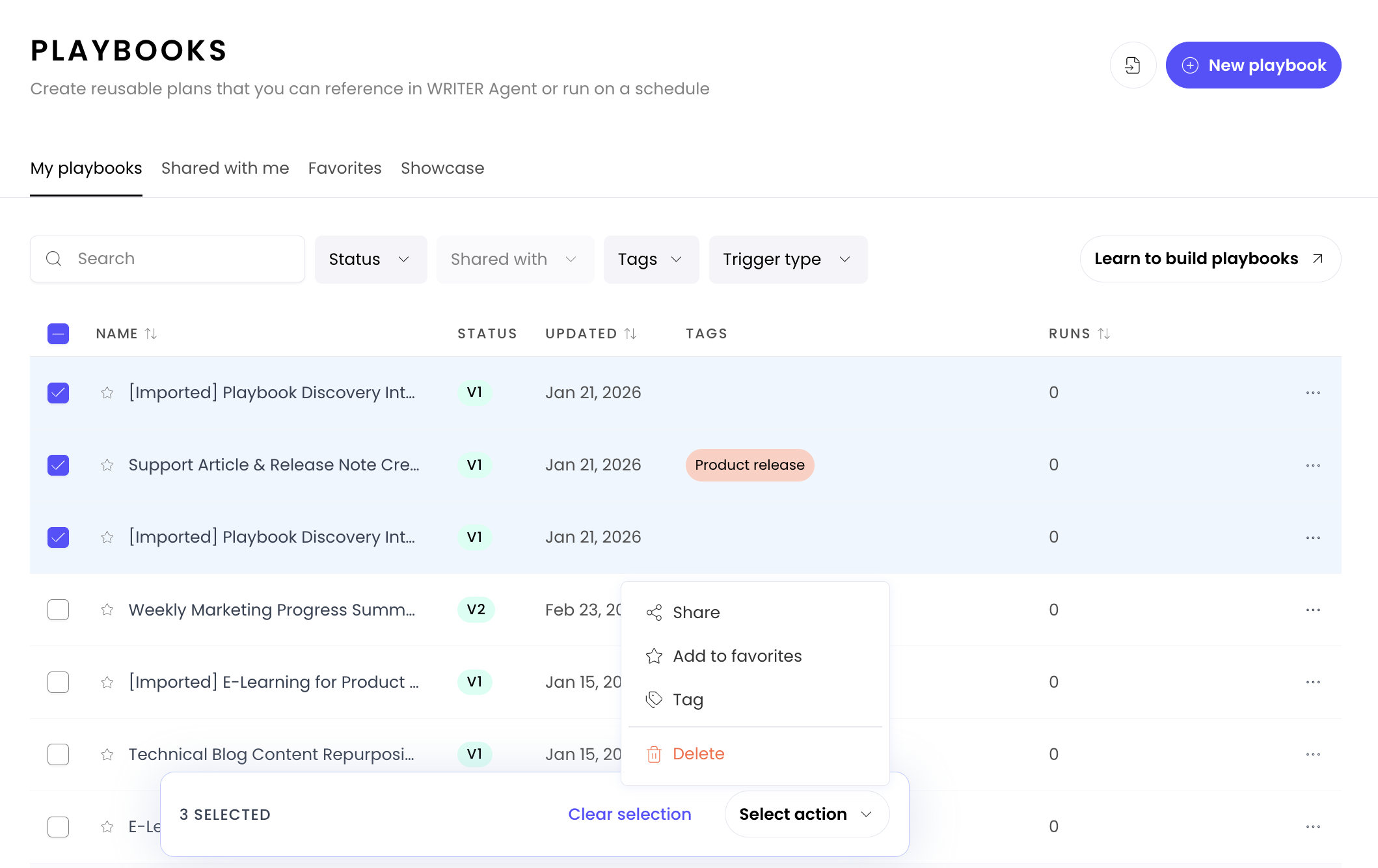
Yes! Use the check boxes on the Playbooks page to activate the bulk actions menu to share, favorite, tag, and delete multiple playbooks at once.
What makes a "good" playbook vs. a "bad" one?
Good playbooks include clear, specific instructions with well-defined objectives, data sources, and success criteria. They focus on one task and break it into logical steps. Bad playbooks are vague ("do some research"), try to do too many things at once, or lack specific requirements about format and output.
Can I edit a playbook after it's been shared with my team?
Yes! You can edit your playbook at any time, even after sharing it.
How do I stop sharing a playbook with someone?
Go to the sharing settings for your playbook and remove the individual user or team that you no longer want to have access. They'll lose access to view or run the playbook, but any copies they've already created will remain theirs.
What happens if I delete a playbook that's being used by others?
If it's shared, then the shared user will no longer have access as it will be fully deleted.
What should I do if my playbook keeps failing at the same step?
First, identify which specific step is failing. Then, either chat with WRITER Agent directly in the failed session to understand what went wrong, or return to the playbook editor and add more detailed instructions to that step. Be more specific about what you want—include examples, constraints, or format requirements. Test again after making changes.
How many times should I test a playbook before sharing it?
We recommend you test your playbook at least 2-3 times with different inputs (if using variables) to ensure it produces consistent, accurate results. If it's a critical workflow that others will rely on, test it more thoroughly with edge cases and different scenarios.
Will my playbook produce the same results every time?
Playbooks should produce consistent results when run with the same inputs and data sources. However, AI-generated content may have slight variations in wording or structure. If you're seeing major inconsistencies in the output quality or format, review and refine your playbook instructions to be more specific.
Can I schedule a playbook to run automatically?
Yes! Select the Triggers section on the right of your playbook to set up a trigger that runs your playbook on a schedule (daily, weekly, monthly, etc.). This is perfect for recurring tasks like weekly reports or daily data syncs.
What happens to my draft if I don't publish it?
Your draft is saved automatically and will remain available for you to continue editing. It exists separately from your published version, so you can work on it over time without affecting users who are running the published playbook. However, only you can see and test your draft—shared users will continue to see only the published version.
Can I have multiple drafts of the same playbook?
No, you can only have one draft at a time for each playbook. When you edit a published playbook, it creates a single draft version where all your changes are saved. If you want to test multiple different approaches, you'll need to either: (1) test one draft, publish it, then create another draft for the next approach, or (2) duplicate the playbook to test variations independently.
If I restore a previous version, will it affect people using my playbook?
No, restoring a previous version creates a new draft—it doesn't automatically change the published version. This gives you a chance to review the restored version and test it before deciding to publish it. People who have access to your playbook will continue to see the current published version until you explicitly publish the restored version.
Do version changes affect schedule-based triggers?
Yes, when you publish a new version of a playbook, any triggers scheduled to run that playbook will use the newly published version. If you have a trigger running an important playbook, test your draft version thoroughly before publishing to ensure it works correctly with the scheduled automation.
Can I see who published each version and when?
Yes, the version history shows when each version was published. This helps you track changes over time and understand the evolution of your playbook. If you need more detailed tracking, consider adding notes about what changed in each version.
What's the best way to test a draft before publishing?
Run your draft at least 2-3 times with different inputs to ensure consistent results. If possible, compare the draft's output side-by-side with the published version's output using the same inputs. For critical workflows, consider having a teammate review and test the draft as well before you publish it.