Managing your notifications
Last updated: August 28, 2026
Notifications keep you informed about activity in WRITER, including content shared with you, task completions, playbook approvals, and product updates. All users can view notifications in the Notifications panel and manage their notification preferences in Profile settings.
Getting started
The Notifications panel collects alerts, tasks, and product updates in one place. You can open it from anywhere in WRITER.
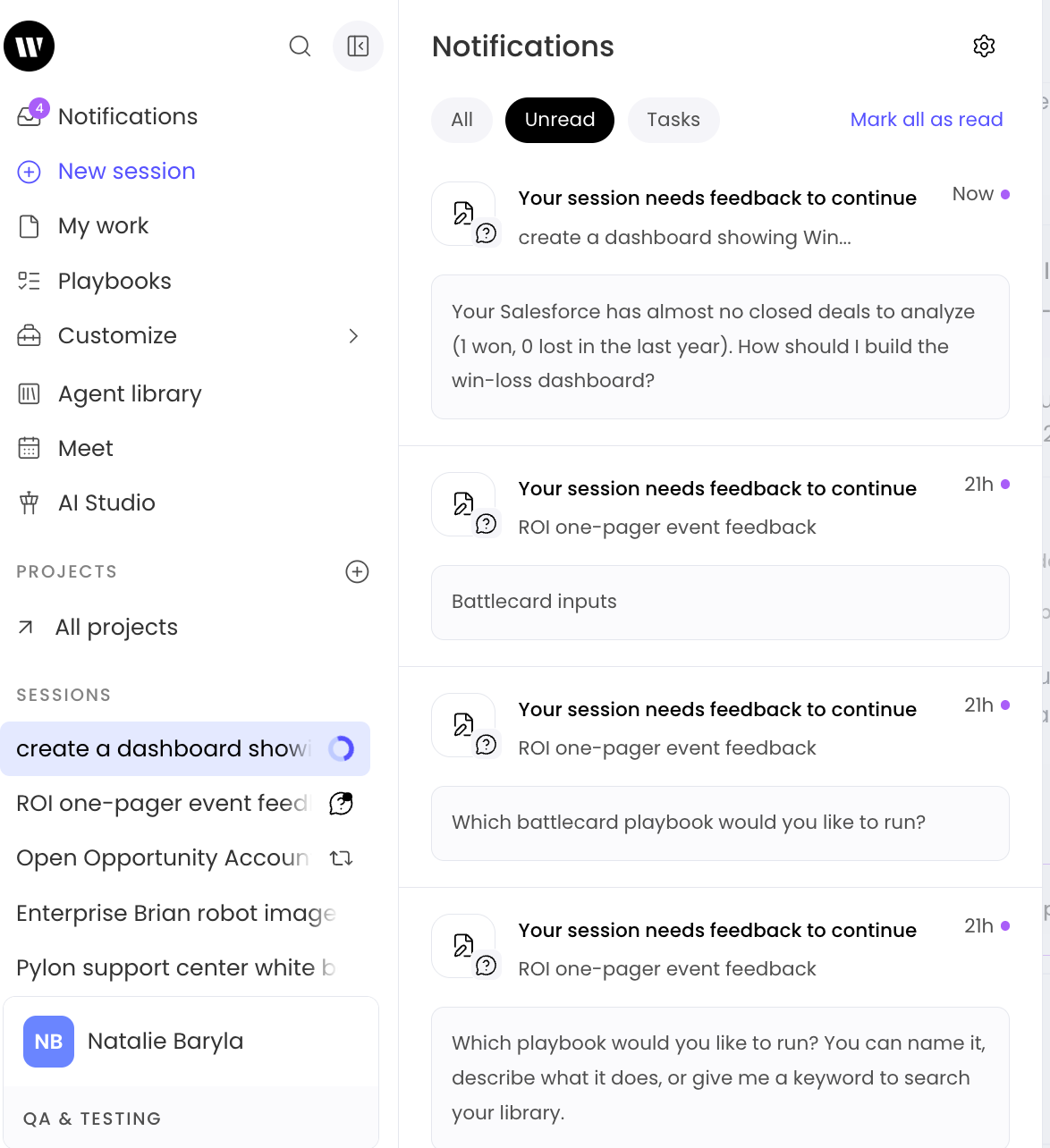
Select Notifications from the left menu of WRITER Home. Select a tab to filter your notifications:
All — every notification
Unread — notifications you haven't opened yet
Tasks — notifications related to your work
You'll see your notifications listed in the panel. When the panel is empty, it displays "No notifications yet" with the message "New alerts, tasks, and Writer updates will appear here."
To mark every notification as read at once, select Mark all as read at the top of the panel.
Tip: Select the settings gear icon in the panel header to jump straight to your notification preferences.
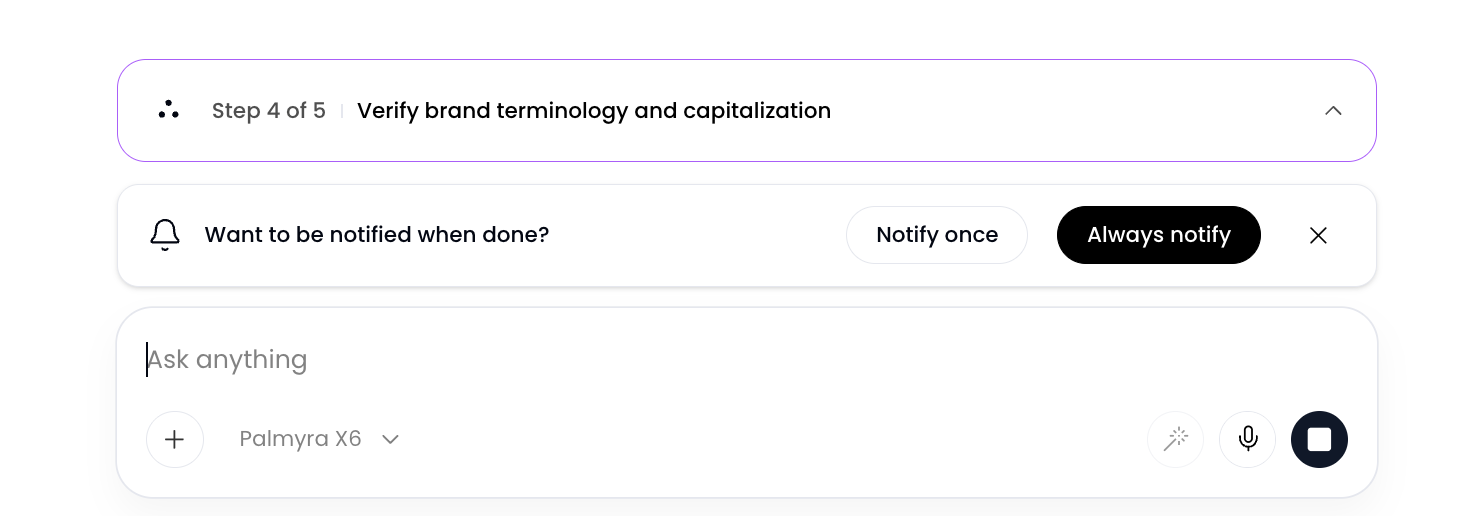
When working in WRITER you’re able to navigate away from the page and the agent will continue running. From within a session, you’ll see a message asking if you’d like to be notified when the output is ready. Select Notify once to only be notified for this session, or select Always notify to enable notifications for this and future sessions.
Managing notification preferences
You control how and where you receive notifications across three delivery channels: In-app, Email, and Push. Each notification category can be turned on or off for each channel.
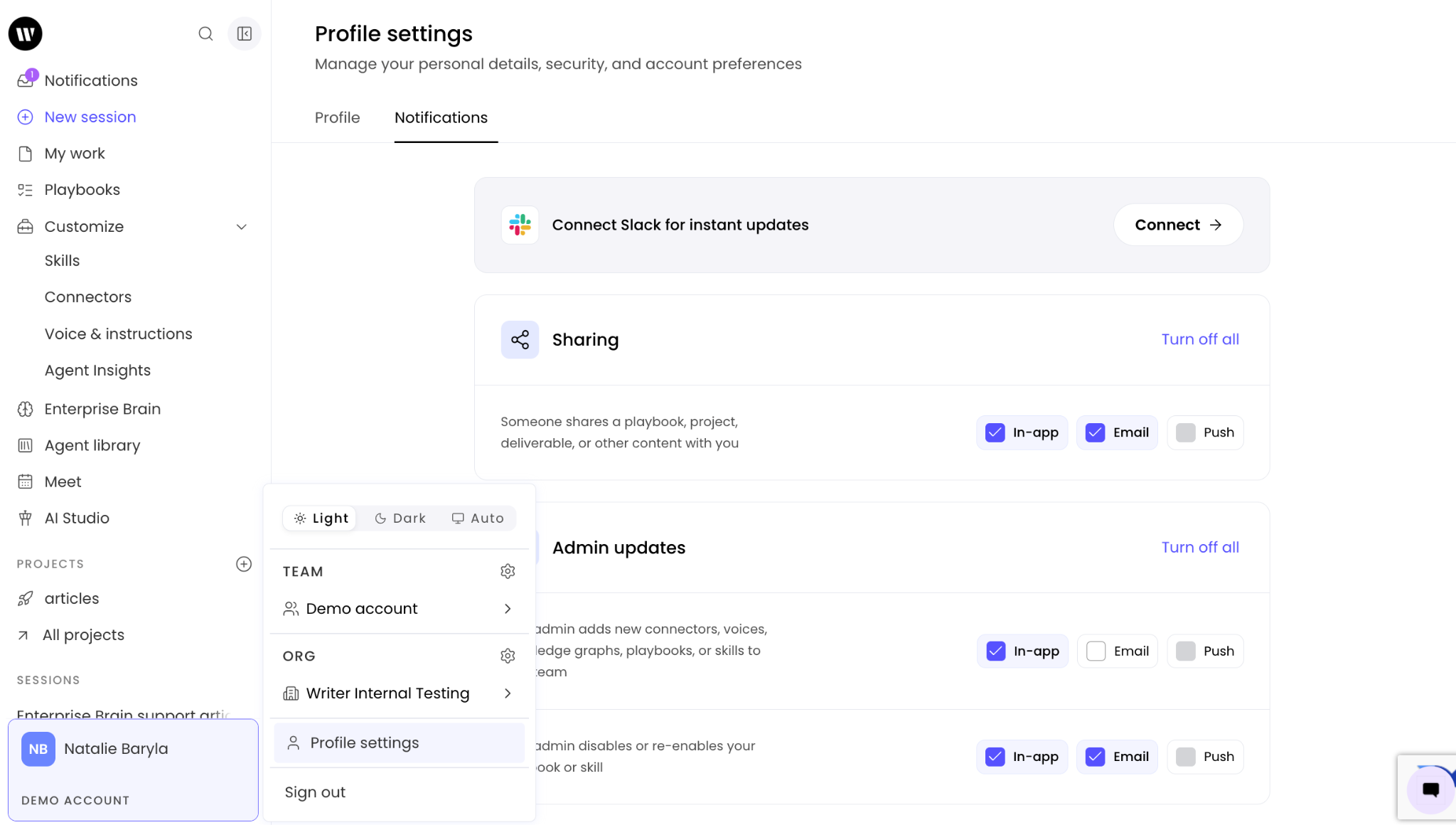
Select the gear icon within the notification panel or navigate to Profile settings > Notifications.
For each notification category, select or clear the checkbox under In-app, Email, or Push to choose where that notification is delivered.
To turn off every channel for a category at once, select Turn off all next to the category name.
You'll see the checkboxes update to reflect your selections. Your changes are saved automatically.
Note: Push notifications deliver to your configured devices
Connecting Slack for notifications
You can connect Slack to receive instant notification updates outside of WRITER.
Select the gear icon from the notifications panel or navigate to Profile settings > Notifications.
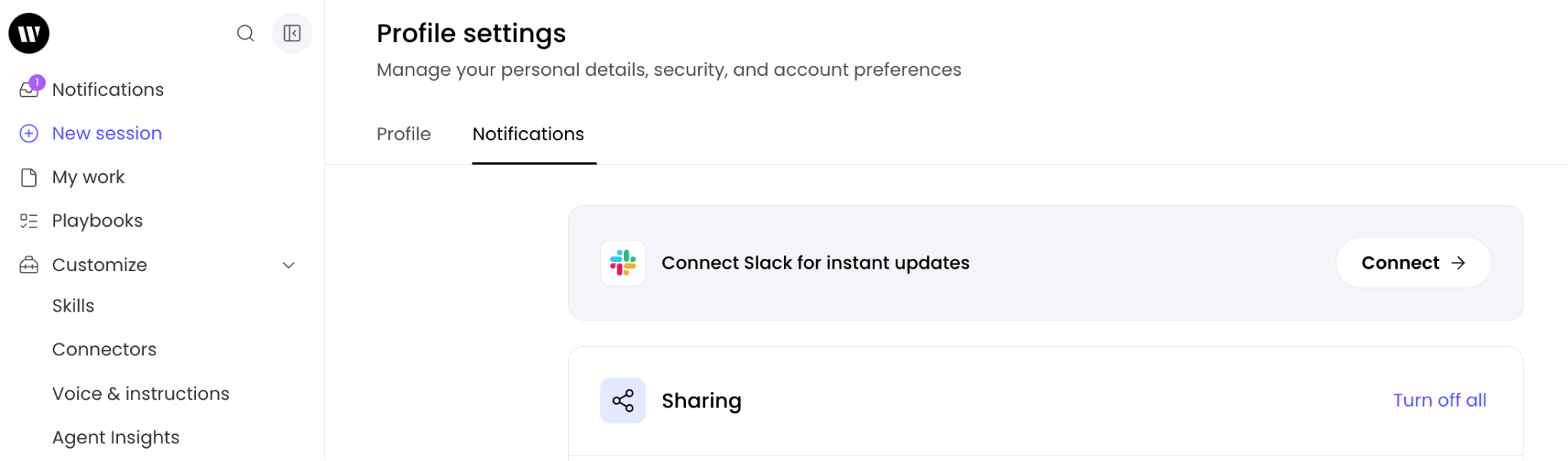
In the Slack banner, select Connect →.
Follow the prompts to authorize WRITER in your Slack workspace.
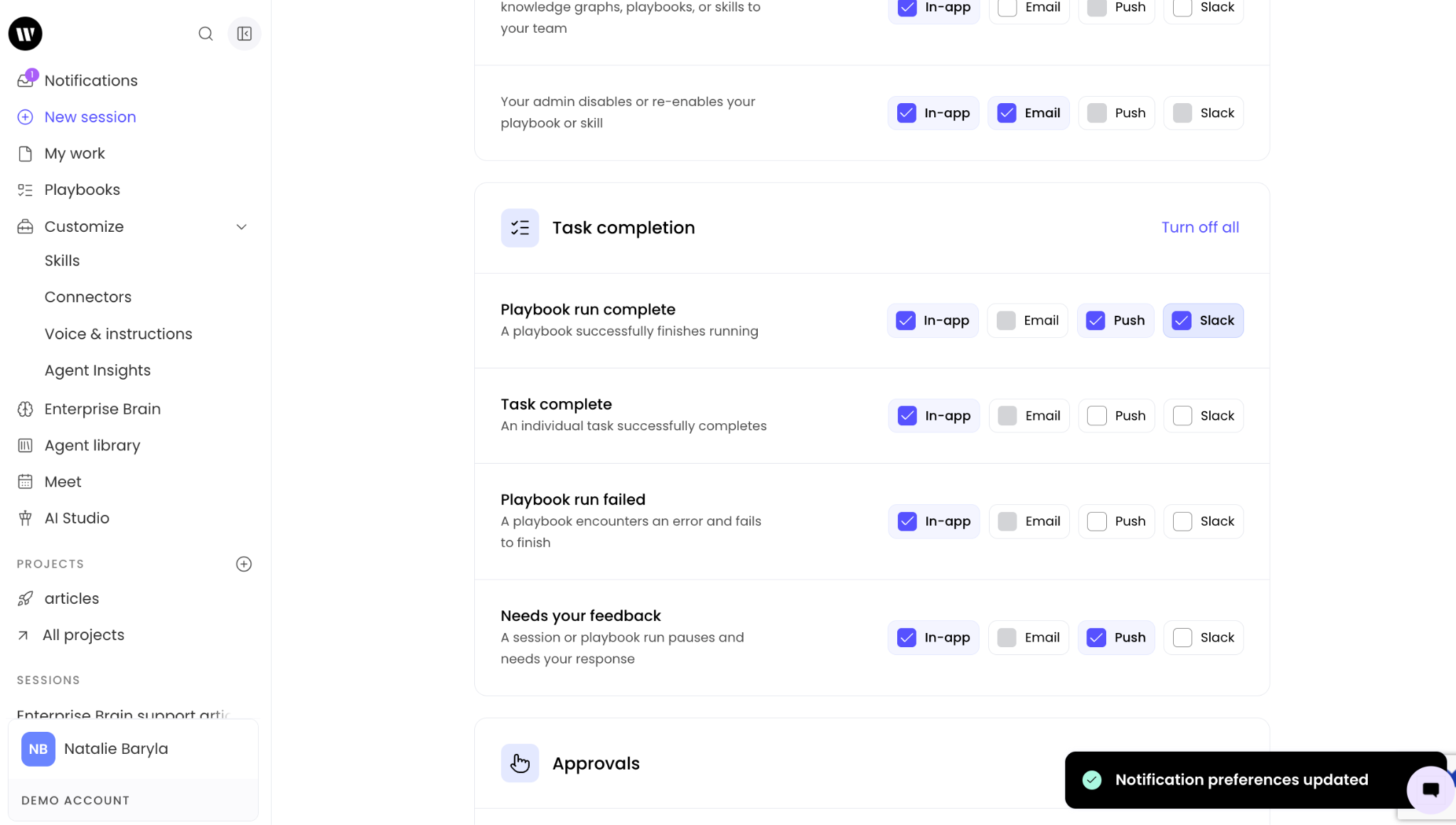
You'll see a checkbox for Slack notifications appear. Select the notifications you’d like to receive in Slack. Notifications are coming soon to Microsoft Teams.
Important: Connecting Slack is optional and applies to your personal account. Your admin may need to approve the Slack integration before you can connect.
Notification categories
Notifications are grouped into categories. Each category covers a specific type of activity in WRITER.
Category | What it covers |
Sharing | Someone shares a playbook, project, deliverable, or other content with you |
Admin updates | Your admin adds new connectors, voices, Knowledge Graphs, playbooks, or skills to your team; your admin disables or re-enables your playbook or skill |
Task complete | An individual task successfully completes |
Playbook run failed | A playbook encounters an error and fails to finish |
Needs your feedback | A session or playbook run pauses and needs your response |
Approvals | A playbook step is waiting for your review and sign-off; someone requests access to your content, or your access request is answered |
Product updates | New features, improvements, and announcements from WRITER |
Note: Admin updates notifications are triggered by actions your admin takes, such as adding connectors, voices, Knowledge Graphs, playbooks, or skills to your team.
Troubleshooting
I'm not receiving email notifications. What should I check?
Confirm that the Email checkbox is selected for the notification categories you want to receive by email. Navigate to Profile settings > Notifications and review each category. If email is enabled and you still aren't receiving notifications, check your spam or junk folder.
I connected Slack but I'm not getting notifications there. What should I do?
Verify that Slack is connected in your notifications settings and that the notification categories you want delivered to Slack are enabled.
How do I stop receiving a specific type of notification?
Navigate to Profile settings > Notifications and clear the checkbox for the channel you want to turn off under that notification category. To turn off every channel for a category at once, select Turn off all next to the category name.
FAQs
Who can use notifications?
All users can view notifications and manage their own notification preferences. No specific admin role is required.
Can I turn off all notifications at once?
You can turn off all channels for a category by selecting Turn off all next to that category. There is no single control to turn off every category at once.
What's the difference between the All, Unread, and Tasks tabs?
All shows every notification, Unread shows notifications you haven't opened, and Tasks shows notifications related to your work in WRITER.
Do push notifications require any setup?
No just enable them in your settings and push notifications are delivered to your configured devices.
Can I receive notifications in Microsoft Teams?
This feature is coming soon!
Are my notification preferences shared with my team?
No. Notification preferences are personal settings that apply to your account only.