Agents reporting and governance
Last updated: November 19, 2026
Who can use this feature
Org admins, IT admins, and Control Center full access admins.
Unlike skills and playbooks reporting and governance, agents reporting and governance doesn't yet offer a team-admin view scoped to a team's own agents.
Overview
Agents reporting and governance gives you dedicated visibility and control over every custom agent built in Agent Builder across your organization. As with Skills and Playbooks, you get two views: an Analytics tab for usage trends, and a Govern tab for a full org-wide inventory alongside the controls to manage it.
Together, these views help you answer the questions that matter most for a healthy agent ecosystem: Which agents are getting real production use, and which are quietly costing the most? Who owns each agent, and are they still active? Is a given agent healthy, or is it timing out and erroring on users? And what do you do when an agent needs to be taken offline?
Agents don't yet have the security-scanning settings or ownership-transfer action that Skills governance has. Both tabs here focus on usage, reliability and cost, and the only lifecycle controls are disabling and re-enabling an agent.
How to access agents analytics and governance
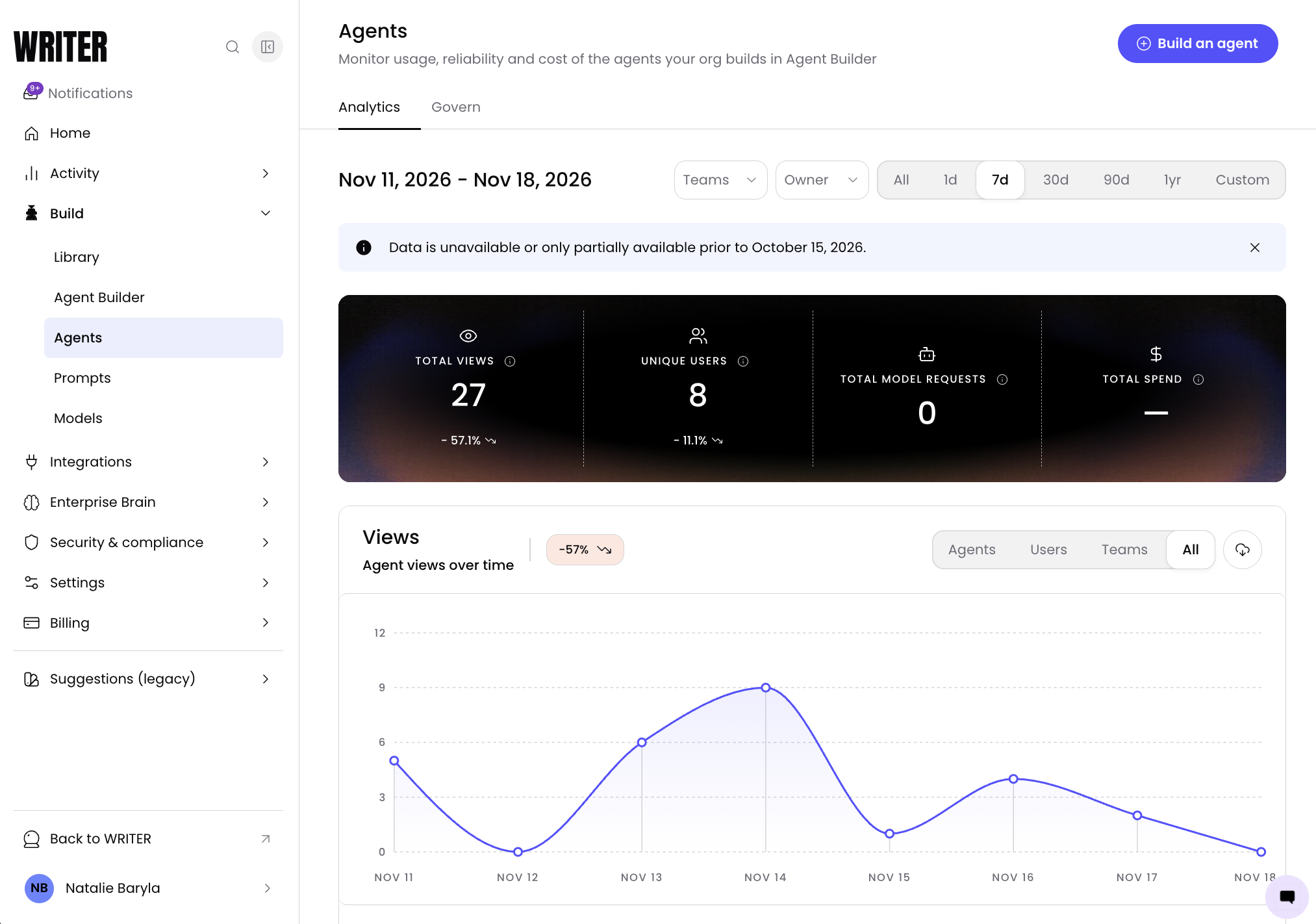
Navigate to Control Center > Activity > Agents and you'll see two sub-tabs: Analytics and Govern.
If no one in your organization has built a custom agent yet, you'll see an empty state instead of the tabs, with a prompt to build one. The tabs appear once at least one agent exists.
From the Analytics tab you can filter by team, owner and a date range. The Govern tab filters by search term, status, owner, access level and date range.
Agents analytics
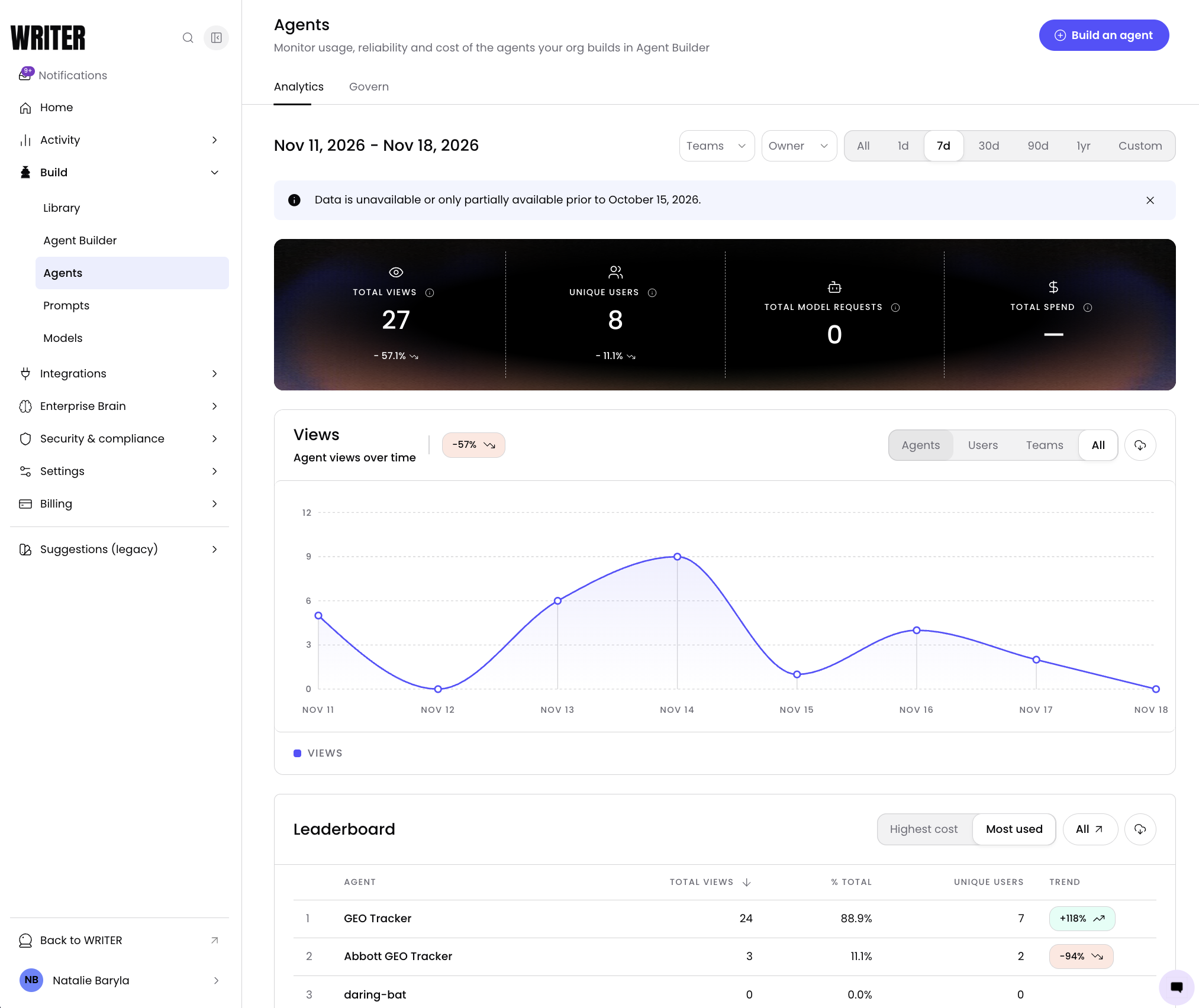
The Analytics tab gives you a usage overview of all agents in your organization for any selected time period.
Overview metrics
Four headline numbers sit at the top of the page, each shown with its trend versus the prior comparable period.
Metric | What it tells you |
|---|---|
Total views | Production agent page views across the selected agents. |
Unique users | Distinct signed-in users across the selected agents. Anonymous, unauthenticated views count toward Total views but not toward this metric. |
Total model requests | Model calls these agents made through WRITER-managed APIs. |
Total spend | Spend on these agents' model requests in the selected range. Marked "partial" when some model requests don't have pricing data yet. |
Views over time
A chart of agent views over the selected period. Use Group by to switch between Agents, Users, Teams, or All, which breaks the single trend line into one line per agent, user, or team, your highest-traffic segments stand out immediately.
Leaderboard
Agents ranked by activity, with a segmented toggle:
Most used ranks by total views, and shows % of total views and unique users per agent.
Highest cost ranks by total spend, and shows % of total spend and average cost per user per agent.
Both views show each agent's trend for the ranking metric. Select View all to jump to the Govern tab, pre-sorted by the matching metric (model requests for Most used, total spend for Highest cost, since Govern doesn't rank by views directly).
Clicking any agent, in the chart legend or the leaderboard, opens that agent's detail panel: its usage totals, a Users tab listing everyone who's run it (exportable as CSV), and a View observability link into the agent's own Performance tab for deeper diagnostics.
Agents governance
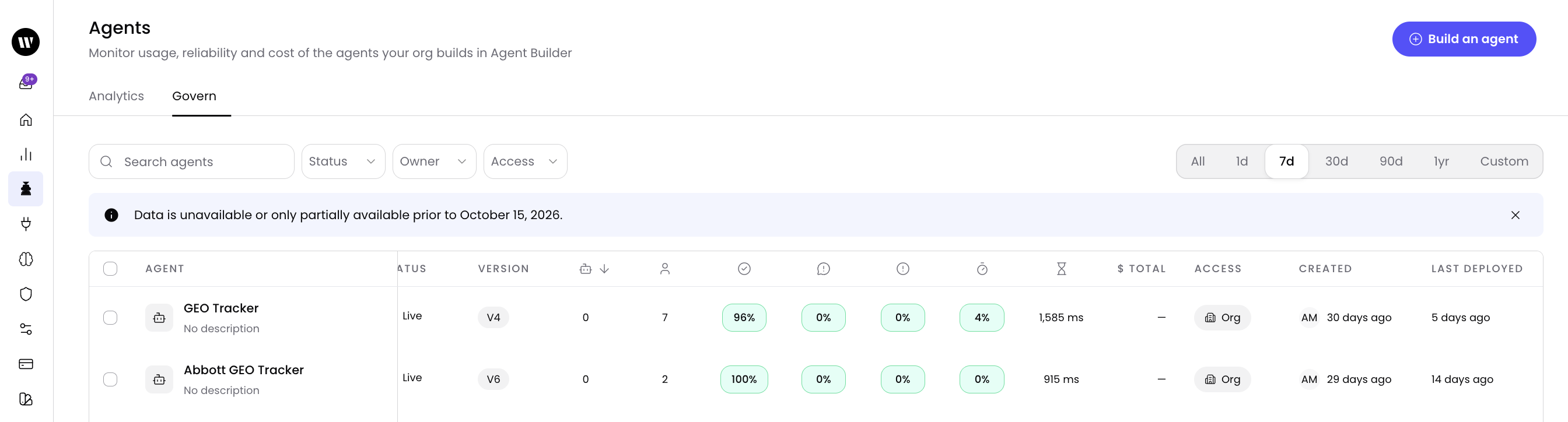
The Govern tab is your org-wide control center for all custom agents.
Search and filters
Find any agent by name with the search box, or narrow the table with:
Status: Live, Dev only, Disabled, Deleted.
Owner: scope the view to agents owned by a specific user, useful when auditing agents before an offboarding.
Access: Public, Org, Team, Private.
A date range selector, which the metric columns below are calculated over.
Table columns
Column | What it shows |
|---|---|
Agent | Name, description, and a link into the agent's detail panel. |
Status | Live, Dev only, Disabled, or Deleted (see below). |
Version | The currently deployed revision, for example V4. |
Model requests | Model calls through WRITER-managed APIs in the range. Same figure as "Total model requests" on the agent's own Usage tab. |
Unique users | Distinct signed-in users in the range. Same as "Unique users" on the agent's Usage tab. |
Success rate | % of requests with status Success, from the Performance tab's status breakdown. |
User error rate | % of requests with status User error (bad input, missing auth). |
Error rate | % of requests with status Model/provider error plus Execution error (the Performance tab shows these two separately). |
Timeout rate | % of requests with status Timeout. |
P95 latency | P95 response time. The Performance tab also shows P90 and P99. |
Total spend | Spend for this agent in the range. Marked "partial" when some requests lack pricing. Same as "Total spend" on the Usage tab. |
Access | Public, Org, Team, or Private. |
Created | Who created the agent and when, relative to today; hover for the exact date. |
Last deployed | When the current version went live, relative to today; hover for the exact date. |
Every metric column is the same number you'd find on that agent's own Observability tabs for the same date range, so the Govern table and an individual agent's dashboards never disagree.
Status meanings
Live: deployed and reachable by its intended audience.
Dev only: built but not yet deployed to a live audience.
Disabled: turned off; unreachable until an admin re-enables it.
Deleted: removed by its owner. Deleted agents can't be selected or acted on from Govern.
Row and bulk actions
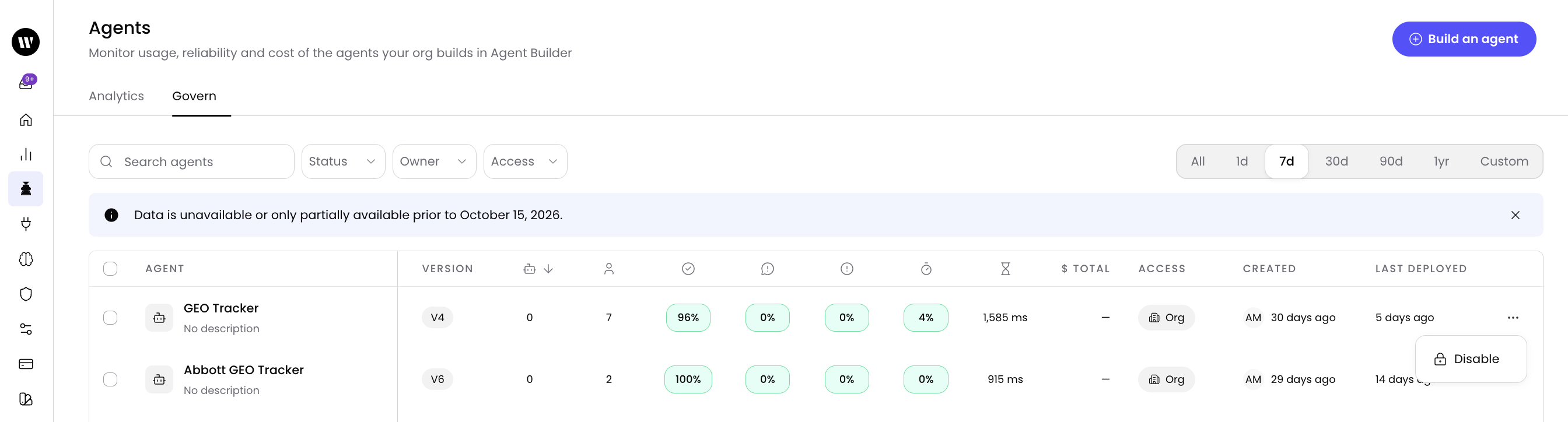
Select the ⋯ menu on any row for Disable or Enable, whichever applies to that agent's current status.
Checkboxes on the left of each row enable bulk selection. A bulk action is only available when every selected agent can make the same transition: all Live/Dev only agents can be bulk-disabled together, and all Disabled agents can be bulk-enabled together. Mixing statuses, or including a Deleted agent, disables the bulk action button.
Disabling an agent
Disabling takes the agent offline everywhere immediately, for every user and every integration that calls it. Before you confirm, the dialog shows the agent's impact over the last 30 days: unique users and views. You can add an optional message (up to 2,000 characters) that's included in the notification sent to the agent's owner, or to each owner when disabling several agents at once.
Re-enabling an agent
Select Enable from the row menu, the bulk action menu, or the agent's own detail panel. The agent returns to its previous live state immediately; there's no confirmation step.
Questions you can answer with agent data
Which agents are driving the most spend, and which are barely used?
The Highest cost leaderboard on Analytics and the Total spend column on Govern both answer this. Pair Total spend with Model requests and Unique users on Govern to tell a genuinely high-traffic agent apart from one with a few expensive runs.
Is an agent healthy enough to keep rolling out to more teams?
Sort Govern by Error rate, User error rate, Timeout rate, or P95 latency. A live agent with climbing error or timeout rates is worth investigating before you promote it further.
Who owns this agent, and are they still around?
The Owner column, and the Owner filter on both tabs, show exactly who to contact, or whose other agents need a look before they leave the organization.
Which agents haven't shipped an update in a while?
Sort Govern by Last deployed. A Live agent with an old deployment date and heavy usage is a strong candidate for a review before it drifts further from your current standards.
Best practices
Build a monthly cost and reliability review into your routine. Sort Govern by Total spend, then check the top agents' error, user error, and timeout rates. A high-spend agent with a rising error rate is burning budget on failed requests, not just successful ones.
Treat Last deployed as a staleness signal, not just a timestamp. A Live agent with high usage and an old deployment date hasn't been revisited in a while. Confirm with its owner that it still meets your organization's current standards.
Use the Owner filter ahead of any offboarding. Filter Govern by the departing user's name to see every agent they own, and follow up directly with them (or rebuild the agent under a new owner) before their account is deactivated. There's no automated ownership-transfer action for agents yet, so this has to happen by hand.
Cross-reference Most used and Highest cost. An agent that ranks high on both leaderboards is your highest-impact, highest-risk asset: if it goes down or starts erroring, the most people and the most budget are affected at once.
Check the agent's own Observability tabs before disabling it. The Govern table's metrics mirror those tabs, but the detail panel's "View observability" link gets you to the full picture, traces, logs, and model-by-model breakdowns, if a number looks off.
Data availability
Data start date: reporting data is fully available starting October 15, 2026. A banner on both the Analytics and Govern tabs notes that data is unavailable or only partially available for dates before then. You can dismiss the banner; your organization won't see it again on that browser once you do. When selecting a time range for analysis, use October 15, 2026 as your start date for reliable results.
FAQs
Who can access agent reporting and governance?
Org admins, IT admins, and Control Center full access admins. There is no team-scoped view today.
What's the difference between the Analytics tab and the Govern tab?
Analytics shows usage trends: overview metrics, a views-over-time chart, and Most used / Highest cost leaderboards. Govern shows the full org-wide agent inventory in a searchable, filterable table, and is where you take action: disabling or enabling an agent.
What happens when I disable an agent?
It goes offline immediately for every user and integration that calls it. The agent stays visible in Govern in a Disabled state; disabling doesn't delete it.
Can I re-enable an agent after disabling it?
Yes, from the row menu, the bulk action menu, or the agent's own detail panel. It returns to live immediately.
Can I bulk-disable or bulk-enable agents?
Yes, using the checkboxes on the Govern table, but only when every selected agent shares the same starting status (all Live/Dev only, or all Disabled). Deleted agents can't be selected.
Can I transfer an agent's ownership?
Not from this page today. Unlike Skills and Playbooks governance, there's no ownership-transfer action for agents yet. Coordinate directly with the current owner, or have them reassign the agent in Agent Builder.
Is the data real-time?
Govern reflects current agent status in real time. Usage metrics reflect recent activity but may not update instantaneously, so treat them as directional for trend analysis rather than second-by-second monitoring.
What if my organization hasn't built any agents yet?
You'll see an empty state instead of the Analytics and Govern tabs, with a prompt to build your first agent in Agent Builder.