WRITER Agent session logs and user feedback
Last updated: October 30, 2026
Org admins and IT admins can enable session logging, review session records, and read the thumbs-up and thumbs-down feedback users leave on agent responses.
Enabling session logs
Before you can review session records, session logging must be turned on for your organization.
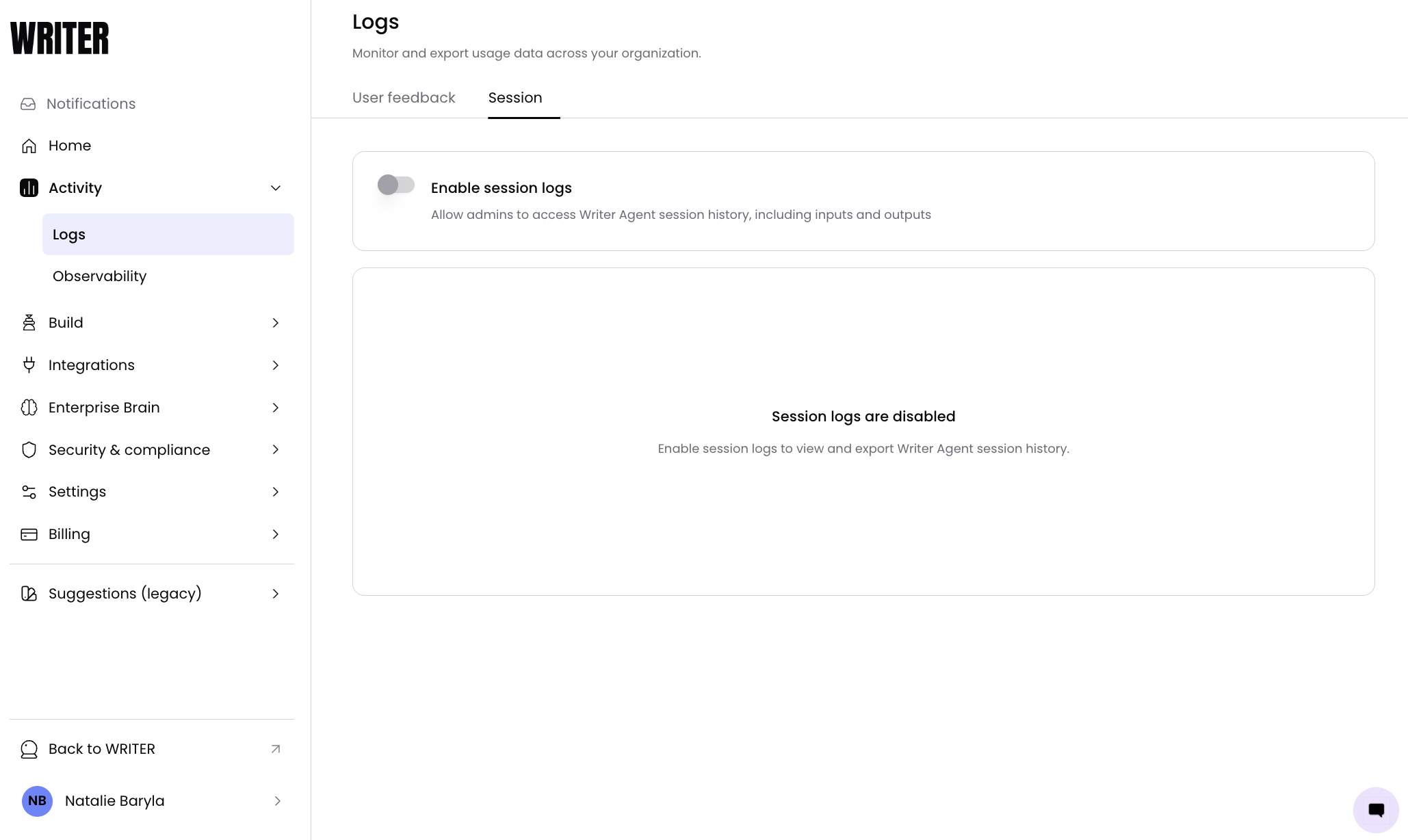
Navigate to Control Center > Activity > Logs > Session and toggle to the on position.
Note: Session logs are only captured while logging is enabled. Sessions that occurred before logging was turned on are not recorded retroactively.
WRITER Agent session logs
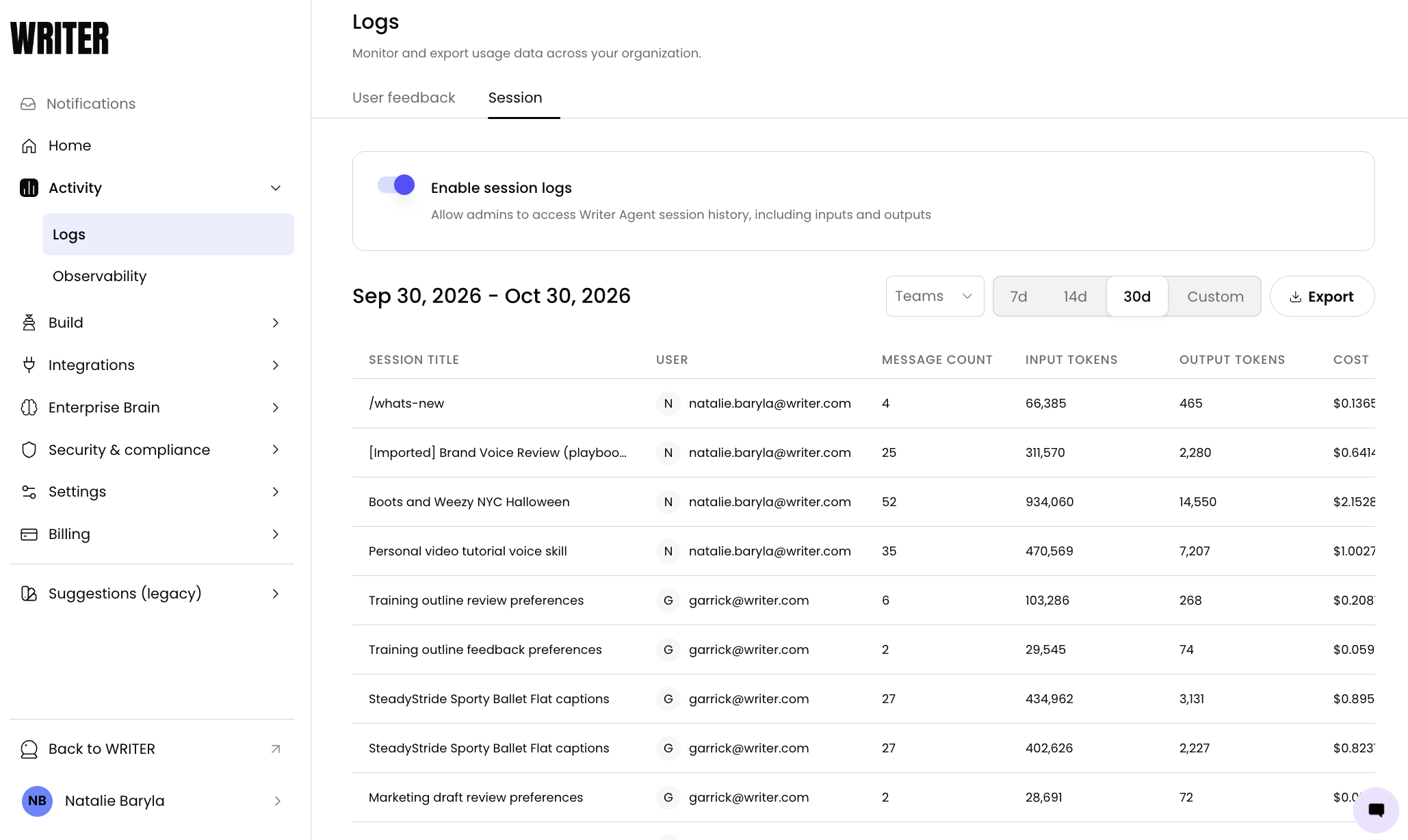
Once session logging is enabled, you can review a table of session records by navigating to Control Center > Activity > Logs > Session.
You'll see a table of session logs listing the sessions captured while logging was enabled. Use the table to review individual session records. Use the Teams dropdown to filter logs by team. Select the Export button in the top right of the table to download WRITER Agent session logs.
User feedback
Users are able to rate the quality of WRITER Agent outputs with a thumbs up or down and optional comment. Once submitted, admins can monitor feedback from the Logs page.
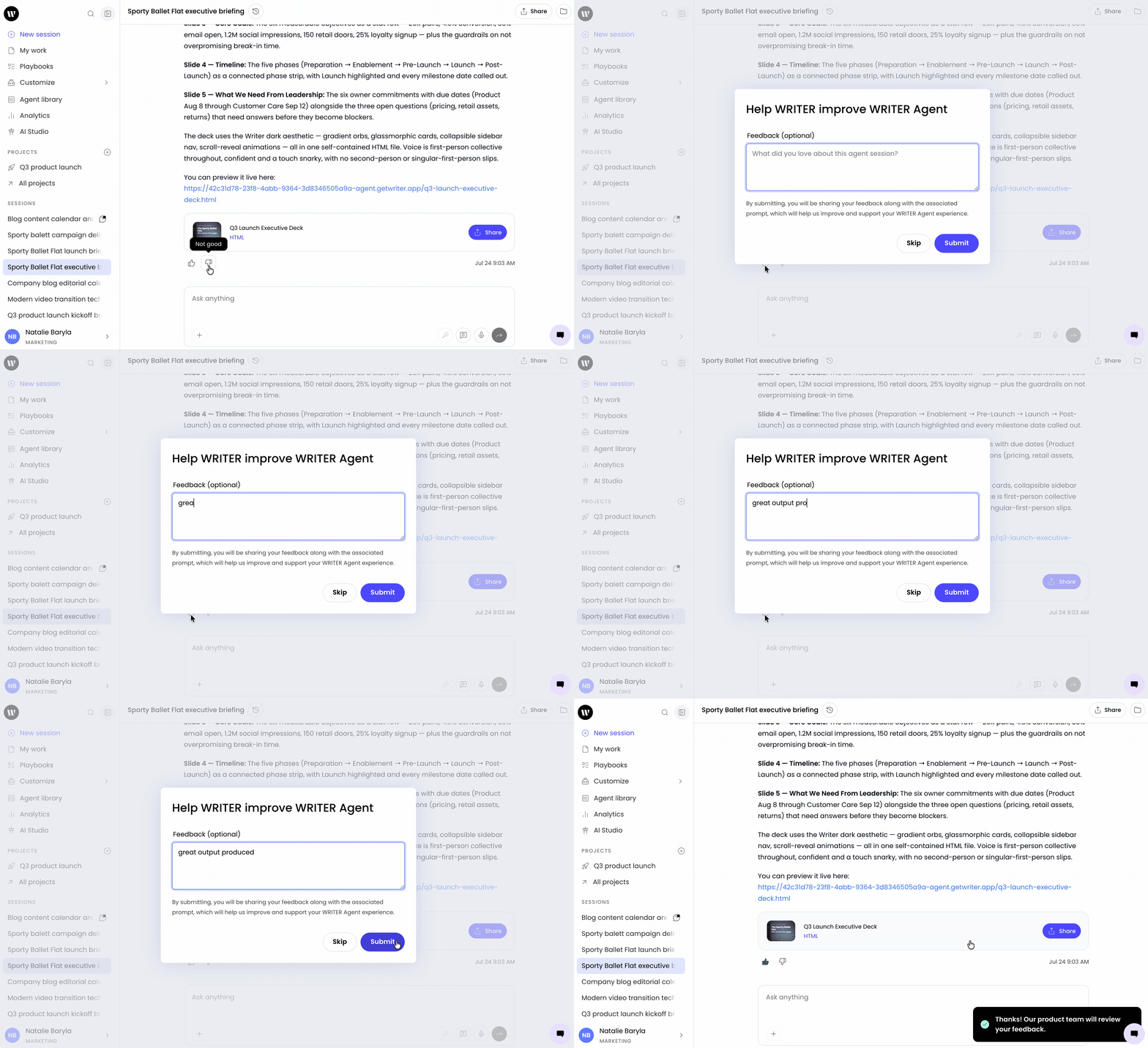
The user feedback page shows the thumbs-up and thumbs-down feedback that users have left on WRITER Agent responses, along with their qualitative comments.
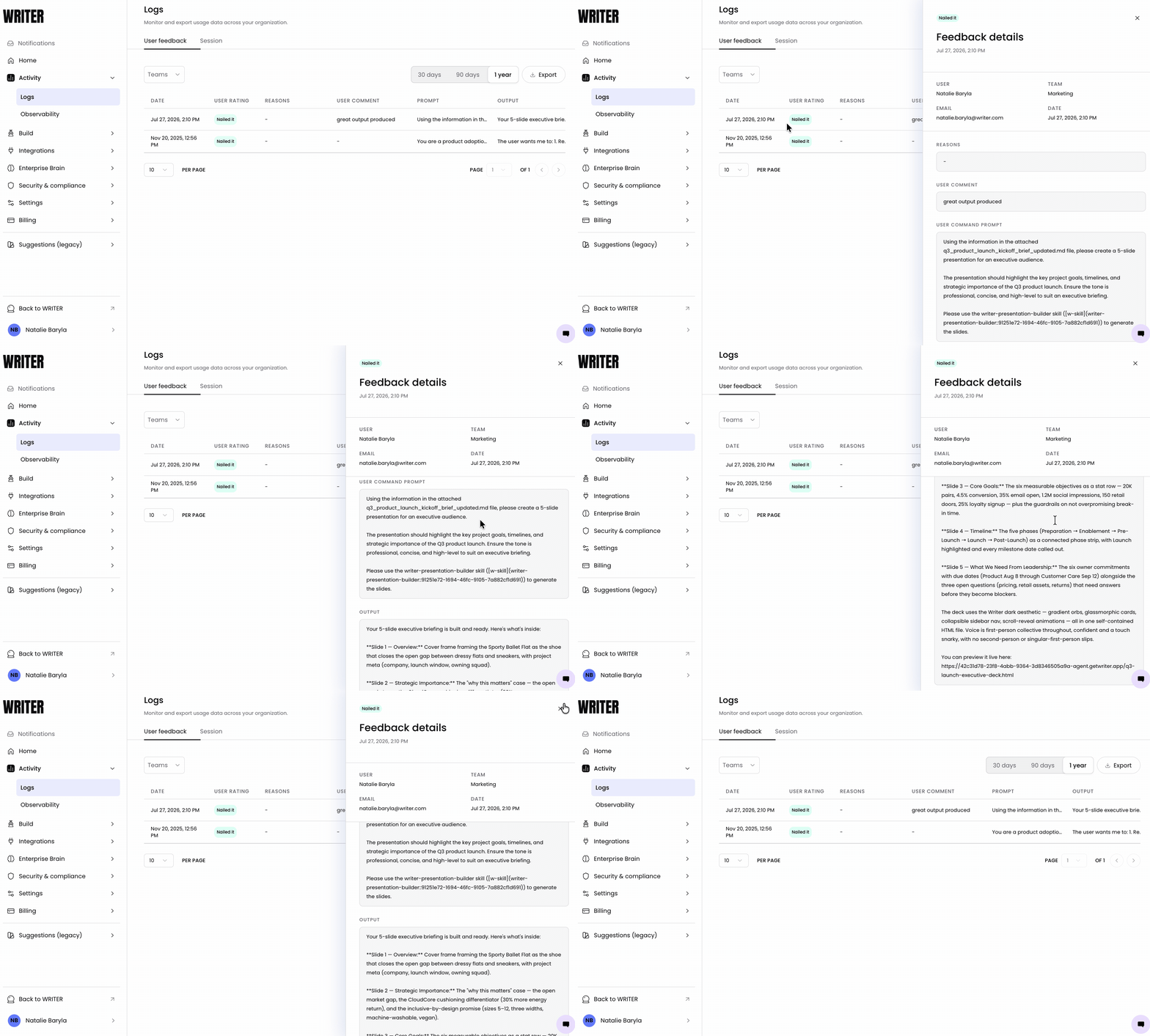
Navigate to Control Center > Activity > Logs > User feedback. You can select a row to expand the details and view the prompt and output from the user's session. Select the Export button in the top right of the table to download WRITER Agent user feedback.
FAQs
I don't see the Logs area in Control Center. What should I do?
Your role likely doesn't include the required permission. Ask an org admin to grant the granular permission for session logs or user feedback, or assign you a role that includes it.
Why are some earlier sessions missing from the session logs table?
Session logs are only captured while logging is enabled. Sessions that took place before logging was turned on are not recorded. Enable session logging to start capturing future sessions.
Who can view the session logs page?
Org admins and IT admins can view and manage the session logs page. Anyone with a role that has the granular permission can also access it.
Who can view the user feedback page?
Org admins, IT admins, and AI Studio full access users can view the user feedback page. Anyone with a role that has the granular permission can also access it.
What information is included in user feedback?
Each feedback entry shows whether the user gave a thumbs up or thumbs down, along with their qualitative comment.
What formats can I export logs and feedback in?
Session logs export as jsonl. User feedback exports as jsonl or csv.
Are session logs captured retroactively?
No. Session logs are only recorded while logging is enabled. Sessions that occurred before logging was turned on are not captured.
Do session logs need to be enabled in order to see user feedback?
No, user feedback is automatically captured, session logs are independent of this feedback.